
10 Features to Look For in a Box to SharePoint Migration Tool
Migrating from Box to SharePoint Online is a major project for any organization, with numerous challenges along the way. The right migration tool moves your files, folders, permissions, versions, Box notes, and links into SharePoint accurately, securely, and at enterprise scale.
For IT teams, that choice decides whether users land in a working environment or spend weeks fixing broken access and missing data. This guide covers the ten essential features to look for when choosing a Box to SharePoint migration tool.
Key Takeaways:
What is a Box to SharePoint Migration Tool?
A Box to SharePoint migration tool is software that moves files, folders, and their associated metadata and context from Box into SharePoint Online document libraries.
Tools like CloudFuze Migrate preserve permissions, version history, timestamps, embedded links, Box Notes, shared links, external shares, and in-line comments to replicate the Box environment in SharePoint Online.
10 Features to Prioritize When Choosing a Box to SharePoint Migration Tool
Here are ten must-have features to look for when you are researching Box to SharePoint Online migration tools in the market.
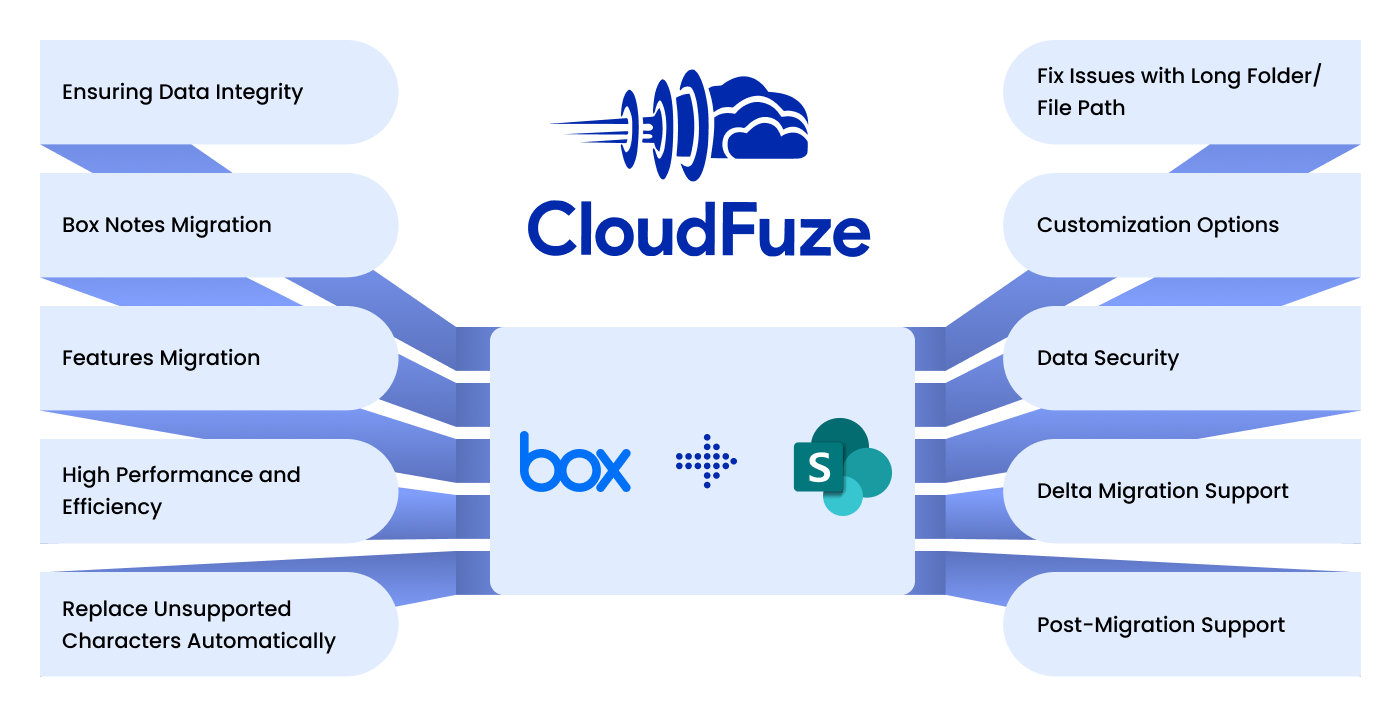
1. Ensuring Data Integrity
Data integrity is paramount when selecting a migration tool for transitioning from Box to SharePoint Online. This critical feature involves the tool’s capability to accurately transfer all files and folders while meticulously preserving their original structure.
This assurance is crucial for the continuity and efficiency of business operations in the new SharePoint environment. It also helps maintain and improve your organization’s compliance posture in the new SharePoint Online environment.
2. Box Notes Migration
Box Notes, a unique feature of the Box cloud service, poses a specific challenge during the migration as it is not supported in other cloud storage platforms like SharePoint. A competent migration tool should be able to efficiently convert and transfer Box Notes into a format compatible with SharePoint.
Ensuring this compatibility is crucial for a smooth transition, allowing users to access and collaborate on their notes in SharePoint just as they did in Box, without losing any data or functionality.
3. Features Migration
A comprehensive migration tool should be able to migrate not just files and folders but also the various features associated with data, such as permissions, comments, versions, timestamps, embedded links, and shared links. Successfully migrating these features ensures a seamless transition and preservation of the entire collaborative environment from Box to SharePoint Online.
4. High Performance and Efficiency
High performance and efficiency are critical attributes for any Box to SharePoint Online migration tool, especially when dealing with large volumes of data at an enterprise scale. The ideal tool should facilitate swift and efficient data transfer and be capable of handling substantial amounts of information at high speeds.
Organizations can quickly adapt to their new SharePoint environment by ensuring faster data migration, reducing the impact on productivity and business processes.
5. Replace Unsupported Characters Automatically
File names in Box might contain characters that SharePoint doesn’t support. The migration tool should automatically detect and replace these characters to prevent errors and ensure a smooth migration.
6. Fix Issues with Long Folder/File Path
SharePoint has specific limitations on the length of file and folder paths, which can pose a challenge during migration. Therefore, selecting a migration tool capable of truncating these long paths is essential.
This functionality adjusts the longer paths automatically to fit SharePoint’s requirements, thus preventing potential migration errors and data loss.
7. Customization Options
Customization options in a migration tool are crucial to cater to the unique needs of different organizations. Recognizing that each migration project has specific requirements, a proficient tool should provide the flexibility to customize user mapping, migrate particular users’ data, and even certain features like permission, versions, etc.
This helps organizations streamline their transition to SharePoint Online, ensuring that only the necessary data is moved and tailored to their unique business and operational needs, which can significantly save time and reduce the complexity of the process.
8. Data Security
The chosen migration tool must adhere to stringent security standards to protect sensitive information during transfer. This includes employing robust encryption protocols to safeguard data in transit and ensuring secure authentication practices to prevent unauthorized access.
The tool should also comply with relevant data protection regulations and industry standards, ensuring that data integrity and confidentiality are maintained.
9. Delta Migration Support
With delta migration, it becomes possible to migrate only the incremental changes that have accumulated during the one-time migration from Box to SharePoint Online. This approach helps streamline the process of updating the incremental changes. It is therefore a must to look for a migration tool that supports accurate delta migrations.
This functionality is particularly beneficial for large-scale or ongoing migration projects. By focusing on the most recent changes, delta migration minimizes data transfer volume, thereby reducing the overall time required.
As a result, SharePoint is kept up to date without redundant data transfers, making it an excellent choice for dynamic business environments where data is constantly changing.
10. Post-Migration Support
This feature ensures that you receive assistance after completing the migration process. Effective post-migration support encompasses technical help, troubleshooting, and guidance on best practices for using SharePoint. It’s vital for addressing any unforeseen challenges or issues that might arise after migrating to the new environment.
Having reliable post-migration support guarantees a smoother transition, enabling organizations to fully leverage the capabilities of SharePoint and ensure that the migrated data is used effectively in the new environment.
Questions to Ask Before You Choose a Box to SharePoint Migration Tool
Use these questions during migration vendor calls. Clear answers to each one tell you whether a tool can handle your environment an overall migration needs.
- Which Box items migrate?Ask for a written list covering files, folders, permissions, versions, timestamps, comments, Box notes, shared links, and embedded links.
- How are Box notes converted? Confirm the output format and which formatting elements carry over.
- How does user and permission mapping work? Ask how Box collaborator roles map to SharePoint permission levels and how external collaborators are handled.
- How are SharePoint naming and path errors handled? Check whether unsupported characters and long paths are fixed automatically or reported for manual cleanup.
- How many delta migration jobs are supported? Confirm you can run incremental syncs until cutoff without recopying unchanged data.
- What reporting do you provide? Look for per-user and per-file reports that show successes, failures, and the reason for each failure.
- What security and compliance standards do you follow? Ask about encryption in transit, authentication, and relevant certifications.
- What support is included after migration? Clarify response times and whether a dedicated contact is assigned.
Conclusion
In conclusion, selecting the right tool is crucial for success when considering a Box to SharePoint Online migration. At CloudFuze, we offer omprehensive solution encompassing all the essential features required for a seamless migration from Box to SharePoint Online.
Schedule a live demo with our team and learn how our tool can effectively meet your business requirements to migrate from Box to SharePoint Online in a fast, secure, and comprehensive way.
Frequently Asked Questions
1. What is the best Box to SharePoint migration tool?
The best Box to SharePoint migration tool is one that preserves data integrity, converts Box notes, migrates permissions, versions, and links, fixes SharePoint naming and path errors automatically, and supports delta migration. CloudFuze covers all 10 features listed in this guide and is built for enterprise-scale Box to SharePoint Online projects.
2. Can Box Notes be migrated to SharePoint Online?
Yes. SharePoint does not support the Box Notes format, so a migration tool must convert notes into a compatible file type during the transfer. CloudFuze handles Box Notes migration so users can open and edit their notes in SharePoint after cutover.
3. Are Box permissions preserved when migrating to SharePoint?
With the right tool, yes. Box collaborator roles are mapped to equivalent SharePoint permission levels during migration. Accurate user mapping between Box accounts and Microsoft 365 accounts is essential, so confirm that your tool lets you review and customize the mapping before the migration runs.
4. Can I migrate from Box to SharePoint for free?
Microsoft’s Migration Manager is a free native option for Box to Microsoft 365 migrations. It suits smaller projects with simple sharing. Larger or more complex migrations often need a third-party tool for comment and link migration, custom mapping, repeated delta passes, detailed reporting, and dedicated support.
5. What is the SharePoint Online file path limit?
SharePoint Online limits the full decoded path, including the file name, to 400 characters. Deeply nested Box folders can exceed this limit once they are placed inside a SharePoint site and library URL, which is why automatic path handling is an important feature in a migration tool.
6. How long does a Box to SharePoint migration take?
Timelines depend on the total data volume, number of files, number of versions, and Microsoft 365 throttling limits. Most teams run an initial bulk migration while users keep working in Box, then run delta passes to catch recent changes before a short final cutover.
7. Should I migrate Box data to SharePoint or OneDrive?
Shared team and department content usually belongs in SharePoint sites where access is managed at the team level. Individual user files typically go to OneDrive. Many organizations use both. If you’re moving personal Box accounts, see our Box to OneDrive migration guide.
8. What happens to Box shared links and embedded links after migration?
Box links point to Box URLs, so they stop working once content moves unless they are updated. CloudFuze migrates shared links and uses the CloudFuze Hyperlink Fixer to update embedded links inside documents, so they point to the new SharePoint locations.
About the Author: Pankaj Rai


