
How to Migrate Slack Channels to Teams The Right Way
If you are planning to migrate Slack channels to Teams, the process comes down to four things: connecting both platforms, mapping your channels, deciding whether each channel becomes its own Team or a sub-channel, and moving your messages, files, and metadata without losing anything. This guide walks through exactly how to do that.
For the bigger picture of migrating beyond channels, our Slack to Teams migration guide covers the full scope. This article specifically focuses on migrating public and private Slack channels to Microsoft Teams.
Key Takeaways:
How Microsoft Teams Organizes Channels Compared to Slack
Microsoft Teams organizes conversations a bit differently than Slack. A “Team” is the top-level group, roughly equivalent to a Slack workspace. Inside each Team, you can create multiple channels that work like sub-channels for specific topics or projects.
Once you understand this structure, deciding where each of your Slack channels should migrate becomes easier.
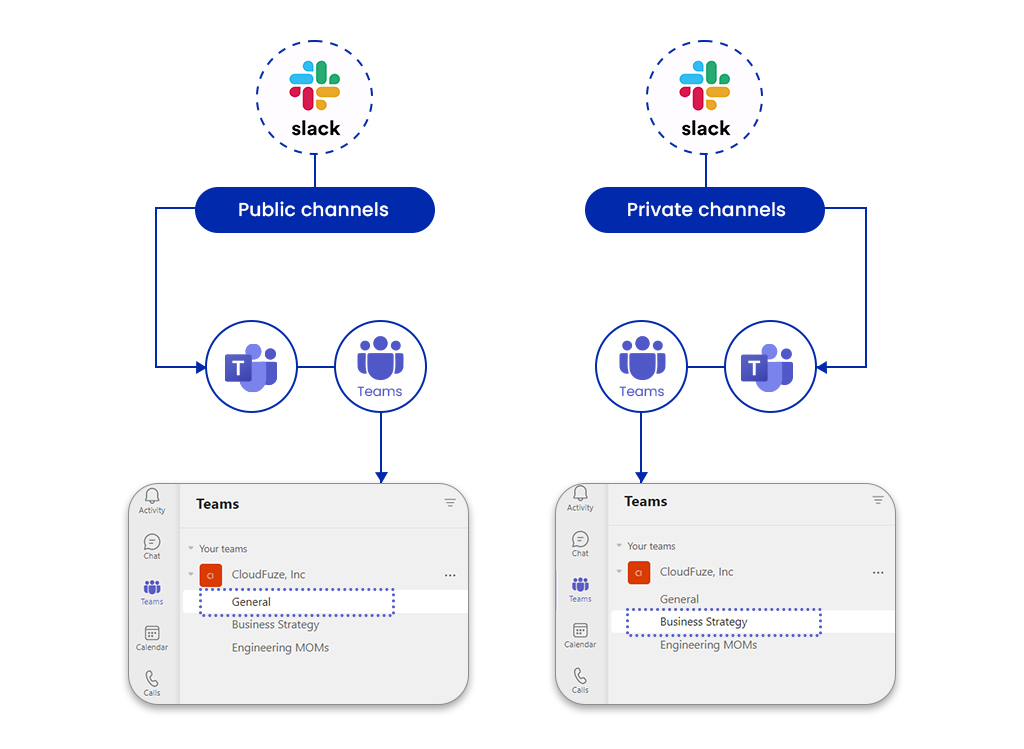
Challenges in Migrating Slack Channels to Microsoft Teams
Here are some of the main challenges of migrating public and private channels from Slack to Microsoft Teams:
| Challenges | Description |
|---|---|
| Channel Structure Differences | Slack has Private and Public Channels while Teams uses Teams (top-level groups) and Channels (sub-groups within Teams) |
| File Sharing Differences | Ensuring correct linking of files in Slack channels to your Teams account can be difficult. |
| User Permissions | Both Slack and Teams channels handle user permissions differently. This can lead to challenges when replicating roles and user permissions. |
| High-volume Transfer | Migrating high-volume channels and conversation histories can be challenging. |
Things to Check Before Migrating Slack Channels
Before migrating Slack channels, you need to check a few things in Slack to ensure that you don’t miss any channels migrating to Teams.
- Owners and members will be removed from the archived channels and thus can’t be migrated to Teams. Unarchive all the archived channels that you want to move to Teams.
- To migrate private Slack channels, you should be part of a private channel or private channel owner. Any active member of the channel should authenticate it via email.
- Disable conditional access before initiating Slack to Teams migration, as it might restrict the users from getting authenticated.
Direct messages migrate too. CloudFuze transfers direct messages of every user without losing histor
How to Migrate Channels from Slack to Teams with CloudFuze?
CloudFuze’s migration platform moves your Slack public and private channels to Microsoft Teams in a few steps, along with users, chat history, emojis, timestamps, replies, @mentions, files, and more.
Here are the migration steps, from start to finish.
Step 1: Create a CloudFuze account.
Step 2: Add your Slack workspace and Microsoft Teams account to CloudFuze.
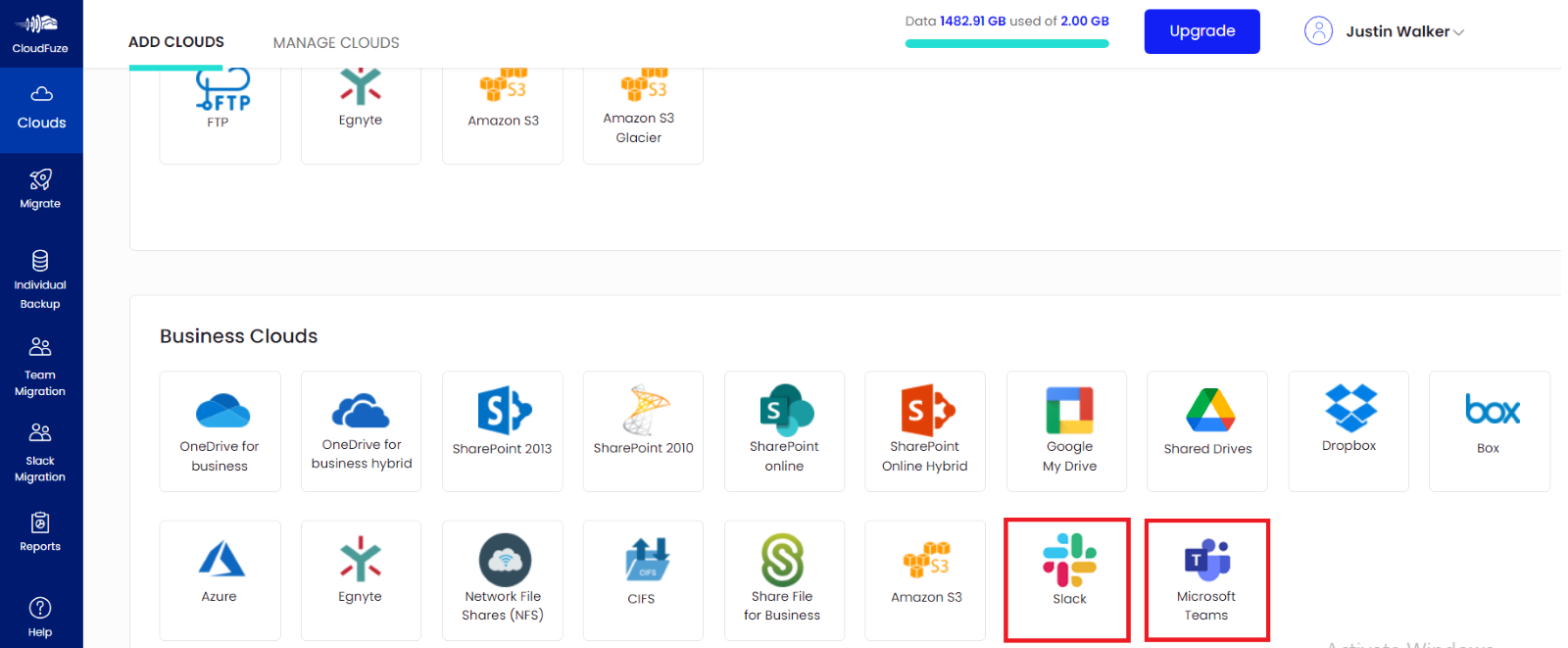
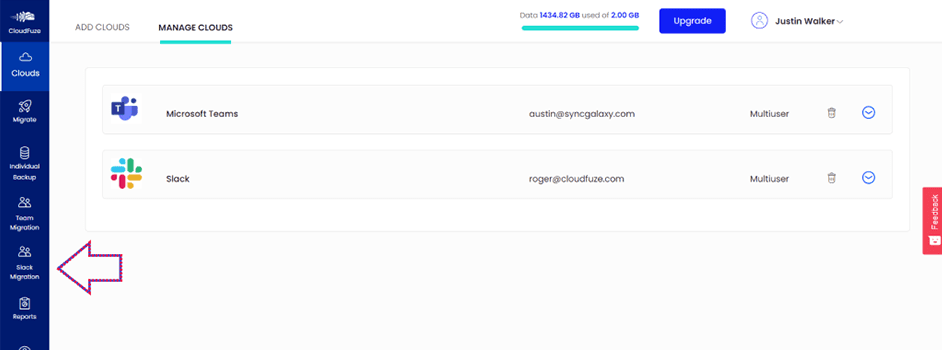
Step 3: Once the clouds are successfully added, go to the “Slack Migration” tab present on the left side of the panel.
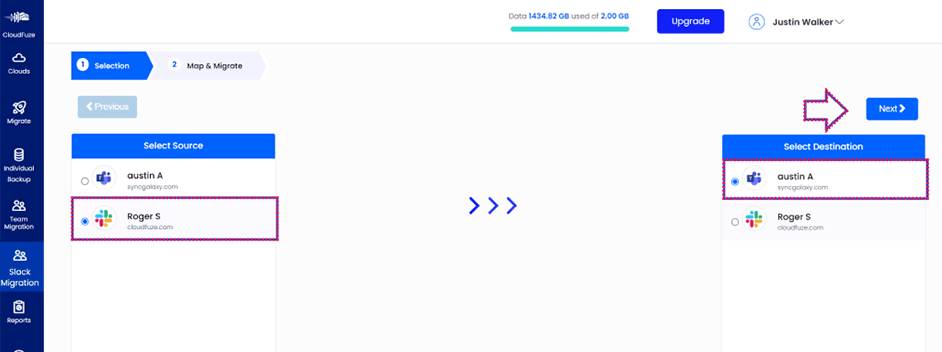
Step 4: Select Source (Slack) and destination (Microsoft 365) platforms.
Step 5: Go to the Channels tab and select the channels you want to migrate.
- By clicking the dropdown of a specific channel under the “Migrate As” section, you can choose whether to migrate a Slack channel as a Team or as a sub-channel in the Team.
- To change the channel’s name, click on the edit icon under “Destination Channel Name”. Similarly, the “Destination Team Name” can also be modified according to your business needs.
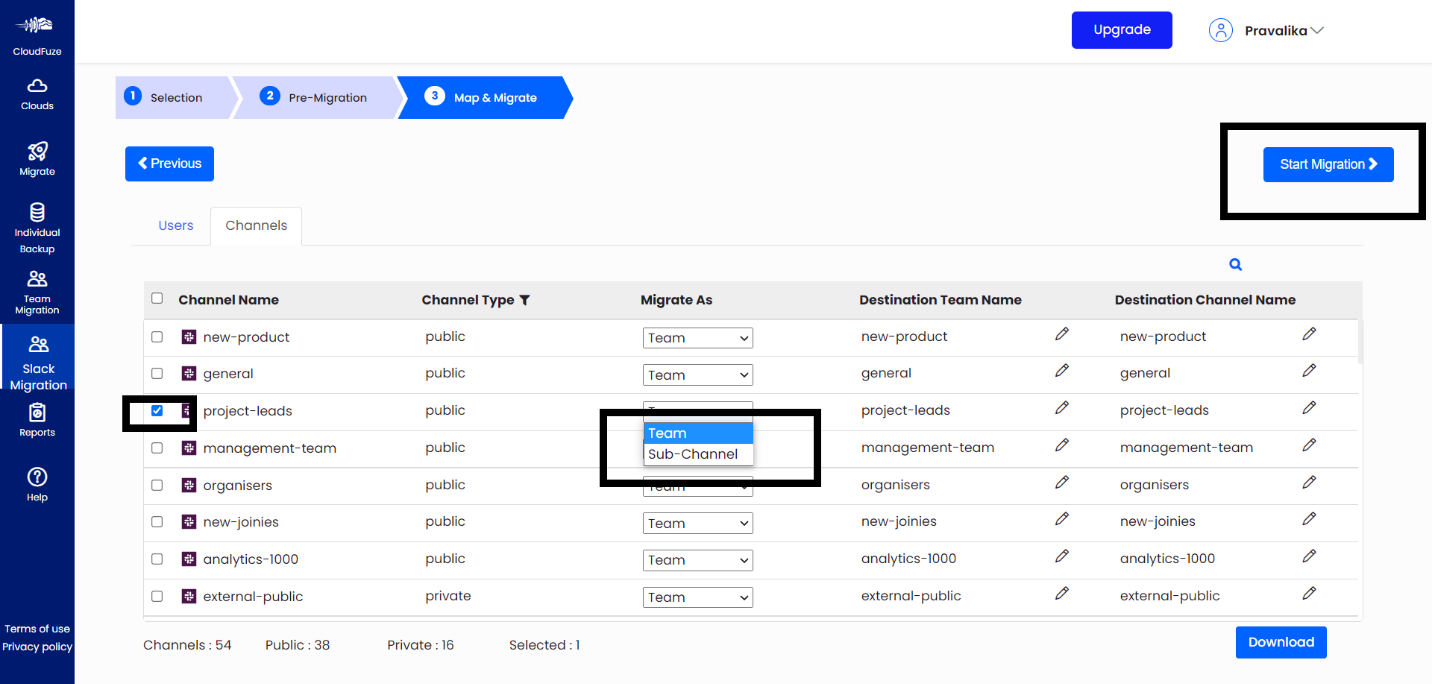
Step 6: After all the necessary changes are done, select the channels you want to migrate and click on the “Start Migration” button.
Step 7: A new window opens, which displays the status of your data migration.

Rework costs are exceedingly high, so doing it right is vital for the success of your migration effort. It’s best to get expert help to guide you through every step of the migration and ensure the successful migration of your data.
Best Practices for Migrating Slack Channels to Microsoft Teams
A smooth, secure, and successful migration comes down to proper preparation. Before you export any Slack channel data to Teams, it helps to:
- Back up your Slack data before you start, so you have a fallback if anything goes wrong mid-migration.
- Run a pilot migration with one or two channels first to test the migration tool and environment.
- Map out which Slack channel becomes full Teams and which channels become sub-channels after migration to Teams.
- Check user permissions and ownership in Slack ahead of the migration. Mismatched permissions are one of the most common post-migration cleanup tasks.
- Communicate about the transition to employees as part of your change management plan.
Real-World Success Story: How Litera Migrated 200+ Slack Channels
Litera wanted to perform Slack to Teams migration of 200+ channels and around a million messages. They wanted to migrate in a short time period. Our teams at CloudFuze helped to migrate along with important metadata such as files, chat, emojis, replies and @mentions.
As a Microsoft Gold Partner, we helped them migrate within a week ensuring zero downtime and complete replication. Check out how our stream-lined cloud migration approach solved the client’s challenge here.
What Do Customers Say About Us?
As a reliable cloud migration provider, we have helped some of the top companies to seamlessly migrate channels from Slack to Teams.
Here is a Gartner review from one of our customers:

You can read the full CloudFuze review on Gartner for a first-hand look at how customers describe our accuracy, support, and communication during migration.
Ready to Migrate Your Slack Channels to Teams?
CloudFuze handles the entire migration for you, including channels, workspaces, chat history, messaging context, attachments, and more, with accuracy you can validate at every step.
Get a tailored quote for your migration today!
Frequently Asked Questions
1. Can you migrate from Slack to Teams?
Yes, you can seamlessly migrate from Slack to Teams using our advanced migration tool. As an industry-leader in Slack to Teams migrations of all sizes and complexities, we can help you migrate your public and private channels, users, direct messages, attachments, emojis, timestamps, threads, mentions, channel members and user groups.
2. Can only owner create channels in Teams?
Channels can only be created by those assigned as owners. By default, any team member or owner can create standard channels, and shared channels can be created by team owners only. Furthermore, guests cannot create private channels by default; only team owners or members can make them.
3. Can a Teams channel have two owners?
Yes, a Microsoft Teams channel can have more than one owner, including co-owners. Other team members can be added as co-owners and given tasks by the team owner or designated team owner. This allows everyone to share accountability for overseeing the team’s membership, settings, and other administrative tasks.
4. What is the process for migrating Slack channels to Microsoft Teams?
In short: connect your Slack and Microsoft 35 accounts, select the channels that you want to migrate, decide whether each one becomes a full Team or a sub channel, then perform the migration process.
5. What are the best tools for migrating Slack channels to Microsoft Teams?
Purpose-built migration platforms are the safer route for anything beyond a handful of channels since they preserve metadata and message context like timestamps, threads, and mentions that manual export and import methods tend to break. If your organization is moving somewhere other than Teams, the same logic applies.
6. How do I migrate Slack channels to a new team in Microsoft Teams?
This usually comes up during a restructuring or department split or a tenant consolidation, where channels need to land under a team that doesn’t exist yet rather than an existing one.
In the CloudFuze migration platform, you can set this at step 5 above: edit the “Destination Team Name” field to create the new team as part of the migration, instead of mapping channels into an existing one.
7. How can organizations evaluate the success of migrating Slack channels to Microsoft Teams?
Check message and file completeness downtime during the migration, whether permissions carried over correctly, how fast employees adopt Teams over old habits, and whether more support is required.
About the Author: Pankaj Rai



