
Migrate Files from Dropbox to SharePoint Without Breaking Links
A successful strategy to migrate Dropbox to SharePoint involves transferring your team folders, file permissions, timestamps, file versions, embedded and shared links, and external sharing into Microsoft 365. This must not affect data integrity.
Let us remember that the most important challenge during this migration is ensuring that links- the shared link sent to customers, employees, vendors, and partners, the hyperlink inside a proposal, or a bookmark- do not break.
This blog post explains how to migrate from Dropbox to SharePoint securely while keeping those links usable.
Key takeaways:
Why Do Links Break When You Transfer Dropbox Files to SharePoint?
Links break during migration from Dropbox to SharePoint due to differences in the URL structures.
When you move a file from Dropbox to SharePoint, the location changes, and any hyperlink that points to the original Dropbox URL becomes invalid.
This can break access to several business-critical links, such as shared links between colleagues and external users, embedded links in files, links in CRM systems, hyperlinks in support tickets/documents, and URLs embedded in Word, Excel, PowerPoint, and PDF files.
It therefore needs to be updated in the new destination – SharePoint.
Which Dropbox Links Require Additional Attention During Migration?
Some hyperlink types require additional planning, mapping, and validation to prevent disruptions after migrating from Dropbox to SharePoint.
| Type of Link | Migration Risks |
|---|---|
| Shared Dropbox Links | These Dropbox URLs become invalid after migration. |
| Embedded Documents | Internal file references may break when paths change. |
| PDF Hyperlinks | Links still point to old Dropbox locations. |
| CRM & Ticketing | Stored Dropbox URLs may need updating. |
| External Sharing | Customers and partners may lose access to shared content. |
Check shared links, embedded hyperlinks, external shares, and application-stored URLs to avoid post-migration disruptions.
Enterprise SharePoint migration tools like CloudFuze Migrate can help move files from Dropbox and SharePoint while accurately and securely preserving shared links.
To avoid broken links during file and folder migration, CloudFuze Hyperlink Fixer helps enterprises automatically remediate hyperlinks after migration. Note the following:
File Types Supported by CloudFuze Hyperlink Fixer
Here are the file types supported for correction of hyperlinks:
| File Types | Supported |
|---|---|
| Microsoft Word | Yes |
| Microsoft Excel | Yes |
| Microsoft PowerPoint | Yes |
| Google Docs | Yes |
| Google Sheets | Yes |
| Google Slides | Yes |
| Yes |
There is no need to manually update scores of broken links across documents, as this feature can identify old Dropbox URLs and replace them with their corresponding SharePoint links.
How about a quick Dropbox-to-SharePoint pre-migration check? Find our pre-migration assessment list to get started.
How Should Enterprises Prepare for Link Preservation Before Dropbox-to-SharePoint Migration?
Step 1: Audit shared file or folder links
Check shared file and folder links, such as shared Dropbox links, externally shared content, embedded links in documents, and business-critical file references. This will help you understand where links are located and which users depend on them.
Step 2: Check external dependencies in inventory
External dependencies in inventory may live in systems containing Dropbox URLs, such as CRM platforms, ITSM tools, internal portals, knowledge bases, and project management platforms, and must be verified. These could contain hundreds of hidden links that migration planning may overlook.
Step 3: Plan permission mapping for proper link access
The final step is to plan permission mapping for both destinations; the source and destination permissions must not differ.
Proven SharePoint migration service providers will help enterprises verify internal links, shared links, external user access, embedded hyperlinks, and critical business workflows, and test links after cutover.
Ready to Migrate from Dropbox to SharePoint Right Away? Talk to Our Migration Team for a Quick Demo First.
How Can Enterprises Prevent Broken Links During Dropbox to SharePoint Migration?
Enterprises must adopt link mapping, hyperlink remediation, and post-migration link validation while moving files between Dropbox and SharePoint. Here is a quick checklist-
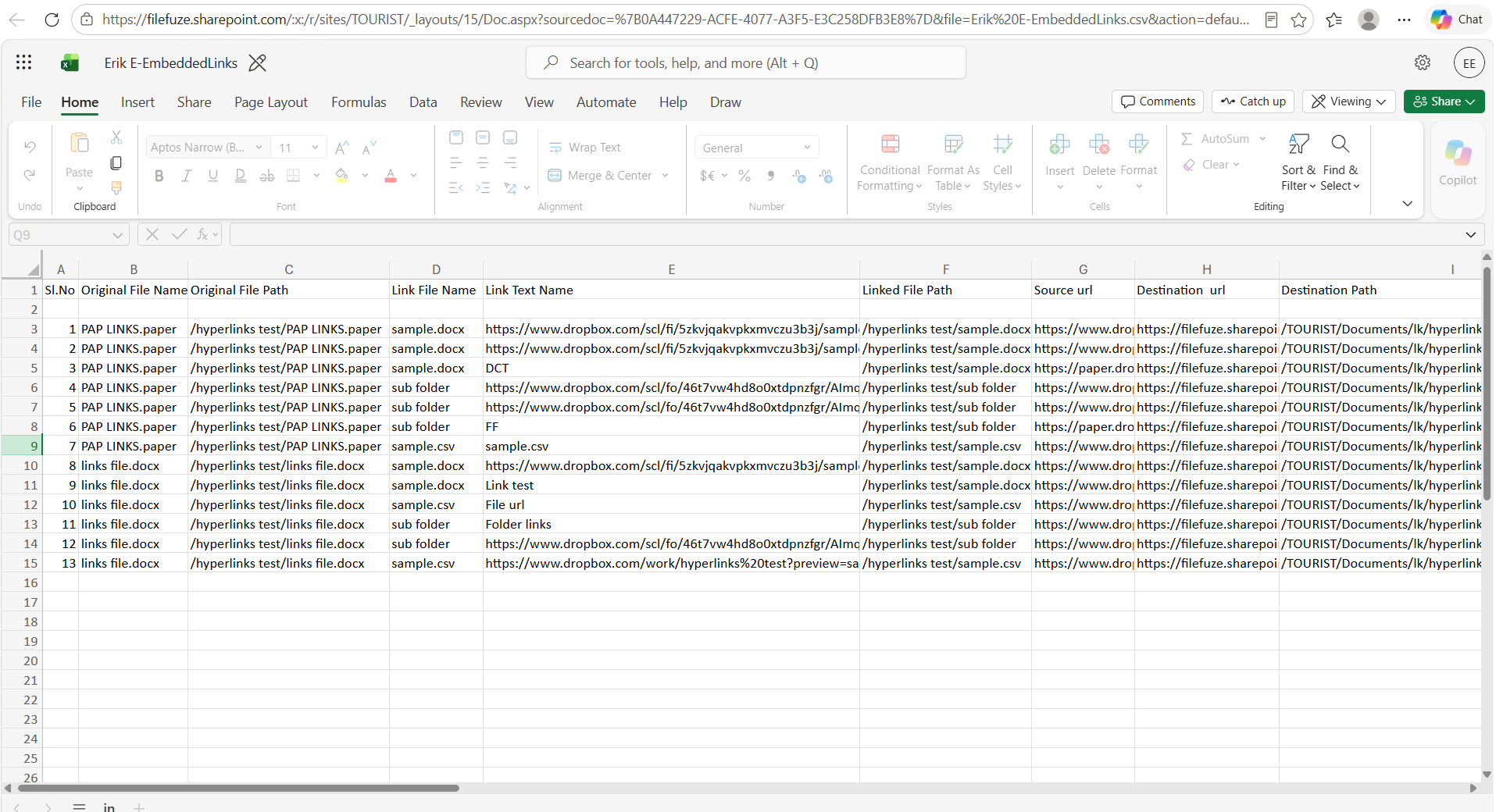
- Generate accurate link mapping reports that associate every Dropbox URL with its matching SharePoint destination URL.
- Preserve shared relationships and maintain sharing permissions so users can access migrated content with updated links.
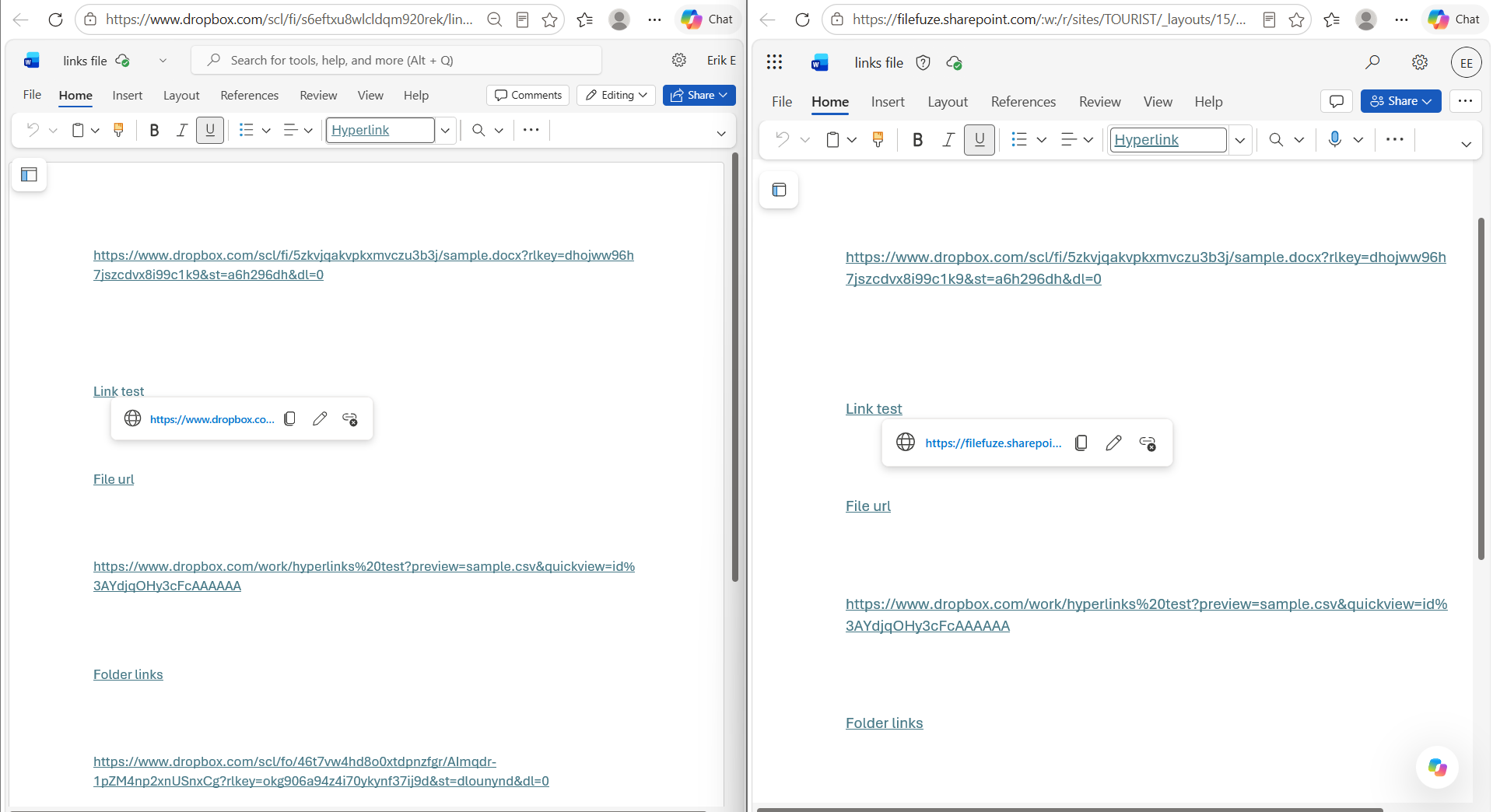
- Update embedded hyperlinks inside documents, as they require automated remediation post-migration.
- Validate every link after cutover by testing after migration to reduce user issues when they use these links. Include both internal and external users here.
How Does CloudFuze Migrate Help Enterprises Migrate Dropbox Files to SharePoint Without Broken Links?
CloudFuze Migrate systematically maps users and permissions in the source and destination, fixes links in documents, files, and folders, and then migrates content securely between Dropbox and SharePoint. This ensures your teams continue working seamlessly after the cutover.
Let us share a success story. Michigan State University moved 1,000+ users and 50+ TB from Dropbox to OneDrive for Business and SharePoint, including shared links, sharing permissions, internal and external share permissions, and file version history.
In a nutshell, here is how CloudFuze Migrate handles your links in a Dropbox to SharePoint migration –
-
Shared links, mapped & recorded:
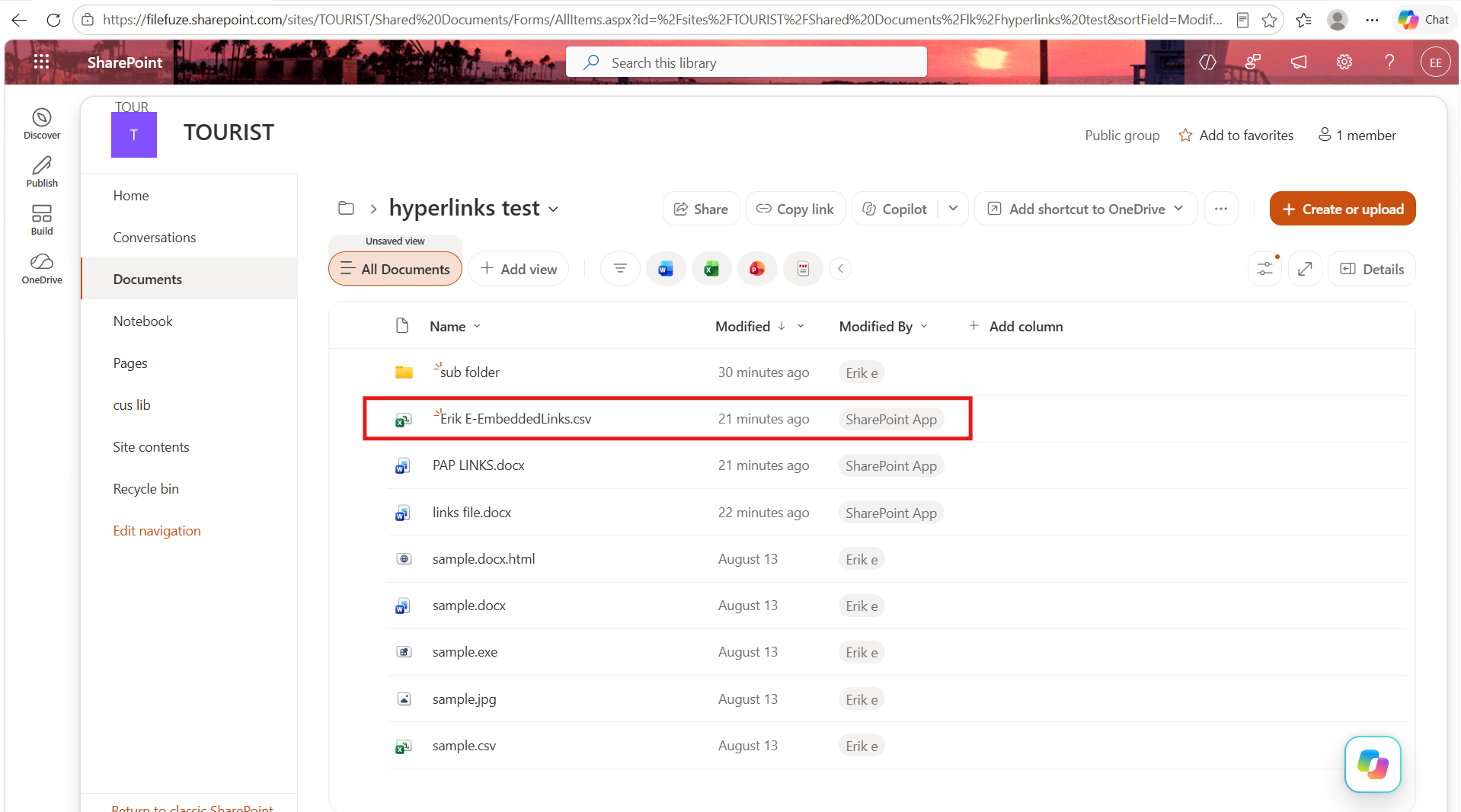
All link types are preserved, so “anyone with the link” (view or edit) stays that way, and team member links become “people in your organization” links. A CSV pairs every source path with its destination path and the new link.

-
Embedded links are corrected:
Links to other files in the same location are rewritten to destination URLs, with a CSV mapping old to new. CloudFuze Hyperlink Fixer extends this to links inside Word, Excel, PowerPoint, and PDF files and can re-migrate only broken links if an earlier migration caused issues.


-
User permissions kept intact:
As highlighted earlier, folder and file permissions and external shares migrate with the existing user permissions.
-
Work continues during the move:
Delta migration tracks changes made after the first pass, and email notifications for collaborations can be customized to avoid flooding users.
-
SharePoint limits are automatically handled:
Unsupported characters are replaced automatically, long names are shortened with a LongFileNames.csv record, and lengthy paths get a .URL shortcut instead of a failed file.
-
Versions & metadata:
Versions from the last 180 days plus the latest are migrated, and the entire metadata is preserved once the SharePoint REST API is enabled.
-
Enterprise-grade security:
File transfers are executed over OAuth and API connections, and the CloudFuze Migrate Dropbox-to-Microsoft 365 migration tool is SOC 2 Type 2, ISO 27001, and GDPR compliant.
Make the Move from Dropbox to SharePoint Without Losing Your Links
A Dropbox-to-SharePoint migration does not have to break the links your teams rely on. With CloudFuze Migrate, audit your files, plan for SharePoint’s limits, migrate in phases, and use the mapping files to update every reference. Most importantly, document all changes.
Frequently Asked Questions
1. Can you suggest the best strategy to move large data from Dropbox to SharePoint?
Begin with a pilot batch and then use a phased approach to migrate, ensuring delta syncs for later changes. Expect Microsoft API throttling on large jobs, and the pilot run helps you gauge it.
2. How long does an enterprise Dropbox to SharePoint migration take?
This depends on factors like data volume, file count, users, and API throttling. Small migrations can take days, and larger ones may take weeks. Even here, the pilot gives the best estimate.
3. How do file permissions transfer when migrating from Dropbox to SharePoint?
One can map Dropbox users to Microsoft identities, and the migration carries folder, file, and external-share permissions at their existing access levels. You can review key libraries afterward.
4. Is it possible to keep Dropbox and SharePoint synchronized during this transition period?
Partially, yes. Note that this cannot be done two-way. Delta migration copies changes made in Dropbox after the first phase of migration into SharePoint, so it is best to set a cutover date to avoid edits in both places.
5. Do I need a third-party Dropbox-to-SharePoint migration tool, or can I do it manually?
Migrating manually may work for small, low-risk folders, but there is no guarantee of no errors or zero downtime. Enterprise cloud migration tools like CloudFuze Migrate retain file permissions, shared links, embedded links, and versions; they help scale and guarantee zero downtime.
About the Author: Bhuvaneswari Gireesh


