
How to Use Microsoft Teams Like Slack? Post-Migration Tips
Many organizations switch from Slack to Microsoft Teams for various reasons. While both platforms share feature similarities, adapting to the new interface and functionalities may be challenging for new users. In this article, you will learn how to use Microsoft Teams like Slack after your shift to Teams.
Key Takeaways:
What Is Microsoft Teams and How Does It Differ from Slack?
Microsoft Teams is the leading application used by enterprises and companies worldwide. With Teams, you can collaborate in real time, hold meetings, and share files and apps seamlessly in a secure environment.
Metrics to Evaluate the Effectiveness of Teams Over Slack
1. Slack VS Microsoft Teams Pricing Comparison
Here’s a glimpse of Slack’s plans and pricing:

Image source: Slack
Microsoft Team’s Plans and Pricing for Businesses:
Here’s a look at Microsoft Team’s pricing for business plans:

Image source: Business Plans for Microsoft Teams
Microsoft Team’s Plans and Pricing for Enterprises:
Here’s a look at Microsoft Team’s pricing for Enterprise plans:

Image source: Enterprise Plans for Microsoft Teams
For detailed comparison, check the official pricing pages:
Note – Plans under Slack and Teams are as per February 2026 data, and pricings apply only when you take an annual subscription.
2. Application Integration
Slack allows you to integrate around 2600 applications from the Slack App Directory. The Free Slack plan allows users to integrate with up to 10 applications. Users get unlimited application integration when they choose Slack plans such as Pro, Business+, and Enterprise+.
Here are some popular categories and examples of Slack app integration:
- AI Tools Support: You can connect Slack with Perplexity, ChatGPT, OpenAI Codex, Notion AI, etc for business productivity enhancement.
- Project management: Businesses can connect Slack with project management tools like Asana, Miro, Jira to update and manage projects.
- Customer support: Businesses can integrate customer support apps like Salesforce Service Cloud, Zendesk, etc., to manage tickets and communicate directly through Slack.
- CRM systems: You can link Slack with CRM platforms such as Salesforce Sales Cloud, HubSpot, and ZoomInfo.
- File management: You can use services like Box, Google Drive, and Dropbox for easy file access and sharing, along with Slack
- Developer tools: You can connect GitHub, GitLab, PagerDuty, and AWS Chatbot to track directly from Slack.
For more details, you can check out the official Slack page for more information.
Businesses can integrate various apps with Teams, such as:
- Standalone apps: Refers to a single page/large application.
- Collaboration apps: Apps built for social and collaborative features inherent to Teams.
- Microsoft SharePoint: A SharePoint page you want to surface in Teams.
For more details, you can check out the official page for more information.
3. Customer Support Access
Microsoft Teams comes with anytime phone and web support. You get ongoing technical support when it comes to seamless customer support.
There is also provision to self-help options for handling issues. Additional help is available including live chat with a Microsoft specialist.
Customer support in Slack is as follows:
- Slack Free plan – Support NA
- Slack Pro plan – 24/7 support
- Slack Business+ plan – 24/7 support with 4-hr. first response time
- Slack Enterprise+ plan – 24/7 support with 4-hr. first response time
In overall, Microsoft Teams excels in large, structured environments. Having all features into consideration, take the shift to Teams for your workplace.
4. AI Capabilities
Slack AI Capabilities
Slack provides added AI functionality to all its pricing plans.
| Plans | AI Features |
|---|---|
| Free | N/A |
| Pro | Basic AI
– AI conversation summaries |
| Business+ | Advanced AI
|
| Enterprise+ | Advanced AI
|
AI Feature Comparison Among Slack Plans
| AI-Powered Work | Free Plan | Pro Plan | Business+ | Enterprise+ |
|---|---|---|---|---|
| Thread And Channel Summaries | No | Yes | Yes | Yes |
| Huddles Notes | No | Yes | Yes | Yes |
| AI Assistant Apps | No | Yes | Yes | Yes |
| Slackbot (Personal AI) | No | No | Yes | Yes |
| Daily Recaps | No | No | Yes | Yes |
| File Summaries | No | No | Yes | Yes |
| AI Language Translations | No | No | Yes | Yes |
| AI Workflow Generation | No | No | Yes | Yes |
| AI Steps In Workflow Builder | No | No | Yes | Yes |
| AI Message Explanations | No | No | Yes | Yes |
| AI Writing Assistance In Canvas | No | No | Yes | Yes |
| AI Search | No | No | Yes | Yes |
| Enterprise Search | No | No | No | Yes |
Copilot Capabilities in Microsoft Teams
Copilot in Teams helps businesses to automate routine tasks such as:
- Generates detailed transcripts
- Detects decisions or follow-ups
- Assigns and sets deadlines within integrated task managers.
- Suggests agenda items based on past meeting topics and project milestones.
- Sends timely reminders about deadlines/ follow-ups, and incomplete tasks
Copilot in Teams helps businesses enhance communication through:
- Real-time translation of chats and meeting transcripts
- Ensures seamless collaboration between global teams.
- Can access concise summaries without sifting through entire transcripts.
- Suggests professional phrasing for messages
Copilot in Teams helps businesses optimize workflows through:
- Automatically logs tasks from meeting notes and updates their status as team members make progress.
- Recommends which tasks or deadlines need immediate attention
- Analyzes team calendars to suggest ideal times for meetings
What Common Challenges Do Users Face When Switching from Slack to Microsoft Teams?
Challenges you can face when switching from Slack to Microsoft Teams includes:
- Migrating messages, channels etc., without any data loss
- Transferring file features such as timestamps, hyperlinks etc.
- Downtime issues
- File duplication issues
- Metadata mismatch issues
- Overcoming file structure differences
- Transferring incremental changes
Advanced migration tools such as CloudFuze Migrate help you overcome business challenges when switching to Teams from Slack.
Post-Migration Tips After Slack Migration to Microsoft Teams
1. Validate Migrated Data & Metadata
After migrating from Slack to Teams, ensure 100% replication of your files and necessary metadata. Verify that the channels, external members, attachments, DMs etc. open without any issues. Thoroughly check whether threads and user groups remain intact in the new Teams environment.
2. Check Migration Reports
Have a deep analysis of the migration reports during post-migration. Check the total data transferred to Teams along with necessary channels, user groups, etc. Verify if all hyperlinks, replies, comments stay intact in the new Slack environment by checking migration reports.
3. Navigate to Teams with Confidence
Train your teams on the new Microsoft Teams interface. While it may differ from Slack, it provides useful functionalities for your teams, such as real-time collaboration, enhanced Copilot capabilities, etc.
Help your teams explore and understand how to navigate to the new cloud platform with confidence. You can also create demos and provide a guide with screenshots and videos to compare Slack’s features with Microsoft Teams.
Advanced Features of Teams to Explore After Mastering the Basics
You can find the following advanced features in Teams as of January 2026 latest updates:
Recap Summaries Customization
Users can now view meeting recaps in their preferred format. Customizable recap summaries are now available with a Microsoft 365 Copilot license. You can pick a ready-made summary template or create your own.
Find Channel Files in the Shared Tab
Files tab in channels is now the Shared tab. Users can find files and links that shared with them in the channel.
Preview Messages in Your Notifications
Teams will surface a preview of the message in the notification. The notification can come from a channel, a mention, or a reaction.
Keep Your Teams Window in View
Select Settings and more > Pin window on top. Pin your Teams window to the top of your desktop so it’s always visible above other open windows.
Native Screen Sharing on MacOS
Users can share screen or specific windows using your Mac’s native picker experience.
Best Practices for Effectively Using Teams After Migrating from Slack
Best practices for effectively using Microsoft Teams after migrating from Slack:
- Train your employees with demonstrations and tutorial sessions on the new Teams environment.
- Gather feedback from your teams post-migration.
- Resolve the challenges faced by users through active training sessions.
- Educate your employees with all advanced and beneficial features of Teams for enhancing business workflow.
Check Out Our Slack to Teams Migration Tool Here:
CloudFuze’s Real World Case Study – Migration of Slack Channels to Teams
Litera had to transfer Slack to Teams with 200+ channels and around a million messages. They wanted to migrate in a short time period. CloudFuze Migrate helped them migrate data along with important metadata such as emojis, replies, and @mentions.
We helped them migrate within a week. We ensured zero downtime and complete replication.
Check out the case study in detail here.
What Do Customers Say About Us?
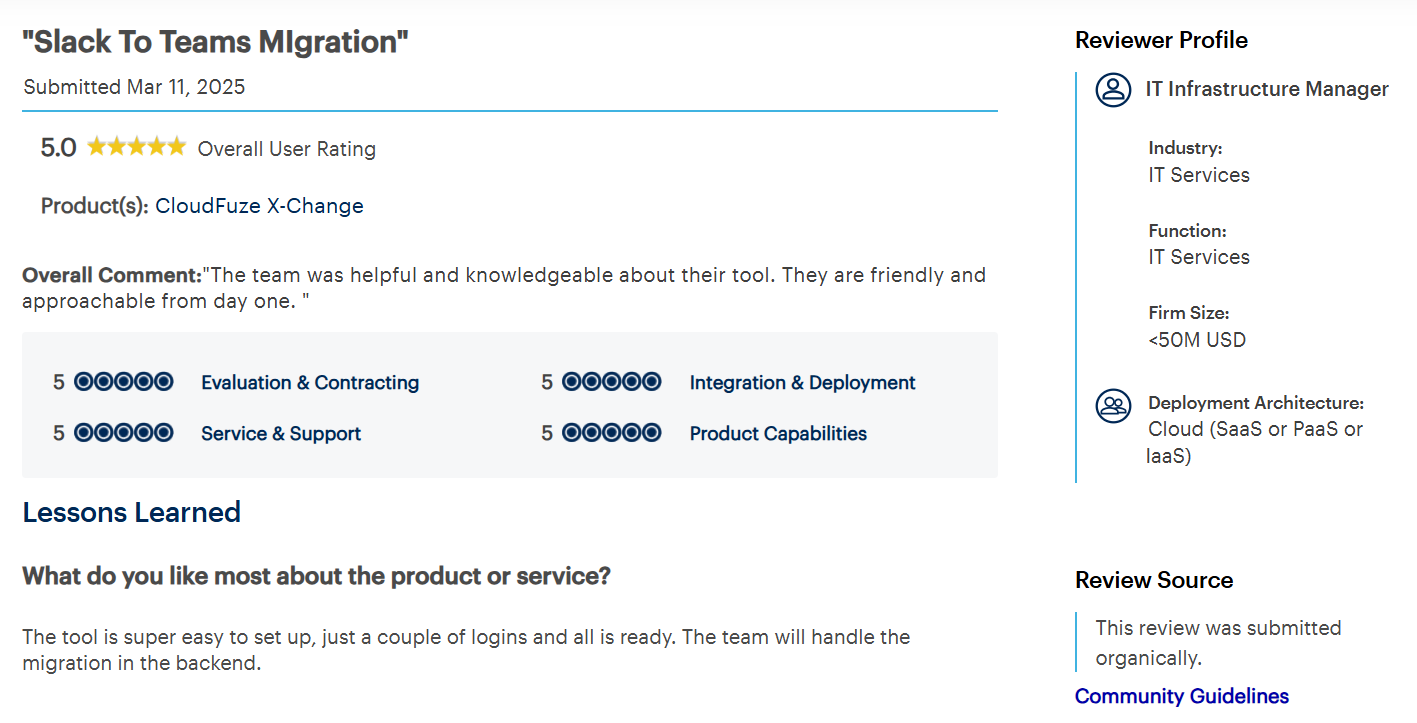
We have an impressive rating of 4.7/5 stars in Gartner Peer Insights Review. We at CloudFuze, have helped a lot of renowned companies seamlessly perform cloud migration.
Here is a March 2025 Gartner review from one of our customers who migrated from Slack to Teams. As per the review, the customer used our migration solution to move to Teams successfully.
They praised us for our helpful teams and expertise, knowledgeable, and friendly approach during the migration.
Migrate Slack to Teams Successfully with CloudFuze
Transfer your entire Slack messages and metadata features to Teams with our advanced Teams migration tool.
Contact our migration team to transfer from Slack to Microsoft Teams comprehensively without leaving a single message behind.
Frequently Asked Questions
1. Why migrate from Slack to Teams?
Businesses tend to migrate from Slack to Microsoft Teams for several reasons. Reasons include:
- Better business collaboration
- Microsoft 365 integrations, and
- Preference for a centralized platform, etc.
Our advanced migration tool helps you securely migrate Slack channels to Teams and other necessary metadata with complete accuracy and replication.
2. Why are companies moving from Slack to Teams?
Business tends to migrate from Slack to Teams for the following reasons:
- Integrate with Microsoft 365 cloud suite
- Enhance enterprise-grade security
- Scalability and cost-cutting reasons
3. How to recreate Slack workflows in Teams?
You can recreate Slack workflows in Microsoft Teams using a migration tool such as CloudFuze Migrate. Our tool helps you seamlessly transfer channels and integrations while maintaining the workflows. Businesses can transfer Slack data along with necessary metadata accurately using CloudFuze platform.
4. Teams vs Slack notification tips after switch?
You can effectively manage Teams notifications after shifting from Slack through the following steps:
- You can hide or leave less important conversations.
- You can customize channel notification settings to manage constant notification alerts.
- Adjust alerts for chats, channels, meetings, etc. based on your personal workflow.
For more information, check out the official page here.
5. Teams channel best practices post Slack migration?
Teams channel best practices post Slack migration helps you ensure easier adoption. These include:
- Have the display of relevant and most used channels.
- Hide channels that are not important for daily work.
- Users can name channels according to preferences.
- Give channels with correct naming for easier identification.
About the Author: Bhavani Asok



