
Introduction
Moving files from Google Shared Drive to SharePoint involves transferring your organization’s files and folders along with permissions, version history, embedded links, shared links, and external shares. It is usually done as part of a broader Google Workspace to Microsoft 365 migration.
Preserving all these properties when migrating files and folders is only possible with a dedicated cloud migration tool like CloudFuze Migrate. It cannot be done using manual methods, such as export and import processes.
This detailed guide provides IT admins, migration leads, and decision makers with actionable insights, right from planning to execution and validation steps.
What Can Be Migrated
CloudFuze migrates the full range of content and metadata from Google Shared Drives to SharePoint Online.
| Source (Google Shared Drives) | Destination (SharePoint Online) | Supported by CloudFuze | Notes |
|---|---|---|---|
| Files and folders | Document libraries | Yes | Google Docs, Sheets, and Slides convert to Microsoft Word, Excel, and PowerPoint. |
| Folder structure | Site and library hierarchy | Yes | Full folder and subfolder structure preserved. |
| Sharing permissions | SharePoint permissions | Yes | Root and subfolder level permissions carried over. |
| Created and modified timestamps | Created and modified timestamp | Yes | Choose between created or modified timestamp |
| External shares | External shares | Yes | Fully preserved |
| Embedded and shared links | Embedded and shared links | Yes | Hyperlinks remapped to new file locations |
| Version history | Version history | Yes | All or selective versions |
| Special characters and long paragraphs | Compliant file names | Yes | Automatically renamed to meet OneDrive rules |
| File paths over 400 characters | Trimmed paths | Yes | Trimmed to adhere to OneDrive restrictions |
Google Shared Drives to SharePoint Migration Planning and Preparation
Before you move files from Google Shared Drive to SharePoint, a bit of planning prevents most of the problems that show up mid-migration.
1) Perform a Pre-Migration Analysis
Get a clear count of:
- Total shared drives
- Total data volume
- Number of external collaborators
- How deeply nested your folder structures are
This tells you the real scope of the migration, not just an estimate.
2) Choose a Migration Tool Built for This Specific Path
Not every migration tool that handles Google Drive to OneDrive also handles Google Shared Drives to SharePoint Online migration well. This part involves Shared Drive structures and SharePoint site permission models that are generally different from personal drive migrations.
Therefore, it is important to work with Microsoft Partner migration vendors like CloudFuze that provide dedicated support for Shared Drives as a source, not just Google Drive in general.
3) Prepare Your SharePoint Environment
If your organization is new to SharePoint Online, set up the destination sites and document libraries ahead of time, so folder mapping goes smoothly. If you are consolidating into existing sites, confirm library structure and permission groups before migration starts.
4) Have Admin Login Credentials Ready
You will need Google Workspace Super Admin access to authenticate Shared Drives and Microsoft 365 Global Admin access to authenticate SharePoint Online in migration tools like CloudFuze Migrate.
5) Communicate the Platform Transition
Communicating the platform transition with stakeholders as well as end users helps better manage the change. It sets clear expectations for stakeholders and enables users to be better prepared for the destination platform onboarding and adoption.
Steps to Migrate Shared Drive to SharePoint
Have a clear picture of how CloudFuze can migrate Google Shared Drives files to SharePoint Online with these structured yet simple steps:
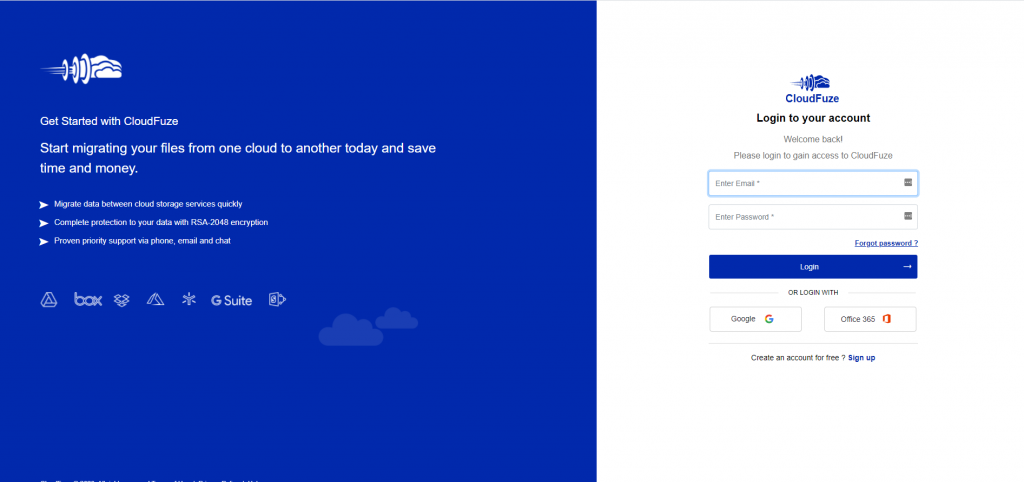
Step 1: Create a CloudFuze Account and Login
Go to the CloudFuze webapp using your login credentials. You create an account with CloudFuze if you do not have one.
Step 2: Add Your Google Shared Drive
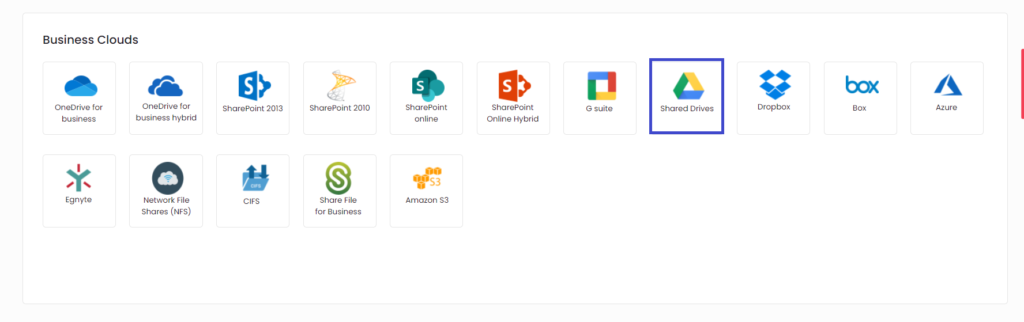
Click on “Shared Drives” icon from the Business clouds
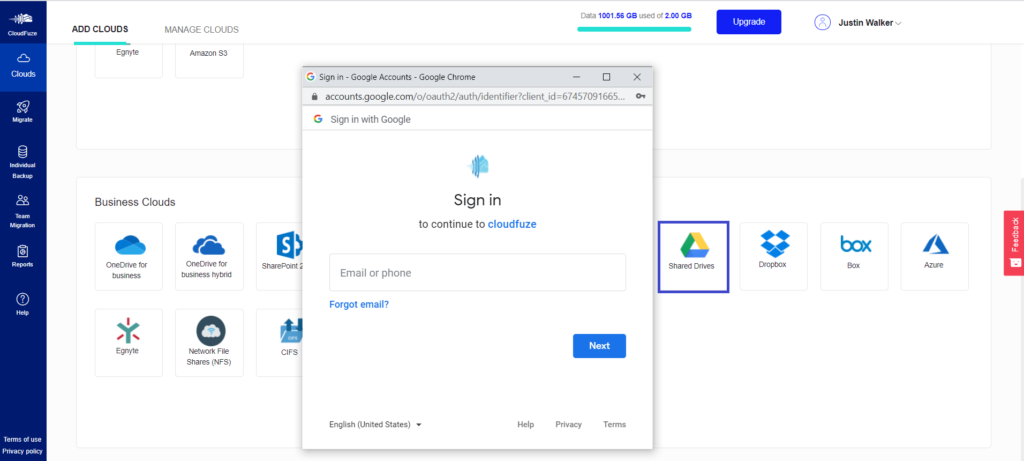
A pop-up will display for Google Workspace Marketplace authentication. Click on the “Proceed” button.
On clicking the Proceed button it will redirect to the Google Workspace Marketplace. Click on the “Domain Install” button.
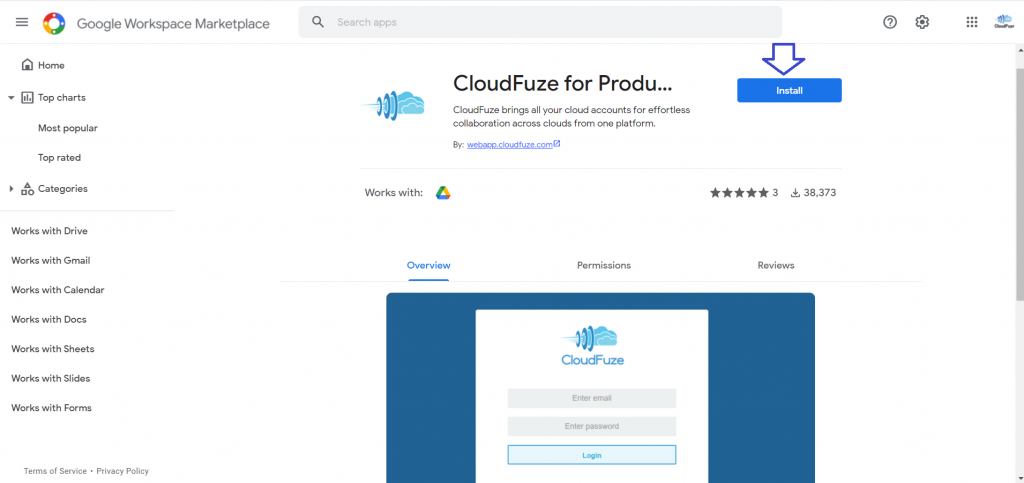
After clicking on the “Domain-wide install” a pop-up will be displayed. Click on “Continue.”
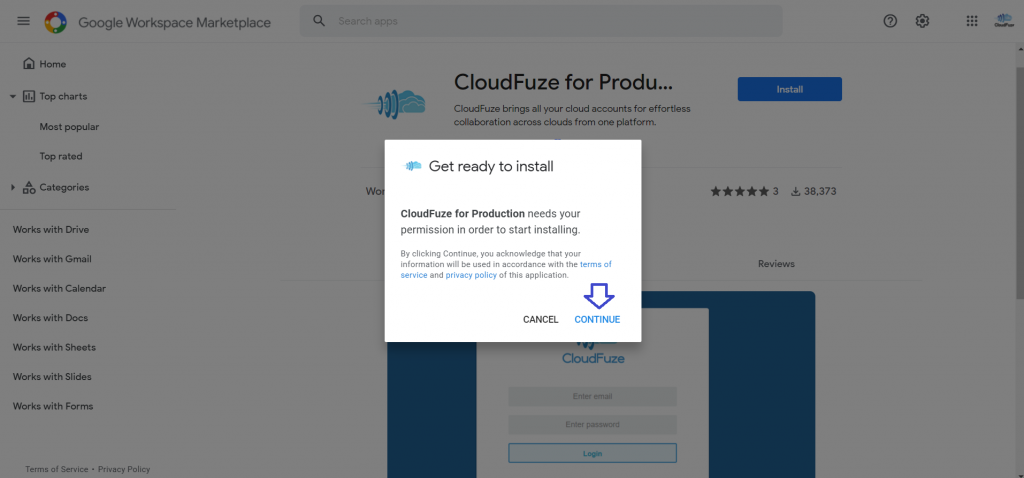
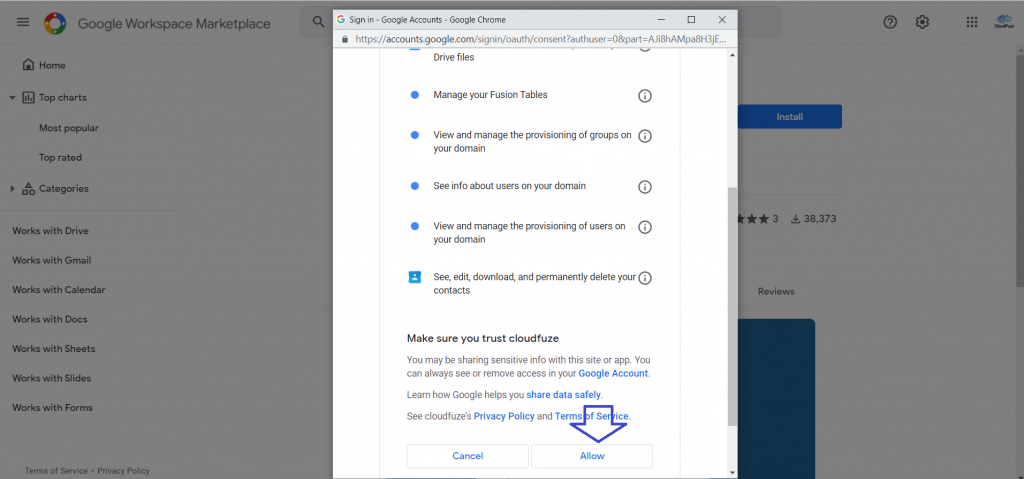
On clicking continue, enter the username & password. Once done, the following window will be displayed. Click on the Accept button.
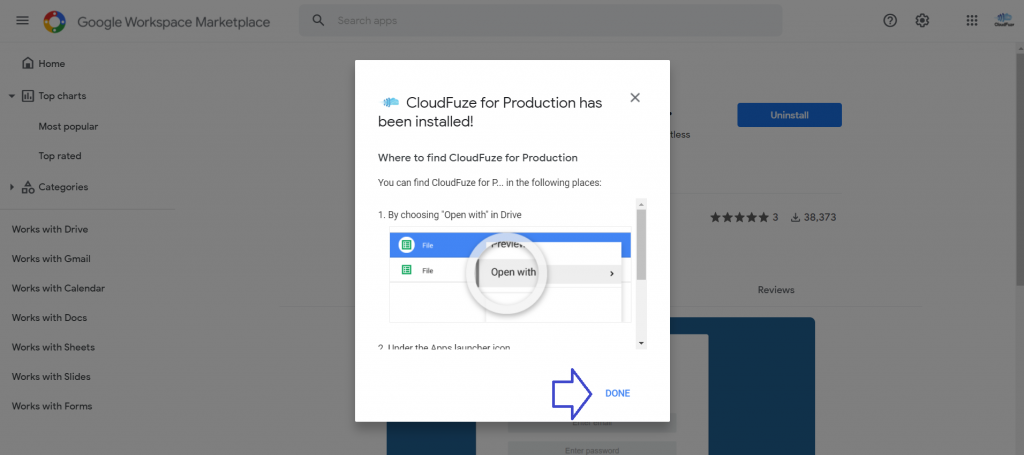
Click on “Done” on the next pop-up. With this step, you complete the marketplace authentication.
Step 3: Verification of CloudFuze app in the Google Admin Console
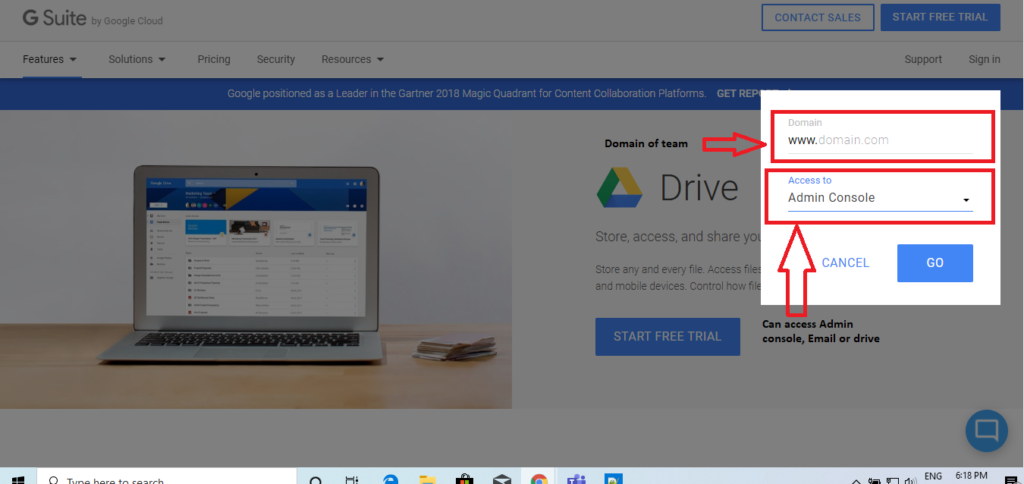
Go to Google Workspace. Enter the domain name and select “Admin Console” from the “Access to” drop-down.
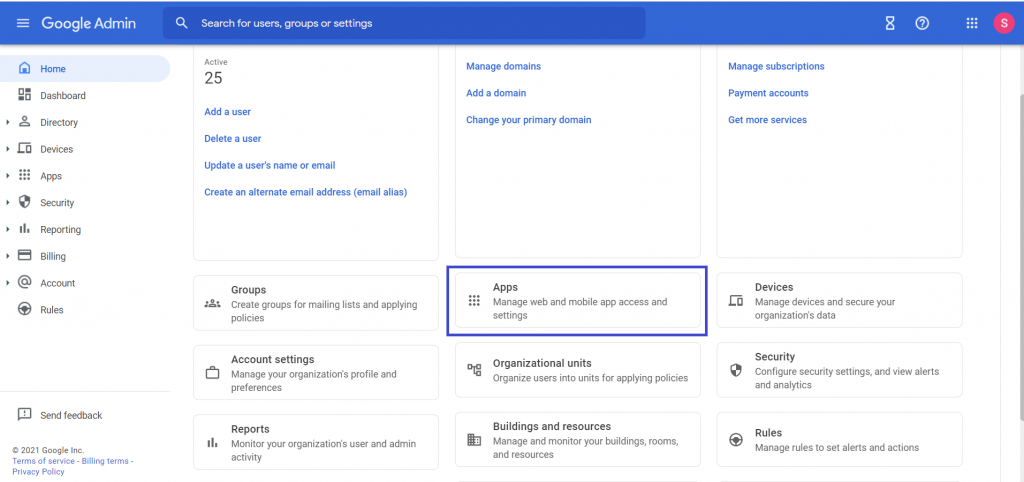
From the Admin Console, select “Apps.”
Click on the “Marketplace apps” from the following window.
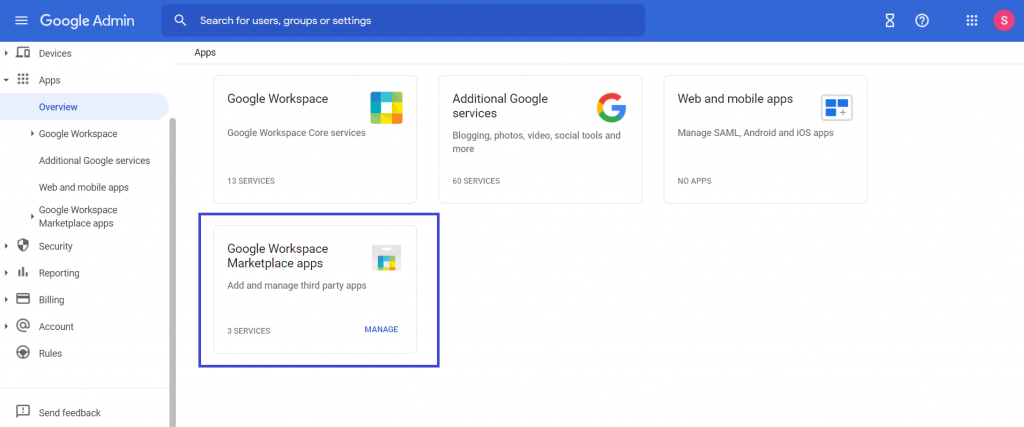
You can see “CloudFuze for Production” in marketplace apps.

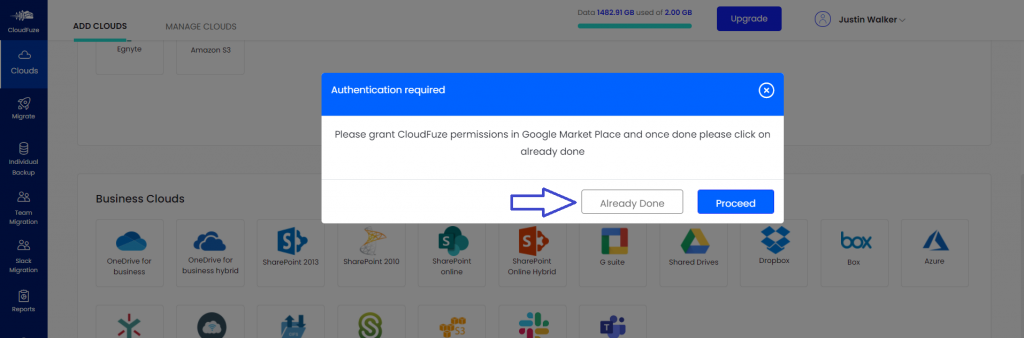
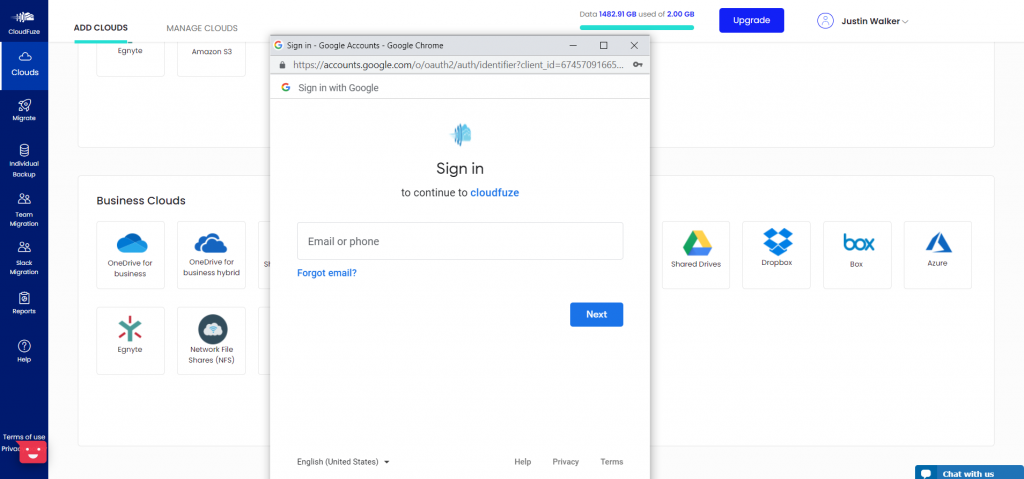
Now, go to your CloudFuze account and click on “Shared Drive” from the Business clouds. You will see the pop-up for marketplace authentication. As it is already done, click on the “Already Done” button.
Now enter the username.
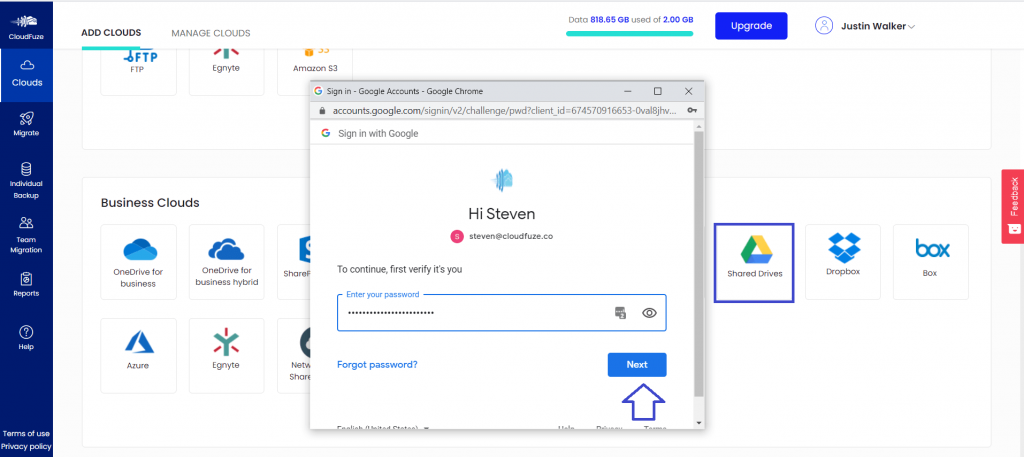
Enter the password.
Step 4: Adding and Authorizing SharePoint Online
To add SharePoint Online, Microsoft 365 Global admin credentials are required. Go to Microsoft 365 and enter the Global admin credentials.
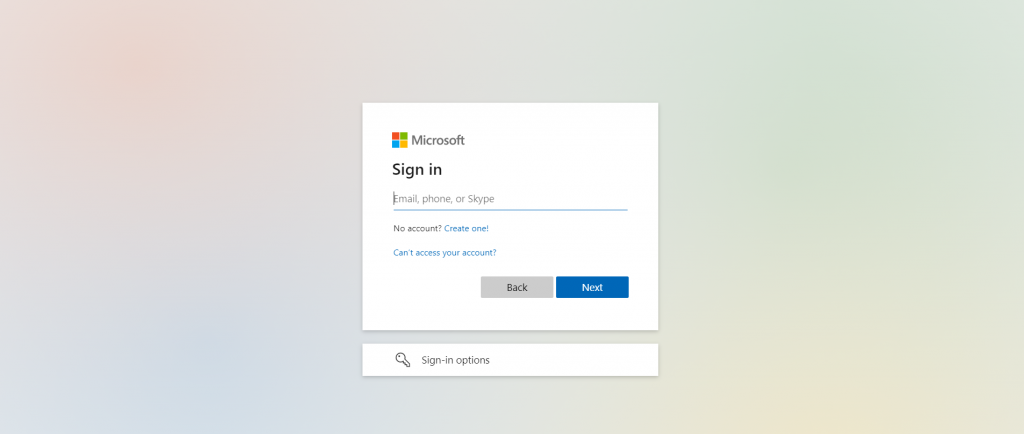
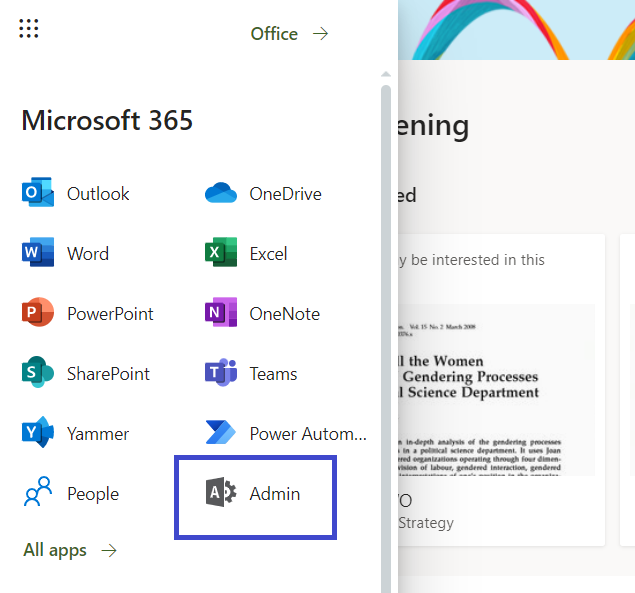
If the entered credentials are admin, then you can see the “Admin” icon. Click on the “Admin” icon to see the list of the admins.
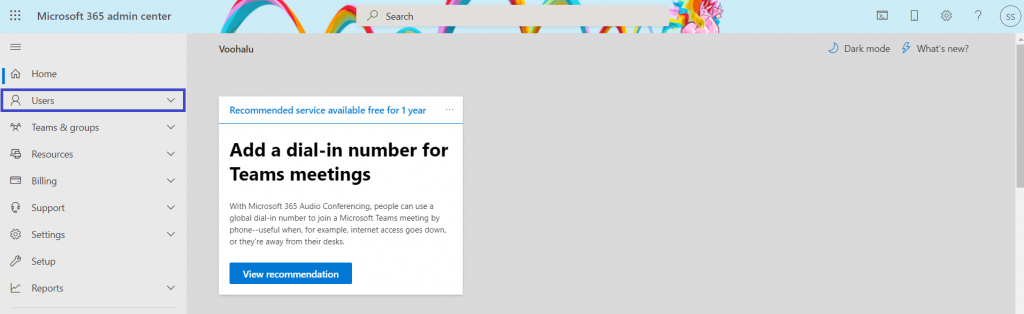
Click on the “Users” tab from the left-hand side pane.
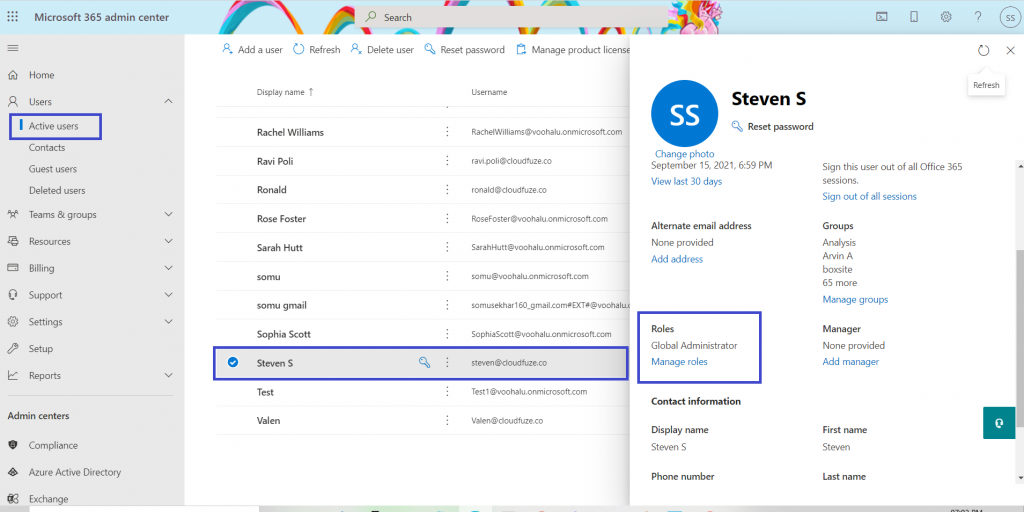
Click on the “Active users” and select any user from the list. The role of the user must be Global admin.
Go to your CloudFuze account, click on clouds. Click on “SharePoint Online” from Business clouds.
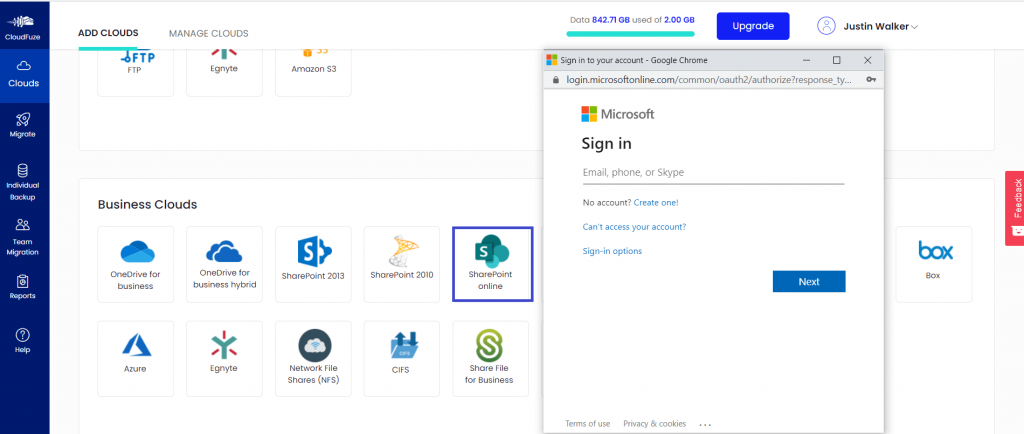
Enter the Global admin credentials to add the cloud
Step 5: Initiate the Process to Migrate Google Shared Drive to SharePoint
Click on “Start Migration” to start the actual Google Shared Drives migration to SharePoint Online. You can see the migration reports which are in progress as well as the completed migrations.
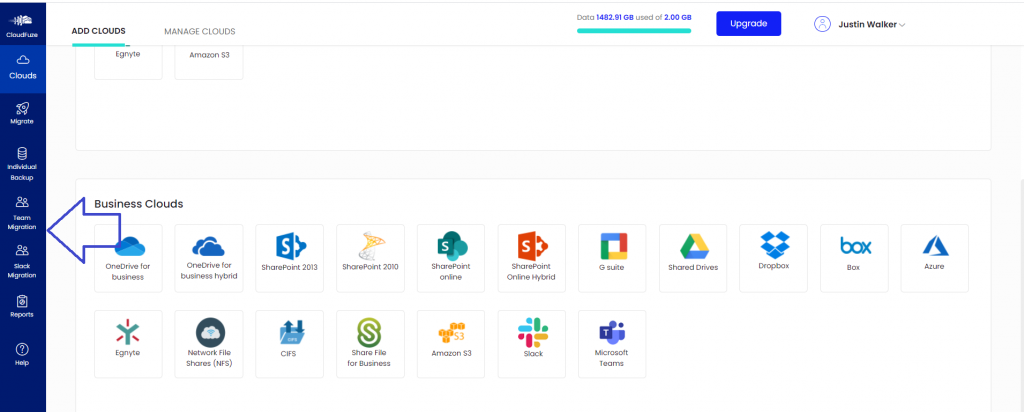
From the selection page, select Shared Drives as the source and SharePoint Online as the destination cloud.
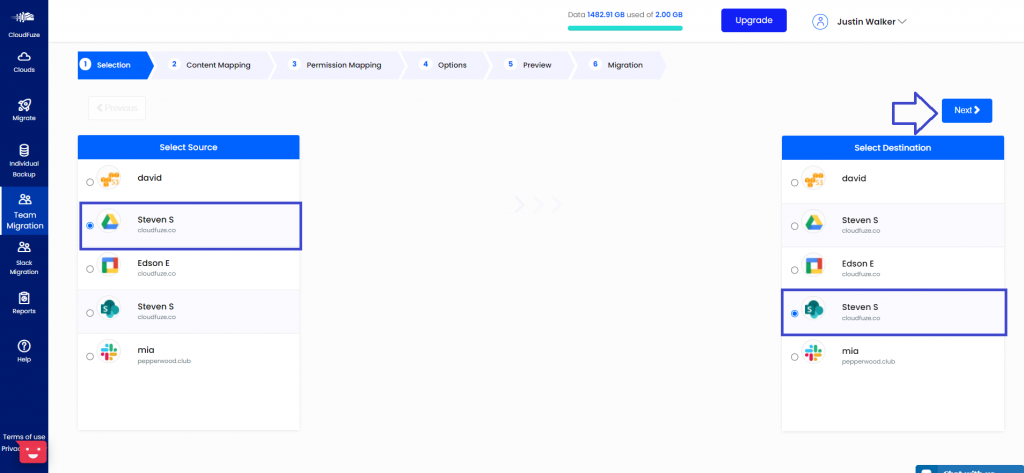
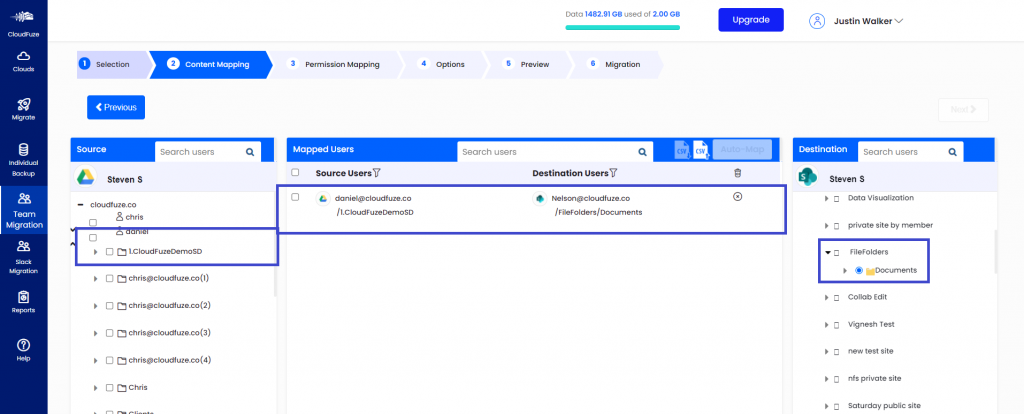
On clicking “Next,” it redirects to the mapping screen. Domains will be listed in both the source and destination.
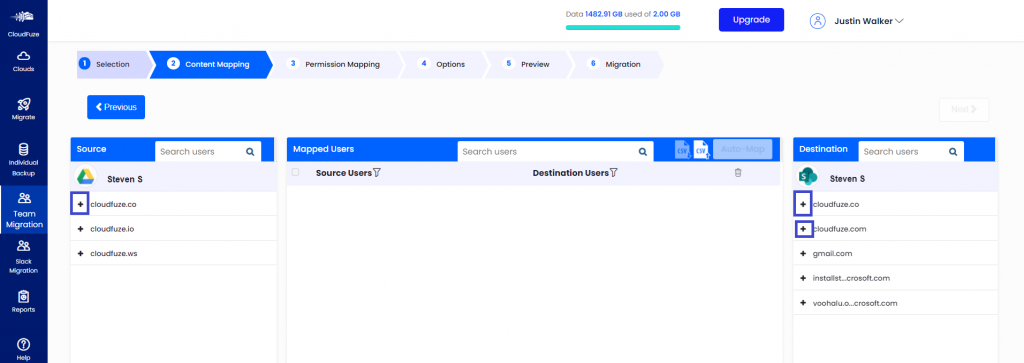
To minimize the users’ list, click on the “-” icon. To see the folders inside the users, click on the down arrow.
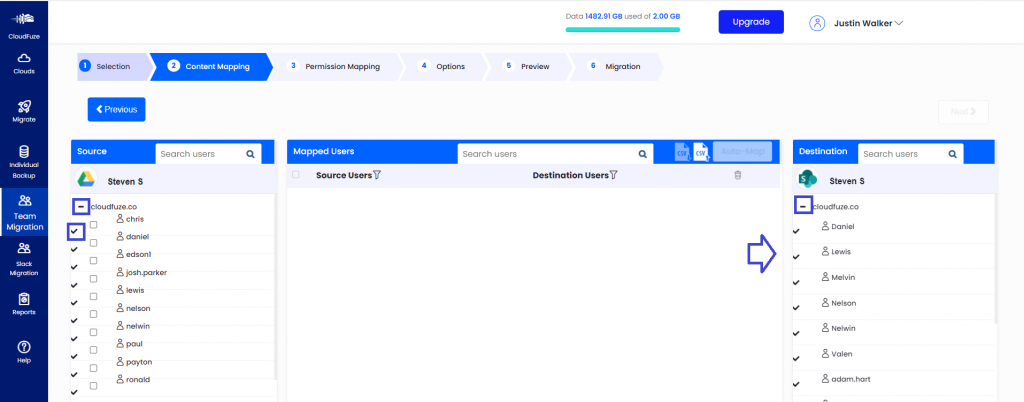
After clicking on the down arrow, Shared Drives and SharePoint sites will be displayed.
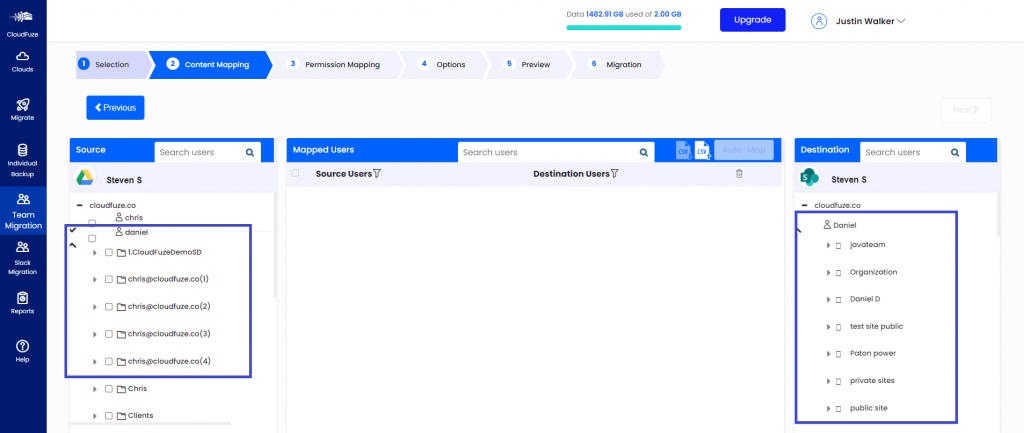
Click on the checkboxes to select the Shared Drives. Click on the down arrow before the SharePoint site to see the folders inside the site.
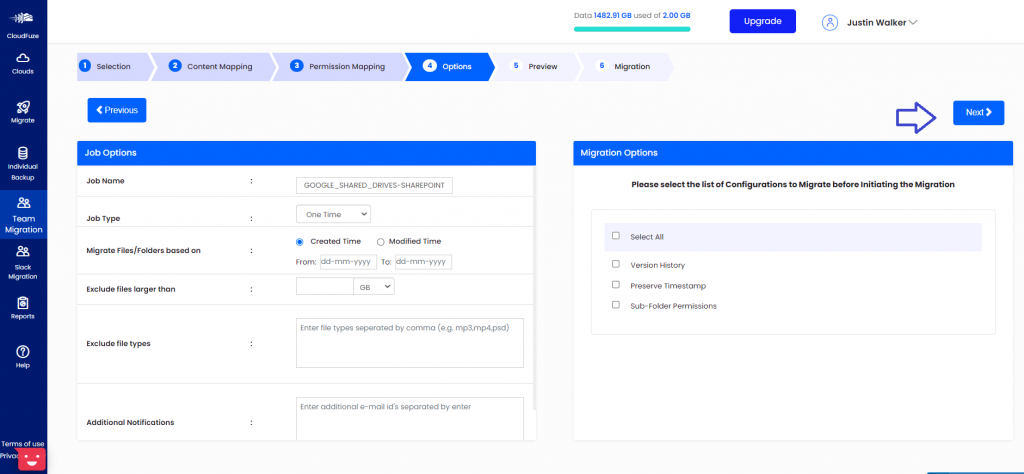
After mapping the users, the next step is to configure a few final options.
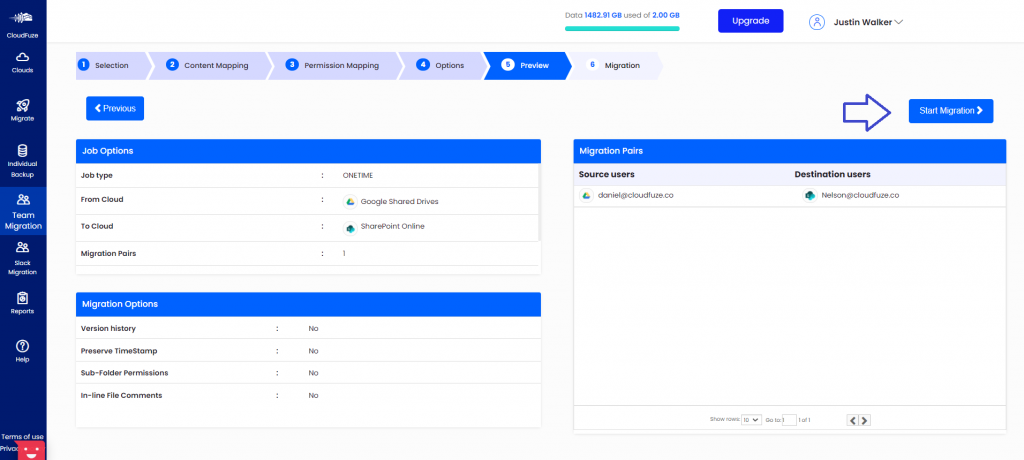
The next page is the preview page where you can see all the migration parameters set.
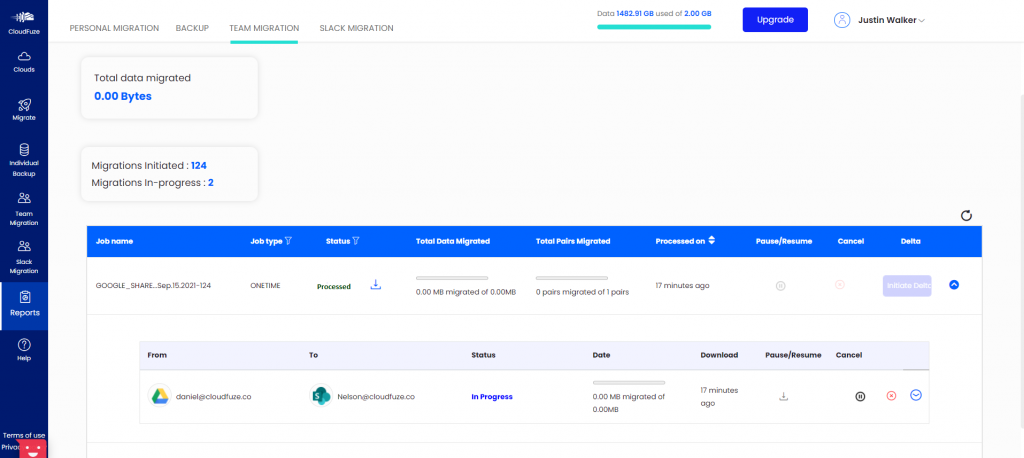
Click on “Start Migration.” You can see the migration reports which are in progress as well as the completed migrations.
Post-Migration Steps
Once the migration gets completed, follow a few post-migration steps to validate and ensure everything has been migrated correctly.
- Validated migrated content against the migration reports that CloudFuze tool generates for every batch.
- Spot-check permissions on files and folders, especially the ones shared externally.
- Confirm shared and embedded links are working correctly in the new SharePoint locations.
- Communicate the cutover to end users and point them to their new SharePoint locations.
- Keep Google Shared Drives accessible in read-only mode for a short overlap period before taking the decommissioning decision.
Why Migrate from Google Shared Drives to SharePoint Online?
Organizations move from Google Shared Drives to SharePoint Online for various reasons and use cases. They include:
1) Microsoft 365 Consolidation
Organizations that are already using Outlook, Microsoft Teams, and OneDrive often want file storage unified under the same ecosystem rather than splitting across Google and Microsoft.
2) Mergers and Acquisitions
When an acquiring company standardizes on Microsoft 365, the acquired company’s Google Shared Drives need to move over.
3) Copilot AI Adoption
Companies that find their AI-assisted workflows more aligned with Copilot often take the decision of standardizing on Microsoft 365, of which Copilot adoption is an integral part.
4) Compliance and Governance Requirements
SharePoint’s permission model and compliance tooling fit certain regulated industries like finance, healthcare, and government better than Google’s Shared Drives’ structure.
5) Intranet and Collaboration Needs
SharePoint Online goes beyond functioning as a cloud storage. It is also a central hub for public and private libraries and intranet functionality in the Microsoft 365 suite that Shared Drives don’t offer natively.
Google Shared Drive to SharePoint Migration Challenges
At a basic level, adhering to Microsoft’s file and folder naming limitations comes as a challenge. It is important to rename all the files and folders in Google Shared Drives that include characters and names unsupported in Microsoft 365.
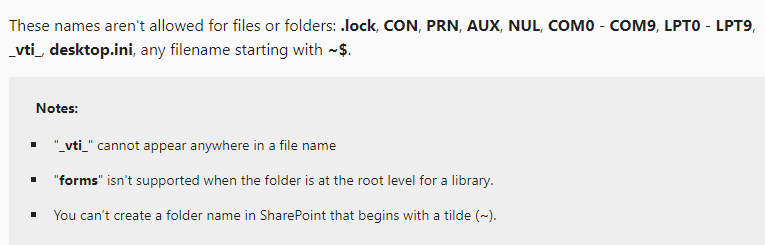
Source: Microsoft
At an advanced level, terabytes/petabytes of company data volume and features such as sharing permissions, timestamps, version history, comments, and incremental changes can create technical migration challenges.
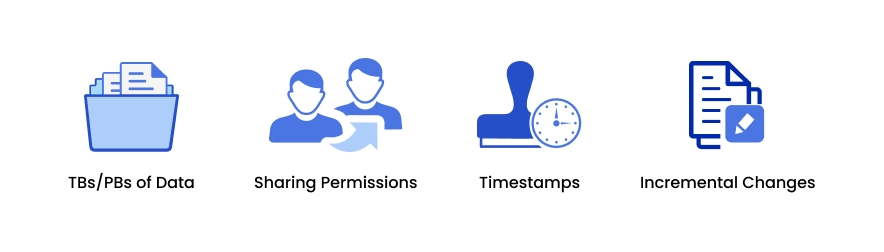
Learn more about business migration challenges here.
CloudFuze for Google Shared Drive to SharePoint Migration
There are quite a few handy cloud storage migration tools like CloudFuze that can help in migrating from Google Drive to OneDrive. But when it comes to moving files and folders from Google Shared Drive to SharePoint Online, there are only a very few choices.
CloudFuze is one of them and can effortlessly handle large data migrations between Google Shared Drives and SharePoint Online.
Here is the list of features CloudFuze can migrate from Google Shared Drive to SharePoint:
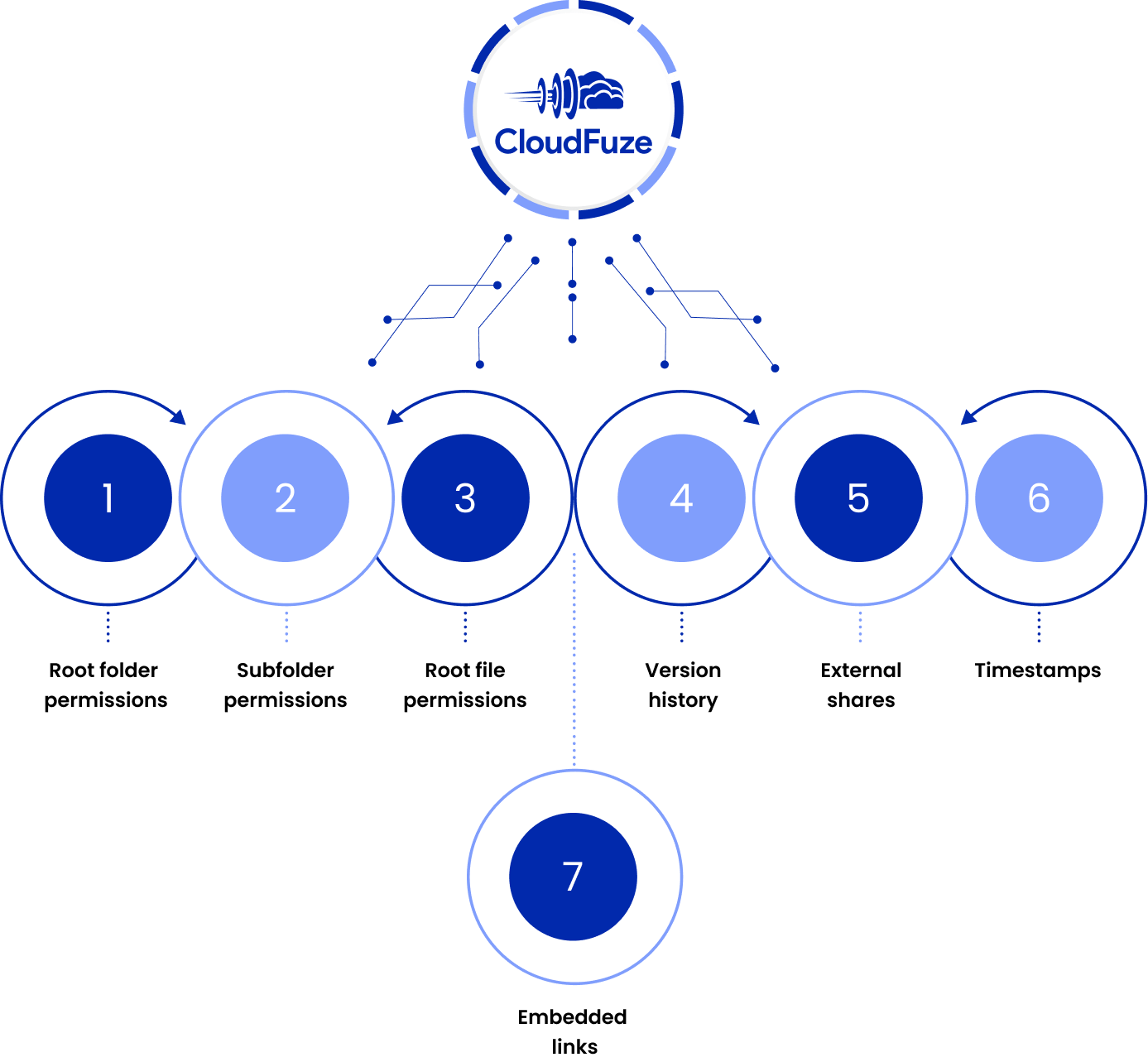
Since this Google Shared Drives migration to SharePoint Online falls under the business category, pricing will be given as a quotation based on the size of the data and the number of users to be migrated.
To get a free quotation, share your migration requirements on our pricing form.
CloudFuze vs. Other Migration Platforms
If you are evaluating which migration platforms move Google Share Drives to SharePoint Online in a complete way, here is how CloudFuze compares against other migration tools in the market.
| Migration Capabilities | CloudFuze | Other Migration Tools |
|---|---|---|
| Files and folders migration with structure preservation | Yes | Yes |
| Roots, subfolder, and file-level permissions mapped to SharePoint equivalents | Yes | Limited |
| External shares migration | Yes | Limited |
| Shared links migration | Yes | Limited |
| Embedded links migration | Yes | No |
| Replacement of unsupported special characters | Yes | Limited |
| Resolution for unsupported file and folder names | Yes | Limited |
| Version history migration | Yes | Limited |
| Long file path handling | Yes | No |
| Granular email notification suppression | Yes | No |
| Timestamp preservation | Yes | Limited |
| File format conversion | Yes | Limited |
Migrate Google Shared Drives to SharePoint with CloudFuze
We, at CloudFuze, have helped organizations of all sizes migrate their Shared Drive content to SharePoint online securely and successfully.
If you are ready to scope your migration or just want a straight answer on timeline and cost, our team can walk you through it. Talk to our migration experts today.
Frequently Asked Questions
1. How are Google files such as Google Docs, Slides, and Sheets migrated to SharePoint Online?
CloudFuze migrates Google files as respective Microsoft 365 files, including Microsoft Word, Microsoft PowerPoint, and Microsoft Excel to SharePoint Online.
2. Should I entirely migrate Google Shared Drive to SharePoint or in batches?
It is best to migrate the entire set of company data in Google Shared Drive to SharePoint Online in one go. CloudFuze has the infrastructural capability to handle high volume data migration without causing any form of disruption to the ongoing company operations.
In many cases, migrating data in batches definitely works for data safety but, at the same time, lengthens the overall migration time.
3. Is it possible to add a custom requirement mid-migration?
It is not recommended to add a custom requirement such as preserving timestamps or selective versions after the migration process has already been initiated. This is because deploying a code or a system in middle of the migration can raise the risk of migration disruption.
However, it is possible, but not advisable.
4. Where to work during the migration process: source or destination cloud?
Since the company data will be available in the source cloud, which, in this case, is Google Shared Drives, all teams can work on the source cloud while the migration is in progress.
You do not have to worry about the incremental changes as CloudFuze’s delta sync (which comes standard in the basic package) updates the destination clouds with all the incremental changes made in the source cloud.
5. What is the safest way to migrate Shared Drive to SharePoint?
The safest way is to perform the migration either in a dedicated hosting server or in the company’s private data center. However, doing this only becomes possible with a bespoke and scalable migration tool like CloudFuze.
6. Which timestamp to keep during Google Shared Drive to SharePoint migration: created or migrated?
That totally depends on the way your company’s operations are structured and managed. If your company’s data is time sensitive and if the bulk of the operation management is based around the original data creation date, it’s best to preserve the created timestamp.
On the other hand, if your company is starting afresh with the new destination cloud, keeping the migrated timestamp as a tracker can be beneficial in many ways.
7. How to migrate Shared Drive to SharePoint locally to ensure optimum security?
The best way to perform the migration locally is to deploy CloudFuze in your company’s on-prem environment. It is crucial to configure the on-prem environment as per the performance needed for the migration.
8. How to migrate comments in Google Shared Drive files to SharePoint Online?
CloudFuze migrates file comments from the source cloud to the destination cloud in CSV files.
9. How to avoid data privacy risks when migrating Google Shared Drive files to SharePoint Online?
With CloudFuze, your company does not stand at the risk of data privacy breaches. This is because our migration platform, CloudFuze Migrate uses O-Auth 2.0 and REST API protocols that ensure data safety through and through. Learn more about CloudFuze’s security.
10. What will happen to data on the source cloud after the migration is complete?
Since CloudFuze’s migration is a copy-and-paste action, the entire company data will remain in the source cloud. As part of decommissioning Google Shared Drives and Google Workspace collectively, your IT team or the company’s management team may decide to delete all the data.
About the Author: Pankaj Rai



