
Google Gemini to Microsoft 365 Copilot Migration Guide
Migrating from Google Gemini to Microsoft 365 Copilot involves transferring user conversation history, context, and artifacts from Gemini into the Microsoft 365 environment so that users can continue their AI-assisted workflows in Copilot.
CloudFuze handles this by converting Gemini conversations into OneNote files and migrating them to OneDrive. The conversations are then surfaced in Copilot through the Gemini Conversation Assistant agent.
This guide covers the complete migration process, right from pre-migration to the post-migration integration stage.
Key Takeaways:
What Does Gemini to Copilot Migration Involve?
Gemini to Copilot migration involves transferring conversations of each user in Gemini (from Google Workspace) to Copilot (in Microsoft 365).
The migration works in three stages. The first stage is to export user conversation history from Gemini and convert them into OneNote files. The second stage is to migrate the OneNote files into the respective user’s OneDrive.
And in the third stage, the Gemini Conversation Agent is automatically deployed inside Copilot. This way, the migrated conversations are directly accessible in the Copilot interface.
| Gemini Data Type | How It’s Migrated |
|---|---|
| Individual chat session | Text in OneNote |
| Entire conversation history | Full chat lists in OneNote |
| Artifacts (files shared by users in Gemini conversations) | Accurate preservation of the files |
Why Are Organizations Making This Move?
For many organizations, migrating from Gemini to Copilot has now become an integral part of moving from Google Workspace to Microsoft 365 for various use cases such as:
- Consolidating on a single cloud suite
- Mergers and acquisitions
- Centralizing AI governance on a single platform
- Saving cloud and AI costs
Also, for organizations that have already migrated from Google Workspace to Microsoft 365, moving conversations and artifacts from Gemini to Copilot is the last piece of the puzzle.
Core Challenges of Gemini to Copilot Migration
Since Gemini to Copilot migration is a fairly new space, there are several uncertainties and complexities to it. Here are some of the challenges:
- No Manual Methods: Organizations attempting manual migration quickly discover that Gemini’s direct data export produces raw formats that Copilot cannot consume directly
- Migrating Conversations Without Context Loss: AI conversations are not just a log of text; they contain rich context that must be preserved during the migration.
- Migrating Artifacts: Preserving artifacts, such as the files the user shared in Gemini conversations, is equally important.
- User Adoption Friction: Copilot differs from Gemini with interface as well as prompt behavior and outputs. Proper post-migration integration and training are required for structured enablement.
Steps to Migrate from Gemini to Microsoft Copilot
Here are all the steps to migrate user conversations, context, and artifacts from Gemini to Copilot with CloudFuze:
Step 1: Open the CloudFuze AI App Migration Tool and Connect Clouds
First, access the CloudFuze AI app migration tool. Contact us for a free demo or trial. Then connect the Google Workspace and Microsoft 365 clouds with admin credentials.
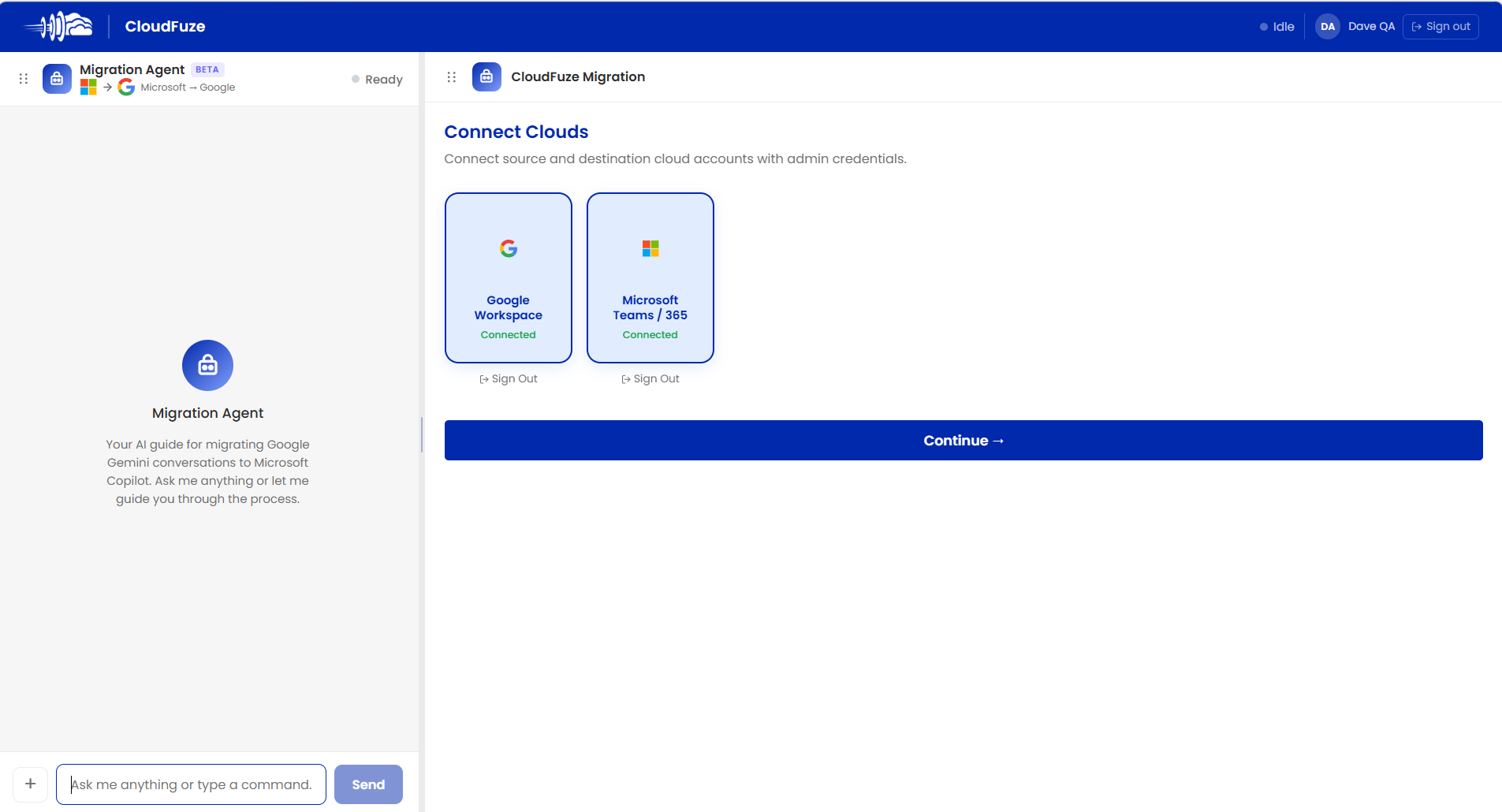
NOTE: CloudFuze AI app migration tool also includes an AI chat agent on the left panel which acts as an assistant to guide you throughout the entire process. You can ask questions about any step, integration, etc.
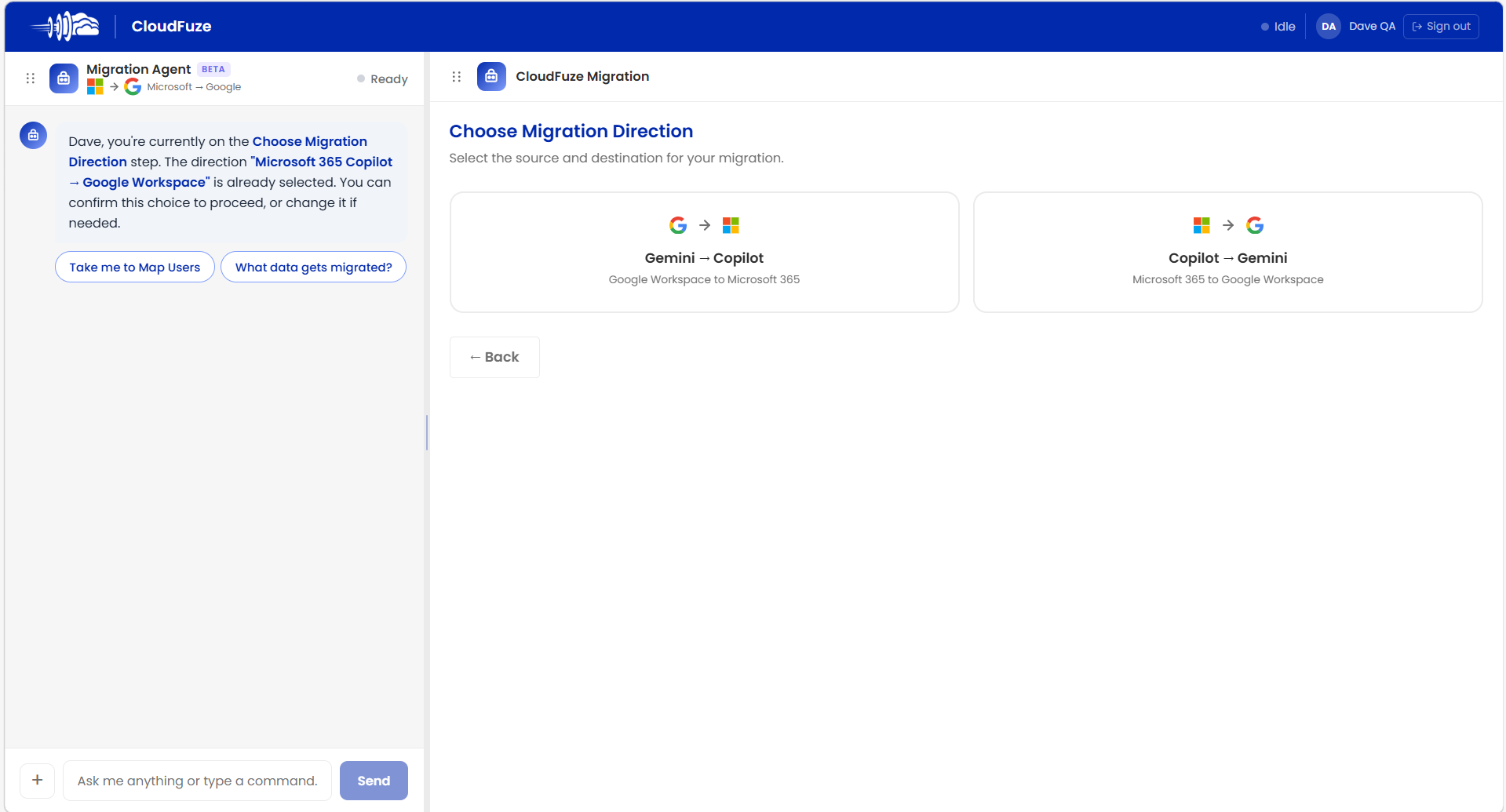
Step 2: Choose the Migration Path
Next, choose the AI app migration path. Since this guide is about Gemini to Copilot migration, select this path in the tool.
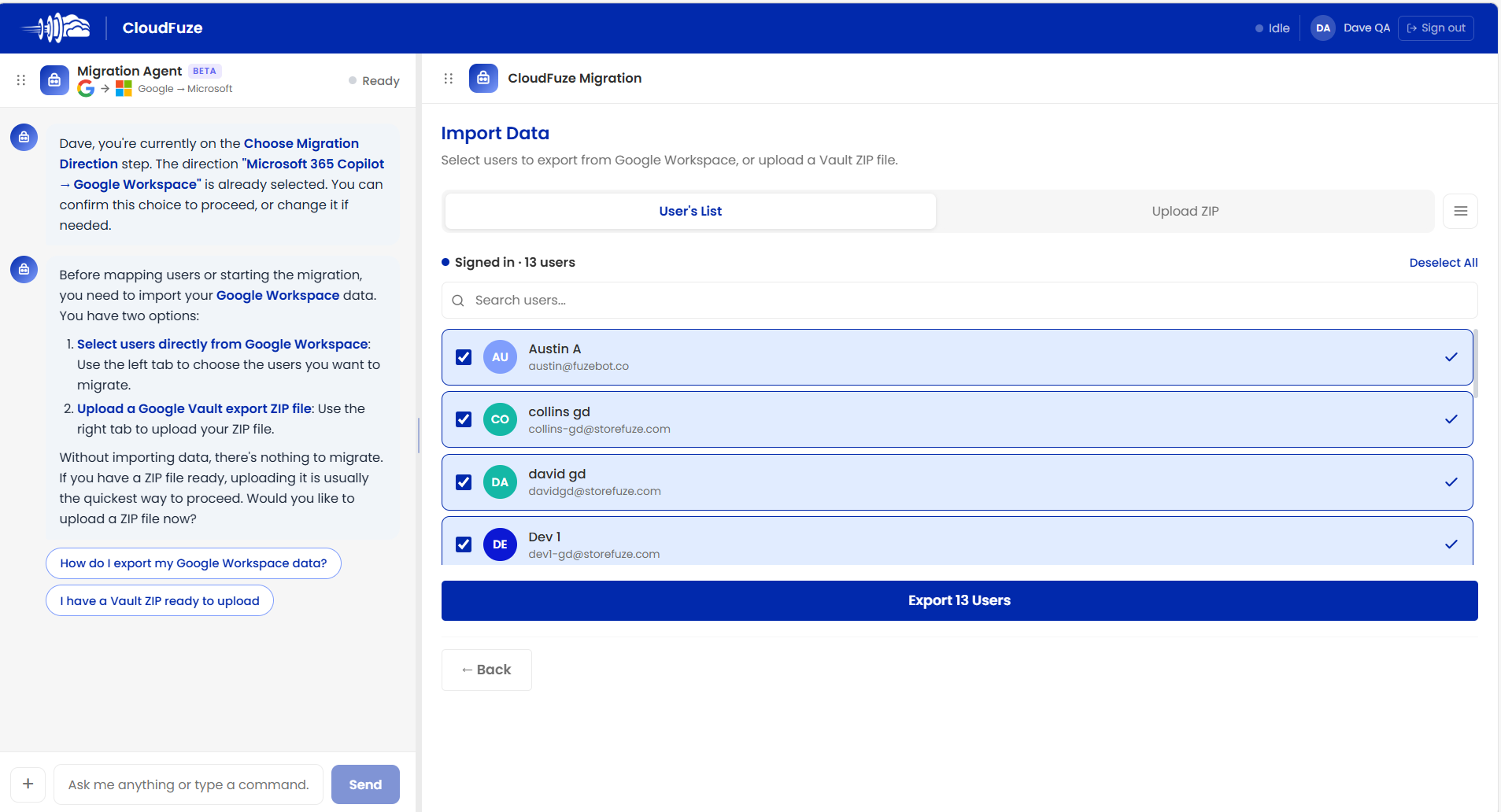
Step 3: Select Users to Export
After selecting the migration path, the CloudFuze AI App migration tool will automatically fetch Google Workspace users. Based on your migration requirements, you can either choose to migrate all users or deselect some.
By selecting the “Upload ZIP” option, you can also add Google Vault ZIP files downloaded from the admin console.
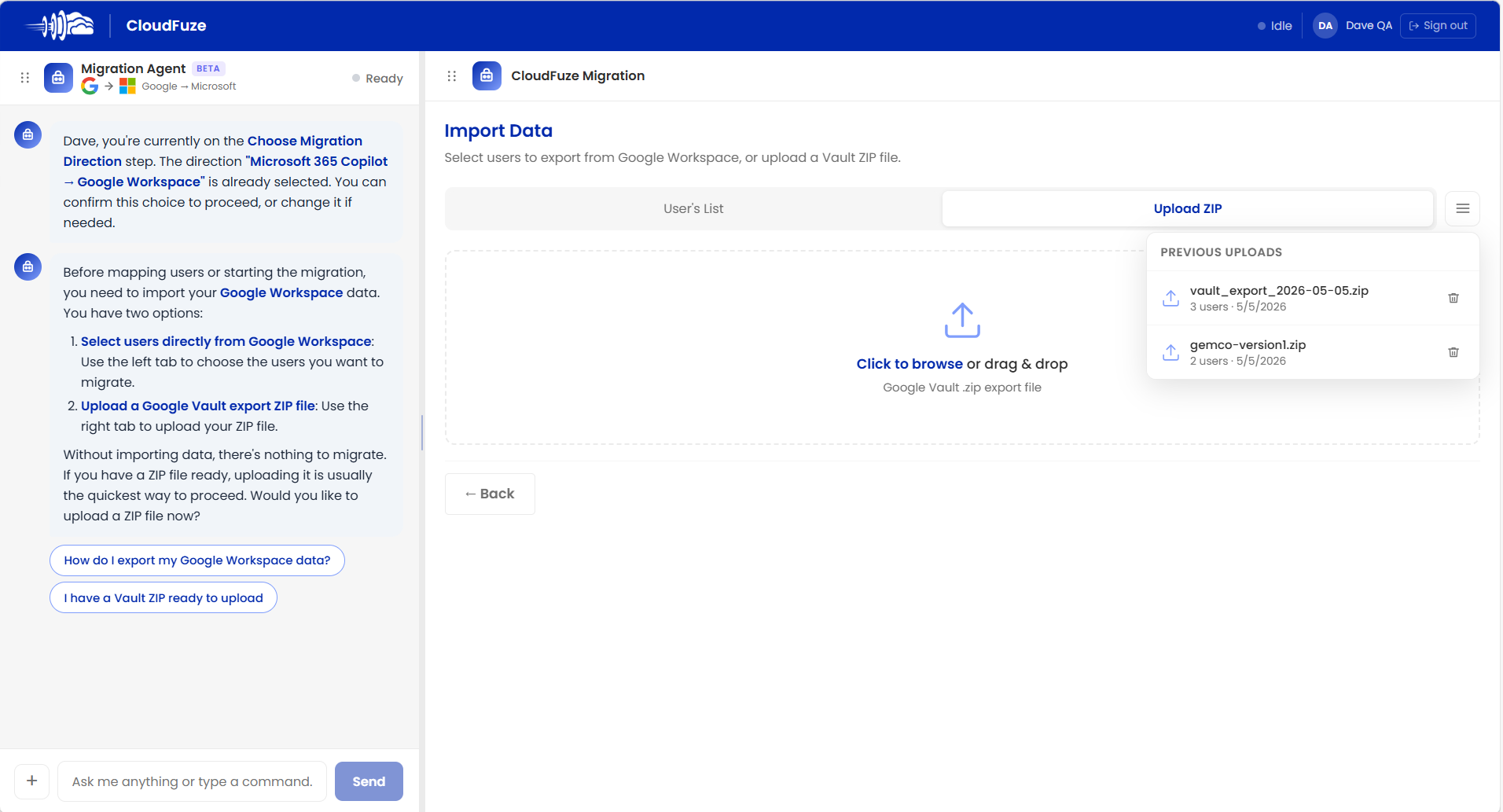
If you have a decent number of Google Workspace users and Gemini conversations, API-based user list fetching option is best. But if you have a high volume of users and Gemini conversations, then it is best to go with the Google Vault ZIP file adding option to avoid API rate limiting.
Step 4: Map Users
Google Workspace users and Microsoft 365 users get automatically mapped based on their email address matches.
If the auto-mapping does not meet your requirements, you can also manually map by clicking on the destination user’s email address and selecting the appropriate user from the drop-down list.
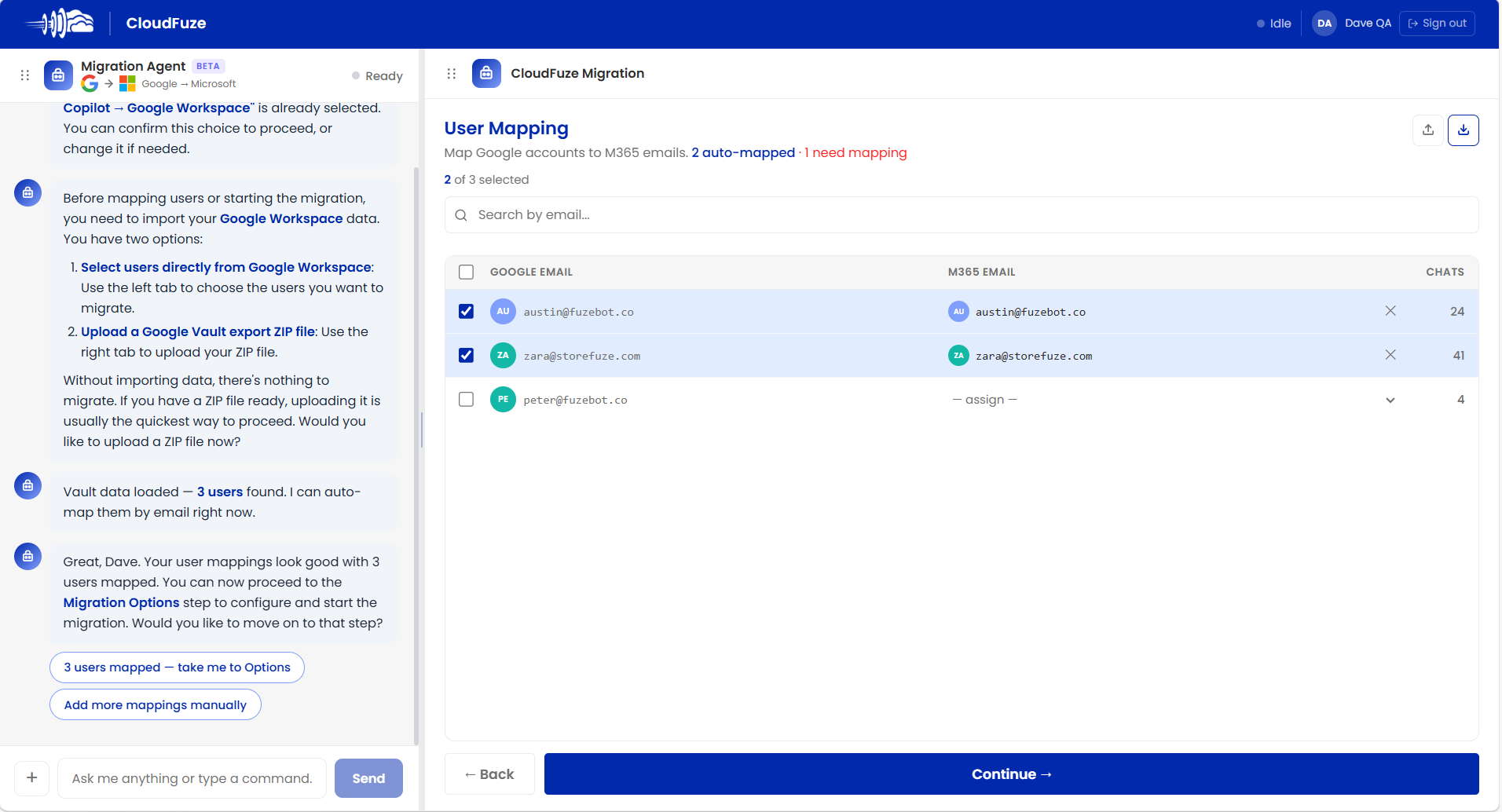
If the relevant match for the destination user is not available, then the source user will be mapped to the admin account.
Step 5: Select Migration Options
In this stage, you must configure several migration options, such as:
- Adding a file name
- Deciding whether you want to have a dry run first or not
- Selecting the date range from where you want to migrate Gemini conversations to Copilot
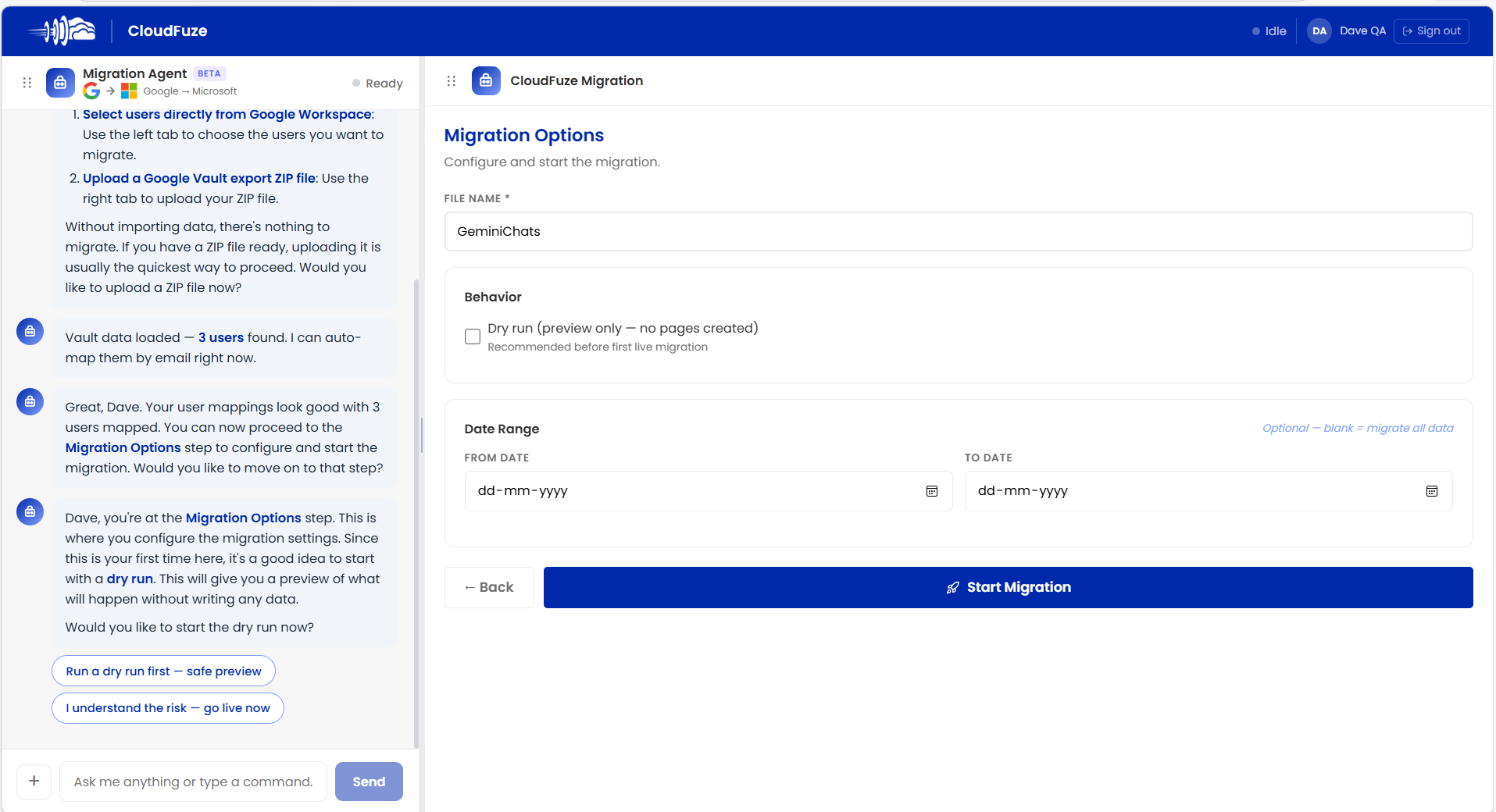
After configuring all options, click on the “Start Migration” button to start the migration process.
Step 6: Monitor the Migration Process
After the migration has started, make sure to monitor it continuously through the monitoring dashboard.
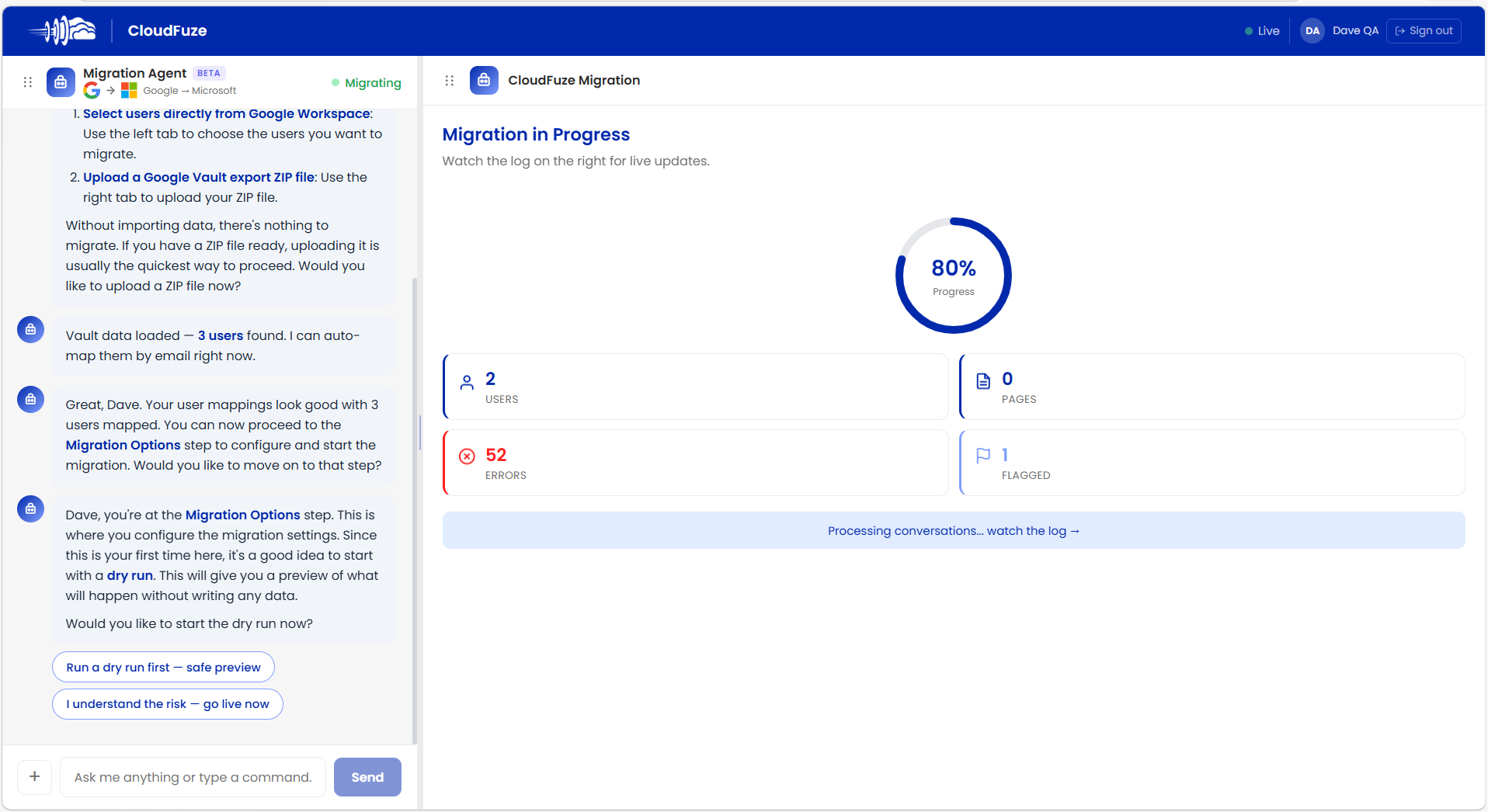
Step 7: Check the Migration Reports
You can check the migration reports during the migration progress stage as well as the migration completion stage. The migration report displays key metrics such as:
- Total batches
- Live batches
- Pages created
- Errors, and more
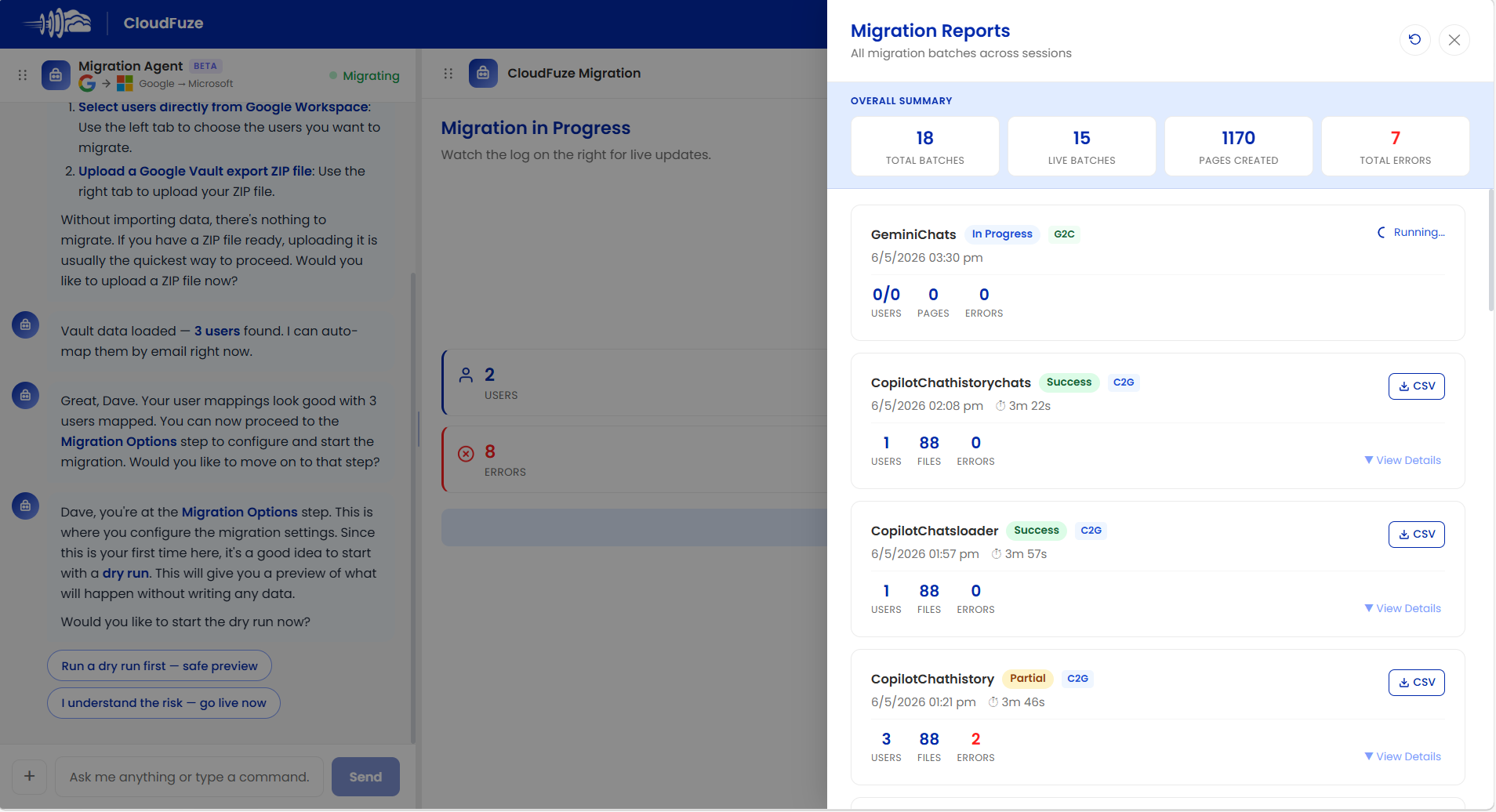
By checking the reports, you can validate the entire migration process.
Post-Migration Integration Steps
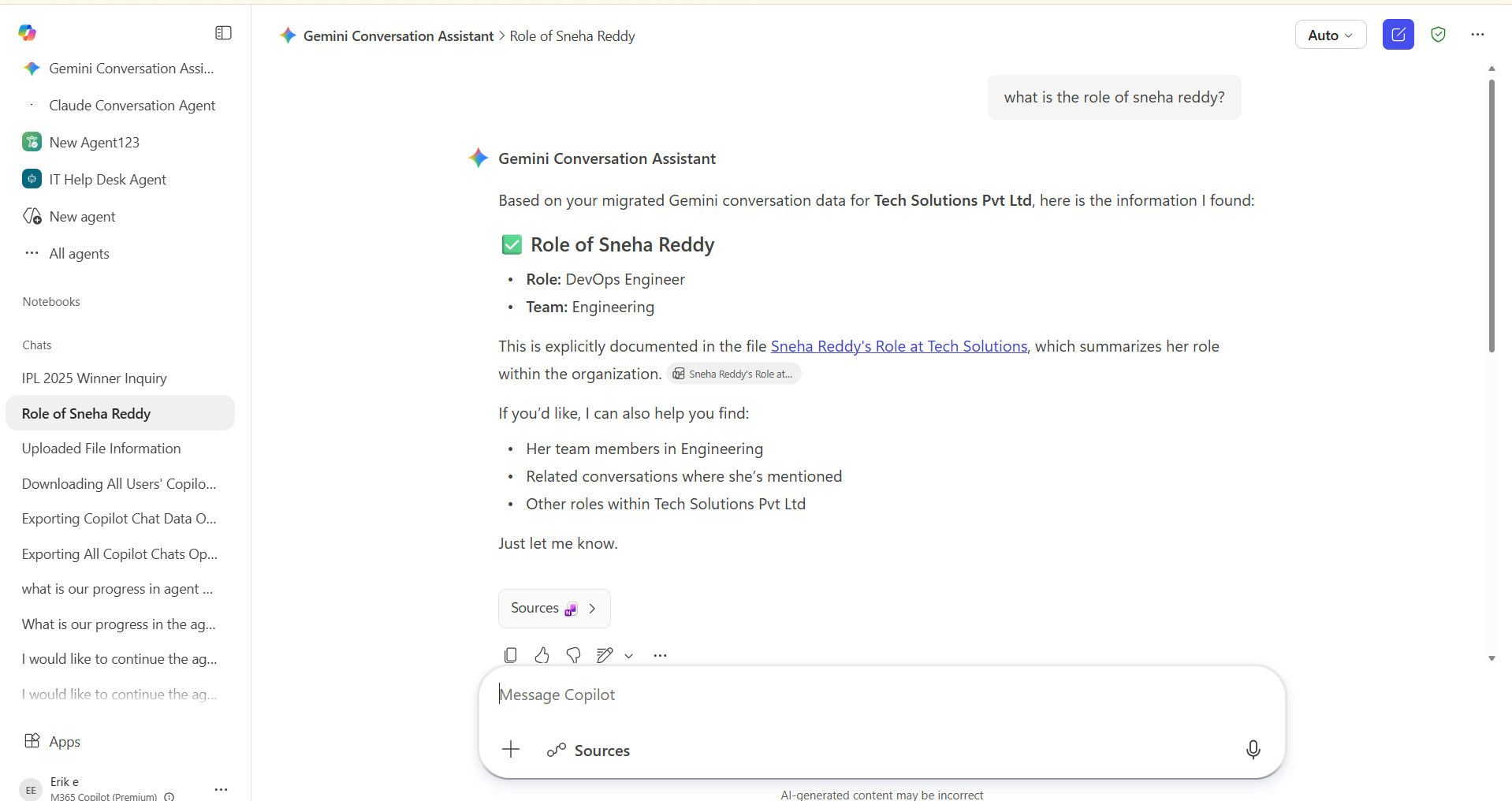
After migration completion, the Gemini Conversation Assistant agent gets automatically deployed to Copilot in Microsoft 365. Admins can then install the Gemini Conversation Assistant agent in the Microsoft 365 admin center.
The Gemini Conversation Assistant will be available on the side chat panel. Upon accessing it, each user can ask a question or start a conversation related to the past conversations they had with Gemini.
The Gemini Conversation Assistant will fetch all the migrated conversations from OneNote files and bring it over to Copilot Chat.
Interested in a Demo? Contact Us
We would be happy to show you how this works in real migration scenarios through a professional demo. If you are interested, contact us today.
Frequently Asked Questions
1. Why do organizations consider migrating from Gemini to Copilot?
For many organizations, migrating from Gemini to Copilot is becoming an integral part of moving from Google Workspace to Microsoft 365. Since Gemini usage has now become an integral part of user productivity and workflows, migrating the conversations, context, and artifacts is critical.
2. What are the main differences between Gemini and Copilot for users?
The main difference is where each assistant lives. Gemini is part of Google Workspace and is integrated with Google Docs, Sheets, and Slides.
While Copilot is built into Microsoft 365 and works with Microsoft Word, Excel, and PowerPoint. Their core AI capabilities, including drafting, summarizing, and answering questions, are similar.
3. Which companies offer migration services from Gemini to Copilot?
CloudFuze offers Gemini to Copilot migration solutions. Since this is a fairly new space, there are very few providers supporting this migration path.
CloudFuze’s Gemini to Copilot migration path is continuously evolving to include more advanced features that make it seamless for users to continue their AI conversations in Copilot after migration.
About the Author: Pankaj Rai



