
How to Create a Google Workspace Group and Add Members
Creating a Google Workspace group gives businesses a simple way to manage team communication, email distribution, project collaboration, and shared discussions from a single group address. As part of effective Google Workspace management, admins can create groups, add members, and manage permissions based on their roles instead of emailing employees individually.
In this guide, we’ll explain how to create a group in Google Workspace, add members, assign roles, and configure important group settings.
Key Takeaways
What Is a Google Workspace Group?
Google Workspace groups are a community of users that share a common group email ID. Google groups can be used in businesses for mailing lists, project groups, departments, collaborative inbox, and internal communication purposes.
Based on how the group is set up, members will be able to receive group emails, communicate, and collaborate within the group.
You can Manage Google Workspace Groups with CloudFuze Manage
Creating a Google Workspace Group is only the first step. As organizations grow, IT teams may need to manage hundreds or thousands of groups, members, owners, managers, and access permissions. Managing these groups manually can make it difficult to maintain visibility and ensure that users have the right level of access.
CloudFuze Manage is a SaaS and AI management platform that helps IT teams centrally manage and govern SaaS applications, users, groups, and access across their organization.
For Google Workspace Groups, CloudFuze Manage can help IT teams simplify day-to-day group administration and improve visibility into group-related access.
Why Use Google Workspace Groups?
Google Workspace Groups can assist in making communication and managing users easy.
- Centralized Team Communication: Rather than sending individual emails to each employee, you can send an email to the group address and connect with all its members.
- Management of Members through One Place: The owners and managers of groups can manage members of the group by adding, removing, and assigning different roles based on their responsibilities.
- Collaboration through Groups: Groups can be used for discussions of projects, team communications, events, and collaborative inboxes. Google Workspace also has other features of Groups that include Collaborative Inbox for eligible organizations.
- Access and Permissions Control: You can control who joins the group, posts a message, sees the conversation, and sees members.
How to Create a Group in Google Workspace
If you’re a Google Workspace admin, follow these steps to create a group:
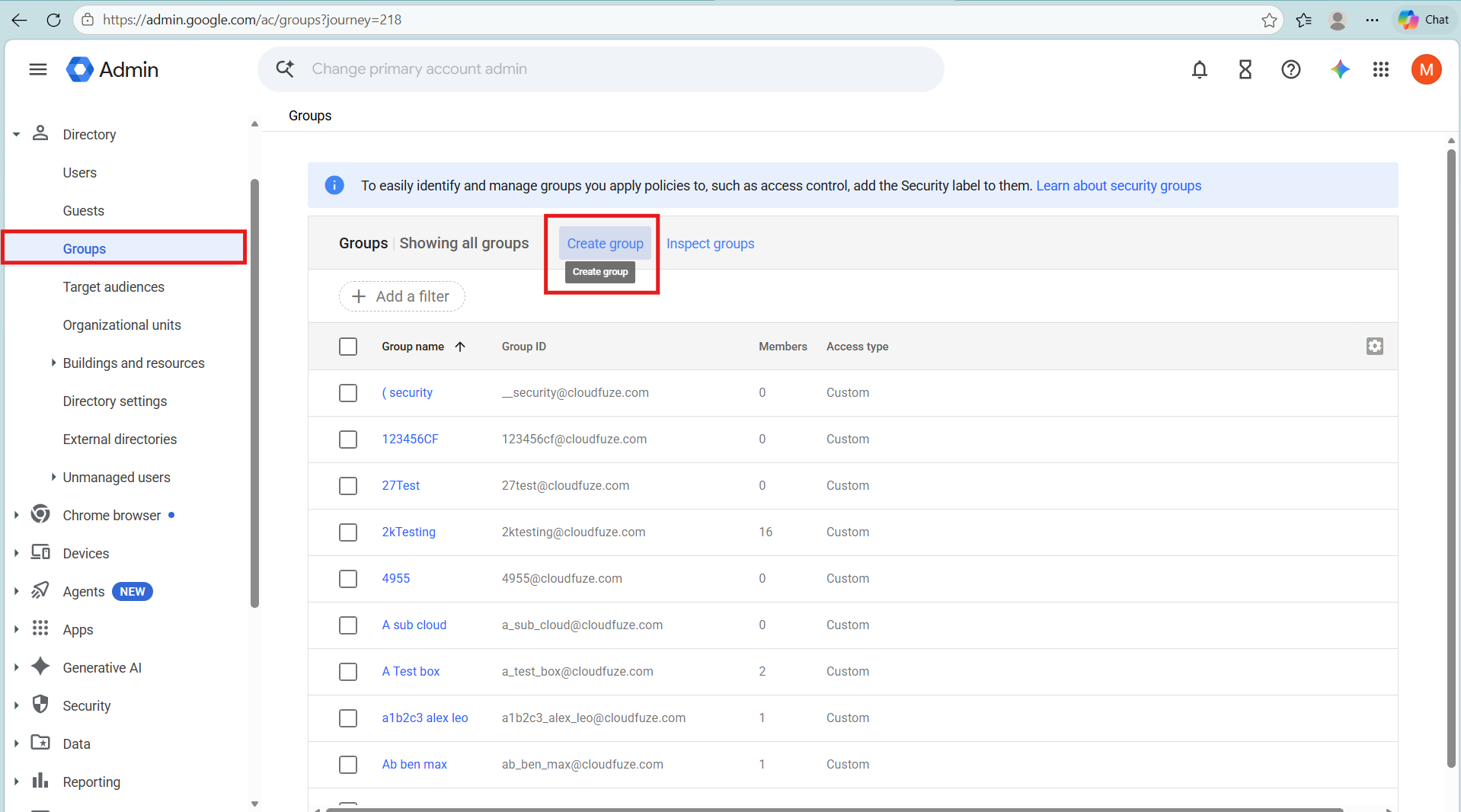
- Sign in to the Google Admin console and go to Directory → Groups.

- Click Create Group.
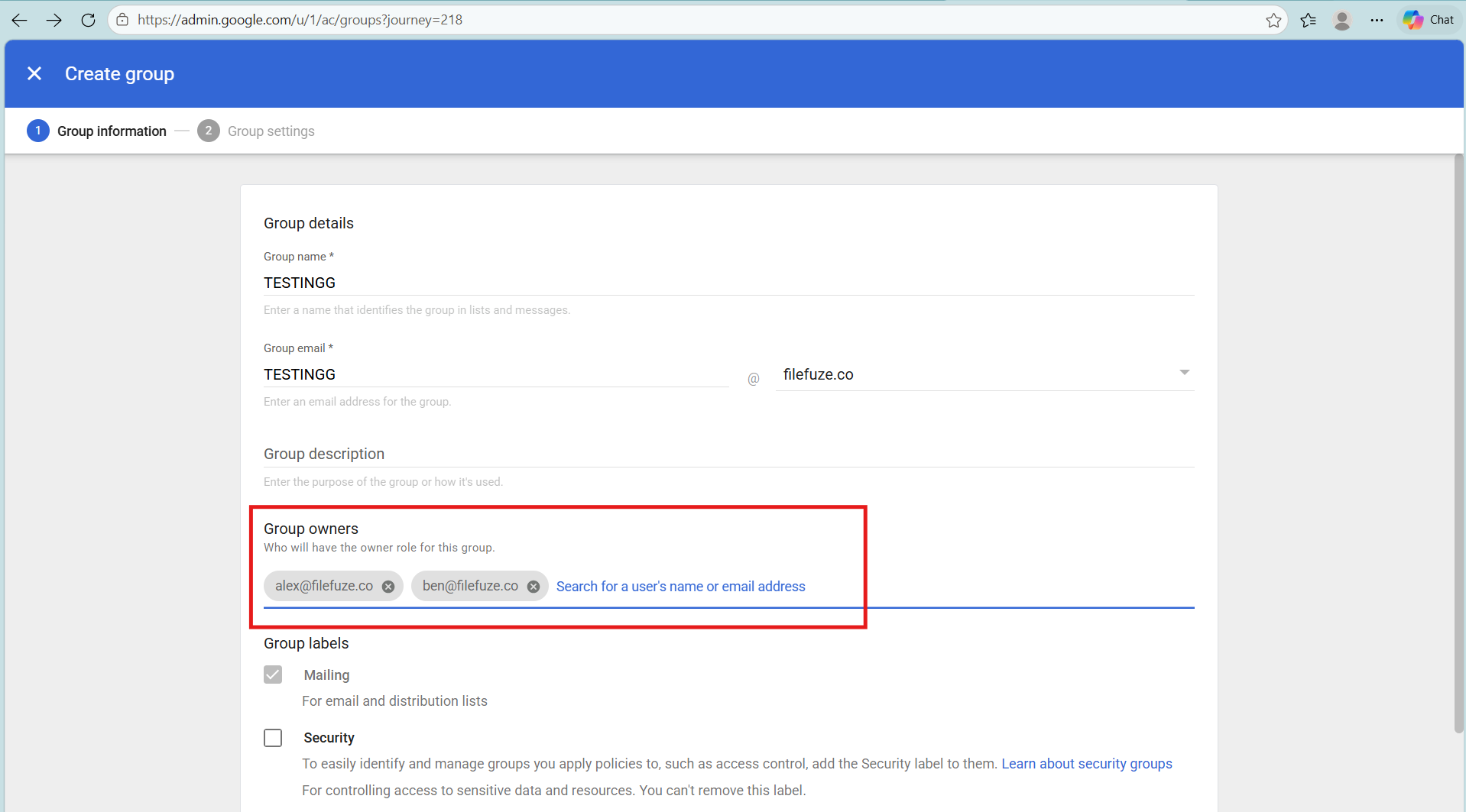
- Here, you need to enter the group name, email address, description, and Group owners.

- Then, click Next.
- To add the Security label to the group, you can check the Security box (Optional).
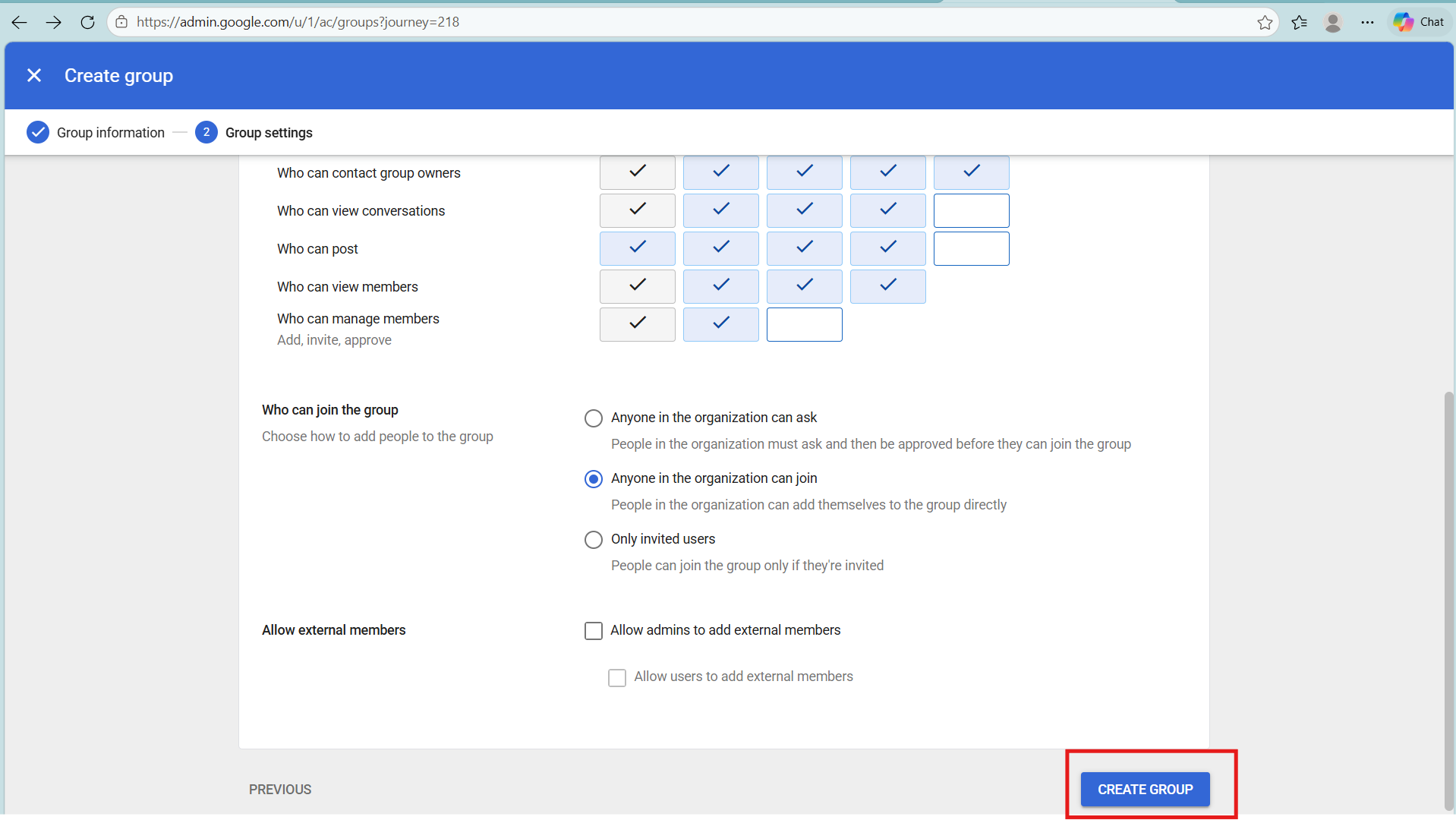
- Now, choose a group access type: Public, Team, Announcement only, or Restricted. Each type includes predefined permissions for group owners, managers, and members, and whether the group is open to the entire organization or people outside it.
- Then, customize permissions for posting, viewing conversations, viewing members, and joining the group.

- If needed, enable Restrict membership to control who can join (Optional).
- Click Create Group. Your Google Workspace Group is created!
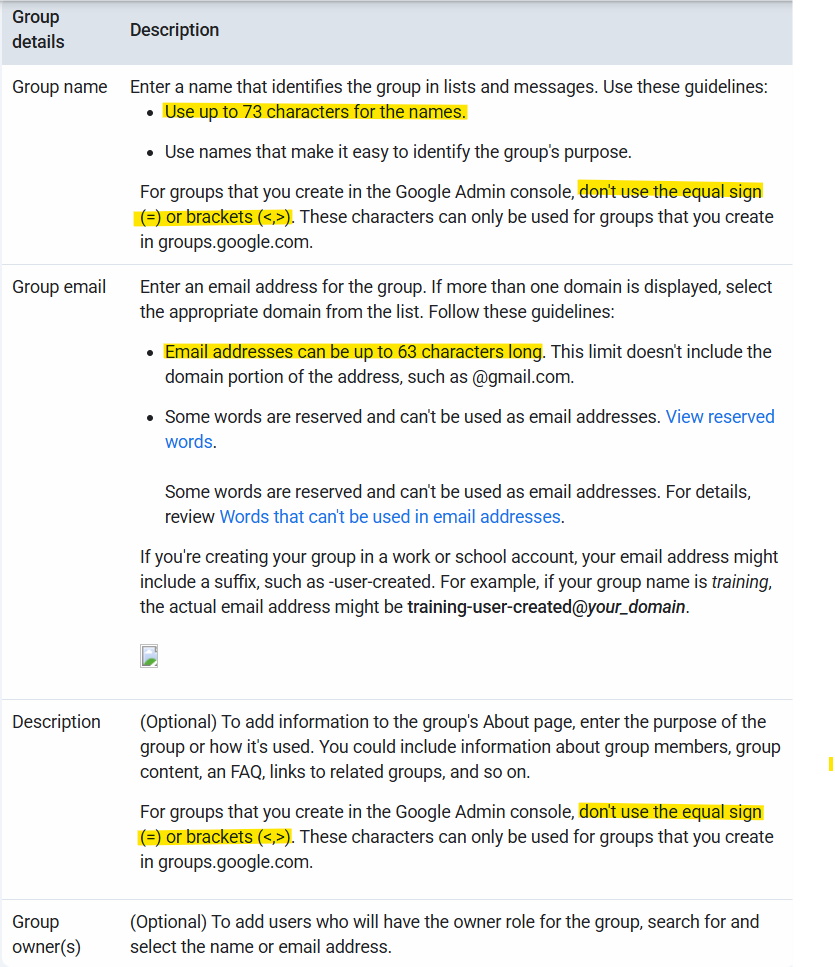
Guidelines for Entering Google Workspace Group Details
Administrative Notes
- Nesting Groups: It is possible to include the email address of an existing Google Workspace group into another group to form nested distribution lists.
- External Members: When you add members who are not part of your domain, you should ensure that the group allows for external members (Directory > Groups > [Group Name] > Access settings > Allow external members).
After Creating a Google Workspace Group
- A new group may take up to 24 hours to show up in your Groups directory accessible by all users. In order to prevent the appearance of your group in the Groups directory, you will have to make sure that group owners are allowed to hide groups.
- Give your new group some time to get active and then send a message to it; otherwise, you will receive a notification about a failed message delivery.
How to Add Members to a Google Workspace Group
Do you need to add members to an existing group? Try adding members directly or sending an invitation for them to join.
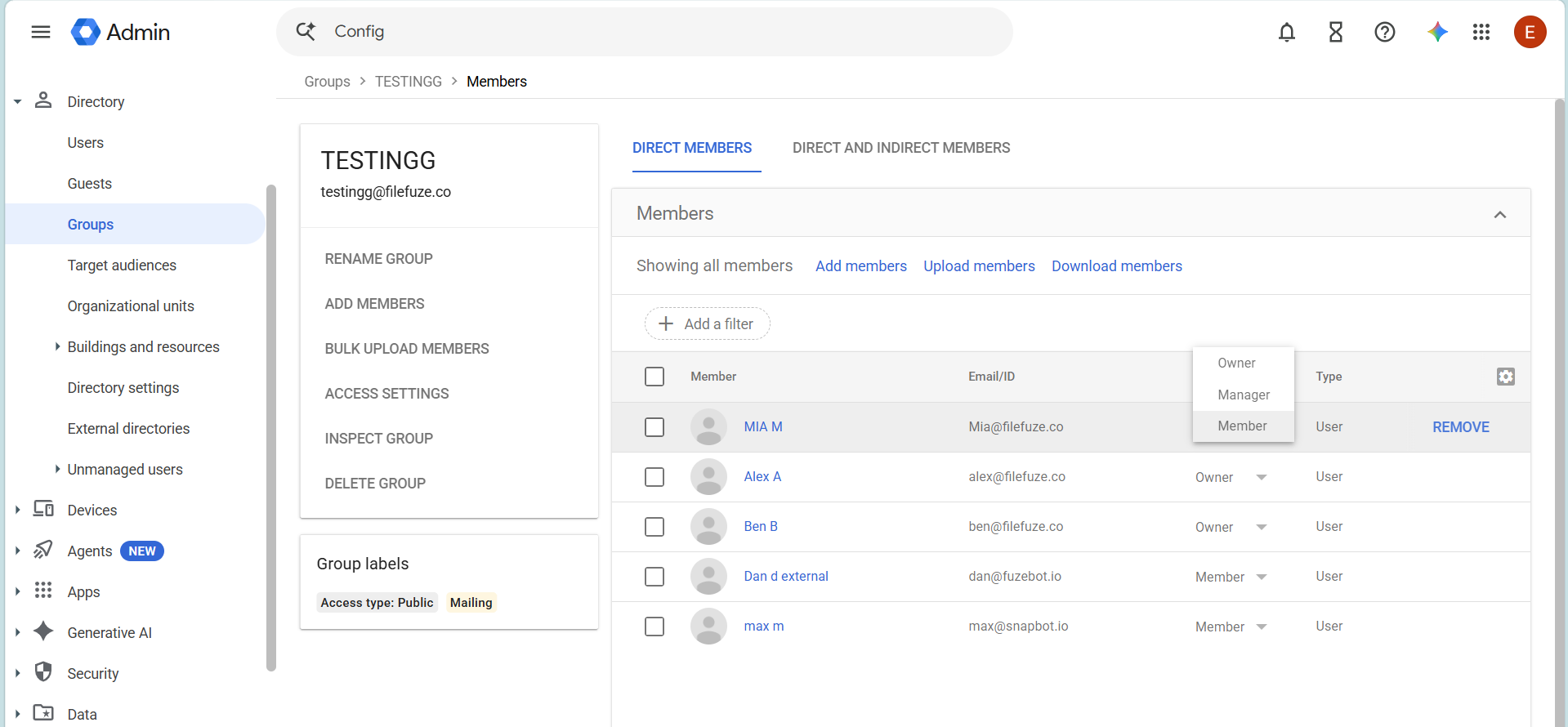
- Log into Google Groups.
- Choose your group.
- Click on the Members.
- Choose Add members.
- Input the email addresses of users.
- Create an optional welcome message.
- Click on Add members.
While adding members directly, you can specify their role as a member, manager, or owner. By default, all newly added members will have the Member role and the All-email subscription.
Inviting Members to Google Workspace Group
However, if you do not want to add members to the Google Workspace group directly, you can create an invitation for them to join the group.
- Choose your group.
- Go to Members.
- Click Add members.
- Uncheck the box that says Directly add members.
- Enter the email addresses of users.
- Create an optional invitation message.
- Click on Send invites.
Note: Invitations automatically expire after 7 days, but you can resend them any time.
How to Manage Google Workspace Group Members
After creating a group, owners and managers can manage their members and permissions.
-
Change a Member’s Role
You can assign users different roles depending on how much access they need. For example, a regular employee may remain a Member, while a team lead may be assigned as a Manager.
-
Remove Members
To remove a user from Google Workspace Group:
- Open the group.
- Select Members.
- Select the member you want to remove.
- Click Remove member.
-
Manage Join Requests
If your group allows users to request membership, owners and managers can review requests under Pending members and approve or reject them.
Looking for Easier Google Workspace Group Management? Try CloudFuze Manage
Struggling to manage hundreds of Google Workspace Groups, memberships, and access permissions manually? As your organization grows, keeping track of who belongs to which group and whether their access is still appropriate can become increasingly difficult. CloudFuze Manage helps IT teams simplify group administration with centralized visibility and control and manage Google Workspace users, groups & permissions.
- Centralized group management: Manage Google Workspace groups from a centralized platform instead of handling every group individually.
- Group visibility: Get better visibility into groups, members, owners, and managers across the organization.
- Member and access management: Review group membership and help ensure users have appropriate access based on their roles and responsibilities.
- Identify inactive access: Identify users who may no longer require access to specific groups and take appropriate administrative action.
- Streamline administration: Reduce repetitive manual work involved in managing users and group memberships at scale.
- Improve access governance: Establish more consistent processes for reviewing and managing group access across the organization.
- Manage SaaS centrally: Manage Google Workspace alongside other SaaS applications from a broader SaaS management environment.
For organizations with a large Google Workspace environment, centralized SaaS management can make it easier for IT and security teams to maintain visibility, control access, and keep group memberships aligned with organizational requirements.
Important Google Workspace Group Settings
Creating the group is only the first step. Administrators should also review the group’s permissions.
Who Can Join the Group?
You can configure whether only invited users can join; organization users can join or request access, or external users can participate, depending on your organization’s policies.
Who Can Post?
You can control who can send messages to the group’s email address. This can help prevent unwanted messages or restrict communication to specific users.
Who Can View Conversations?
Group settings allow you to determine who can access conversations posted to the group.
Who Can View Members?
You can also control who can see the group’s member list.
Can External Users Join?
For work or school accounts, external membership depends on administrator settings. If external members are allowed, group owners can configure the relevant membership options.
Best Practices for Managing Google Workspace Groups
- Choose Clear Group Names: Names that describe the purpose of the group will be helpful and make the management of groups much easier.
- Conduct Regular Member Reviews: Get rid of former employees who no longer have a reason to belong to the group and any users who no longer require access.
- Limit External Access: External members should be allowed in case of a business necessity only.
- Allocate Appropriate Roles: All users do not need to be managers or owners of the groups. Allow them just as much access as they require.
- Conduct Regular Group Setting Reviews: Posting, membership, visibility, and conversation settings of your groups should be reviewed on a regular basis.
Create a Google Workspace Group in Minutes and Manage it Easily!
The process of creating a Google Workspace group and adding members is easy. You can create a group, set its permission settings, add members either manually or by inviting them, and assign member, manager, or owner roles as per your requirements.
See how CloudFuze can simplify Google Workspace management. Book a personalized tool walkthrough today.
Frequently Asked Questions
1. Can I create a Google Workspace group without being an admin?
Yes, depending upon your Google Workspace account configuration. Your admin can specify which users are authorized to create and manage groups.
2. What is the maximum number of members in a Google Workspace group?
According to Google, a Google Workspace group can have unlimited members, subject to any additional restrictions applicable to your configuration.
3. Can I add external users to a Google Workspace group?
Yes, if your administrator has enabled the feature for external members.
4. Can I add multiple users to a Google Workspace group?
Yes, you can add multiple users at once to a group by entering multiple email addresses for members. If you have a large number of users in an organization, then the admins can use the right Google Workspace features for managing users.
About the Author: Aayushi Raj



