
Migrate Microsoft Teams from One Tenant to Another & Sync Changes
We at CloudFuze facilitate smooth Microsoft Teams tenant-to-tenant migration, helping enterprises migrate Teams to Teams with complete accuracy. Whether you need to migrate Teams to a new tenant after an M&A or migrate Microsoft Teams to another tenant for consolidation, our migration tool supports both one-time and delta incremental migrations.
Our tool, CloudFuze Migrate, offers unlimited delta migration for migrating Microsoft Teams from one tenant to another, syncing new/changed messages, files, channels (public/private), DMs, and metadata after initial one-time transfer with zero downtime.
Key Takeaways:
Migrate Microsoft Teams from One Tenant to Another with Delta Sync
The first bulk transfer (one-time migration) can take weeks or months in large-scale Microsoft Teams migration to another tenant project. By the time the initial phase finishes, new messages, edits, or files often already exist in the source tenant, creating inconsistencies during Teams tenant-to-tenant migration.
That is where Delta Migration becomes essential when organizations migrate Teams between tenants.
Delta Migration automatically identifies and transfers only the new or modified data after a one-time migration, ensuring both tenants remain in sync without restarting the entire Microsoft Teams data migration.
Steps to Perform Delta Migration to Migrate Teams Between Tenants with CloudFuze
Here’s how to migrate Microsoft Teams from one tenant to another using CloudFuze’s unlimited Delta migration feature:
Step 1: Run the one-time Microsoft Teams migration to create the baseline in the destination tenant.
Step 2: Ensure users, groups, Teams, channels, and permissions are correctly discovered and mapped in CloudFuze. Confirm required licenses exist in the target tenant.
Step 3: Select the delta migration option in CloudFuze to track and sync only new or modified Teams data after the one-time migration.
Step 4: Start the delta job to migrate incremental changes such as new messages, replies, files, channel updates, and newly added users.
Step 5: Use the CloudFuze dashboard to monitor progress, review logs, and identify any skipped or retried items during the delta run.
Step 6: Repeat delta migrations as needed (Unlimited) to keep both tenants in sync.
Step 7: Review CloudFuze reports to confirm all incremental changes are synced, then proceed with final cutover once tenants are fully aligned.
Teams Delta Migration from One Tenant to Another with CloudFuze: Before & After
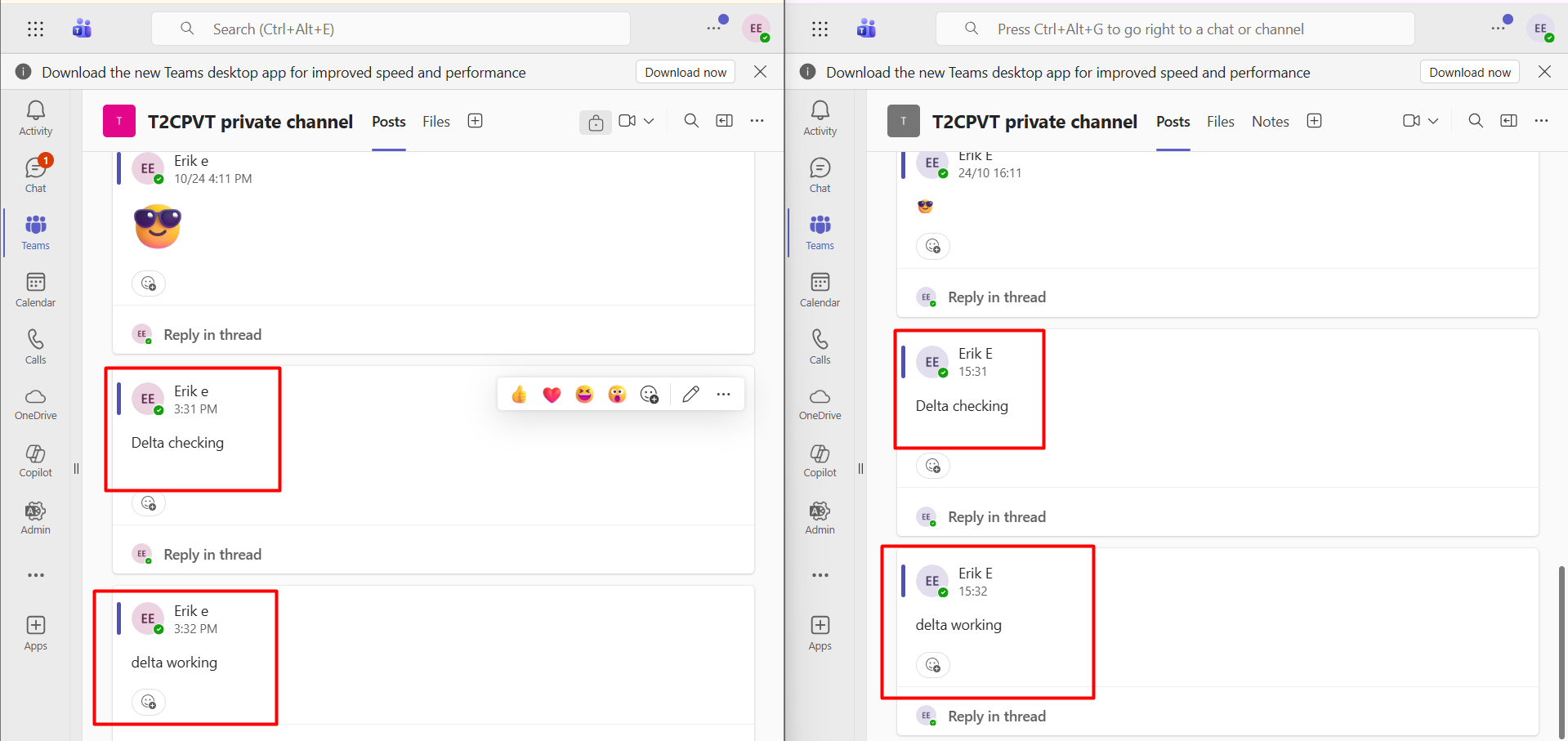
1. Before Migration:
In the source tenant (left-hand side of the image), after the one-time migration was complete, the user Erik E posted two new messages, “Delta checking” and “delta working” in a private Teams channel. These messages were not yet available in the destination tenant.
2. After Migration:
During the delta migration, CloudFuze automatically detected these new posts and migrated them to the destination tenant (shown on the right-hand side of the screen). The messages appeared with the exact same timestamps, ensuring complete message continuity and accuracy.
3. Migration Report:
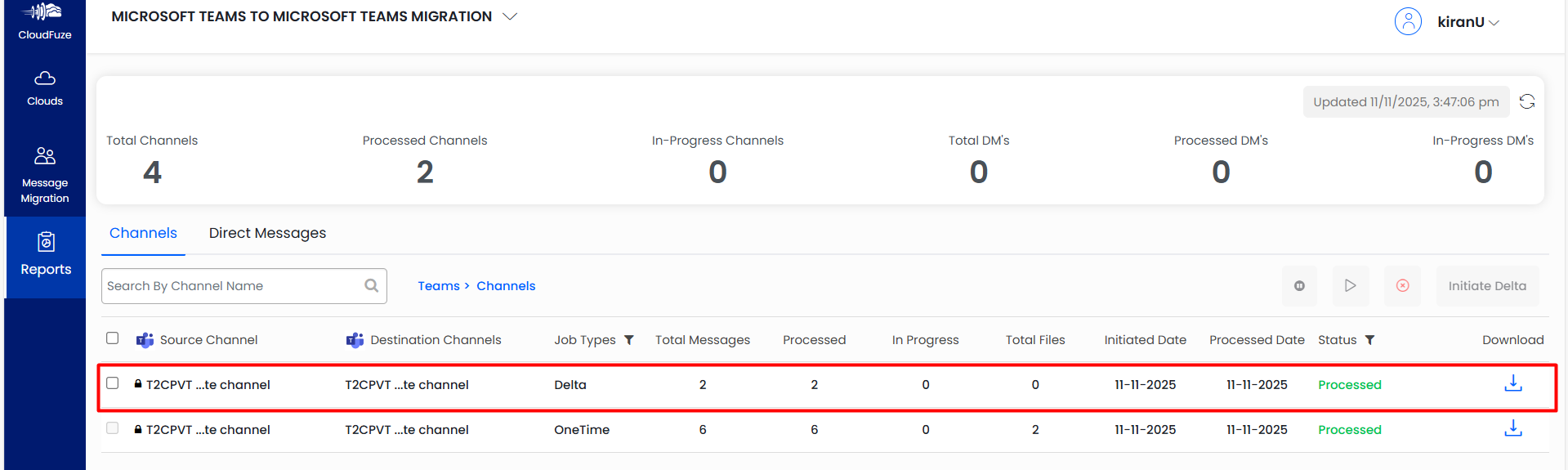
The screenshot shows the migration dashboard of CloudFuze for both One-Time and Delta jobs.
- The One-Time migration initially transferred six messages and two files.
- Afterwards, Delta migration synchronized the two new messages added after the first transfer.
The above example shows how CloudFuze’s Delta Migration feature efficiently synchronizes only the new or updated messages, thereby avoiding any duplicates while keeping the tenants perfectly in sync throughout the migration process.
Have questions? Contact our support team.
What CloudFuze Migrates to Microsoft Teams
| Features | Migrated with Full Fidelity |
|---|---|
| Private & Group Chats | ✅ |
| Teams & Channels | ✅ |
| Files & Attachments | ✅ |
| Metadata | ✅ |
| Permissions | ✅ |
Case Study: Teams to Teams Migration with Delta Sync for a Global Tech Company
A global tech company with 1,500 Microsoft 365 users needed to consolidate multiple Teams tenants while ensuring zero downtime and full data accuracy.
CloudFuze did a full one-time migration of 10,000+ messages, 2,500+ files, and 300 Teams channels. It then used Delta Migration to automatically sync new messages, file updates, and channel changes, including private channels, DMs, mentions, and metadata.
The migration kept message timestamps, file versions, and permissions intact without interrupting collaboration. Audit-ready reports provided IT teams with complete visibility to confirm every item was securely and accurately migrated to ensure a seamless transition across both tenants.
How CloudFuze Simplifies Delta Migration for Teams Tenant-to-Tenant Migration
Our CloudFuze migration engine manages every stage of Microsoft Teams tenant-to-tenant migration from initial mapping to delta sync. This ensures 100% accuracy and zero downtime when enterprises migrate Microsoft Teams from one tenant to another.
1. Pre-Migration Assessment
We scan both source and destination tenants for direct messages, users, channels, and permissions before you migrate Teams to a new tenant, ensuring accurate mapping.
2. Full Data Migration
Our platform migrates Teams data including messages, replies, files, emojis, mentions, timestamps, and metadata preserving full context during Microsoft Teams migration to another tenant.
3. Delta Migration
After the one-time migration, new or modified content such as messages, public and private channel updates, or file edits is automatically synced, keeping the Teams migration tenant to tenant fully aligned.
4. Validation & Reporting
We provide detailed logs, dashboards, and reports so enterprises can verify their Microsoft Teams data migration that all items have been successfully migrated.
Differences Between Full One-Time Migration and Delta Migration for Microsoft Teams
| Aspect | Full One-Time Migration for Microsoft Teams | Delta Migration for Microsoft Teams |
|---|---|---|
| Purpose | Transfers all existing Microsoft Teams data in a single bulk migration | Syncs only new or modified Teams data after the initial migration |
| When It Runs | Executed once at the beginning of the Teams tenant-to-tenant migration | Runs after the one-time migration and can be scheduled multiple times |
| Data Scope | Migrates all Teams, channels, chats, files, and metadata present at the start | Only incremental changes like new messages, files, or channels and permissions |
| Migration Performance | Optimized for large-volume data transfer | Faster execution by processing only delta changes |
| Role in Teams Tenant-to-Tenant Migration | Establishes the baseline migration | Ensures migration completeness and accuracy before final cutover |
Common Microsoft Teams Delta Migration Errors and CloudFuze Fixes
| Error | CloudFuze Fix |
|---|---|
| User or Permission Mismatch | Re-run preprocessing and confirm users, groups, and licenses exist in the target tenant |
| Delta Migration Shows No Updates | Verify source activity and trigger the next delta run |
| API Throttling During Migration | Use built-in retries and run delta during off-peak hours |
| Private Channel Data Not Synced | Finalize private channel import mode before delta sync |
Enterprise-Grade Microsoft Teams Migration Starts Here
With CloudFuze’s Delta migration, enterprises can confidently migrate Microsoft Teams to a new tenant without worrying about missed messages or downtime during Teams migration from one tenant to another. Our enterprise-grade platform ensures that every channel, every file, and every message is securely transferred and perfectly kept in sync until the final cutover.
Book a free Teams tenant migration consultation with CloudFuze today.
Frequently Asked Questions
1. What is delta migration when you migrate Microsoft Teams from one tenant to another?
Delta migration is the process of syncing only new or modified Microsoft Teams data such as messages, files, channel updates, and users after the initial one-time migration. When you migrate Microsoft Teams from one tenant to another, delta migration ensures both tenants remain continuously aligned without re-migrating data that has already been transferred. We at CloudFzue offer unlimited delta migration for Teams to teams migration.
2. Does delta migration guarantee zero downtime for Teams users?
Yes. CloudFuze supports zero-downtime Microsoft Teams tenant-to-tenant migration, allowing users to continue working while data stays in sync.
3. How frequently can delta migrations be scheduled?
CloudFuze supports unlimited delta syncs, ideal for long-running Teams migration tenant to tenant projects.
4. Does CloudFuze migrate private channels and direct messages?
Yes. CloudFuze fully supports private and public Teams, DMs, attachments, and metadata during Microsoft Teams data migration.
5. What happens if new Teams or users are added after migration?
CloudFuze automatically detects and syncs new Teams and users during delta runs when you migrate Microsoft Teams from one tenant to another.
About the Author: Aayushi Raj



