
ClickUp User Management: Expert Guide for Enterprise Admins
ClickUp user management is how your IT admins control who can access your company-owned ClickUp Workspace and what they can do inside it. It is a core part of ClickUp management, which covers inviting and removing users within your ClickUp Workspace and assigning them relevant roles (owner, admin, member, guest, or more) to configuring role-based user access.
Every unmanaged ClickUp login is one more credential a hacker can easily exploit, and according to IBM’s Data Breach Report 2025, breaches involving compromised credentials cost organizations an average of $4.67 million.
This guide shows enterprise admins how to control roles, permissions, and the full user lifecycle in ClickUp in a single dashboard (CloudFuze Manage) before access sprawl outpaces.
Key Takeaways
What Is ClickUp User Management?
ClickUp user management is the set of processes and controls IT admins follow to govern user access from the moment new hires join a ClickUp Workspace to their last working day when their ClickUp access is revoked.
For example, your company rolled out ClickUp and appointed your IT director as Owner, team leads as Admins, and employees as Members. This role-specific ClickUp user access allocation ensures effective ClickUp user management company-wide.
Why ClickUp User Management Matters for Enterprise Admins
Every ClickUp account is a doorway into your enterprise’s project data, client information, and internal delivery plans. When user administration within your ClickUp workspace slips, your enterprise experiences hidden costs and security risks.
Lingering user access is where most security incidents start. This point is also emphasized in Verizon’s DBIR, which states that 22% of breaches began with credential abuse.
In a ClickUp context, that risk may start with a departed contractor who still has guest access, or a former employee whose account was never deactivated (an orphaned user account). Unrevoked ClickUp access and lingering orphaned user accounts also create unnecessary licensing costs.
Therefore, disciplined ClickUp user account management is essential for enterprise admins to close those cost-related and security-related gaps and keep your enterprise audit-ready.
Drawbacks of Managing ClickUp User Roles and Permissions Manually
Manual or spreadsheet-based user management is fine when your ClickUp workspace has ten users. At an enterprise scale of a thousand, it becomes your biggest data breach risk. Every new employee invite, user role change, and employee offboarding depends on an IT executive remembering to act, and most IT executives overlook access changes when handling a large volume of IT ticket requests.
Other limitations of manual ClickUp management include:
- ClickUp user access updates slip through the cracks due to human errors.
- Former employees retain their ClickUp access after several months of exit.
- Users end up with unnecessary permissions as there is no IT workflow automation.
- Shadow IT goes unnoticed.
- Audits take more time than they should as spreadsheets become cluttered over time.
Manual ClickUp User Management vs Automated ClickUp User Management
The table below differentiates manual spreadsheet-based ClickUp user management from automated one:
| Factor | Manual user management | Automated (CloudFuze Manage) user management |
|---|---|---|
| New-Hire Onboarding Speed | Hours of setup for every new hire | New hires get access right away |
| Employee Offboarding Accuracy | Easy to miss a departing employee | Orphaned access is removed automatically |
| User Access Reviews | Time-consuming and often missed or delayed | Reviews run on a regular schedule on a role-based basis |
| Audit Readiness | Finding user records takes extra effort | Employee activity records are always available |
| Shadow IT visibility | Unapproved tools often go unnoticed | Unauthorized apps are quickly spotted |
Best Practices for Managing ClickUp Users at Enterprise Scale Effectively
Follow these practices as your ClickUp users grow to future-proof your ClickUp user management process:
- Make sure to assign only the least privilege each person needs, and reserve ClickUp owner and admin roles for a high-stakes, documented group in your enterprise.
- Always give your external collaborators guest access to your specific ClickUp workspace, business files, and documents, never full member access.
- Map your user roles to relevant job functions, and revoke ClickUp access the same day your employee leaves your team.
- Remember to review your members, guests, and ClickUp permissions quarterly and remove unused licenses.
- Don’t forget to document your user activities in ClickUp so your IT decisions are always evident.
How CloudFuze Manage Helps Enterprise Admins in ClickUp User Management
The ClickUp admin console is effective for managing ClickUp itself. But enterprise-level user management needs automated user workflows, license optimization suggestions, and compliance reporting for their entire IT stack in one place.
Also, managing ClickUp users via shared spreadsheets can consume hours of your enterprise admin time.
Our platform, CloudFuze Manage, helps SMBs, MSPs, and large enterprises automate end-to-end ClickUp user lifecycle management along with your other IT tools on a single, intuitive platform.
Our platform’s distinct features include:
- Multi-SaaS and AI Support: Enterprise admins can easily manage ClickUp along with 190+ leading SaaS and AI apps (Mailchimp, Tableau, Bill.com, Workday, OpenAI, Claude, and a long list of apps).

- User Lifecycle Automation: Enterprise IT executives can automate user provisioning/deprovisioning and user access (owner, limited member, guest, or member) through RBAC across their ClickUp environment using our pre-defined or custom workflow template.|

- 360-Degree IT Visibility: Enterprise IT teams can track ClickUp usage and its spending along with the fleet of software and AI apps your company owns.

- Shadow IT Detection: Administrators can effortlessly identify and govern unauthorized SaaS and AI app integrations to maintain their enterprise security.

- Cost-Optimization Insights: Enterprise IT admins can monitor overall SaaS & AI spend, receive license renewal alerts, and automatically reclaim unused/underutilized app licenses.

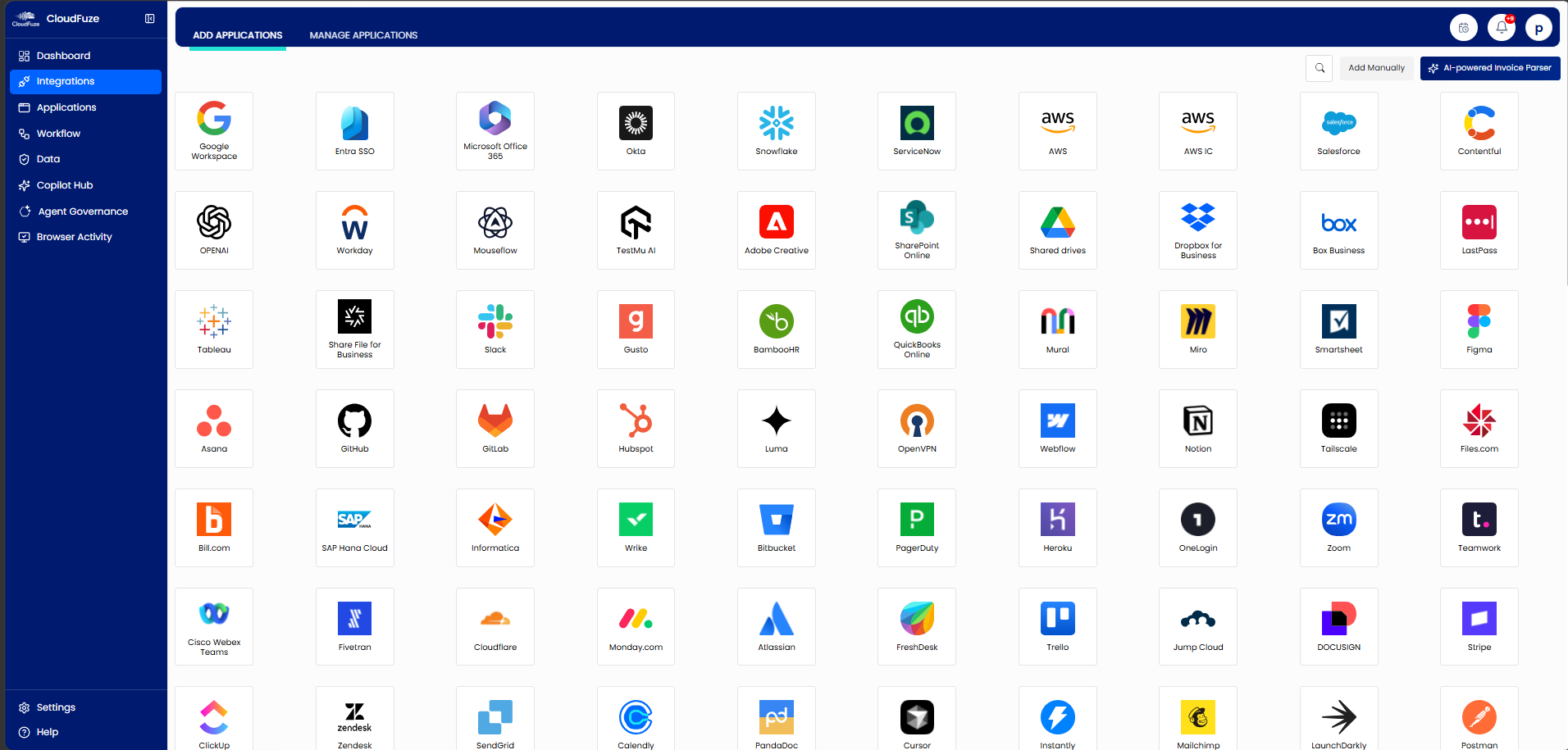
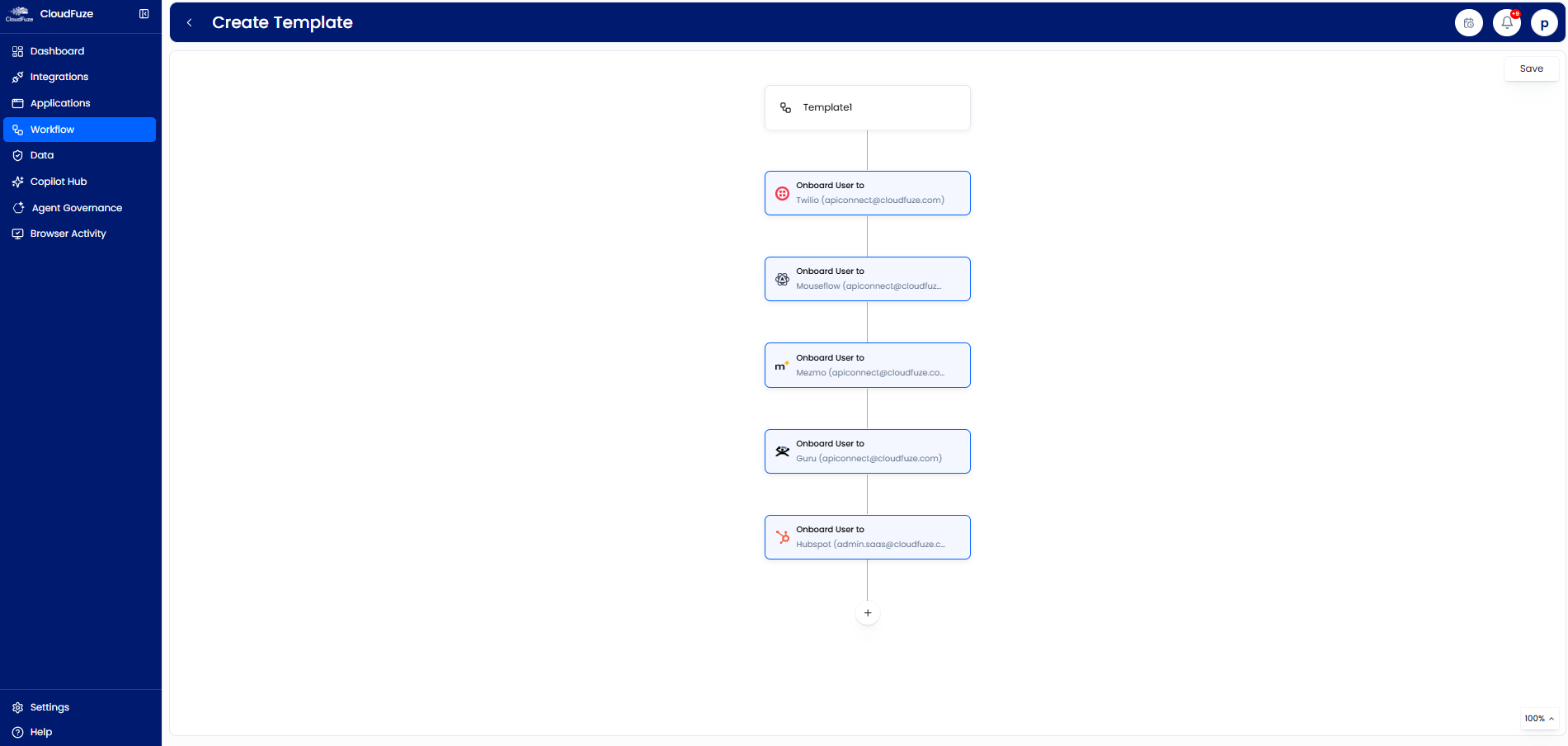
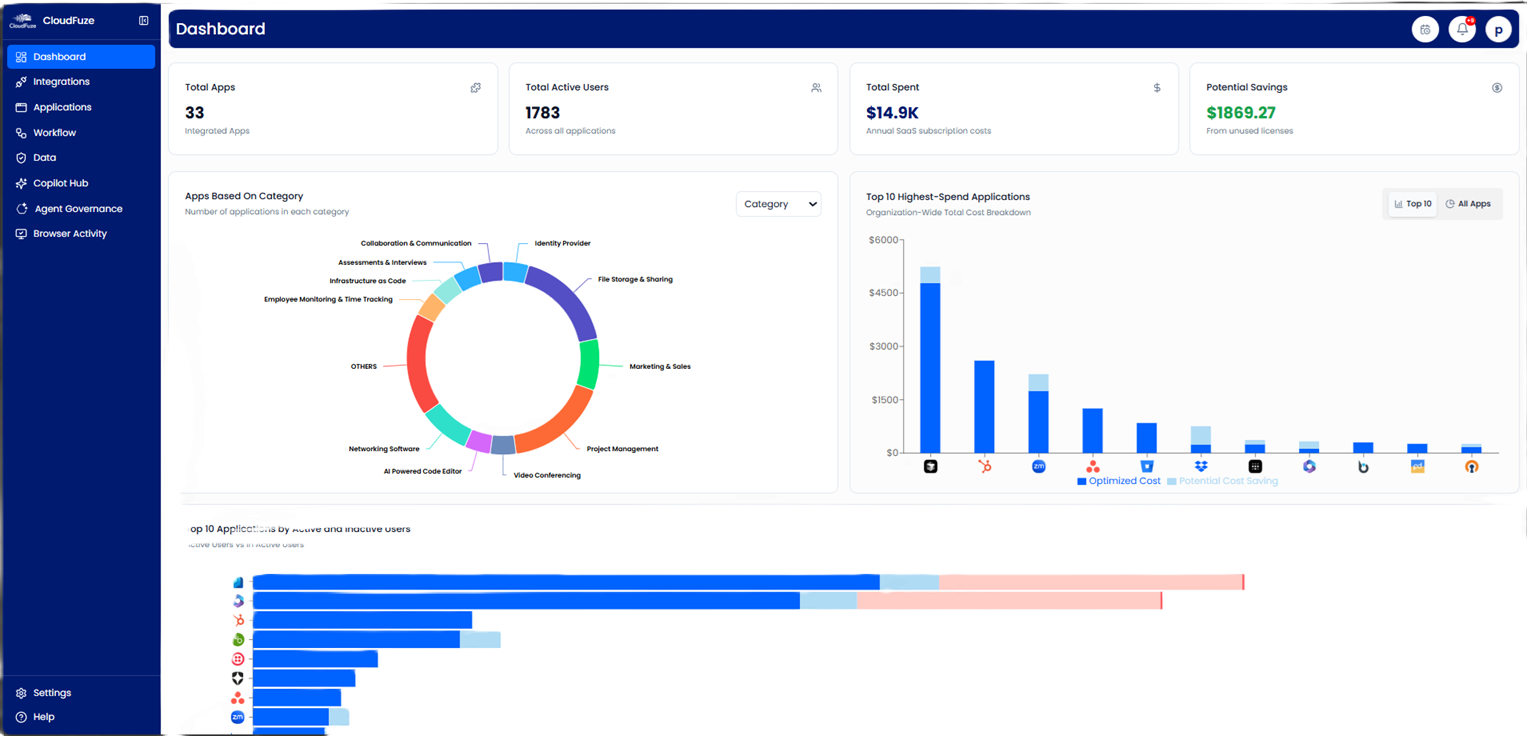

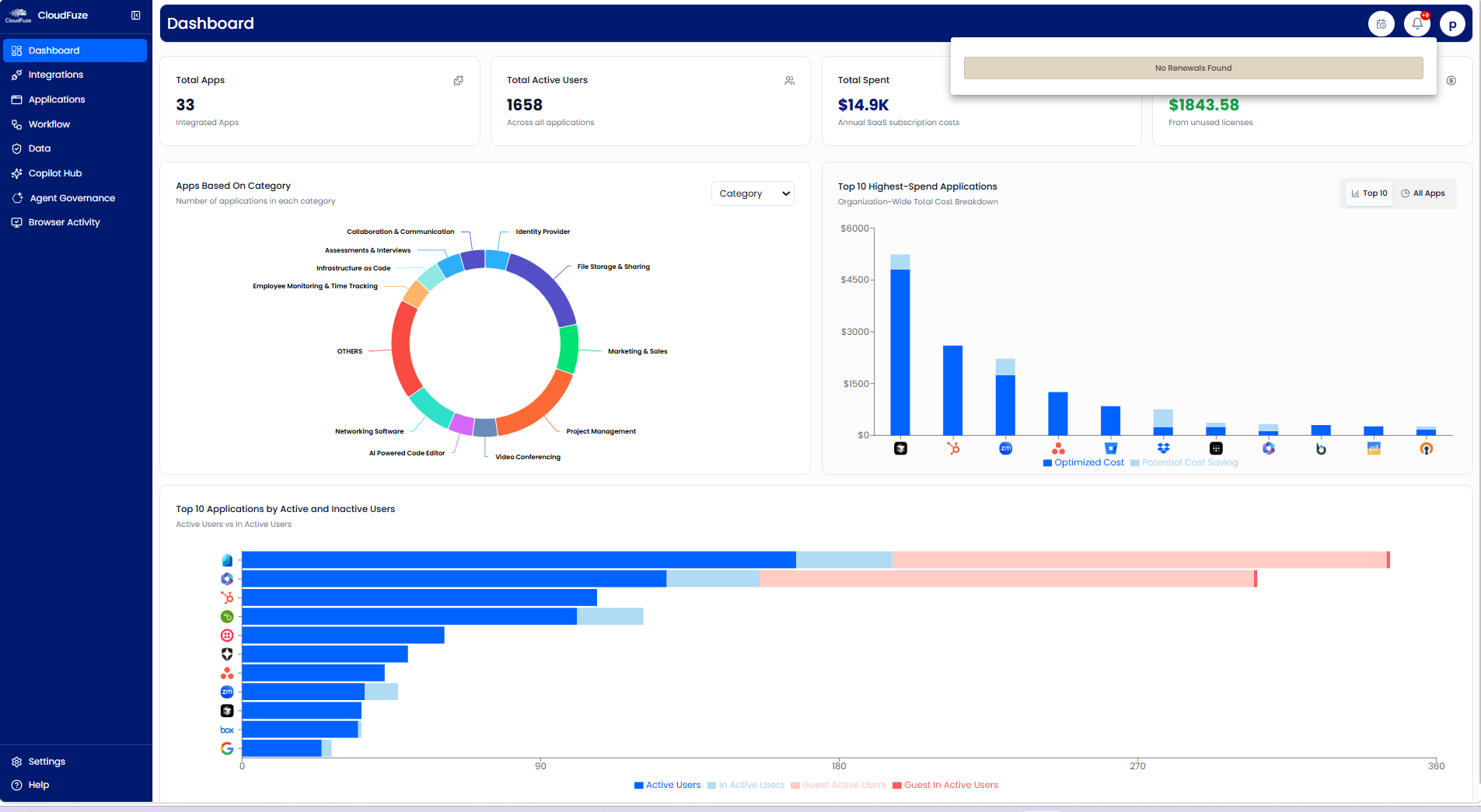
Take a look at our ClickUp management dashboard:
Go Beyond the Limitations of the ClickUp Admin Console with CloudFuze Manage
ClickUp user management must be treated as a governance discipline by every enterprise admin. Managing ClickUp users manually is a tedious process, especially at enterprise scale.
Our platform, CloudFuze Manage, helps enterprise IT admins automate user lifecycle workflows and detect shadow IT in a single, intuitive dashboard with a flexible per-user subscription.
If your ClickUp access sprawl is becoming hard to track, talk to our experts to learn how CloudFuze Manage can help you govern ClickUp user lifecycle across your enterprise stack.
Frequently Asked Questions
1. What are the best tools for managing team permissions in task management software like ClickUp?
CloudFuze Manage is one of the best ClickUp management tools that adds automated provisioning, access reviews, and audit logging across your ClickUp and other SaaS apps from one place.
2. How do I add and remove users in a ClickUp project management platform?
ClickUp owners and IT admins invite users via email or SSO, then assign a role and permission level, and deactivate the particular user account or revoke guest access in the ClickUp admin console.
3. What are the different user roles in ClickUp?
ClickUp has five roles. They are owner, admin, member, limited member, and guest. ClickUp Business Plus and Enterprise plans also support custom roles.
4. How do I manage guest access in ClickUp?
You can use third-party platforms like CloudFuze Manage to automatically provision and de-provision guest access in ClickUp along with 190+ major cloud apps. Additionally, you can also detect shadow IT and receive AI-powered (Manage AI) license right-sizing recommendations from CloudFuze Manage.
5. Can CloudFuze help manage ClickUp users at scale?
Yes. CloudFuze Manage automates ClickUp user onboarding and offboarding, surfaces unused licenses, and monitors ClickUp permissions and activity within one governed view of your entire SaaS and AI stack at enterprise-scale.
6. How to Manage User Access in ClickUp?
You can manage ClickUp user access in two ways: one is through the ClickUp admin console, and another is through a SaaS and AI app management platform like CloudFuze Manage, which automates your entire ClickUp user onboarding, offboarding, and role-based access management and makes it zero-touch.
About the Author: Rashmi Ramesh



