
Introduction
Migrating from Microsoft 365 to Google Workspace involves moving your organization’s files and folders, chat messages, emails, calendars, contacts, and AI context from Microsoft’s cloud ecosystem to Google’s ecosystem.
The migration covers OneDrive and SharePoint files, Outlook emails and calendar, Microsoft Teams chat history, Copilot AI conversations and context, along with permissions and other rich metadata and properties, all mapped and transferred to their Google Workspace equivalents using proven tools like CloudFuze Migrate.
This guide includes all the steps you need to know, right from planning to execution, validation, and post-migration integration.
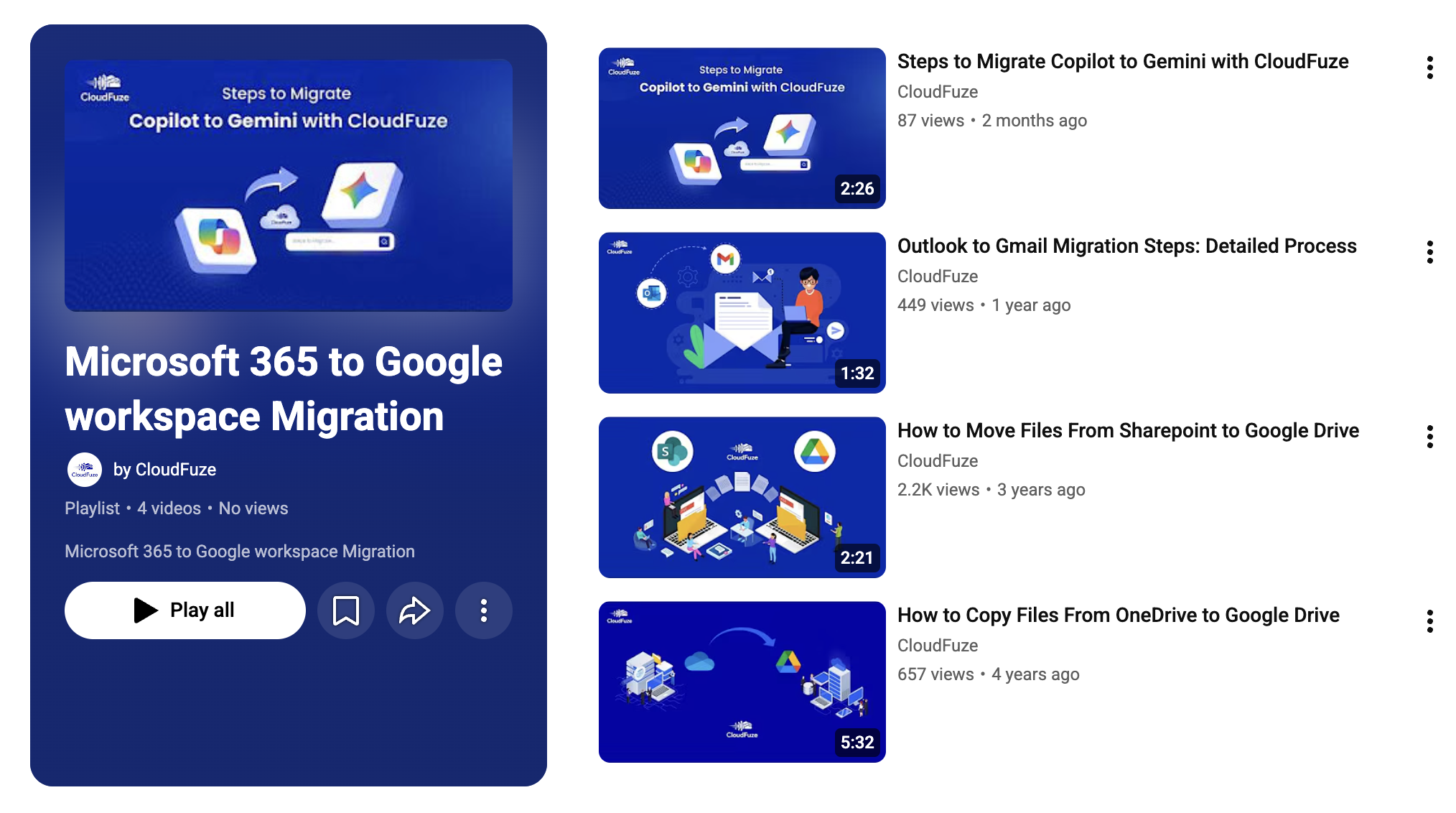
You can also watch our migration videos to get started.
What Can be Migrated
CloudFuze lets you migrate all types of files, data, metadata, and context from Microsoft 365 to Google Workspace across every major app and tool, including OneDrive, SharePoint, Outlook, Teams, and Copilot.
| Source Data (Microsoft 365) | Destination (Google Workspace) | Supported | Notes |
|---|---|---|---|
| Outlook email | Gmail | Yes | Mailboxes, folders, labels, attachments, and email properties. |
| OneDrive files | Google Drive | Yes | Conversion of Office formats to Google formats. |
| SharePoint document libraries | Shared Drives | Yes | Site structure mapped to Shared Drive folder hierarchy. |
| Outlook Calendar | Google Calendar | Yes | Events and event attachments and timestamps. |
| Outlook Contacts | Google Contacts | Yes | Full contact fields. |
| Microsoft Teams channels and messages | Google Chat | Yes | Channel structure, admins and members, group and direct message history, attachments, and messaging properties. |
| Copilot | Gemini | Yes | AI conversations and context of every user. |
Microsoft 365 to Google Workspace Migration Planning and Preparation
Before migrating from Microsoft 365 to Google Workspace, it is important to properly plan and prepare for the migration to ensure your team does not face any roadblocks when the migration is already in progress.

1) Perform a Pre-Migration Analysis for Migration Scoping
One of the initial and most important steps to take is to analyze your organization’s Microsoft 365 environment and get a clear count of:
- Total users
- Licensed mailboxes
- Total data volume
- Total channels and chat messages
- Total number of Copilot users
- And overall organization’s collaboration structure
Based on these insights, you can plan the scope of work accordingly.
2) Choose the Right Migration Tool
Choosing the right Microsoft 365 to Google Workspace migration tool is also an important part of the planning process. It is important to choose a migration tool that not only supports the functionalities you require but also ensures enterprise-grade security and compliance.
Look for migrations tools from Google Cloud Partners like CloudFuze for secure authentication, encryption during migration, compliance with data and security-related standards, support services, professional services, and streamlined policies such as service level agreements and more.
3) Map Users Accurately and Batch Them
The accuracy of the migration largely depends on how properly you map the users from Microsoft 365 to Google Workspace. Auto mapping works for simple user mapping paths where the source and destination email addresses are exactly the same.
However, if you want to customize the mapping paths, CSV mapping is what we suggest to all our customers. After the mapping part is done, it is important to segregate the total users into batches.
4) Prepare your Google Workspace Environment
If your organization is newly adopting Google Workspace, it is important to create user accounts, groups, and Shared Drives ahead of time so that data can be migrated accurately.
If you are moving to a new domain, it is equally important to get your MX records, SPF, DKIM, and DMARC settings drafted early on in the process.
5) Be Prepared with Admin Login Details
Since authenticating Microsoft 365 and Google Workspace apps in CloudFuze migration tool require the highest level of admin access, it is important to be prepared with Global Admin login details for Microsoft 365 apps and Super Admin login details for Google Workspace apps.
6) Communicate the Change Early On
Give end-users advance notice of the migration timeline and what to expect on cutover day. Teams that have been communicated about the switch for the first time on go-live day generate far more support tickets than teams that had been informed weeks or months prior.
Migrate from Microsoft 365 to Google Workspace with CloudFuze
Perform a 360° migration from Office 365 to Google Workspace with our one-stop solution. We can help you migrate from all the primary storage drives and apps in Microsoft 365 to Google Workspace.
Content migration: Migrate users, files/folders, sharing permissions, and other metadata from OneDrive to Google Drive and from SharePoint Online to Google Shared Drives.
Chat migration: Migrate channels, members, admins, and messages with history and metadata from Microsoft Teams to Google Chat.
Email migration: Migrate mailboxes, calendar, events, timestamps, attachments, and more from Outlook to Gmail.
AI context migration: Transfer conversations and context in Copilot to Gemini for each user.

Steps to Migrate Microsoft 365 to Google Workspace
Follow the steps we have listed below to understand how to migrate users and their files and folders from Microsoft 365 to Google Workspace:
Step 1: Log in to CloudFuze Webapp
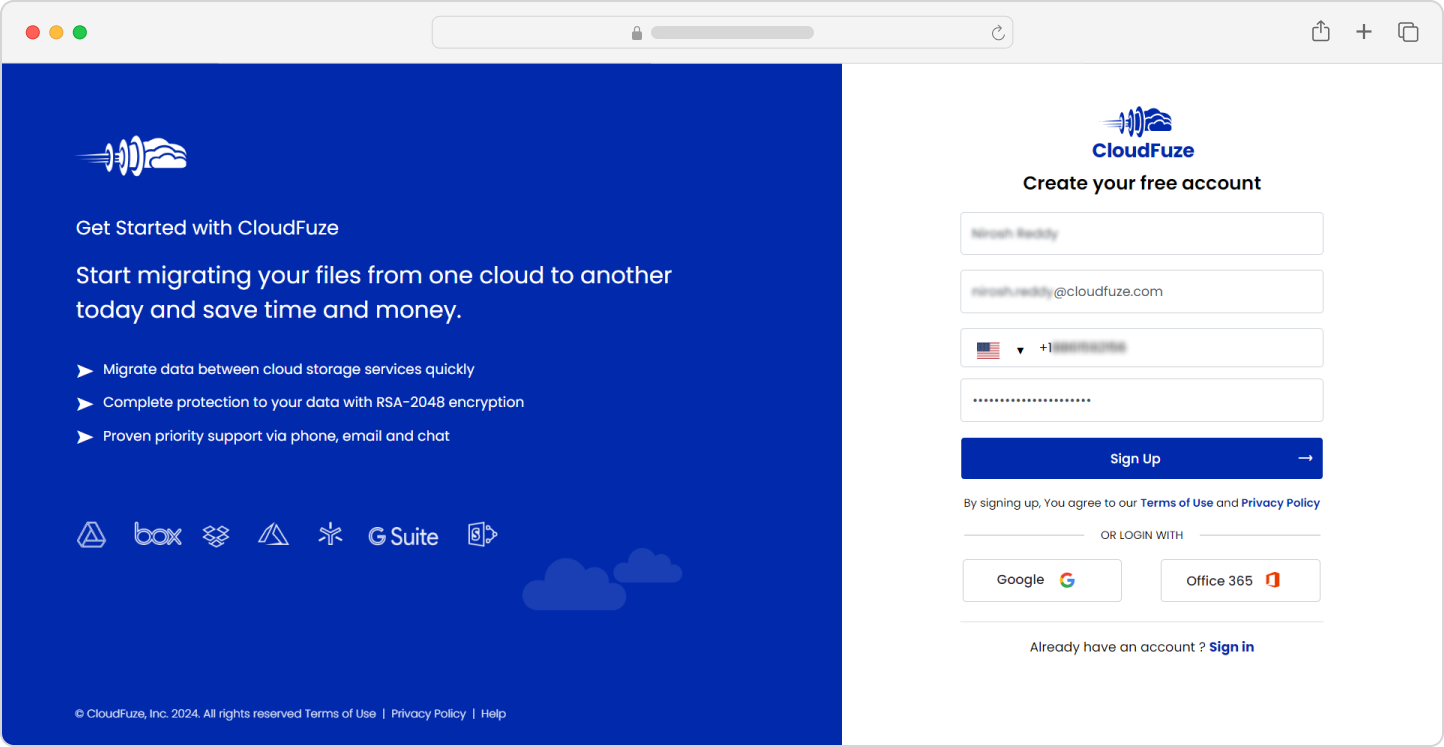
The first step, as always, is to login to the CloudFuze webapp. Don’t have an account yet? Create one here.
Step 2: Add and Authenticate the Microsoft 365 Cloud
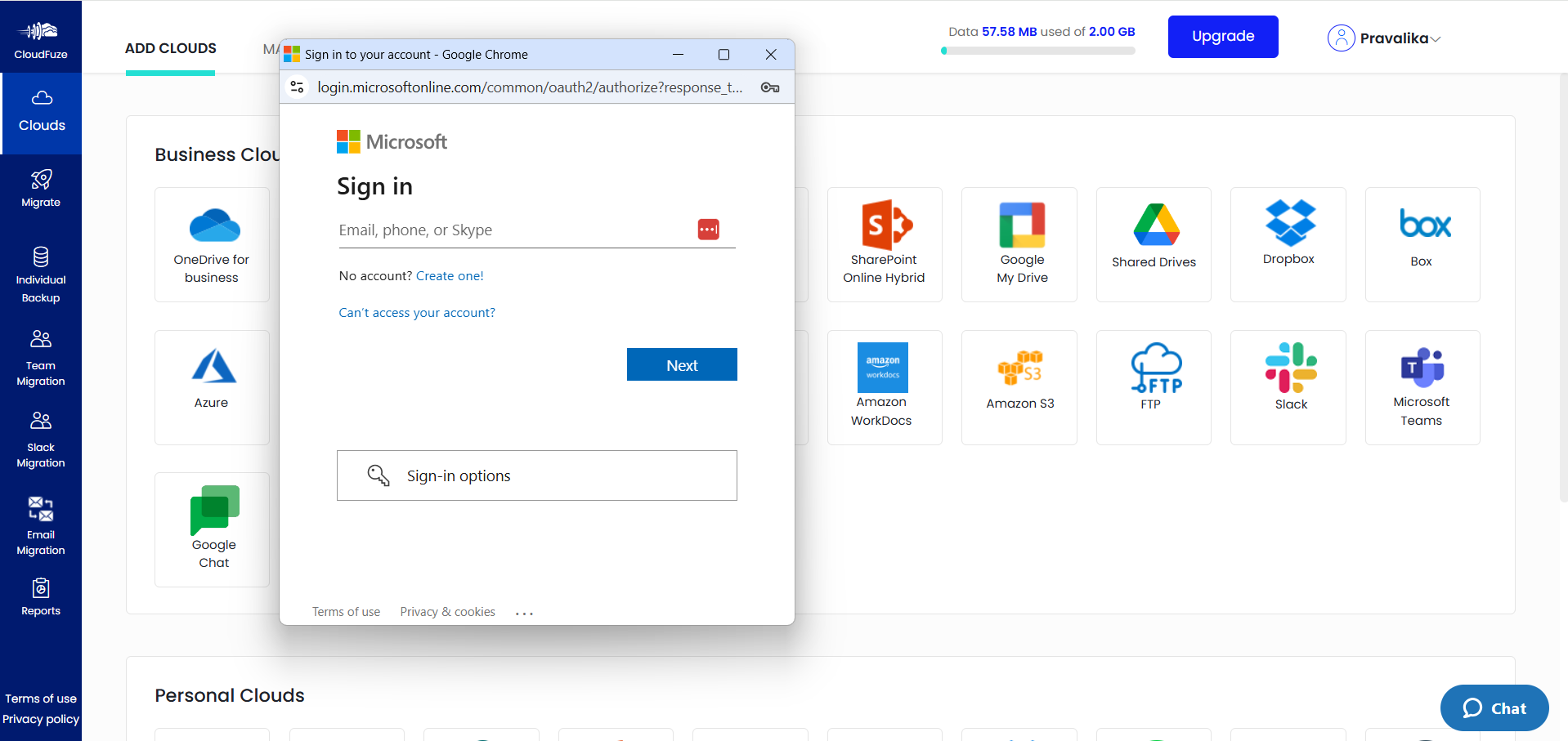
After logging in, visit the “Business Clouds” dashboard and locate and add the OneDrive for Business cloud. NOTE: We are taking OneDrive as an example in the steps. Enter the Global Admin login details and authorize the cloud by granting CloudFuze secure access (which takes place through OAuth 2.0).
Step 3: Add and Authenticate the Google Workspace Cloud
Similarly, locate and add the Google Drive cloud. NOTE: We are taking Google Drive as an example in the steps. Enter the Super Admin login details in the login window.
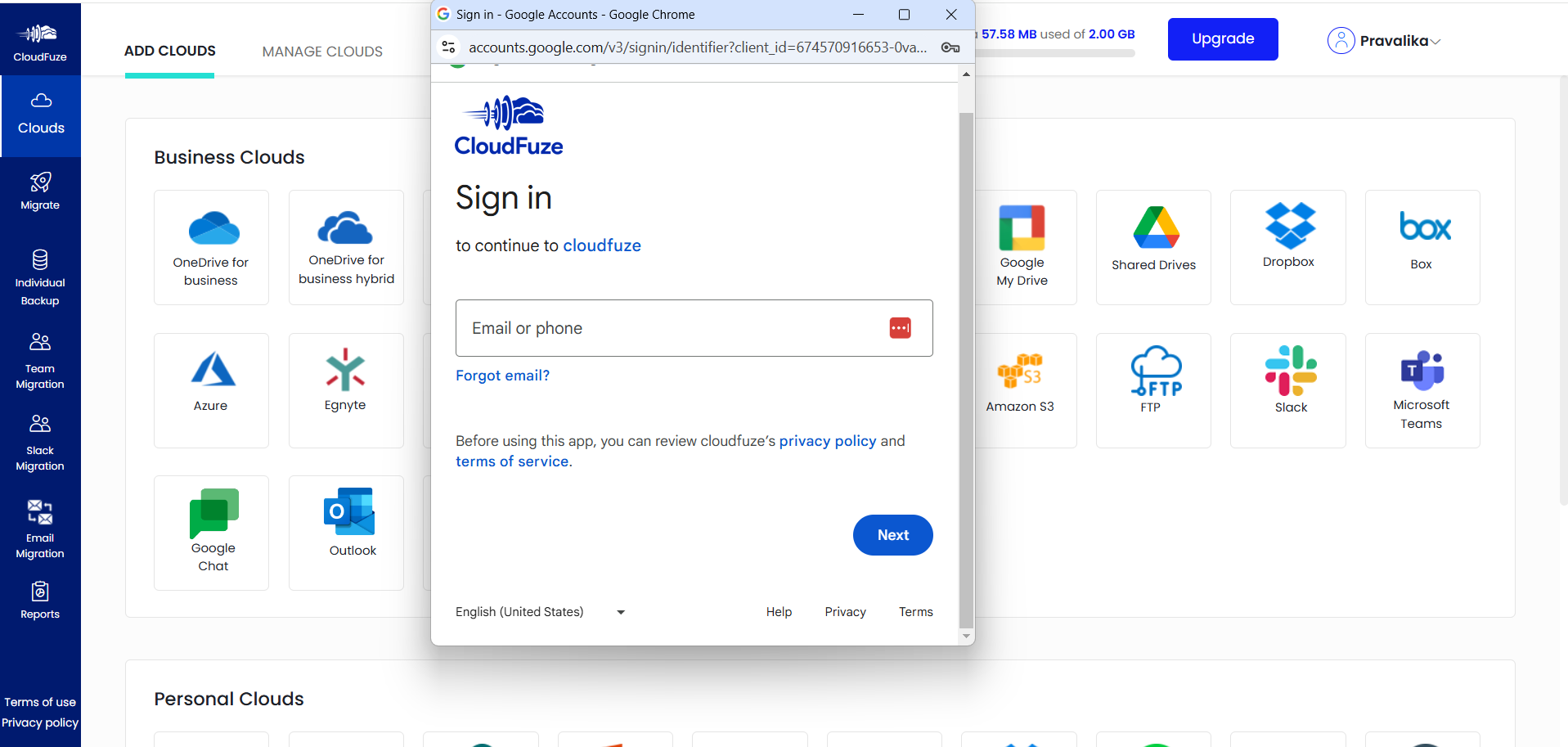
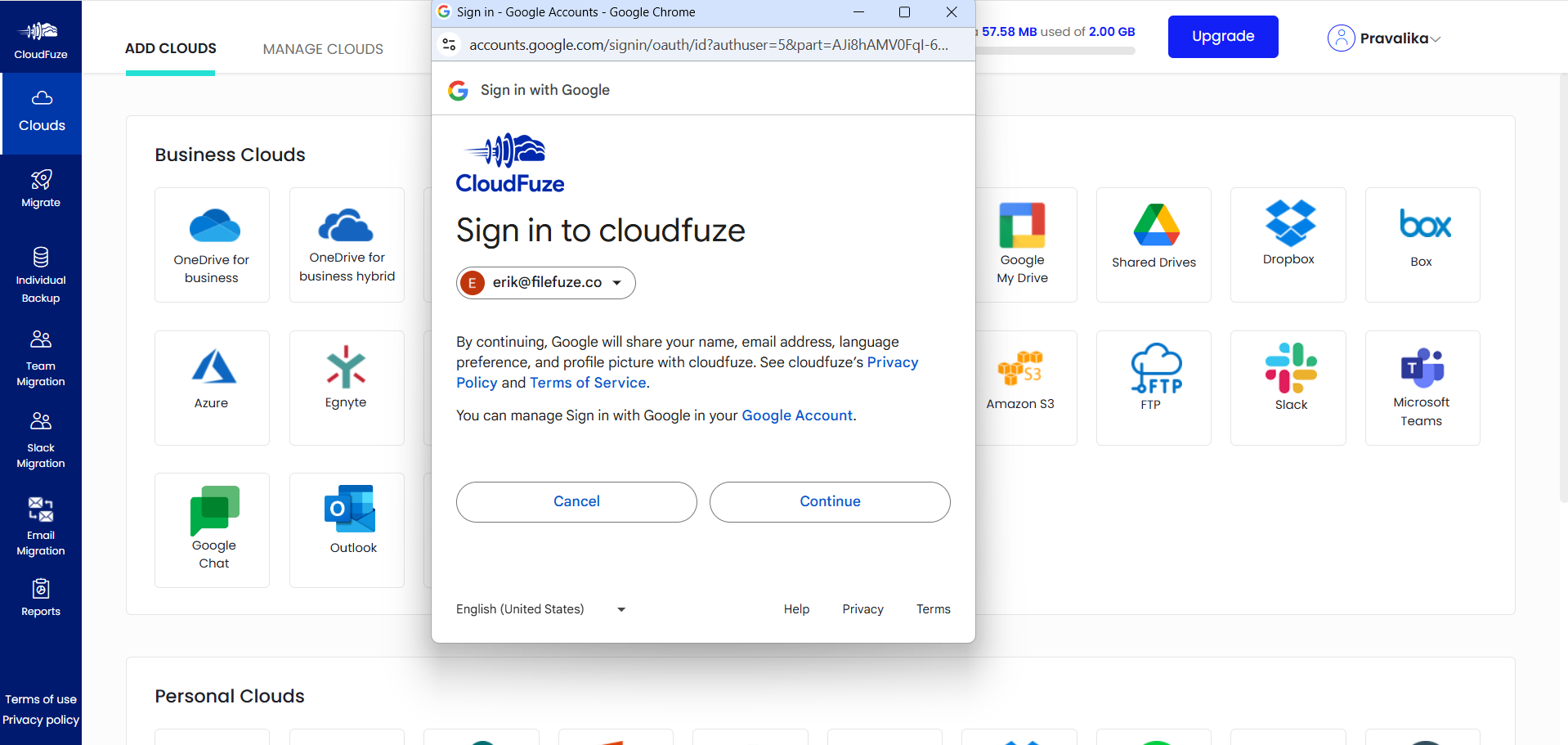
Authorize the cloud by granting CloudFuze secure access.
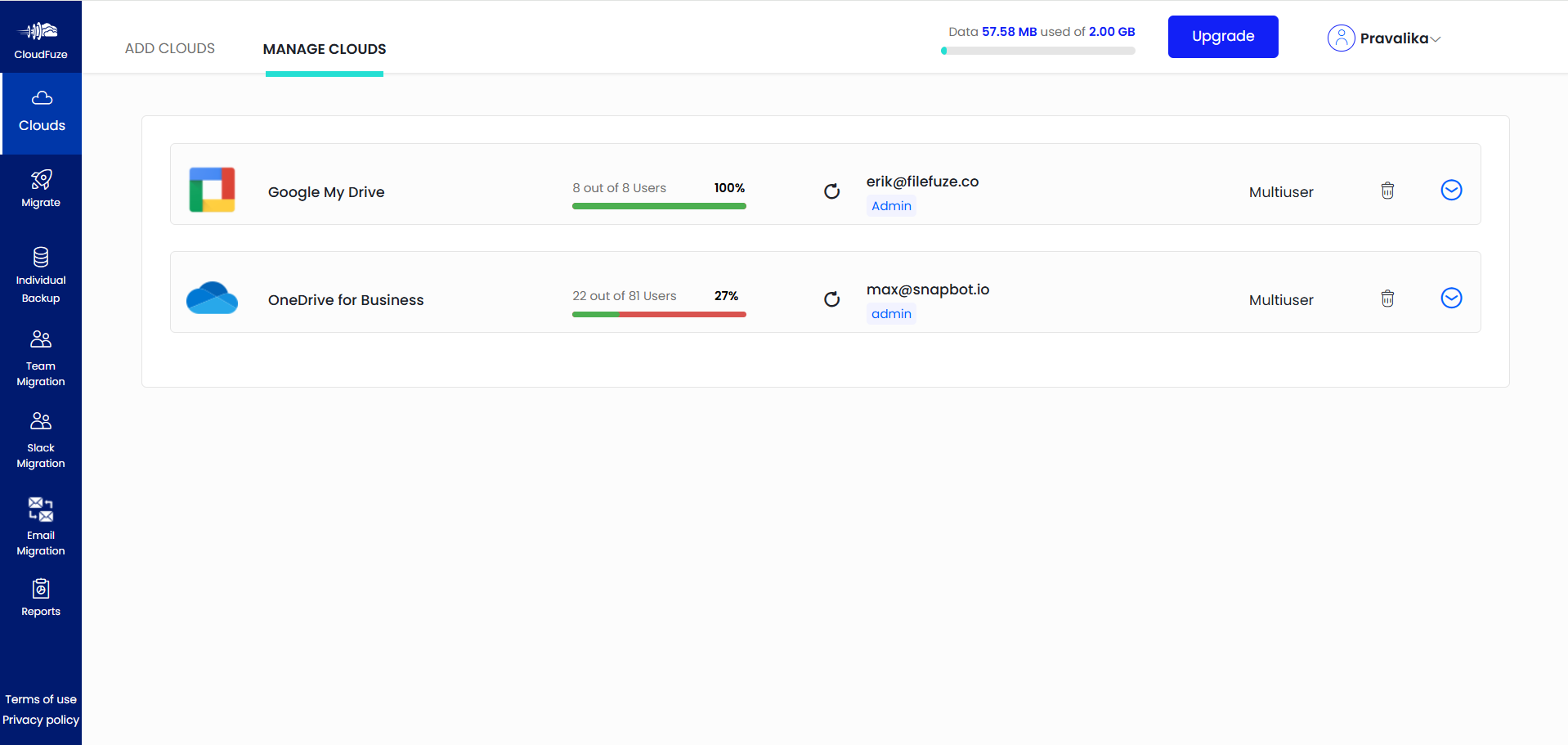
Step 4: Verify Clouds Addition
Switch to the “Manage Clouds” tab and check and ensure both clouds, OneDrive and Google Drive, have been added properly.
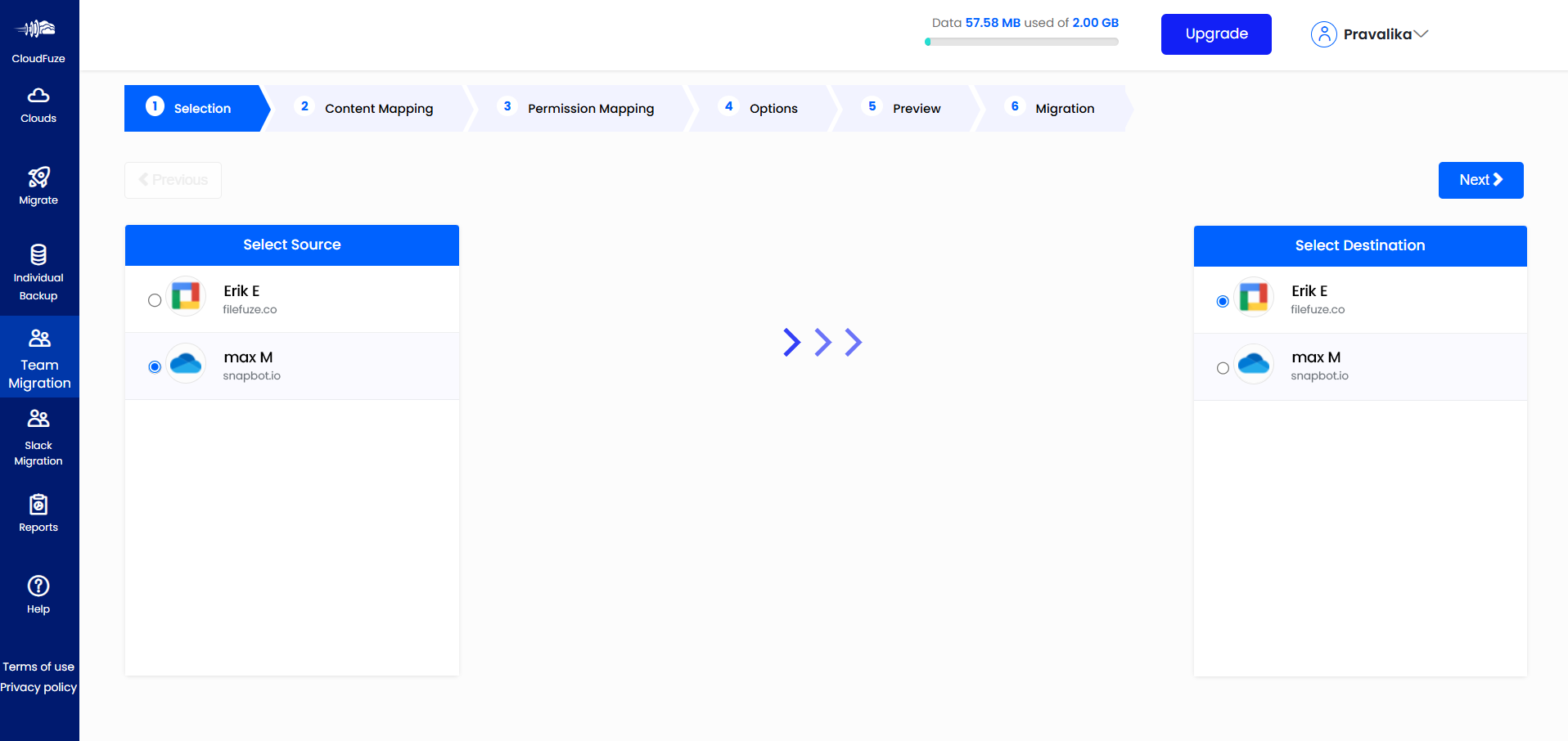
Step 5: Configure the Source and Destination Cloud
Click on “Team Migration” on the left panel. Next, select OneDrive as the source and Google Drive as the destination cloud. Click on “Next.”
Step 6: Create User Mapping
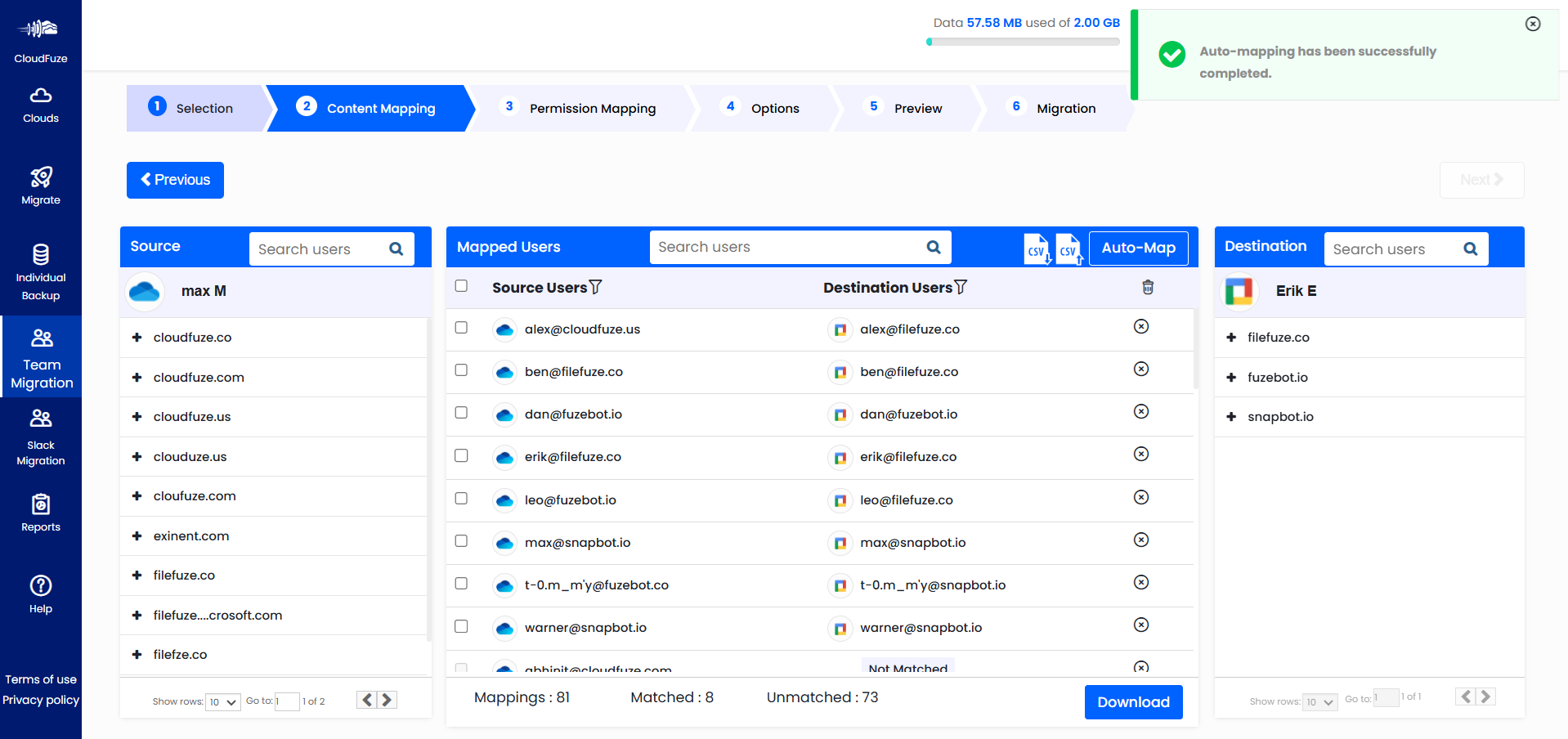
Move to the “Content Mapping” stage and create user mappings. The first mapping option that you can choose is auto-mapping; it automatically maps OneDrive user accounts with Google Drive user accounts based on matching email addresses.
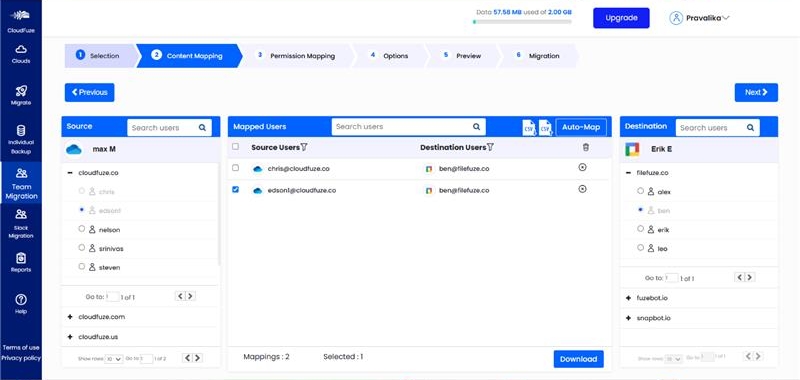
The second user mapping option is CSV mapping. To use this method, create user mappings on a CSV file with proper syntax. Our migration team will help you create the CSV mapping.
Step 7: Select the User Accounts to Migrate
After choosing your preferred mapping method, select the user accounts you want to migrate from Microsoft 365 to Google Workspace. Click on “Next.”
Step 8: Configure Permissions
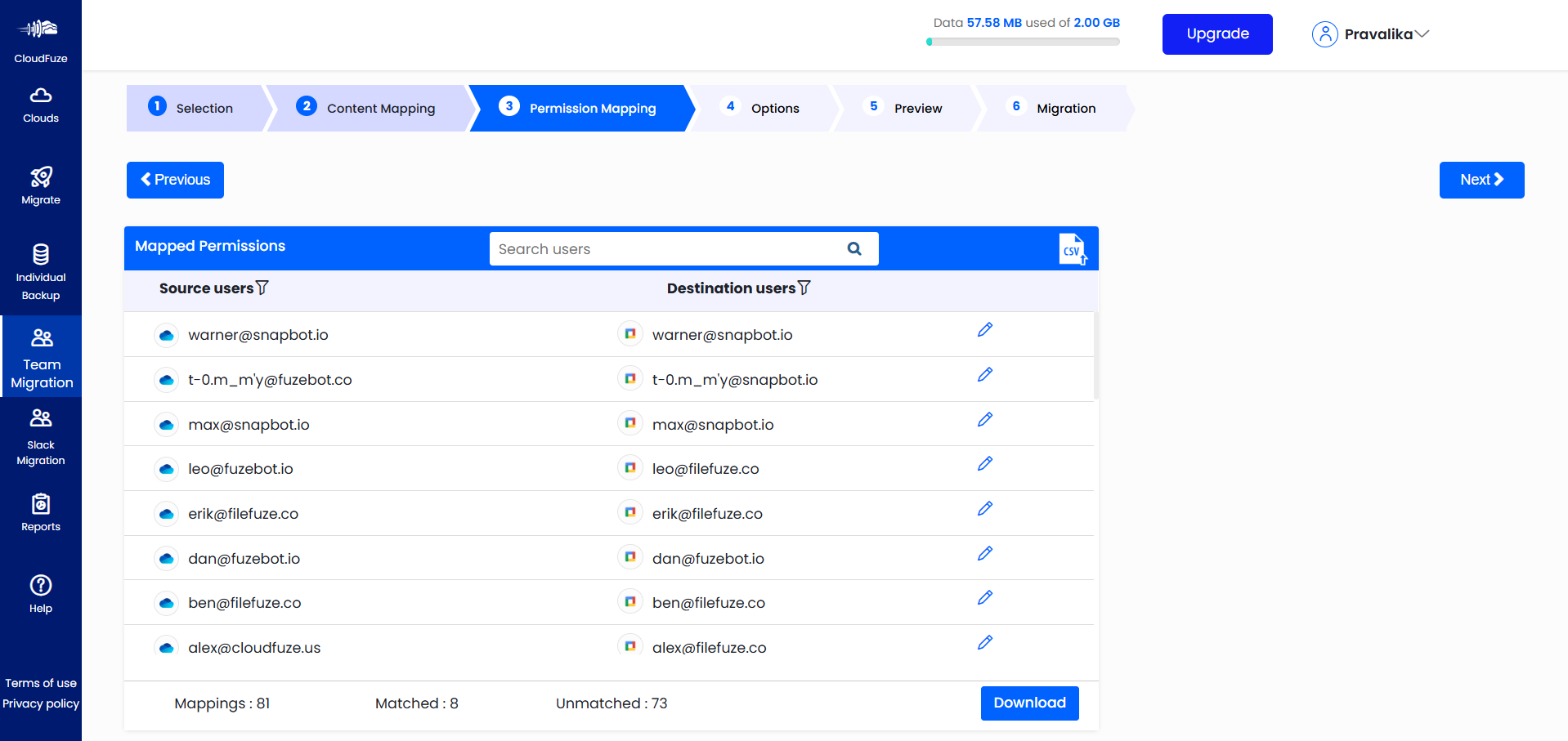
In the “Permissions Mapping” stage, review the permissions mapping. If the automatically generated permissions mapping need modifications, click on the edit icon to make the required changes. Once done, click on “Next.”
Step 9: Select Migration Options
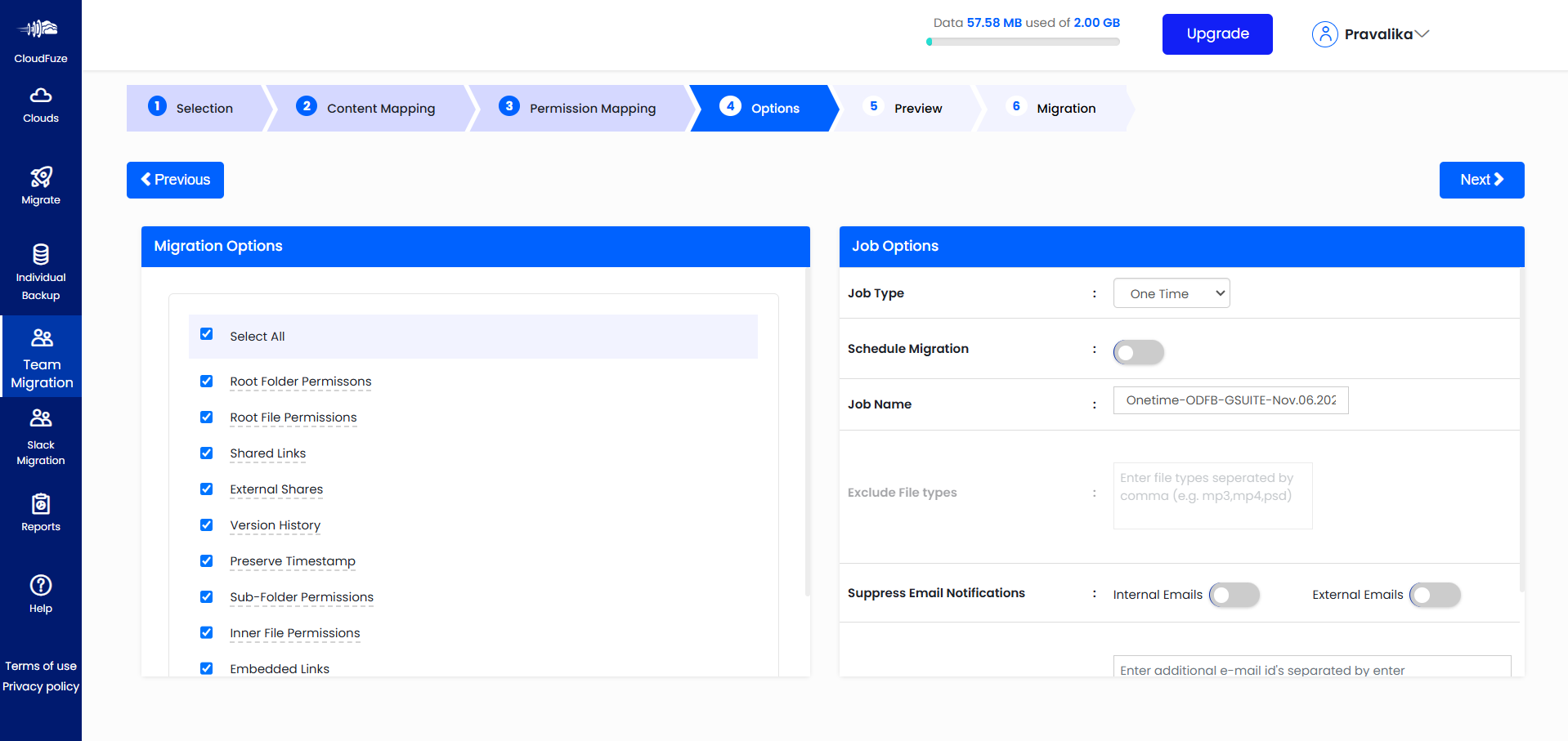
In the “Options” stage, select the features you want to migrate. You can either choose all or select them individually. Once done, click on “Next.”
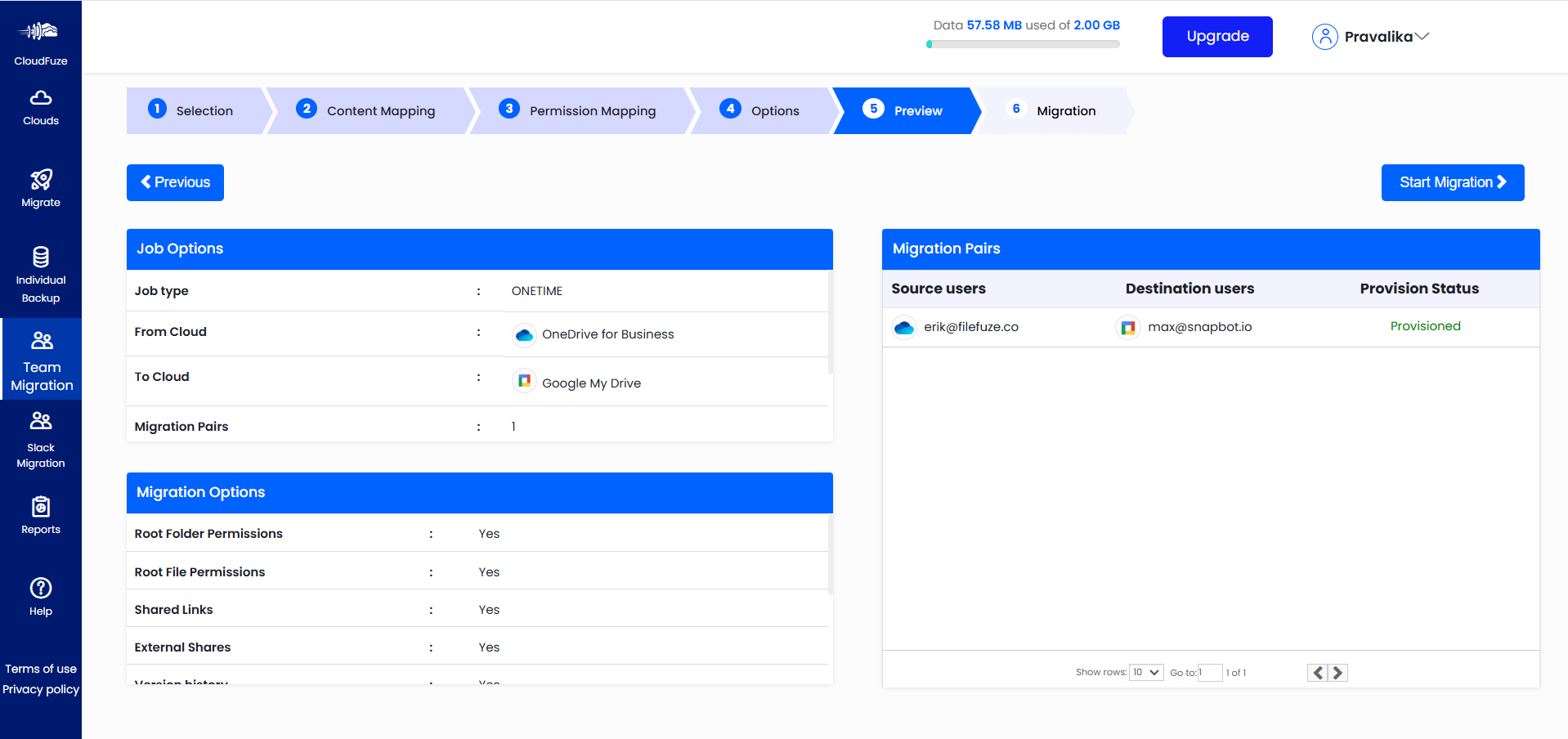
Step 10: Preview and Start the Migration
Lastly, preview all the migration parameters. If everything looks proper, click on the “Start Migration” button to start the data transfer process.
Step 11: Monitor the Ongoing Migration
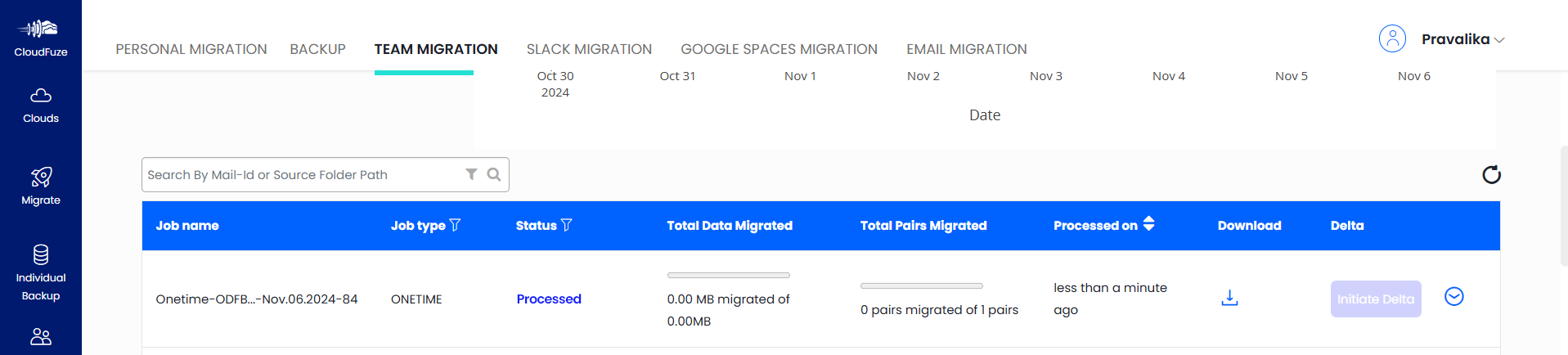
You will redirected to the “Reports” dashboard upon starting the migration. There, check the status of the ongoing migration. The dashboard will display the “Completed” status after the migration gets completed.
Post-Migration Best Practices
Once the migration is completed, there are a few post-migration practices to follow.
- Validate all the migrated batches using the migration reports that the tool generates.
- Reintegrate all the third-party apps or their alternatives from the Google Workspace marketplace.
- Create gems in Gemini after migration to have all the AI conversations and context indexed.
- Establish continuous governance in Google Workspace with tools like CloudFuze Manage to control data and permissions sprawl, AI agent activity and usage, and more.
Why Migrate from Microsoft 365 to Google Workspace?
Organizations switch from Microsoft 365 to Google Workspace for a mix of financial, operational, and strategic reasons. These include:

1) Cost Optimization
Depending on a business’s specific IT architecture, Google Workspace licensing may seem more predictable at scale, especially after Microsoft’s recent per-seat price increase
across Microsoft 365 plans.
2) Mergers and Acquisitions
In many company transformations, such as mergers and acquisitions, cloud platform transitions are needed, which can include Microsoft 365 to Google Workspace migrations.
For example, if the acquiring company runs on Google Workspace, the acquired company’s Microsoft 365 environment needs to move.
3) Gemini Adoption
Many companies find their operational workflows more aligned with Gemini’s outputs and overall performance as compared to Copilot, especially when Gemini and Google Workspace are a part of daily collaboration while still on Microsoft 365.
4) Cloud Consolidation
Organizations that have both Microsoft 365 and Google Workspace licenses and are aligned more with workflows and collaboration structures in Google Workspace tend to move away from Microsoft 365 and consolidate in workspace.
This not only helps standardize collaboration and workflows in one single platform but also eliminates redundant costs.
Microsoft 365 to Google Workspace Migration Challenges
A successful Microsoft 365 to Google Workspace migration is not without its challenges. Similar to most companies, you may face these challenges on your journey to migrating users and data:
- API rate limiting and downtime when migrating high volumes of data
- The need to convert Google files, e.g., Docs, to .DOCX formats
- Replicating sharing permissions accurately
- Preserving permissions with external collaborators
- Preserving timestamps and other metadata
As an industry leader in Microsoft 365 to Google Workspace migrations, we at CloudFuze, can help your company tackle all of these challenges. As a result, you can ensure a smooth and secure migration that does not impact the ongoing operations.
CloudFuze vs. Other Migration Tools
CloudFuze offers several strategic benefits that many other migration tools lack. Here is a brief comparison.
| Capabilities | CloudFuze | Other Migration Tools | |
|---|---|---|---|
| Content migration category | Files and folder migration | Yes | Yes |
| Permissions migration | Yes | Yes | |
| Timestamps migration | Yes | Yes | |
| Hyperlinks migration | Yes | No | |
| All and selective versions | Yes | No | |
| External shares | Yes | No | |
| Shared links | Yes | No | |
| Email migration category | Mailbox migration | Yes | Yes |
| Flagged (Starred/ Important status) | Yes | Limited | |
| Custom folders (Labels) | Yes | Limited | |
| Shared mailbox | Yes | Limited | |
| Email attachments | Yes | Limited | |
| Calendar and contact | Yes | Limited | |
| Chat migration category | Public channel migration | Yes | Yes |
| Private channel migration | Yes | No | |
| Direct message history | Yes | Limited | |
| Attachments | Yes | Limited | |
| Messaging features like replies, reactions, etc. | Yes | Limited | |
| AI context migration category | AI conversations | Yes | No |
| AI context | Yes | No | |
| Attachments and artifacts in AI conversations | Yes | No | |
Microsoft 365 to Google Workspace Migration Case Study
In 2026, a prominent healthcare organization based in the US with over 5,000 users and more than 200 TBs of data needed to migrate their Microsoft 365 environment to Google Workspace, as using Microsoft 365 alongside Google Workspace was creating redundant spend.
The healthcare organization was looking for a single migration provider that could cover the entire gamut of the migration, including:
- Document migration
- Chat messaging migration
- Email migration
CloudFuze ticked all the boxes for them. Since Copilot usage was also an integral part of their daily collaboration, support for Copilot to Gemini migration further aligned CloudFuze’s offerings with their requirements.

Ensuring a high level of security and avoiding user disruption were two of the main concerns for the healthcare organization. CloudFuze was able to deliver on it by performing the migration process in the background so that users could continue working on their Microsoft 365 environment up until cutover.
Migrate from Microsoft 365 to Google Workspace with CloudFuze
At CloudFuze, we have 12+ years of experience in helping large enterprises migrate their Microsoft 365 tenants to Google Workspace successfully and securely. We have also evolved our Microsoft 365 to Google Workspace migration paths with AI context migration support that no other migration tool in the industry is offering.
Get a free consultation on your Microsoft 365 to Google Workspace migration plan from our experienced team. Contact us today.
Frequently Asked Questions
1. Microsoft 365 Business vs Google Workspace: Which is better?
Both cloud suites are best in their own right. It ultimately comes down to your preference and business needs. Both cloud suites are market leaders and offer unmatched features and security.
2. How to migrate email from Microsoft 365 to Google Workspace?
You can migrate from Outlook to Gmail using our solution. Our tool helps you migrate mailboxes, attachments, inbox features, calendar, contact list, and more.
3. How to securely migrate from Microsoft 365 to Google Workspace?
Using our tool, CloudFuze Migrate, is one of the best ways to securely migrate users and data from Microsoft 365 to Google Workspace. We implement robust security measures, such as OAuth-based cloud authentication, GDPR compliance, SOC 2 Type 2 compliance, ISO 27001 compliance, REST API usage, and more.
4. What is the best way to migrate users from Microsoft 365 to Google Workspace?
Segregating users into several batches and migrating them batch by batch is the proven way to migrate users from Microsoft 365 to Google Workspace without downtime.
5. What can be migrated from Microsoft 365 to Google Workspace?
You can migrate files and folders, chat messages, emails, calendars, contacts, sharing permissions, hyperlinks, external shares, shared links, AI context, and more, from Microsoft 365 to Google Workspace using proven migration tools like CloudFuze Migrate.
About the Author: Pankaj Rai



