
Introduction
Box to Microsoft 365 migration is the process of moving your company’s users, files, folders, sharing permissions, hyperlinks, timestamps, file version history, external shares, shared links, in-line comments, and more, from Box to OneDrive for Business and SharePoint Online.
It is a strategic transition that organizations undertake to consolidate their cloud environment, reduce licensing overhead, and position their workforce to take full advantage of Microsoft 365’s productivity and AI ecosystem.
More businesses worldwide are now running on Microsoft 365 than ever before. A significant driver is Microsoft Copilot, the AI productivity layer built directly into Teams, Word, Excel, and SharePoint. For Copilot to work well, your entire organizational data needs to live inside Microsoft 365, which makes a Box to Microsoft 365 migration a foundational step for enterprise AI readiness.
If your company is planning to move from Box to Microsoft 365, the migration process involves proper planning, preparation, execution, and post-migration integration stages. For IT managers handling medium, large, or enterprise-scale migrations, a structured, step-by-step approach is what separates a smooth transition from a disruptive one.
What Are the Benefits of Moving from Box to Microsoft 365 Cloud Storage?
The benefits mostly depends on your migration use case and end-goals. For example, if your company wants to cut costs on licenses spread across Box storage and other integrated cloud platforms/tools, consolidating into Microsoft 365 and simplifying licensing structure can help in achieving cost saving goals.

With these ten steps, you can seamlessly move Box files to Office 365 whether you’re IT-managing a medium/large-sized business or even an enterprise.
1. Exploring Cloud Suites and Migration Tools
For most businesses, exploration is almost always the first phase of cloud data migration. And for businesses planning to migrate cloud suite data for the first time, e.g., making the switch from Box to Microsoft 365, the exploration phase is to be prioritized for two aspects: exploring cloud suites (new and old) and exploring migration tools.
Exploring Cloud Suites (new and old)
No two cloud suites are the same. The differences between the source and destination cloud in file type support, native collaboration tools, user interface layout, sharing permissions, and compatibility with 3rd party apps can disrupt the migration process and the overall workflow of the organization.
When planning for Box data migration to Microsoft 365, it is critical to understand the sharing and overall collaboration structure of Box and Microsoft 365 drives (OneDrive and SharePoint Online), analyze the differences, and use the insights to inform the migration strategy accordingly.
It is important to transcend the exploration phase into more of a learning phase to know what’s right for you and your company. For example, Microsoft 365 does not support special characters and specific file names.
| Unsupported features | OneDrive for Business | SharePoint Online |
|---|---|---|
| ” * : < > ? / \ | | Characters not supported | Characters not supported |
| .lock, CON, PRN, AUX, NUL, COM0 – COM9, LPT0 – LPT9, _vti_. | File and folder names not supported | File and folder names supported |
| File path length exceeding 400 characters | Not supported | Not supported |
To move Box files to Office 365, it’s important to manually rename them (if there are a few). However, if there are a lot of files and folders, manually renaming them becomes complicated. It’s best that this process gets automated in order to avoid the hassle.
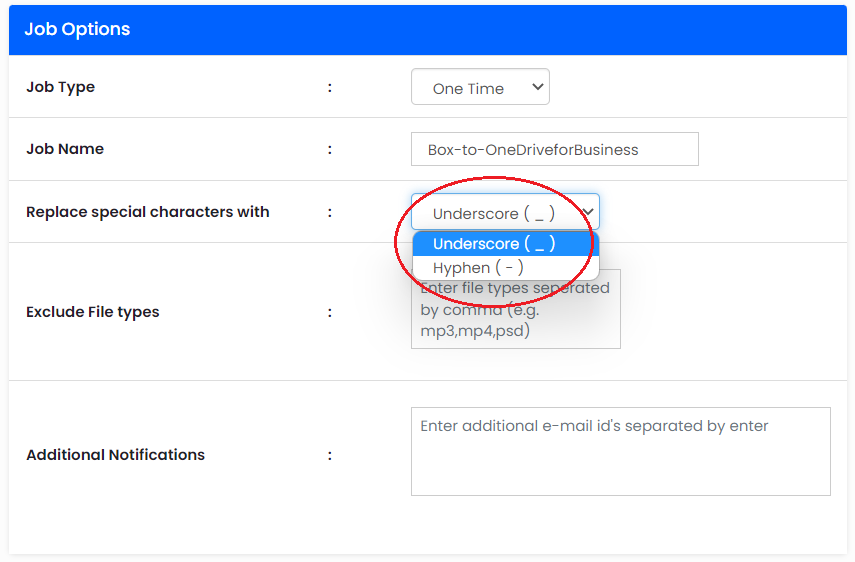
At CloudFuze, we offer a built-in feature in our migration tool that automatically replaces special characters (unsupported in Microsoft 365) of the files and folders to be migrated. You can choose whether to replace the special characters with an underscore or hyphen.
It is crucial to inform the end-users (employees) about Box to Microsoft 365 migration and provide them with training. It is through structured training that the team members will be able to get a proper knowledge of Microsoft 365 and its features.
Apart from familiarizing Microsoft 365 to the end-users, it is also important to reassess how Box Business is used in your company. For example, the Box Business cloud suite of your company may include data of ex-employees that are no longer needed, 3rd party app/program integrations that are no longer used, etc.
Going through the current Box usage pattern will help you exclude data that are no longer useful which helps in reducing the scope of work and make the overall migration lightweight.
Exploring Migration Tools
The second aspect of the exploration phase is to explore cloud data migration tools. This is because it is only through a proper migration tool that it becomes easy to migrate high-volume business/enterprise data that includes sensitive information.
Suppose your company has a large amount of data to migrate from Box to Microsoft 365, it is important to choose a migration tool that has the infrastructural capability and the bandwidth to handle enterprise-level data migration.
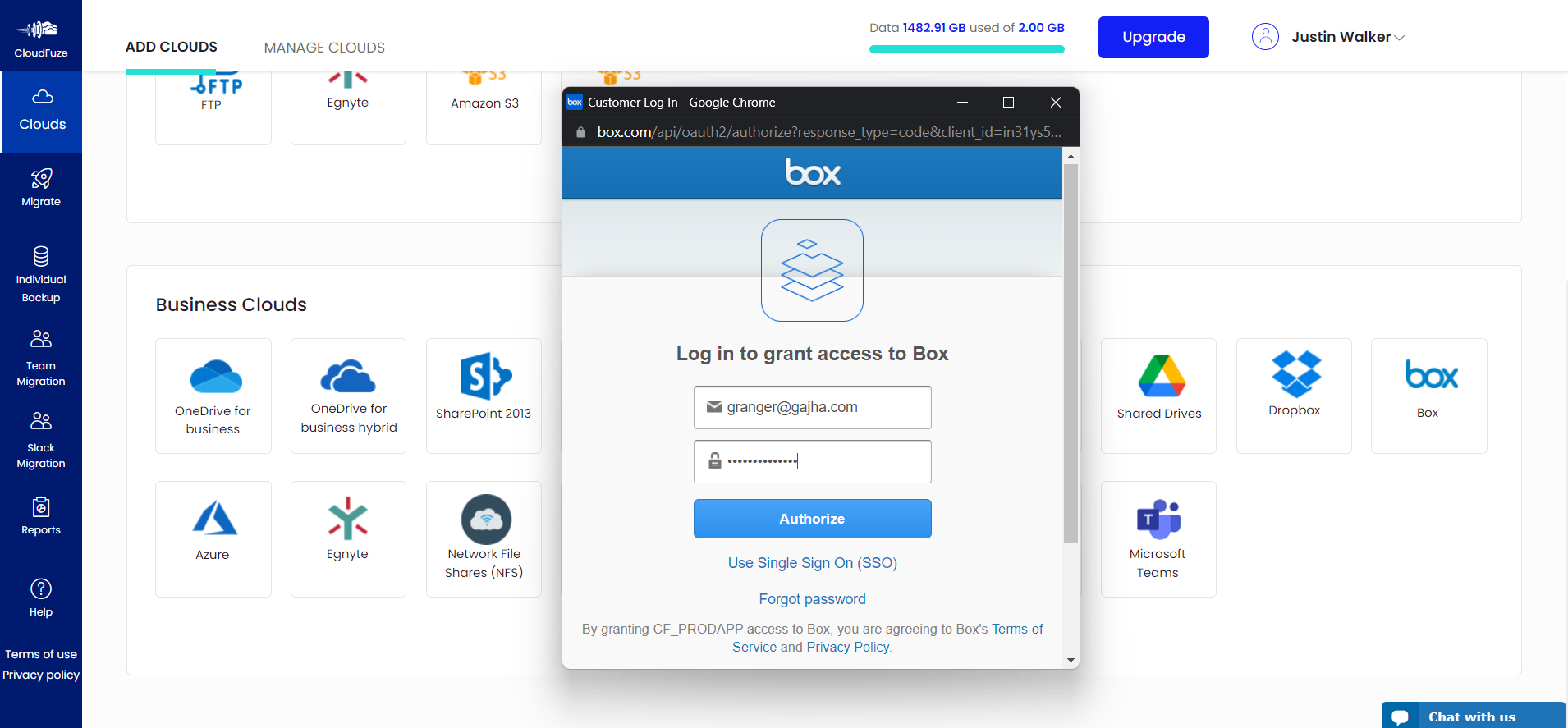
Non-intrusive access to company data is another feature to look for in a data migration tool. A data migration tool, such as CloudFuze Migrate, that uses privacy-friendly data access protocols, such as REST API for data fetch and OAuth 2.0 for cloud authentication, makes the perfect fit.
IT teams must use a migration tool that has the capability to transfer files from Box to Microsoft 365 while accurately preserving all the critical metadata. These metadata types include:
- Sharing permissions
- Timestamps
- In-line comments
- File versions
- Shared links
- Embedded links
- External shares
During Box to Microsoft 365 migrations that take a couple of months or more, incremental changes accumulate as users continue to work on the source cloud (Box). As such, it is also important to perform a single or multiple delta migration to bring all those incremental changes without remigrating all over again.
At CloudFuze, we offer an industry-leading Box to Microsoft 365 migration tool with advanced functionalities and enterprise-ready security. We have helped many large-sized enterprises migrate to Microsoft 365 successfully, including Warner Bros. Discovery. Here’s their testimonial:
2. Planning Box to Office 365 Migration
The next important step to take after the exploration phase is to extensively plan the migration. It is essential to have input from most key people (if not all) in the company, which makes it a must to schedule a team meeting.
Since switching from Box to Microsoft 365 involves moving sensitive data, it is best to approach the migration on a project basis, in a professional way.
Structuring the project will further help streamline data migration, especially high-volume data migration. This translates to having the migration done by a dedicated technical team of the migration service provider.
Another vital aspect to consider when planning Box to Office 365 migration is cost savings.
When your company is planning to migrate Box to Office 365 for cost-savings, data migration costs should not be a bottleneck. Therefore, it pays to do a bit of research and compare quotes from different data migration service providers.
A) Migrate Users in Batches
In most cases, migrating medium/large-sized business data can be complex and time-taking. If the data to be migrated exceeds a couple of tens of TB, we recommend segregating the migration process in batches.
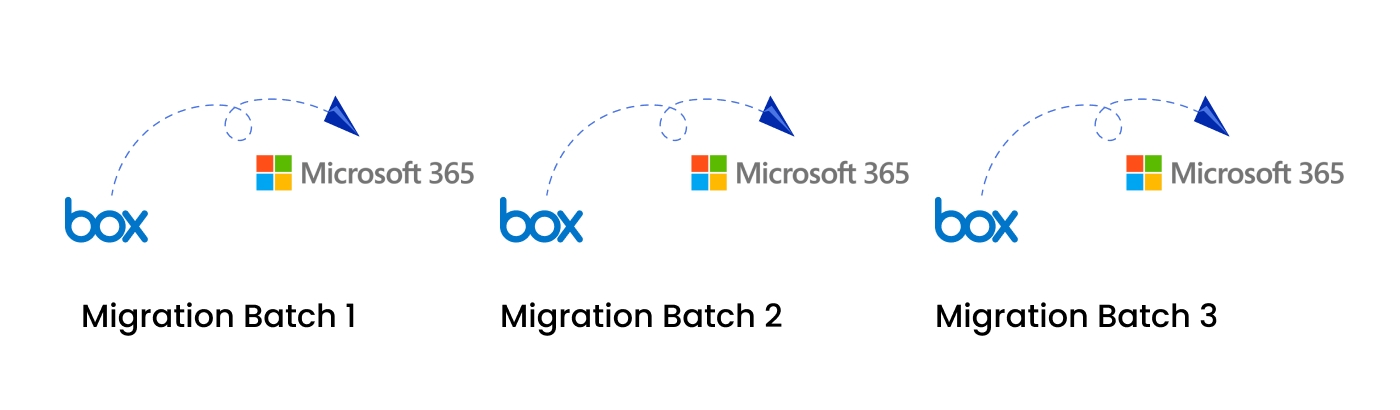
This step will help mitigate the risks of complex technical errors and longer wait times. It’s best to determine which datasets are to be migrated first if you want to migrate data in batches.
If you want to get highly articulate, a good step to take is to provide a deadline for batch data migration or the entire one-time migration to the data migration team. This way, the overall operations do not get disrupted in any way.
When planning to migrate from Box to Office 365, it is also important to determine if all or specific sharing permissions are to be migrated.
B) Plan for Copilot Adoption
If part of the reason your organization is moving to Microsoft 365 is to adopt Microsoft 365 Copilot, migration planning needs to account for data quality from the start. Copilot works by sourcing content from SharePoint Online and OneDrive based on user permissions and organizational context. If it indexes orphaned files, stale folders, or content owned by former employees, that noise directly affects the quality of what Copilot generates in its outputs.
Before finalizing your migration scope, do a data cleanup on your Box environment. Identify outdated files that no longer serve any purpose, overshared and redundant content, folders tied to inactive projects, and third-party integrations that have not been used in months.
Cleaning up the sprawl before migration means your Microsoft 365 environment starts clean, and Copilot gets accurate, relevant, and well-structured data to work with.
Also pay attention to how files and folders are mapped to the destination. Folder structures, sharing permissions, and user mappings on the SharePoint Online and OneDrive side should reflect how your teams actually work. Getting this right during planning is far easier than correcting it after Copilot is already deployed and adopted.
3. Choosing the Right Box to Microsoft 365 Migration Infrastructure
There is no one-size-fits-all solution to migrate data when moving from one cloud suite to another as every company has different needs.
The data migration needs can differ in terms of data volume (size), data and information confidentiality, and data fragments which can affect migration throughput. Therefore, choosing the right data migration infrastructure is critical.
Suppose your company has high-volume data or highly sensitive data to migrate from Box to Office 365, and SharePoint Online a shared server may not be the right option due to limited bandwidth and privacy protection.For this type of requirement, using a dedicated hosting servers is a better option.
With CloudFuze, you get the flexibility to not only choose dedicated hosting servers over data migration servers but also complete the entire data migration project through your company’s data center by deploying our tool on your on-prem servers
4. Finalizing the Migration Start and End Date
Planning and estimating the data migration time frame is one thing, finalizing it is quite another.
By finalizing the migration start and end date to move Box files and folders to Microsoft 365, you can paint a clearer picture of the entire project. This, in turn, can help you and other teams make necessary adjustments.
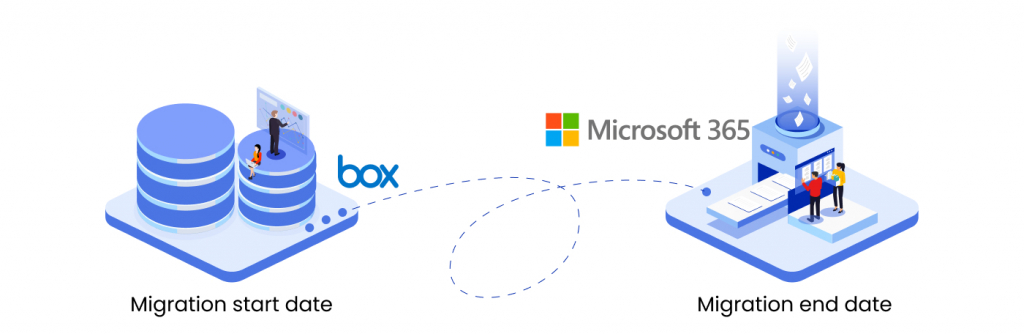
Finalizing the start and end dates will also help you set KPIs for the data migration company or its team through which you will be able to gauge the performance.
It is essential to have regular meetings with the data migration service provider you plan to choose in order to clarify your migration goals.
The clearer and better-defined your Box to Office 365 migration goals and needs, the easier it becomes for the data migration company to help you finalize the migration start and end date.
5. Preparing CSV Mapping
Migrating data, especially cloud data, has become easier than ever before as many data migration tools include the feature to auto-map source and destination. However, auto-mapping generally works only when the source and destination paths are straightforward.
For example, the auto-mapping feature can map simple paths, such as moving Box files to Microsoft 365 across the same user profiles. Migrating files from root or subfolders in Box to new root or subfolders in Microsoft 365 is another type of simple path that data migration tools can automap.
However, auto-mapping does not work for complex paths, such as migrating user accounts of only specific employees or transferring data from root folders to subfolders, can’t be auto-mapped. This is where manual mapping comes into the picture. In order to manually map users, it is important to create mapping paths using CSV files.
To transfer files from Box to SharePoint and OneDrive, follow all the protocols when creating CSV files, including creating the right files and folders path using the right syntax. Use the standard ‘/file or folder name’ syntax to manually map the path of files and folders in the source and destination clouds.

After creating the CSV file, it’s important to validate it (on the migration tool) to be sure that you’ve created the right files and folder paths using the right syntax.

6. Initiating the Box to Office 365 Migration
The next step is to start the migration with the CSV file validated and other important parameters checked. One crucial area to check before proceeding to start migration is to make sure that all the important people in your company are added to be notified of the migration progress statuses.
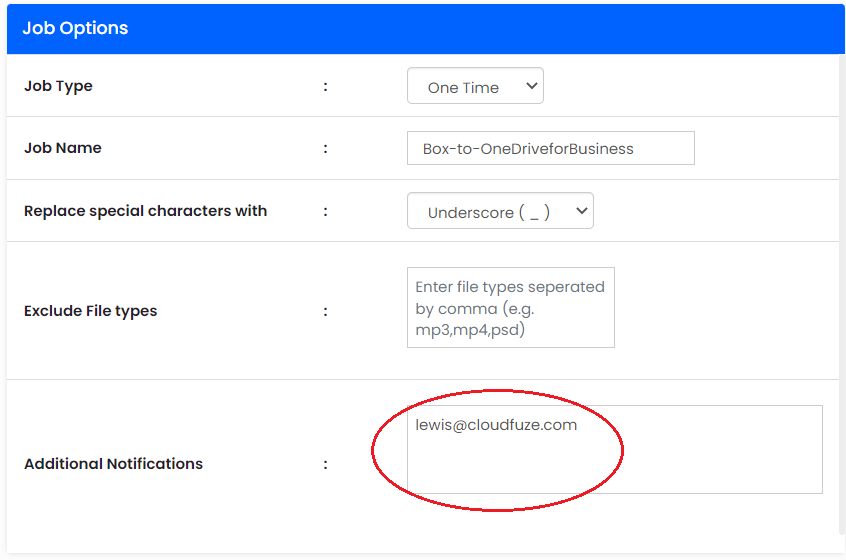
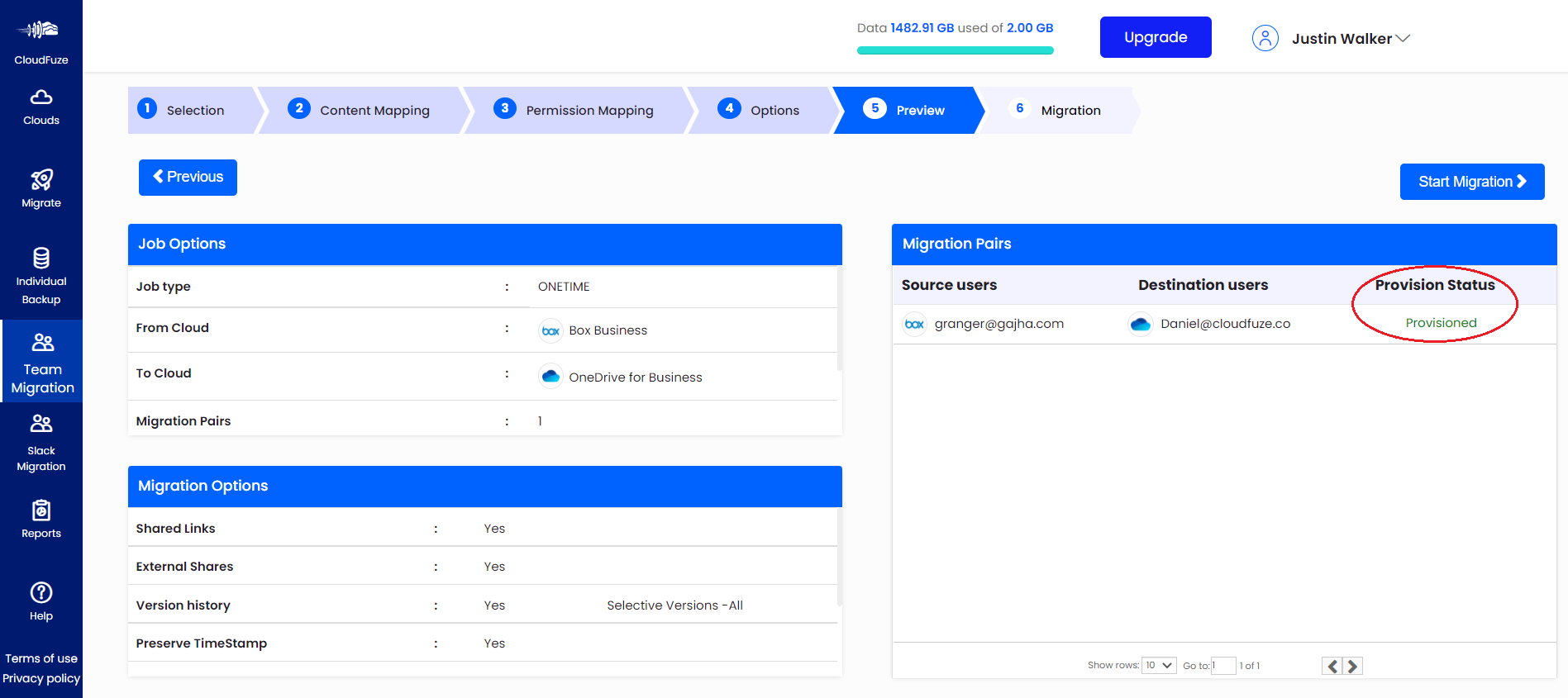
Also, one particular factor to consider prior to transferring files from Box to OneDrive SharePoint Online is to provision first-time logins of new user accounts created in Microsoft 365.
This is an important parameter to check as Microsoft 365 requires new users to log in to their new user accounts at least once for their storage space, tools, and other cloud features to be allocated.
Make sure that destination user accounts (Microsoft 365 user accounts) are provisioned. When using CloudFuze, you can check whether the Microsoft 365 users are provisioned during the final step prior to performing Box data migration to Microsoft 365.
7. Regularly Checking for Migration Updates
During Box to Microsoft 365 migration, it is essential to regularly monitor the data transfers to keep proper track of the progress. As discussed in the previous step, people who are added to receive the updates will receive regular notifications via email.
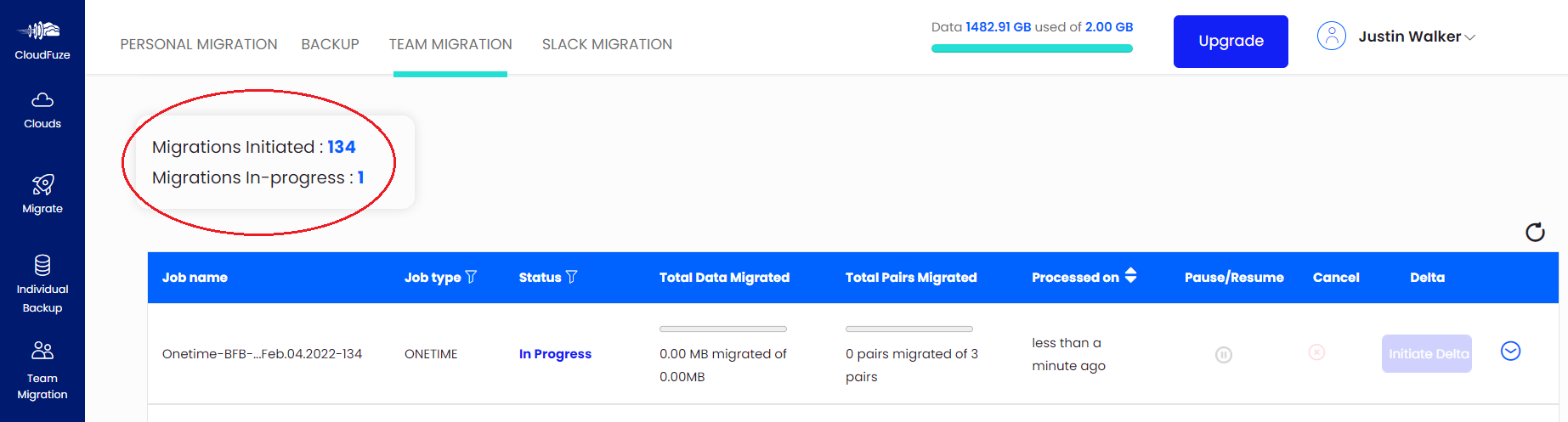
But in some cases, checking each email update can be time-consuming and can disrupt the workflow, which, in turn, can take a toll on the overall operations. Therefore, it’s best to have project reporting meeting calls with the data migration team.
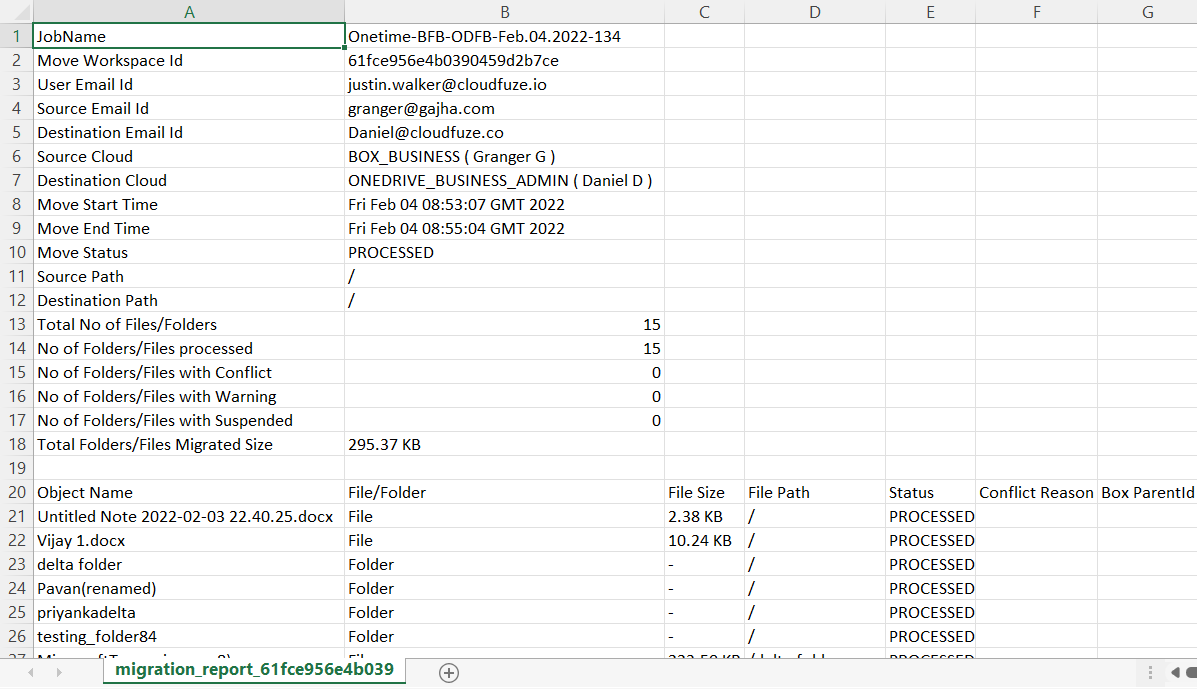
Depending on your availability and convenience, you can schedule daily or weekly calls with the migration team to get in-depth updates. And make sure that the progress reports get documented for future references. With a tool like CloudFuze migrate, you can download in-depth migration reports.
8. Wrapping up One-time Migration & Checking Incremental Changes
Once the first phase of Box to Microsoft 365 migration (one-time migration) is completed, it’s important to check data that’s due for delta migration.
During the one-time migration phase, the chances of files and folders getting modified by the end-users are high as your company’s operations continue. And to make sure that the data migration to Microsoft 365 is precise and up to date, it’s vital to transfer the incremental changes to Microsoft 365 via delta migration.
9. Initiating Delta Migration
During the one-time Box to Microsoft Office 365 migration that takes a significant time period, the users are likely to make a lot of changes in their files and folders.
Therefore, the best practice is to initiate delta migration in bulk to migrate all the incremental changes in files and folders that have been made during the previous one-time migration.
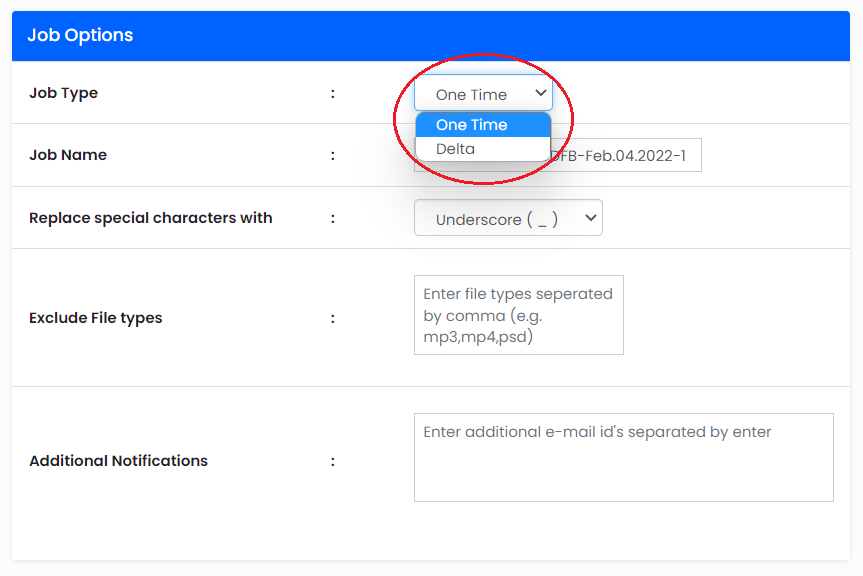
In enterprise-focused migration tools, including CloudFuze migrate, you will have the option to choose between one-time and delta migration under the ‘Job Type’ or ‘Migration Type’ tab.
10. Obtaining Delta Migration Completion Report
One of the last steps to a successful Box to Microsoft 365 migration is waiting for the delta migration to get completed and obtaining the completion report. As part of validating the delta migration completion, you can download the migration reports generated in the CloudFuze migration platform and check critical migration metrics.
Doing this will also help you have a better understanding of the incremental changes that are migrated. Having a closer and thorough look at the delta migration completion report will also help you justify the extra time that delta migration takes.
Steps to Take After The Migration is Complete
There are several post-migration steps that help you close the migration project properly and set your Microsoft 365 environment up for long-term success.
1. Cutover
Perform a full cutover with a final sync of incremental changes brought through delta migration. Transition production from Box to Microsoft 365 and onboard users to the new environment.
2. Post-migration integration
Reintegrate either the same apps previously connected to Box or their Microsoft 365 equivalents, sourced from Microsoft App Source. Test all integrations thoroughly before marking the migration as complete.
3. Source cloud decommissioning
Once your organization has fully transitioned to Microsoft 365, you may want to decommission Box entirely if the plan is to revoke Box licenses and remove access. Make sure all critical data has been confirmed in the destination before doing this.
4. Post-migration governance
Migration is the starting point, not the finish line. Once data moves into Microsoft 365, new governance challenges emerge:
- Permissions can drift over time
- Users may connect unsanctioned SaaS and AI apps
- AI tools like Copilot agents can be created and deployed without visibility into what data they are accessing
Post-migration governance means establishing oversight across your Microsoft 365 environment. This includes:
- Reviewing and tightening sharing permissions on migrated content
- Identifying Shadow IT and Shadow AI apps that connect to SharePoint and OneDrive
- Monitoring AI agents or Copilot extensions that interact with organizational data
CloudFuze Manage makes it possible to enforce these governance policies continuously, so sprawl and overpermissioning do not accumulate silently after the migration is done.
Box to Office 365 Migration FAQs
1. How to move Box files to Office 365 with versions?
CloudFuze helps businesses of all sizes migrate Box files to OneDrive for Business and SharePoint Online along with selective or all versions.
2. How to migrate Box to Office 365 securely?
Ensuring data access via APIs is one of the most secure ways to transfer users and data from Box to Office 365. CloudFuze uses REST APIs to access source and destination cloud data and encrypts the entire migration to ensure optimum security.
3. What is the fastest way to migrate from Box to Office 365?
The fastest approach is to segregate the migration into several batches and complete the migration of each batch one at a time.
4. How to move Box files to Office 365 with embedded links?
CloudFuze migrates all Box files to Office 365 while preserving various types of embedded links, including Open ID links, IF condition links, and shared links, without breaking them via the Hyperlink Fixer tool. .
5. Is Box to Office 365 migration customizable?
Yes, businesses of all sizes can customize their Box to Office 365 migration as per their migration needs with CloudFuze.
6. Who to contact if I have questions and issues during migration?
By choosing us as your migration partner, you get end-to-end support. Our managed migration service includes a dedicated migration manager who will handhold your team throughout the migration. This way, you can avoid going wrong in any area.
7. Where can I find more resources for migration?
You can check our blog posts for deep insights on various aspects of migration across many clouds. For customer success stories, you can check out our case studies that highlight our tool’s real-world capabilities in addressing businesses’ pain points.
8. What post-migration tasks are essential after moving from Box to Microsoft 365?
Run a final delta sync to capture changes made during the one-time migration stage. Reintegrate third-party apps previously connected to Box using Microsoft App Source. Validate that all migrated files and folders carry correct permissions in OneDrive and SharePoint Online.
Once everything is confirmed, proceed with Box license decommissioning. Set up post-migration governance to stay in control of:
- Permission sprawl
- Oversharing
- Unauthorized SaaS and AI tool integration
- Risky external sharing
9. What compliance considerations are important when migrating from Box to Microsoft 365?
Key areas include data residency, access control, and audit logging. Microsoft 365 lets you specify geographic regions for data storage, which matters for GDPR and regional data protection requirements. Permissions and logs should also be verified post-migration to confirm sensitive files are accessible only to authorized users.
10. How does user satisfaction typically compare between Box and Microsoft 365 after migration?
User satisfaction generally improves when teams move from Box to Microsoft 365, primarily because collaboration, communication, and file management are unified in one platform across Microsoft Teams, SharePoint Online, OneDrive for Business, and Outlook.
Organizations that invest in pre-migration training and clear communication tend to report faster adoption and fewer support issues. How well permissions and folder structures are mapped during migration also plays a big role. It goes without saying that users who find their files organized and accessible adjust significantly faster.
About the Author: Pankaj Rai



