
How to Upload Videos to Google Drive and Use Them in Embeds?
If you are currently using Google Drive, it is essential to understand all supported features to ensure smoother workflows. Teams often upload videos to Google Drive for various business purposes.
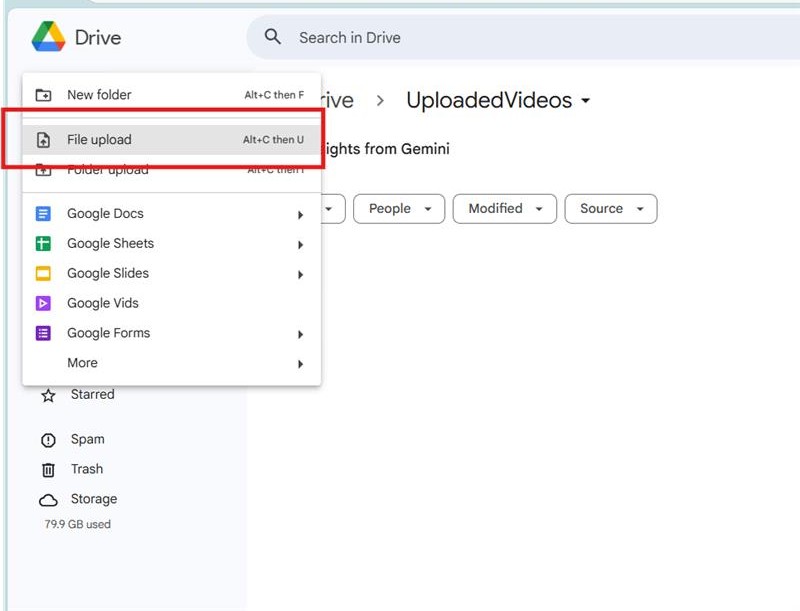
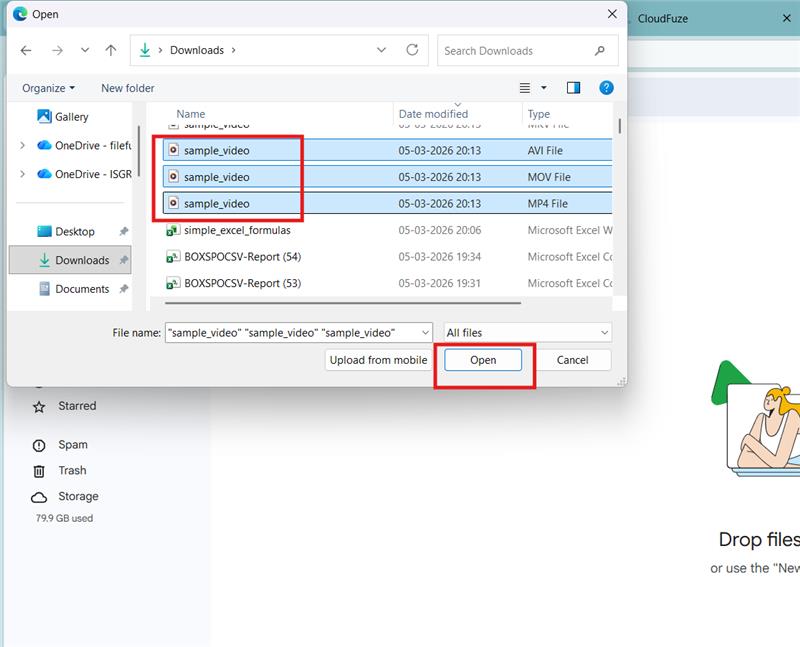
To upload a video to Google Drive, open your Google Drive and click “New”. Click on File upload. Choose the video files & tap on Open. Video begins to upload to Google Drive. After video gets uploaded, you can now play videos on Google Drive.
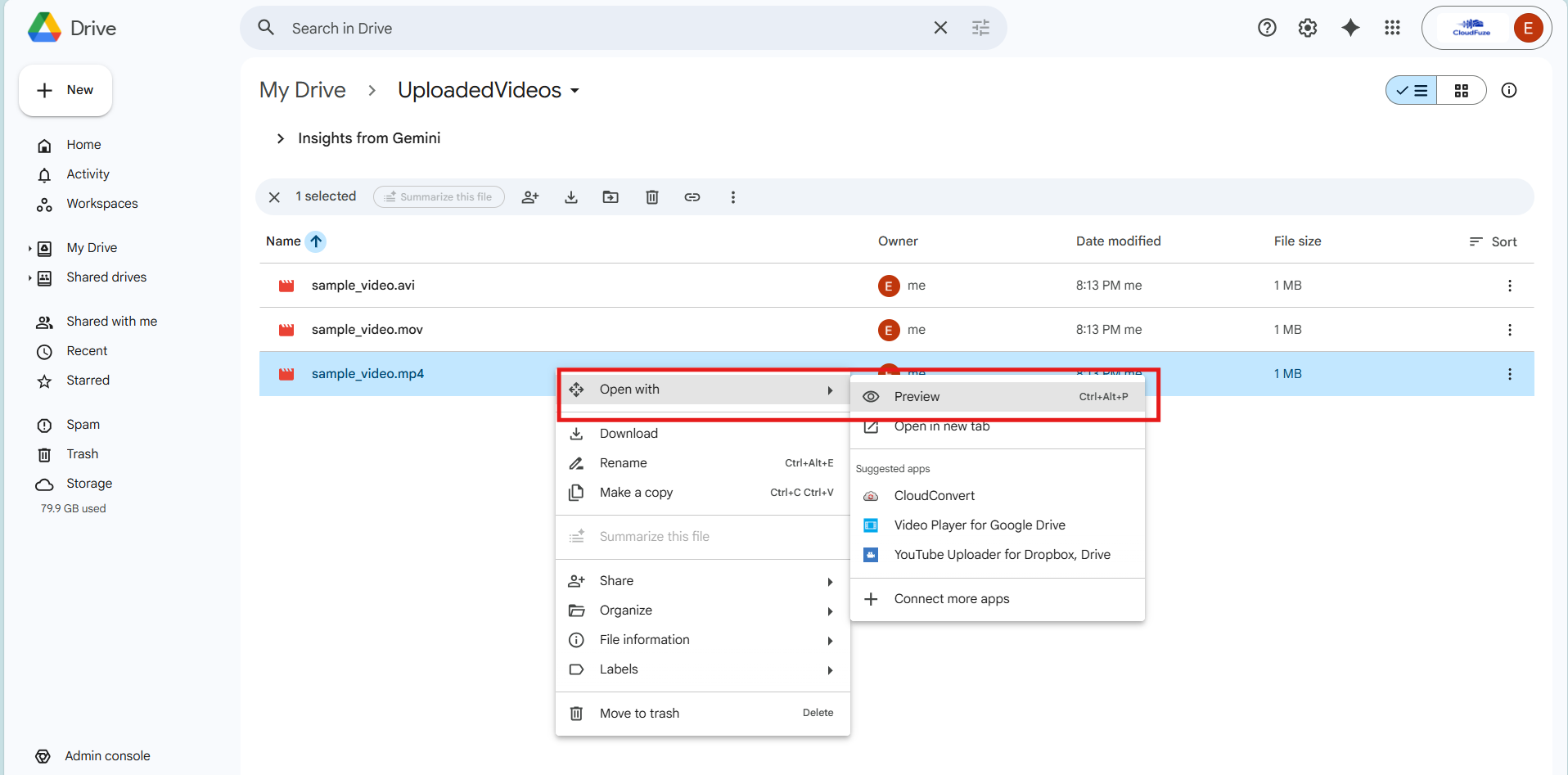
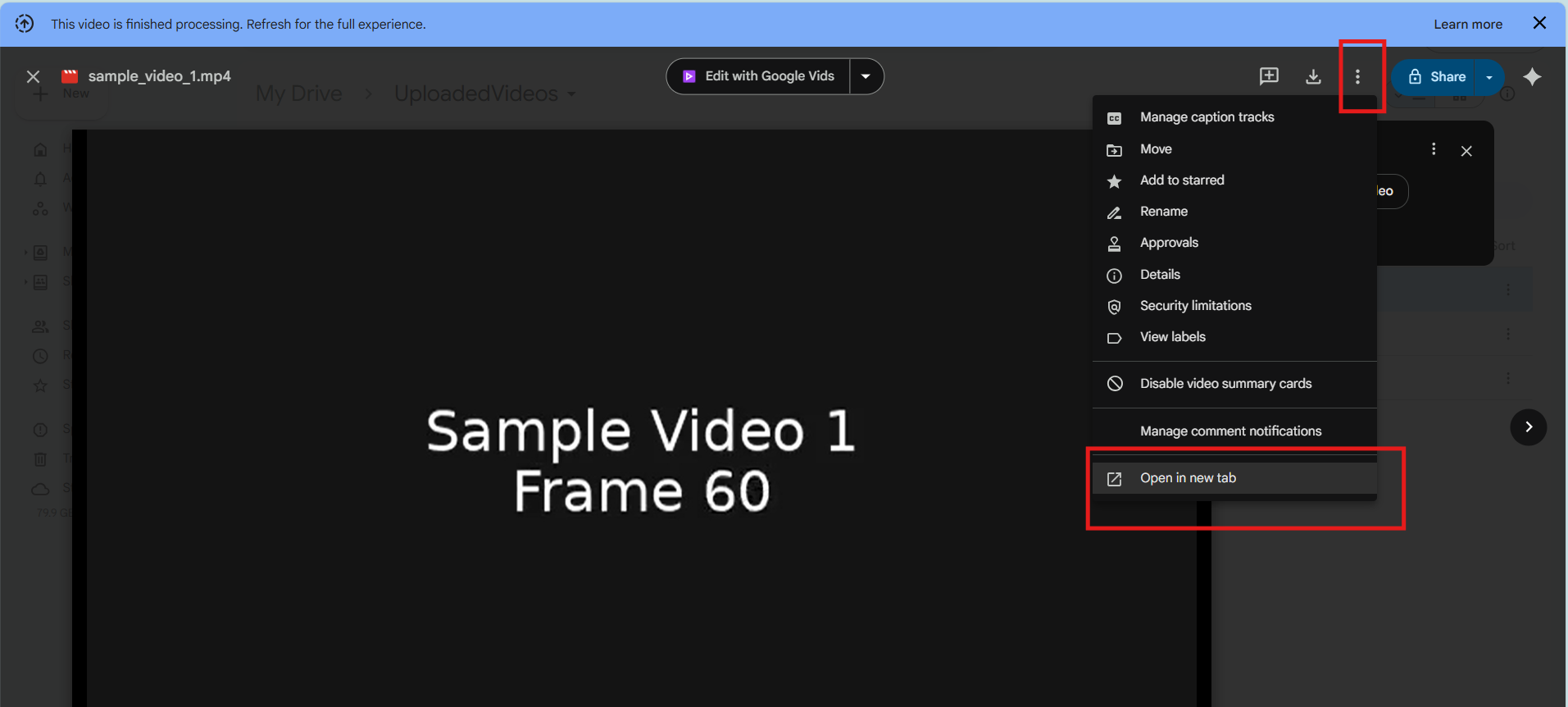
Steps to embed a Google Drive video in HTML (iframe): Upload the video to Google Drive. Select Open with –> Preview. Now click on ⋮ –> Open in new tab. Again, click ⋮ and select Embed item. Use the iframe code, to replace existing URL with modified Google Drive video link. Copy the iframe embedded code. Now paste it into the HTML of your webpage where you want the Google Drive video to appear.
In this blog post, we have discussed ways to upload videos to Google Drive and how to embed Google Drive videos.
Key Takeaways:
Supported Google Drive Video Formats
The image represents the supported video file formats in Google Drive:
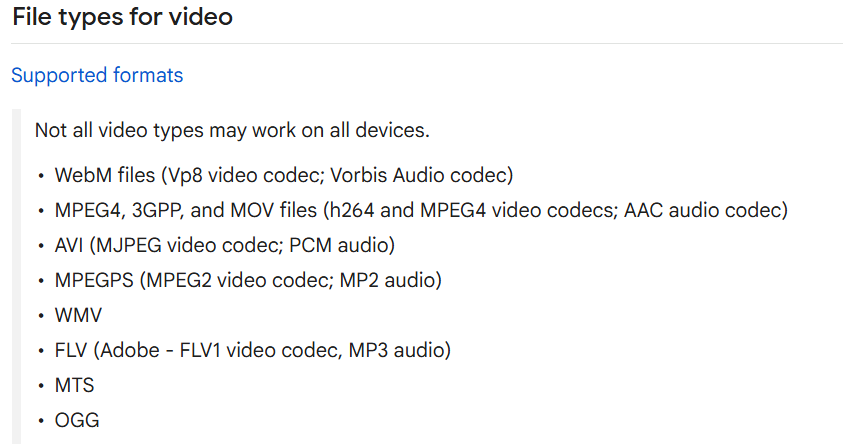
Image Courtesy: Google Workspace
What are Google Drive Video Limitations and Size Limits?
Users can store Google Drive videos up to 5 TB provided when you have that much storage. If not, users are limited to storage. You can upload Google Drive videos of any resolution. The minimum size for playback in Drive is 4 KB. The maximum playback resolution is 1920 x 1080. Internet quality and speed can affect playback quality.
How to Upload Videos on Google Drive?
Here are detailed steps on how to upload a video to Google Drive:
Step 1: Open Google Drive and Click on +New Button
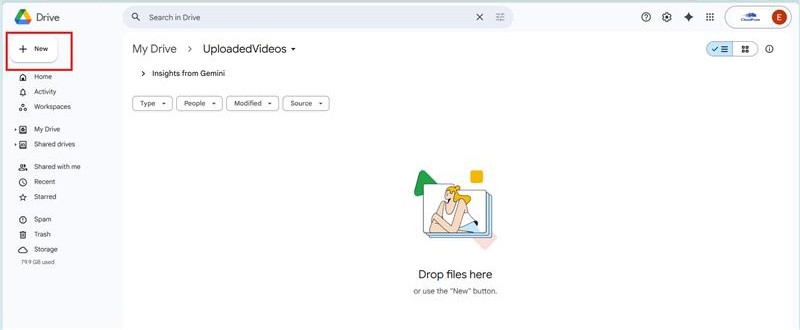
Step 2: Click on File upload
Step 3: Choose the Video Files & Tap on Open
Step 4: Video Begins to Upload to Google Drive
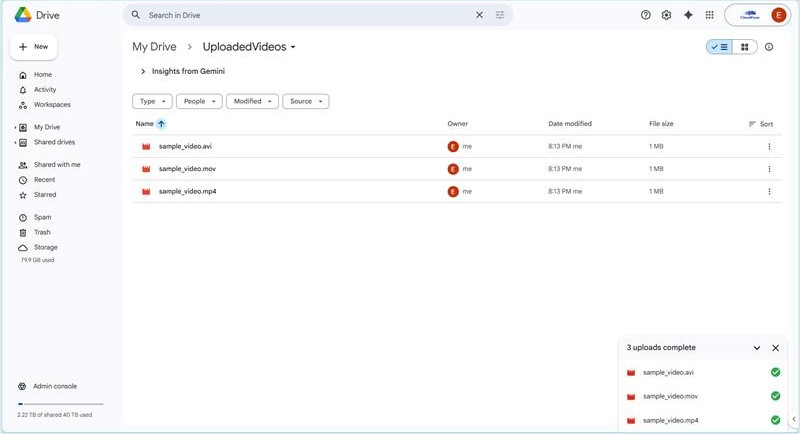
After video uploading gets over, you can now play videos on Google Drive.
How to Fix Issues When You Upload Videos to Google Drive?
Here are ways to fix issues when you upload videos to Google Drive:
- Check for stable internet connection: A slow or bad internet connection can cause a failure when you perform a video upload. So, upload videos when you have a stable internet connection.
- Check the file size: The uploaded video can’t be larger than your available storage in Google Drive. It is better to check out the file size before you begin your upload.
- Try incognito mode: Open a new incognito window. Now upload the video again. This helps you bypass issues related to cookies or extensions.
- Use a different browser: Switch to another browser. Clear the cache and cookies in your current browser. Turn off any browser extensions temporarily, as they can interfere with uploads.
- Check for the CORS plugin: If you’re a developer with this plugin installed in Chrome, turn it off and try to upload your files again.
- Use the Google Drive app: If you upload from a web browser, try the Google Drive desktop app or mobile app for a better upload performance.
- Check the file format: Different video formats are supported by Google Drive. If you have an unsupported format, then convert the video to a supportable file format and upload it.
- Check for updates: Verify if your browser or app is up to date. An outdated version can cause compatibility issues.
- Uninstall and reinstall the Drive app: Uninstall the Drive app and reinstall it. Now upload videos to Google Drive again.
When you upload or watch videos in Drive, you may get some of these error messages.
| Error Messages | Reason for Error Message Occurrence |
|---|---|
| Video is unplayable | The video may be corrupted or uploaded in an incompatible format. Re-upload the video in a supported format. |
| Video is still processing. Try again later | The video is not ready to be played. If the video file is large, wait for some time. Try to upload it again. |
| This video is currently unavailable | The video is not ready to be played. Try to upload it again. |
| Playback limits | You’ve hit the limit for viewers who aren’t signed in. To continue to play the video, sign in to your Google Account. |
Screenshots Showing Uploaded Google Drive Videos Being Migrated to SharePoint Using CloudFuze Migrate
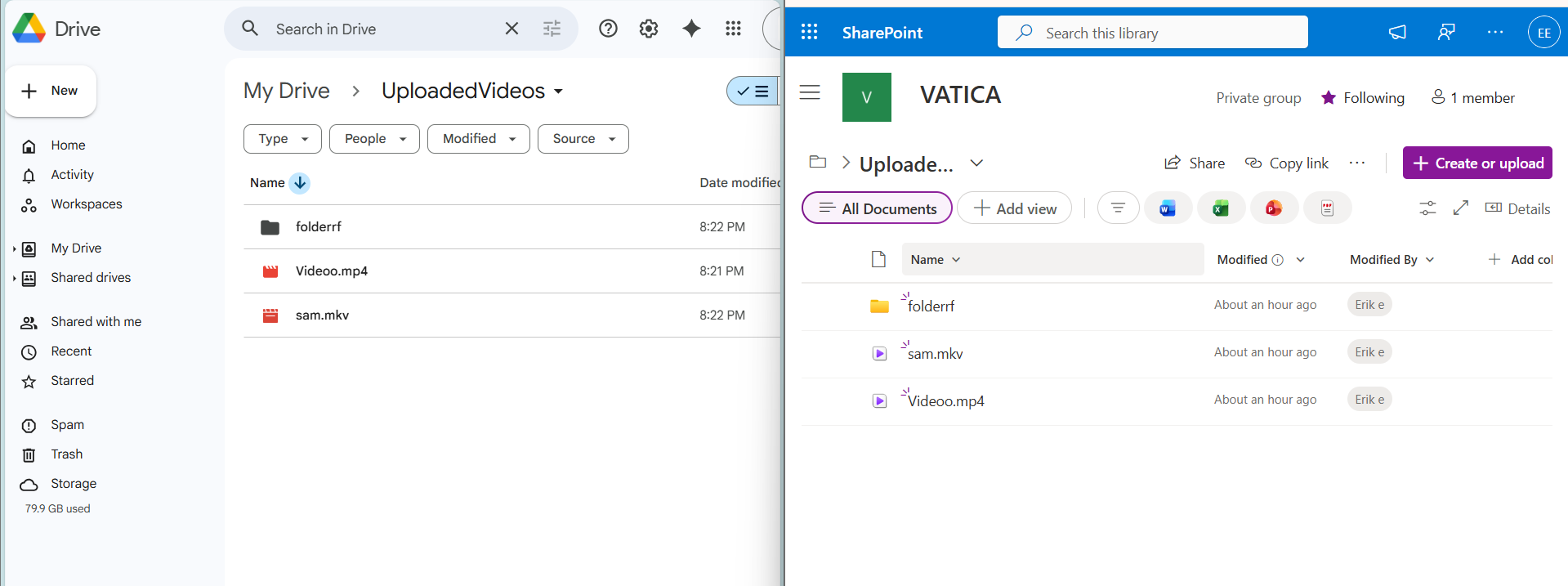
Advanced migration tools such as CloudFuze Migrate help enterprises move Google Drive files, documents and videos while ensuring no downtime.
Image 1: The source side shows uploaded videos with AVI, MOV, and MP4 formats in Google Drive. The destination side shows the exact replication of uploaded Google Drive videos in the SharePoint environment using CloudFuze Migrate.
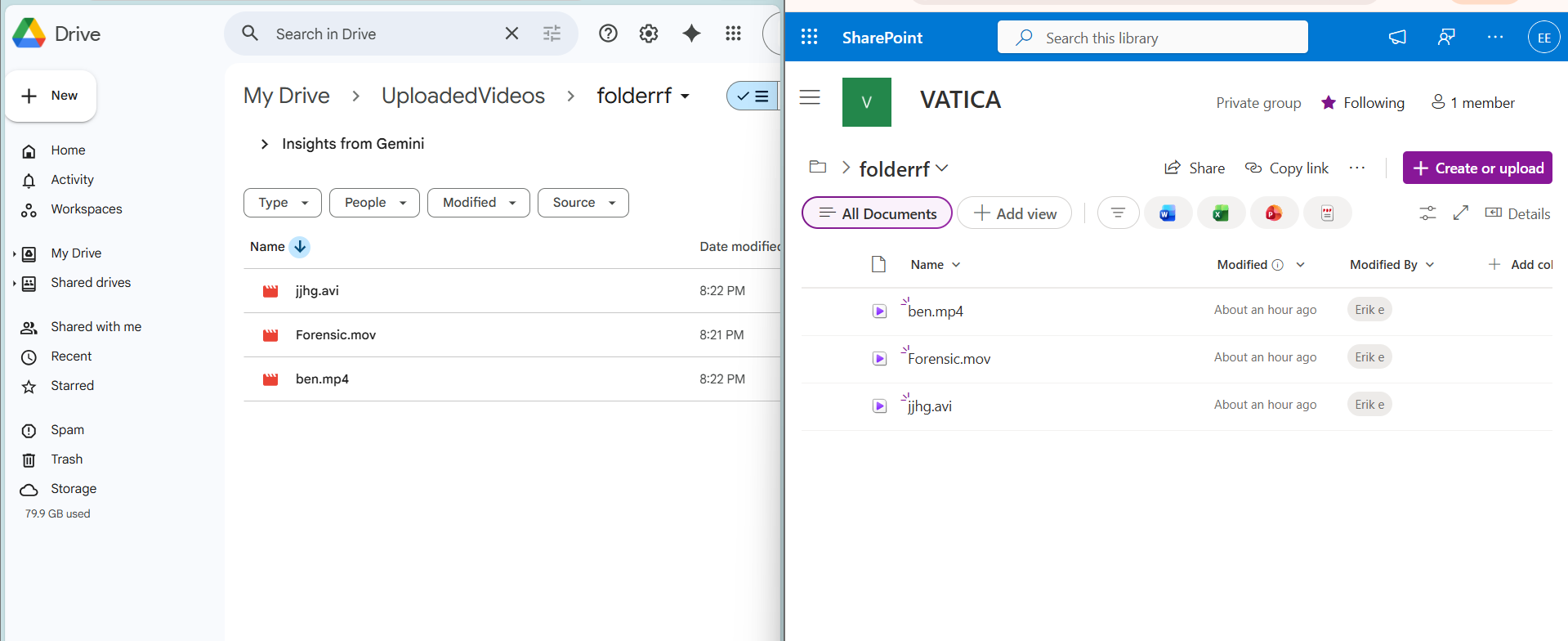
Image 2: The source side shows uploaded videos with MKV and MP4 formats in Google Drive. The destination side shows successful transfer of Google Drive videos to SharePoint using our tool.
How to Embed a Google Drive Video in HTML iframe?
Here, we have discussed the best way to embed Drive videos in websites or blogs. Steps to embed a Google Drive video in HTML (iframe):
- Upload the video to Google Drive.
- Now click on the video. Select Open with –> Preview.

- Now click on ⋮ (three dots) in the top corner. Now click on Open in new tab.

- Again, click ⋮ menu (top right).
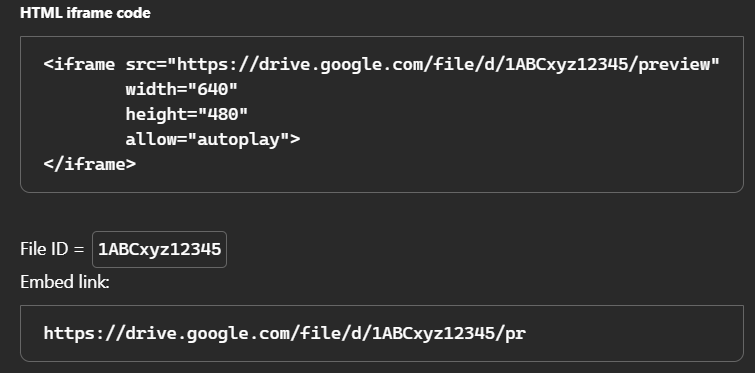
- Select Embed item.
- Use the following iframe code, to replace existing URL with modified Google Drive video link.

- Copy the iframe embedded code.
- Now paste it into the HTML of your webpage where you want the Google Drive video to appear.
Migrate Google Drive Files Seamlessly with CloudFuze Migrate
By migrating in batches, CloudFuze Migrate helps enterprises ensure complete success during enterprise-level Google Drive migrations. Leverage our advanced migration solution to move terabytes of Google Drive data between cloud platforms securely.
Contact us today for a free and no-obligation demo of our tool
Frequently Asked Questions
1. What are common issues faced when uploading videos to Google Drive?
Common challenges when you upload videos to Google Drive: internet connectivity issues, insufficient storage, downtime due to large Google Drive files and issues due to unsupported file formats.
2. Can I upload videos to Google Drive?
Yes, one can upload videos to Google Drive with any resolution. Users can store videos up to 5 TB if purchased with that much storage. Although Google Drive restricts only 750 GB of data that includes all types of files (mp3, mp4, pdf, excel and more).
3. How to embed videos from Google Drive?
Here are steps to embed a Google Drive video in HTML (iframe). Upload the video to Google Drive. Select Open with –> Preview. Now click on ⋮ (three dots) in the top-corner. Tap on Open in new tab.
Again click ⋮ menu (top right). Select Embed item. Copy the iframe embedded code. Paste the iframe embedded code into HTML of your webpage where you want the play the Google Drive video.
4. How do I upload a large video to Google Drive?
You can upload video of any resolution. But the minimum size for playback in Drive is 4 KB. The maximum playback resolution is 1920 x 1080. If the file is large, it may take a while before your video is ready for full upload.
5. Why can’t I upload a video to my Google Drive?
Videos won’t upload to Google Drive in case of insufficient storage space, poor internet connection, browser conflicts, or an unsupported file format.
About the Author: Bhavani Asok



