
Switch Google Workspace to Google Workspace & Retain Versions
Modern enterprises create and update thousands of collaborative files across Google Workspace environments. With multiple users editing documents daily, preserving file version history becomes critical during tenant-to-tenant migration.
For large businesses, a tenant-to-tenant migration in Google Workspace is a strategic process that involves maintaining version history, permissions, metadata, and user access in both My Drive and Shared Drives to provide continuity and compliance.
In this blog post, we’ll dive into why it’s critical to migrate Google Workspace to Google Workspace with full version history, the challenges, and how CloudFuze ensures a smooth, secure, and accurate tenant to tenant migration for large enterprises.
Key Takeaways
Why Organizations Need Google Workspace Tenant-to-Tenant Migration
Organizations switch Google Workspace environments for various reasons:
- Mergers and acquisitions where multiple domains are consolidated.
- Brand or domain changes that require data under a new Workspace.
- Organizational or regulatory policies to reconfigure or separate tenants.
- Centralized administration with productivity optimization.
Regardless of the reason, the end goal is always the same: non-disruptive migration without sacrificing access and version and collaboration history.
The Importance of Preserving Version History During Google Workspace Tenant Migration
Preservation of your version history while moving from one Google Workspace to another is extremely important for data integrity, compliance, and business continuity.
- Compliance: In order to keep your historical file versions due to compliance needs
- Collaboration: Teams depend on version history in order to see the changes and go back in case it is needed
- Risk management: Having access to previous versions will help organizations in case there are accidental or malicious deletion of files or other kinds of mistakes made.
- Process transparency: Version history shows the process of creation of certain documents and allows for making more informed decisions.
For example, in the case of mergers, the legal department might have to look at a certain version of the contract, which was created six months ago before the move. Without version history it would not be possible to do it, which will cause problems with compliance and delay process. That is why it is so important to preserve version history.
Need a deeper dive into tenant-to-tenant migration? Read this FAQ blog for key insights on Google Workspace tenant migration during M&A.
Migration Challenges in Google Workspace to Google Workspace Migration with Version History
While moving from one Google Workspace domain to another, apart from files, a number of other things have to be considered to make the migration smooth.
1. Loss of File Version History
Keeping file version history becomes the major issue during migration because loss of previous versions can become a problem for compliance and recovery of important file updates.
2. Difficulties During Permission and Access Migration
Google Workspace documents tend to have complex permission and access settings within users, groups, and Shared Drives. Incorrect mapping will cause access problems and disrupt collaboration processes.
3. Incorrect Mapping of User and Ownership
During domain migration and merger/acquisition, it is necessary to map users correctly, because failure to do that may result in conflicts in file ownership and accessibility.
4. Losing Context with Metadata Information
Metadata information helps keep your business context within the company. Losing this information may impact your search and data management.
5. Managing Large-Scale Migration
Enterprise environments can have thousands of users and millions of files. Moving massive amounts of data while guaranteeing zero downtime requires careful planning, incremental sync, and validation.
6. Compliance and Data Governance Requirements
Your organization needs to protect sensitive data and governance while migrating. Keeping versions, permissions, audit history, and metadata intact will help ensure compliance and mitigate risk.
How CloudFuze Solves These Issues
At CloudFuze, we are the industry leader in providing large enterprises and SMBs with an advanced and enterprise-level Google Workspace to Google Workspace migration tool designed for transferring My Drive and Shared Drives with high precision and accuracy.
1. Full Version History Migration
Our tool maintains all versions and timestamps of each file and safeguards against loss of edit history, collaboration data, or historical context.
2. Permission & Role Duplication
All user and group permissions from source to destination are replicated by our system, including Shared Drive member roles.
3. Precise User Mapping
Our tenant to tenant Google Workspace migration tool syncs users between tenants, even between different domains so that files have correct ownership and sharing settings.
4. Folder Hierarchy & Retention of Metadata
The native file hierarchy, creation date, and last modified date are all retained within the target Google Workspace tenant.
5. Delta Sync
Delta migration ensures that only the new or modified content (incremental changes) since the initial transfer (one-time) is migrated. This prevents any data gaps and keeps the target environment up to date.
6. Committed Support for Enterprise IT Teams
From deployment to planning and pre-scan, we deliver white-glove support, project management, and tailored reporting to ensure your migration success.
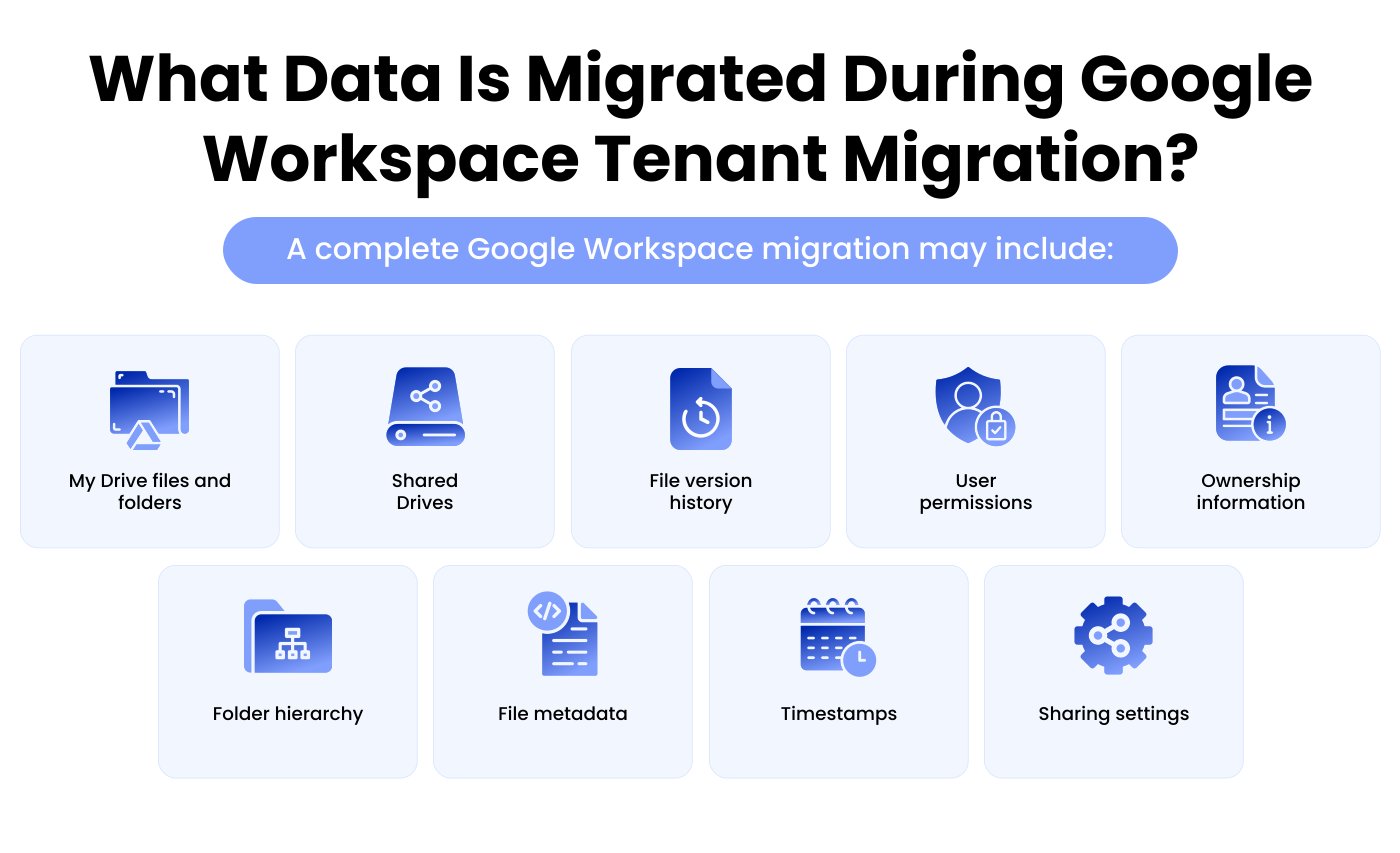
CloudFuze retains complete historical file versions, 100% of metadata and timestamps, granular identity attribution, and original sharing permissions during Google Workspace tenant transfer. By maintaining the full context and structure of your data, CloudFuze ensures business-critical information remains accessible, searchable, and audit-ready from day one.
How to Migrate Google Workspace to Google Workspace with Full Version History
Here’s a step-by-step overview of how organizations can migrate from one Google Workspace tenant to another while preserving file version history, permissions and metadata:
- Planning & Pre-Migration Assessment: Conduct an audit of the source and destination environments, gauge the amount of data, and understand the dependencies.
- Connecting Source and Destination Tenants: Authenticate both the Google Workspace environments securely using admin credentials through OAuth for CloudFuze access to your data.
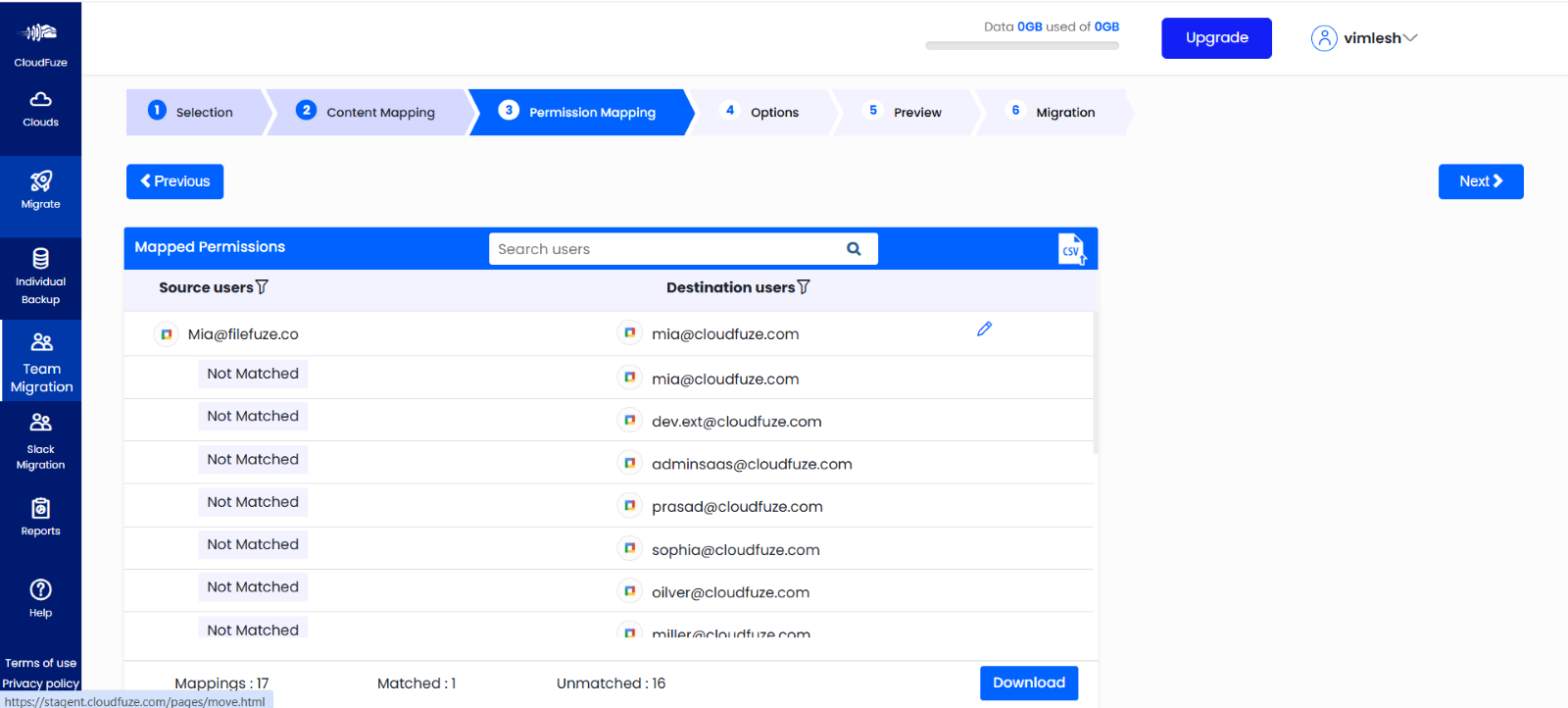
- Mapping Users and Shared Drives: Map users and drives from source to destination environment, either through CSV upload or auto-mapping options. Our cloud migration software enables you to map across different domains.

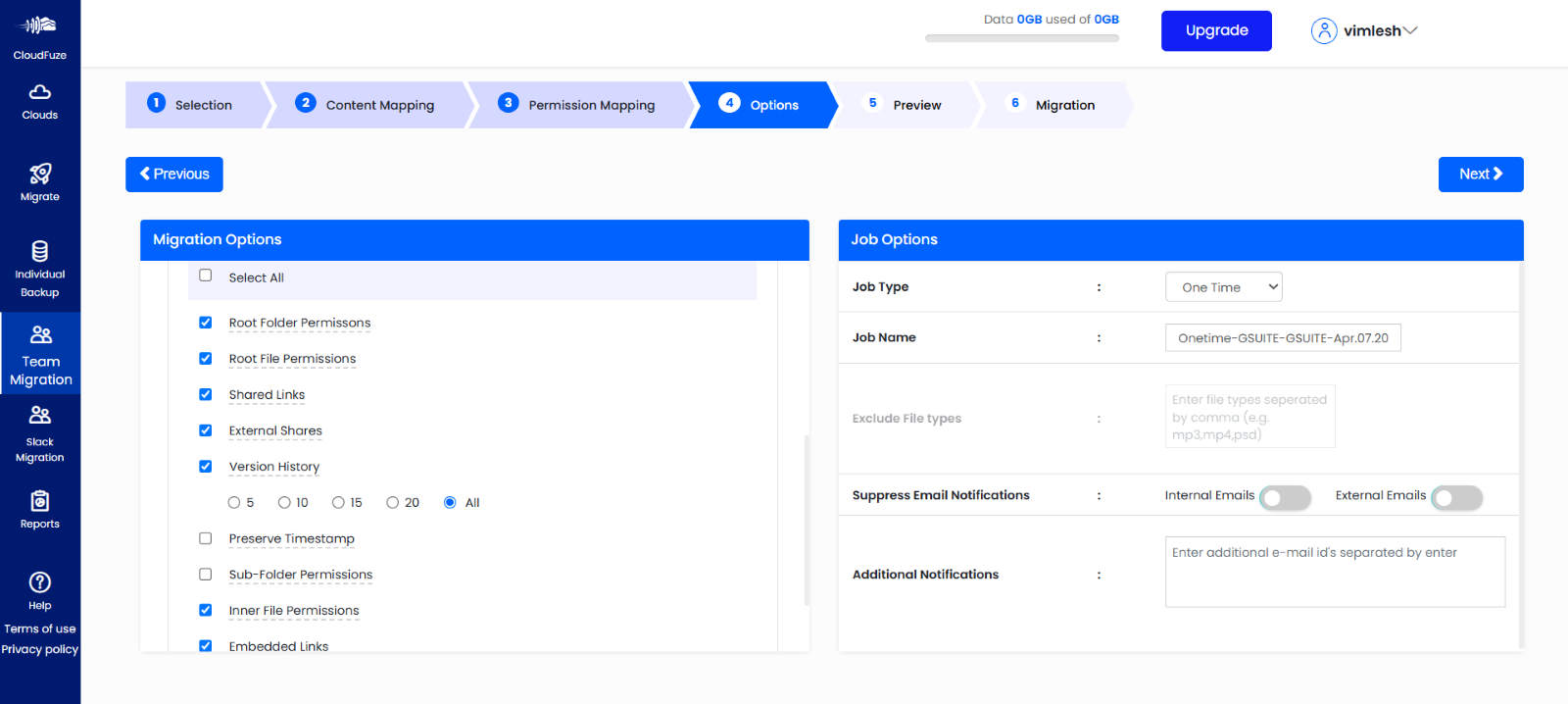
- Set up Migration Options: Select the migration options, such as version history, preserve timestamps, permissions, etc., for Shared Drives or My Drives.

- Run Pilot Migration (Optional): Organizations may run pilot migration with a subset of their data to test configurations, validate accuracy, and tune the settings.
- Begin Migrating Data: Start migrating data in a one-time migration from My Drive and Shared Drives. We migrate files, version history, folder structure, permissions, and timestamps.
- Post-Migration Verification: Validation After Migration: You can check whether data has been migrated accurately and access is working.
- Get Reports and Support: You get the detailed migration reports of all migrated users and files. Our enterprise support team will provide assistance during the entire process.
CloudFuze’s Version History Retention Across My Drive and Shared Drives
| Feature | My Drive | Shared Drives | CloudFuze Support |
|---|---|---|---|
| Original Ownership | ✅ Preserved | ✅ Preserved | ✔️ Yes |
| Folder Structure & Hierarchy | ✅ Retained | ✅ Retained | ✔️ Yes |
| Permissions & Access Roles | ✅ Maintained | ✅ Maintained (e.g., Manager, Viewer) | ✔️ Yes |
| File Version History | ✅ Selective/All versions retained | ✅ Maintained (e.g., Manager, Viewer) | ✔️ Yes |
Google Workspace Shared Drive Migration with Version History
Shared Drives contain business-critical files accessed by multiple teams. During tenant-to-tenant migration, organizations must preserve:
- Shared Drive membership
- Manager, Contributor, Viewer roles
- Folder permissions
- File versions
- File ownership
- External sharing settings
A migration solution must ensure that teams can continue collaboration without rebuilding permissions manually.
Preserve Version History, Permissions, and Metadata with CloudFuze!
Migrate between two Google Workspaces, including file transfer as well as collaboration context, access control & version history, especially between My Drive & Shared Drives.
We have enterprise-grade solution, CloudFuze Migrate, to migrate files, keeping their versions, metadata, folder hierarchy, and permissions intact. Organizations can switch effortlessly and securely without affecting user’s productivity.
Ready to switch Google Workspace tenants without losing version history, permissions, or metadata? Talk to our migration experts and learn how CloudFuze can provide you with secure, enterprise-grade Google Workspace migrations!
Frequently Asked Questions
1. Does Google Workspace migration retain file version history?
Our Google Workspace tenant to tenant migration tool, CloudFuze Migrate, helps businesses to preserve all file version history accurately.
2. Can we migrate Shared Drives with member roles and permissions intact?
Yes, with CloudFuze, you can migrate your Shared Drives, keeping the folder structure, member roles, permissions, and even the metadata intact.
3. How can I move my Google Workspace (formerly G Suite) accounts when going through a merger or acquisition?
The smartest and safest way is using an enterprise-grade tool such as CloudFuze, which will ensure all your data is moved over accurately, including versions, timestamps, and access rights.
4. How do I make sure we don’t lose anything during the Google Workspace to Workspace migration?
Start with a pre-scan to audit your source environment, then use a solution like CloudFuze that offers delta sync, version retention, and post-migration validation.
5. Why is file version history important for Google Workspace migrations?
File version history can help you track audit trails, retrieve old doc states, follow changes during collaboration, and meet compliance requirements once migrated.
6. What Is File Version History in Google Workspace?
File version history: Tracks all changes made to a document (edits, timestamps, contributors). When migrating, preserving this history helps ensure your organization can see past changes and keep compliance records.
7. How can I confirm my Google Workspace migration was successful?
You can confirm that your migration was successful by checking for the following: migrated files/folders, file versions, permissions, ownership, Shared Drives access, and migration reports.
8. What happens to Google Drive version history after migration?
Google Drive version history will stay intact if the migration process supports transferring file versions. Keeping your team’s version history allows you to see old changes, revert to old versions, and continue from where you left off.
About the Author: Aayushi Raj


