
How to Restore a Previous Version of a File in OneDrive
Microsoft OneDrive allows you to restore deleted file versions. To restore a previous version of a file in OneDrive, select the ellipses (…) on the file that you want to restore an earlier version, and then, select Version history. Select the ellipses (…) next to the version of the document that you want to restore and then Restore.
In this blog post, we have discussed steps to restore OneDrive file version.
Key Takeaways:
What Are the Common Problems When Restoring Previous File Versions in OneDrive?
Restoring previous file versions in OneDrive can be challenging due to synchronization delays, administrative limits, and application bugs. Also, the “Version History” option does not appear if a OneDrive file is not synced to the cloud.
When you are trying to restore files through Windows File Explorer, you can face “Problem Merging Files” errors. Also, personal OneDrive accounts have a strict limit of 25 previous versions.
This means that frequent minor edits can permanently rake out older necessary file versions from the log history. Also, the “Restore your OneDrive” disaster recovery feature is bound to a strict 30-day window.
How Can I Restore a Previous version Of a File in OneDrive?
With version history, you can see and restore older versions of your files stored in OneDrive. Here are steps to recover a previous version of a file in OneDrive.
Step 1: Select The File and Click on Version History
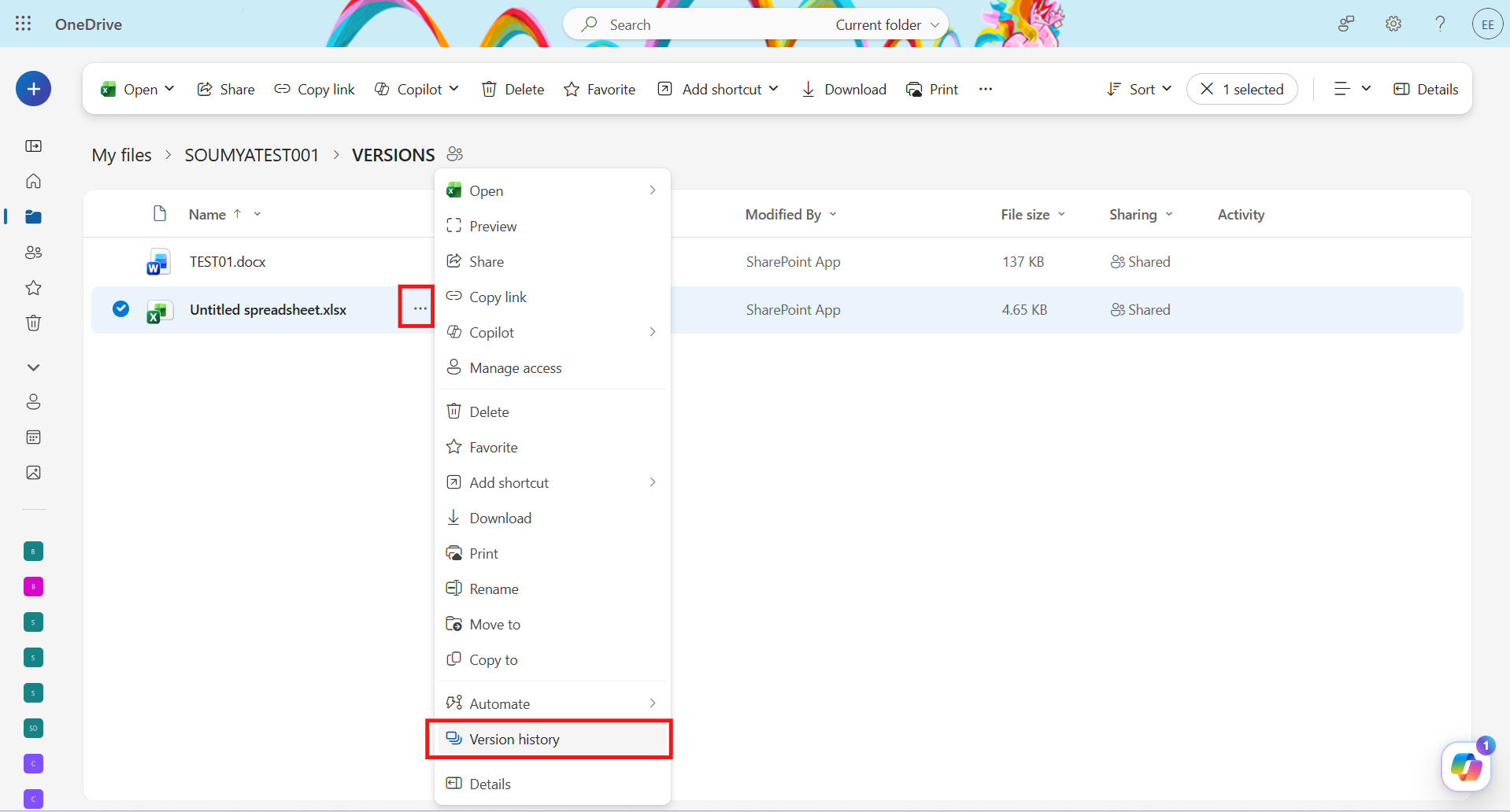
Choose the OneDrive file that you want to restore to an earlier version. Note that you can only restore one file at a time. Click on … and then click on Version history.
Step 2: Select The File Version to Restore
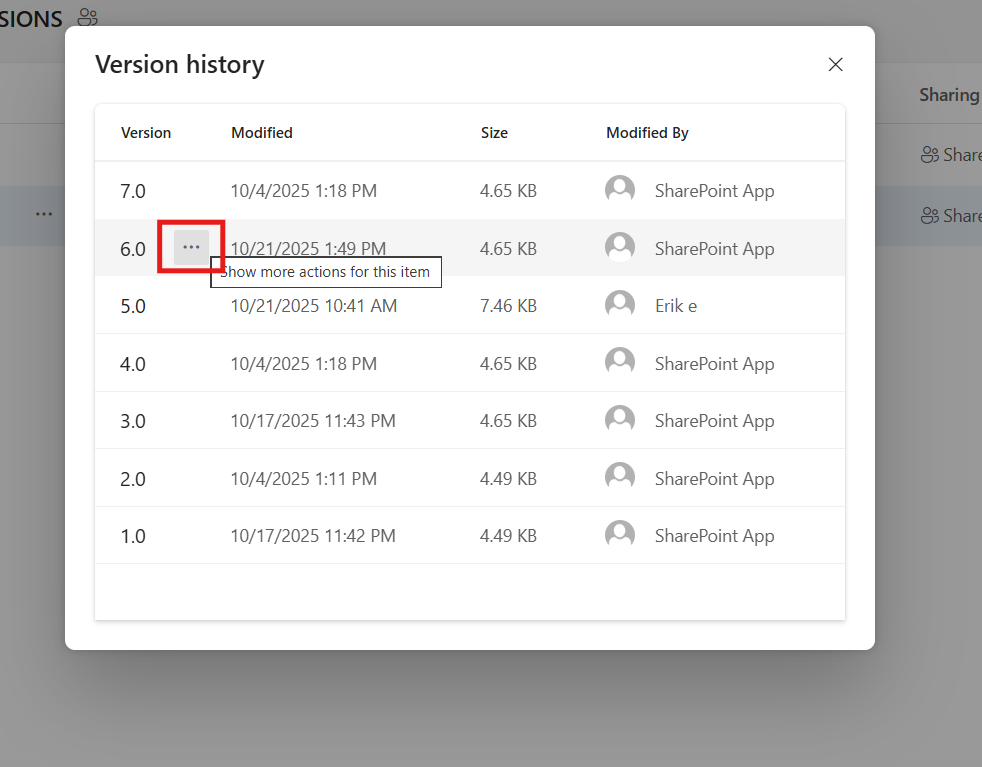
Now, select the ellipses (…) next to the version of the document that you want to restore.
Step 3: Tap on Restore
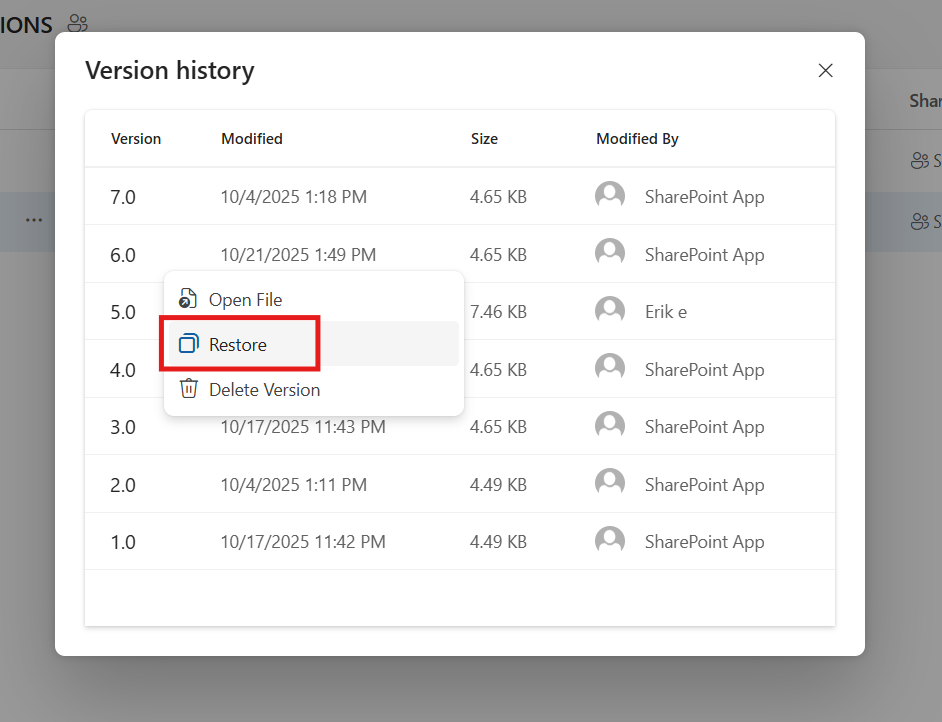
Click on Restore for file version restoration.
What Happens After You Restore a OneDrive File Version?
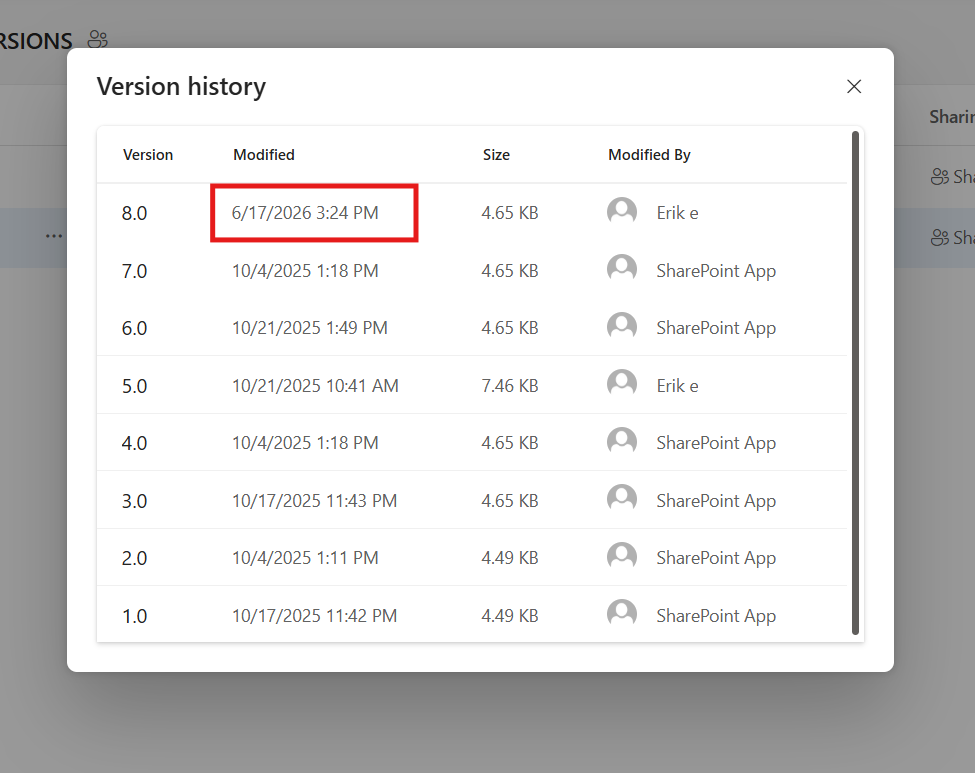
The restored OneDrive file version becomes the new current version. The image below shows how after restoring the file version, it becomes a current OneDrive file version:
Final Thoughts
Users can restore previous OneDrive file versions easily through the steps outlined in this article. Version history becomes very essential when you are performing a platform switch. CloudFuze Migrate preserves file versions during enterprise OneDrive migrations with accuracy
Contact us today for a free and no-obligation demo of our tool
Frequently Asked Questions
1. Can you restore a previous version of a file in OneDrive?
Yes. You can restore a previous version of a file in OneDrive. One can restore it from the web app, File Explorer, or directly inside Microsoft 365 apps.
2. How many previous versions does OneDrive keep?
Personal Microsoft account users can keep up to 25 versions. Work or school accounts follow versioning limits configured by admins in SharePoint site libraries.
3. Does restoring a previous version delete my current file?
No. When you restore an earlier OneDrive file version, that version becomes the current file, and the previous current version becomes a previous version in the list. You can restore it at any time.
4. What file types support version history in OneDrive?
Version history works with all file types, including Microsoft 365 files, PDFs, CAD files, photos, videos, and more.
5. Why can’t I see version history for my file?
Version history may be unavailable due to file type, sync status, or account settings. Confirm the file is fully synced to OneDrive. Then check that you’re signed in with the correct account and verify that the file type supports versioning.
About the Author: Bhavani Asok



