
Fix & Move Long Folders from Google Workspace to Microsoft 365
A critical part of transferring from Google Workspace to Microsoft 365 is preserving long folder paths. If not handled properly, your Google Workspace folder paths can incur access issues and broken structures.
In this blog post, we have shared insights on how businesses can move from Google Workspace to Microsoft 365 while fixing long folder paths.
Key Takeaways:
Common Issues When Moving Long Folders from Google Workspace to Microsoft 365
Common pitfalls to avoid during Google Workspace to Microsoft 365 migration when moving long folders:
- API throttling limits
- File mismatch issues
- OneDrive/SharePoint long folder path limitations
Follow best practices for handling deep directory structures during a cloud data transfer from Google Workspace to Microsoft 365.
Necessary Preparations Before Moving Google Workspace Long Folders to Microsoft 365
Necessary preparations required before moving from Google Workspace to Microsoft 365 along with long folder paths:
- Thoroughly analyze your Google Workspace environment and decide on the large and deeply nested folders to migrate.
- Have a pilot migration and check if your chosen migration tool seamlessly handles long folder paths in Microsoft 365.
- Verify and validate if contents stay intact, and user permissions remain proper after your pilot migration.
- Now, fix permissions issues if any after your Google Drive migration to Microsoft 365.
- Choose a trusted migration tool like CloudFuze Migrate to help you with enterprise-level migrations of terabyte and petabyte scale.
How To Migrate Long Folders from Google Workspace to Microsoft 365 Without Losing Data?
During Google Drive to OneDrive/SharePoint migration, path length is a critical technical consideration due to Microsoft’s platform limitations. Both OneDrive for Business and SharePoint Online support a maximum file path length of 400 characters.
This limit is calculated from the root directory through all nested folders to the final file/folder name. If a file resides in a deeply nested structure or has a very long name, the total path may exceed this threshold, making it unsupported for direct migration into the Microsoft 365 platform.
So, businesses planning to switch from Google Workspace to Microsoft 365 should choose an advanced migration tool that can help them resolve file issues. To address this constraint, CloudFuze Migrate proactively scans and identifies files and folders in Google Drive that exceed the supported path length before or during migration.
Instead of failing the migration for these items, our tool applies an intelligent handling mechanism:
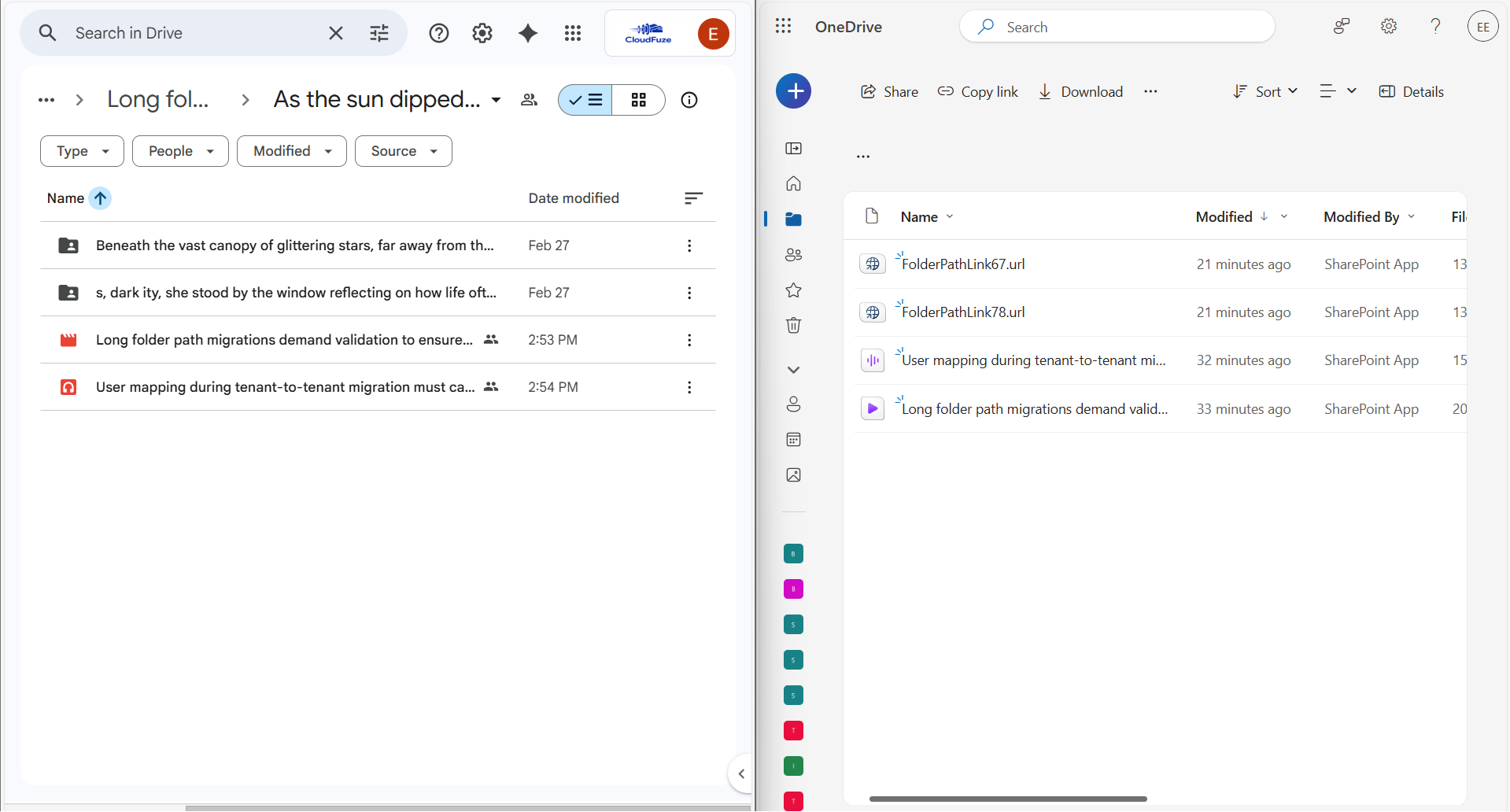
- When you reach path length limit, a Folder/File Path Link URL gets created.
- This link acts as a placeholder in the destination.
- Clicking the link redirects users to the corresponding file or folder location.
Screenshot below shows how CloudFuze Migrate moves files with long folder paths when migrating from Google My Drive to OneDrive platform.
Best Practices for Preserving Folder Hierarchy When Moving Files Between Major Cloud Services
Best practices for preserving folder hierarchy when moving files between major cloud services:
- Detect long folder paths before proceeding with your full migration. Run test migrations using your chosen tool.
- Choose a reliable migration tool like CloudFuze Migrate that transfers files while preserving folder hierarchy.
- Check if all permissions, timestamps, and versions remain intact after moving files with long folder paths.
Check How Our Tool Migrates from Google Drive to OneDrive:
Check How Our Tool Migrates from Google Shared Drives to SharePoint:
CloudFuze Case Study – Migrating from Google Workspace to Microsoft 365
Barrow County School System wanted to transfer over 12,000 staff and student accounts within a limited period. CloudFuze Migrate helped them move over 50 TB of data from Google Drive and Google Shared Drives to OneDrive and SharePoint Online.
Along with migrating folder/file structures, our tool helped them transfer metadata such as:
- Permissions
- File Versions
- External Shares
- Shared Links
To learn more about the case study, click here.
Fix Long Folder Paths During Google Drive to Microsoft 365 Migration
Enterprises can move long folder paths while moving from Google Workspace to Microsoft 365 with CloudFuze Migrate. At CloudFuze, we help you move your Google Workspace files while ensuring complete migration of data and metadata with zero downtime.
Connect with us for a free consultation for your migration, or request a quote today!
Frequently Asked Questions
1. How to migrate long folders from Google Shared Drives to SharePoint?
Manually preserving long folder paths are error-prone for enterprises with high-volume data. It is best to opt for an advanced migration tool to move long folder paths. CloudFuze Migrate is among the top best solutions for preserving long folder paths from Google Shared Drives to SharePoint.
2. Best practices for 900 TB Google Workspace migration
Best practices for 900 TB Google Workspace migration:
- Choose an advanced migration tool that helps you transfer terabytes of data and metadata with complete accuracy.
- Segregate your data and migrate in batches.
- Mitigate API throttling issues to avoid downtime issues.
- Perform a pilot migration and check for any migration discrepancies.
- Transfer incremental changes to ensure complete replication.
Following the best practices for zero-downtime migration from Google Workspace to M365, you can ensure complete transition within your timeline.
3. How to resolve file path length issues when migrating from a cloud office suite to another?
Check migration reports and verify the accuracy of every migrated file with a long folder path. With a trusted advanced migration tool such as CloudFuze Migrate, enterprises can ensure complete replication of files and metadata while handling long folder paths accurately.



Leave A Comment