
Migrate Outlook Mail to Gmail Without Losing Email Signatures
During an Outlook mail to Gmail migration, it is important to preserve signature formatting, images, hyperlinks, and legal disclaimers. This can be challenging due to differences between the two email platforms (Outlook and Gmail).
Without proper migration planning, organizations may face broken layouts, missing branding elements, and inconsistent user experiences. However, we at CloudFuze address these challenges by ensuring email signatures are migrated accurately. Our tool preserves the appearance and functionality so employees can continue communicating smoothly from day one in Gmail.
This guide explains the common migration challenges and best methods to migrate Outlook mail to Gmail with email signatures.
Key Takeaways
What Are Email Signatures and Why Should They Be Preserved during Email Migration?
An email signature is a block of data that is automatically added to outgoing emails. The contents of email signatures vary according to organizational needs. An email signature will typically include:
- Employee names and job titles
- Company logos and branding
- Phone numbers and contact information
- Website links
- Social media profiles
- Legal disclaimers
- Marketing banners (or promotional content)
It is crucial to preserve these elements of email signatures when organizations import Outlook email to Gmail. This helps to maintain brand consistency, compliance requirements, and professional communication standards of the business.
Common Challenges When Migrating Outlook Mail to Gmail
Many organizations face Outlook to Gmail transfer challenges, such as:
- Email Signature Loss: Native tools mainly focus on moving mailbox data and may not migrate user signatures automatically.
- Formatting Issues: HTML signatures with logos, images, hyperlinks, and custom formatting, and other customized formats are likely to break after migration.
- Manually Create Signatures: IT teams may have to recreate signatures manually if the migration tool does not retain signatures.
- Retain Metadata: Email metadata such as timestamps, folder structures, read/unread status, and message flags should be preserved.
In addition to all the mentioned issues, enterprises migrating TBs/PBs of mailbox needs a scalable Outlook to Gmail migration tool to migrate such large volumes of data with least disruption.
How to Migrate Outlook Mail to Gmail Without Losing Email Signatures
The most effective approach is to use an enterprise-grade Outlook to Gmail migration tool that supports signature preservation alongside mailbox migration.
We at CloudFuze offer an email migration tool, CloudFuze Migrate, that helps organizations:
- Preserve email signatures (images, links, details)
- Transfer mailboxes, contacts, and calendars
- Retain email metadata
- Support one-time and delta migrations
- Migrate TBs to PBs of enterprise data
As a Google Cloud Partner, we at CloudFuze provide a secure and fast migration platform designed for organizations of all sizes. We retain and replicate all the features during email migration.
Preserve Email Signature from Outlook to Gmail Migration with CloudFuze
Before Migration (Outlook)
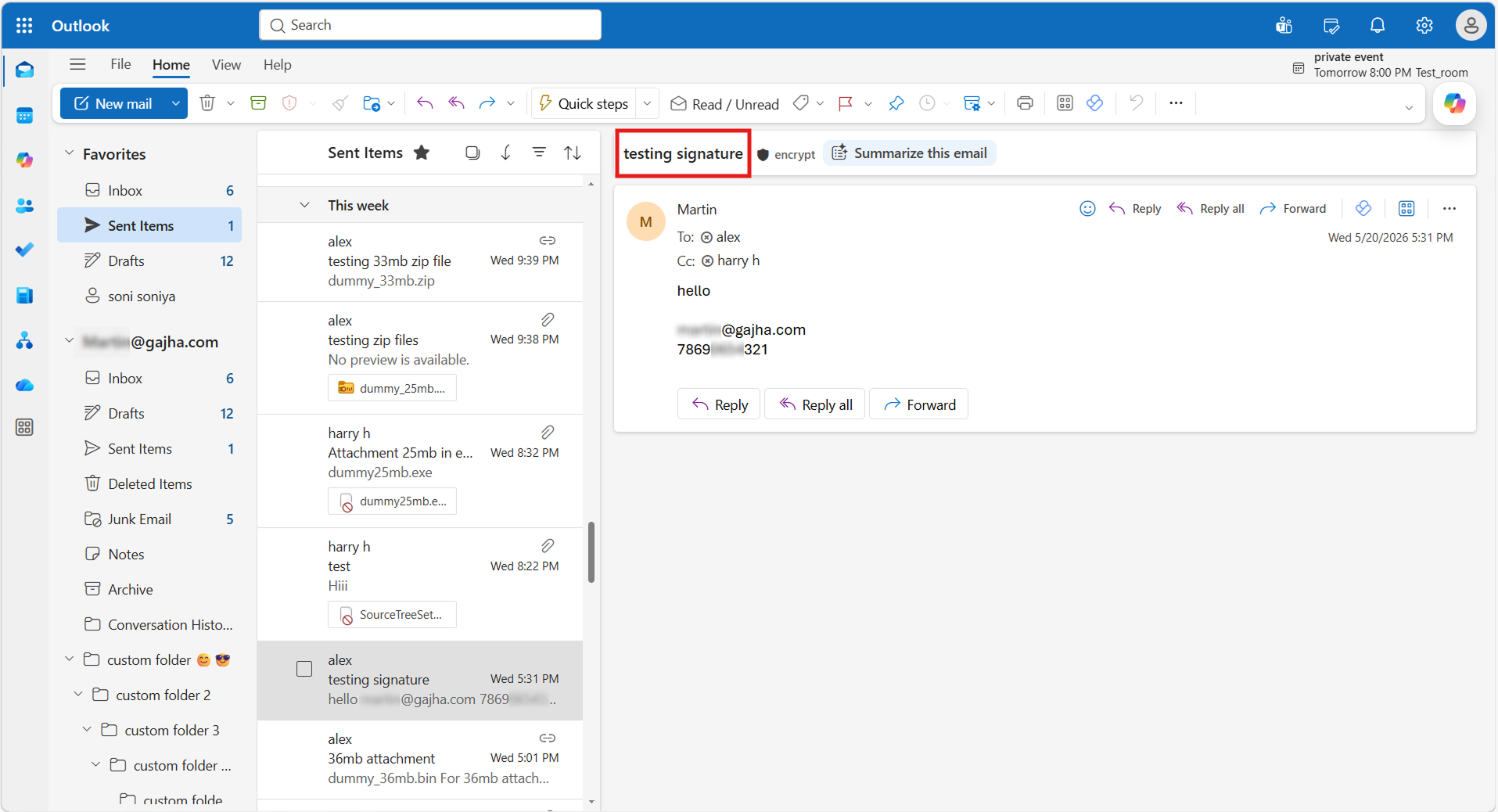
The email in Outlook (Source) displays the user’s signature with its formatting, contact information, and hyperlink intact. Preserving these elements for enterprises during migration is important for maintaining professional branding and consistent business communication.
After Migration (Gmail)
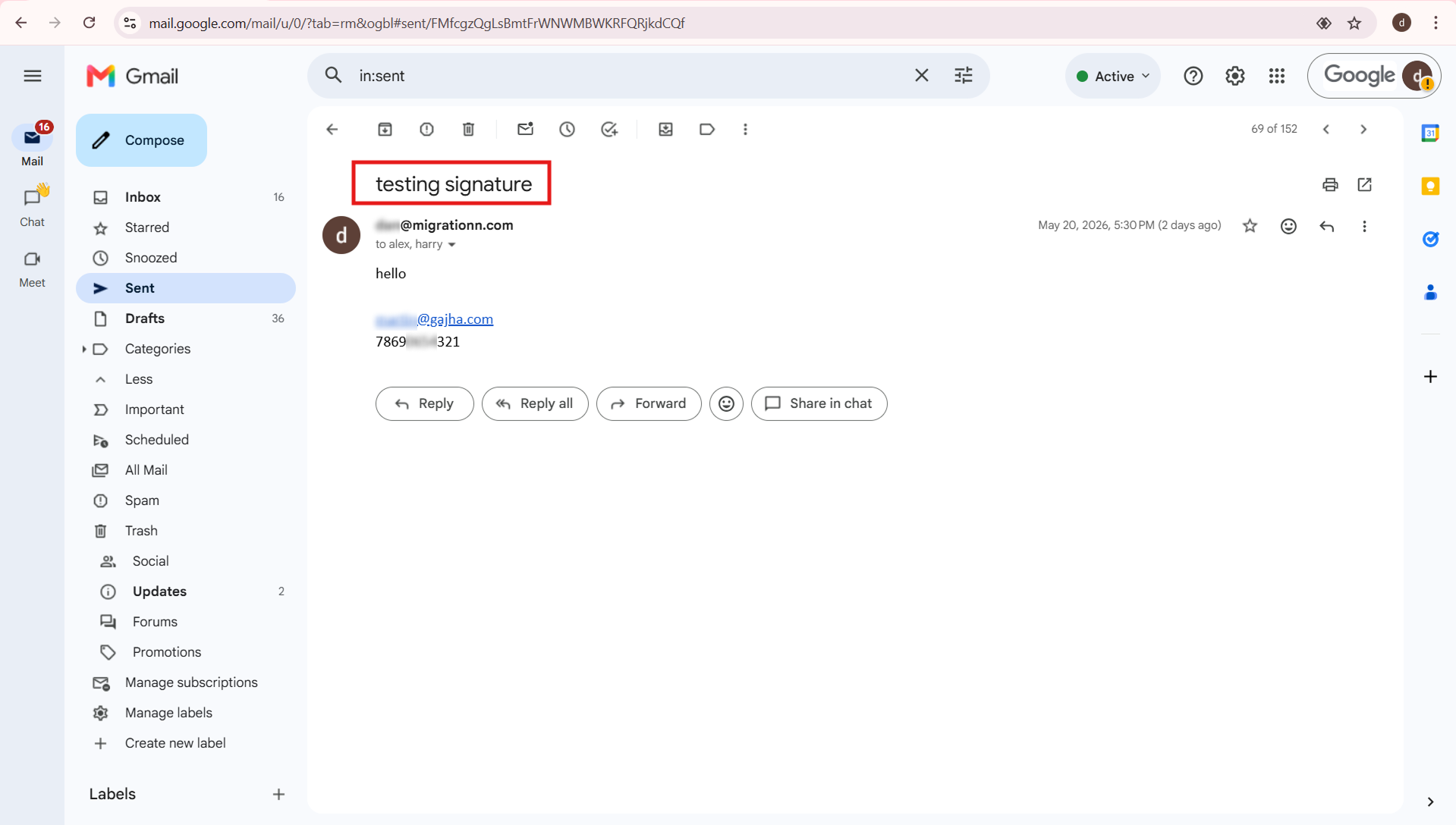
After migration to Gmail (destination), CloudFuze successfully retained the email signature. It includes formatting, contact details, and clickable hyperlinks.
Still have questions? Contact our migration experts now!
Best Methods to Import Outlook to Gmail While Preserving Signatures
Method 1: Native Export and Import
Firms can export their Outlook email information in PST format and then import the email information in Gmail. In most cases, however, signatures must be manually recreated.
Method 2: Enterprise Migration Tool (CloudFuze Migrate)
With CloudFuze, organizations can transfer Outlook to Gmail while preserving:
- Email signatures
- Folder hierarchy
- Timestamps
- Read/unread status
- Calendar events
- Contacts
- Shared mailboxes
This significantly reduces post-migration administrative effort.
How to Verify Email Signatures After Migration
After you import Outlook email to Gmail, IT admins should validate:
- Signature formatting
- Logo rendering
- Hyperlinks
- Contact information
- Legal disclaimers
- Mobile compatibility
This prevents user issues and supports tickets.
Post-Migration Optimization Checklist
Follow these post-migration steps after completing your Outlook to Gmail migration:
- Review User Signatures: All signatures should be validated accurately on the Gmail interface.
- Validate Mailboxes: Check email counts, folders, labels, and attachments.
- Perform Delta Migration: Transfer new emails received during the migration window.
- Train End Users: Educate users on Gmail capabilities, including labels, filters, and Gemini productivity features in Google Workspace.
CloudFuze Transfers Email Signatures Accurately During Outlook to Gmail Migration
Our CloudFuze solution is the best in helping you maintain email signatures when moving emails from Outlook to Gmail. We eliminate the risk of broken HTML code, improper formatting, and broken image links.
Unlike other software, where users need to create new signatures, we use our advanced enterprise engine to convert your email signatures directly to Google Workspace. This ensures that there will be no bottleneck at the IT helpdesk after migration and protects your brand’s consistency.
Are you worried about your migration process? Well, don’t be, because we have migration experts who collaborate with IT admins to migrate your email successfully.
Talk to Our Experts Today!
Using a migration tool, such as CloudFuze, allows businesses to migrate Outlook emails to Gmail securely without compromising branding, compliance regulations, and business operations.
Schdelude a 30-minutes free consultation with our migration experts to know how we can preserve your business email signatures when migrating from Outlook to Gmail.
Frequently Asked Questions
1. Are Outlook email signatures can be migrated to Gmail automatically?
It is possible to migrate to Gmail but using professional migration tools. There is no assurance that your email signature will be transferred to Gmail by the native process. Enterprise-level tools like CloudFuze can extract, transform, and migrate email signatures from Outlook to Gmail.
2. Why do email signatures fail during migration?
Most of the migration failed because there are differences in HTML code rendering between Outlook and Gmail, images embedded, and formatting of signature in Outlook and Gmail. If a signature fails to get migrated, you may have logos unable to load or break in link, and everything gets misaligned.
3. What is the best method to migrate Outlook mail to Gmail without losing signatures?
The best and the right way to transfer your Outlook emails to Gmail and keep it intact is to have an enterprise email migration tool with the ability to maintain your signatures in the migration process. CloudFuze is one such service that will transfer all your emails, information, along with signatures, smoothly without any hitch.
4. What happens if email signatures are not migrated?
If signatures are not preserved, organizations can face inconsistent branding and missing compliance notices.
5. How long does it take to migrate Outlook signatures to Gmail?
The time required depends on the number of users and the migration method used. However, migration tools like CloudFuze can help you migrate mailboxes faster within the approximate migration timeline.
6. Are email signature images and logos securely transferred during migration?
Yes, CloudFuze retains all images and logos of email signature during the migration process.
About the Author: Aayushi Raj



