
1. What is Dropbox to OneDrive for Business Migration?
Dropbox to OneDrive for Business migration is the process of moving an organization’s files, folders, permissions, shared links, and metadata from Dropbox’s cloud storage platform to Microsoft’s OneDrive for Business, which is part of the Microsoft 365 ecosystem.
IT teams undertake this migration to consolidate their cloud environment, reduce SaaS spend, and provide users access to deeper collaboration tools available in Microsoft 365.
A professional Dropbox to OneDrive migration involves transferring version histories, replicating permission structures, preserving embedded links, migrating Dropbox paper files, and handling external shares without disrupting day-to-day operations.
This guide is written for IT admins and IT managers who are planning or evaluating a Dropbox to OneDrive for Business migration.
It covers why organizations make this move, the real challenges involved, how CloudFuze handles the migration, and a full step-by-step walkthrough of the process.
2. Dropbox vs OneDrive for Business
Before committing to a migration, IT leaders need to understand what they are actually moving to. Dropbox and OneDrive for Business are both cloud storage platforms, but they serve different organizational purposes.
Some organizations are already on Microsoft 365 and using Dropbox as an additional storage tool, which means paying for two overlapping platforms. Others are operating entirely on Dropbox and are evaluating a full migration to Microsoft 365, driven by various requirements such as:
- Integrated productivity tool ecosystem
- AI adoption
- Stronger compliance capabilities
- Enterprise IT standardization
In both cases, understanding the difference between the two platforms helps make informed migration decisions.
Dropbox is a standalone cloud storage platform. It is intuitive, fast, and widely adopted across teams. But it exists as a separate platform, which means it has its own admin console, licensing costs, and no native integration with Microsoft 365 tools.
OneDrive for Business is part of Microsoft 365. It is the backbone of how Microsoft handles file storage, co-authoring in Word, Excel, and PowerPoint, Teams file sharing and SharePoint document libraries.
For organizations standardizing on Microsoft 365, OneDrive for Business removes the need for a separate storage platform entirely.
| Features | Dropbox | OneDrive for Business |
|---|---|---|
| Platform type | Standalone cloud storage | Part of Microsoft 365 |
| Real-time co-authoring (Office apps) | No | Yes |
| Microsoft Teams file Storage | No | Yes |
| SharePoint integration | No | Yes |
| Microsoft Copilot compatibility | No | Yes |
| Admin console | Separate Dropbox admin | Microsoft 365 Admin Center |
| Compliance tools | Third-party add-ons | Built-in |
| Licensing | Separate Dropbox license required | Included in Microsoft 365 plans |
Note: This comparison information is added as per May 2026 data. They may change as and when Dropbox and Microsoft update their products.
3. Challenges to Move Dropbox to OneDrive for Business
Migrating from Dropbox to OneDrive for Business involves more than just moving files from one folder to another. IT admins consistently run into several challenges, especially when migrating at scale.
Here are some of the biggest challenges of transferring Dropbox data to OneDrive for Business:
File and Folder Integrity:
One of the key challenges is ensuring files arrive in OneDrive fully intact. Corruption during transfer, missing files due to path length issues, or format incompatibilities with Dropbox Paper documents can cause significant impact.
Permissions Migration:
Dropbox uses its own permission model for shared folders, team folders, and external collaborators. Replicating those permissions accurately in OneDrive for Business requires mapping Dropbox rules to Microsoft 365 equivalents. Many migration tools handle only root-level permissions and miss the nested ones.
Shared Links and Embedded Links Migration:
Shared links and links embedded in internal documents break during migration unless they are explicitly recreated in OneDrive. This is one of the most commonly overlooked challenges.
External Shares Migration:
Individual users and teams frequently share Dropbox folders with external partners and collaborators. Those external shares need to be preserved during migration so that external collaborators are not locked out.
Special Characters and Long File Paths:
OneDrive enforces stricter rules than Dropbox on file names with certain restrictions on special characters and total path lengths. Files that are located deep in a Dropbox folder can exceed OneDrive’s path limit and fail to migrate without a tool that handles path trimming automatically.
Timestamps and Version History Preservation:
It is important to preserve original file creation and modification timestamps for audit and compliance purposes. Version history preservation is equally important for regulated industries. Preserving these properties is easier said than done.
Bringing Incremental Changes:
As users continue working on their files and folders during the migration, incremental changes accumulate in Dropbox. It is important to transfer these incremental changes to OneDrive without restarting the entire migration again.
4. Comparing CloudFuze’s vs. Competitor’s Dropbox to OneDrive for Business Migration Tool
When planning to migrate from Dropbox to OneDrive for Business, selecting the right migration tool is crucial for a seamless transition. Among the various options available, CloudFuze stands out as a suitable solution.
Here, we will explore the differences between CloudFuze and other migration tools, examining key features to help you make an informed decision for your migration needs.
| Migration Features | CloudFuze | Competitors |
|---|---|---|
| One-time migration | Yes | Yes |
| Inner folder permissions | Yes | No |
| Inner file permissions | Yes | No |
| Root folder permissions | Yes | Yes |
| Root file permissions | Yes | Yes |
| Long folder path trim | Yes | No |
| Shared links | Yes | No |
| External shares | Yes | No |
| Embedded link | Yes | No |
| External shares | Yes | No |
| Dropbox Paper | Yes | No |
| Versions | Yes | No |
| Selective versions | Yes | No |
| Special character replacement | Yes | No |
| Delta migration | Yes | No |
| Comparison delta | Yes | No |
| Suppressing email notification | Yes | No |
5. Why Should You Choose CloudFuze to Move Dropbox to OneDrive for Business?
CloudFuze has been handling enterprise cloud migrations since 2012. The platform has been used to migrate more than 100 petabytes of data across 40+ cloud platforms, including large-scale Dropbox to Microsoft 365 migrations for organizations like Michigan State University.
There are a few key reasons why IT teams consistently choose CloudFuze.
AI-Ready Migrations
CloudFuze helps IT teams clean up files, folders, and permissions in Dropbox and migrate AI-ready data for secure Copilot deployment in Microsoft 365 post migration. Unlike other migration tools that stop at the migration part, CloudFuze ensures continuous governance post-migration.
Managed Migration Service
CloudFuze offers a fully managed migration service where a dedicated migration manager and technical team handle planning, execution, monitoring, and issue escalation. This is especially valuable for IT teams running a migration alongside their regular workload.
Pre-Migration Analysis
Before any data gets migrated, CloudFuze runs a pre-migration analysis to assess the Dropbox environment, including total data volume, user count, folder depth, formation complexity, and more. This step helps avoid unforeseen roadblocks during migration.
No End-User Disruption
CloudFuze enables IT teams to suppress migration email notifications so that users are not flooded with sharing permission alerts when files and folders are being transferred.
Secure OAuth 2.0 Authentication
CloudFuze authenticates with both Dropbox and OneDrive using OAuth 2.0 which means no passwords are stored and access follows secure token-based authorization processes.
| Capability | Managed Migration | Regular Migration |
|---|---|---|
| Platform Availability | ✓ | ✓ |
| Technical Support | Enterprise-Grade Support | ✓ |
| Dedicated Migration Manager and Team | ✓ | X |
| Dedicated Migration Manager and Team | ✓ | X |
| Pre-Migration Analysis | ✓ | X |
| Project Planning Assistance | ✓ | X |
| Project Management with IT Teams | ✓ | X |
| Migration Monitoring and Issue Escalation | ✓ | X |
| Daily Reporting and Status Updates | ✓ | X |
| Migration Best Practices Guidance | ✓ | X |
| End-User Coordination and Support | ✓ | X |
6. Dropbox to OneDrive for Business Migration Steps
Migrating from Dropbox to OneDrive for Business can be a daunting task, but with CloudFuze’s streamlined process, the transition becomes seamless and efficient. Here is a brief overview of the steps to migrate from Dropbox for Business to OneDrive using CloudFuze.
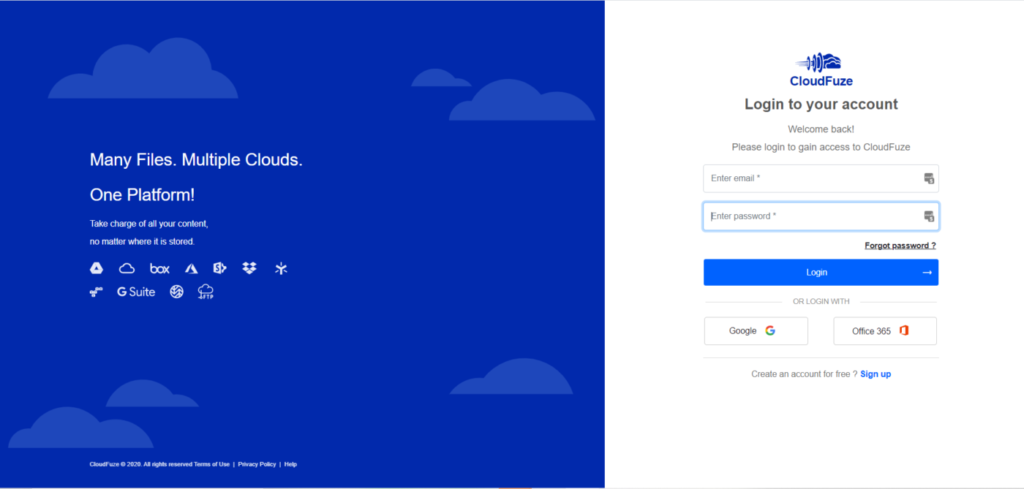
Step 2: Add The Dropbox Cloud to CloudFuze
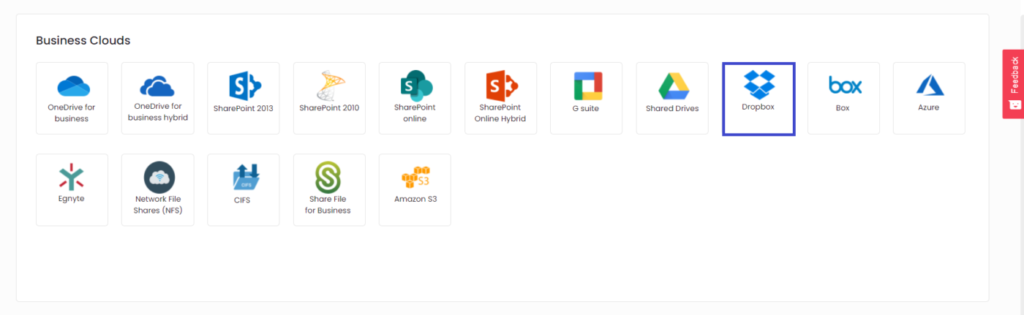
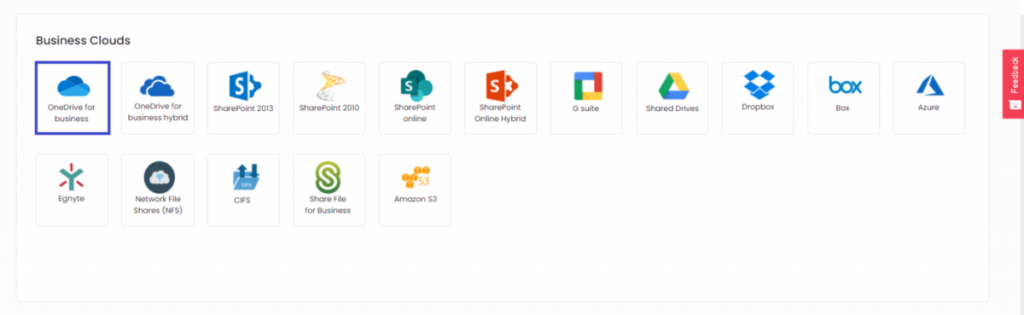
In the tool’s dashboard, navigate to the “Business Clouds” and click on the Dropbox cloud.
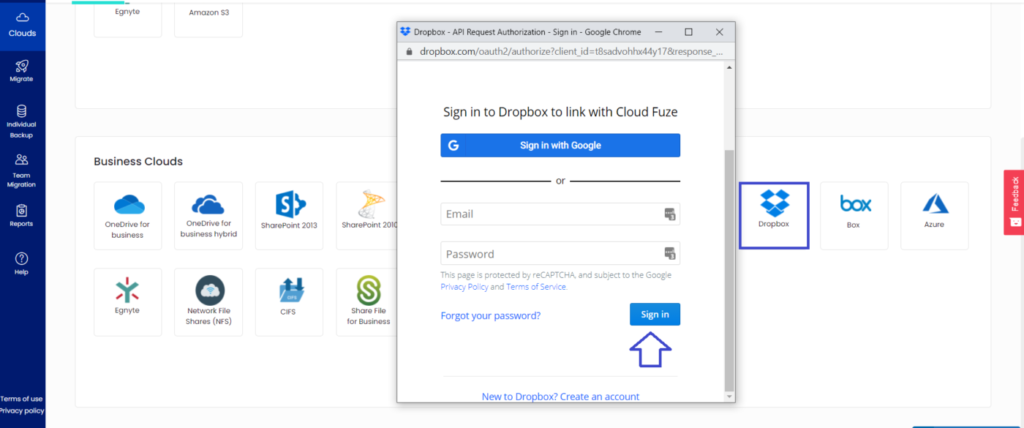
Step 3: Enter Dropbox Account’s Admin Credentials
Enter your company’s Dropbox for Business admin login credentials and click the Sign-in button. CloudFuze authenticates your Dropbox cloud via the secure OAuth 2.0 process.
Step 4: Add the OneDrive for Business Cloud to CloudFuze
Click on the OneDrive for Business Cloud in the same “Business Clouds” section.
Step 5: Enter Microsoft 365 Global Admin Credentials
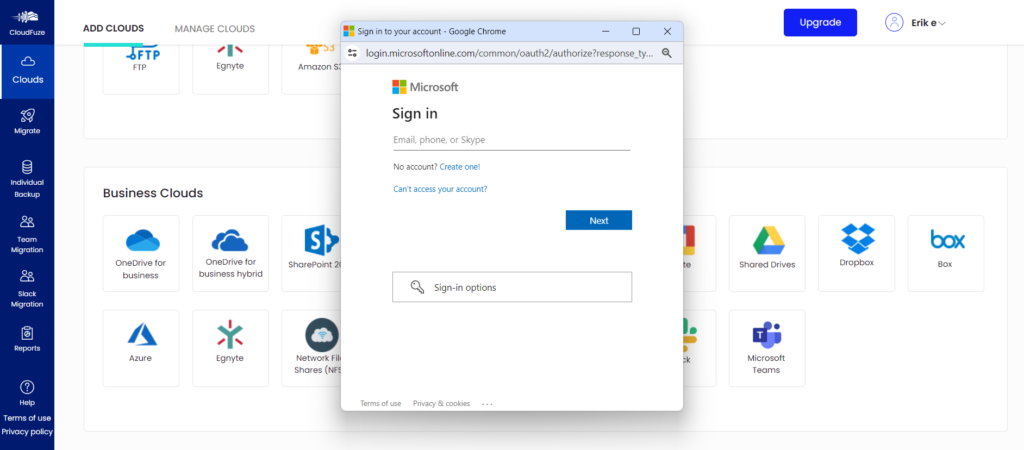
OneDrive for Business does not have separate login credentials. Your Microsoft 365 Global admin login credentials will be your OneDrive for Business and SharePoint Online account’s login details.
So, enter Microsoft 365 Global Admin login credentials and click on “Sign in.”
Step 6: Check Whether Both Clouds are Added Properly
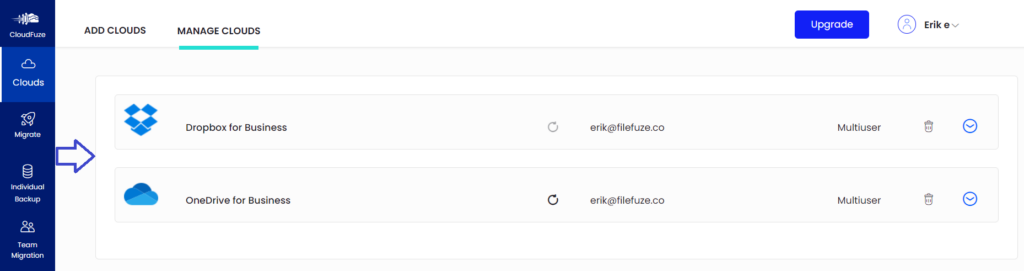
Click on the Clouds icon and go to the Manage Clouds tab. Check and ensure that both Dropbox for Business and OneDrive for Business accounts are added successfully.
Step 7: Configure the Source and Destination Clouds
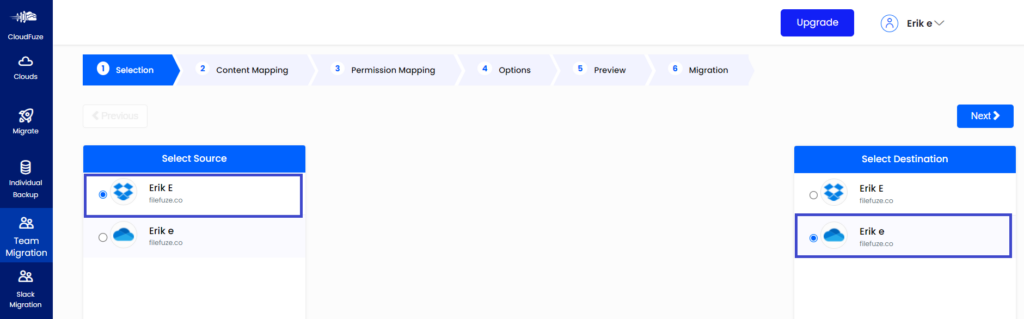
Click on the Team Migration icon and choose Dropbox as the source and OneDrive for Business as the destination cloud.
Step 8: Map Users Between Dropbox and OneDrive for Business Clouds
CloudFuze allows you to map users using auto-mapping or CSV if there are any custom requirements in mapping users’ data.
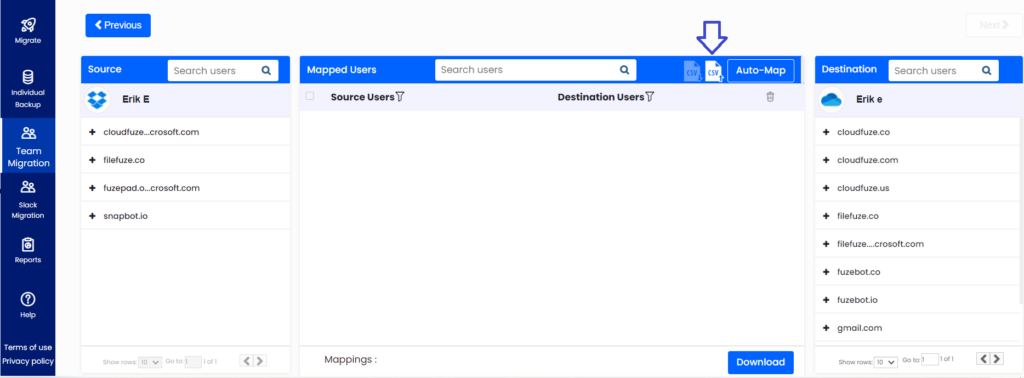
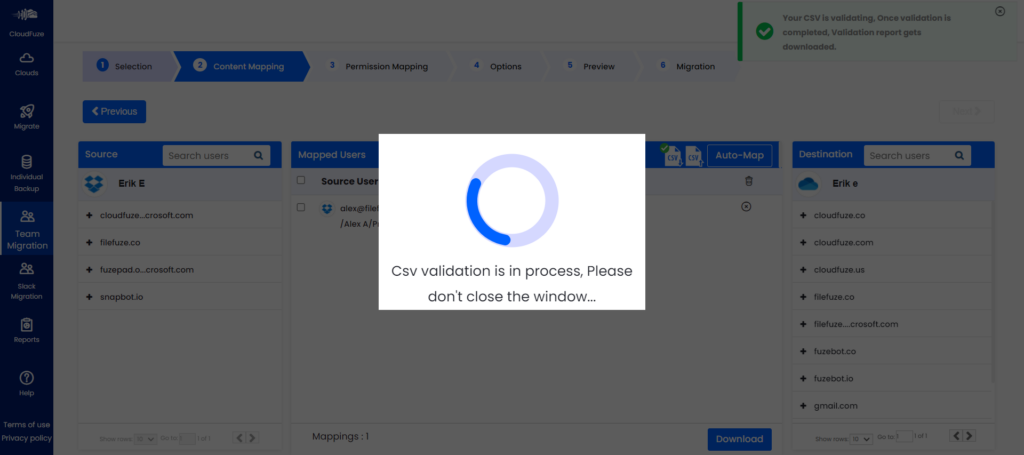
Step 9: Select the User Accounts to Migrate
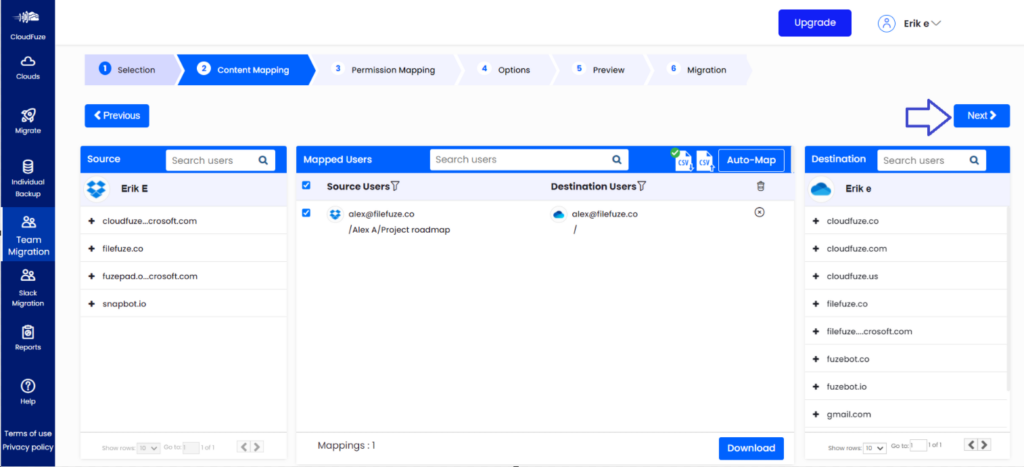
After mapping the user accounts through auto-mapping or CSV mapping, select their pairs to migrate and click “Next”.
Step 10: Configure Permissions Mapping
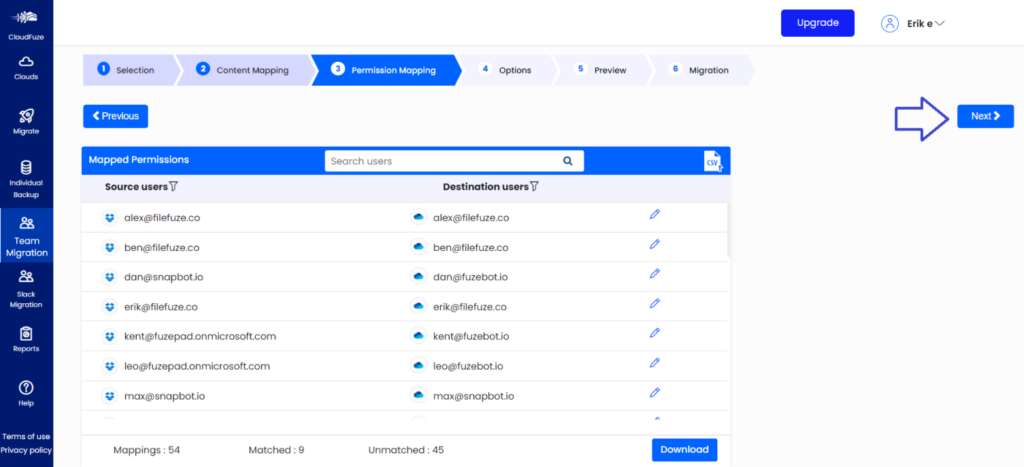
CloudFuze migration tool auto-maps permissions for user pairs, but you can customize this by clicking the edit button to change permissions as needed.
Step 11: Configure a Few Other Migration Options
Enter the migration job name. Add any additional emails to receive the Dropbox to OneDrive for Business migration progress updates that our tool, CloudFuze Migrate, automatically sends. Also make sure to check other parameters and set them as per your organization’s migration needs.
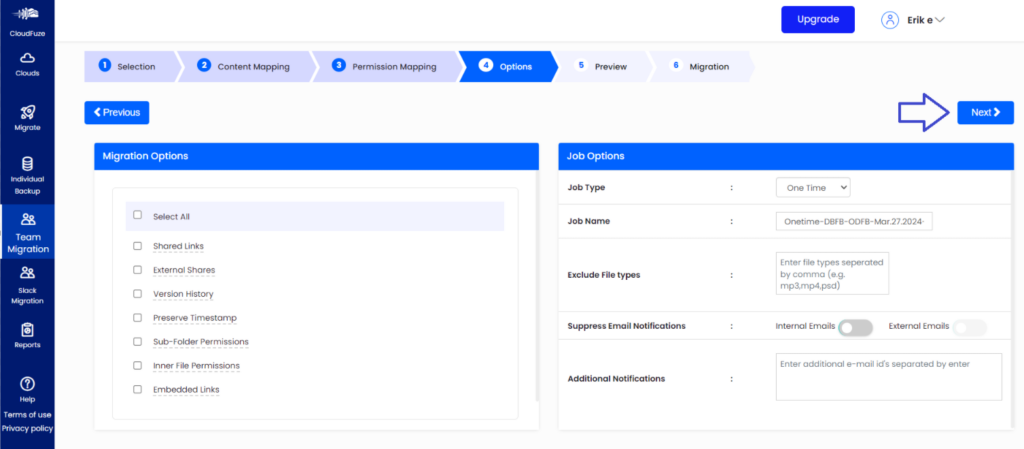
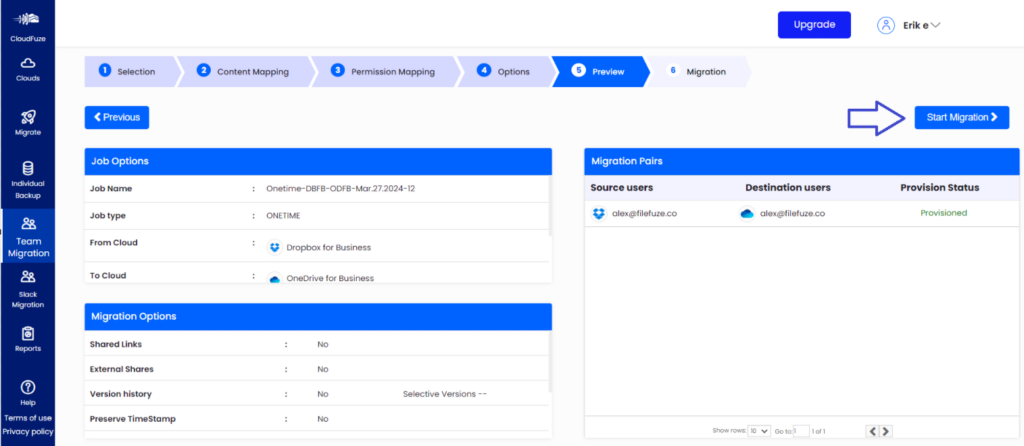
Step 12: Preview and Start Migration
Preview the migration setup and click on “Start Migration” if everything looks good.
Step 13: Monitor the Migration Progress
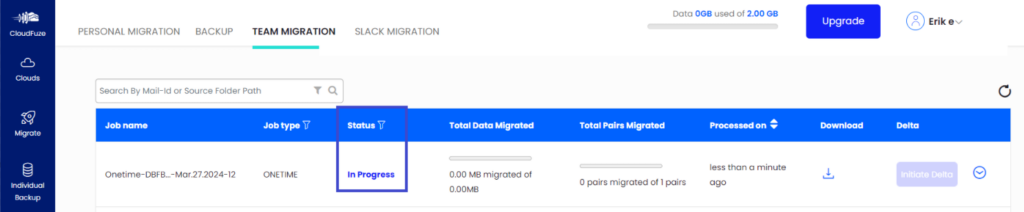
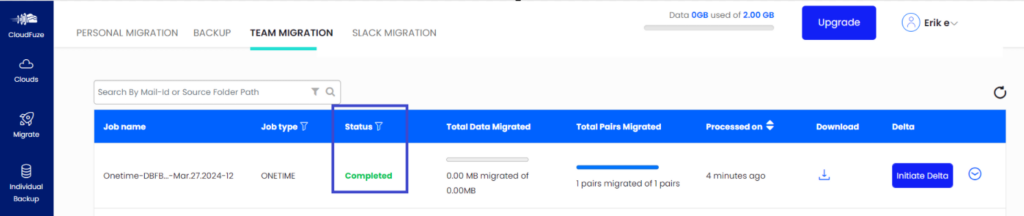
After initiating the migration, the tool automatically redirects you to the Reports page. In the dashboard, check the status to keep track of the migration progress.
The status will change from “In-Queue” to “In-Progress” once the data transfer process starts. It will change to “Completed” once all user accounts and their data have been migrated from Dropbox to OneDrive for Business.
7. Dropbox to OneDrive for Business Online Migration FAQs
1. How does CloudFuze ensure that your data is secure when migrating from Dropbox to OneDrive for Business?
CloudFuze ensures data security during migration from Dropbox to OneDrive for Business through robust encryption protocols, compliance measures, and continuous monitoring. Additionally, CloudFuze employs advanced security features to safeguard sensitive information, mitigating the risk of unauthorized access or data breaches throughout the migration process.
2. Will Dropbox Paper be migrated when transferring Dropbox files to OneDrive for Business?
Yes, CloudFuze ensures that all Dropbox files, including Dropbox Paper documents, are migrated to OneDrive for Business in a compatible format.
3. Will the changes made to Dropbox data during migration be reflected in the OneDrive for Business cloud?
CloudFuze’s delta migration feature will reflect all changes in Dropbox data during migration to the OneDrive for Business cloud. This feature ensures that any modifications or updates to files in Dropbox since the last migration are transferred to OneDrive for Business, maintaining data consistency across both platforms.
4. How long does a Dropbox to OneDrive for Business migration take?
Migration duration depends on several variables, including total data volume, number of users, and complexity of permission structures. A medium-sized migration of 100 to 500 users may take a month while large-scale migrations of more than 500 users may take several months.
5. Will the user receive email notifications during migration?
Yes, by default Microsoft 365 sends notifications when files are shared or permissions change. CloudFuze includes an option to suppress these notifications during migration to help prevent user impact.
6. Does CloudFuze work if Dropbox and Microsoft 365 user emails are different?
Yes. CloudFuze’s CSV mapping feature allows you to manually map Dropbox users to their OneDrive counterparts even when email addresses do not match. This feature is useful in post-merger or rebranding use cases where users differ across platforms.
About the Author: Pankaj Rai



