
Google to Microsoft 365 Migration: Preserve Embedded Links
In enterprises, documents have embedded links, hyperlinks, references to other files, and links to shared documents that employees use to accomplish daily tasks. In migrating from Google Workspace to M365, such links are likely to become broken due to changes in source files, folders, URLs, and sharing permissions. This means that migration must take into consideration both document contents and link relations.
This guide will show you how to migrate Google Workspace to Microsoft 365 and ensure the preservation of embedded links/hyperlinks with CloudFuze HyperLink Fixer tool.
Key Takeaways
What Are Embedded Links in Documents?
Embedded links refer to clickable links in a document pointing users to some other resource. These links connect a document to another file, web page, folder, spreadsheet, presentation, or business application.
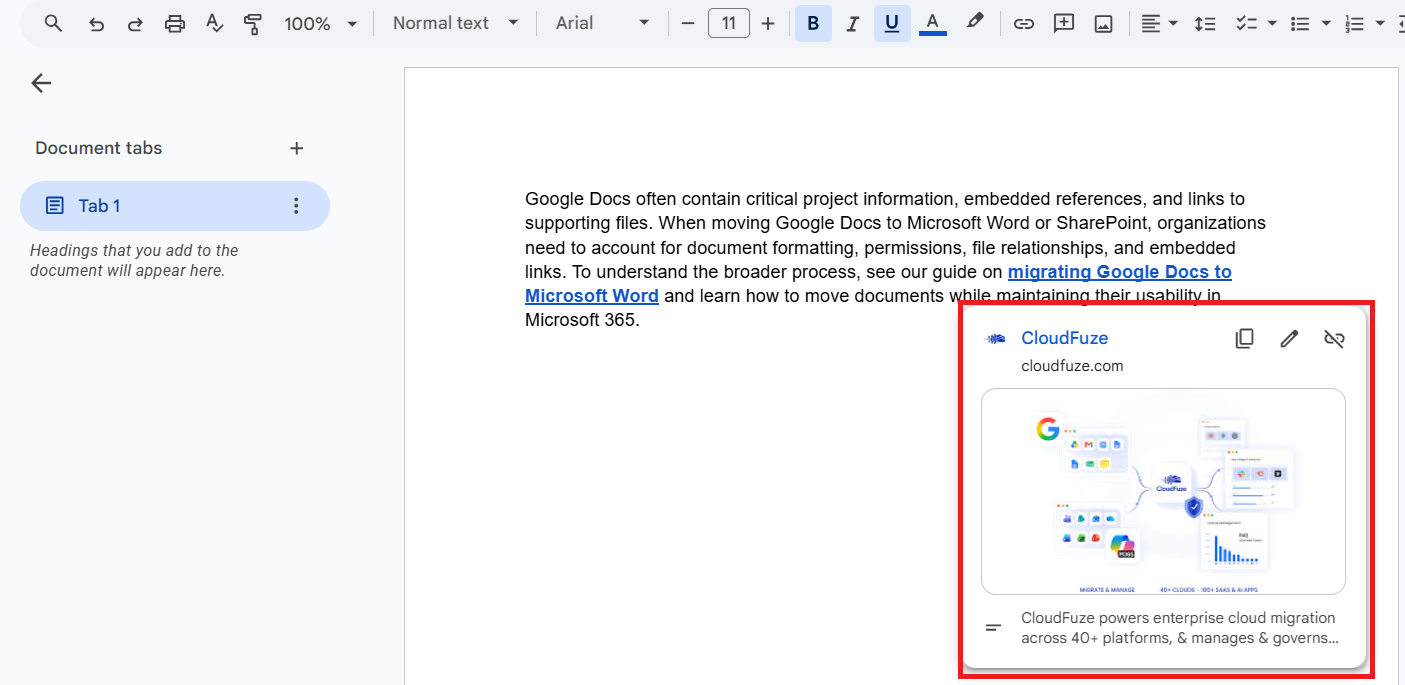
For example, a Google Docs project plan might contain links to:
- Google Sheets for budgets
- Google Slides presentations
- Google Docs files
- Shared Drive folders
- External websites
- Internal business applications
- Documents related to the project
Let us imagine the following reference in a project document:
Project Budget → https://docs.google.com/spreadsheets/…
After migrating from Google Workspace to Microsoft 365, the corresponding spreadsheet may now exist in SharePoint or OneDrive. If the hyperlink still points to the old Google URL, users may receive an access error or be redirected to a resource that is no longer available.
This is why preserving embedded links should be treated as an important part of an enterprise migration strategy.
The Importance of Embedded Links in Transitioning from Google Workspace to Microsoft 365
Documents within enterprises do not occur in isolation. There might be a link in one document pointing towards many others.
For example:
Project Plan -> Budget -> Resource Plan -> Executive Presentation
In cases where the files are moved but the relationship between them is broken in the process, workers might find that even though the documents have been moved over, the links inside them are broken.
There will be consequences like:
- Reduction in productivity
- Manual fixing of the links
- Help-desk calls to fix them
- Difficulty accessing critical information
- Broken document relationships
- Difficulty determining which is the original document
- Security and access issues
With hundreds of thousands of users and millions of files, it becomes unfeasible to resolve such issues manually.
Common Problems in the Process of Migrating from Google Workspace to M365
Google to Microsoft 365 migration involves a movement of information across two different productivity suites. The Google Docs, Sheets and Slides have different functionality and file formats than their counterparts in Microsoft Office.
Some of the most common challenges include:
1. Various File Formats
Applications of Google Workspace use native Google formats whereas Microsoft 365 makes use of Office formats like:
- .docx
- .xlsx
- .pptx
While migrating files and converting them into another format, the structure may alter affecting the links, references, formatting and even the embedded materials.
2. Google URLs and Microsoft 365 URLs
The URL of a file saved in Google Drive can be something like:
https://drive.google.com/…
In case of migration, the same file may be located in:
https://company.sharepoint.com/…
Just moving the file will not necessarily ensure that all references to the original URL.
3. File and Folder Structure Changes
Google Drive and SharePoint store content differently; therefore, an organization can rearrange files when moving them to the SharePoint document libraries, OneDrive or Teams sites. It will change the destination path for linked files.
4. Permissions and Sharing
While it might seem like a link is working technically, it will not work for the user if there are no correct permissions to access the destination resource. Thus, link preservation means both URL preservation and permissions preservation.
5. Cross-Document References
A document may contain links to dozens or hundreds of other documents. If the migration is performed in separate batches, links may temporarily point to resources that have not yet been migrated.
Google Drive vs. Microsoft 365: What Happens to Embedded Links?
Google Drive and Microsoft 365 both support hyperlinks, but their underlying storage and sharing models differ.
| Area | Google Workspace | Microsoft 365 |
|---|---|---|
| Primary file storage | Google Drive / Shared Drives | OneDrive / SharePoint |
| Documents | Google Docs | Word |
| Spreadsheets | Google Sheets | Excel |
| Presentations | Google Slides | PowerPoint |
| Internal file URLs | Google Drive URLs | OneDrive/SharePoint URLs |
| Sharing model | Google sharing permissions | Microsoft 365/SharePoint permissions |
| Folder structure | My Drive / Shared Drives | OneDrive / SharePoint sites and libraries |
| Migration challenge | Google-specific links | Destination URLs must be mapped correctly |
Read this blog to find out how Hyperlink Fixer helps in migrating Google Drive files while keeping all the embedded links intact: Transfer Google Drive Files to Microsoft 365 With Hyperlinks
How CloudFuze Preserves Embedded Links During Google to Microsoft 365 Migration

CloudFuze Hyperlink Fixer tool assists large enterprises in preserving and fixing their embedded links while migrating from Google Workspace to Microsoft 365.
This tool can perform bulk migrations of links from Google Drive and Google Shared Drives to OneDrive for Business and SharePoint Online, along with automatic corrections of migrated links for the supported Office and PDF documents.
In case the links get broken after migration, CloudFuze provides an option for selective remigration and fixing of just the broken links without the need to remigrate users and data. In addition, for larger enterprise migrations, CloudFuze provides managed hyperlink migration services by providing a migration team specifically for this purpose.
Migrating thousands of users and millions of files from Google Workspace to Microsoft 365? Avoid breaking your critical documents with broken links. Get a CloudFuze migration assessment scheduled today!
How Embedded Links Are Preserved During Google to Microsoft 365 Migration with HyperLink Fixer Tool
The image demonstrates embedded link preservation during a Google Workspace to Microsoft 365 migration with CloudFuze HyperLink Fixer tool.
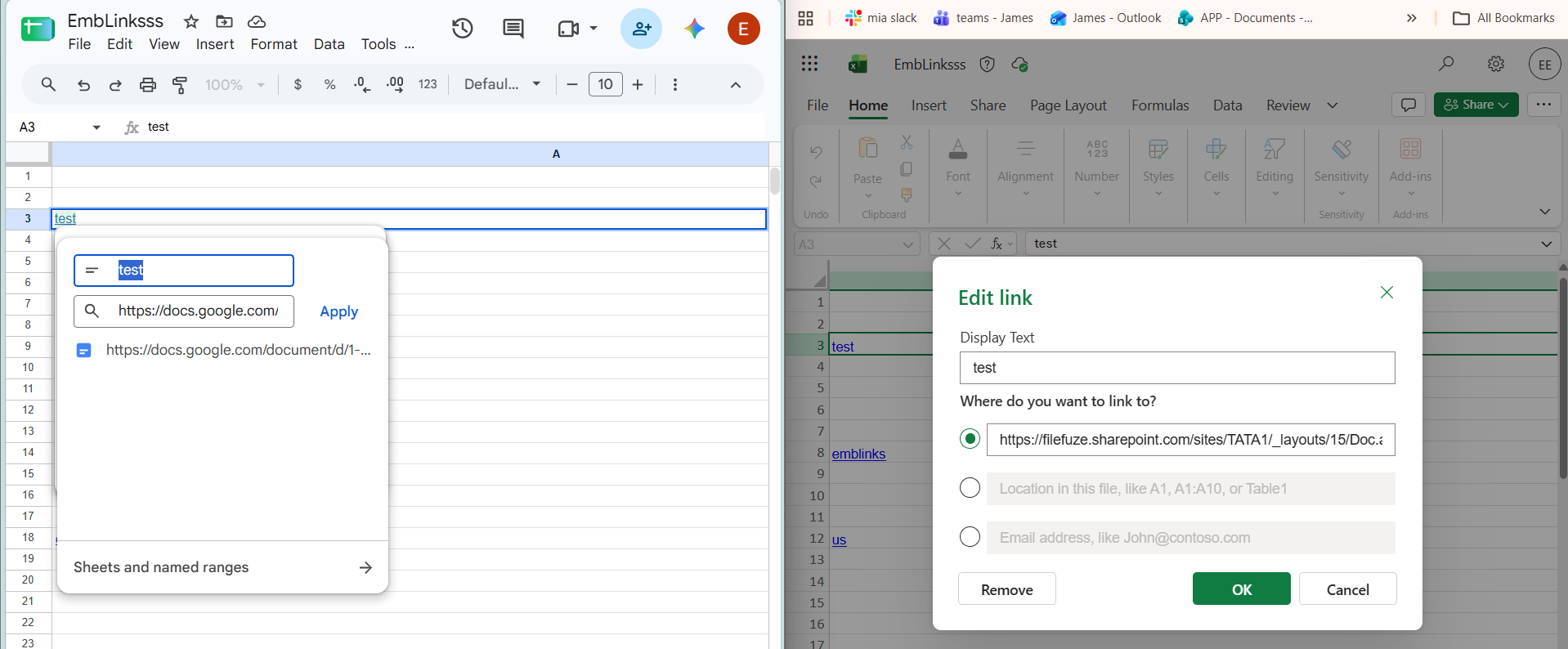
On the left, a Google Sheets cell contains a hyperlink labeled “test” that points to a Google Docs URL (docs.google.com). On the right, the same hyperlink appears in Microsoft Excel after migration, but its destination has been updated to the corresponding Microsoft 365 SharePoint URL (filefuze.sharepoint.com).
This shows how a migration can preserve the display text and hyperlink functionality while changing the underlying URL from the Google Workspace source to the Microsoft 365 destination. For enterprises migrating thousands of documents, this type of link mapping helps ensure users can continue accessing referenced files without manually replacing broken Google Drive or Google Docs links.
Potential Risks of Losing Embedded Links During Office 365 Migration
Despite the apparent insignificance of broken embedded links, this problem might cause serious complications in large corporations.
- Loss of Productivity: Employees can spend time looking for documents available via existing links.
- Disruption of Knowledge Base: Corporate knowledge bases, project documentation, departmental information could lose valuable connections.
- Link Fixing: IT staff will have to find all broken links manually and fix them.
- Access Issues: The destination to which a migrated link is pointing can be correct; however, it won’t open because of insufficient permissions of a user to access it.
- Business Processes Disruption: The documents needed to perform business processes can contain references to spreadsheets, forms, presentations, and other resources.
Ways to Check Embedded Links After Migration
Validation after migration needs to be thorough instead of limited to opening several documents.
Step 1: Choose a Sample of Documents
Choose documents:
- from various departments
- of different types
- from Shared Drives
- of different users
- from project folders
- containing high-value business content
Step 2: Test Internal Links
Open links that point to:
- Documents
- Spreadsheets
- Presentations
- Folders
- SharePoint sites
- OneDrive files
Verify that each link opens to the expected destination.
Step 3: Check Permissions
A link should be tested using an account with the same access level as the intended user. A link that works for an administrator may fail for a regular employee.
Step 4: Validate External Links
External URLs should also be tested to ensure they remain intact after document conversion or migration.
Step 5: Compare Source and Destination
Compare representative source documents against their migrated versions for:
- Hyperlink text
- Hyperlink destinations
- File references
- Formatting
- Embedded content
- Permissions
Step 6: Track Exceptions
Create a migration validation report showing:
| Validation Area | Result |
|---|---|
| Document migrated | Pass/Fail |
| Hyperlink preserved | Pass/Fail |
| Destination accessible | Pass/Fail |
| Permissions preserved | Pass/Fail |
| External URL accessible | Pass/Fail |
| File relationship preserved | Pass/Fail |
This creates an auditable process for large-scale migrations.
Protect Embedded Links in Your Google to Microsoft 365 Migration!
By identifying links before migration, creating accurate source-to-destination mappings, migrating related content together, validating permissions, and testing links after migration, organizations can significantly reduce post-migration issues.
For large enterprises, CloudFuze can help IT teams plan, execute, monitor, and validate complex Google Workspace to Microsoft 365 migration projects at scale with hyperlink preservation.
Schedule a migration consultation to learn about link-preservation for your Office 365 migration.
Frequently Asked Questions
1. How do I make sure that I will not lose links in my migration from Google to Microsoft 365?
Make use of pre-migration discovery, source to destination mapping, well-coordinated migration waves, proper file conversions, and post-migration link verification. Pilot migration may be useful in identifying link problems in advance.
2. What is/are the tool(s) that can be used to migrate documents and links?
CloudFuze offers HyperLink Fixer, which performs automated mapping, file migration, permission migration, monitoring, reporting, and verification. Make sure to know how the chosen platform works with internal links and other document relationship management.
3. Is CloudFuze able to perform bulk hyperlink migration in enterprise migrations?
Yes. CloudFuze supports bulk link migration, making it suitable for organizations moving large volumes of documents and embedded links during enterprise cloud migrations.
4. Which type of files does CloudFuze Hyperlink Fixer support?
CloudFuze allows fixing embedded links in common Office and PDF file types such as DOC, DOCX, XLSX, PPT, PPTX, XML, and PDF files.
5. Can CloudFuze migrate links from Google Drive and Shared Drives to Microsoft 365?
Yes, CloudFuze allows for migrating links from Google Drive and Google Shared Drives to Microsoft 365 destinations, such as OneDrive for Business and SharePoint Online.
6. Can CloudFuze fix only the broken links without the need to re-migrate all the data?
Yes, CloudFuze Hyperlink Fixer allows for fixing broken links while not having to remigrate user data and other items.
7. How do I migrate documents with embedded links untouched between major cloud productivity suites?
Inventory your source, identify and map the source files to destination locations, migrate associated items in groups, test conversion of files, and validate your hyperlinks and permissions after migration.
About the Author: Aayushi Raj



