

Introduction
Migrating from Teams to Slack means moving your organization’s channels, chat history, direct messages, files, threads, and mentions from Microsoft Teams and Microsoft 365 environment into Slack’s workspace structure.
In many cases, companies choose to migrate their Microsoft Teams chat to Slack when they want a lighter, chat-first collaboration tool with a deeper integration ecosystem. This is especially true for companies that use SaaS and AI tools outside of the Microsoft stack.
Using a purpose-built Teams to Slack migration tool helps you get there. This guide walks IT admins and decision-makers through all the migration steps, right from planning and preparation to performing the actual migration and validating it.
Planning and Preparing for Teams to Slack Migration
Strategic planning and preparation help organizations and their IT teams avoid going wrong in any area during the migration process. Here are some of the essential planning and preparation steps to prioritize (regardless of the migration size or urgency).

1) Perform an In-depth Pre-migration Analysis in Microsoft Teams
Before moving anything, come and get a clear picture of what you are migrating. Perform a pre-migration analysis in your organization’s Microsoft Teams environment and find out:
- Total number of teams and channels
- Total number of users and guest accounts to migrate
- Volume of chat history, files, and attachments
- Metadata, such as timestamps, reactions, mentions, etc., that need to be preserved
2) Planning the Migration Scope
After getting a clear picture of your Microsoft Teams environment through the pre-migration analysis, use the findings to scope the migration project.
Finalizing all the action items in the migration scope helps you avoid adding new items to the list when the migration is already in progress, which, otherwise, can derail the entire project.
3) Choose the Right Migration Tool
Since there are no native options to migrate from Microsoft Teams to Slack, it is important to use a dedicated third-party chat migration tool like CloudFuze Migrate as doing it manually raises a lot of security and downtime risks.
When exploring Microsoft Teams to Slack migration tools, consider not just migration functionalities but also security commitments, such as complying with security regulations applicable to your organization and your industry.
4) Map Users Accurately and Batch Them
Mapping users properly is highly important in ensuring that your organization moves from Teams to Slack with complete accuracy.
Auto mapping works in simple scenarios, such as when the source and destination email aliases are exactly the same. However, for customized user mapping paths, the CSV method works the best.
5) Prepare your Slack Environment
Before migrating, make sure that all the user accounts, workspaces, and public and private channels are created in your organization’s Slack environment. Doing this early on in the process helps you streamline the user and channel mapping process.
6) Be Prepared with Admin Login Details
Since the foundational step to switch from Teams to Slack involves authenticating both clouds in migration platforms like CloudFuze Migrate, it is important to be prepared with admin login details of both the clouds, including:
- Microsoft 365 Global admin login credentials
- Slack Workspace Owner or admin login Credentials
7) Communicate the Change Early On
Communicating about the chat platform transition to the end-users helps in proper preparation. Set realistic expectations and provide ample training and support so that the onboarding and go-live stages do not face issues.
Steps to Migrate from Teams to Slack
Below, we have shared all the steps to migrate channels and direct messages from Microsoft Teams to Slack.
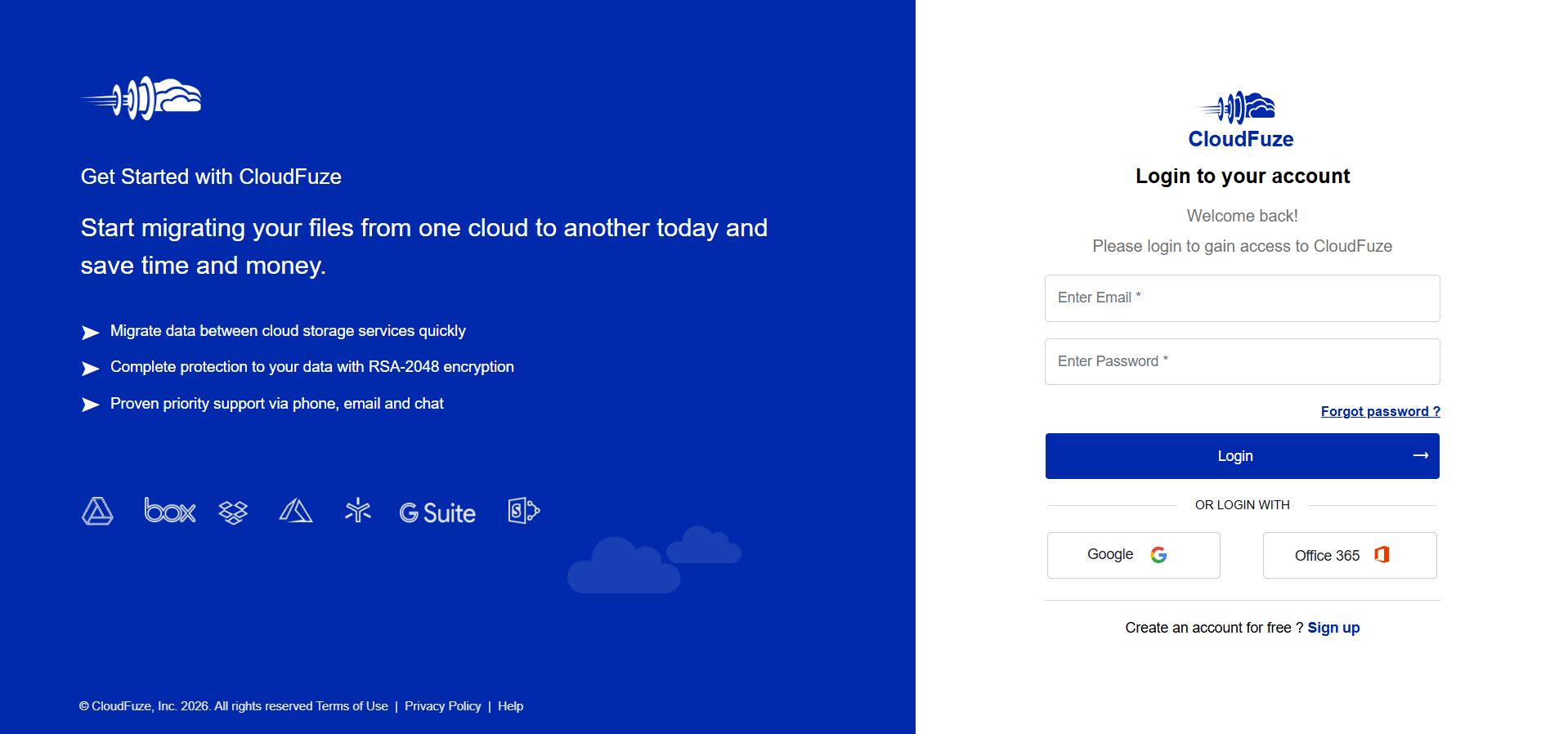
Step 1: Log into CloudFuze Migration Platform
The first step is to log in to the CloudFuze migration platform. Create an account here if you don’t have one.
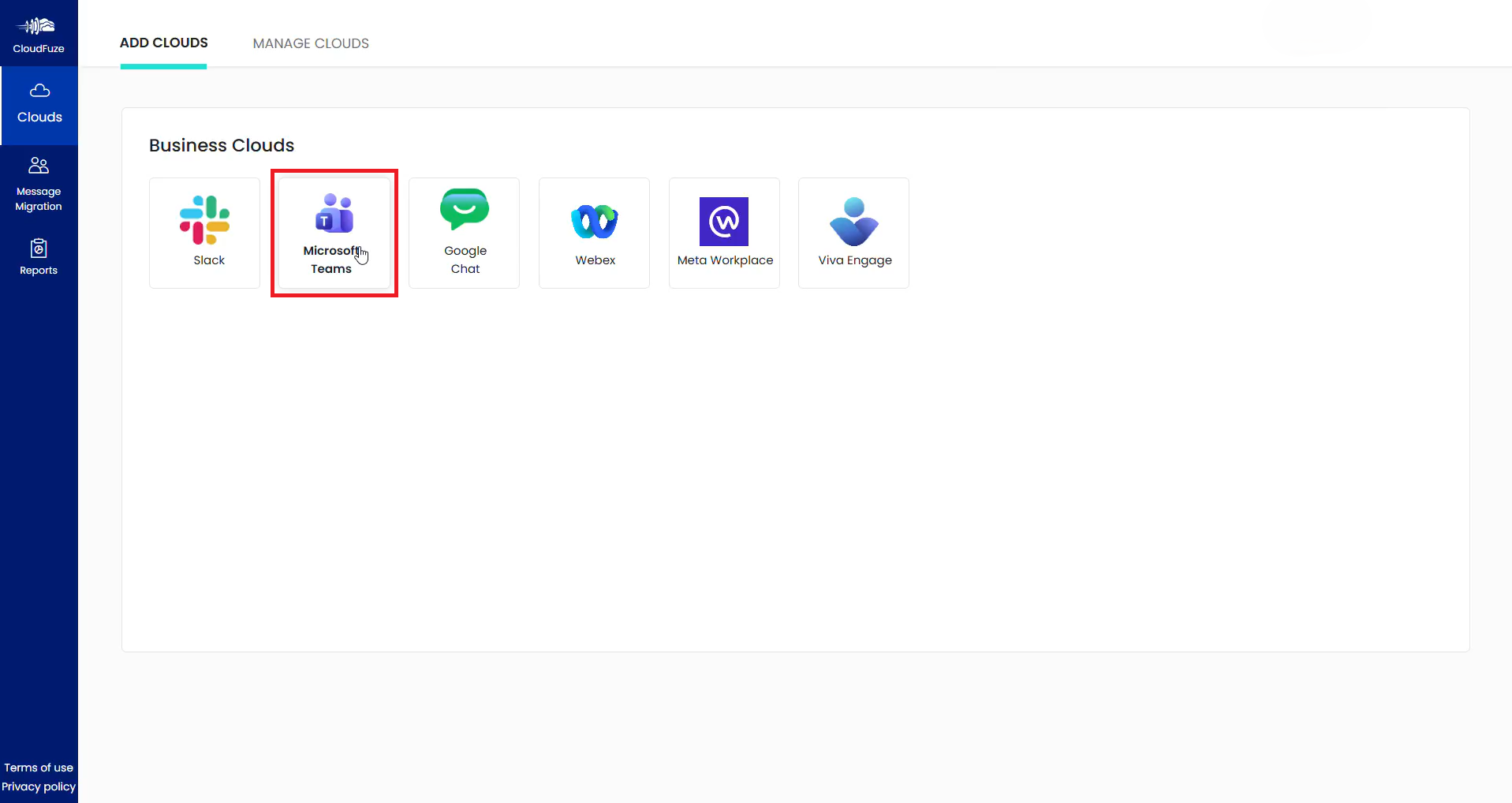
Step 2: Add Microsoft Teams to CloudFuze
In the Business Cloud dashboard, add Microsoft Teams to CloudFuze’s migration platform by clicking on it.
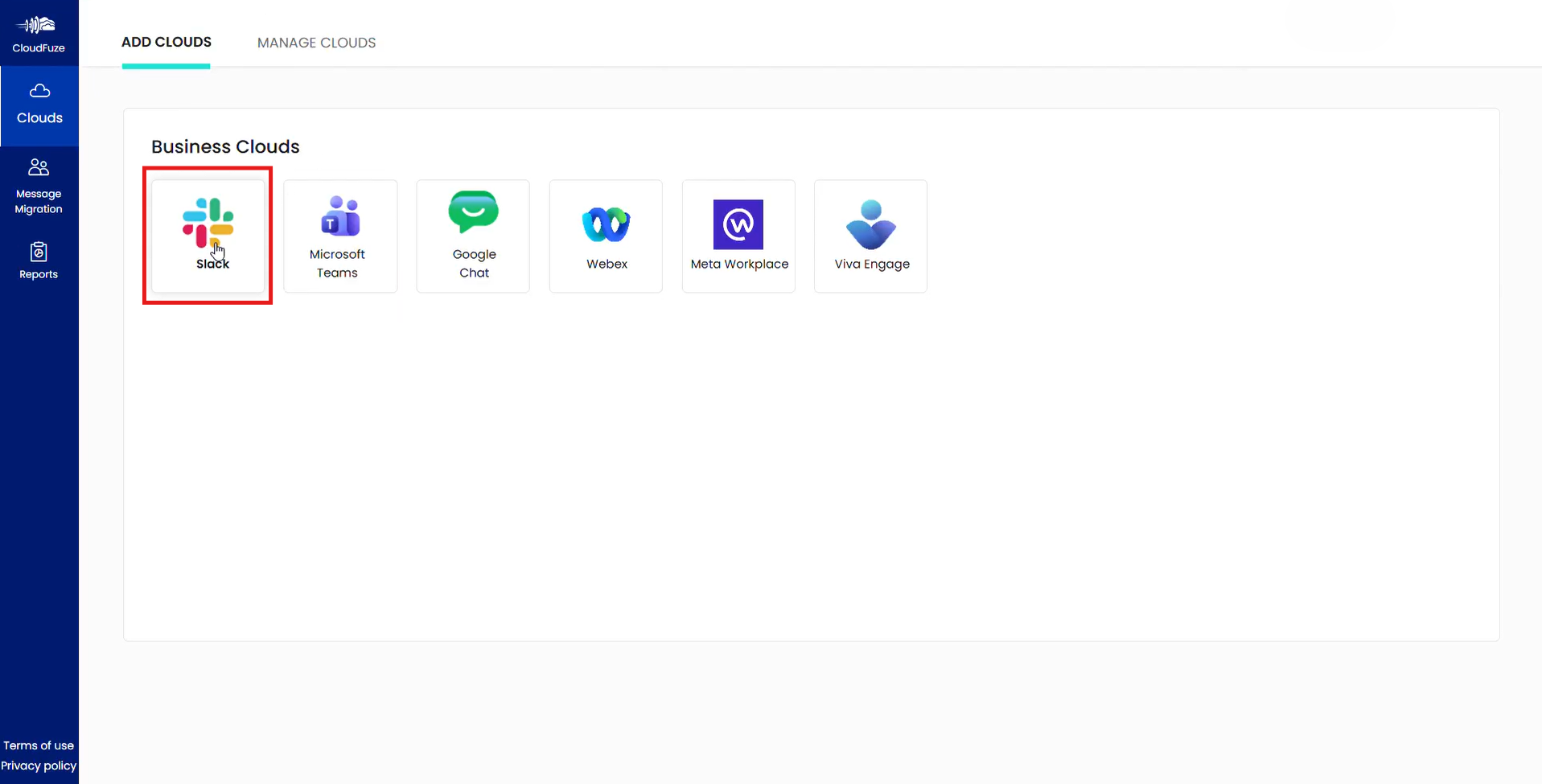
Step 3: Add Slack to CloudFuze Migration Tool
Similarly, add the Slack cloud from the same dashboard by clicking on it
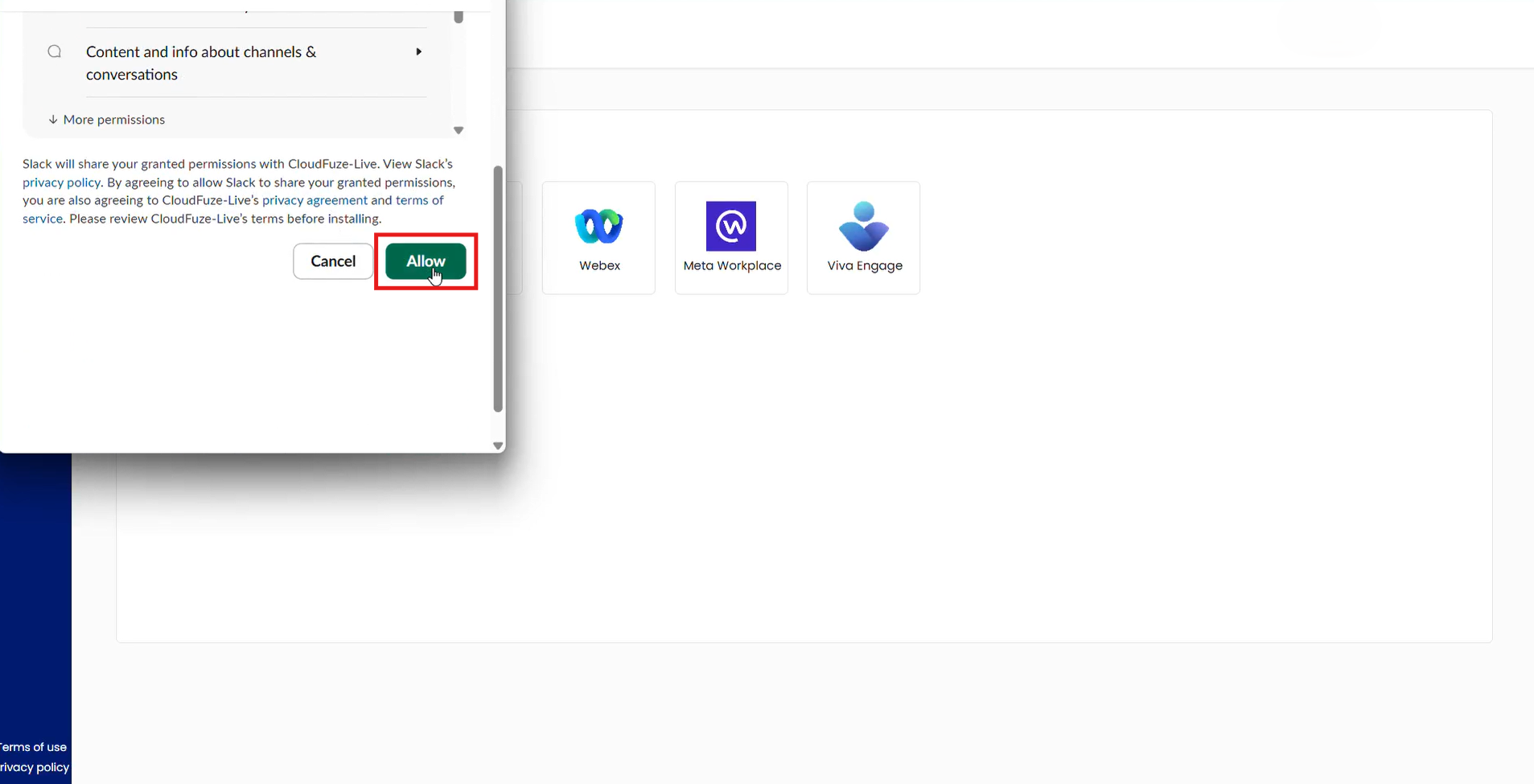
Step 4: Allow Slack Permissions to CloudFuze
During the Slack authentication process, allow permissions to CloudFuze.
Step 5: Check and Ensure Both Clouds are Added
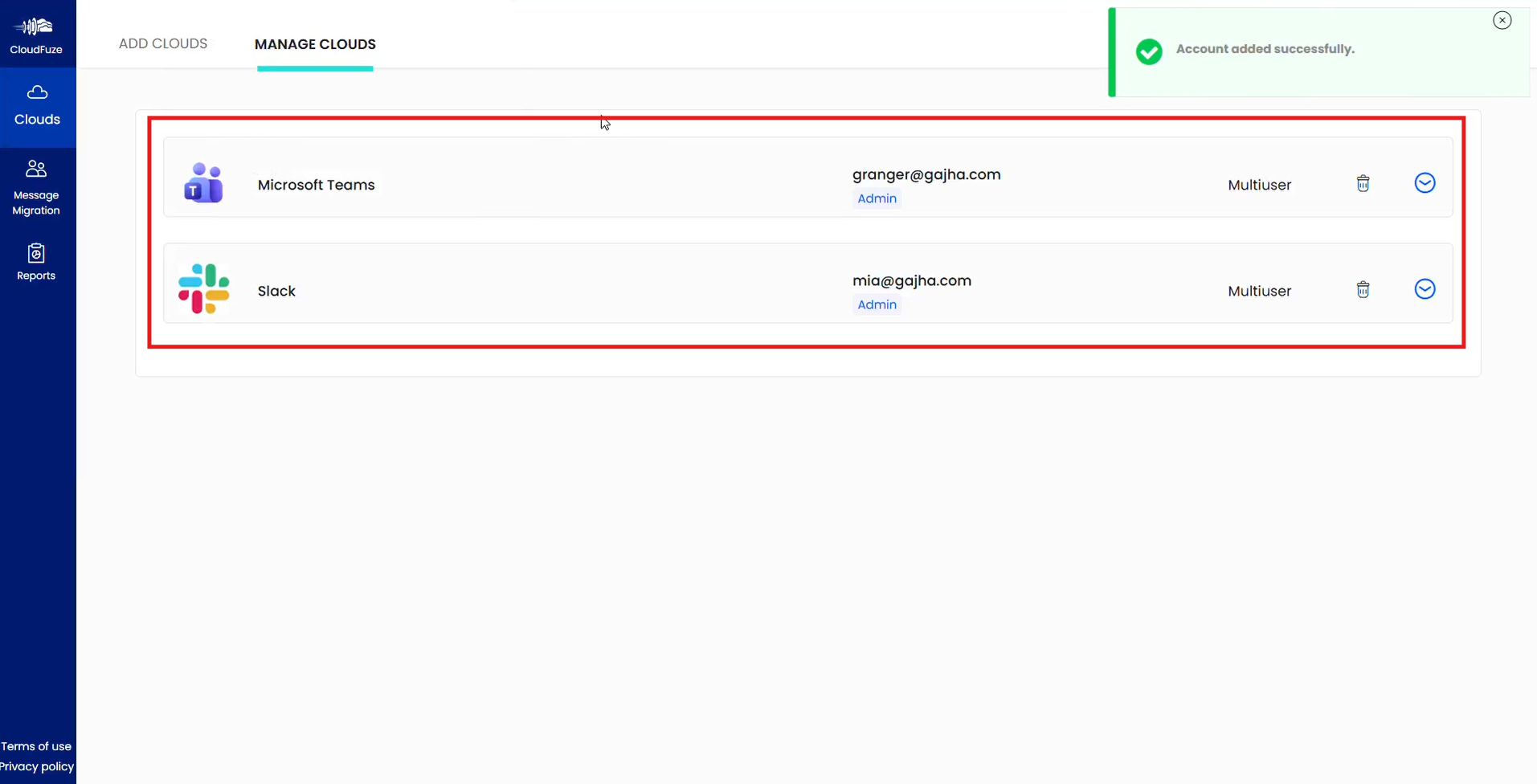
Switch to the Manage Clouds tab and verify that both clouds have been added successfully.
Step 6: Choose the Source and Destination Cloud
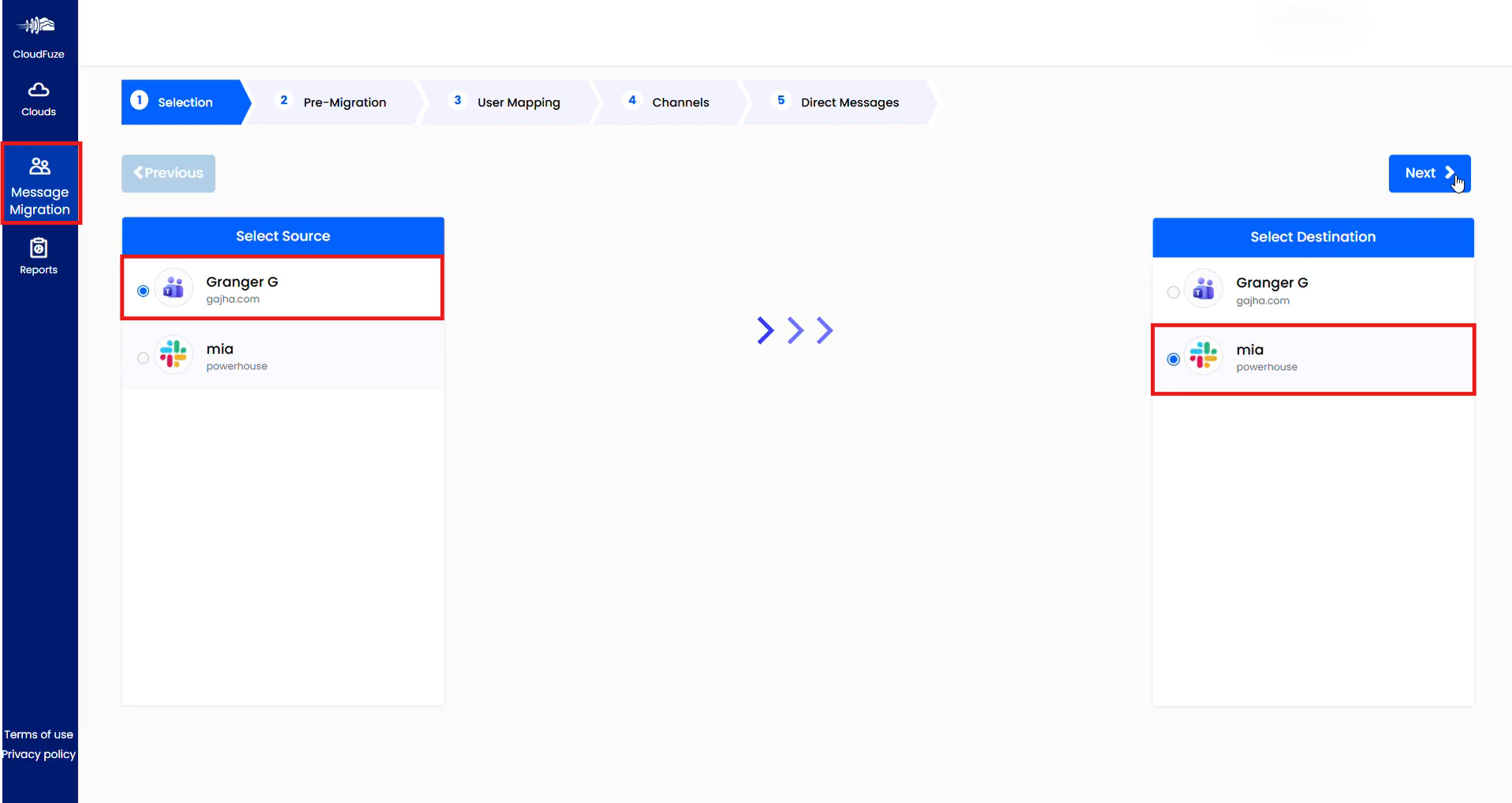
Visit the Message Migration panel. There, select Microsoft Teams as the source and Slack as the destination cloud as show in the screenshot below.
Step 7: Run Premigration Scan
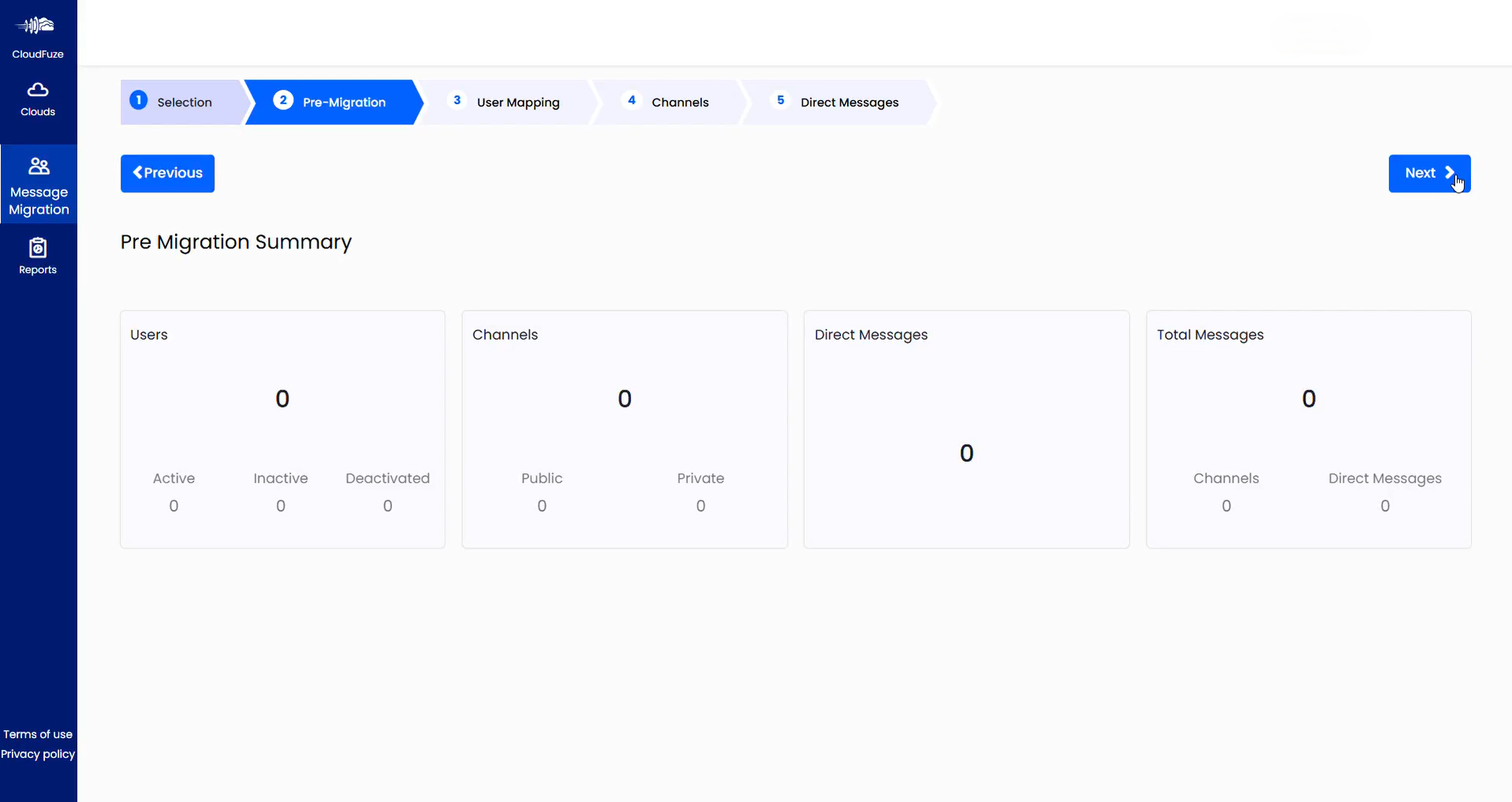
Once done, run a pre-migration scan to get a high-level overview of the total users, channels, direct messages, and total messages before you migrate them.
Step 8: Map Teams Users to Slack
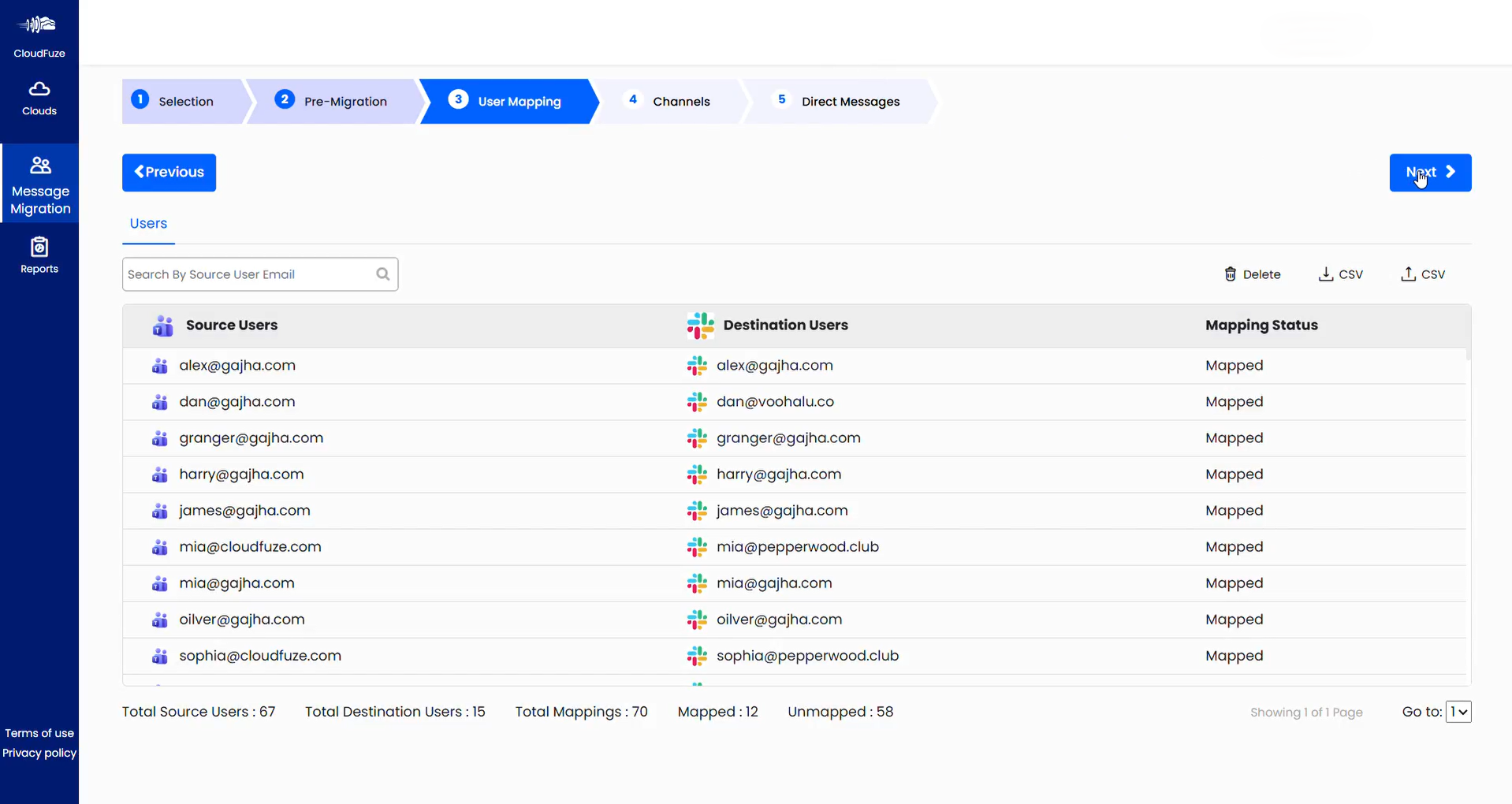
Next, map users from Teams to Slack. CloudFuze’s migration tool automatically generates a user mapping list based on email addresses. You can either go with it or customize it using CSV mapping.
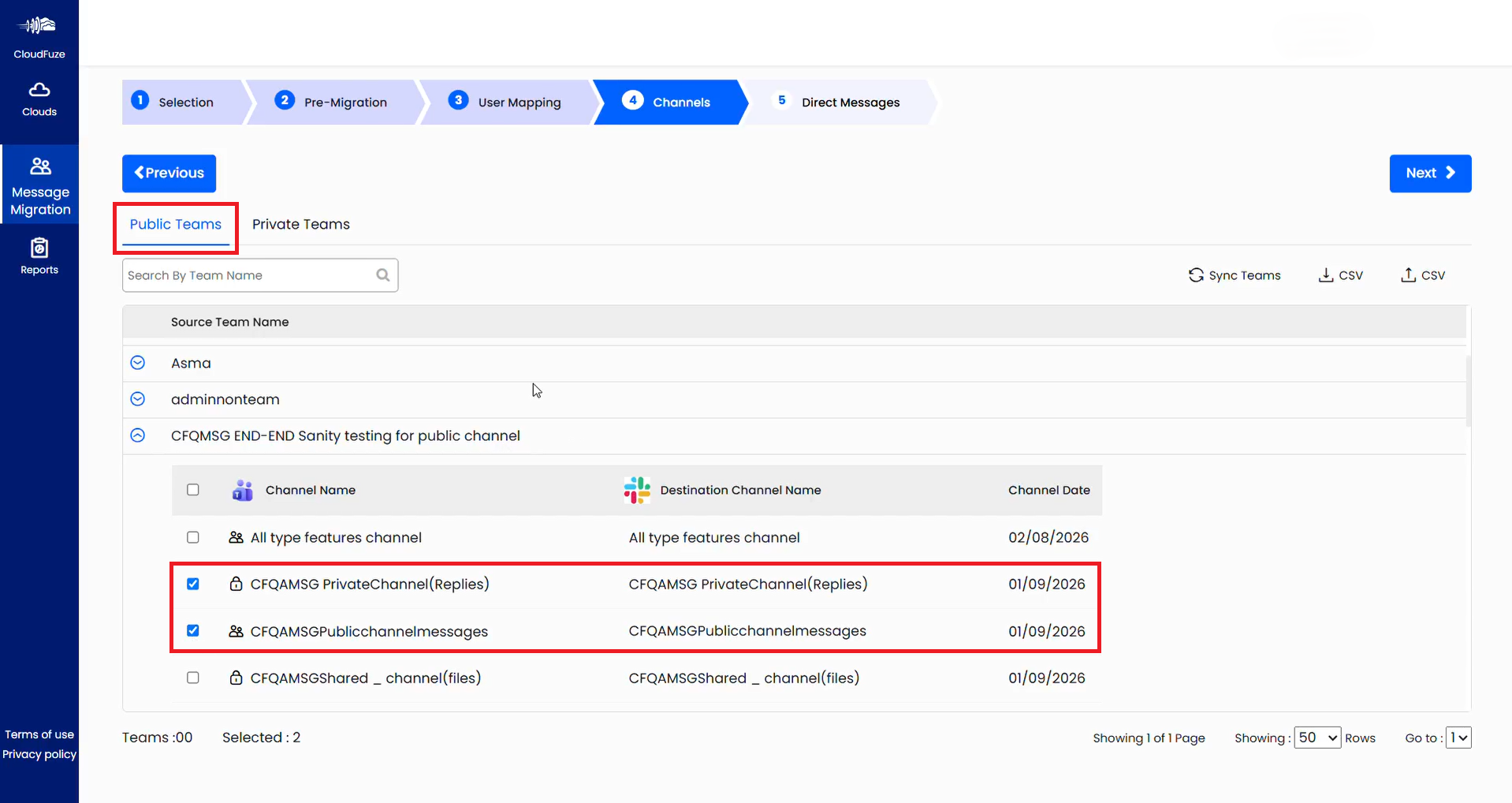
Step 9: Map Public Teams to Slack Channels
After that map Teams, including public and private Teams, to Slack channels. This screenshot shows public Teams mapping.
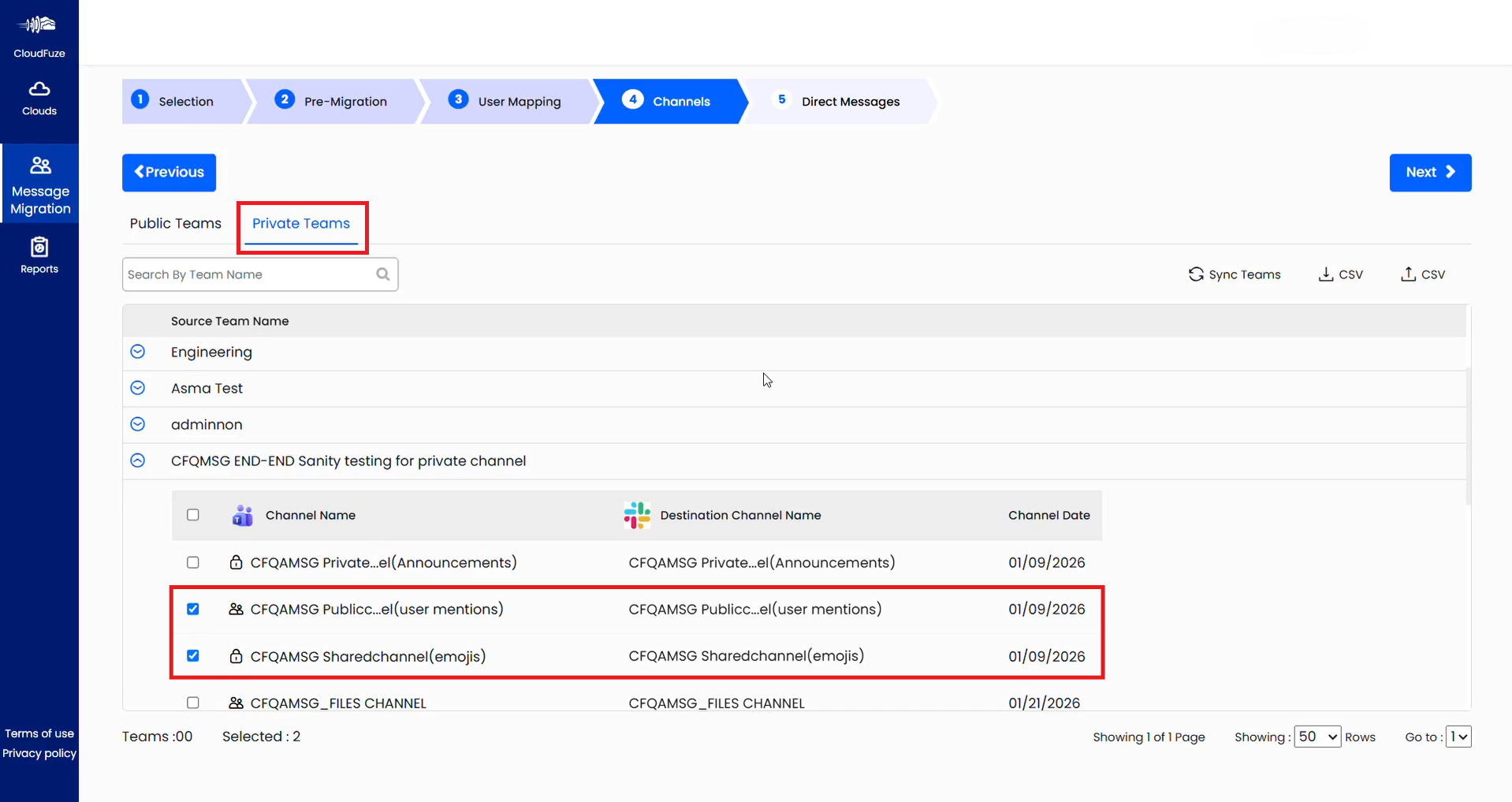
Step 10: Map Private Teams to Slack Channels
Similarly, map private Teams to Slack channels.
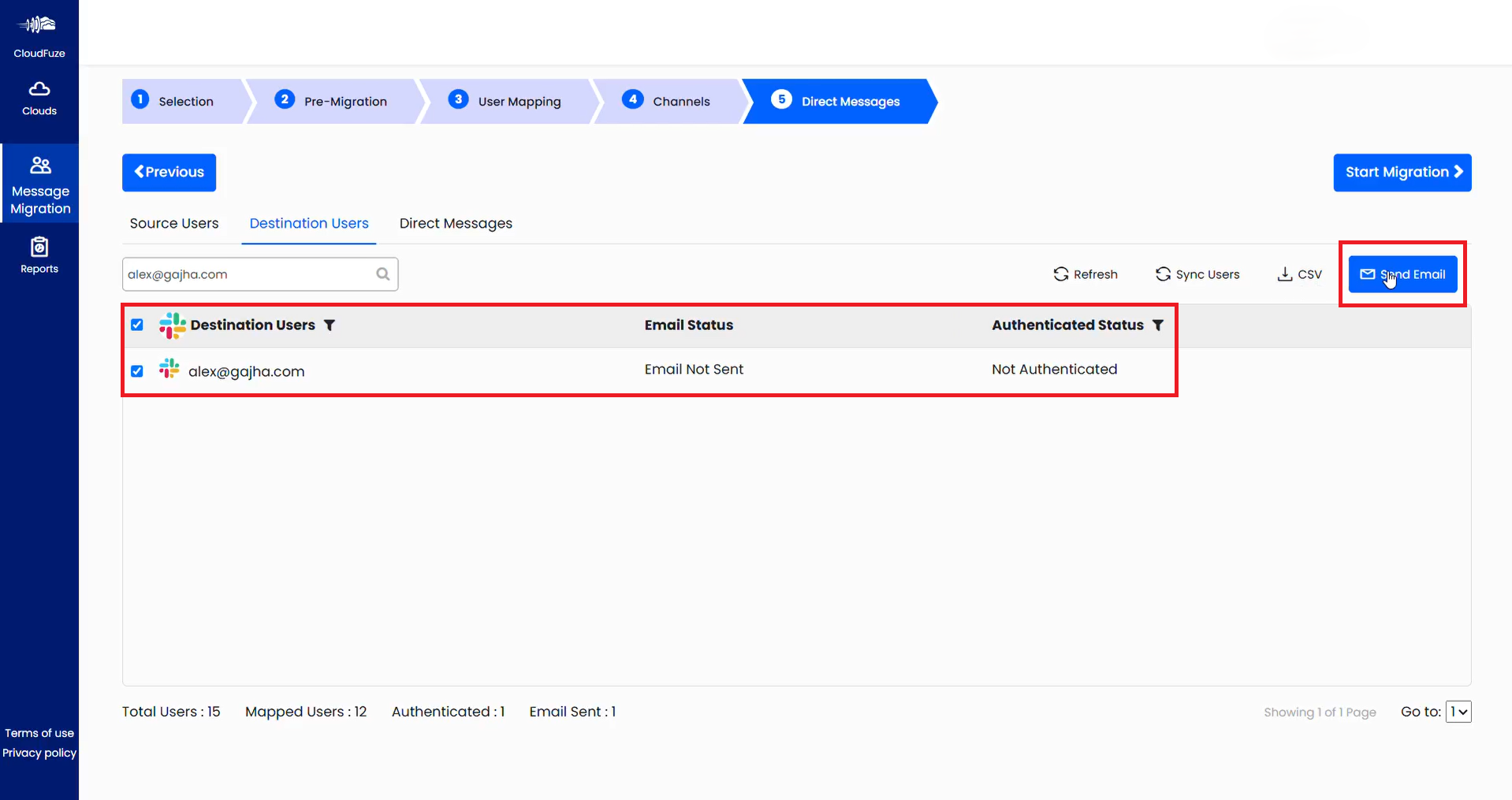
Step 11: Select and Authenticate Users for Direct Messages Migration
To be able to migrate direct messages, it is important to first authenticate users. Go to the Destination Users tab, select the destination user, and send the authentication email.
Step 12: Authenticate Slack User for Direct Message Migration
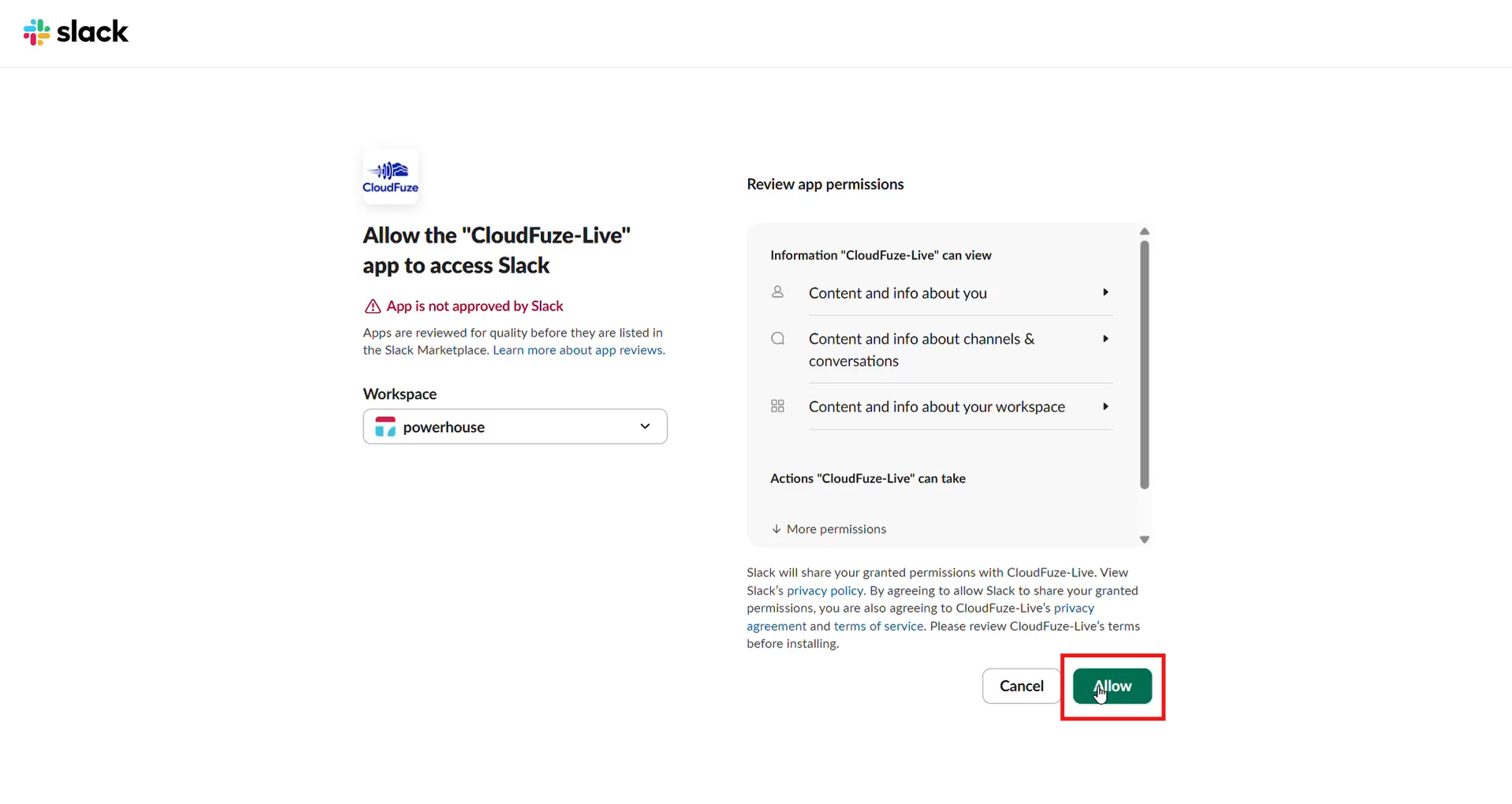
Check the Slack authentication email and click on Authenticate.
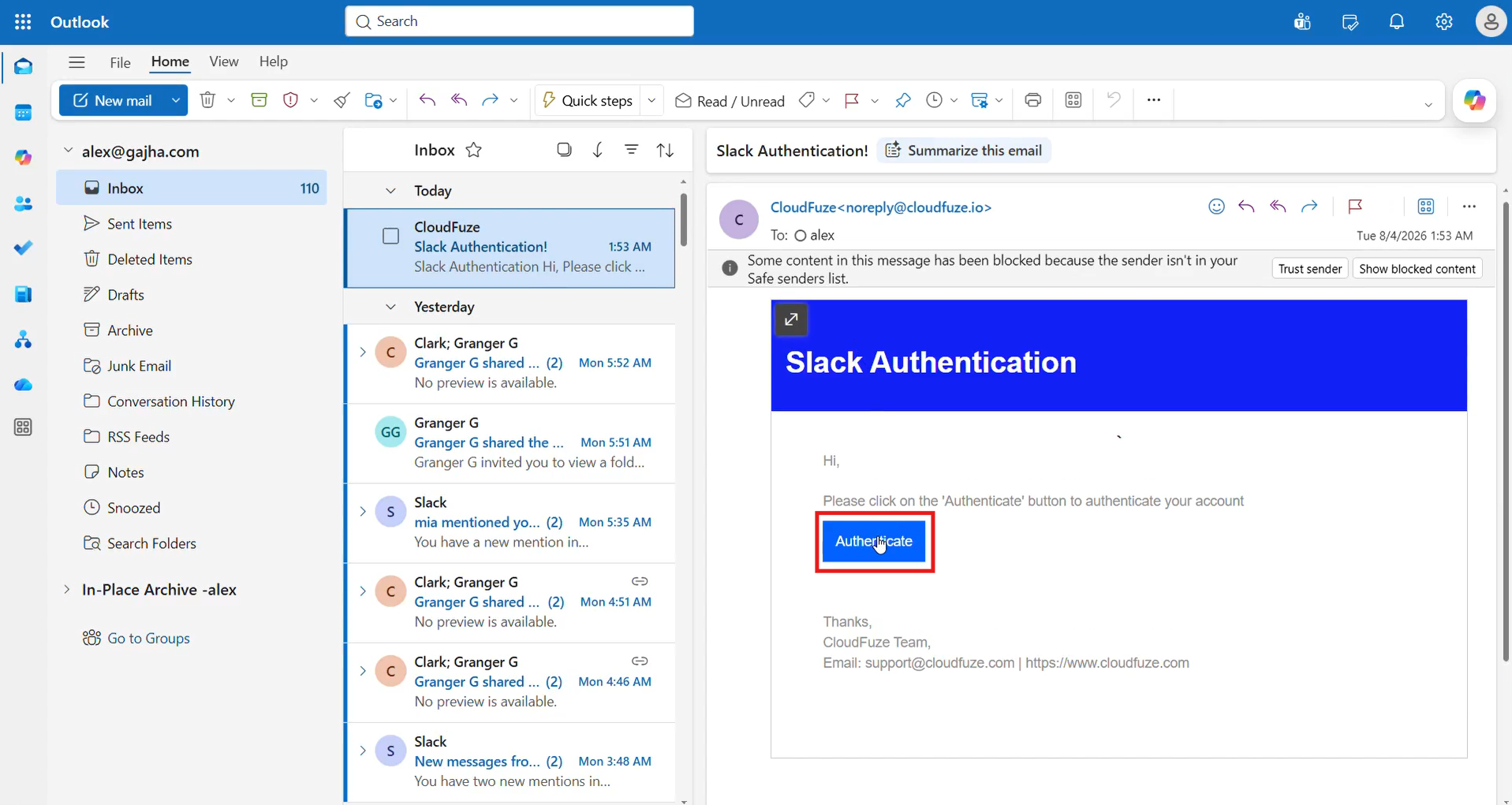
As part of authenticating Slack users make sure to allow CloudFuze app access.
Step 13: Select Direct Messages to Migrate
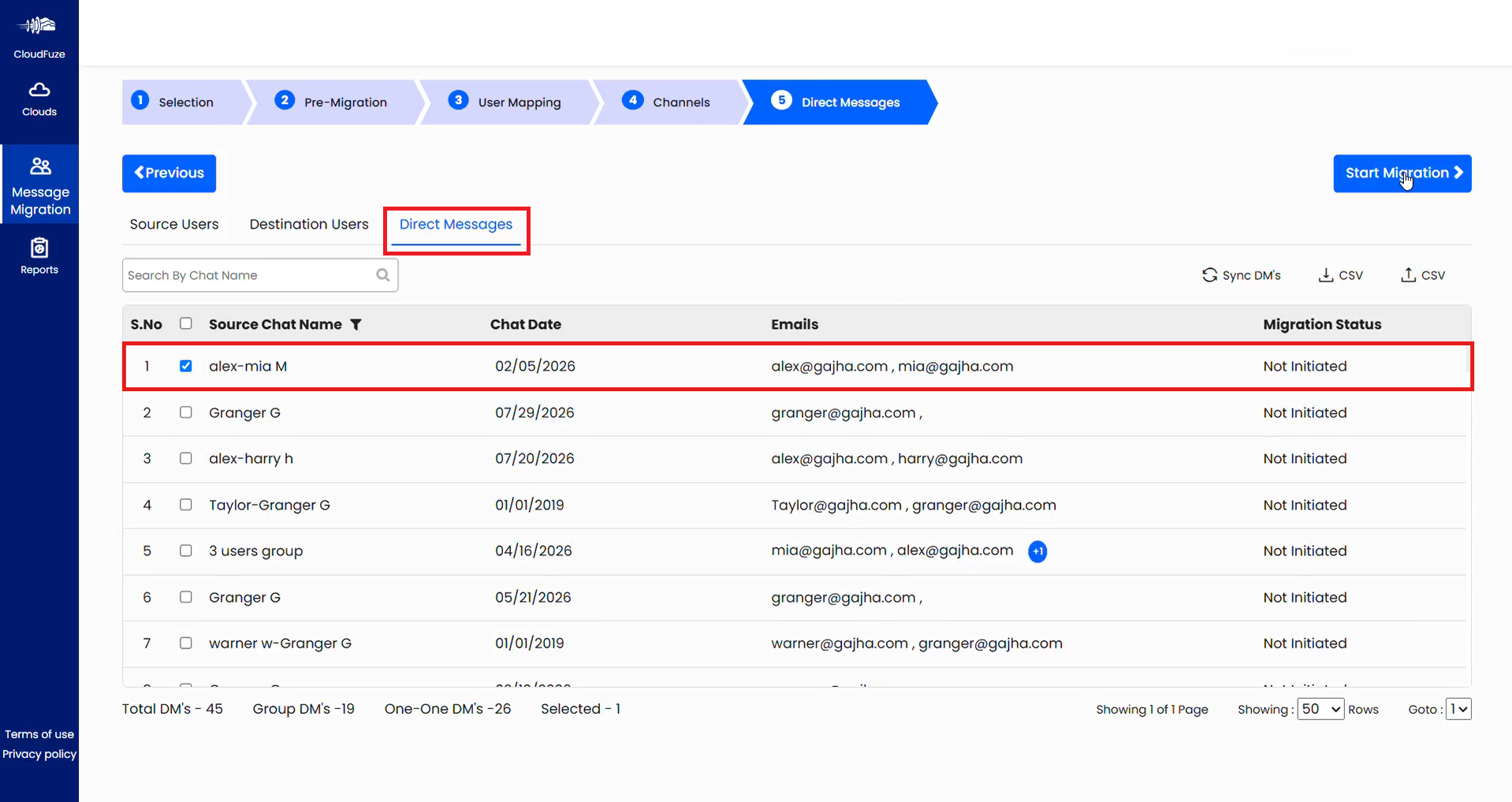
Next, switch to the Direct Messages tab, and select the user pairs of whom you want to migrate direct messages. After selecting, click on the Start Migration button.
Step 14: Check Teams to Slack Migration Reports
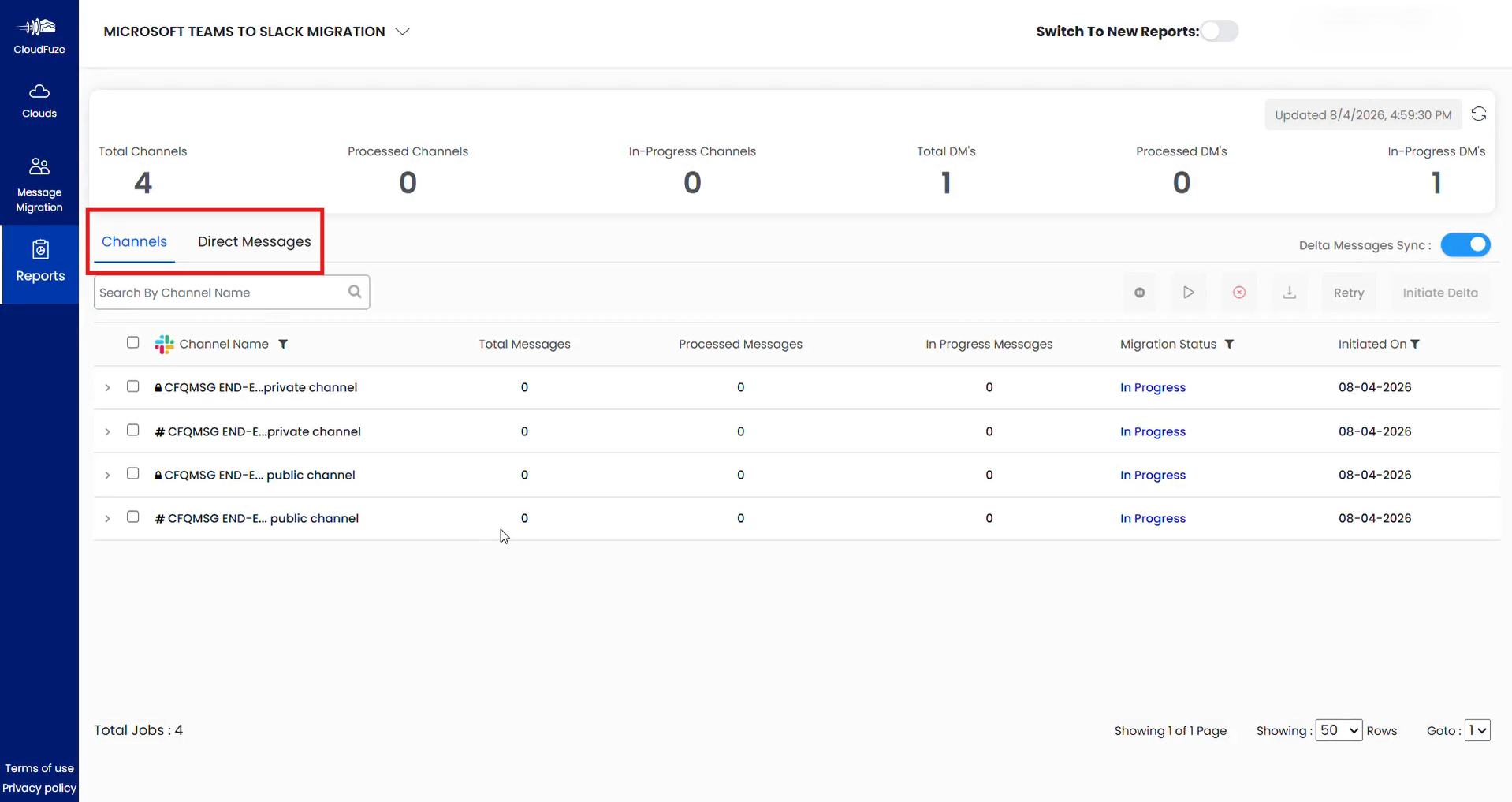
Visit the Reports dashboard to see the migration progress for both channels and direct message migration.
Post-Migration Activities
After the one-time migration is completed, it is important to perform several post-migration steps to ensure no data is missed and the project is closed off properly.
1) Delta Migration
Run a single or multiple delta migration to transfer all the incremental changes that accumulated in the source cloud (Microsoft Teams) during one-time migration. This process helps to ensure no incremental changes and latest versions of data are missed out.
2) Migration Validation
Validate channel and DM batch migration as it completes, using the Channel and Direct Messages tabs in the Reports dashboard of the CloudFuze migration tool. It is also important to download the reports and check them to validate properly.
3) Post-Migration Integration
Reconnect the third-party apps your teams relied on in Microsoft Teams to their Slack equivalents. If an app isn’t available in the Slack App Directory, look for an alternative before going live.
4) User Onboarding and Go Live
Onboard users to Slack with structured training. Then set the official cutover date and retire Microsoft Teams access for internal communication.
Why Move from Teams to Slack?
Moving from Teams to Slack is often a decision driven by several use cases. For example an organization may plan to move away from the Microsoft 365 ecosystem to another cloud platform in which Slack might be planned as the primary chat/collaboration platform.
Or it might not to be about abandoning Microsoft 365 but only replacing the internal chat layer by using Slack instead of Microsoft Teams.

1) A Lighter, Chat-First Experience
Teams bundle chat, meetings, files, and Microsoft 365 integrations into one dense interface. Organizations that want a faster, simpler messaging experience for daily communication often find Slack’s focused chat UX easier for employees to adopt.
2) Deeper Third-Party Integrations
Companies running a diverse SaaS stack, especially Salesforce, GitHub, Jira, and Figma often find Slack’s integration ecosystem connects more of their existing tools without the workarounds that Microsoft Teams sometimes requires.
3) External Collaboration Needs
Organizations that collaborate heavily with outside partners, vendors, or clients often prefer Slack Connect for shared channels, compared to Microsoft Teams’ more Microsoft-centric external access model
4) Faster Onboarding for New Hires
Teams that hire quickly, especially in software and startup environments, often find new employees are already familiar with Slack from previous roles, which shortens onboarding processes.
5) Cost Reconsiderations
With Microsoft unbundling Teams from some Microsoft 365 plans, organizations comparing standalone Teams pricing against Slack’s plans sometimes find the cost gap narrowed down.
Microsoft Teams to Slack Migration Challenges
Here are some of the biggest challenges of migrating from Microsoft Teams to Slack:

1) No Native Migration Path
Microsoft does not offer a native tool to move data out of Teams into Slack, which makes a dedicated migration tool a requirement rather than an option.
2) Flattening the Teams Hierarchy
Slack channels aren’t nested under a parent structure the way Teams channels are, so admins need a clear plan for how each Teams channel becomes a standalone Slack channel without losing the original organizational logic and structure.
3) Chat History and Metadata Loss Risk
Manually exporting and re-importing chat history often results in missing out critical metadata and messaging context, such as timestamps, reactions, threading, pinned status, user mentions, and more. A dedicated migration tool like CloudFuze Migrate helps preserve all metadata and context during transfer.
4) User Authentication at Scale
Direct message migration requires each user to authenticate their Slack account individually, which means IT admins need a plan for tracking authentication status across large user bases.
5) File Location Changes
Files stored in SharePoint and OneDrive need a new home, whether that’s Slack’s native storage or a connected cloud drive. Planning this in advance avoids issues like missing files and broken links after cutover.
6) User Adoption and Cultural Shift
Employees who are used to Teams’ structured, meeting-heavy workflow often need real support adjusting to Slack’s faster, chat-first workflows. Change management matters as much as the technical migration.
Microsoft Teams vs. Slack: Key Differences
Before you migrate Teams to Slack, it helps to understand how the two platforms differ structurally. These differences affect how channels map during migration and how users adapt to their new workspace afterward.
| Categories | Microsoft Teams | Slack |
|---|---|---|
| Primary structure | Teams with channels and tabs | Workspaces with channels |
| Channel limit | Up to 1,000 channels per team | Unlimited channels per workspace |
| Direct messages | Supported, tied to user identity | Primary feature, used heavily |
| File storage | SharePoint and OneDrive | Slack’s own storage, or connected cloud storage |
| Search scope | Per-team and org-wide | Workspace-wide |
| Integration ecosystem | Deep Microsoft 365 native integrations | Broad third-party app marketplace, 2,600+ apps |
| Video/meetings | Full-featured, native | Limited, Slack Huddles |
| AI assistant | Microsoft 365 Copilot | Slack AI |
| Compliance | Advanced, Purview, retention, eDiscovery, DLP | Enterprise Grid offers advanced compliance add-ons |
NOTE: This information is based on August 2026 data. It may change as and when Slack and Microsoft release new updates.
Solution: CloudFuze’s Teams to Slack Migration Tool
CloudFuze migrates Microsoft Teams to Slack with a dedicated workflow. The tool connects both clouds through OAuth, runs a pre-migration scan to size the project, maps users automatically by email match, and lets admins map public and private Teams channels to their Slack equivalents before migration starts
Direct message migration is authenticated on a per-user basis. Each mapped user received an email prompting them to authenticate their Slack account, which keeps the migration compliant with each platform’s access controls rather than relying on a single admin credential for every mailbox and chat.
With CloudFuze, you can migrate:
- Public and private teams channels
- One-to-one and group direct messages
- Channel members
- Threads
- @mentions
- Replies
- Attachments and files
- Reactions (emojis)
- Pinned messages
- Timestamps
CloudFuze vs. Other Migration Tools
Not all Teams to Slack migration tools cover the same ground. Here’s how CloudFuze compares against other options on the market when it comes to data coverage, accuracy, and visibility into the migration process.
Files and attachmentsYesLimitedMigration reporting dashboardYesLimited
| Features | CloudFuze | Other Migration Tools |
|---|---|---|
| Channel migration | Yes | Yes |
| Direct message migration | Yes | Limited |
| Chat history preservation | Yes | Limited |
| Timestamps preservation | Yes | Limited |
| Pinned messages migration | Yes | Limited |
| Delta migration | Yes | Limited |
| User and channel mapping | Yes | Limited |
| Per-user DM authentication | Yes | Limited |
| Emojis and reactions | Yes | Limited |
Migrate from Teams to Slack Successfully with CloudFuze
Moving Teams to Slack successfully depends on careful planning, the right migration tool, and clear communication with employees throughout the transition.
With CloudFuze’s managed migration platform, you can move your organizations, channels, chat history, direct messages, and attachment files from Teams to Slack without losing the context your users depend on.
Let’s hop on a call and talk through how CloudFuze can tailor a Teams to Slack migration plan for your organization. Contact us today!
Frequently Asked Questions
1. How do I migrate from Teams to Slack?
To migrate from Teams to Slack, connect your Microsoft 365 tenant and your Slack workspace to a migration tool, map your users and channels, authenticate each user for direct message migration, and run the migration in stages.
2. Why are companies moving from Teams
Companies move from Teams to Slack mainly for a lighter chat experience, deeper third-party integrations outside the Microsoft ecosystem, easier external collaboration through Slack Connect, and faster onboarding of employees already familiar with Slack.
3. Why do people prefer Slack over Teams?
People often prefer Slack because its interface is more focused on messaging, with less navigation overhead than Microsoft Teams’ combined chat meetings and file interface. Slack’s search, threading, and notification controls also tend to feel more streamlined for high-volume chat use.
4. What can Slack do that Teams cannot?
Slack offers a significantly larger third-party app marketplace, more flexible custom workflow automations through Workflow Builder, and Slack Connect for shared channels with external organizations without requiring guest licenses, the way Teams does.
About the Author: Pankaj Rai


