
How to Identify Idle and Inactive Users in Microsoft 365
Identifying idle and inactive users in Microsoft 365 is important for keeping your enterprise’s tech workspace secure and cost-effective.
Most companies find it difficult to analyze user engagement throughout their SaaS stack without specialized SaaS and AI management software. As a result, this leads to inefficient use of IT team efforts and increases security risks in their SaaS and AI setups.
In this blog post, you’ll learn how large enterprises and SMBs can effortlessly identify inactive and idle users in Microsoft 365.
Key Takeaways:
What Are Idle and Inactive Users in Microsoft 365?
Idle users in Microsoft 365 are individuals who have logged in but have not engaged with your Microsoft platform’s features for a specified period, such as 30 or 60 days.
On the other hand, inactive users are those who have not logged in to their Microsoft account for an extended period, typically 30 days or more.
Why Is It Important to Identify Inactive and Idle Users in Microsoft 365?
If your organization-wide Microsoft 365 inactive and idle users are not properly identified and replaced, it leads to several challenges. The limitations of having idle as well as inactive users in your tech ecosystem, especially in your Microsoft 365 tenant, are:
- Lack of visibility over your organization’s idle/inactive users inflates your Microsoft 365 licensing costs.
- Orphaned user accounts expand your cyber-attack surface and pose data security risks to your organization.
- Idle or inactive Microsoft user accounts complicate your org-level compliance with industry regulations such as GDPR, ISO 27001, and SOC 2 Type 2.
Challenges Involved in Manually Finding Idle and Inactive Users in Microsoft 365
Finding idle and inactive users in Microsoft 365 using Microsoft’s native admin centre/ PowerShell can be a daunting and laborious IT task. Some challenges include:
- Tracking of Microsoft 365 user activity in a shared spreadsheet in a large enterprise with 1000 employees can be a tedious IT process.
- Sometimes IT admins’ errors can lead to inaccurate Microsoft 365 reporting. This results in mismanaged user licenses and can cause Microsoft 365 license waste.
- Without proper Microsoft 365 management tools, IT teams may miss much-needed insights into Microsoft 365 user engagement. This eventually impacts your organization’s IT decision-making.
These challenges underscore the need for automated Microsoft 365 management solutions, such as CloudFuze Manage, to simplify monitoring of user activity in your Microsoft 365 environment.
3 Ways to Find Idle and Inactive Users in Microsoft 365
There are several methods to identify idle or inactive users in Microsoft 365. They are:
- Microsoft 365 Admin Center: This Microsoft-native Admin Center provides basic and limited insights into your Microsoft 365 user activity, including users’ last login dates.
- PowerShell Scripts: IT teams can use PowerShell to run custom code scripts that extract user activity data and identify inactive Microsoft 365 user accounts. This method is often error-prone and requires coding knowledge.
- SaaS & AI App Management Platform: SMBs and large enterprises can utilize the built-in reporting features of the SaaS and AI app management platform to display user engagement levels without writing a single line of code.
The Best Way: Employing CloudFuze Manage for Identifying Idle & Inactive Users in Microsoft 365
Our SaaS & AI app management platform, CloudFuze Manage, is specifically designed to accurately find and eliminate idle and inactive users in Microsoft 365.
Here’s how our platform helps you to find idle/inactive users in Microsoft 365:
Intelligent User Activity Tracking
IT, HR, and finance teams can continuously monitor user engagement levels by tracking users’ last login dates. This feature helps large enterprises and SMBs identify idle and inactive users across their Microsoft 365 tenant and Microsoft 365 Copilot without manual IT intervention.
Detailed Reporting Dashboard
IT admins can access our user-friendly dashboard, which provides in-depth usage insights for Microsoft 365 apps (Teams, SharePoint, Copilot, and more) and helps your budgeting teams easily forecast future IT spend.
Improve Your Enterprise-Wide Compliance Posture
IT compliance teams can automate compliance tracking with industry regulations by actively managing their Microsoft 365 user activity and automatically offboarding orphaned Microsoft 365 user accounts to prevent confidential data breach risks.
Also, CloudFuze Manage is recognized by Gartner as a representative Microsoft 365 governance tool. This Gartner recognition validates our tool’s enterprise-grade Microsoft 365 management capabilities.
Stop Losing Money on Unused Microsoft 365 Licenses with CloudFuze Manage
Identifying inactive users in Microsoft 365 is highly essential for reducing subscription costs and tightening overall security.
By utilizing our platform, CloudFuze Manage, enterprises can efficiently manage Microsoft 365 users and licenses, which ultimately leads to better IT compliance and saves up to 30% of their annual cost.
Interested in knowing how our platform works? Book your free and no-obligation demo with us now!
Frequently Asked Questions
1. Where can I find a dashboard showing inactive Microsoft 365 users?
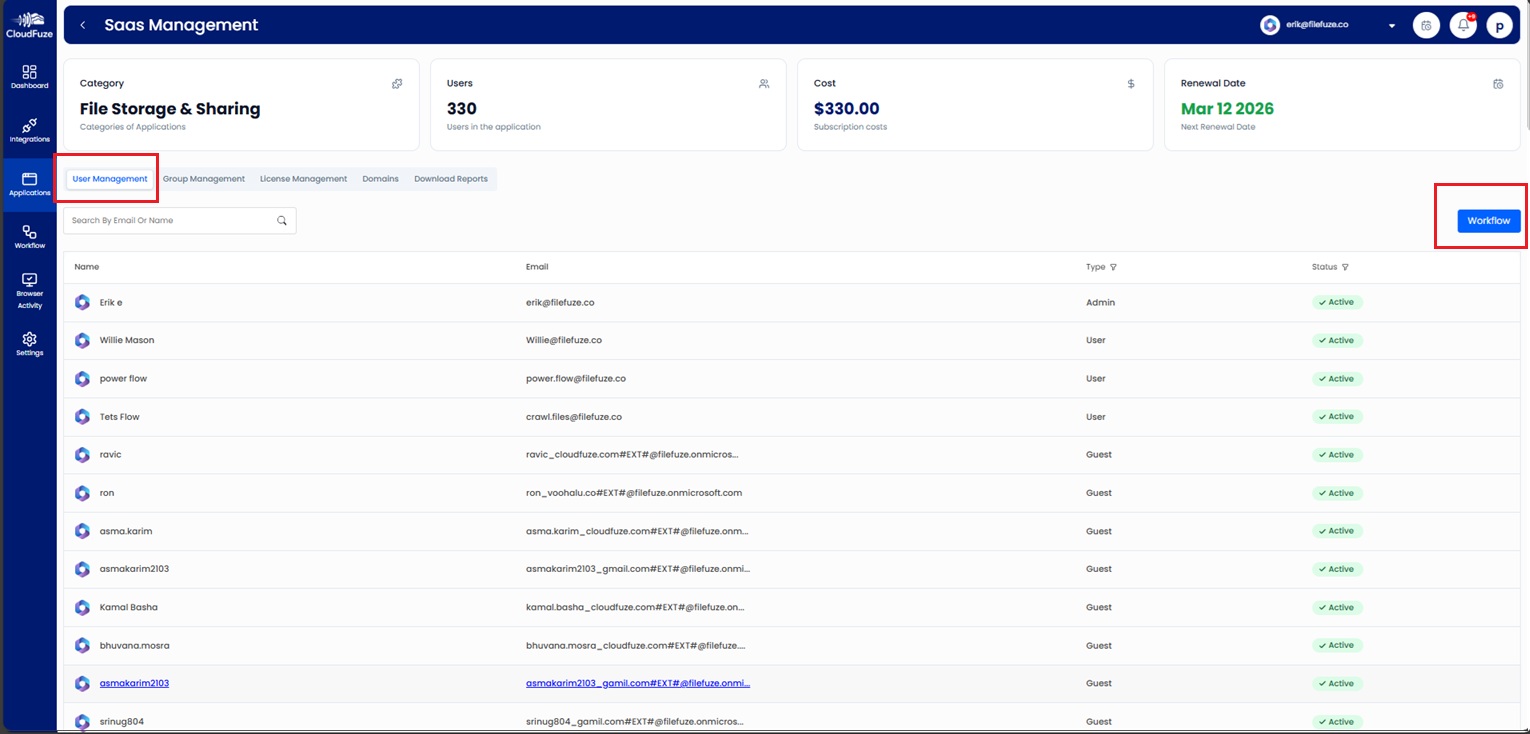
You can find CloudFuze Manage’s simple, intuitive dashboard, which shows both inactive and active users in your Microsoft 365 tenant, under the “User Management” section. We help you automate user workflows using the workflow option in the right corner.
2. How does identifying and managing inactive users in Microsoft 365 relate to compliance standards like GDPR?
Appropriately managing inactive users in your Microsoft 365 environment is an important step in complying with GDPR. This step requires organizations to keep accurate records of Microsoft 365 user data.
Our solution, CloudFuze Manage, automates the identification of idle/inactive accounts across your Microsoft 365 tenant and helps companies like yours maintain accurate user data records for audit purposes.
3. Does CloudFuze Manage support only Microsoft 365 Management?
No. As of now, we support over 175 popular SaaS & AI apps like Notion, Atlassian, Salesforce, HubSpot, Cursor, Gemini, Okta, Workday, Bill.com, and many more.
About the Author: Rashmi Ramesh



