
5 Top Tips to Use Microsoft Copilot in Outlook for Enterprise
What if your enterprise inbox could think, write, and even manage schedules for your teams?
For CIOs and IT administrators, dealing with email overload becomes much more than a productivity concern; rather, it is a scalability problem. Microsoft Copilot in Outlook is about to transform all of this. According to Microsoft, using the features of Copilot allows completing routine activities up to 29% faster, illustrating the actual effects of the AI tool.
For businesses, it is not the question if to use Copilot, but how. Below are five highly impactful uses of the Microsoft Copilot in Outlook for enterprises.
Key Takeaways
Microsoft Copilot in Outlook for Enterprise
Microsoft Copilot in Outlook is an AI-powered assistant built into Outlook that assists enterprise users in composing, editing, and sending messages, managing their calendar, and scheduling meetings based on the actual business environment, like emails, meetings, and organizational information. It provides efficiency and works under Microsoft 365 compliance policies.
5 Top Ways to Use Microsoft Copilot in Outlook for Enterprise
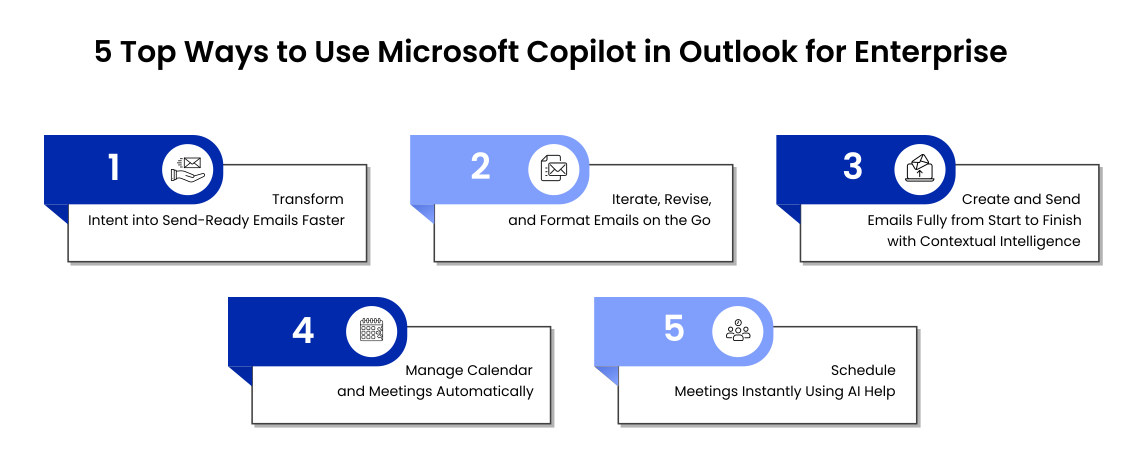
1. Transform Intent into Send-Ready Emails Faster
Another incredibly useful function of Copilot is its ability to work together with users to write emails on the go.
Instead of creating a finished draft, Copilot interacts with the user right within Outlook and creates the email while you talk about your intentions to sum up a meeting or request approval for something. The copilot will refine the draft based on the information about the audience, tone of the email, and purpose of the email.
In an enterprise context, this will be important because:
- Emails will be created faster and more accurately
- Fewer edits will be necessary
- Consistency of the communication aligned with the business context
2. Iterate, Revise, and Format Emails on the Go
The functions of Copilot go beyond merely writing emails. It can help with the refinement of emails in terms of brevity, changing tone to fit executive communication, and improving the structure.
Also, Copilot can help with formatting the emails: highlighting action items, creating a structured list from the unstructured information, etc.
All the changes are made directly in Outlook, without the need for copy-pasting and manually fixing the format.
Such features will prove extremely useful for leadership communication, where clarity and precision are critical.
3. Create and Send Emails Fully from Start to Finish with Contextual Intelligence
The Copilot goes beyond Outlook and enters other workflows, such as those involving chat, where it can draft emails start to finish.
Based on the contextual information, such as discussion during a meeting, thread history, and recipient details, Copilot will draft emails that are not just grammatically correct but also relevant and informative. Drafting within the chat and sending an email can be done iteratively without the risk of misunderstandings.
As a CIO or any other IT executive, this workflow optimization makes communication effective and contextual sound all the time.
4. Manage Calendar and Meetings Automatically
Email is not the only source of inefficiency; managing calendars and meetings is equally time-consuming.
Some tasks that Copilot can automate include:
- RSVP to meetings depending on pre-specified preferences
- Automatically accepting, rejecting, or scheduling the tentative meetings
- Prioritization of meetings depending on keywords or attendees
Thus, this allows less interference from administrators and more productive use of time by executives and managers. For enterprises, this translates into less time spent on administrative coordination and more focus on strategic work.
5. Schedule Meetings Instantly Using AI Help
Coordinating meetings with other people usually requires sending several emails to find an appropriate time and follow up.
However, Copilot makes this process much easier since users can schedule their meeting straight through the messaging feature. It will show possible times to hold the meeting and suggest meeting details such as the agenda and invitees.
Instead of switching between tools, teams can move from decision to scheduled meetings in seconds.
This capability significantly reduces coordination overhead, especially in large organizations with distributed teams.
How to Begin with Microsoft Copilot in Outlook
Enabling Copilot on a Microsoft 365 account would give users access to its full range of features right inside Outlook.
Step 1: Log In to Outlook
Using either a Microsoft work or personal account, depending on the company’s Microsoft 365 subscription, which includes Personal, Family, and Premium packages for Windows, Mac, iOS, and Android.
Step 2: Accessing Copilot in Outlook
Open Outlook and locate Copilot in the ribbon or message pane to access AI assistance directly within your inbox.
Step 3: Test Your Prompts
Begin with straightforward jobs such as:
- “Create a summary of this email thread.”
- “Write a response confirming your availability and proposing potential meeting times.”
- “Prioritize my unread emails.”
- “Rephrase this email concisely and professionally.”
Microsoft Copilot in Outlook automates email creation and other processes, turning a cumbersome task into an easy and efficient one, thus reducing operational bottlenecks for organizations.
Thinking About Switching to Outlook for Full Utilization of Copilot?
In order to fully benefit from the capabilities of Microsoft Copilot, companies require a unified and modern email experience using Outlook. Any fragmented or outdated system may hinder AI efficacy and productivity improvements.
At CloudFuze, we support large enterprises in their migration journey to Microsoft 365 and Outlook, helping to securely move emails, permissions, and metadata, all with no downtime. In turn, allowing organizations to set up an optimized environment for maximum AI efficacy and functionality with Copilot.
Schedule a call with our experts to discuss your seamless transition to Outlook.
Frequently Asked Questions
1. How can Copilot increase the efficiency of emails within enterprise teams?
The efficiency of emails is increased because Copilot enables the user to create draft emails based on intention, edit tone and clarity in real-time, summarize lengthy threads or conversations, and format the content automatically. The time spent creating an email, editing drafts, and engaging in email exchanges is decreased in this way.
2. Is Copilot within Microsoft Outlook secure and compliant for enterprise use?
Yes, it is. Copilot complies with Microsoft 365 data privacy policies, including data compliance and governance practices, security, and more. It will only access data that the user already has access to, and it does not train models using your company’s data.
3. Will Copilot make calendar and meeting management easier?
Yes, it will. Copilot can perform all sorts of scheduling tasks for you, such as suggesting meeting times based on your availability and prioritizations, managing RSVPs, and even scheduling meetings within chats.
About the Author: Aayushi Raj



