
How to Enable Gemini in Gmail (Unlock AI Features Fast)
Email remains one of the most essential tools for communication, with over 3 billion users relying on Gmail every day to connect and get work done. This is where Gemini AI adds real value. As a built-in function of Gmail, Gemini will help you craft emails in a shorter period, summarize long email threads, and even ask you questions regarding your inbox.
In this tutorial guide, you’ll learn precisely how to enable Gemini AI on Gmail. The guide will cover requirements, features, and troubleshooting.
Key Takeaways
Eligibility Check (Important Before Enabling Gemini AI)
Gemini AI within Gmail can be activated in case any of the two conditions is fulfilled below:
- You should have an eligible Google Workspace Business or Enterprise plan OR
- Your account has Google AI Pro or AI Ultra plans (only applicable to personal Gmail accounts)
Note that availability may differ depending on region Gemini AI may not be available for the EU or some countries and may need to be turned on.
Enabling Gemini AI for Google Workspace (End-user steps)
Enable Gemini in Gmail on your Android phone, computer and iPhone or iPad in following ways:
- Open Gmail.
- At the top right, click Ask Gemini.
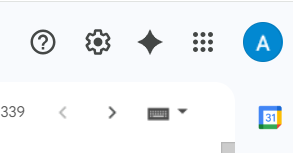
After turning Gemini on, users will be able to:
- Summarize email threads
- Compose emails with Help me write
- Ask questions about information in their inbox using natural language
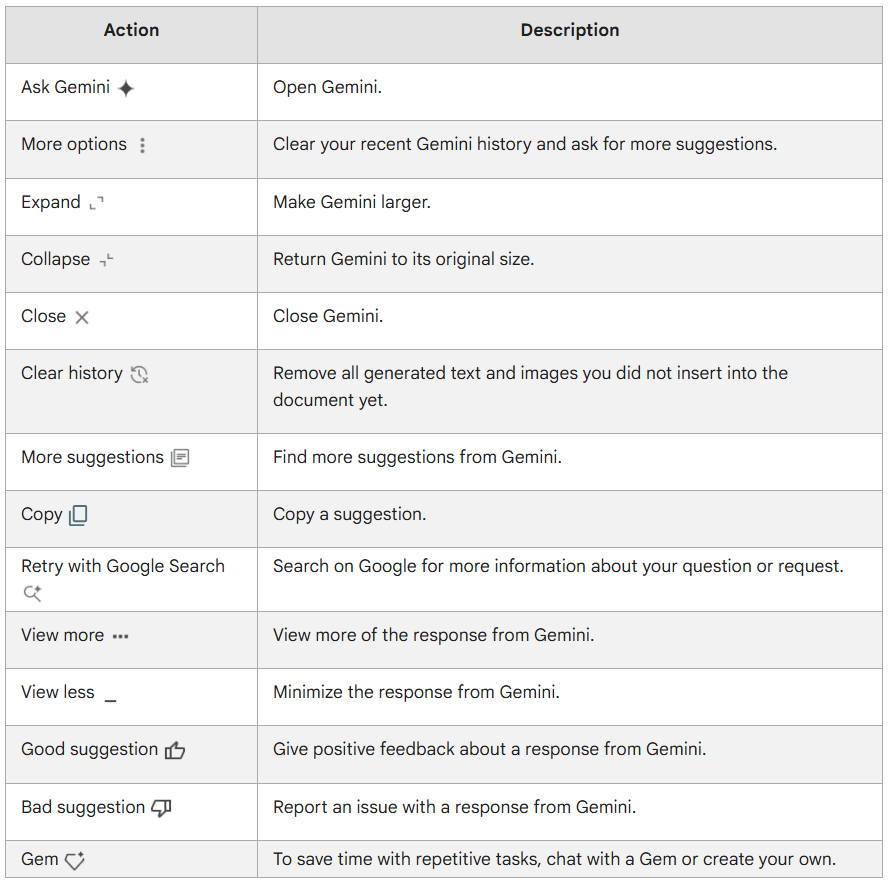
Overview of Gemini User Actions
Enabling Gemini AI for Google Workspace (Admin Instructions)
Activate Gemini in Gmail via Admin Console
- Navigate to admin.google.com
- Then go to Generative AI and Gemini
- Activate Gemini for: Whole organization or Certain organizational units (OUs)
- Review data access and policy settings
- Apply changes
Administrators can manage:
- Gemini Service ON/OFF
- Access to Workspace data
- Alignment with compliance policies through existing controls
As of April 2026, Gemini controls have been consolidated into a dedicated “Generative AI” section in the Admin Console that make management simpler.
How to Access Gemini in Gmail Once Enabled
Once activated, users will be able to:
Tap the Gemini icon in Gmail (top right corner)
A side-panel will appear that allows users to:
- “Summarize this email”
- “Draft a reply”
- “Find emails about invoice payments”
- Schedule meetings based on email content
This functionality is accessible on the web, Android, and iOS, depending on your plan and region.
How to Know Whether Gemini Has Been Enabled?
If Gemini AI is enabled, you will:
- Receive suggestions when drafting an email.
- See the Gemini interface (sidebar, icon).
- Get an option to Summarize Email conversations.
Gemini Troubleshooting: Can’t Find the Gemini Interface?
If Gemini is not showing up, check these things:
- Enable Smart Features in settings.
- Update the Gmail App.
- Confirm the subscription plan.
- Wait for the feature roll-out.
Sometimes the Gemini features are restricted to premium subscribers or Workspace administrators.
Can You Disable Gemini in Gmail?
Yes, you can disable Gemini in Gmail.
Go to Settings then General and then Disable Smart Features.
Start Now!
By enabling Gemini AI in Gmail, it is easy to create email. Whether you’re a professional or a business owner, this AI assistant helps you: Save time, write better emails and stay organized.
Frequently Asked Questions
1. Can anyone use Gemini AI through their Gmail account?
Gemini AI is only available to users who have Google Workspace Business or Enterprise plans, or personal Gmail accounts subscribed to Google AI Pro or AI Ultra plans.
2. Does an end user require admin permission to activate Gemini in Gmail?
If the user account belongs to Google Workspace, then enabling Gemini will require admin permissions in the Admin Console. If you have a personal Gmail account, then enabling Gemini will depend on your eligibility criteria.
3. What kind of functionality does Gemini AI offer through Gmail?
Some of the functions that Gemini AI can perform include drafting replies, summarizing emails, answering queries, searching for emails, and scheduling, all through natural language prompts.
4. Why am I not seeing Gemini AI through Gmail?
In case you are unable to locate Gemini in Gmail, there could be one of four reasons; either you have a non-eligible subscription plan, disabled Smart features, outdated Gmail app or no feature rollout in your region.
About the Author: Aayushi Raj



