
How to Easily Configure Gmail Routing in Google Workspace
Whether you want to forward support emails to another mailbox, route messages through a third-party security gateway, create backup copies of emails, or manage mail flow during a migration project, the Gmail Routing feature in the Google Workspace Admin Console gives you centralized control.
This guide explains how to configure Gmail routing in the Google Workspace Admin Console.
Key Takeaways
What Is Gmail Routing in Google Workspace?
Gmail routing is a set of mail flow rules that determine what happens to messages when they are sent or received in your Google Workspace environment.
Email routing rules enable you to:
- Forward the message to another mailbox
- Send the message to more than one recipient
- Send messages to external servers
- Add or delete recipients
- Bypass the spam filter of trusted systems
- Apply rules only to particular users, groups, or OUs
- Configure mail flow during migration from Google Workspace to Microsoft 365 or cross-domain migration.
Routing rules are configured in the Google Admin console and are applied on the domain or organizational-unit basis.
Prerequisites to Configure Gmail Routing in Google Workspace
Prior to configuring the Gmail routing rules, ensure that:
- You have Super Admin rights
- Gmail is enabled in your Google Workspace domain
- The destination mailbox or external mail server exists
- You know if the rule will be applied to all users or to a particular organizational unit, Google group, or user accounts.
Step-by-Step: Configure Gmail Routing in Google Workspace Admin Console
Here’s 10 easy steps to set up Gmail routing in Google Workspace Admin Console.
- Sign in to the Google Admin console with an administrator account that has the Gmail Settings privilege.
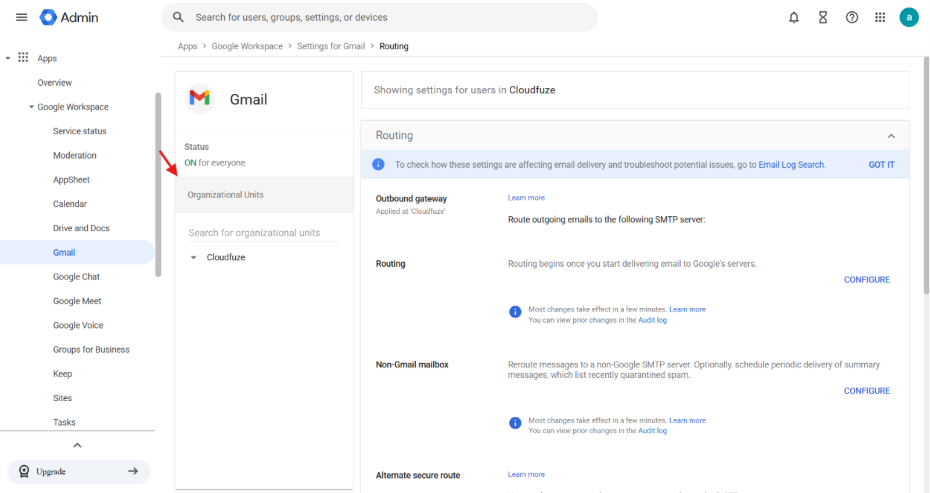
- Go to Menu → Apps → Google Workspace → Gmail → Routing.
- Select the organizational unit where you want the rule to apply.
- Under Routing, click Configure or Add Another Rule.

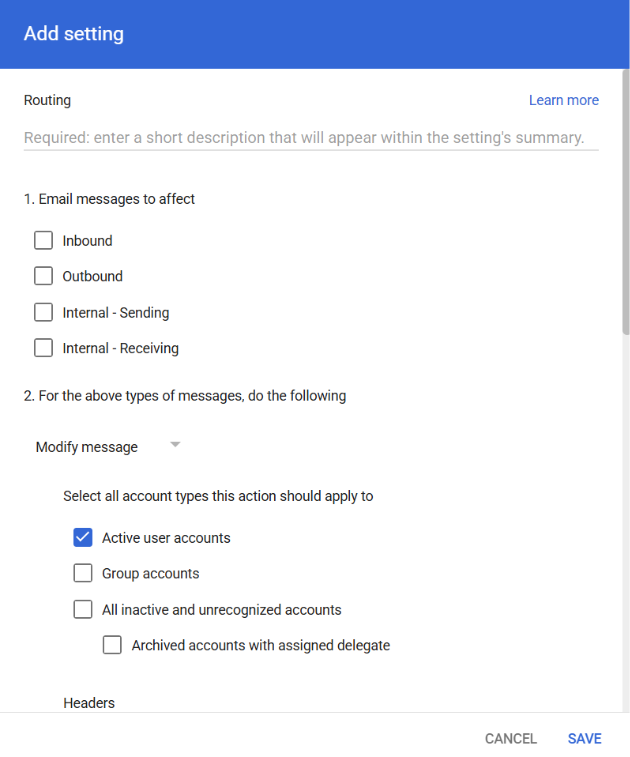
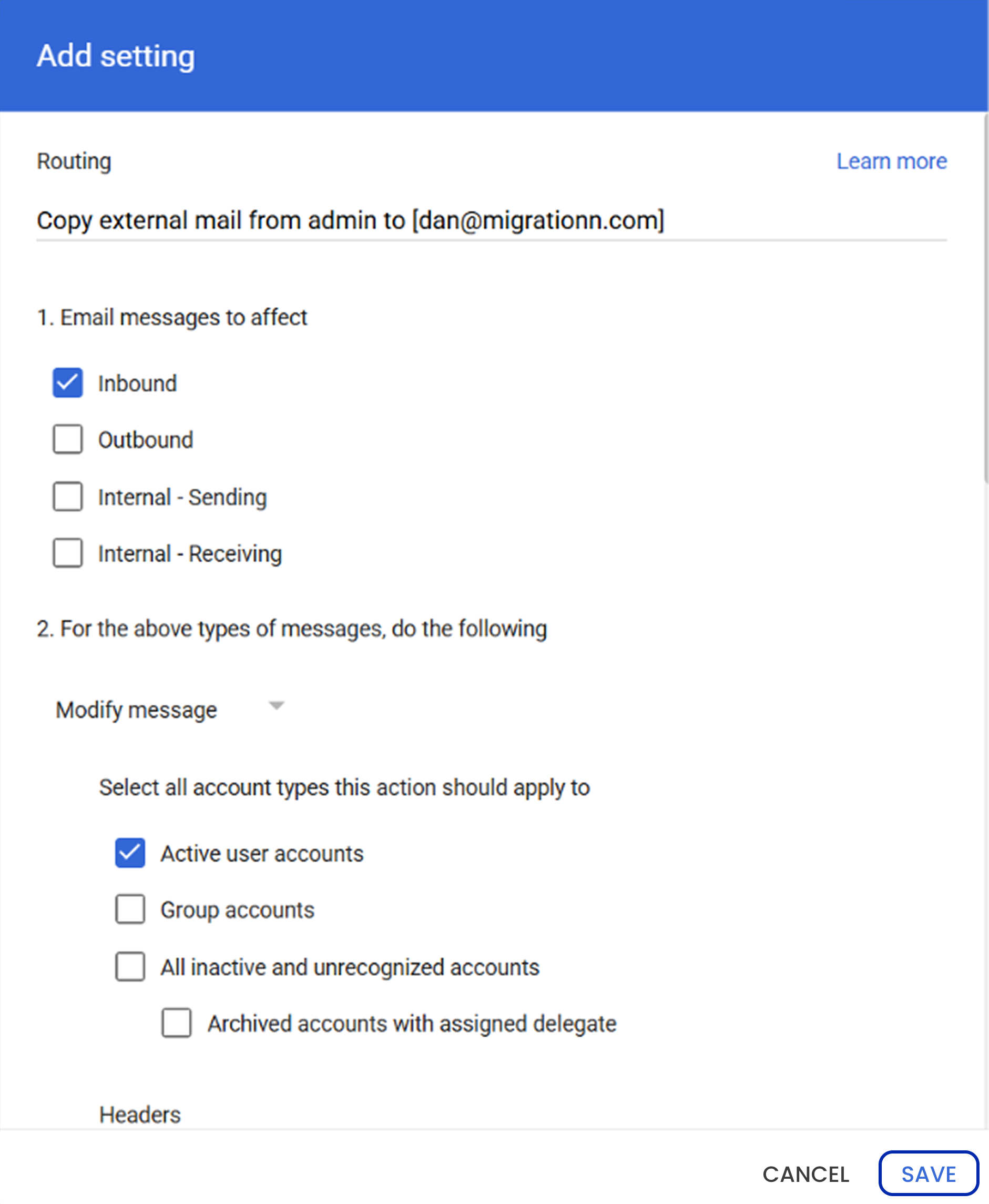
- Give the rule a descriptive name.
- Choose which messages the rule should affect, such as inbound, outbound, or internal inbound messages.

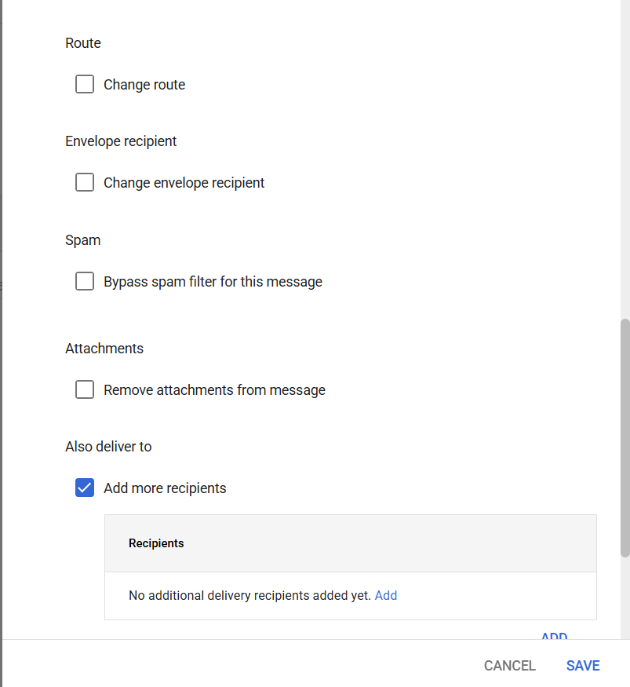
- Select the required routing action, such as changing the route, changing the envelope recipient, or adding another recipient.

- If routing mail to another server, make sure the destination server has been added under Hosts/Add Route first.
- Configure any additional options, such as spam handling or TLS, depending on your routing scenario.
- Click Save and test the rule with a controlled set of users before applying it broadly.

Google Workspace may take a few minutes to propagate the change, although some routing updates can take longer in large environments.
Enterprise tip: Don’t immediately apply a new routing rule to the entire organization. Test it on a dedicated organizational unit or configuration group first. Google notes that routing changes can take up to 24 hours to take effect.
How to Configure a Mail Route
If you need to send mail to an external server:
- Go to Apps → Google Workspace → Gmail → Hosts
- Add Route
Enter:Field Example Name Exchange Hybrid Hostname mail.company.com Port 25 Require TLS Yes - Save the route, then reference it in your routing rule.
Gmail Routing Test
After saving the rule:
- Test the email. Send a test message from an external email client (like Gmail or Outlook) to the impacted address.
- Check the delivery. Verify original mailbox, forwarded mailbox, and external route logs.
- Check Google Workspace email log search. Admin Console → Reporting → Email Log Search. The tool indicates the delivery status, routing rules applied, SMTP responses, forwarding and rejection or deferral information.
Gmail Routing Troubleshooting
- Forwarding Does Not Work: Make sure the rule is enabled, the message direction is correct (Inbound/Outbound), and the recipient criteria match the actual address.
- External Route Does Not Work: Check public resolution of the hostname, SMTP firewall policy, and TLS configuration.
- Duplicate Email Messages: Determine if several rules are adding recipients at the same time. Use Email Log Search to find out which routing rules were applied to the message.
Get Started with Gmail Routing Configuration for Your Organization
Setting up Gmail routing within the Google Workspace Admin Console is crucial in email traffic management, security measures, and coexistence during migrations from one system to another.
The tested routing plan is especially critical during the migration from Google Workspace to Microsoft 365 when the rules of dual delivery need to be applied temporarily to avoid any breaks in communication.
Frequently Asked Questions
1. What is Gmail routing in Google Workspace?
Gmail routing is a mail flow function within the Google Workspace Admin Console that lets administrators forward, redirect, duplicate, or route emails according to certain rules.
2. Where can I set up Gmail routing?
Gmail routing configuration can be done in the following way: Go Admin Console, then Apps, then Google Workspace, then Gmail and then Routing. Then create a new rule, select the message direction, define the routing action, and test the configuration using Email Log Search.
3. Is it possible to forward emails to multiple recipients via Gmail routing?
Yes. You will have to use the “Add more recipients” feature and select the “Also deliver to original recipient” option to make dual delivery.
4. Is it possible to apply Gmail routing to a particular department only?
Yes. Routing rules can be limited to specific Organizational Units (OUs), groups, or user accounts.
5. How do I check whether a routing rule is working?
Use Admin Console → Reporting → Email Log Search to verify message delivery, forwarding actions, and any routing errors.
About the Author: Aayushi Raj



