
Box to Google Drive Migration Challenges IT Teams Must Solve
Migrating Box to Google Drive may help enterprises consolidate cloud storage, collaborate better, and introduce Google Workspace. But migration in the enterprise environment includes not only transferring files. IT specialists need to consider metadata, permissions, folder structure, shared links, Box Notes, API restrictions, and data validation.
This article describes Box to Google Drive migration challenges, possible solutions, and how CloudFuze Migrate helps IT administrators, IT directors, and CTOs to address these challenges and perform migrations of any scale without data loss.
Key takeaways
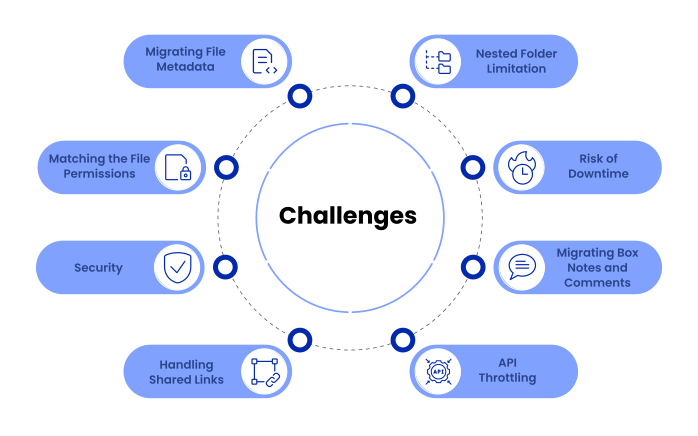
8 Box to Google Drive Migration Challenges and How to Overcome Them
Below are the major Box to Google Drive migration challenges and their solutions.
1. Migrating File Metadata and Version History
Manual Box to Google Drive migration usually implies downloading files from one platform and uploading them to another. This approach complicates the preservation of metadata and collaboration information.
The challenge is increased by differences between the two platforms. Box offers several folder-level collaborator roles, including Editor, Viewer, Co-owner, Previewer, Uploader, Viewer Uploader, and Previewer Uploader for eligible plans. Google Drive offers roles like Viewer, Commenter, Editor, and Owner for My Drive content.
How to overcome Box to Google Drive Migration Challenges
Before Box to Google Drive transfer, it is necessary to understand what type of metadata and collaboration attributes are important for the business and map them to Google Drive.
CloudFuze Migrate helps enterprises transfer Box files and folders to Google Drive while mapping the required metadata, permissions, file versions, and folder structures according to the migration plan. It retains creation and modification timestamps and user ownership details to maintain compliance and audit trails.
Want to ensure every comment, timestamp, and permission transfers correctly? Talk to the experts to know how CloudFuze performs Box to Google Drive metadata mapping.
2. Deeply Nested Folder Structures
Deep nesting of folder hierarchy is yet another challenge associated with Box migration to Google Drive.
In many cases, the enterprise Box environment has a deeply nested folder hierarchy created in the course of years of collaboration. At the same time, However, Google Shared Drives have a limit of 20 levels of nested folders. And that might be a challenge if the Box folder structure exceeds the destination limitation.
For example:
Box
Department > Project > Client > Year > Region > Team >…
If the folder structure goes beyond the supported nesting levels in the destination Shared Drive, you will not be able to reproduce the hierarchy as it is.
How to overcome Box to Google Drive Migration Challenges
The IT department of a large enterprise should conduct a pre-migration analysis to transfer from Box to Google Drive to identify folders that exceed the supported nesting depth in Google Drive. The following approaches may help:
- Reduce unnecessary folder levels
- Restructure the folder hierarchy before migration
- Transfer contents into relevant Shared Drives
- Develop a migration mapping strategy for deep folders
- Use a migration tool that deals with long or deeply nested folder structure
CloudFuze migration tool automatically restructures deep folder paths to fit Google Drive’s folder-depth limits while preserving the original hierarchy and ensuring files remain accessible after migration.
3. Mapping Box Permissions to Google Drive
Permissions mapping is among the most challenging tasks during the enterprise Box-to-Google Drive migration.
The problem with permissions is that Box and Google Drive use different sets of permissions. For example, Box has such roles as Editor, Viewer, Co-owner, Previewer, Uploader, Viewer Uploader, and Previewer Uploader depending on account and folder settings.
Google Drive uses its own permission set. My Drive allows users to have Viewer, Commenter, Editor, or Owner permissions. When it comes to Shared Drives, the access roles are Manager, Content Manager, Contributor, Commenter, and Viewer.
Example permission mapping
| Box access | Potential Google Drive access |
|---|---|
| Editor | Editor |
| Viewer | Viewer |
| Co-owner | Editor or appropriate destination ownership/access model |
| Previewer | Viewer |
| Uploader | Destination role based on required upload/access behavior |
| Viewer uploader | Destination role based on required read/write behavior |
Important: Permission mapping should be based on the organization’s required access outcome rather than assuming that every Box role has an identical Google Drive equivalent.
How to overcome Box to Google Drive Migration Challenges
IT Admins need to:
- Export or analyze the source users and permissions.
- Map Box users to their corresponding Google Workspace accounts.
- Identify Groups and Group Memberships.
- Determine the proper Google Drive or Shared Drive target location.
- Map source permissions to the required destination access.
- Verify permissions post-migration.
CloudFuze Migrate tool provides capabilities for user and permission mapping to help enterprises retain the intended access configuration during the migration of Box data to Google Drive.
While migrating the data, we match the file permissions of Box with Google Drive, as shown in the table below.
| Box Permissions | Google Drive Permissions |
|---|---|
| Co-owner | Editor |
| Editor | Editor |
| Viewer | Viewer |
| Previewer uploader | Viewer |
| Previewer | Viewer |
| Uploader | Viewer |
| Viewer uploader | Editor |
| Owner | Owner |
4. Google Drive Upload and Copy Limits Can Impact Big Migrations
Enterprise migrations need to take into account the Google Drive upload and copy limits.
According to Google, each Google Workspace user can upload and copy up to 750 GB to Drive within 24 hours. This restriction applies both to My Drive and Shared Drive. Once the limit is reached, any further upload or copy operations are blocked until the limit resets. Also, Google states that users can upload and synchronize files up to 5 TB.
For an enterprise that needs to migrate tens or even hundreds of TB, this is a big concern.
How to Overcome Box to Google Drive Migration Challenges
IT migration teams should distribute migration workloads effectively, avoid concentration of the complete migration process through a few destination accounts, monitor the upload activity in the destination, manage migration through controlled batches, schedule migrations considering business-critical loads, and automatically resume migration workloads based on destination limits.
CloudFuze helps manage the 750 GB per-user daily limit by distributing migration workloads across appropriately configured destination accounts and scheduling transfer jobs to optimize available throughput. It optimizes large-scale transfers through phased and automated batching, activity monitoring, and auto-resume queues. Multi-terabyte enterprise migrations happen smoothly without running into platform limits.
5. API Throttling and Rate Limiting
While migrating in high volumes, thousands or millions of files might require API operations for reading source metadata, creating folders, uploading files, creating versions, and validating migrated content.
Google Drive’s API can return an HTTP 429 Too Many Requests error if too many requests are sent in a short period of time. According to Google, exponential backoff should be used to handle the rate-limit error.
How to overcome Box to Google Drive Migration Challenge
Migration of a large number of files requires usage of controlled concurrency, API-aware throttling, retry automation, exponential back-off, batch processing where possible, migration monitoring, and automatic recovery from transient errors.
CloudFuze Migrate uses API throttling with real-time rate pacing and dynamic batching, as well as automated exponential backoff retries for resolving transient 403 and 429 errors, making sure that multi-terabyte data transfers occur with no data loss.
6. Migrating Box Notes, Comments, and Collaboration Data
Box Notes are written in a proprietary JSON format and cannot be viewed or edited in Google Drive. For instance, Box shared links could have various permissions such as view only, view and download, and edit access depending on administrator and item settings.
Comments and collaboration data, thus, need to be processed separately from the file itself.
How to overcome Box to Google Drive Migration Challenges
Prior to migration, identify:
- What Box Notes should be migrated
- How these notes should be presented in Google Drive
- What business-critical comments there are
- If inline comments should be preserved
- What collaboration data should remain available after migration
CloudFuze is capable of handling migrations that involve Box Notes and collaboration data by migrating Box Notes (.boxnote) into the compatible Google Docs format during the migration process while preserving all rich text formatting, tables, and embedded checklists.
7. Shared Links May Not Be Translated One-to-One
Box allows setting up shared links that can be configured for the following access levels:
- People with the link
- People in the company
- People in the folder
- Only invited people
Administrators can also choose if shared link recipients are able to view, download, or edit content.
Google Drive has its own sharing model that includes restricted access, specific people or group access, and general access, as well as Viewer, Commenter, and Editor access for shared content in My Drive.
As sharing models are different, direct copy of the Box URL is not guaranteed to make it work properly after migration.
How to overcome Box to Google Drive Migration Challenges
Migration teams must:
- Identify active Box shared links
- Determine who has access to the shared resource
- Map it to the requirements for Google Drive
- Migrate the corresponding destination sharing configuration
- Test critical links after migration
- Communicate new links if needed
CloudFuze helps in the transfer of supported shared link data while maintaining the required access structure of the migrated content from Box to Google Drive.
8. Security and Identity Management
As the migration process will involve access to sensitive content, it is advisable for IT teams to avoid any migration tool that requires unnecessary sharing of user passwords or administrator credentials.
A secure migration architecture should always involve delegated authorization and access management to both the source and destination environments.
How to overcome Box to Google Drive Migration Challenges
While selecting a Box to Google Drive migration tool, one should consider:
- Authentication Method
- OAuth / Delegated Access
- Data Encryption
- Administrator permissions
- Scope of access
- Logs
- Reporting
- Data Handling Practice
- Certifications for compliance
CloudFuze offers secured delegated access along with OAuth 2.0-based authentication for all supported cloud migrations in order to help organizations avoid sharing account passwords with migration personnel. Additionally, we follow the industry-recognized security and compliance standards trusted by enterprises across the US and UK, including end-to-end encryption and compliance with frameworks such as GDPR, SOC 2 Type 2, and ISO 27001.
For more details, check the security measures taken by the CloudFuze platform when you copy from Box to Google Drive.
Overcome Migration Challenges with CloudFuze in Box to Google Drive Migration

CloudFuze Migrate solves Box to Google Drive migration challenges by transferring data without downtime by accurately mapping Box permission hierarchies to Google Drive access roles and preserving crucial metadata such as timestamps, file versioning, and inline comments.
To ensure that there are no performance issues, we at CloudFuze manage API throttling by controlling request rate in real-time and with batching and automated retry capabilities. Also, we overcome Google Drive’s 20-level nested folder depth restriction by automatically creating structural links for deeper folders.
Moreover, CloudFuze handles Google Drive’s 750 GB daily upload cap through automatic scheduling and resuming of large bulk transfer jobs, conversion of proprietary Box Notes into editable formats, and uses OAuth 2.0 with a RESTful API in order to provide secure end-to-end data integrity.
Watch the video below to learn how CloudFuze migrates files and folders from Box to Google Drive.
Box to Google Drive Migration Best Practices
- Analyze your Box environment to find out information on users, data volume, permissions, folder structure, and migration risks.
- Map your users, groups, and permissions to the corresponding Google Workspace accounts and destination access level.
- Decide where to migrate the content by choosing My Drive or Shared Drives as the destination.
- Perform the pilot migration of your chosen representative users, files, permissions, and folder structure prior to actual migration.
- Consider using delta migration to track any changes accumulated during one-time migration.
- Validate the migrated content via file, folder, metadata, versions, ownership, permissions, and shared links verification.
CloudFuze’s Real-World Box to Google Workspace Migration
Intuit faced a significant challenge in migrating over 1200+ users and 70+ TB of data to Google My Drive and Google Shared Drives. CloudFuze helped Intuit transition from three storage areas, Box, Dropbox, and NFS, to Google Workspace. Earlier, they faced challenges like Dropbox and Google Workspace limitations, server overloads, duplications, etc.
CloudFuze helped Intuit migrate the required content to Google My Drive and Google Shared Drives through the complexities of multi-source enterprise migration.
Read the Intuit case study to learn more about the migration approach and remarkable results.
Risk-Free Box to Google Drive Migration with CloudFuze!
CloudFuze Migrate provides the solution to these Box to Google Drive migration challenges by implementing an enterprise migration framework to analyze, map, migrate, monitor, and validate Box data to Google Workspace.
If you’re planning a Box-to-Google Drive migration, get a FREE migration assessment from CloudFuze to identify potential data, permission, and structural challenges before your production migration begins.
Frequently Asked Questions
1. Can I migrate files from Box to Google Drive?
Yes. Small volumes can be moved manually by downloading files from Box and uploading them to Google Drive. However, enterprise migrations involving large datasets, users, permissions, versions, metadata, and shared content are better suited to a dedicated migration platform such as CloudFuze Migrate.
2. What is the best way to migrate Box to Google Drive?
For an enterprise environment, the best approach is to use a structured migration process that includes pre-migration analysis, user mapping, permission mapping, pilot migration, bulk migration, incremental synchronization, and post-migration validation.
A dedicated Box-to-Google Drive migration tool can automate many of these tasks and reduce manual effort.
3. Can Box permissions be migrated to Google Drive?
Yes, permissions can be mapped during migration, but Box and Google Drive use different permission models. Box supports roles such as Editor, Viewer, Co-owner, Previewer, and Uploader, while Google Drive and Shared Drives use different access roles.
Therefore, migration teams should map permissions based on the required destination access rather than assuming a one-to-one role conversion.
4. What happens to Box shared links after migration?
Box shared links use their own access and permission model, so they may not behave identically in Google Drive. Box supports multiple link access levels, such as anyone with the link, users within the organization, and specific invited users. Critical shared links should therefore be identified, mapped, and validated as part of the migration.
5. Can Box Notes be migrated to Google Drive?
Box Notes require special handling because they do not have a direct one-to-one equivalent in Google Drive. Depending on the migration requirements, Box Notes can be converted into a compatible document format for Google Workspace.
6. How does CloudFuze bypass Google Drive’s 750 GB daily upload limit?
CloudFuze dynamically provisions and rotates a managed pool of Google Service Accounts to distribute transfer payloads across multiple channels. This allows multi-terabyte datasets to migrate each day continuously without hitting per-account upload caps.
7. How does CloudFuze manage Google Drive’s 20-level folder depth restriction?
When a Box directory tree exceeds Google’s 20-level folder depth limit, CloudFuze automatically restructures the paths using dynamic shortcut links. This prevents directory truncation and keeps deeply nested files accessible to end users.
8. How does CloudFuze handle API throttling errors (HTTP 403 and 429)?
CloudFuze employs real-time rate pacing and dynamic batching to keep API requests safely below Google’s per-user and per-project call thresholds. If a transient error occurs, an automated exponential backoff queue pauses the request and retries it without manual intervention or data loss.
About the Author: Aayushi Raj



