
Move ShareFile Permissions for 500 Users to Google Workspace
Performing a ShareFile migration to Google Workspace can be a game changer for your business. For a high-volume migration such as a transfer involving 500 users, it’s important to retain permissions to ensure business continuity post-migration.
In this blog post, we discuss how to retain ShareFile permissions intact in Google Workspace using CloudFuze Migrate.
Key Takeaways:
What Are ShareFile Permissions and How Do They Work?
ShareFile permissions help you ensure complete control of your account. ShareFile provides you with a range of permissions and access to your account:
Steps to manage permissions in ShareFile:
- Go to People –>Manage Users.
- A user can also check on Browse Employees or Browse client contacts.
- Click the user or the Manage icon to open the user profile.
- Modify the permissions.
- Now click on Save.
How CloudFuze Migrate Tackles Challenges When You Migrate Permissions from ShareFile to Google Workspace?
Here, we discuss how CloudFuze Migrate overcomes challenges during a Citrix ShareFile files migration to Google Workspace securely along with permissions:
| Challenges | How CloudFuze Migrate Overcomes Them |
|---|---|
| Permission Differences | Seamlessly map ShareFile permissions to Google Workspace file structures. |
| Folder Depth Limits | Migrates long folder paths from ShareFile with necessary user permissions. |
| API Throttling | Uses batch migration which eliminates downtime and throttling issues. |
| Folder Model Variations | Maintains folder hierarchy and retains permissions in Google My Drive and Shared Drives. |
| External Users Migration | Migrates external users along with necessary permissions and access levels |
What Tools Can Assist in Migrating Permissions from ShareFile To Google Workspace?
Generic tools fail to replicate user permissions when it comes to migrating terabytes or petabytes of ShareFile data along with 500+ users. It is best to choose an advanced Google Workspace migration tool to assist you to transfer ShareFile permissions intact.
Reliable migration tools such as CloudFuze Migrate help you move ShareFile folder permissions to Google Workspace. Key features of our ShareFile to Google Workspace migration tool:
- Supports permissions migration from ShareFile to both Google My Drive and Google Shared Drives
- Migrates root folder permissions along with sub folder permissions to Google Workspace
- Preserves permissions along with the right access levels to Google Workspace
How CloudFuze Migrate Transfers ShareFile Permissions to Google Workspace?
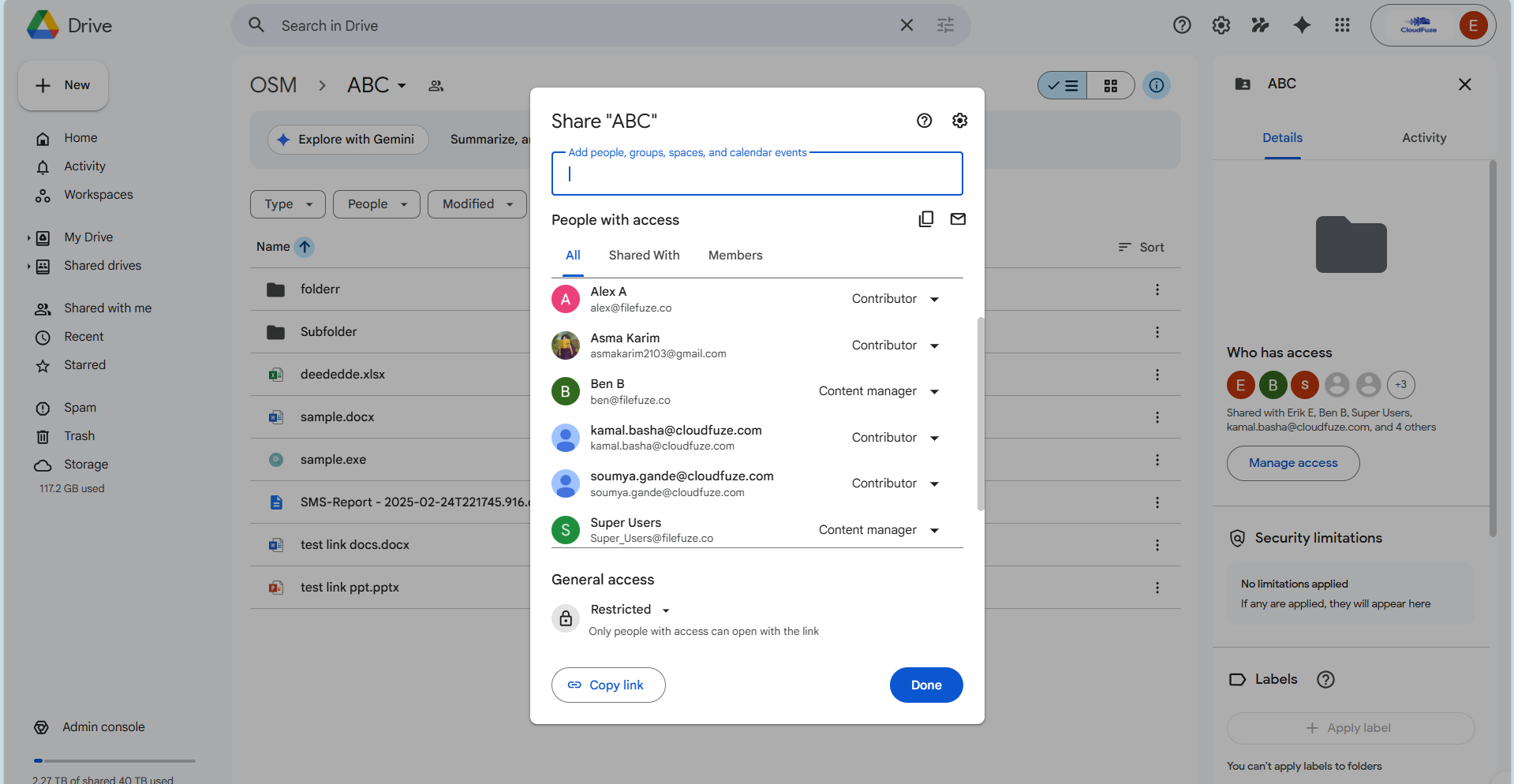
Below we have provided screenshots on how CloudFuze Migrate transfers permissions during a ShareFile to Google Shared Drive migration:
Image 1: Shows users with assigned permission levels in ShareFile environment.
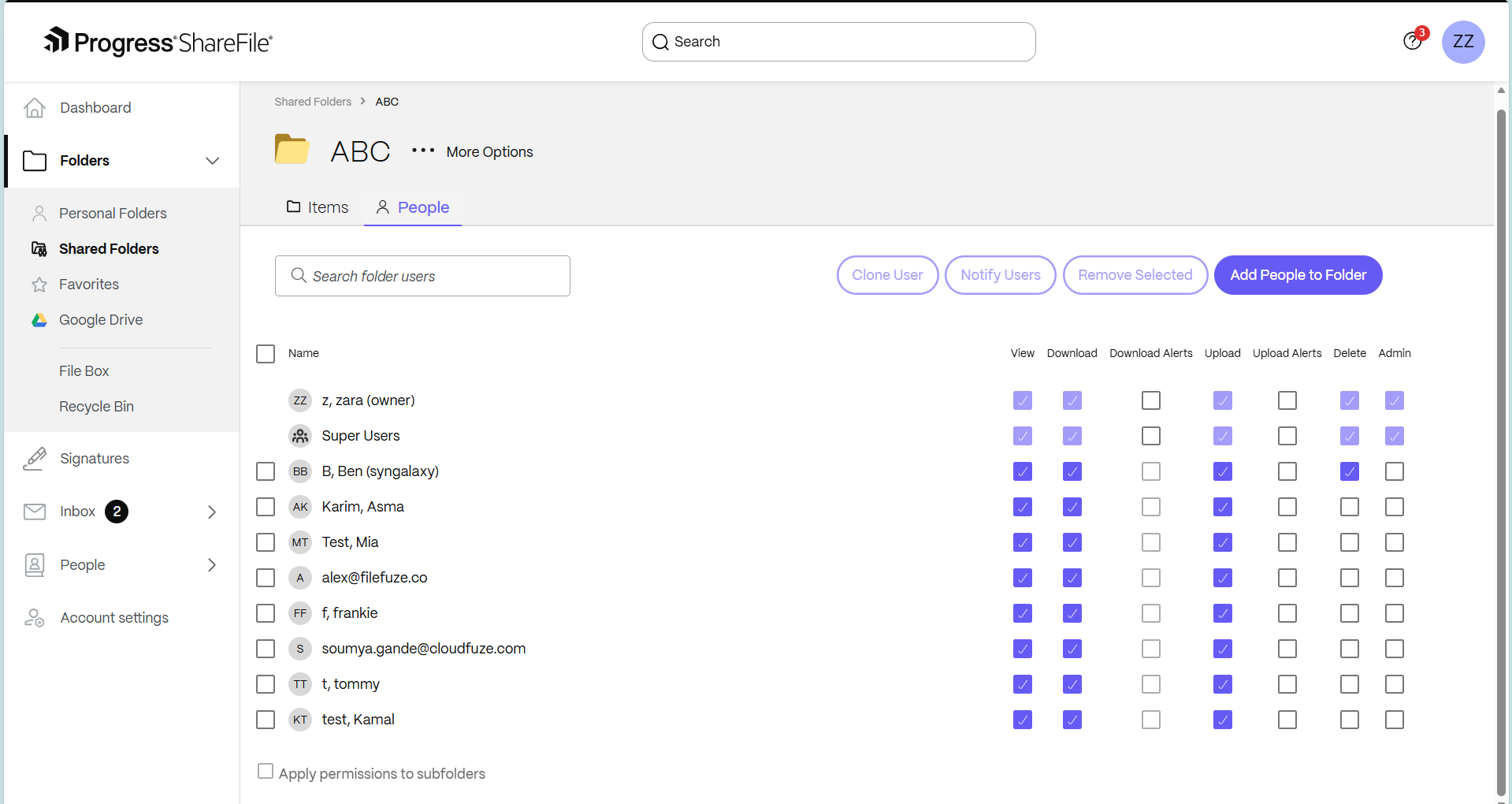
Image 2: The screenshot (of our migration tool CloudFuze Migrate) shows the complete replication of exact permissions transferred to Google Shared Drive from ShareFile.
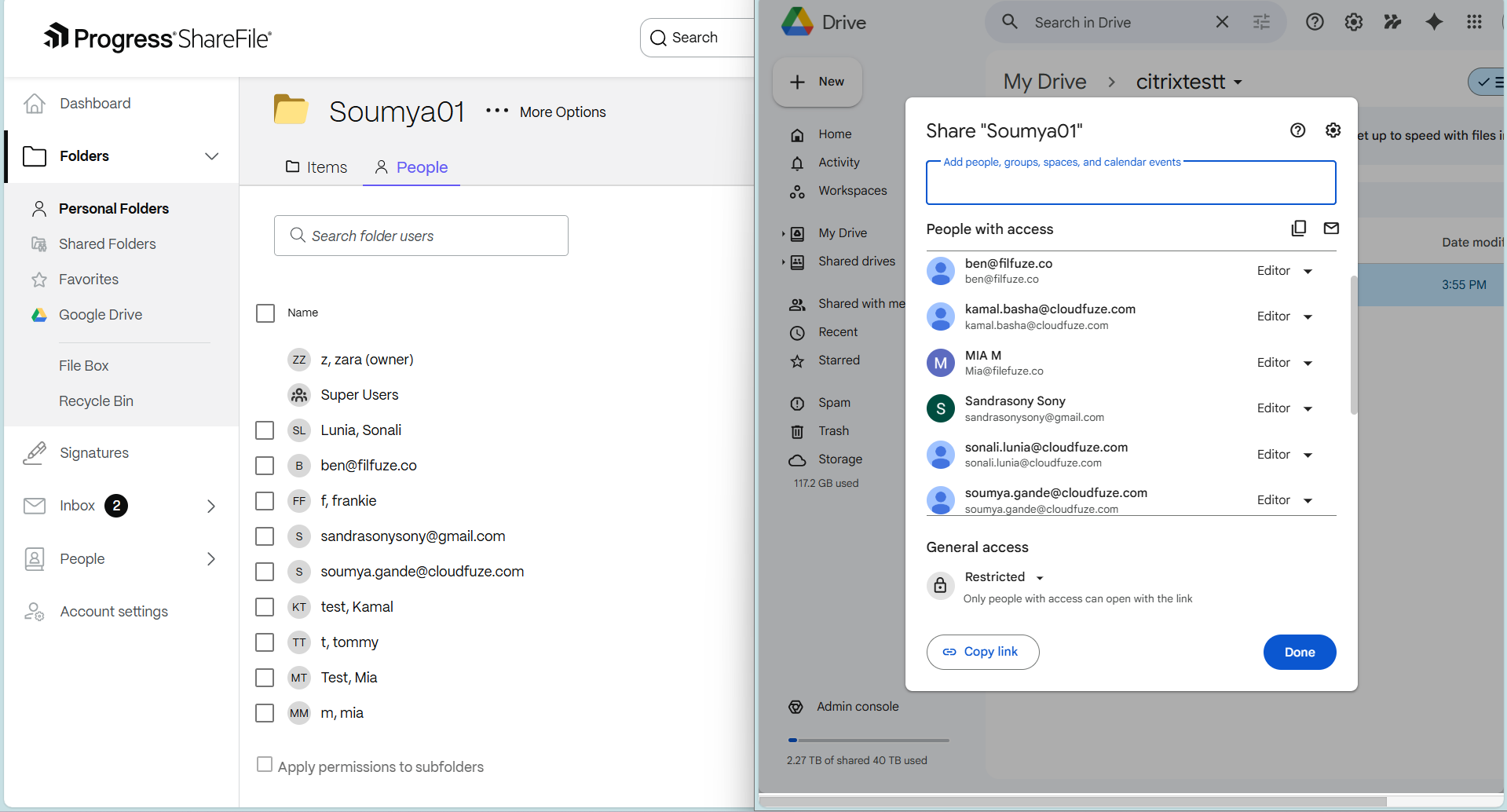
Below we have provided screenshot on how CloudFuze Migrate transfers permissions during a ShareFile to Google Drive migration:
Here’s a Video of our Tool Performing ShareFile to Google Drive Migration:
Here’s a Video of our Tool Performing ShareFile to Google Shared Drive Migration:
Migrate ShareFile to Google Workspace with Permissions Intact
Transferring data from ShareFile to Google Workspace with permissions intact requires a strategic approach to avoid access issues. Using CloudFuze Migrate, you can transfer ShareFile permissions, data and important metadata to Google Workspace with assured success.
Schedule a free and no-obligation demo with us today!
Frequently Asked Questions
1. Post-migration validation checklist for permissions
Here is a post-migration validation checklist for permissions:
- Check if users are assigned with necessary access levels after migration.
- Verify if there are any access issues for files and assign with the right permission levels.
- Ensure to check the proper transfer of permissions to every file post-migration.
2. How do I assign permissions to ShareFile admin?
Account administrators manage the account wide permission settings in ShareFile. To access the Permissions settings:
- Click on Account Settings.
- Tap on Advanced Preferences.
- Now navigate to Permissions.
3. Setting up granular file access for external collaborators
Setting up granular file access for external collaborators involves enabling external sharing at the organizational level in Google Workspace. Then, restrict access to the site, folder, or file level using guest permissions. Implement Role-Based Access Control (RBAC) to restrict access to view-only or edit based on roles.
About the Author: Bhavani Asok



