
Easy Steps to Integrate Dropbox with Microsoft Office 365
Teams tend to integrate Dropbox with Office 365 to streamline business workflows by co-authoring Word, Excel, and PowerPoint files while using the Dropbox platform. It eliminates app switching, conflicting copies, and provides easier file access.
In this blog post, we have discussed easy steps to perform Office 365 integration with Dropbox.
Key Takeaways:
What Are the Easy Steps to Integrate Dropbox with Microsoft Office 365?
Below are simple steps on how to integrate Dropbox with Office 365:
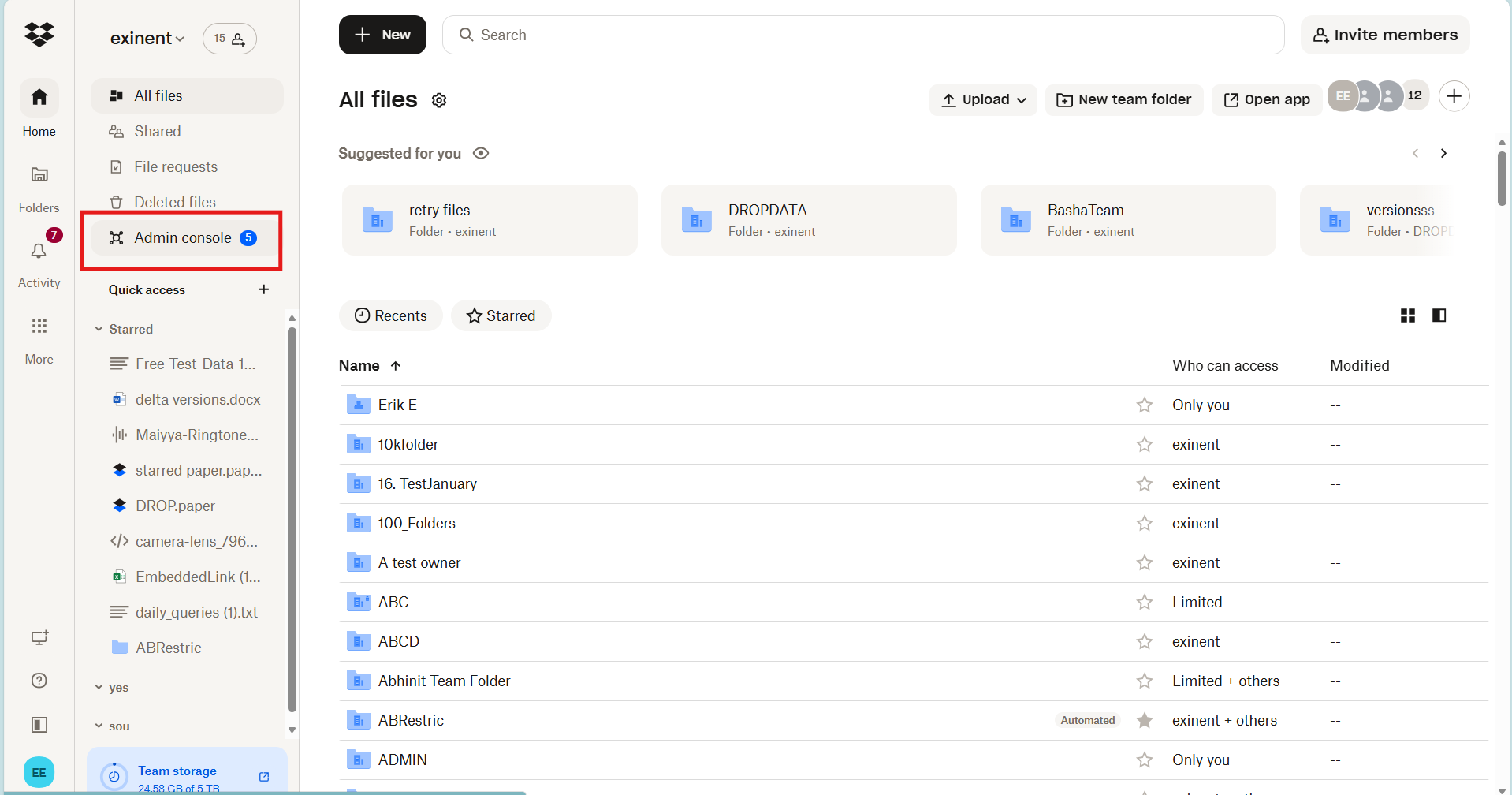
Step 1: Login to Dropbox Admin Console
- Sign in to Dropbox Admin using your admin account.
- Tap on Settings from the left panel.
Step 2: Locate Microsoft Office 365
- Scroll through the list of applications.
- Find Microsoft Office 365.
- Ensure the status shows Allowed (default).
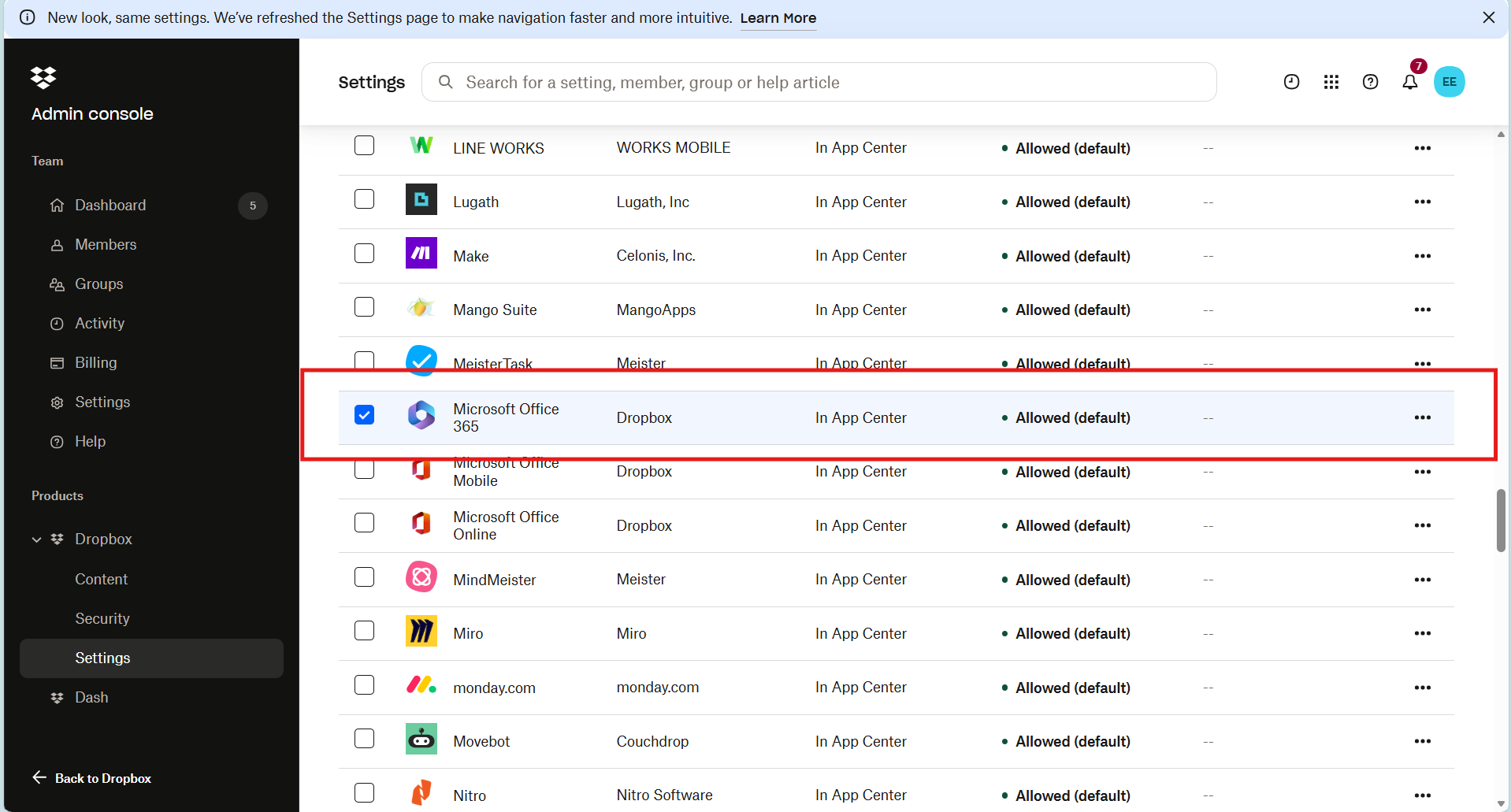
The Allowed (default) status confirms that Dropbox enables Microsoft Office 365 integration for its users.
Step 3: Verify Integration
Once enabled, users can open and edit Office files directly from Dropbox:
- Microsoft Word
- Microsoft Excel
- Microsoft PowerPoint
Files stored in Dropbox will open in Microsoft Office Online for editing. This helps teams to open and edit Word, Excel, and PowerPoint files directly from Dropbox.
Also, check out our article on how to seamlessly manage multiple Dropbox accounts.
Conclusion
Users can integrate Dropbox with Office 365 easily with the steps provided in this blog post. Follow our blog section to stay updated with technical updates.
Frequently Asked Questions
1. How to troubleshoot Dropbox integration issues in Office 365?
To troubleshoot Dropbox integration issues in Office 365, disconnect the app at . Remove it from Office via File > Account > Connected Services.
Ensure the Dropbox user is active and has team admin rights. Now you can troubleshoot the issues.
2. What are the limitations of Dropbox Office 365 integration?
Limitations of the Dropbox-Office 365 integration include:
- Inability to edit password-protected files via Office Online
- No support for the Dropbox add-in in mobile/older Outlook versions
- Restricted co-authoring for files larger than 500 MB.
3. What are common challenges when integrating Dropbox with Microsoft Office 365?
Common challenges when integrating Dropbox with Microsoft Office 365:
- Conflicting file copies
- Limitations in co-authoring
- Difficulties in migrating high-volume data between the platforms.
About the Author: Bhavani Asok


