
Recover Deleted Google Drive Files Before It’s Too Late
Accidentally deleting critical information can disrupt business operations, delay a project, or jeopardize stored organizational data. For IT personnel managing multiple users, knowing how to recover accidentally deleted Google Drive data as a Google Workspace admin is crucial.
Certain data in Google Drive can be restored by Google Workspace administrators via the admin console. However, the recovery process depends on when the files were deleted, whether the user’s account is active, and whether the data is still recoverable. Understanding these options helps admins respond quickly and reduce the impact of data loss.
Key Takeaways
Can Google Workspace Admins Restore Deleted Google Drive Data?
Yes. Google Workspace administrators can recover data that was deleted from Google Drive of users in a particular time frame.
An administrator can typically retrieve the data 25 days after a user empties their Google Drive trash. After this period, Google permanently removes the data and makes standard administrative recovery unavailable.
If the files are still in the trash, the user can restore the items themselves. However, if the trash has been cleared, the administrator will have to initiate the data retrieval process via the Google Admin console.
For official instructions, refer to Google’s guide to recovering deleted Drive files for users.
Planning a Google Drive to Google Drive Migration? CloudFuze Can Help
If your organization is planning a Google Drive to Google Drive migration, CloudFuze Migrate helps simplify the transfer of business-critical files between Google Workspace accounts or tenants.
It supports the migration of files, folder structures, permissions, metadata, timestamps, and version history to help maintain data integrity and accessibility. IT teams can use user mapping, migration reports, and delta migration to manage large-scale transfers with greater control and zero disruption.
How to Recover Deleted Google Drive Files as an Admin
Use the following procedure to restore Google Drive files of a Google Workspace user.
Step 1: Log in to Google Admin Control Panel
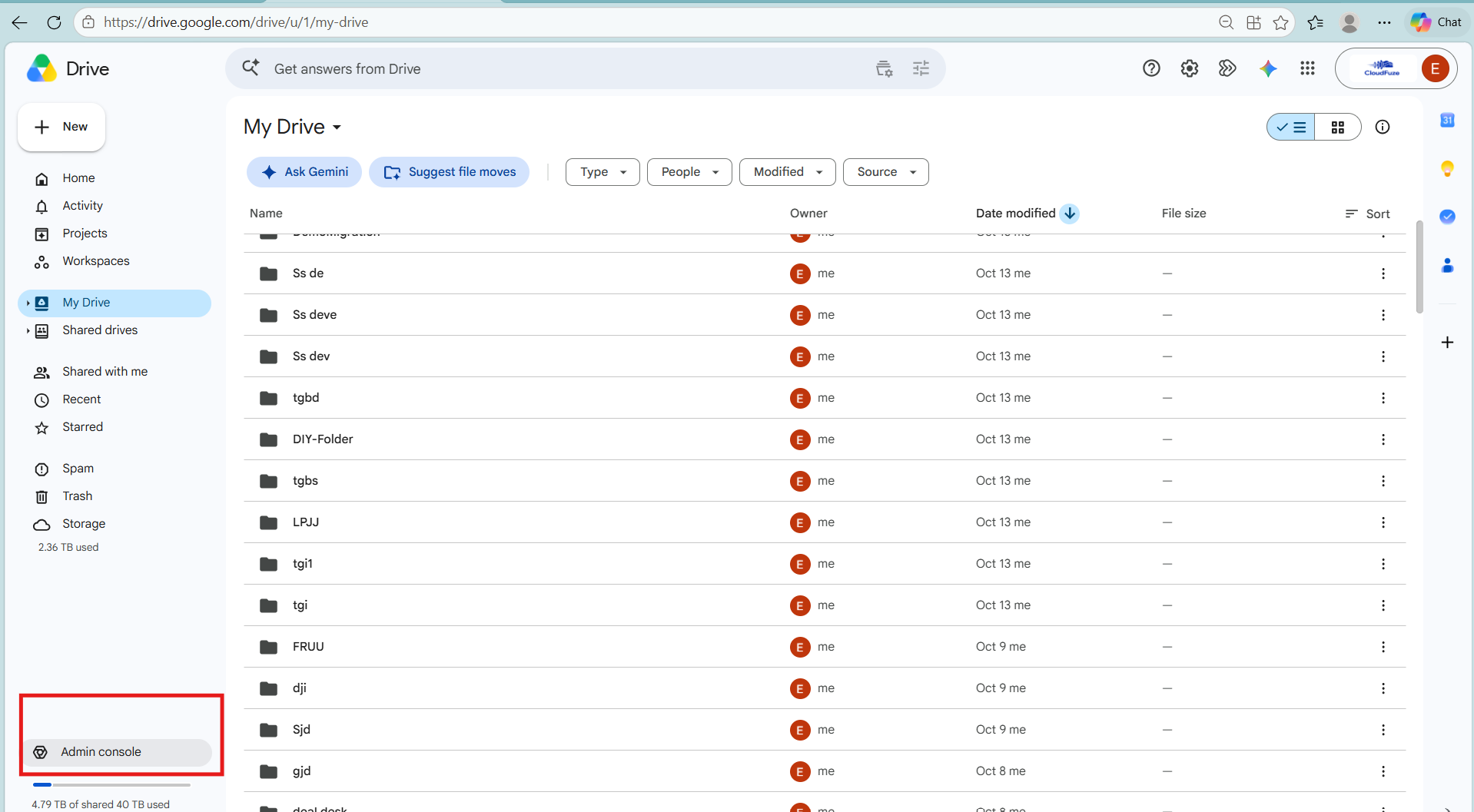
Log in to the Google Admin Control Panel with an administrator account that is entitled to perform the necessary user management tasks. You will not have the necessary options to restore the deleted data without proper permission.
Step 2: Access the User Profile
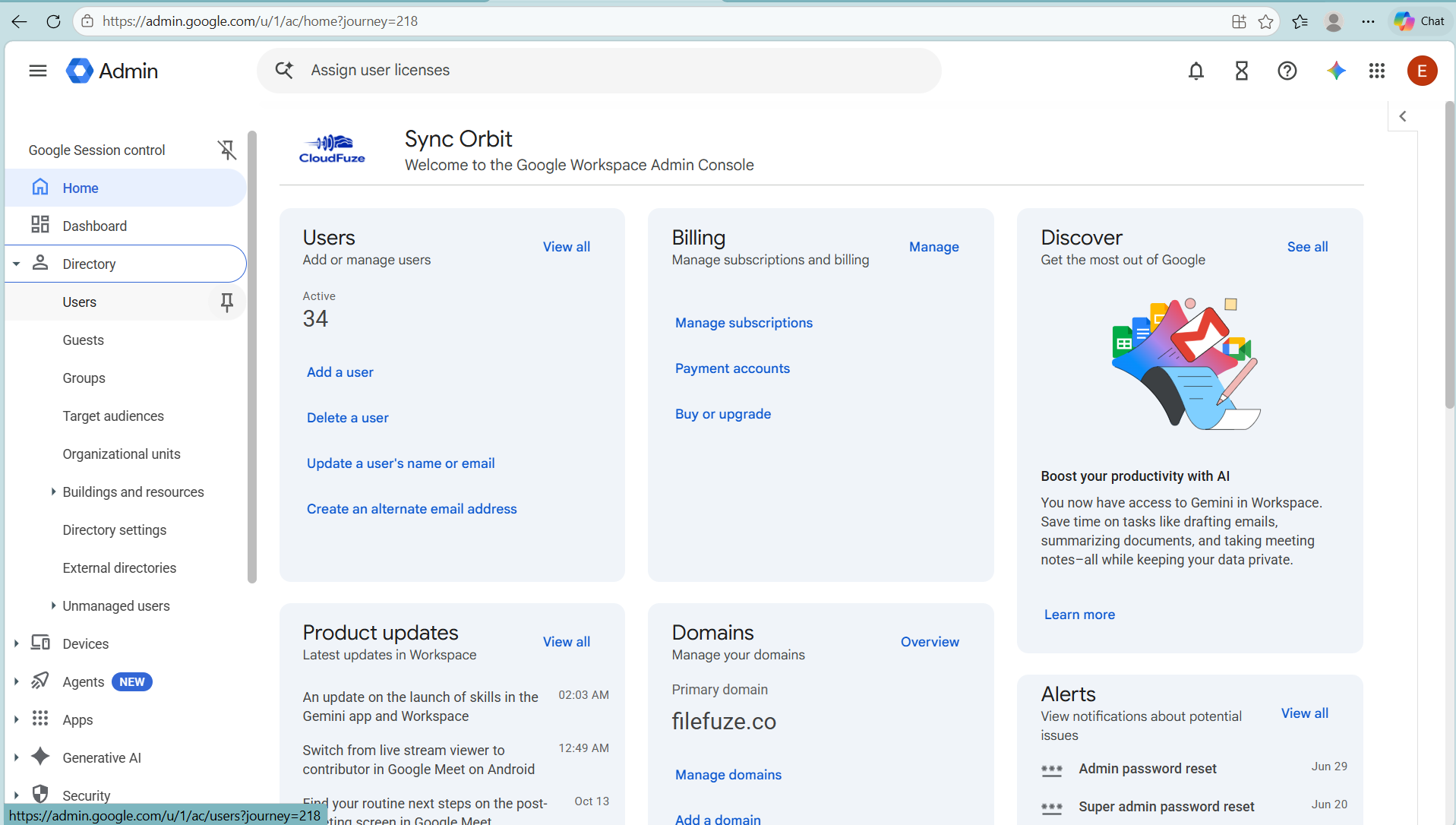
Go to Directory > Users and select the user whose data needs to be restored. Go to the user profile or use the options available in the additional options menu.
Step 3: Select Restore Data
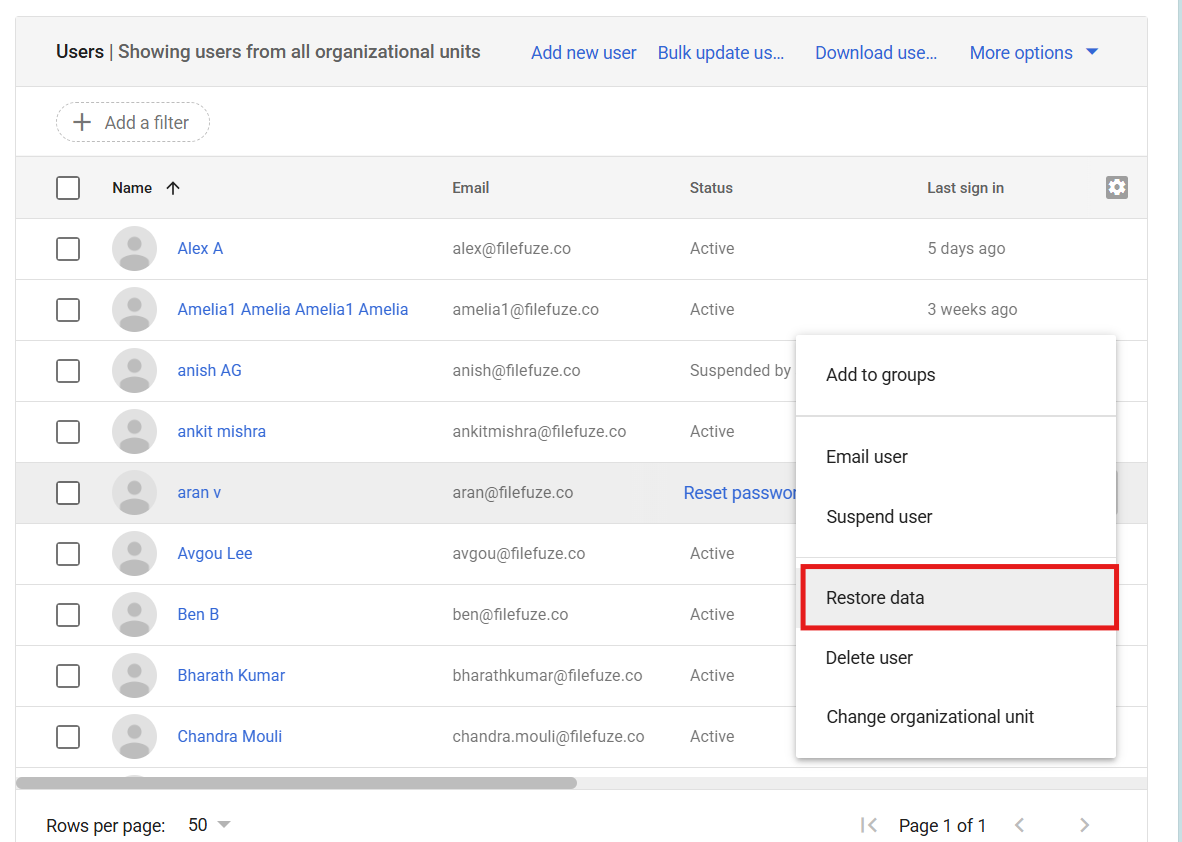
Click Restore data from among the available options. Specify the required date range, which should include the date on which the files were permanently deleted from the user’s trash.
Step 4: Select Google Drive
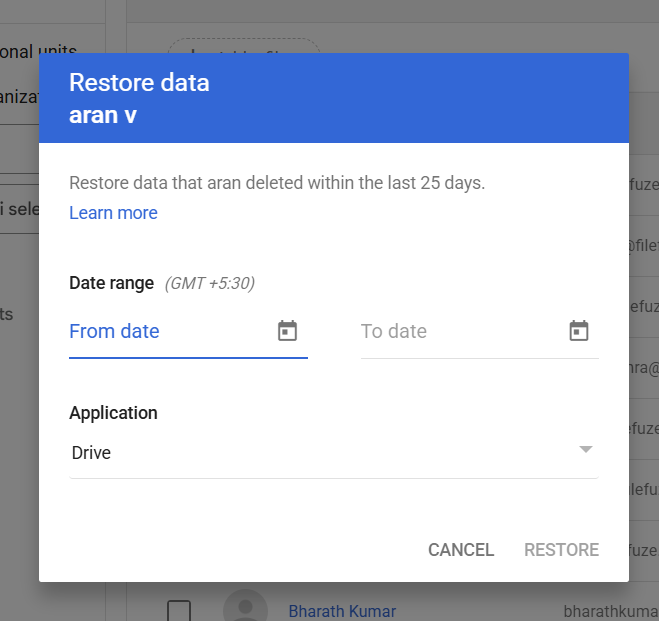
In the Application option, click on Drive. Check your selected date range carefully since the data restoration process will restore the data that was deleted during that period.
Step 5: Start the Restoration
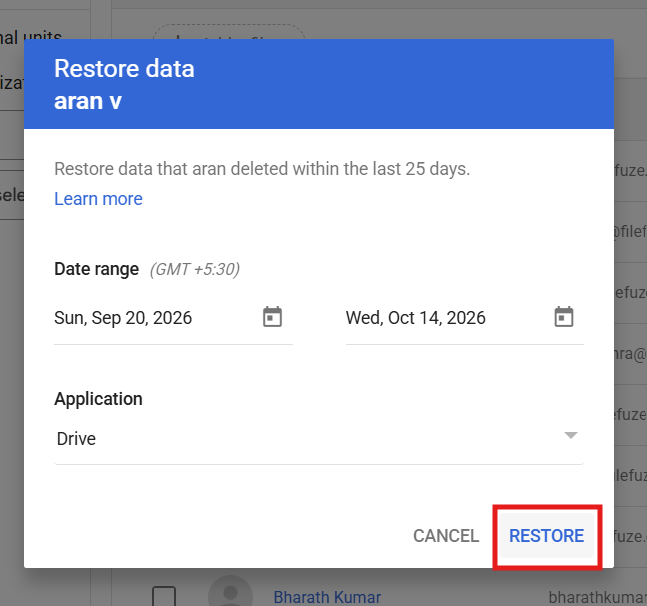
Click Restore to begin the recovery process. Depending on the volume of data, restored files may take several days to appear in the user’s Google Drive.
After the process finishes recovering deleted Google Drive files, verify that the required files are available. You may also need to ask the user to reshare restored files with colleagues.
How to Recover Files from a Deleted Google Workspace User
Sometimes, files become inaccessible because an employee’s Google Workspace account is deleted.
In this situation, administrators may be able to restore the deleted user account within 20 days of deletion. After restoring the account, transfer ownership of important files to an active user when appropriate.
For future prevention, consider moving team-owned documents into Google Shared Drives. Files stored in shared drives belong to the organization rather than an individual employee, reducing the risk of losing access when someone leaves.
Learn more in Google’s guide to restoring a deleted user’s Drive files.
Can Google Vault Retrieve Permanently Deleted Google Drive Files?
Google Vault may assist companies in finding and exporting files kept according to relevant retention policies or legal holds. That could be useful in case of investigation into old removals or for compliance purposes.
However, Google Vault is mostly a retention, search, and eDiscovery solution. It doesn’t automatically restore exported data back to a user’s Google Drive. The service’s availability depends on the company’s retention settings and whether the data had been retained prior to deletion.
Limitations of Google Drive Data Recovery
Here are some critical limitations that Google Workspace administrators should be aware of when planning to recover deleted Google Drive files:
- 25 days recovery period: Standard admin restoration is typically possible within 25 days of permanent removal of data from the user’s trash.
- No individual file selection: Admin restoration is performed by a selected date range rather than restoring individual files or folders.
- Storage capacity issues: The restoration process might be blocked due to insufficient storage capacity of the user/company.
- Account deletion limitations: Typically deleted users have to be restored within 20 days.
- Recovery delays: Large restoration jobs may take several days to complete.
- Vault limitations: Retained data may be searchable and exportable, but Vault does not directly restore it to Drive.
These restrictions make it important to act quickly when files disappear.
Best Practices to Prevent Google Workspace Data Loss
IT administrators should establish a proactive data protection strategy instead of relying solely on native recovery options.
First, implement regular Google Drive backups using a suitable backup solution. Second, review Google Vault retention rules and legal holds to support compliance requirements. Third, monitor Drive audit logs to investigate deletion events and identify potential risks.
Administrators should also educate employees about file deletion, manage permissions carefully, and use Shared Drives for important team documents. For large organizations, a centralized backup and recovery strategy can help improve data protection across users and business-critical files.
How CloudFuze Helps with Google Workspace Migration
CloudFuze is an enterprise cloud migration platform that helps organizations migrate Google Workspace data between accounts or tenants. During organizational changes, mergers, or tenant consolidations, IT teams can use a structured migration process to transfer supported data while maintaining business continuity.
Before starting a migration, administrators should identify missing data and use available recovery options or backups to restore it. Once the required data is available, CloudFuze can help move supported Google Drive content to the destination environment. Organizations should confirm supported data types, permissions, and migration requirements with CloudFuze before proceeding.
Recover Deleted Google Drive Files Today!
A Google Workspace administrator’s ability to recover lost data from Google Drive helps IT staff handle accidental deletions. The Admin console includes recovery features for certain types of deleted data; however, restoring user accounts and using Google Vault can address other cases.
Nonetheless, native data recovery comes with limitations. Administrative data recovery, together with backup solutions and monitoring, creates a much better alternative.
Frequently Asked Questions
1. Is it possible for a Google Workspace admin to restore permanently deleted files?
Yes, depending on eligibility, the files can be restored within 25 days from when the user deletes the files from the trash.
2. Is it possible to restore deleted files individually?
No, restoration of eligible files is done through a date range using the Admin console.
3. Does Google Vault restore deleted Drive files?
No, Google Vault preserves, searches, and exports the retained files but cannot restore deleted files to Drive.
4. Can CloudFuze restore deleted Google Drive files?
No, CloudFuze specializes in migrating cloud files and not restoring native deleted files. Restore the files first and then migrate them if necessary.
About the Author: Aayushi Raj



