
How to Seamlessly Manage Multiple Dropbox Accounts?
For any IT administrator, it is essential to have a thorough knowledge of managing cloud platforms without any discrepancies. If you are an admin looking to manage multiple Dropbox accounts, then you are in the right place.
In this blog post, we have provided step-by-step instructions on the best free ways to manage multiple Dropbox accounts.
Key Takeaways:
What Is Dropbox and How Does It Allow Users to Manage Multiple Accounts?
Dropbox is a cloud storage platform that helps users save files online. You can sync Dropbox accounts across your devices such as mobile phones, computers, etc. One can manage their Dropbox account securely in their business by having a clear knowledge of it.
If you have multiple Dropbox accounts on one computer, then you can follow the below steps to link them:
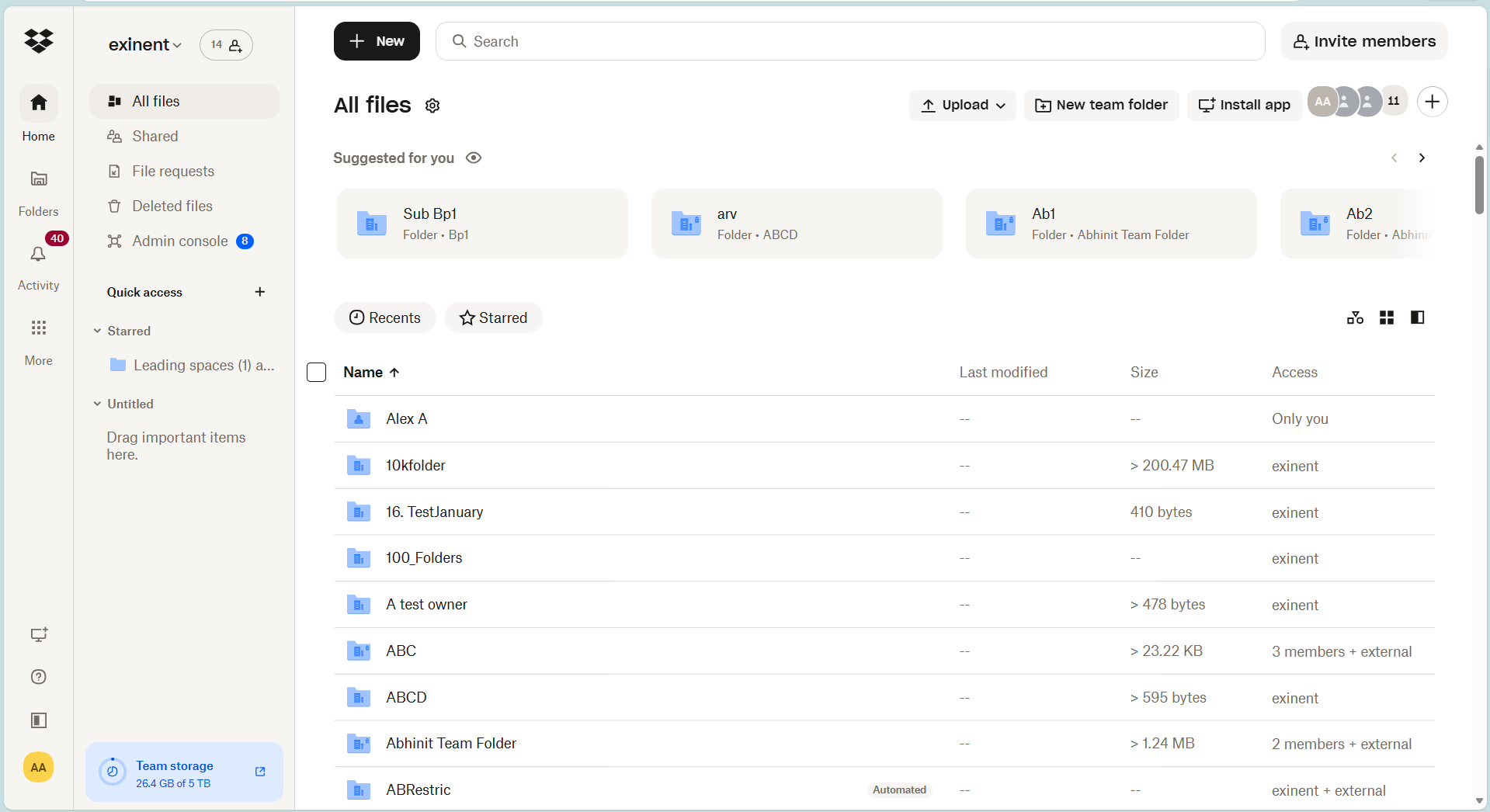
1.Log in to Dropbox.com with either account.
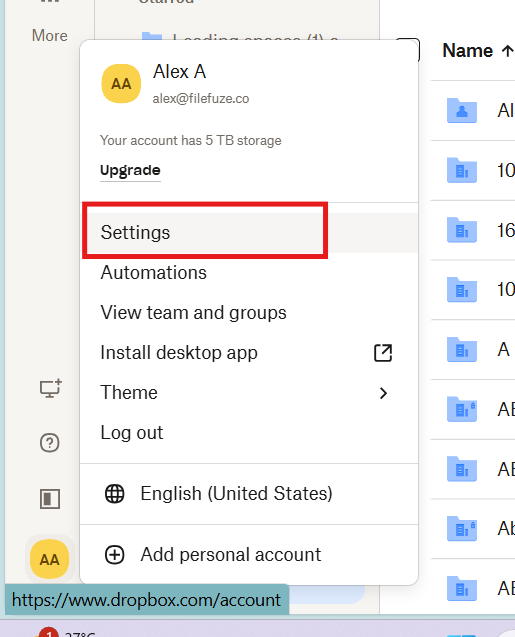
2.Click your avatar (photo or initials) in the bottom-left corner.
3. Click Settings.
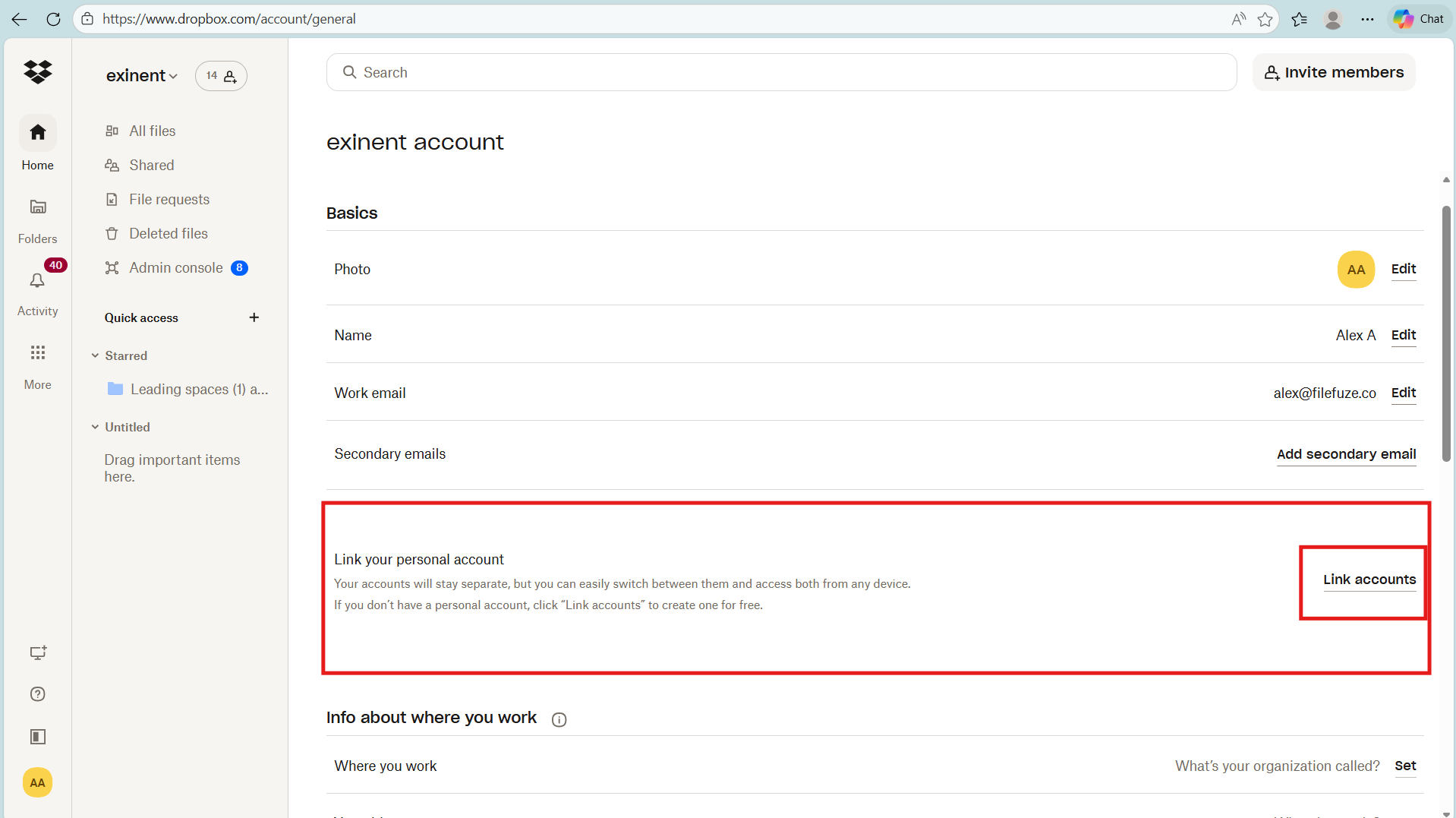
4. Click on the General tab.
5. Click on Link accounts next to Link your personal account or Link your team account.
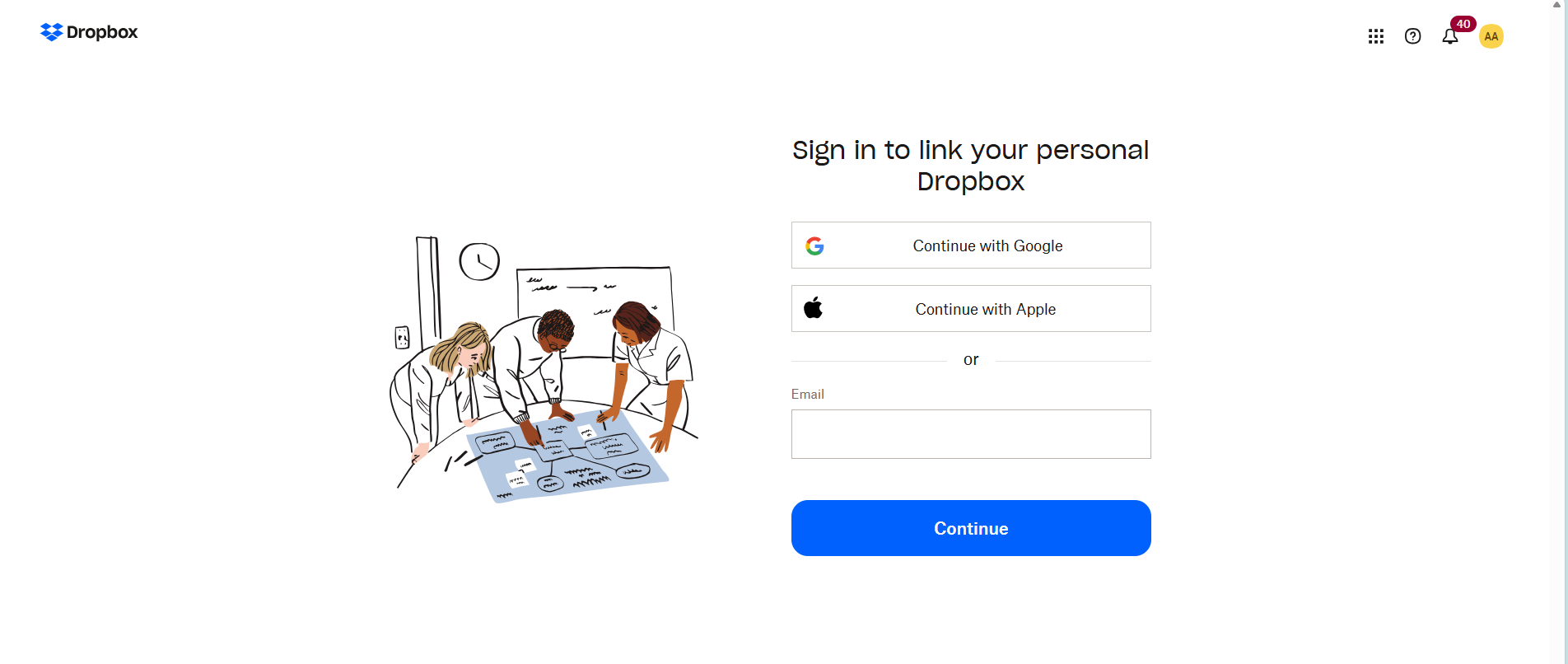
6. Sign in to link your personal Dropbox account.
What are the Potential Challenges and Limitations of Managing Multiple Dropbox Accounts?
Challenges and limitations in managing multiple Dropbox accounts:
- Limited account linking
- Data fragmentation
- Manual switching overhead
- Duplicate storage & files
- Permission & access complexity
- No native cross-account sync
- Security & compliance risks
- Device Sync limitations
- Search limitations
- Administration challenges (Enterprise)
What are the Main Features of Dropbox That Support Managing Multiple Accounts?
Features of Dropbox that supports managing multiple accounts:
- Account linking (Personal + Business)
- Accessible on multiple devices
- Flexible switching between multiple accounts
- Shared folder creation
How Can a User Set Up and Manage Multiple Dropbox Accounts Effectively?
Admins can follow the below steps to seamlessly switch between multiple Dropbox accounts. Here we have two different approaches to managing multiple Dropbox accounts.
First Approach – Switching Within Linked Accounts
- Click (Dropbox) in your taskbar (Windows).
- Click over your avatar (profile picture or initials) in the bottom-left corner.

- After clicking the avatar, log out of your account. Here we have shown the user logging out from their Eric account.

- Now the sign-in Dropbox page appears once the user logs out of their account.

- User can now choose to sign in to another Dropbox account.

- After choosing the account to open, provide the password credentials.

- Now you can check that the profile picture has changed to that of the new account.

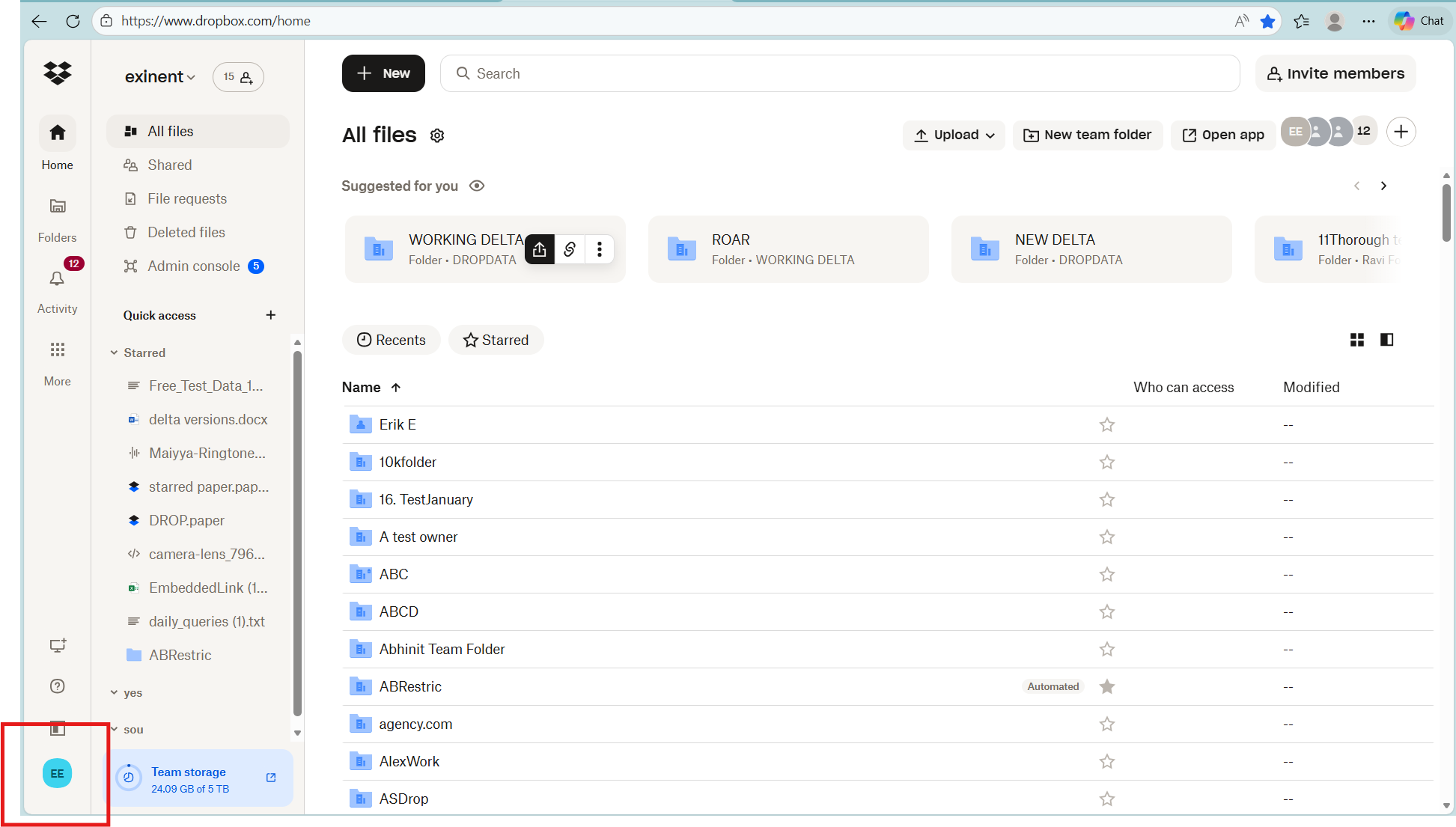
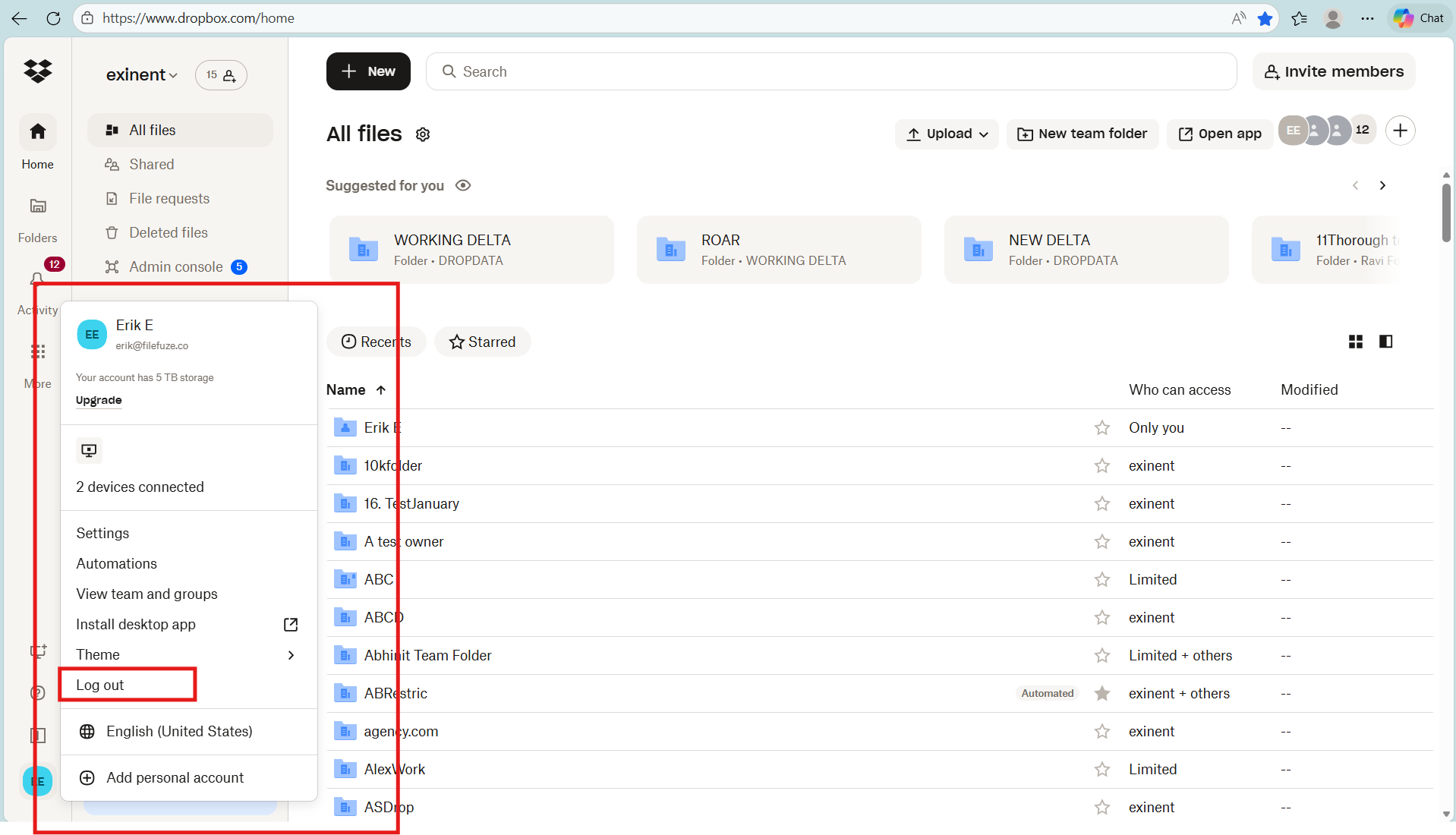
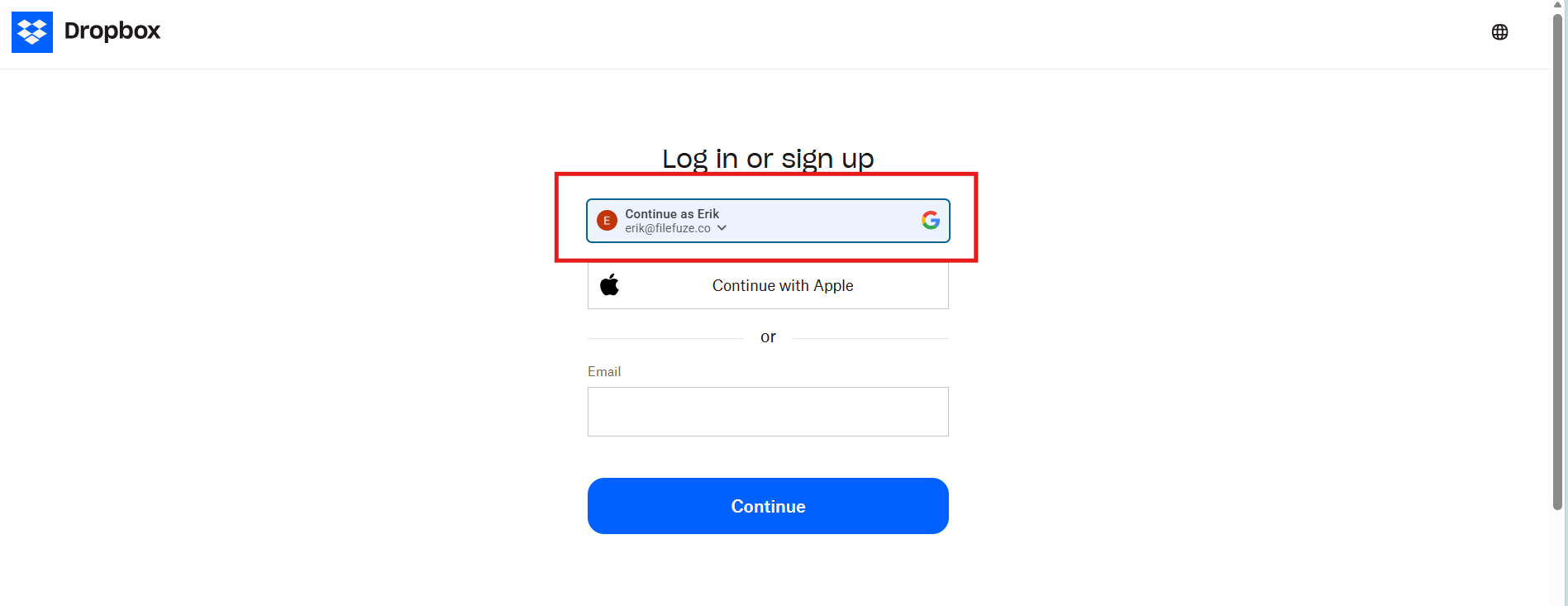
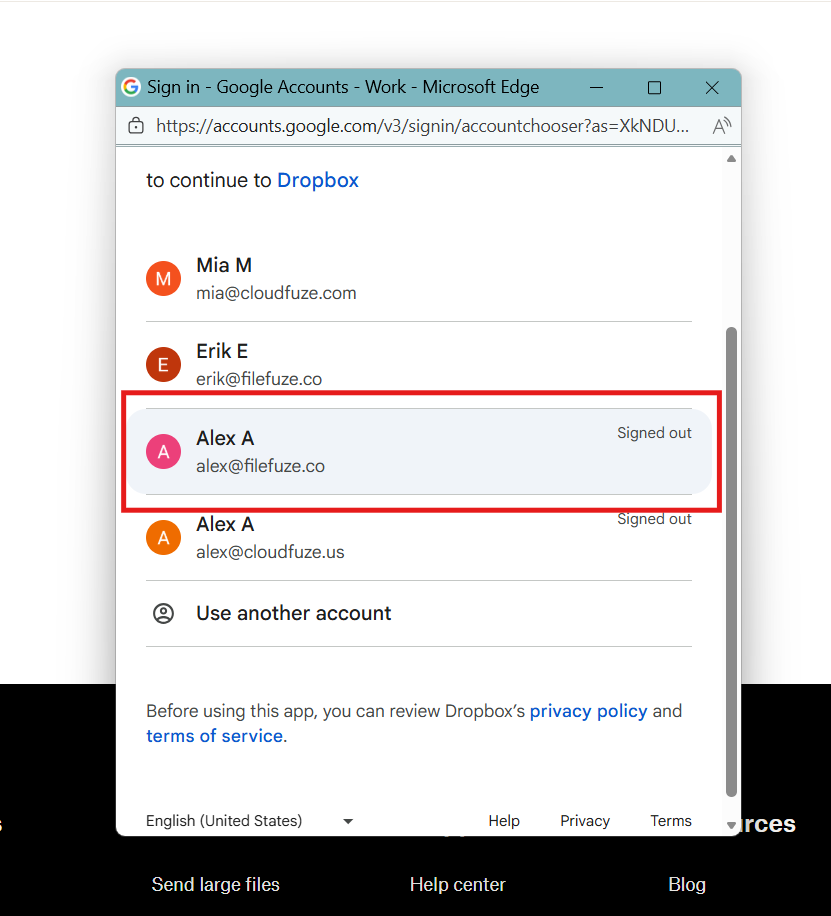
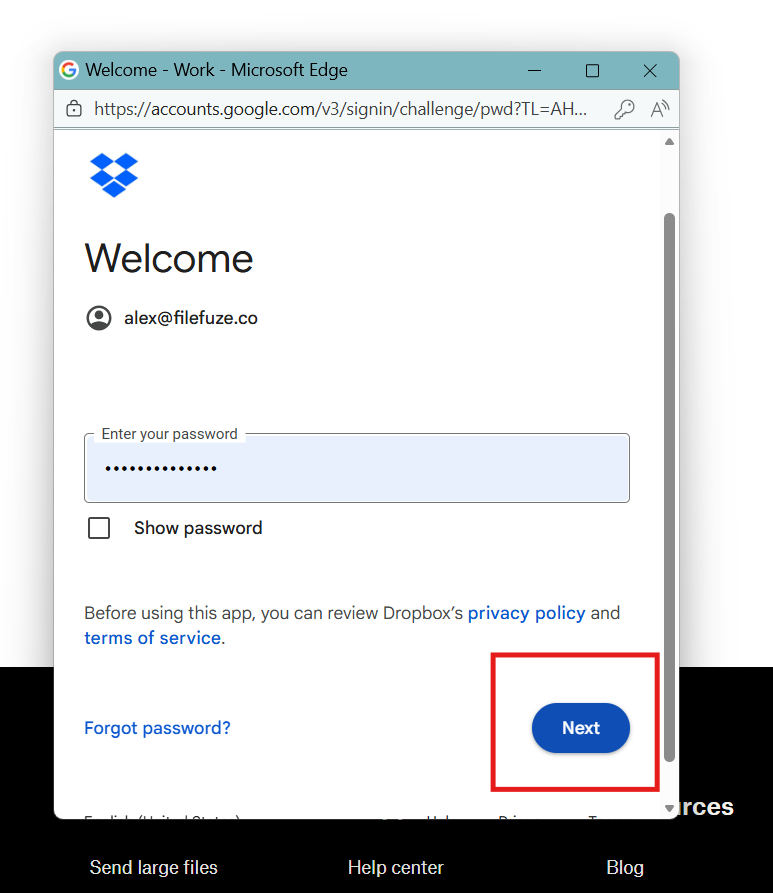
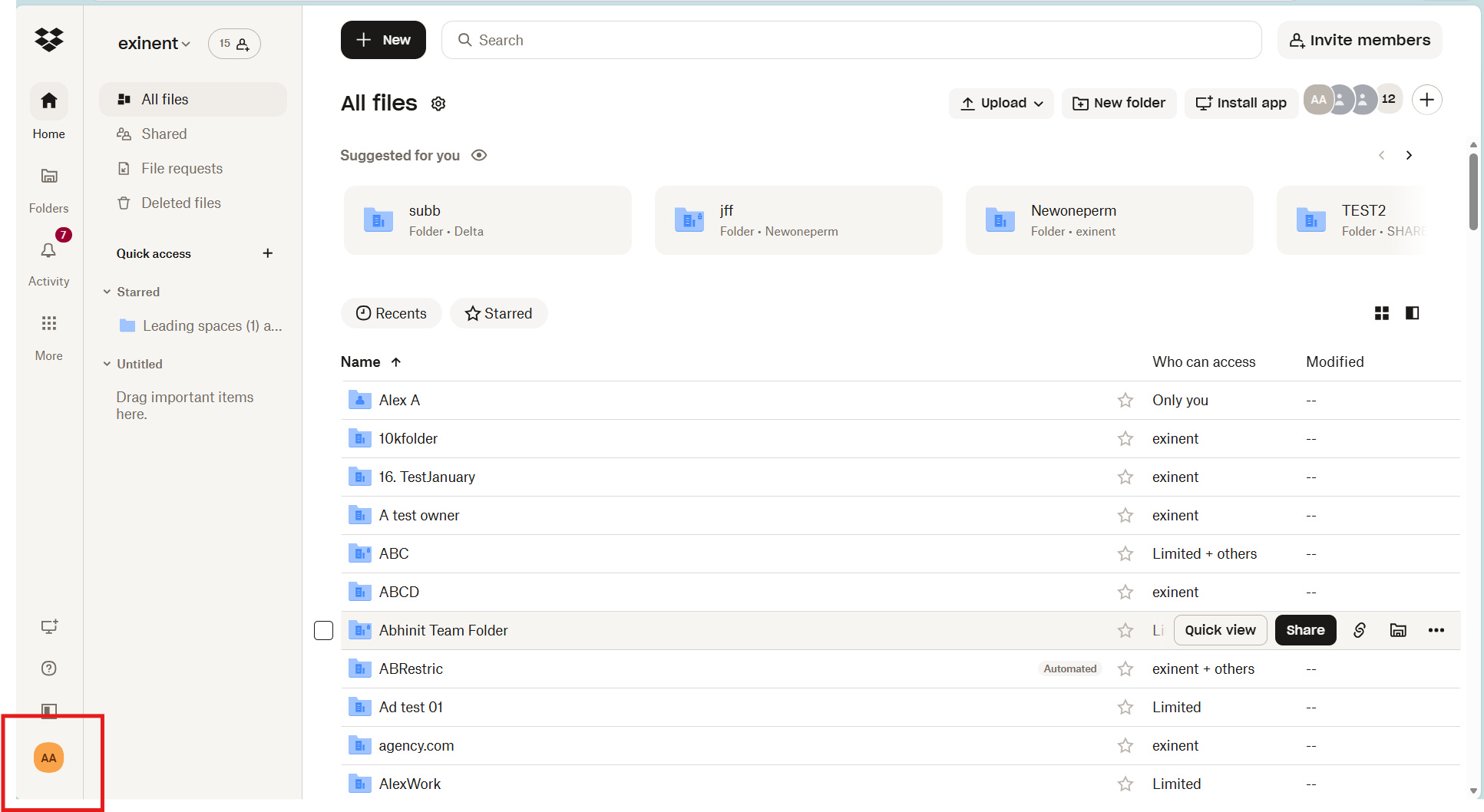
Through the steps followed above, you can manage multiple Dropbox accounts on one computer.
Second Approach – Switching Accounts Within Personal Accounts
For the same account holders, you can switch accounts when we add personal Dropbox mail, for example, a mail id other than FileFuze. If the mail id is eric@filefuze.co, it is the user or admin. So, we need to logout in that case.
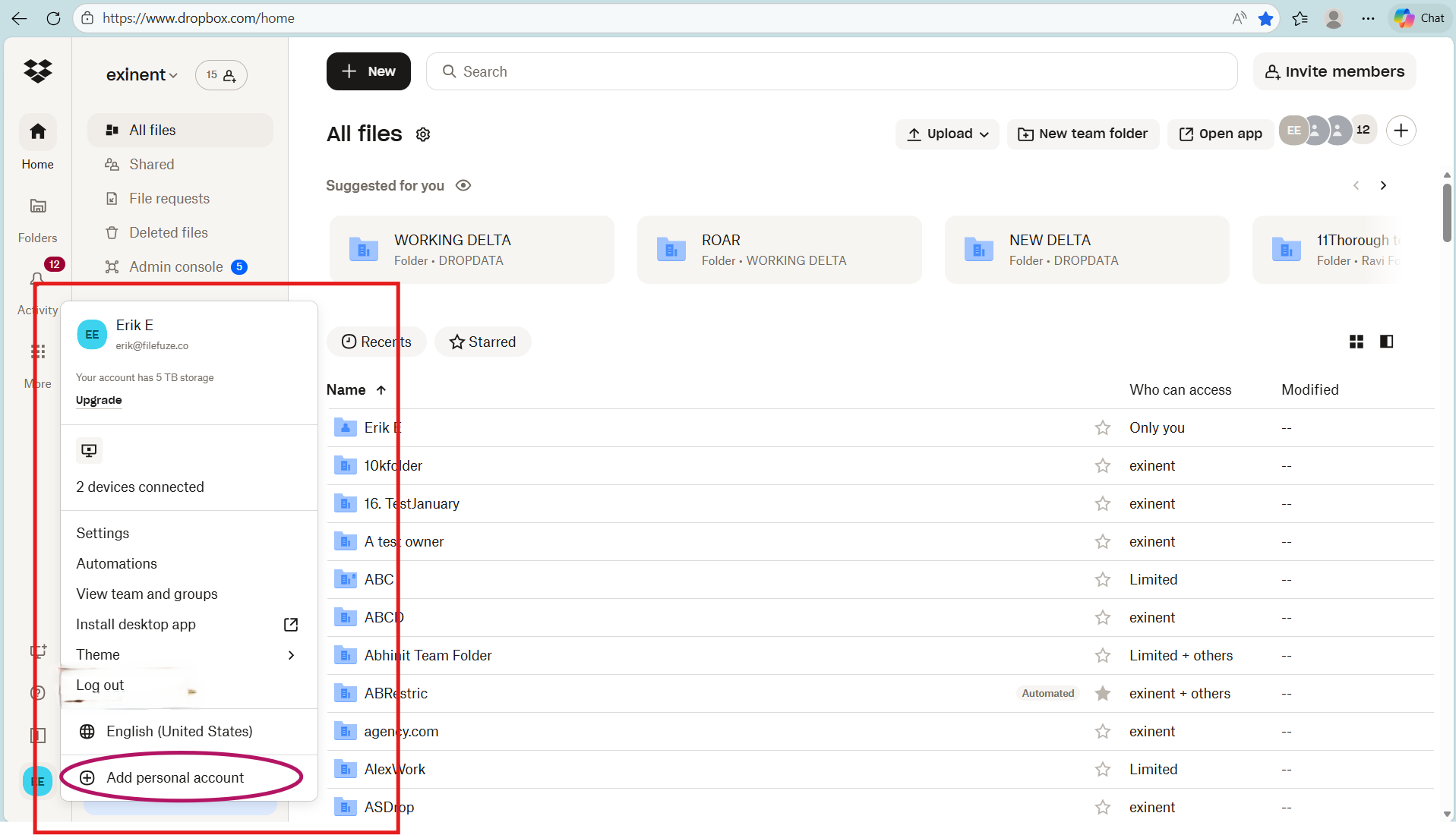
- Log in to the existing Dropbox account. Click on your profile avatar.
- Now click on “Add Personal Account”.

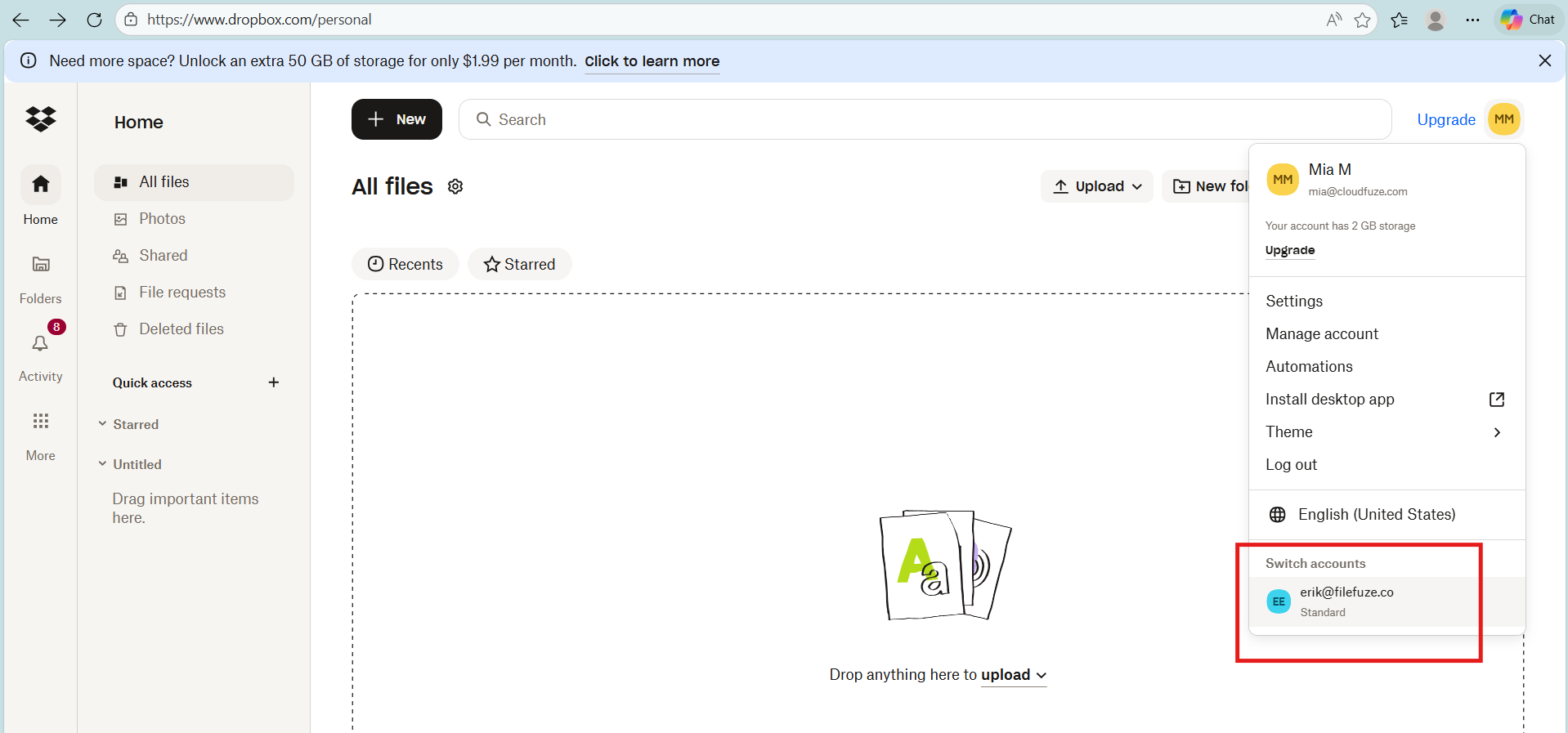
- Upon adding a personal Dropbox account, now a user can switch between accounts. Here, the user has switched from Eric account to their personal account.

What Are the Best Practices for Efficiently Managing Multiple Dropbox Accounts?
Best practices for organizing files across multiple Dropbox accounts:
- Move your Dropbox files between multiple accounts through a shared folder.
- Use proper naming conventions to avoid strenuous file searches.
- Have your files properly placed inside the necessary folders.
- Have your key folders maintained in a single account to avoid confusion when maintaining Dropbox accounts.
How Can Users Unlink Two Dropbox Accounts?
Steps on unlinking two Dropbox accounts:
1.Log in to Dropbox.
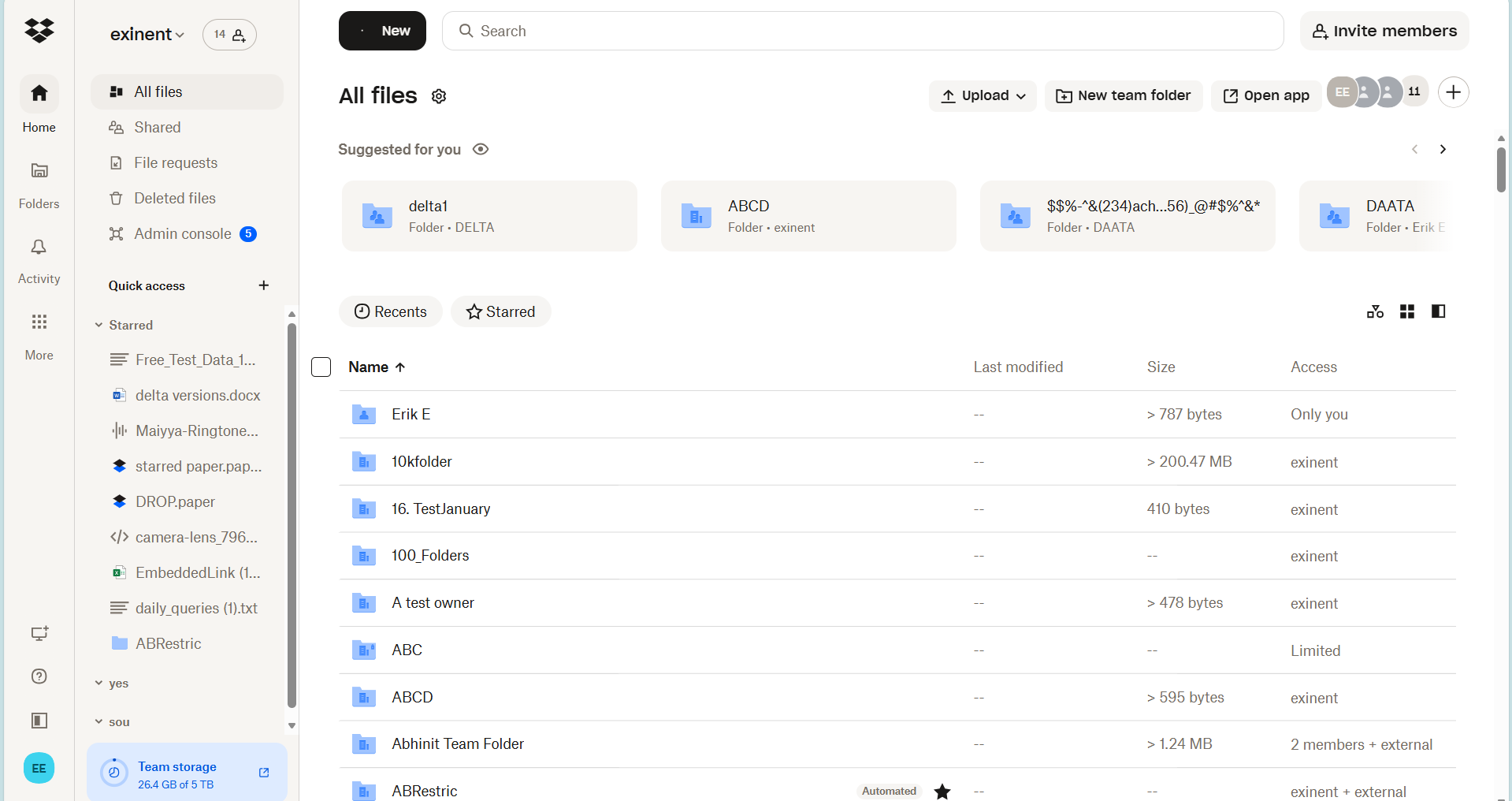
2.Click your avatar (photo or initials) in the bottom-left corner.
3. Click Settings.
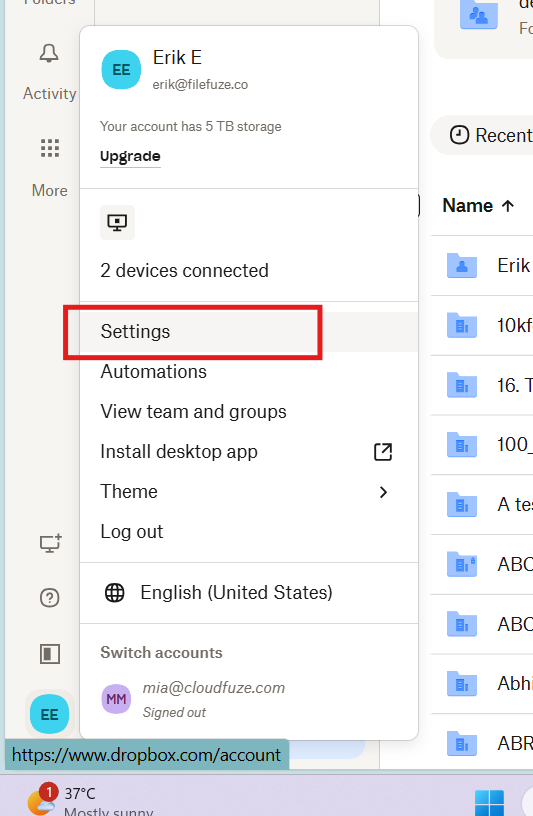
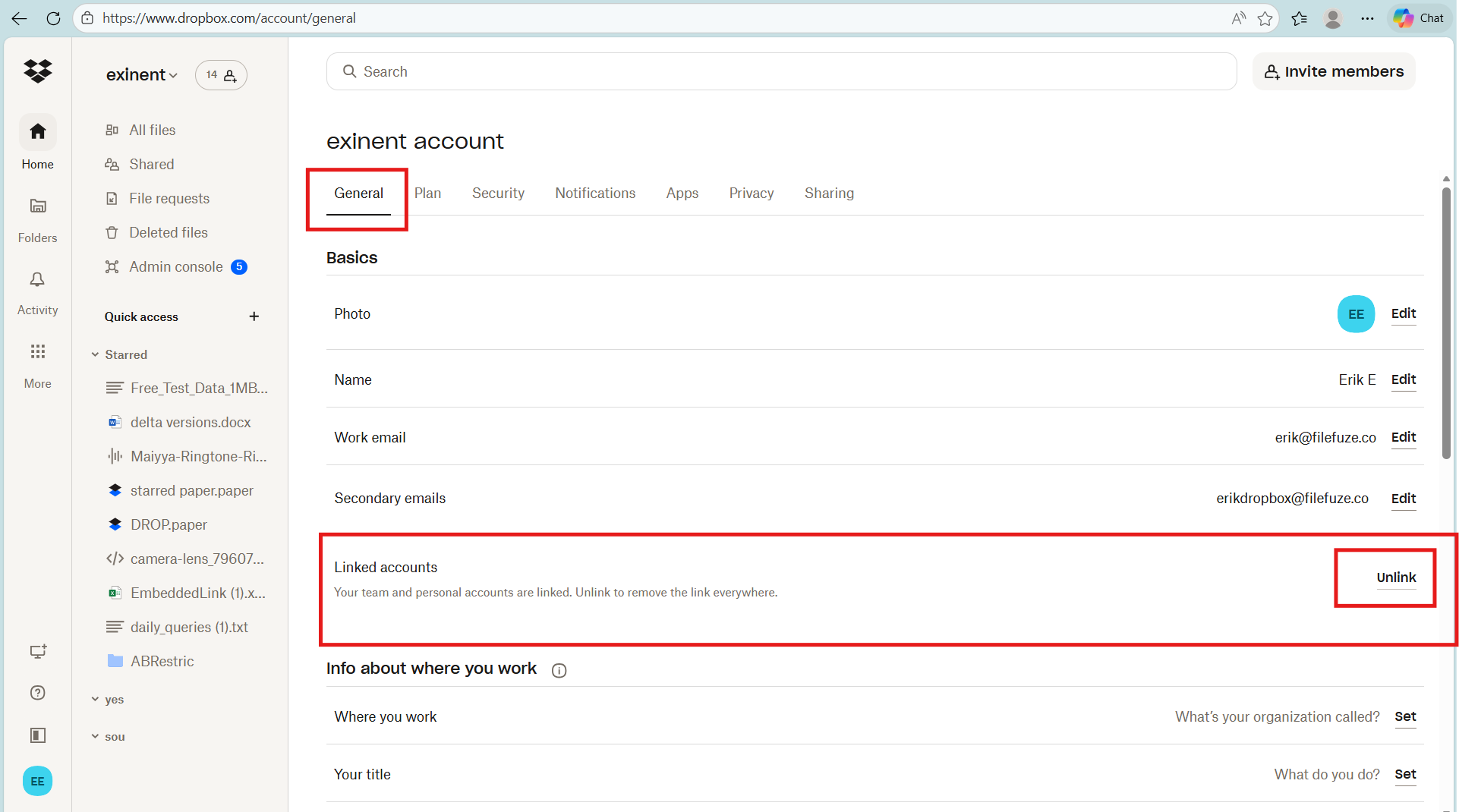
4. Click on the General tab.
5. Click Unlink next to Linked accounts.
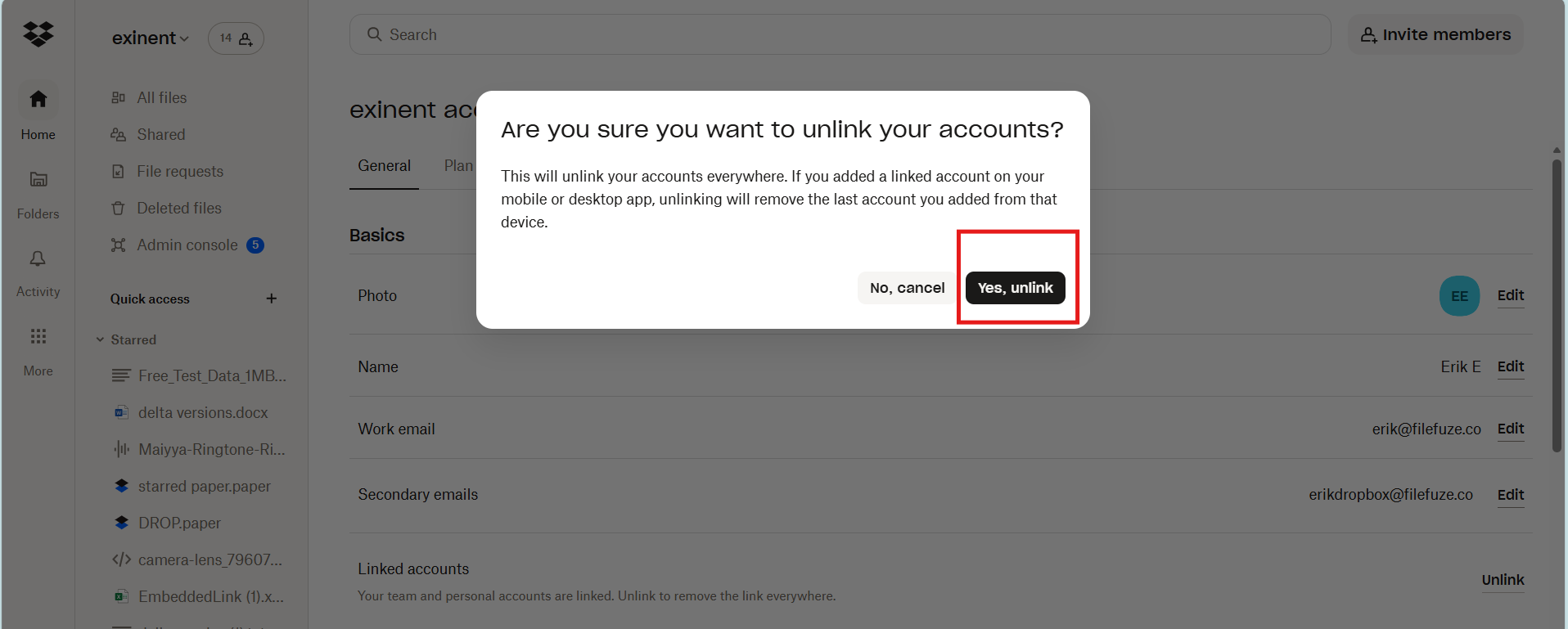
6. Click Yes, unlink to confirm.
How Can Users Evaluate the Effectiveness of Managing Multiple Dropbox Accounts?
Metrics to evaluate the efficiency of managing multiple Dropbox accounts:
- Managing business workflows without any delays
- Easier file management among teams
- Enhanced task management among teams in real time
How CloudFuze Ensures Successful User Mapping During Dropbox Migrations?
Through our seamless user mapping, CloudFuze Migrate helps you avoid major issues like incorrect user access, user disruptions, etc. CloudFuze Migrate enables you to migrate through three approaches:
- Auto-Mapping
- CSV-Based Mapping
- Folder Display Mapping
Whether automated or manual, we help enterprises with accurate user mapping and a smooth migration experience.
Planning Your Dropbox Migration?
CloudFuze can help you migrate your Dropbox data along with necessary metadata with complete accuracy. Experience a successful transition from Dropbox to storage platforms like Microsoft 365, Google Workspace using CloudFuze Migrate.
Contact us today for a free and no-obligation demo of our tool!
Frequently Asked Questions
1. Can you have 2 Dropbox accounts on the same computer?
Yes, a user can have 2 Dropbox accounts on the same computer. On linking two Dropbox accounts, users can switch between accounts without logging out and signing in every time you want to switch.
2. How to transfer files between multiple Dropbox accounts?
Use a shared folder to easily transfer files between multiple Dropbox accounts. Note that once the files are moved out of the shared folder, they’re no longer accessible from the first account that had the files you moved from to another account.
3. Can I have two Dropbox accounts?
Yes, you can have two Dropbox accounts. You can securely switch between your Dropbox accounts while securely sharing your files. Also, you can merge two Dropbox team accounts.
4. Can you run two Dropbox accounts on one computer
Yes, you can run two Dropbox accounts on one computer. Here are methods on how to run two Dropbox accounts on one computer:
- Linking a personal and business account in Dropbox desktop app.
- Using first account on desktop and another in browser or the vice versa.
- Switching computer users to use two Dropbox accounts.
5. How many Dropbox accounts can I have?
One can have several Dropbox accounts. However, you can only link two accounts (personal and business/work) to the Dropbox desktop application at a time.
6. Can multiple users access a Dropbox account?
For security reasons, sharing an account isn’t recommended. To share files and storage space as part of a team or group, businesses can check out Dropbox Standard, Advanced, Business, Business Plus, and Enterprise, or Dropbox Family plans.
About the Author: Bhavani Asok



