
How to Manage Google Storage and Perform Cleanup?
Having a clear idea on how to manage Google storage helps you effectively handle your account without any issues. Almost every Google Workspace user might have got into a scenario like “how do I manage my Google storage?”. In this blog post, we have discussed managing Google storage along with steps of cleanup.
Key Takeaways:
Steps To Manage Google Cloud Storage for Optimal Performance
Here we have outlined the steps to manage Google cloud storage along with cleanup for an account that has exceeded storage space:
- With your Google account signed in, go to Google One.
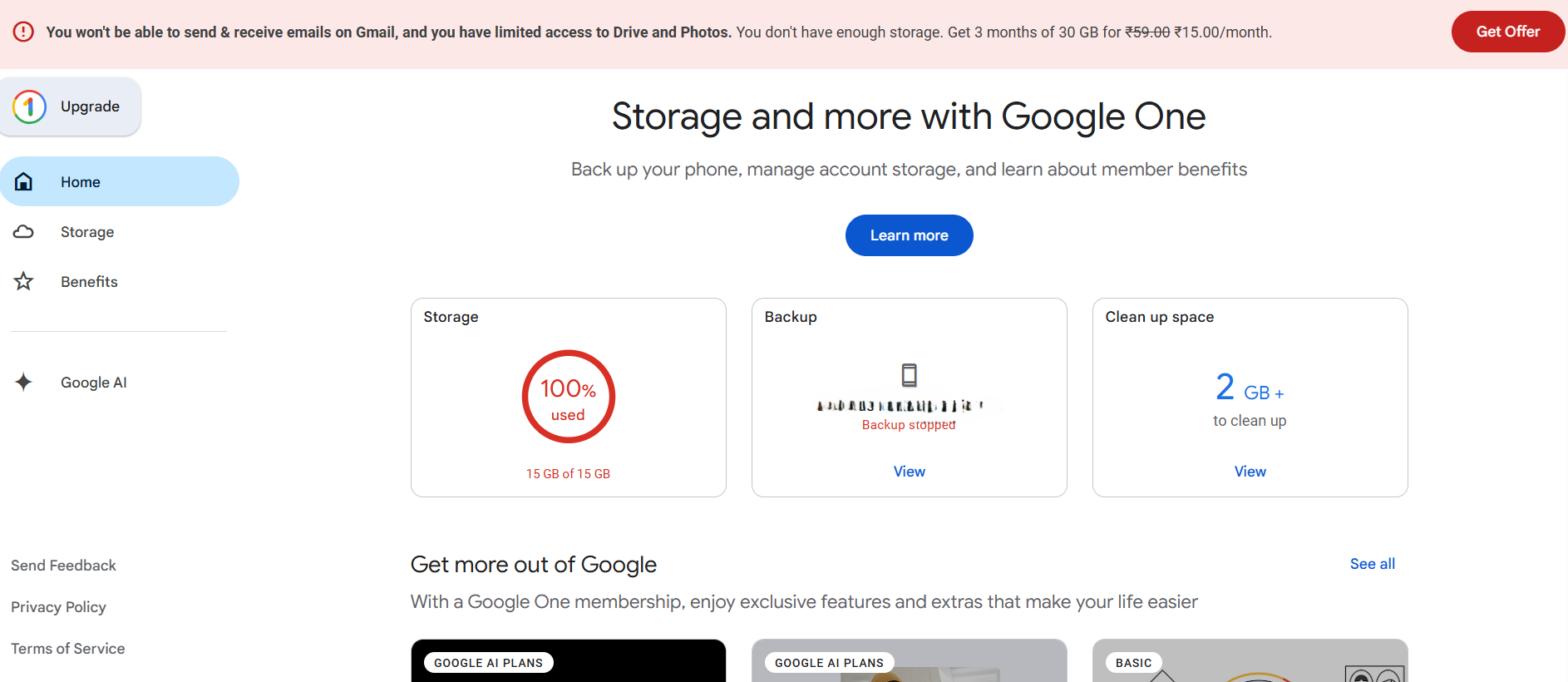
- Now click on Storage. You can select the Storage option by clicking on any preferred method of your choice as shown below.
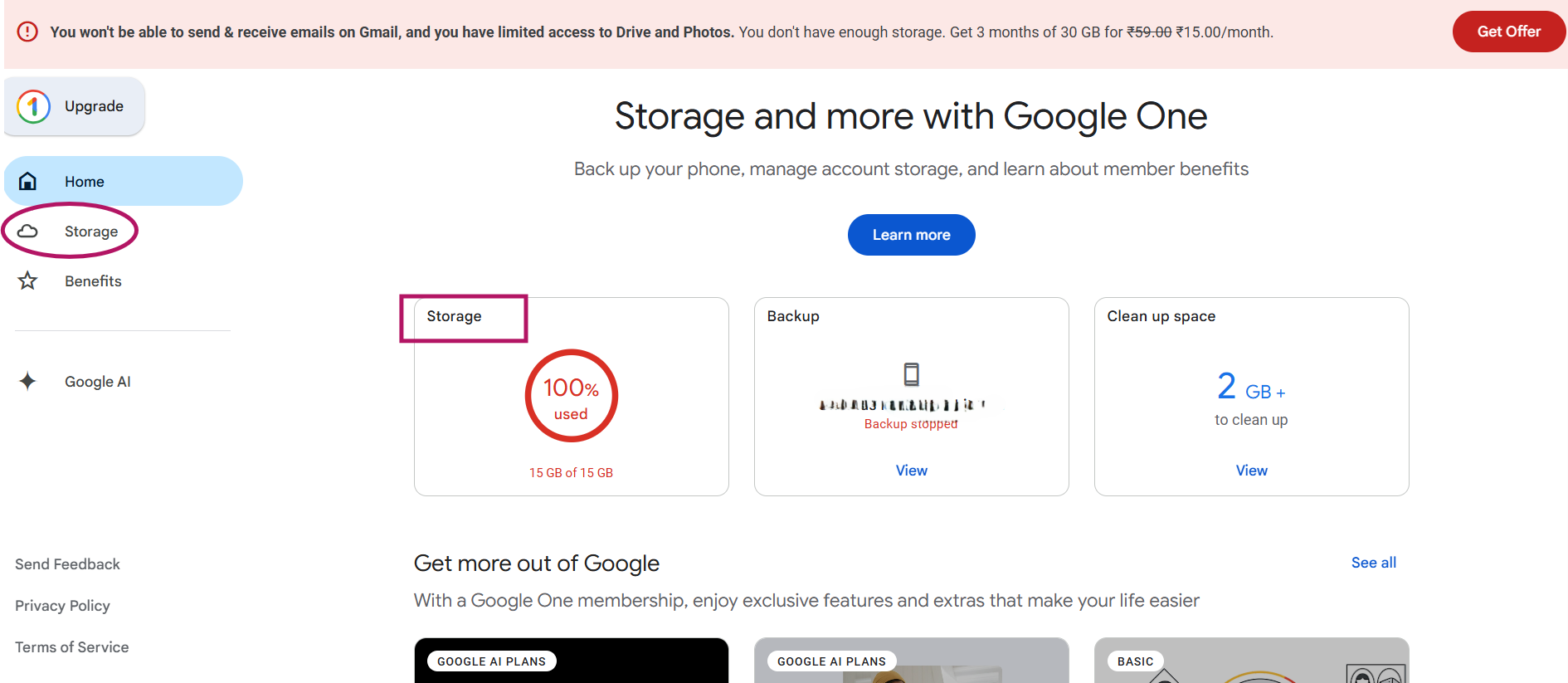
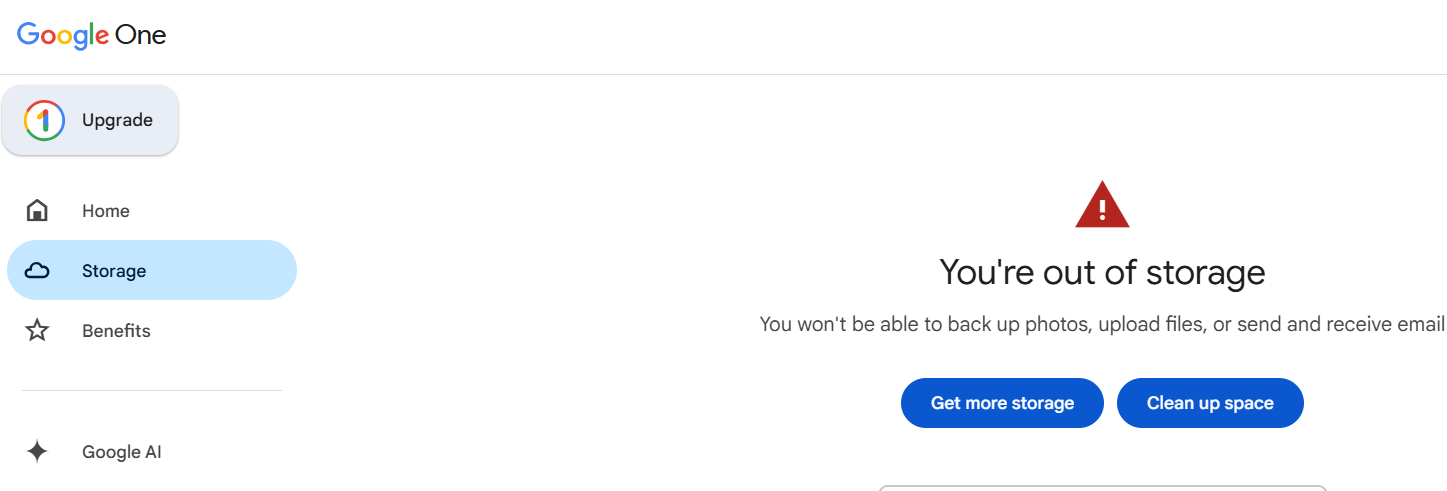
- After clicking on Storage, you will get the screen as shown below. Now click on “Clean up space”.
- Once you click on it, now click on the “Usage details”.
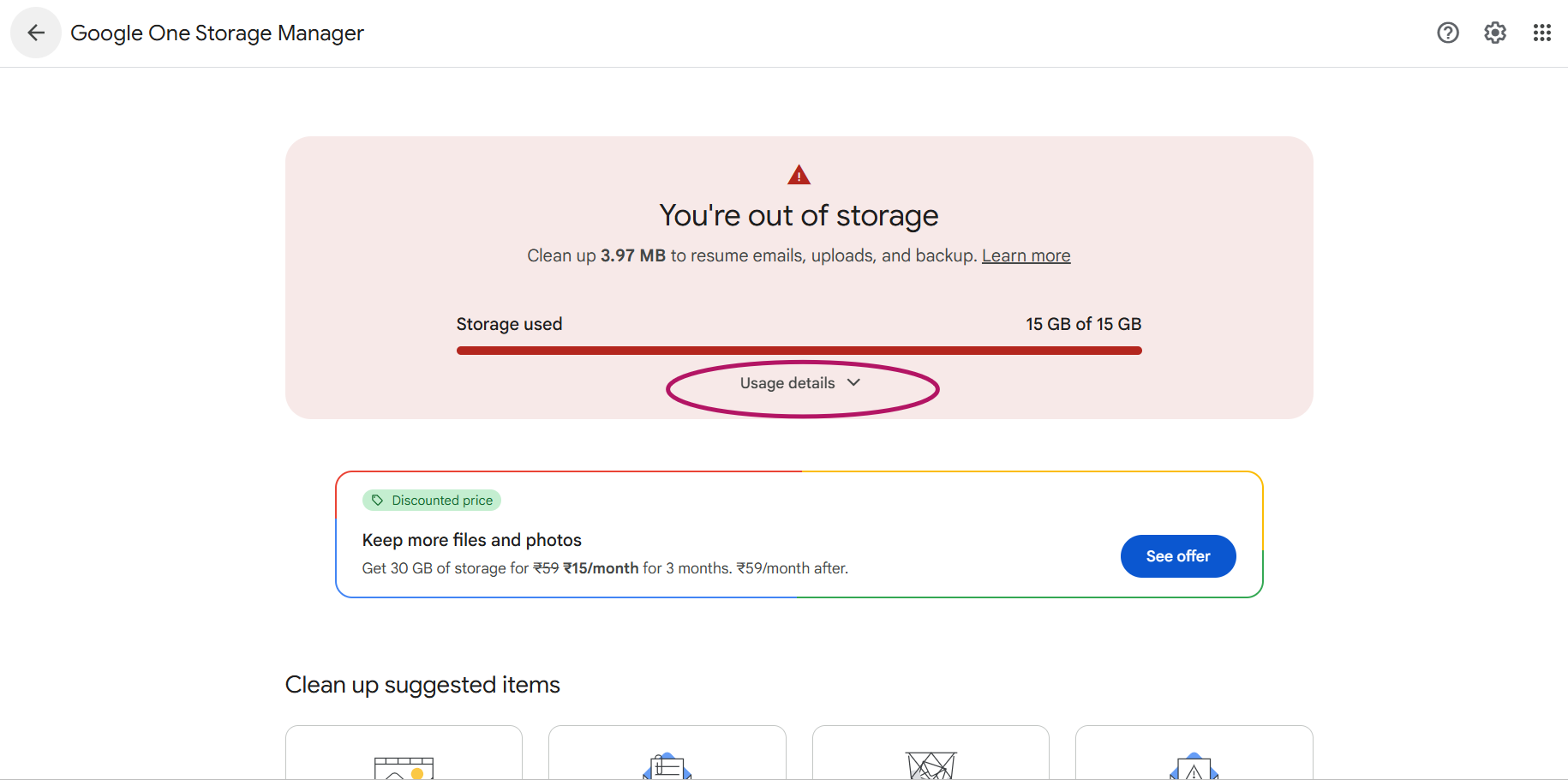
- You can check the category-wise storage occupied by each section of your Google account.
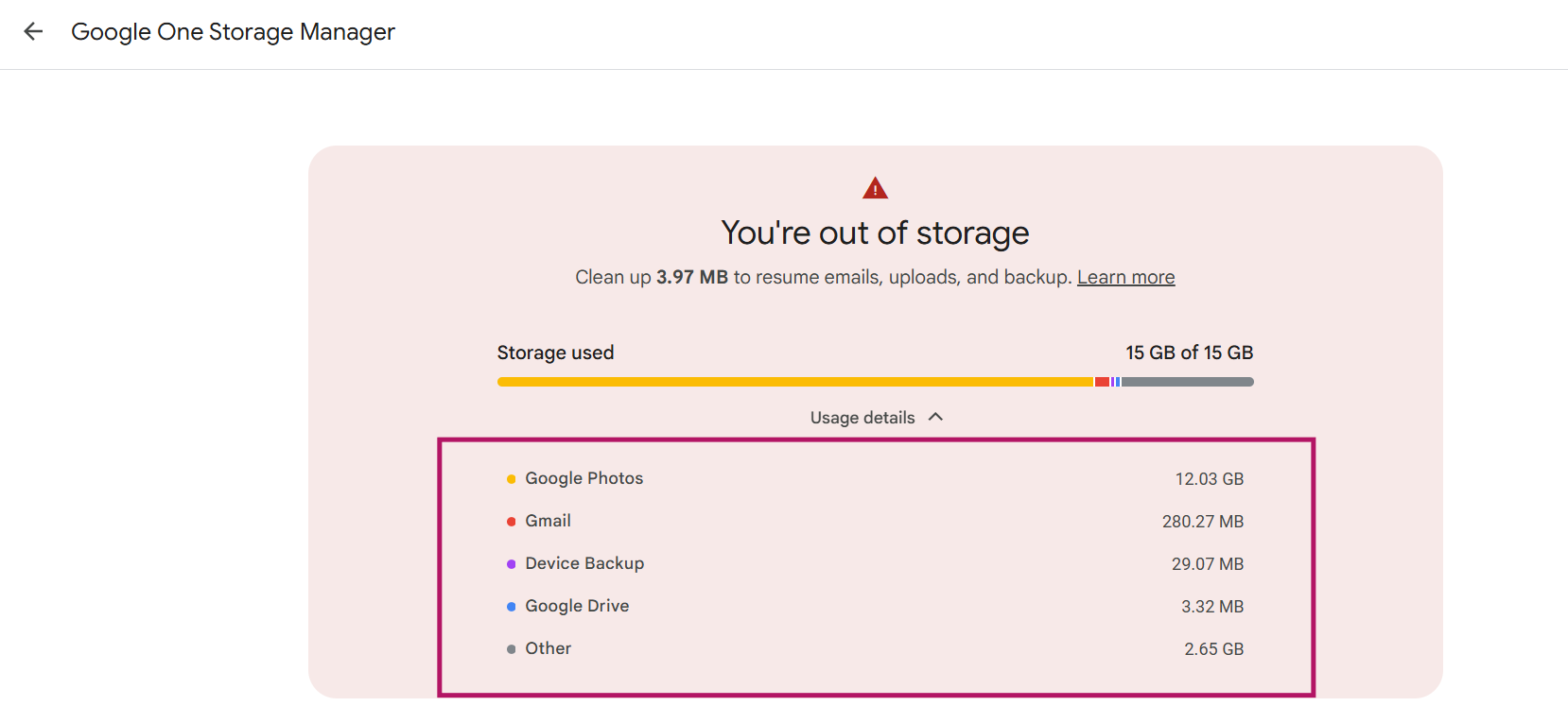
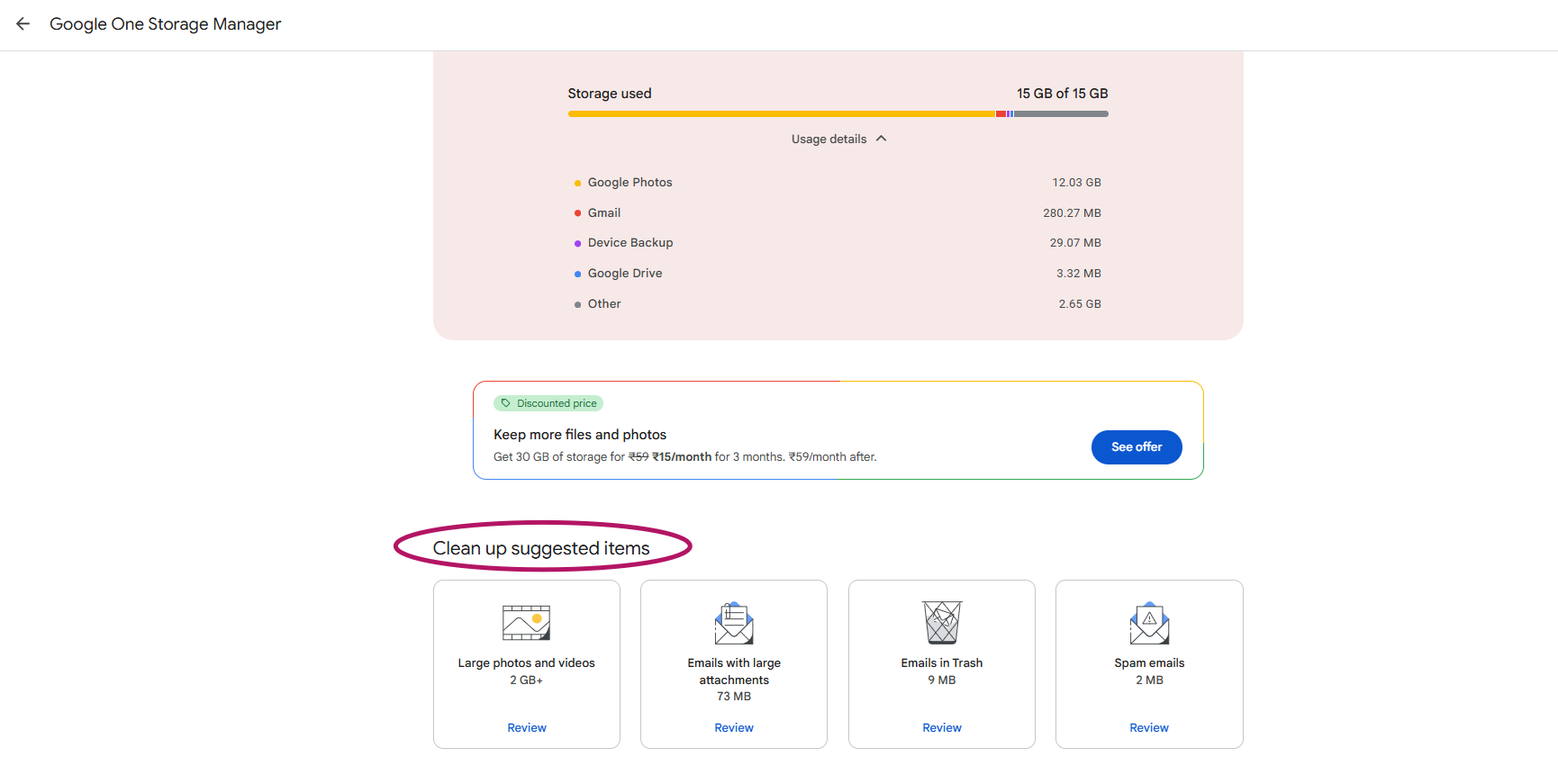
- Analyze the storage consuming sections. Now scroll down the Google One page and you can see the “Clean up suggested items”.

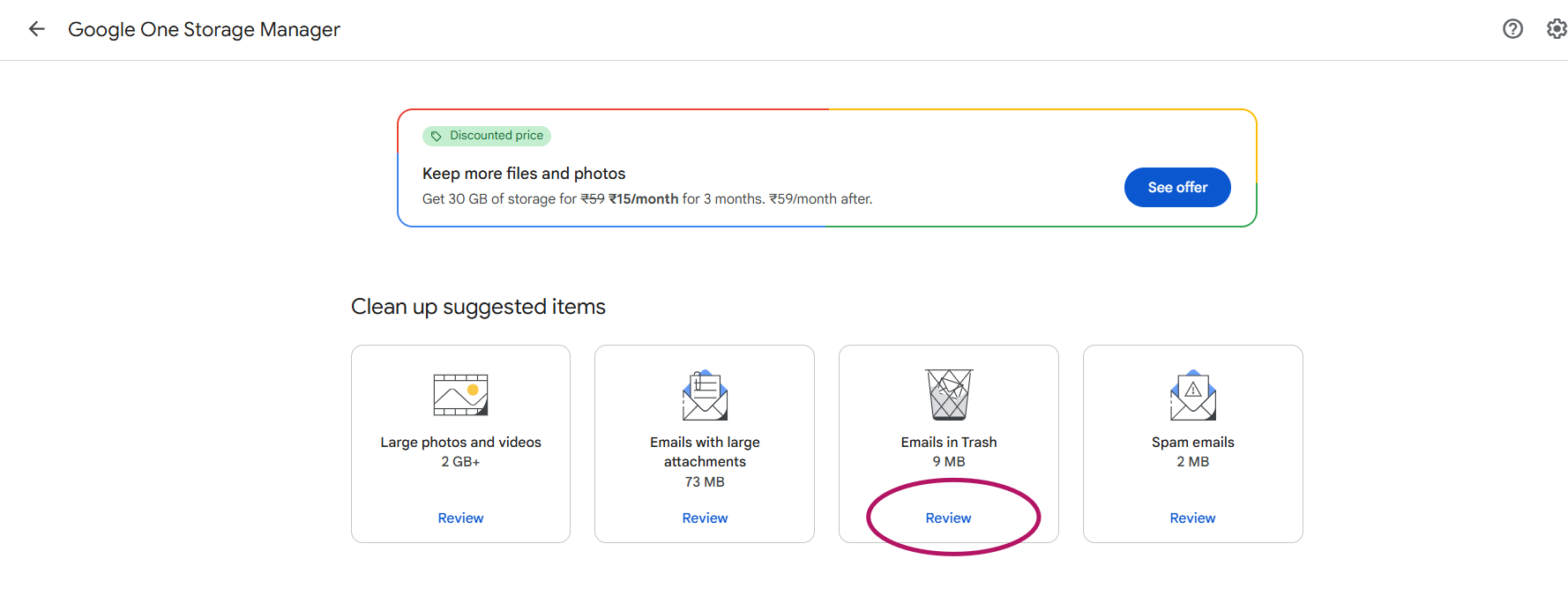
- Click on the section you want to clean up by clicking on Review.

- You can delete the unwanted items and clear up space for items under Gmail by clearing up under the “Clean up suggested items”.
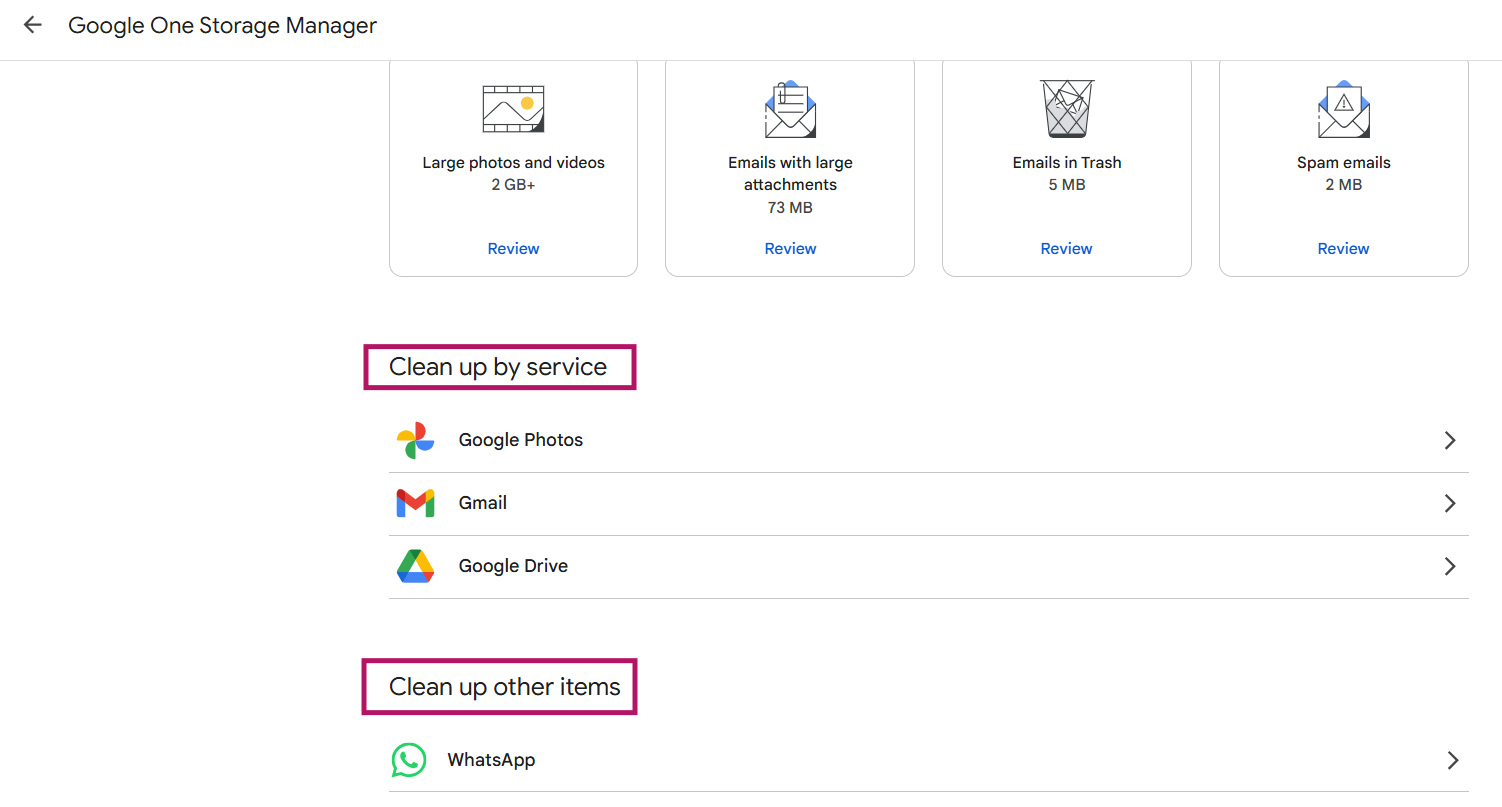
- You can also clean up service-wise by clicking on the sections highlighted below.

Best Ways to Clear Large Email Attachments in Gmail
Here are best ways to clear large email attachments in Gmail platform:
- Periodically review your inbox and delete large attachments that are not required.
- Do not miss emptying your trash and spam after deleting large email attachments.
- To delete all emails in your trash, click Empty Trash now.
- Find and remove duplicate email attachments that consume more space.
How To Manage Storage in Google Photos Effectively?
Here are tips on how to manage storage in Google Photos:
- Crop in Google Photos: If you have storage-occupying videos, crop them to create shorter versions. Then save the cropped video separately and delete the original.
- Switch to Storage Saver: For clearing up storage, switch photos and videos from original quality to Storage Saver quality. To switch to Storage Saver,
1. Go to https://photos.google.com/.
2. Click Storage –> Recover storage –> Convert existing photos & videos to Storage saver.
Steps To Free Up Space in a Primary Email Account
Steps to free up space in a primary email account:
- Delete large email attachments and videos that consume more space.
- Delete video and audio files that you no longer need.
- Delete old presentations or files which are not required anymore.
- Remove newsletters, emails from groups, or updates with a standard subject line.
Switch Seamlessly to Google Workspace with CloudFuze Migrate
CloudFuze Migrate helps enterprises experience a seamless transition to Google Workspace. Leverage our advanced migration tool to move petabytes and terabytes of your source data to Google Workspace while ensuring complete replication.
Contact us to learn more about our migration solution in detail.
Learn more about our cloud migration solution in this video:
Frequently Asked Questions
1. How can I perform cleanup on Google Cloud Storage to free up space?
Users can perform cleanup on Google Cloud storage to free up space through following steps:
- Visit Google One –>Storage.
- Now click Free up account storage.
- Under “Clean up suggested items” or “Clean up by service,” click a section to review.
- Choose the files to delete.
2. How can I check my cloud storage usage and free up space?
One can check cloud usage and free up space by checking storage space occupied in their current platform. Take note of the exceeding storage space and free up by removing outdated files, large files that are no longer required, space consuming video attachments, etc.
3. Where can I find storage cleanup options in my cloud service dashboard?
Every storage platform provides users with dedicated cleanup options to manage storage effectively. For instance, Google Workspace users can cleanup storage through Google One. To find out more information on clearing up your Google storage, click here.
About the Author: Bhavani Asok



