
OneDrive Sync Issues in Windows? 7 Fixes You Need to Try
Wondering “Why isn’t my OneDrive syncing?”, “How do I resync OneDrive?”, or “How do I fix OneDrive sync issues?” Here’s the quick fix!
OneDrive and Windows sync issues are probably amongst the most common causes of productivity disruptions, be it for individual users or enterprise teams. Whenever files fail to sync, continue showing older versions, or get stuck at “Sync pending,” collaboration slows down, and data consistency becomes a concern.
If you are experiencing OneDrive sync issues on Windows, this guide outlines the common causes and practical fixes.
Key Takeaways
Common OneDrive Sync Issues on Windows
The following are the OneDrive sync problems that users frequently report:
- OneDrive stuck on “Sync pending”
- Files not uploading or downloading
- Duplicate files created after sync
- “There was an issue connecting to OneDrive”
- Pausing OneDrive synchronization automatically
- Files with red X or error icons
- Files aren’t showing up across devices
These OneDrive synchronizing issues can be related to problems with connectivity, configuration, permission conflicts, or even Windows updates.
How To Fix OneDrive Sync Issues: 7 Proven Methods
The reasons and quick fixes for OneDrive sync problems are as follows that will address your query of “Why is my OneDrive not syncing?”
1. Unstable Internet Connection
An unstable internet connection may frequently cause disturbances in synchronizing files.
Fix:
Connect to a stable wired network, restart the router, or reconnect to Wi-Fi before resuming sync.
2. OneDrive Sync Paused
The windows may pause syncing due to battery saver, as well as manual pause settings.
Fix:
Click the OneDrive icon present in the system tray → Select “Resume syncing.”
3. Outdated OneDrive App
Inconsistency in the version of the OneDrive desktop client may also cause compatibility problems.
Fix:
Update OneDrive through Windows Update or simply download and install the latest version of OneDrive from Microsoft.
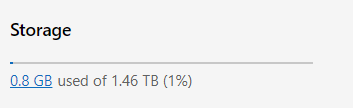
4. Storage Limits Reached
If your OneDrive storage quota is already full, files will not be synced.
Fix:
Check your storage usage on the settings tab of OneDrive and upgrade your plan accordingly.
5. File Name or Path Length Issues
Windows has some limitations on file path length. Very long paths or use of unsupported characters may prevent syncing.
- Check File Names: Make sure that no file names use invalid characters: < > : ” | ? * / \.
- Path Length: Make sure that the overall file path length is below 400 characters.
- Large Files: OneDrive has problems with files larger than 250GB. Try to move very large files out of the sync folder and upload them manually using the web browser.
Fix:
Shorten file names or move files closer to the root folder.
6. Windows Updates or System Conflicts
At times, you may encounter interference from Windows updates, which may impact the execution of services like OneDrive.
Fix:
Restart your system after updates and always make sure OneDrive is running using Task Manager.
7. Permission or Account Conflicts
Recently changing your password or accounts may cause you to experience trouble syncing your OneDrive.
Fix:
Sign out of OneDrive → Sign back in → Re-link your folder.
Advanced OneDrive Sync Issues Troubleshooting Steps
If basic fixes don’t work:
- Reset OneDrive (Run: onedrive.exe /reset)
- Check Windows Firewall settings
- Temporarily disable antivirus software
- Ensure sufficient disk space is available on the local drive
- Check the Microsoft 365 Service Health Dashboard for any outages
For enterprise environments, IT admins should also review:
- Restrictions of Group Policy
- Conditional access policies
- Endpoint security configurations
- SharePoint and OneDrive-Admin Center settings
OneDrive Sync Issue Best Practices
- Keep Windows and OneDrive updated.
- Avoid syncing huge folders at a time.
- Standardize folder structures.
- Monitor storage quotas on a regular basis.
- Train users in best practice with regard to naming files.
- Use Files On-Demand to reduce the local storage load.
Migrating to Microsoft 365?
Whether it’s for a Microsoft 365 tenant-to-tenant migration or a broader Microsoft 365 migration, our tool, CloudFuze Migrate, is designed to make every step of the process easier and more secure.
It helps enterprises to implement enterprise-class migrations with automated permission mapping, advanced unlimited delta syncs, and a seamless, no-downtime cutover experience.
Talk with our Microsoft 365 migration experts today and ensure a secure, and disruption-free transition.
Frequently Asked Questions
1. Why does my OneDrive always show “Sync pending”?
OneDrive can stop working probably owing to an upload of a very large-sized file, poor internet connectivity, naming issues with the files, or even because of restrictions pertaining to the amount of available storage. Many times, such issues get resolved either by restarting the application or by resetting OneDrive.
2. How do I reset OneDrive on Windows?
Press the Windows + R, type onedrive.exe /reset, and press Enter. Once reset, open up OneDrive again, and if asked to, log in.
3. Why don’t my OneDrive files appear on another device?
This is normally the case when sync is paused, the app isn’t running, or there is an issue with sign-in. Make sure that the account is correctly linked and that syncing is on all devices.
4. Can Windows updates cause problems to sync OneDrive?
Yes. Certain Windows updates can momentarily break background services or require a reboot. If you’ve recently run any updates, restart your system and see if OneDrive works correctly after doing so.
About the Author: Aayushi Raj



