
Introduction
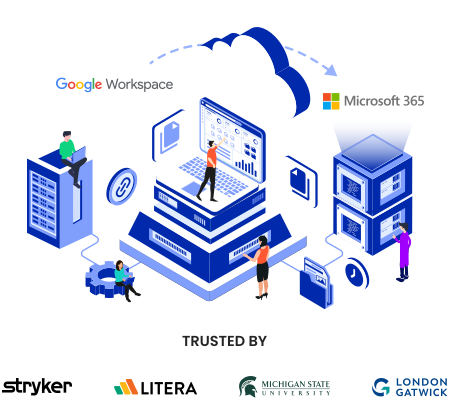
Migrating from Google Workspace to Microsoft 365 means moving your organization’s email, files, calendar, context, chat history, and Gemini AI context from Google’s cloud ecosystem to Microsoft’s ecosystem.
The scope covers Google Drive, Shared Drives, Gmail, and Google Chat migration to their equivalents in Microsoft 365 and preservation of sharing permissions and all other types of metadata using proven tools like CloudFuze Migrate.
This guide walks you through the complete Google Workspace to Microsoft 365 migration step by step, right from planning and tool selection to execution, validation, and post-migration integration.
You can also watch our migration videos for a quick look at how the process works inside our platform.
What Can be Migrated
With CloudFuze, you can transfer data from Google Workspace to Microsoft 365 across every major app, not just files and folders.
| Source (Google Workspace) | Destination (Microsoft 365) | Supported | Notes |
|---|---|---|---|
| Gmail | Outlook | Yes | Mailboxes, folders, labels, attachments, and more |
| Google Drive | OneDrive | Yes | Automatic conversion of Google file formats to Microsoft formats |
| Google Shared Drives | SharePoint Online | Yes | Share Drive structure mapped to SharePoint site and library hierarchy |
| Google Calendar | Outlook Calendar | Yes | Events and event timestamps |
| Google Chat | Microsoft Teams | Yes | Channel structure, members, admins, message history, attachments, and messaging properties |
| Gemini | Copilot | Yes | AI conversations and context for every user |
Planning Google Workspace to Microsoft 365 Migration
The better the planning, the higher the odds of a resounding migration success. We have laid the planning framework below that you can follow for your team:

1. Pre-Migration Analysis
First off, it is important that your team performs a thorough pre-migration analysis of the source cloud, Google Workspace. Check all the apps, the usage patterns, and the collaboration between individual users and their teams. Understanding your company’s Google Workspace usage helps your team prepare the scope migration.
2. Preparing the Scope of Work
The next task of the planning phase is to prepare the scope of work which includes everything your company needs to migrate from Google Workspace to Office 365.
- Content (files and folders)
- Chat messages
- Emails
- Tenant data
- AI conversations and context
Across every migration category, it is also important to finalize:
- The total number of users to migrate
- Total data size to migrate
- Total number of hyperlinks to migrate
- Types of metadata to migrate
3. Choosing Google Workspace to Microsoft 365 Migration Tool
The right migration tool plays a critical role in enabling your team to transfer Google Workspace data to Microsoft 365 without any performance or security compromises. Therefore, it is critical to choose a migration tool from Microsoft Partners like CloudFuze that meets your company’s requirements.
At CloudFuze, we offer the industry’s most advanced Google Workspace to Microsoft 365 migration tool that offers world-class performance and enterprise-grade security and scalability. Some of the world’s largest enterprises have used our tool to migrate to Microsoft 365 from Google Workspace and other clouds.
Preparing for the Migration
Proper preparedness is a must when it comes to performing the migration in a smooth way and ensuring a seamless switch to Microsoft 365.

1. User Mapping
The accuracy of the Google Workspace to Office 365 migration depends on the user mapping. Our tool offers auto-mapping and CSV mapping options. We recommend using the auto-mapping option for straightforward mapping and the CSV mapping for custom mapping paths.
2. Admin Login Credentials
Before starting the migration, make sure to have the admin login details for both Google Workspace and Microsoft 365 ready.
4. Communicate About the Change
To ensure users do not get disrupted, it is important to inform them about the platform transition and also provide them with proper training and support. Explore how to create a cloud migration communication plan.
Steps to Migrate from Google Workspace to Microsoft 365
Check out all the migrations steps on our webapp. Since Google Workspace to Microsoft 365 migration involves migration between multiple drives and apps, we have shown Google Drive to OneDrive migration as the example:
Step 1: Login into CloudFuze
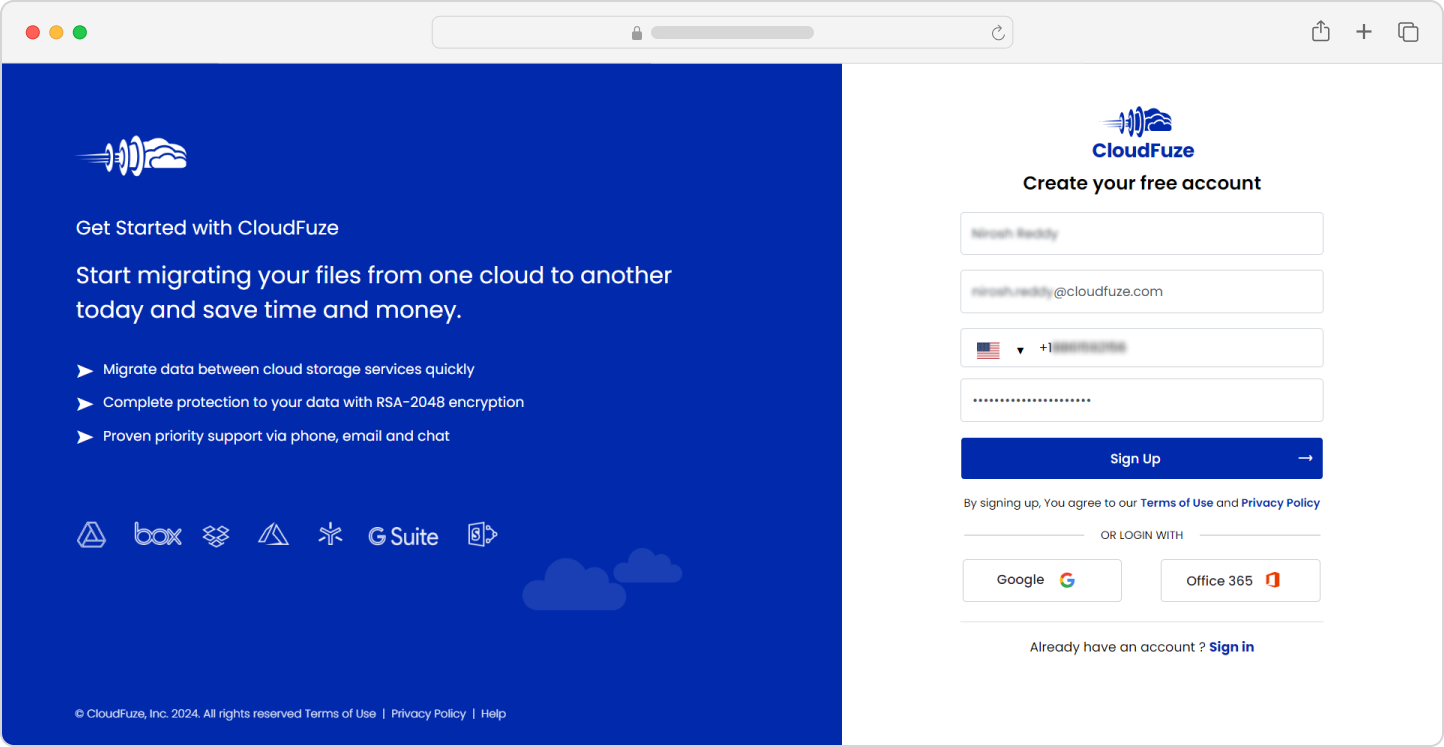
First off, log into our webapp. Don’t have an account? Create one here.
Step 2: Add the Google Drive Cloud
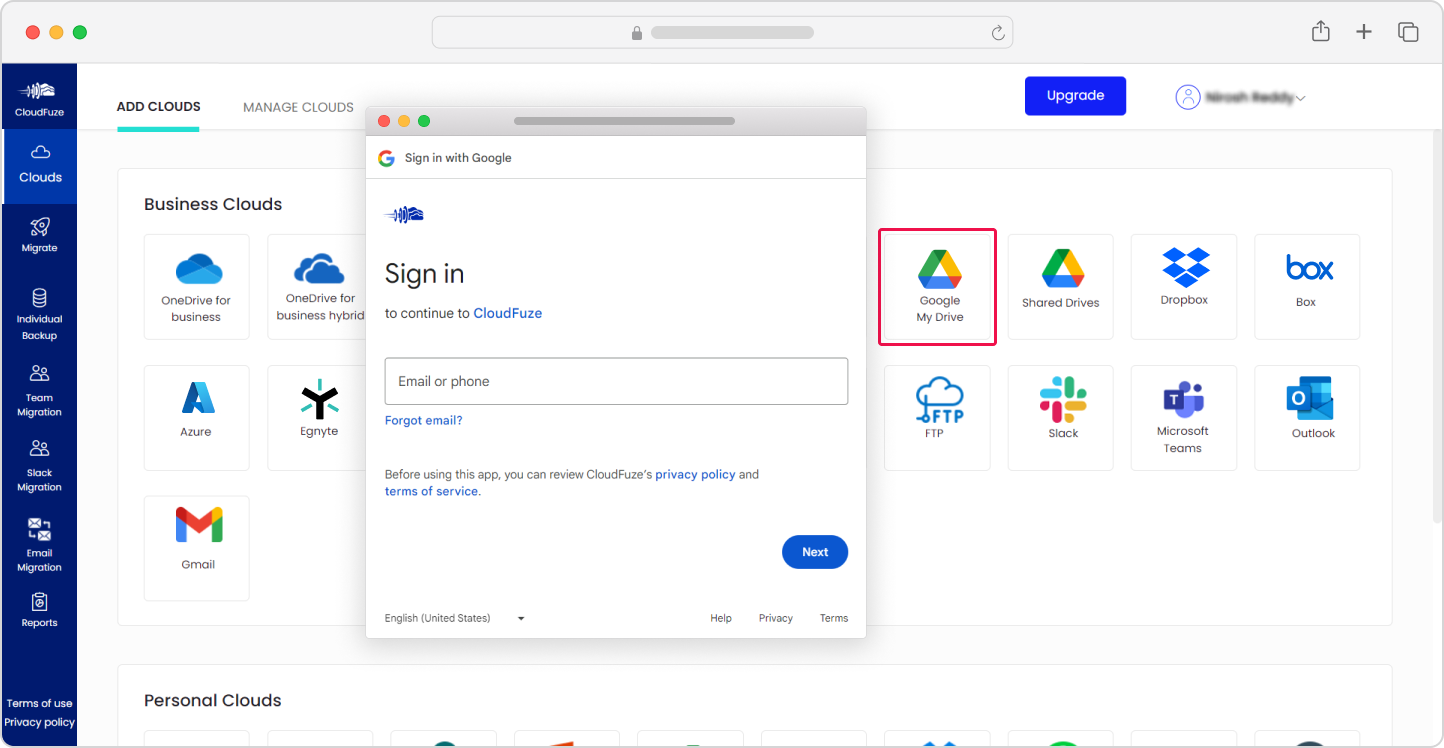
Under the Business Clouds section of our webapp’s dashboard, locate the Google Drive cloud and click on “Add Cloud.”
Step 3: Authenticate the Google Drive Cloud
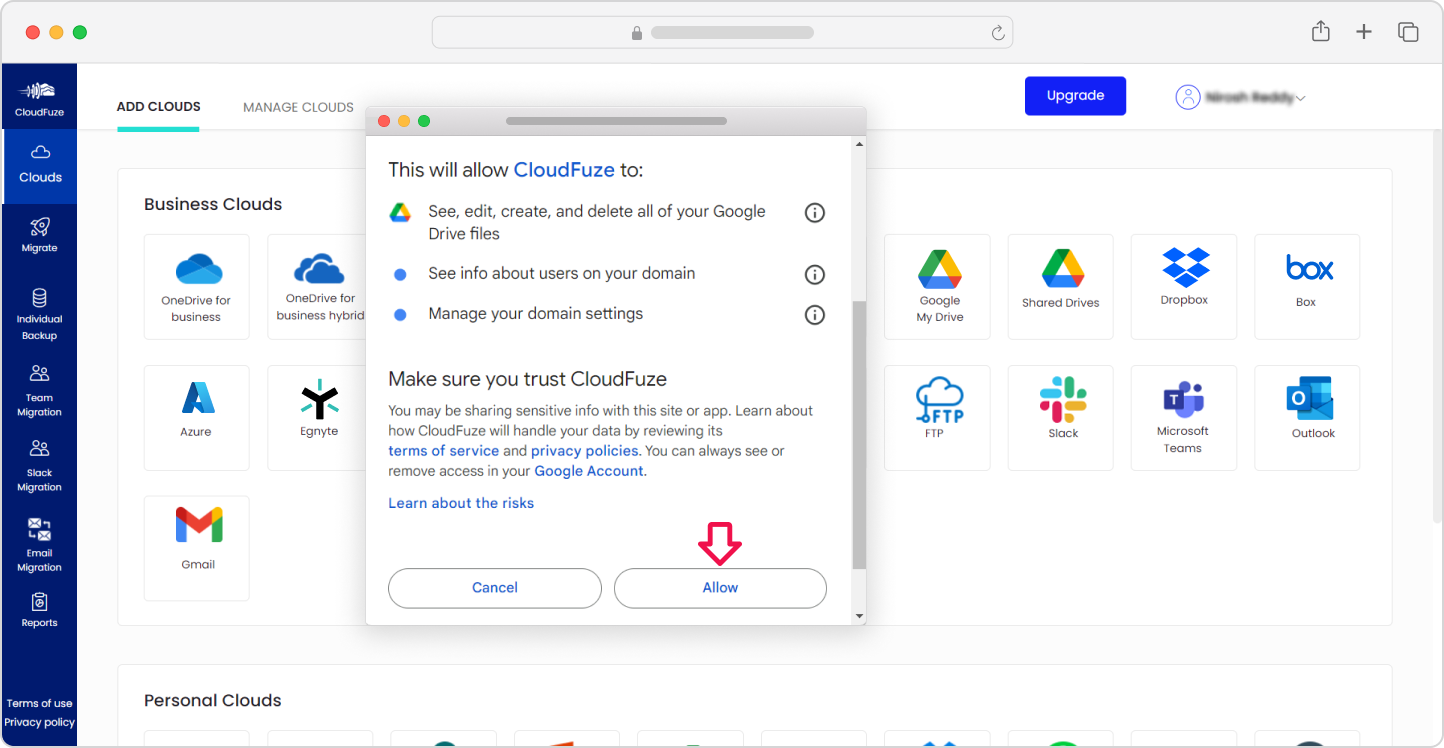
Click on “Continue” to authenticate and authorize the Google Drive cloud to our webapp. By implementing OAuth, we make the cloud authentication process highly secure.
Step 4: Add the OneDrive Cloud
Similarly, add the OneDrive cloud by locating it in the Business Clouds section.
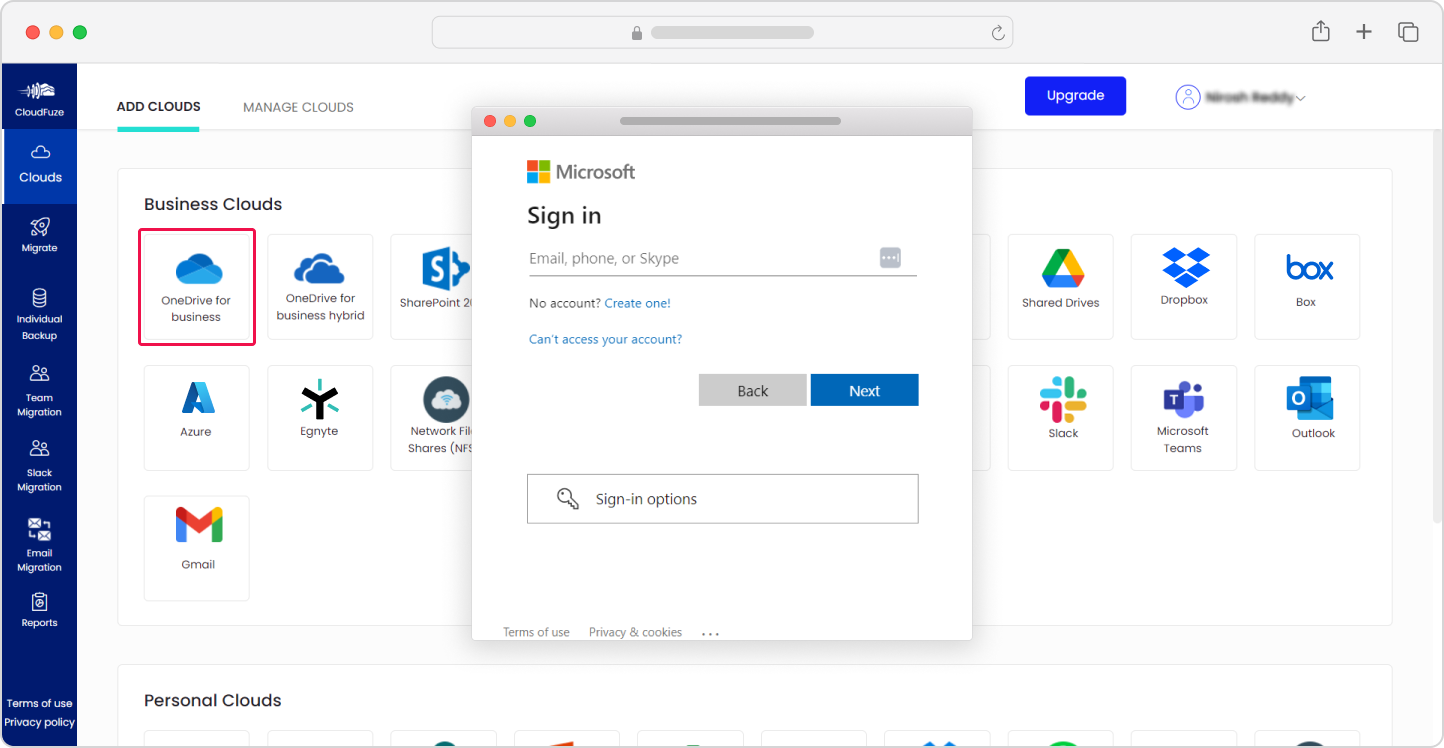
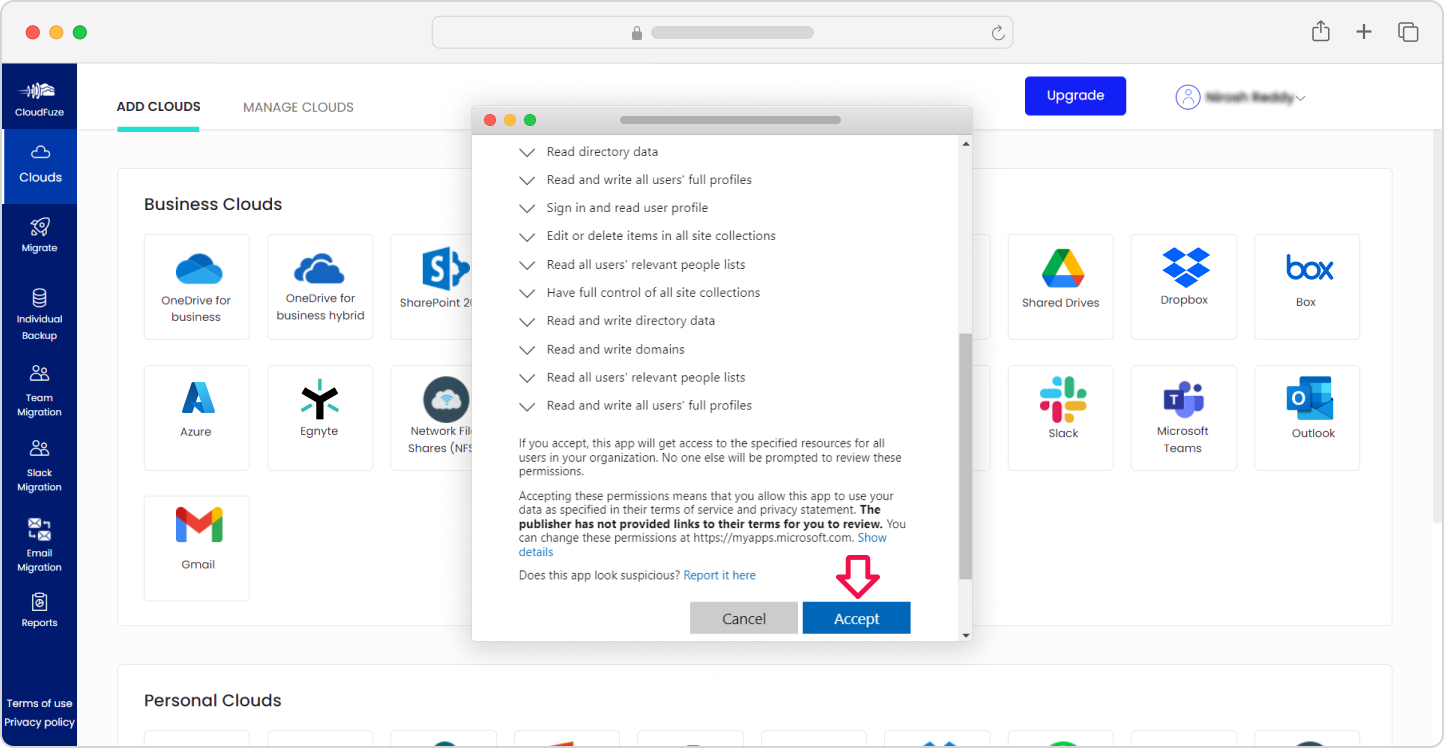
Step 5: Authenticate the OneDrive Cloud
Click on “Accept” to authenticate OneDrive to our webapp.
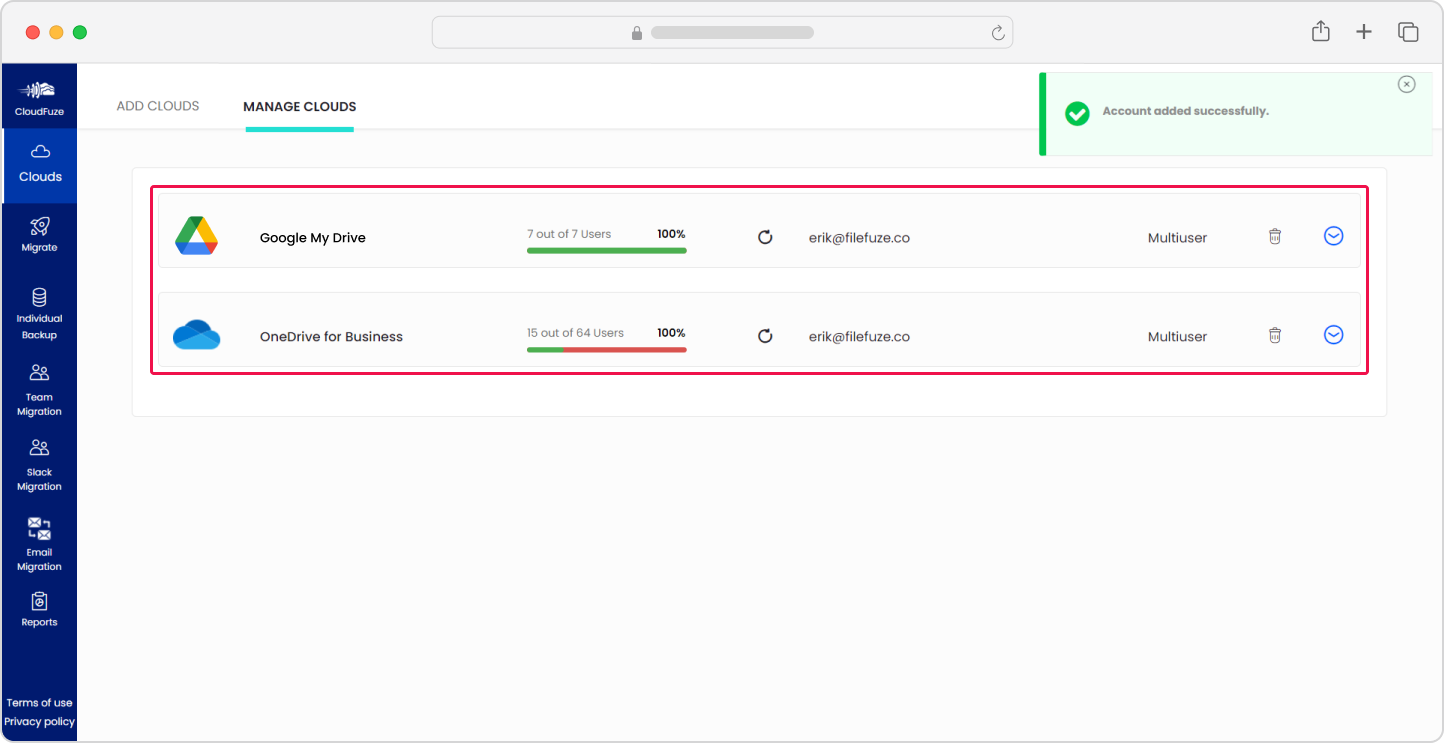
Step 6: Confirm the Clouds Addition
Toggle to the Manage Clouds tab and check and ensure both clouds, Google Drive and OneDrive, are added properly.
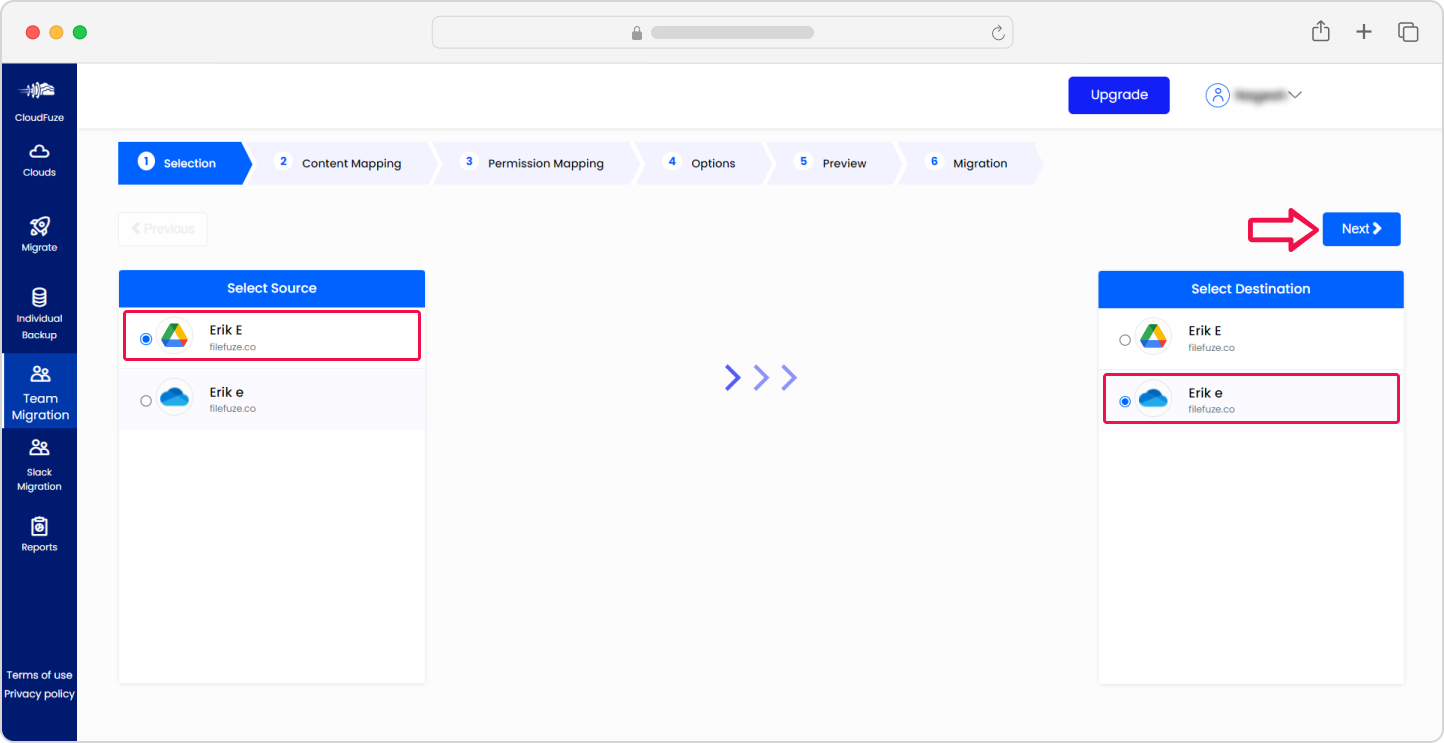
Step 7: Configure the Source and Destination Cloud
Open the Team Migration panel. There, select Google Drive as the source and OneDrive as the destination cloud and click on “Next.”
Step 8: Create User Mapping
Next, map the user accounts to point to OneDrive from Google Drive. You can either use the auto-mapping or CSV mapping option.
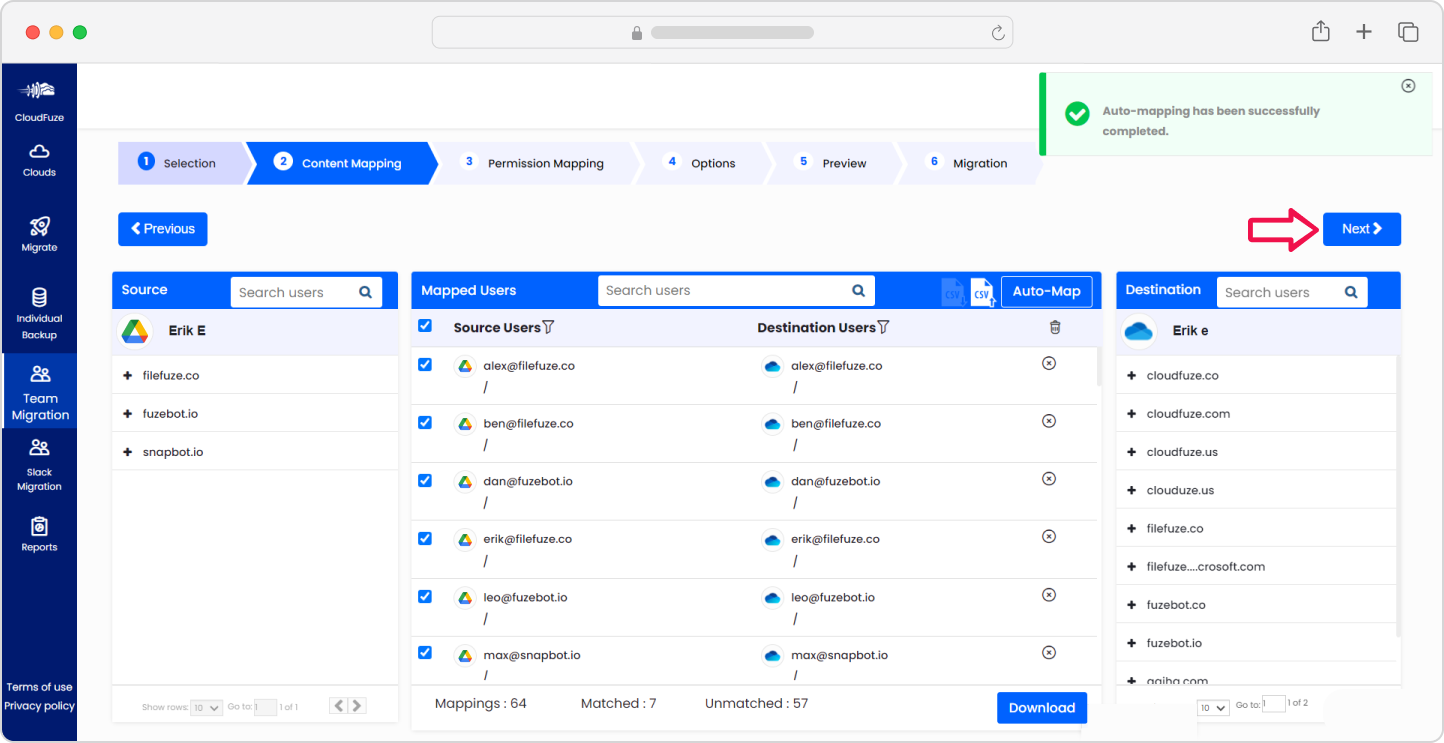
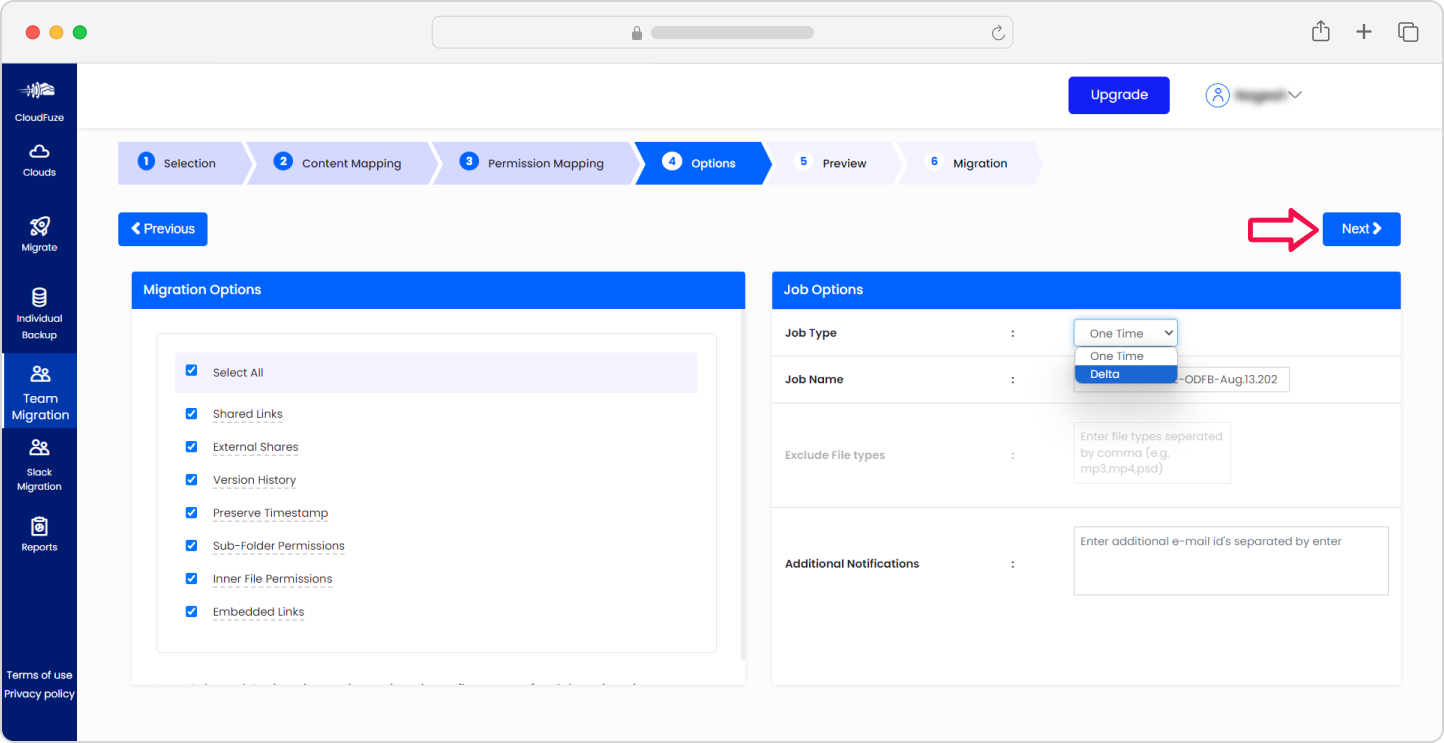
Step 9: Choose Migration Options
Choose options that best meet your migration needs. Select the features you want to preserve in the destination cloud and choose the migration job type as one-time when you perform the migration the first time around.
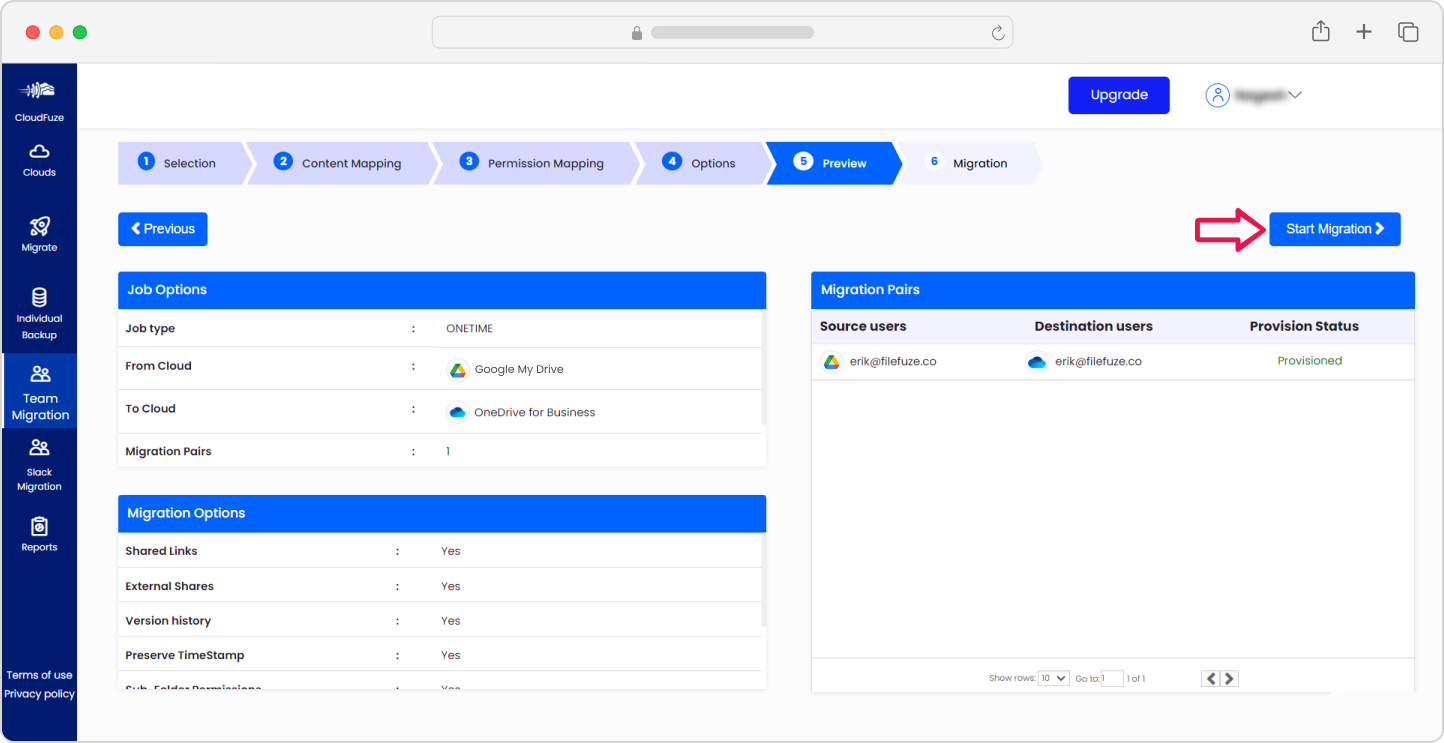
Step 10: Start the Migration Process
After configuring all the parameters, click on “Start Migration” to start the migration process.
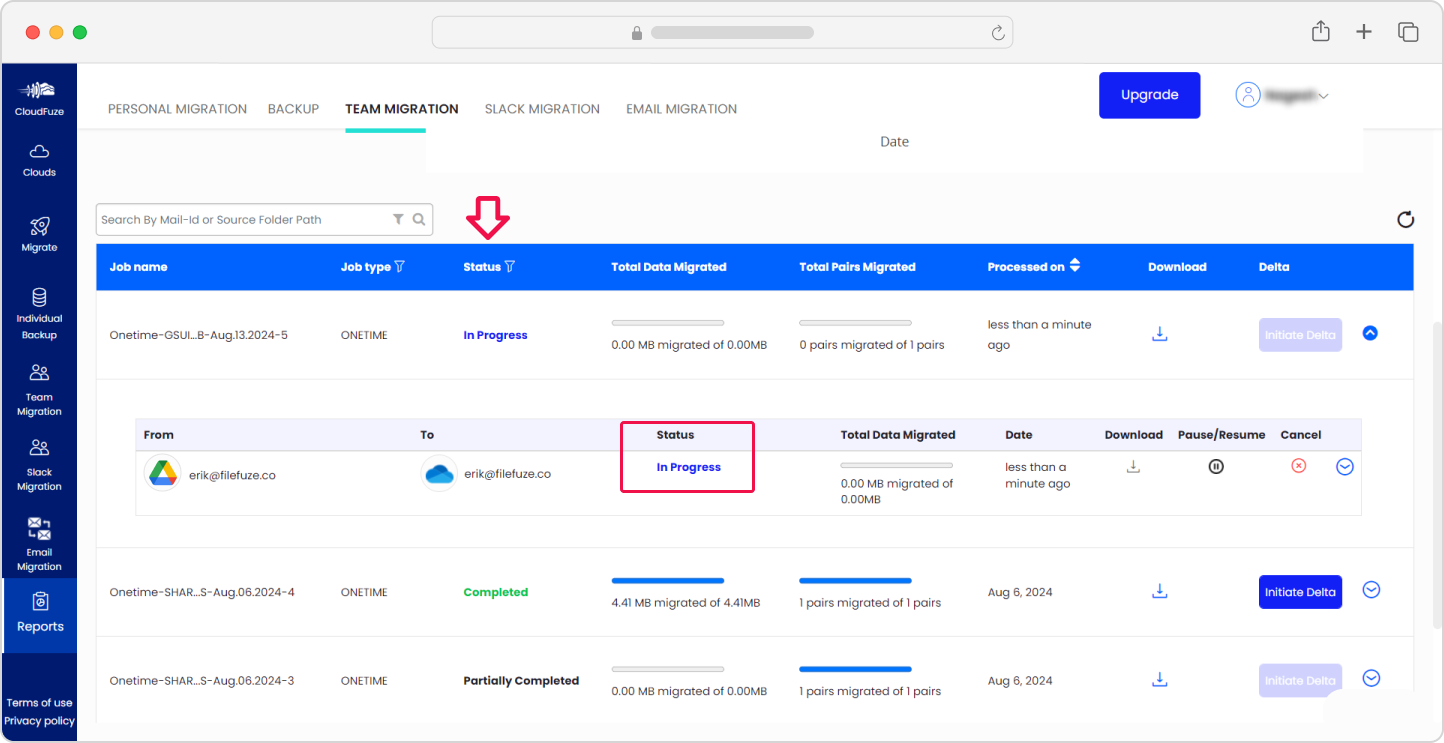
Step 11: Monitor the Migration
After the migration process starts, you will be redirected to the Reports dashboard. Check all the status of the ongoing migration jobs. The dashboard will display the “Processed” and “Completed” messages after the users and their data are migrated over.
Post-Migration Activities
After the completion of one-time migration, your team must perform several post-migration tasks to ensure proper completion of the entire migration project.
1. Delta Migration
Incremental changes build up at Google Workspace drives and apps when the users continue working during the one-time migration. It is important to migrate these incremental changes via a delta migration.
2. Migration Validation
Check the migration reports to validate the migration. Make sure to review all the mission-critical parameters, such as the total number of users migrated, the total number of files and folders migrated, file/folder name and long folder path status, conflicts and warnings, and more.
3. Post-Migration Integration
Ensure proper integration of the third-party tools and services with the data you have migrated to Microsoft 365. Almost always, businesses aiming for integration replication install the same or similar apps and services they have used with Google Workspace data from the Microsoft Store.
4. User Onboarding and Go Live
Provide users with proper training prior to onboarding them. After they are ready, onboard them and adopt the Microsoft 365 cloud suite at a full scale.
Why Switch from Google Workspace to Microsoft 365?
Organizations move from Google Workspace to Microsoft 365 for a mix of operational, financial, and strategic reasons. Explore the use cases below:

1. Platform Standardization
Many organizations that are running both Google Workspace and Microsoft 365 plan to standardize on a single platform. And if they have more dependency on the Microsoft 365 ecosystem, they usually plan to standardize on it by moving away from Google Workspace and other cloud platforms they are on.
2. Deeper Microsoft Ecosystem Integration
Businesses already invested in Windows devices, Azure, or Microsoft security tools like Defender and Intune often find that consolidating into Microsoft 365 simplifies identity management, endpoint protection, and licensing.
3. Microsoft Copilot Adoption
As more organizations integrate Copilot into daily workflows, individual users and teams already using Microsoft 365 apps find Copilot fits more naturally into their existing environment than using Gemini separately.
4. Governance and Compliance Requirements
Regulated industries such as finance, healthcare, and government often standardize on Microsoft 365 because of its compliance certifications, granular admin controls, and established audit tooling that many enterprise procurement teams already trust.
Google Workspace to Microsoft 365 Migration Challenges and Solution
A Google Workspace migration to Microsoft 365 is rarely without friction. Here are the most common challenges and how proven migration service providers like CloudFuze handle them.
| Challenges | Solutions from CloudFuze |
|---|---|
| Migrating large volumes of data (TBs or PBs) | CloudFuze Migrate scales to enterprise data volumes without performance loss. With batch-wise migration, it helps avoid API throttling. |
| Migrating a high volume of users | Segment users into batches and migrate in phases to reduce risk and avoid downtime. |
| Preserve complex sharing permissions | Automatic permission mapping with manual review and edit options. |
| Retaining all important metadata and context | Timestamps, version history, shared links, embedded links, external shares, all are preserved. |
| File name and character conflicts | CloudFuze automatically replaces characters unsupported by Microsoft with a hyphen or underscore. |
| Security and compliance | OAuth-based authentication, end-to-end encryption, and compliance with GDPR, SOC 2 Type 2, and ISO 27001 |
Google Workspace to Microsoft 365 Migration Success Story
A reputed educational institution needed to migrate its Google Workspace environment to Microsoft 365. The scope included multiple schools and student groups within a single organization.
The institution wanted to migrate over 100 TB of data, along with 12,000 student and staff accounts, from Google Drive and Share Drive to OneDrive and SharePoint online.
Reasons behind the switch included:
- Internal process changes across the institution
- A more productive digital environment for staff and students
- Stronger collaboration features and advanced security measures

With CloudFuze Migrate, the institution achieved a complete transition within an efficient timeframe, including:
- Successful migration of the entire 100 TB of Google Workspace data and 12,000 users
- Zero downtime throughout the migration
- 100% data replication across all migrated accounts
Migrate Google Workspace to Microsoft 365 Successfully with CloudFuze
CloudFuze stands out in the Google Workspace to Microsoft 365 migration category by supporting the entire scope, including:
- File, folder migration
- Email migration
- Chat migration
- Cross-tendent migration
- AI context migration
These capabilities position CloudFuze as a one-stop solution for organizations that want to move and replicate their entire Google Workspace ecosystem to Microsoft 365.
Interested in seeing it in practice? Contact us for free and no-obligation demo or migration assessment today!
Frequently Asked Questions
1. How do I migrate from Google Workspace to Microsoft 365?
Migrating from Google Workspace to Microsoft 365 involves planning your scope, choosing a migration tool, mapping and migrating users and transferring emails, files, chat, and AI context in phases. CloudFuze Migrate automates this entire process while ensuring optimal security.
2. How long does a Google to Microsoft 365 migration take?
Timeline depends on the total data volume, user count, and which apps you are migrating. Small teams can complete a migration in a couple of days or weeks, while enterprise migrations involving large terabytes of data typically run in scheduled batches over several weeks and months.
3. Does switching from Google Workspace to Microsoft Office 365 include Gemini conversations?
Yes. CloudFuze supports Gemini to Copilot AI context migration, which includes migration of AI conversation and context for every user. You can migrate AI context as part of the same migration project that also includes other types of data, including files and folders, emails, and chat messages under its scope.
4. What is the best way to copy data from Google Workspace to Microsoft 365 for a large enterprise?
Segment users into batches, run a one-time migration, then use delta migration to sync any incremental changes that occurred while the one-time migration was running. This approach helps avoid downtime and API throttling on large migrations.
About the Author: Pankaj Rai


