
How to Transfer Calendar from Gmail to Gmail Easily
When switching between two Gmail accounts, you need to transfer your Google Calendar events, along with emails and contacts, to stay productive. Whether it’s recurring events, event timestamps, or calendar attachments, a full and accurate transfer is key.
In this post, we will walk you through two ways to transfer emails from Gmail to Gmail with Google Calendar: the manual, traditional approach using Google’s built-in tools and a quicker, enterprise-grade email migration solution using CloudFuze Migrate, a migration tool designed for large enterprises handling terabytes (TBs) and petabytes (PBs) of email data. Let’s get started!
Key Takeaways
Common Challenges During Google Calendar Migration
Organizations may face Google calendar transfer challenges such as:
- Duplicate calendar events after multiple imports
- Loss of recurring event exceptions
- Missing calendar sharing permissions
- Organizer ownership remains with the original account
- Google Meet links require validation
- Shared calendars not migrating correctly
- Resource and meeting room conflicts
- Lost attachments
- Manual creation of delegated calendars
These difficulties multiply when migrating hundreds or thousands of users.
Method 1: Manual Transfer – Export and Import Google Calendar (Best for Personal Accounts)
This is a free manual method provided by Google where you can export Google Calendar data from your old Gmail account and then import the same into your new Gmail account. This method is suitable for individuals with a small number of calendars.
Step 1: Export Google Calendar from Your Old Gmail Account
- Sign in to your old Gmail account.
- Open Google Calendar.
- Click Settings > Settings.
- In the left pane, click Import & export.
- Under Export, select the calendar to export and click Export.
- A ZIP file will be downloaded. Unzip and you’ll get the .ics files (the default calendar format).
Step 2: Import Calendar into Another New Gmail Account
- Log in to your destination Gmail account.
- Go to the Google Calendar.
- Click Settings > Settings.
- Then select the “Import & Export” option from the left pane.
- Under “Import”, import the .ics file that you exported.
- Select the calendar where you want to import the events and then click “Import”.
Google Calendar will display a message indicating completion of the import process.
Important to know: Calendar export and import can only be performed from the Google Calendar web interface on a computer. They cannot be accessed through the mobile application.
Limitations of Manual Google Calendar Migration From Gmail to Gmail
Although Google’s native method is free, it isn’t designed for enterprise migrations.
| Limitation | Manual Method |
|---|---|
| Bulk migration | ❌ |
| Shared calendars | Limited |
| Calendar permissions | ❌ Manual recreation |
| Resource calendars | Limited |
| Calendar attachments | Often not preserved |
| Delta synchronization | ❌ |
| User mapping | ❌ |
| Migration reporting | ❌ |
| Enterprise scalability | ❌ |
For organizations that have hundreds or even thousands of users, manual migration is time-consuming and error-prone. Also, it can fail to import recurring events, attachments, or event ownership, and therefore is not suitable for companies due to its Gmail to Gmail migration challenges.
Method 2: Gmail to Gmail Calendar Transfer Using Migration Tool (Best for Enterprises)
If you’re looking for a faster, more reliable way to transfer all Google Calendar events from one Gmail account to another, including recurring events, attachments, and accurate timestamps, CloudFuze is your go-to solution for Gmail to Gmail transfer.
Why CloudFuze Is the Enterprise Choice for Google Calendar Migration
CloudFuze is a powerful cloud data migration platform that supports seamless Gmail-to-Gmail calendar transfers, particularly for businesses and enterprises that need scale, accuracy, and security.
It preserves recurring events, attachments, attendees, timestamps, and calendar metadata while supporting large-scale migrations with speed and accuracy.
How CloudFuze Works
For large-scale enterprise calendar migrations and SMBs, CloudFuze is the perfect solution. Our strong tool provides a smooth and safe Gmail to Gmail migration process with attachment support, timestamp preservation, and accurate handling of recurring events. Built for bulk calendar transfer, CloudFuze provides an efficient and reliable solution to businesses with data integrity and safety preserved during migration.
Source and Destination: Gmail to Gmail Calendar Migration
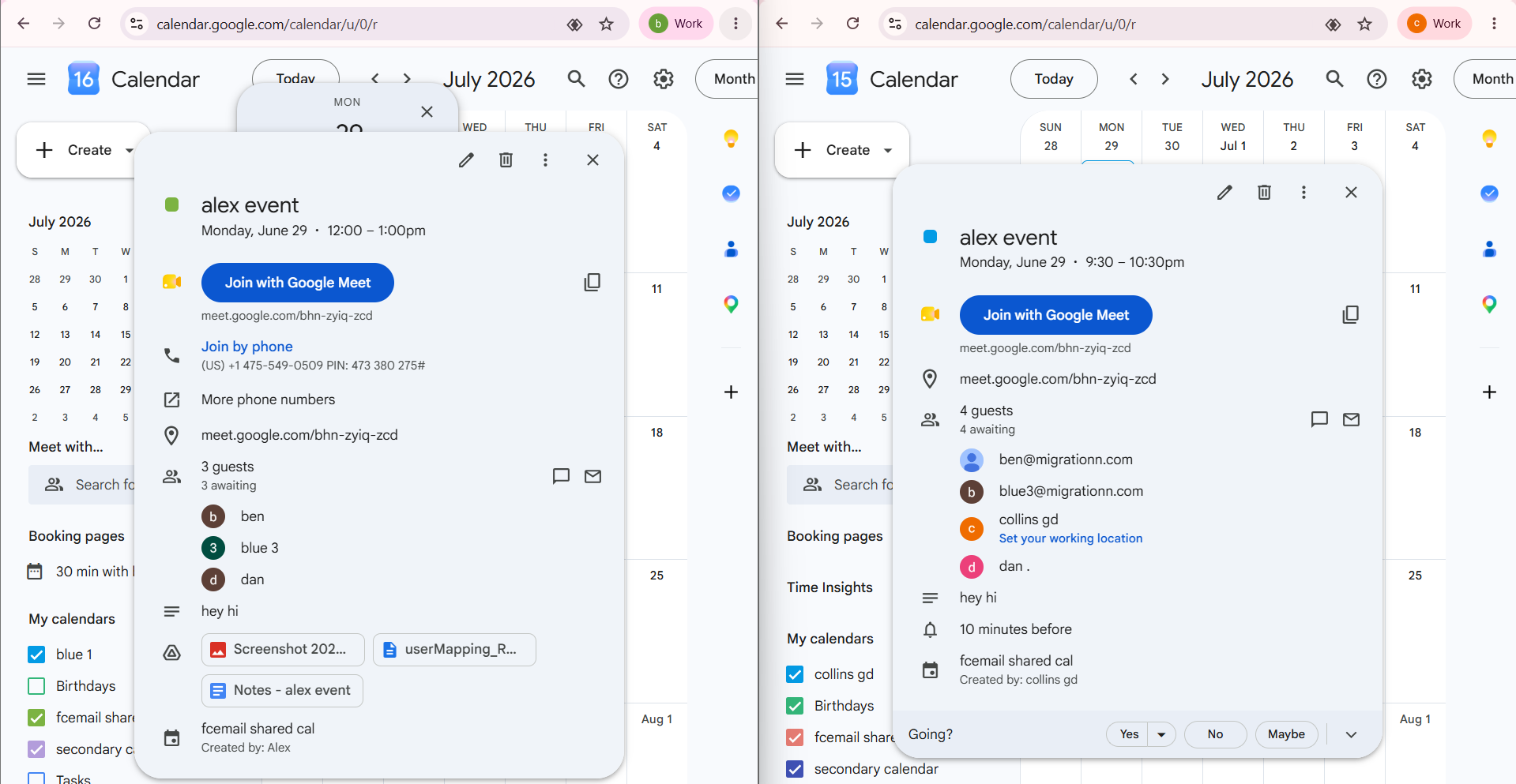
The screenshot shows a before and after Gmail-to-Gmail calendar migration using CloudFuze. After migration, the calendar event is successfully recreated in the destination Gmail account while preserving essential details such as the event title, date and time, Google Meet link, guest list, reminders, description, and calendar metadata.
What CloudFuze Preserves During Gmail-to-Gmail Calendar Migration
| Calendar Component | Preserved by CloudFuze |
|---|---|
| Recurring Events | ✅ |
| Single-Instance Events | ✅ |
| Past, Present & Future Events | ✅ |
| Event Attachments | ✅ |
| Event Locations | ✅ |
| Event Guests (Attendees) | ✅ |
| Group Calendars | ✅ |
| Internal & External Invites | ✅ |
| Calendar Metadata | ✅ |
Manual vs. CloudFuze Gmail-to-Gmail Calendar Migration Approach Comparison
| Feature | Manual Method (.ICS Export/Import) | CloudFuze Migration |
|---|---|---|
| Normal Events | ✅ Preserved | ✅ Preserved |
| Recurring Events | ⚠️ Often breaks | ✅ Fully preserved |
| Event Attachments | ❌ Not supported | ✅ Preserved |
| Event Locations | ⚠️ May not migrate consistently | ✅ Preserved |
| Internal & External Attendees | ⚠️ May require manual verification | ✅ Preserved |
| Group Calendars | ❌ Not supported | ✅ Supported with sharing permissions |
| Calendar Metadata & Timestamps | ⚠️ Limited preservation | ✅ 100% preserved |
| Bulk/Multiple Calendars | ❌ Manual per calendar | ✅ Automated & scalable |
| Suitable for Large Enterprises | ❌ No | ✅ Yes |
| Migration Dashboard | ❌ No | ✅ Yes |
| Calendar Permissions | ❌ No | ✅ Yes |
Business Use Cases for Gmail to Gmail Google Calendar Migration
Below are some practical use cases for Google Calendar migration from Gmail to Gmail:
- Google Workspace Tenant Migration
- M&A
- Company Rebranding
- Business Unit Consolidation
- Cross-domain Migration
- Employee Exit
- Google Workspace Split
Google’s Recommended Best Practices
Before moving your calendar:
- Backup your calendar by exporting ICS files.
- Check the time zone in your destination account.
- Re-establish calendar sharing permissions post migration.
- Validate recurring appointments and guest invites.
- In the case of organizations, evaluate Calendar sharing policies pre-migration.
Ready to Migrate Google Calendar Between Gmail Accounts?
While the manual method to export and import Google Calendar works for personal users with minimal data, it’s not ideal for enterprises where data accuracy and speed are crucial.
For a hassle-free, secure, and complete Gmail Calendar migration, CloudFuze offers the most reliable solution. Whether you’re migrating a few calendars or thousands, CloudFuze ensures all calendar events, recurrences, timestamps, and attachments are transferred without any data loss.
Get in touch with us for a free migration consultation and let our team assist you in making the move with ease.
Frequently Asked Questions
1. How Do I Prevent Data Loss During Calendar Event Migration?
For zero data loss during your calendar migration, it is very important that you use a secure migration tool. CloudFuze automatically preserves all calendar event data, including timestamps, recurring events, and attachments. It also provides full validation and reporting functionalities to ensure all events are migrated correctly without data loss before finalizing.
2. Can I migrate shared calendars?
Yes. CloudFuze is capable of migrating group calendars with the calendar events and the shared permissions that allow the user to collaborate on and manage the shared calendar even after the migration.
3. Will recurring meetings be preserved?
Yes. CloudFuze preserves recurring events, including recurrence patterns, locations, attachments, guests, and event details. It migrates single instance events as well as the past, current, and future events.
4. Are Google Meet links migrated?
CloudFuze maintains the existing Google Meet links attached to calendar events as long as they are supported by the Google Workspace APIs.
5. Can CloudFuze migrate more than 1,000 Google Calendars?
Absolutely. CloudFuze is built for enterprise-scale migrations and can migrate 1,000+ Google Calendars across Google Workspace tenants. It maintains recurring events, attendees, calendar permissions, and event metadata through secure, high-performance migrations.
6.Are calendar attachments migrated during Gmail-to-Gmail migration?
Yes. CloudFuze migrates calendar event attachments along with recurring and single-instance events.
7. Are internal and external meeting attendees preserved?
Yes. CloudFuze preserves both internal and external attendees during Gmail-to-Gmail calendar migration.
8. What Happens to Recurring Events When Copying a Calendar?
Recurring events generally break when copying a calendar because Gmail Calendar’s APIs are not capable of it. Whereas single events import with ease, recurring ones fail or lose exception information and attendees when using .ics exports. Even shared calendars have the same original owner and hence fail to have complete control.
Therefore, these are of no use as personal users end up manually correcting things after import, while business users ought to use CloudFuze, which transfers recurring events, timestamps, and attachments with ease without data loss.
About the Author: Aayushi Raj


