
Preserve All Attachments When Switching from Outlook to Gmail
Preserving attachments is important when planning to migrate emails from Outlook to Gmail, as they hold important business information. When planning to perform an Outlook to Google Workspace migration, your IT team must assess and plan the scope of moving attachments from Outlook to Gmail.
We at CloudFuze support preserving attachments while switching from Outlook to Gmail, including bulk enterprise migrations with folder hierarchy, timestamps, and email metadata intact. We have shared a complete process on how to preserve email attachments when switching from Outlook to Gmail.
Key Takeaways
Why Do Email Attachments Matter During Outlook to Gmail Migration?
Email attachments are as critical as the emails themselves. Email attachments contain confidential enterprise context, client communications, legal documentation, and other business-critical information.
If attachments are not migrated correctly, organizations may face:
- Compliance and audit risks
- Project delays
- Loss of critical business records
- Broken workflows and missing file references
That’s why IT admins and users must follow a complete attachment backup during any Outlook to Gmail transition. Also, rely on Outlook-to-Gmail migration solutions like CloudFuze Migrate that preserves all email attachments with complete integrity throughout the migration process.
Why Attachments Get Lost or Damaged During Outlook to Gmail Migration?
Attachments can be missed or damaged for several reasons:
- Email Formatting Errors: Outlook uses PST/OST file formats, whereas Gmail storage is done in the cloud.
- Manual Transfer Errors: During manual exports or drag-and-drop methods, there is a high chance of missing email attachments during transfer.
- Attachment Size Restrictions: Gmail has a 25 MB attachment limit per message, larger files must be managed separately.
- Folder Structure Conflicts: Attachments can become disorganized or detached if the source cloud file structure isn’t preserved.
- Unsupported File Types: Gmail blocks certain file types for security reasons, such as .exe or script files (.js). If your Outlook emails contain attachments in these formats, you will likely face email loss when transferred to Gmail.
- Encoding Issues: Improper encoding settings in headers can make attachments inaccessible after the Outlook to Gmail migration. If the message encoding is set to multipart/alternative instead of multipart/mixed, attachments may not appear in Gmail.
Ways to Preserve Attachments While Migrating from Outlook to Gmail
Enterprises can face challenges when transferring emails from Outlook to Gmail but with the right approach you can experience smooth migration. Listed below are ways to migrate Outlook emails with attachments.
1. Google Workspace Migration for Microsoft Outlook (GWMMO)
For users migrating to Google Workspace, GWMMO is one of the reliable approaches for email attachment migration. Benefits of GWMMO include:
- Automatically includes attachments during migration
- Supports both PST and OST files
- Allows selective migration
- Maintains folder hierarchy, metadata, and read/unread status.
Assure that the PST file is backed up and error-free prior to migration. Businesses can use Microsoft’s Inbox Repair Tool (ScanPST) if needed.
However, the GWMMO approach is time-consuming, and if not properly done, there are chances of facing data loss.
2. Manual Migration
If you’re migrating a single-user mailbox with a small volume of data:
- Export the mailbox as a PST file from Outlook.
- Import the file using GWMMO or set up an IMAP connection between Outlook and Gmail to manually copy emails.
- Verify attachments after the migration.
However, this method is time-consuming and not scalable for multiple users.
3. Use a Third-Party Email Migration Tool (CloudFuze Migrate)
For bulk migrations, an enterprise-grade third-party tool delivers cutting-edge capabilities when you import Outlook to Gmail.
CloudFuze Migrate specializes in secure Outlook to Gmail migrations, along with preserving all email attachments. With our best Gmail migration tool, large enterprises can smoothly transfer emails from Outlook to Gmail while ensuring all attachments, whether small or large, are preserved without any loss or compromise in data quality.
Simple Rule
If attachments matter, avoid manual copy methods and use a CloudFuze email migration tool that explicitly supports attachment preservation and delta migration.
Step-by-Step: Move Outlook to Gmail Safely with Email Attachments via CloudFuze
Since CloudFuze runs entirely in the cloud using API-based protocols (OAuth 2.0), you won’t need to download or throttle local desktop bandwidth either.
Migration Procedure
1. Connect your Outlook source: Log in to your CloudFuze dashboard, choose ‘Outlook’ under ‘Business Clouds’, and then sign in with your Microsoft 365 Global Admin account via OAuth.
2. Connect your Gmail destination: Pick Gmail as your destination cloud and sign in using your Google Workspace Admin account.
3. Map user accounts: Select Outlook as your source and pick Gmail as your destination. If you are migrating a small set of users, go with auto-mapping. If you are moving tens of thousands of mailboxes, you can provide a CSV file for mappings.
4. Start migration: Run a one-time bulk migration to transfer historical data that will help you migrate mailbox items, including emails, attachments, calendars, Sent Items, and Drafts,
5. Run Delta Migration: After the initial migration, run Delta Migration to synchronize only newly created or modified emails, contacts, and attachments, ensuring no data is lost before the final cutover.
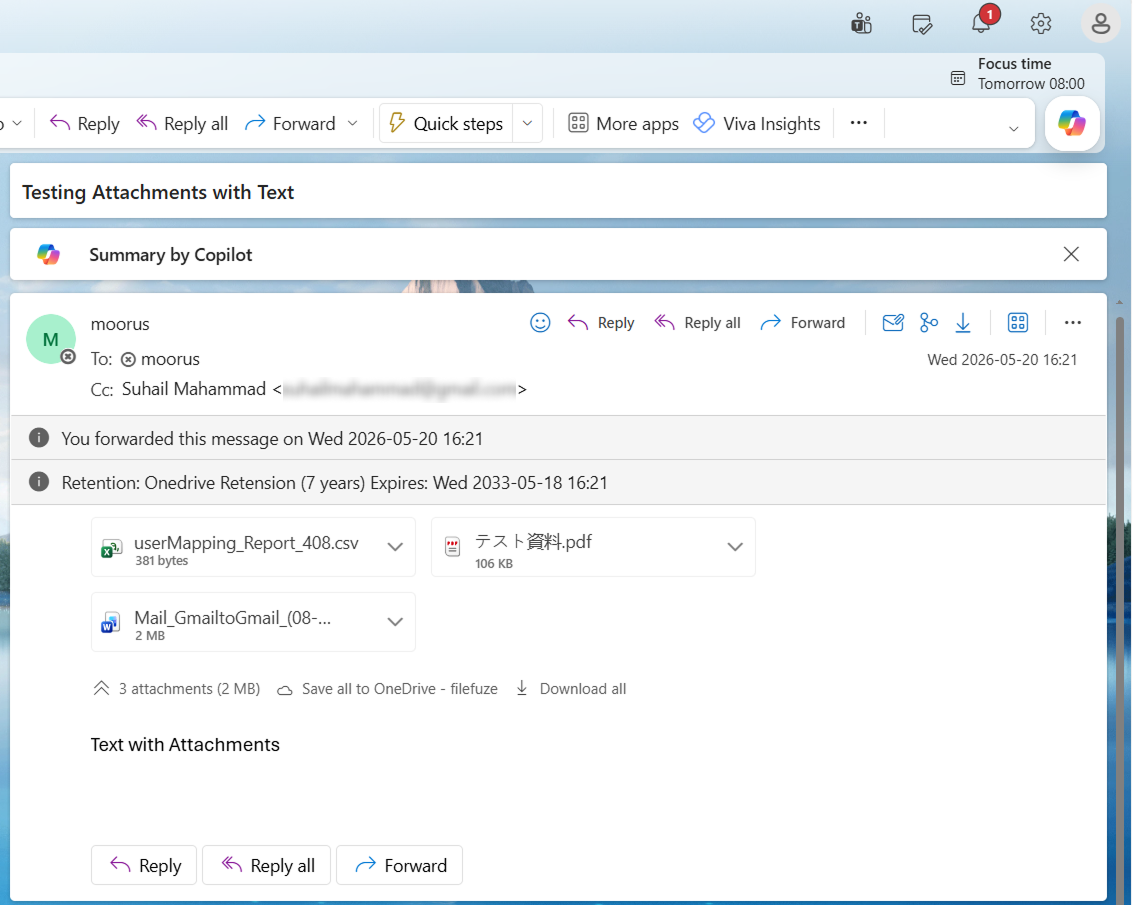
Attachments in Outlook:
Attachments Preserved and Migrated to Gmail:
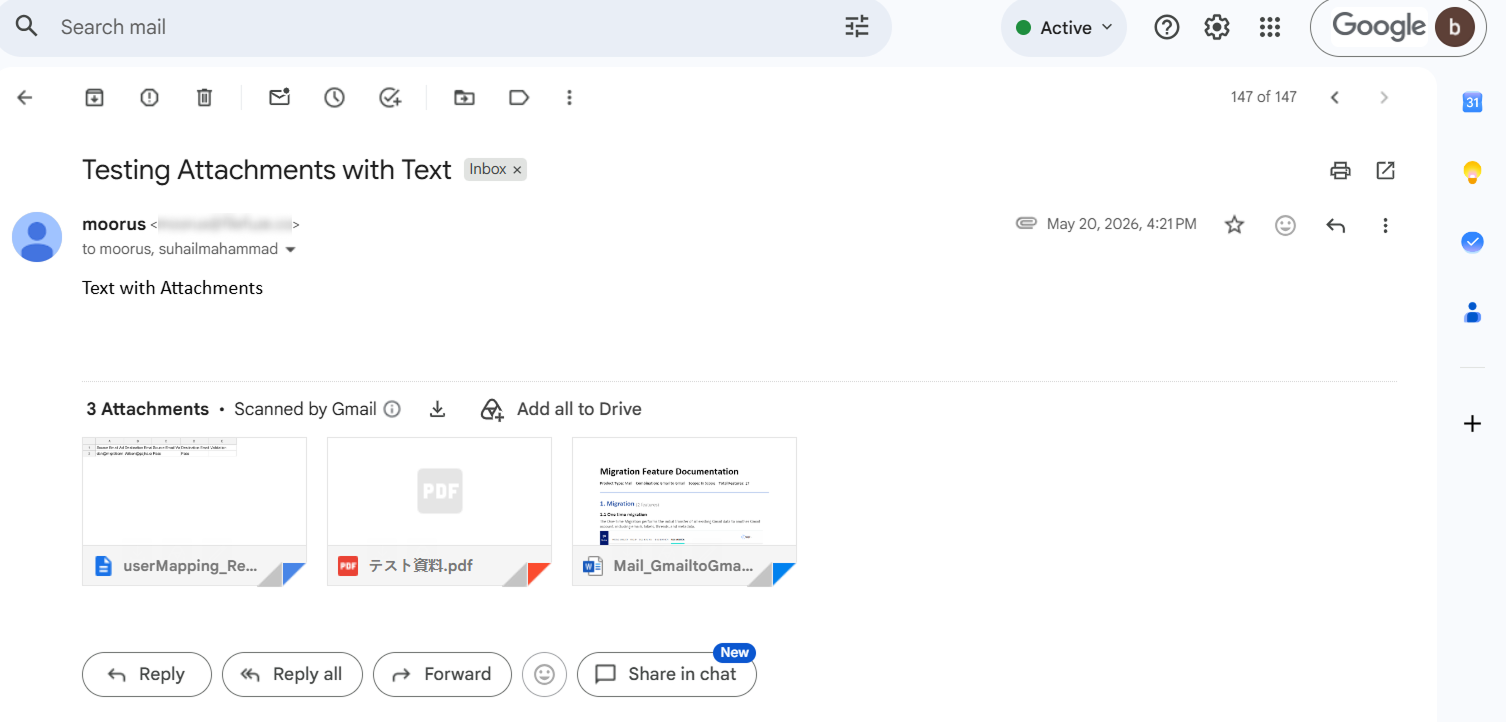
The screenshots demonstrate how CloudFuze preserves email attachments during Outlook to Gmail migration. Documents, PDFs, spreadsheets, and other file types are migrated along with their original emails, ensuring attachments remain accessible, intact, and correctly associated with their messages in Gmail. This helps enterprises maintain data integrity.
This video shows a complete process of Outlook to Gmail migration that transfers all attachments, emails, metadata, contacts, and calendars.
For a FREE demo, you can connect with our experts today!
Why Choose CloudFuze for Preserving Attachments during Outlook to Gmail Migration?
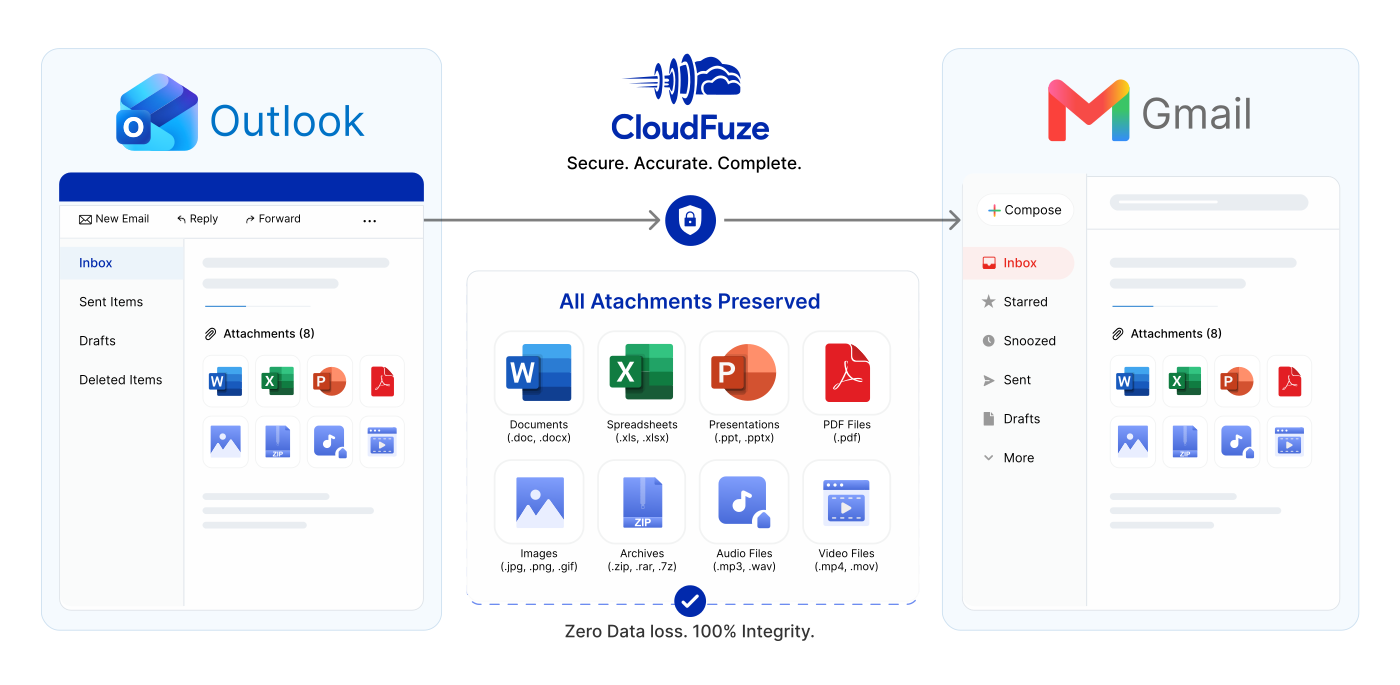
With CloudFuze you get an enterprise grade email migration solution that provides you with robust security, advanced automation and powerful bulk transfer capabilities that ensure a smooth transition without losing any data. Following industry best practices such as SOC 2 Type 2, GDPR, RSA 2048 and ISO 27001 compliant, your data will be safely transferred to Gmail.
As a Google Cloud partner, we lead the industry in streamlining the migration of emails, email attachments, contacts, and calendars while ensuring encryption through our Outlook to Gmail transfer tool. Scalable from Terabyte to Petabyte, our solution eliminates organization downtime while preserving complex folder hierarchies, read/unread statuses, and important metadata like timestamps and labels.
Moreover, we cover everything by cleanly moving over each part of your mailbox, from drafts to sent to junk to deleted folders. In other words, all of your communication history stays safe.
Post-Migration Audit: Verifying Your Attachments
Even with automated tools, it’s best practice for IT teams to run a post-migration audit. Once CloudFuze shows a “Completed” status on your reports dashboard, use these methods to double-check data integrity:
- Use Gmail search operators: In the newly migrated Google Workspace mailboxes, search things like has:attachment or specific file extensions like filename:pdf or filename:xlsx to make sure complicated file types are transferred correctly.
- Check folder-to-label mapping: CloudFuze intelligently maps Outlook’s nested folder hierarchy to nested Gmail labels (so an Outlook path like Projects > 2025 > Invoices will perfectly map to a Gmail label like Projects/2025/Invoices). Check these labels to ensure attachments within deep subfolders are carried over intact.
- Export CloudFuze Logs: Use the download icon in the top-right corner of the CloudFuze Reports dashboard to download a line-by-line validation log, verifying the exact count of items moved vs. items processed.
By leaning on cloud-native parallel processing instead of manual export scripts, you’ll be able to make the move to Gmail with zero downtime and keep all of your organization’s history intact along the way.
How To Test Email Attachments After Outlook to Gmail Migration Completion
Here is the best way for testing attachments after Outlook to Gmail migration completion:
| Step | What to test |
|---|---|
| Compare item counts | Check how many emails with attachments existed before vs. after migration. |
| Open sample attachments | Test a mix of old/new emails and different file types. |
| Check large attachments | Spot-check oversized files and messages with multiple attachments. |
| Validate embedded images | Review emails that contain inline images, not just file attachments. |
| Confirm folder context | Make sure the attachments are in the correct folders and subfolders. |
| Review migration logs | Look for failed, skipped, or retried attachment items. |
| Send and receive tests | Send test emails with attachments from the new system and reply back. |
| Record exceptions | Document any missing or damaged attachments for re-migration or manual fix. |
Ensure a Secure Outlook to Gmail Migration with All Email Attachments with CloudFuze
Using CloudFuze, you can preserve email attachments during migration when switching from Outlook to Gmail with no downtime and assured success.
Book a free and no-obligation demo of our tool today!
Frequently Asked Questions
1. How can I migrate my emails from Outlook to Gmail while keeping all of my attachments?
You can use one of the best-in-class email migration tools like CloudFuze, which securely migrates your emails as well as all their attachments, folder hierarchies, and metadata using MS and Google APIs.
2. What tools or services can help preserve attachments when switching from Outlook to Gmail?
CloudFuze is the most trusted Outlook-to-Gmail Migration tool that keeps all your emails intact including their attachments, metadata, folder hierarchy, and other mailbox data during the migration.
3. What are common challenges faced when trying to preserve attachments while moving from Outlook to Gmail?
Challenges include missing attachments, attachment size limitations, corrupted files, broken migrations, and using manual methods without guarantee of fidelity.
4. How can I make sure that all attachments are preserved after moving from Outlook to Gmail?
Check the number of emails and attachments in both mailboxes, check migration reports, and do a post-migration validation. CloudFuze provides comprehensive reports to ensure that all attachments were migrated properly.
5. What are the best practices to follow after migrating emails from Outlook to Gmail?
In the process of switching from Outlook to Gmail, IT professionals and CIOs need to verify the data accuracy, secure the environment (MX, SPF, DKIM, MFA), fine-tune Gmail configurations, and track performance. It is very important to offer users appropriate training and support.
6. What types of attachments can be preserved when switching from Outlook to Gmail?
In moving from Outlook to Gmail, most of the common attachments that one uses would be retained successfully without problems. This includes documents such as .DOCX, .PDF, .XLSX, and .PPTX; images such as .JPG, .PNG, .GIF; text files such as .TXT; and compressed files such as .ZIP and .RAR. Besides, emails with attachments as well as file attachments that use standard formats will be maintained successfully. However, very large files or blocked file formats may need special handling when moved.
About the Author: Aayushi Raj


