

Introduction
Migrating emails from Gmail to Outlook means transferring your organization’s mailboxes, including all emails, attachments, calendar events, and contacts, from Google Workspace to Microsoft 365 Outlook.
The process involves connecting both platforms through a migration tool using admin credentials, mapping user accounts, selecting the data types to migrate, and running the transfer in a controlled, monitored workflow.
For IT teams, the three priorities are data completeness, user continuity, and security throughout the transfer. This guide covers all of it, including what gets migrated, how to plan and prepare, the step-by-step migration process, security considerations, cost comparison, and post-migration validation.
Watch this migration video for a quick walkthrough of all the steps:
Why do Businesses Migrate Emails from Gmail to Outlook?
The most common reason businesses migrate from Gmail to Outlook is platform consolidation. Organizations that have standardized Microsoft 365 naturally move their email to Outlook to eliminate the overhead of managing two separate email platforms.
Other Gmail to Outlook migration drivers include:
1. Microsoft 365 adoption
When an organization adopts Microsoft 365 for Teams, SharePoint, and OneDrive, keeping Gmail as the email platform creates a fragmented stack. Moving to Outlook brings communication and collaboration under one roof.
2. Copilot readiness
Microsoft 365 Copilot works across Outlook, Teams, and SharePoint as an integrated system. Email data in Outlook becomes accessible to Copilot for summarization, drafting, and scheduling. Email data sitting in Gmail remains outside of that ecosystem.
3. Compliance and IT governance
Outlook and Exchange Online provide enterprise compliance tools, including eDiscovery, litigation hold, and data loss prevention policies. Organizations in regulated industries often move to Outlook specifically to use these capabilities.
4. Mergers and acquisitions
When two companies merge and one uses Google Workspace while the other uses Microsoft 365, a Gmail to Outlook migration, along with Google Drive to OneDrive and Shared Drives to SharePoint migration, is part of the IT consolidation.
5. End of contract or licensing changes
In some cases, organizations restructuring their SaaS spend migrate to Microsoft 365 as part of a broader license consolidation strategy.
Gmail vs Outlook: Email Platform Comparison
Both Gmail and Outlook are enterprise-grade email platforms, but they are built around different philosophies. Gmail takes a web-first approach that emphasizes speed, simplicity, and cloud-first collaboration within Google Workspace.
On the other hand, Outlook functions as a centralized productivity hub and combines email, calendar, contacts, and tasks in a single interface with deep Microsoft 365 integration.
Understanding where each email platform excels helps IT teams make informed decisions. Here is a brief comparison between the two.
| Feature | Gmail (Google Workspace) | Outlook (Microsoft 365) |
|---|---|---|
| Interface | Clean, web-first | Feature-rich, structured |
| Email organization | Labels and filters | Folders, categories, and rules |
| Search | Fast, typo-tolerant | Improved in web version; desktop client has historically had indexing gaps |
| AI assistant | Gemini | Copilot |
| Calendar | Google Calendar, attribute support | Outlook People, integrated with Exchange Global Address List |
| Storage | Pooled across organization: 30 GB, 2 TB, 5 TB by plan | 50 GB per mailbox (up to 100 GB on higher plans) + 1 TB OneDrive |
| Compliance | Google Vault is available from the Business Plus plan, and DLP is on Enterprise plan | Advanced DLP, Microsoft Information Protection labels |
| Offline access | Limited; Gmail offline via Chrome only | Full offline access via desktop Outlook client |
| Pricing (business) | $7/user/month (Business Starter). Refer to Google Workspace pricing | $6/user/month (Business Basic); price increase of 5 to 33% effective from July 1, 2026. Refer Microsoft 365 pricing |
| Best suited for | Cloud-first teams, Google Workspace orgs, fast onboarding | Microsoft 365 orgs, regulated industries, enterprise governance requirements. |
NOTE: The comparison data is based on 29th June information. They may change as and when new Google Workspace and Microsoft 365 updates roll out.
Benefits of Gmail to Outlook Migration
Businesses can benefit in many ways with a properly planned Gmail to Outlook email migration. The most significant benefit is proper consolidation into Microsoft 365. Other benefits from a properly planned migration include:
- Migration of all the mailboxes
- Preservation of all calendar events
- Migration of all contact lists
Potential Challenges and Solutions When Migrating from Gmail to Outlook
Migrating emails from Gmail to Outlook smoothly is not without its challenges. Here are some of the common challenges businesses of all sizes and industries face:
1. Migrating a high volume of users and emails
Large-scale migrations involving hundreds or thousands of users can strain manual processes and basic tools. The solution is migrating in batches, where users are segregated into several batches and migrated accordingly. CloudFuze supports batch-wise user migration and ensures little to no downtime.
2. Preserving email attachments
Attachments are frequently lost or corrupted in manual email migration methods like IMAP or PST export, especially with large files. A purpose-built migration tool resolves this by migrating attachments as part of the email data.
3. Retaining metadata, context, and properties
Timestamps, read/unread status, folder structure, and thread organization can all break during a poorly configured migration. A professional tool preserves metadata by replicating the full email object, not just the message body.
4. Calendar and contact migration gaps
Native and manual migration methods often cover emails only, leaving calendar events and contacts behind. CloudFuze migrates emails, attachments, calendar events, and contacts in a single workflow, so nothing gets left in the source environment.
5. Minimizing user disruption during cutover
Switching users to a new email platform mid-workday creates confusion and productivity loss. Running the migration in the background, followed by a delta migration to migrate incremental changes, means users cut over to a fully current Outlook mailbox with little to no disruption.
Security Considerations When Migrating Email Data
Security is a legitimate concern in any email migration. Email data contains sensitive business communications, personal information, and attachments that may be subject to regulatory requirements.
Here is what IT teams should evaluate and address:
1. Authentication via OAuth 2.0
A secure migration tool should connect to both Gmail and Outlook through OAuth 2.0, not through stored passwords. OAuth allows the tool to access data without handling or storing admin credentials directly.
2. Data in transit encryption
It is important that the email data gets encrypted during the migration process. Verify that the migration tool you use implements industry standard encryption processes like RSA 2048.
3. Data at rest
If the migration tool temporarily stages data on its own servers, confirm that the data is encrypted at rest and that the tool has a clear data detention and deletion policy.
4. Access control
Limit who within your IT team has access to the migration admin credentials and the migration console. Principle of least privilege applies here.
5. Compliance posture of the migration vendor
Enterprise organizations in healthcare, finance, or government should verify that the migration vendor meets relevant compliance standards. CloudFuze is SOC 2 Type 2 compliant and supports migration for Fortune 500 companies, federal agencies, and healthcare organizations.
6. No data left on third-party servers
Confirm with your vendor that migrated data is not retained on the infrastructure after the migration completes. A reputable vendor will have a formal data deletion policy.
7. Audit logging
The migration tool you use should generate detailed logs of all data transferred. These logs are important both for validation and for demonstrating compliance if audited.
Cost of Migrating Emails from Gmail to Outlook
The cost of a Gmail to Outlook email migration varies depending on the approach your organization takes. Here is a comparison of the main options:
1. Manual migration (IMAP or Google Takeout)
Free in terms of licensing cost, but resource-intensive. IT teams must configure IMAP connections manually, handle errors individually, and manage the entire process without centralized reporting. For organizations with more than 50 users, the time cost typically outweighs the license savings.
2. Microsoft’s built-in migration tools
Microsoft 365 includes basic migration capabilities through the Exchange Admin Center. These tools work for small-scale migrations but have limitations on data type supported, migration speed, and granular control. They do not natively support full calendar and contact migration from Google Workspace.
3. Purpose-built third-party migration tools
Tools like CloudFuze Migrate are purpose-built for enterprise Gmail to Outlook migration. Pricing is typically per-user and varies based on migration scope, data volume, and support requirements. These tools handle emails, attachments, calendars, contacts, and metadata in a single workflow with automated user mapping and real-time reporting.
4. Professional services
Some organizations engage IT service firms to manage the migration end-to-end. In these cases, the cost includes both the migration tool and the service layer on top. For a customized price quote based on your organization’s user count and data volume, request a quote here.
Planning Gmail to Outlook Migration
Proper planning lays the foundation for a secure and successful Gmail to Outlook email migration. Here are some of the mission-critical areas of planning that your team must focus on:
1. Pre-Migration Analysis
Perform a thorough assessment of your organization’s Gmail environment during the pre-migration stage. This step will help your team understand the structure and gain insights into planning the scope of work.
2. Preparing the Scope of Work
Preparing a well-informed scope of migration will help your team ensure your company does not exceed the migration budget while achieving all the planned goals. When preparing the scope of work, your team must:
3. Choosing a Gmail to Outlook Migration Tool
Using the right Gmail to Outlook email migration tool plays an integral role in making the entire email platform transition smooth and successful. Make sure to choose a tool that can meet all your migration needs.
At CloudFuze, we offer an enterprise-grade Gmail to Outlook migration tool that has some of the most advanced capabilities in the industry. Backing our tool is world-class security that some of the world’s largest companies have relied on. Learn more about our Outlook migration solutions.
Preparing for The Migration
Address all the pre-requisites to ensure proper preparedness before proceeding to the email migration initiation stage. Here are some of the preparation tasks to complete:
1. User Mapping
Map user accounts from Gmail to Outlook. We suggest using the industry-standard approach of CSV mapping. Use correct syntaxes and mapping paths to ensure 100% accuracy during the migration.
2. Admin Login Credentials
Your team must be ready with the Gmail and Outlook admin login credentials for the cloud adding process which involves adding the Gmail and Outlook cloud to our migration webapp.
3. Data Backup
To be on the safer side, your team can create backups of all the data. Although the migration is a copy-and-paste process and not a cut-and-paste process, it is best to have additional backup in case of unanticipated challenges along the way.
Steps to Migrate Emails from Gmail to Outlook
Follow along the steps we have listed to move mails from Gmail to Outlook using our migration webapp:
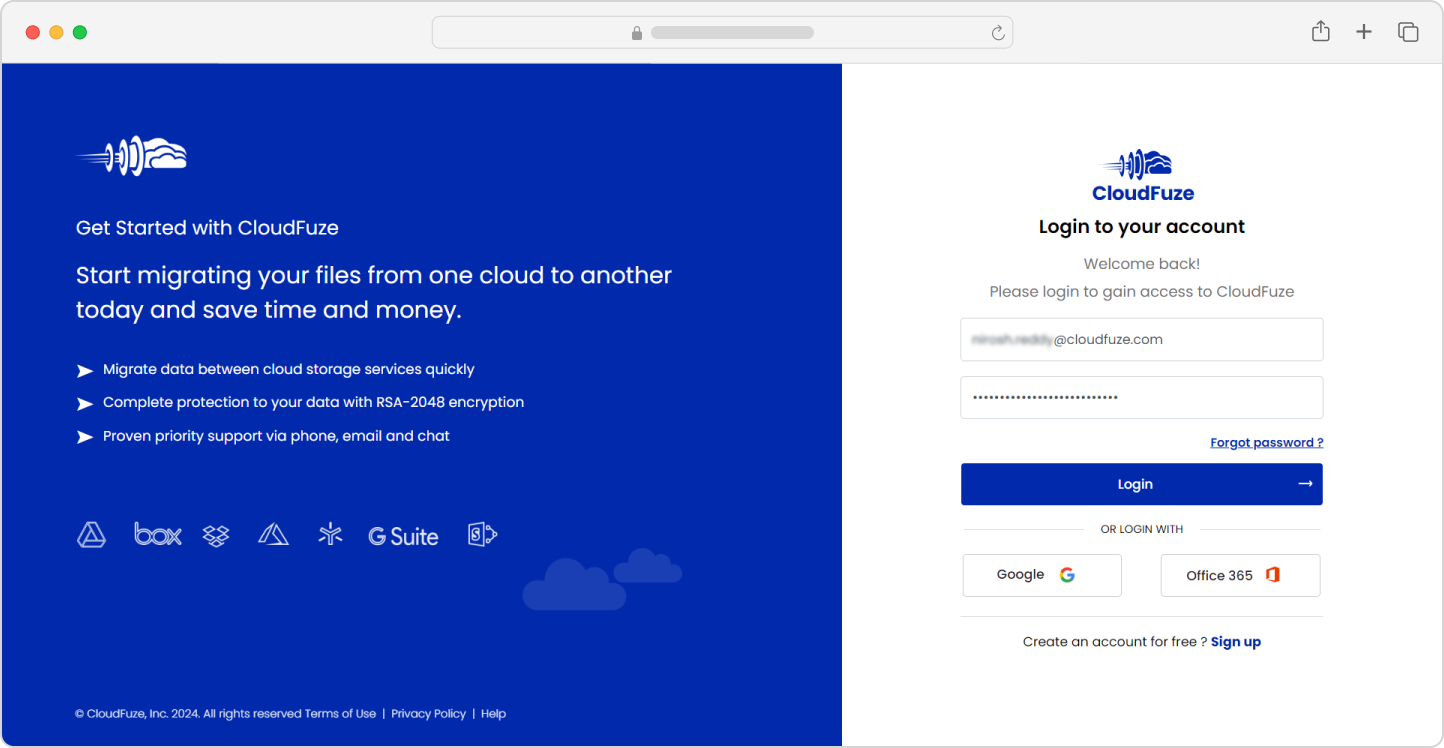
Step 1: Log into CloudFuze
Start by logging into our migration webapp. Sign up for an account if you don’t have one. Also, request for the email migration functionality to be able to test our webapp.
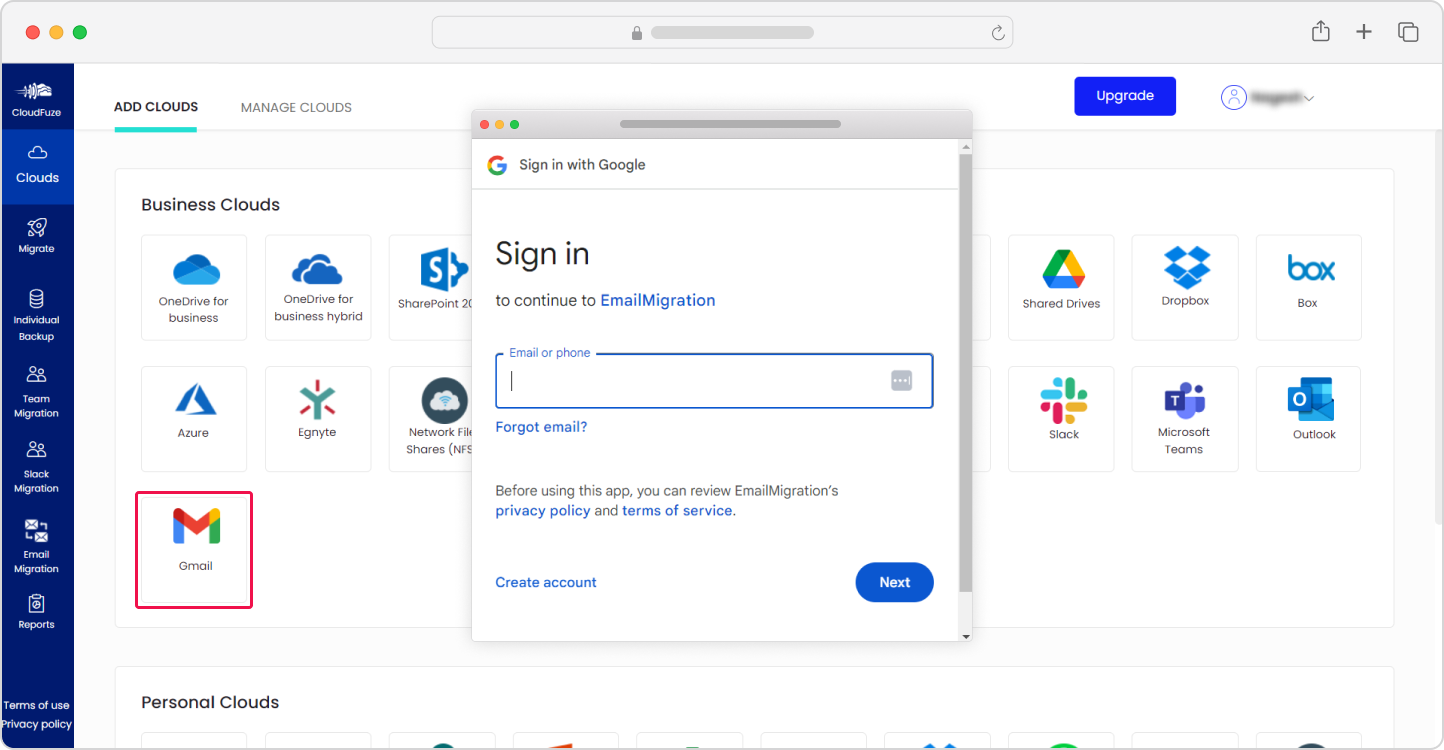
Step 2: Add the Gmail Cloud
Navigate to the Business Clouds section, locate the Gmail cloud, and click on “Add Cloud.” Enter the admin login credentials on the pop-up window.
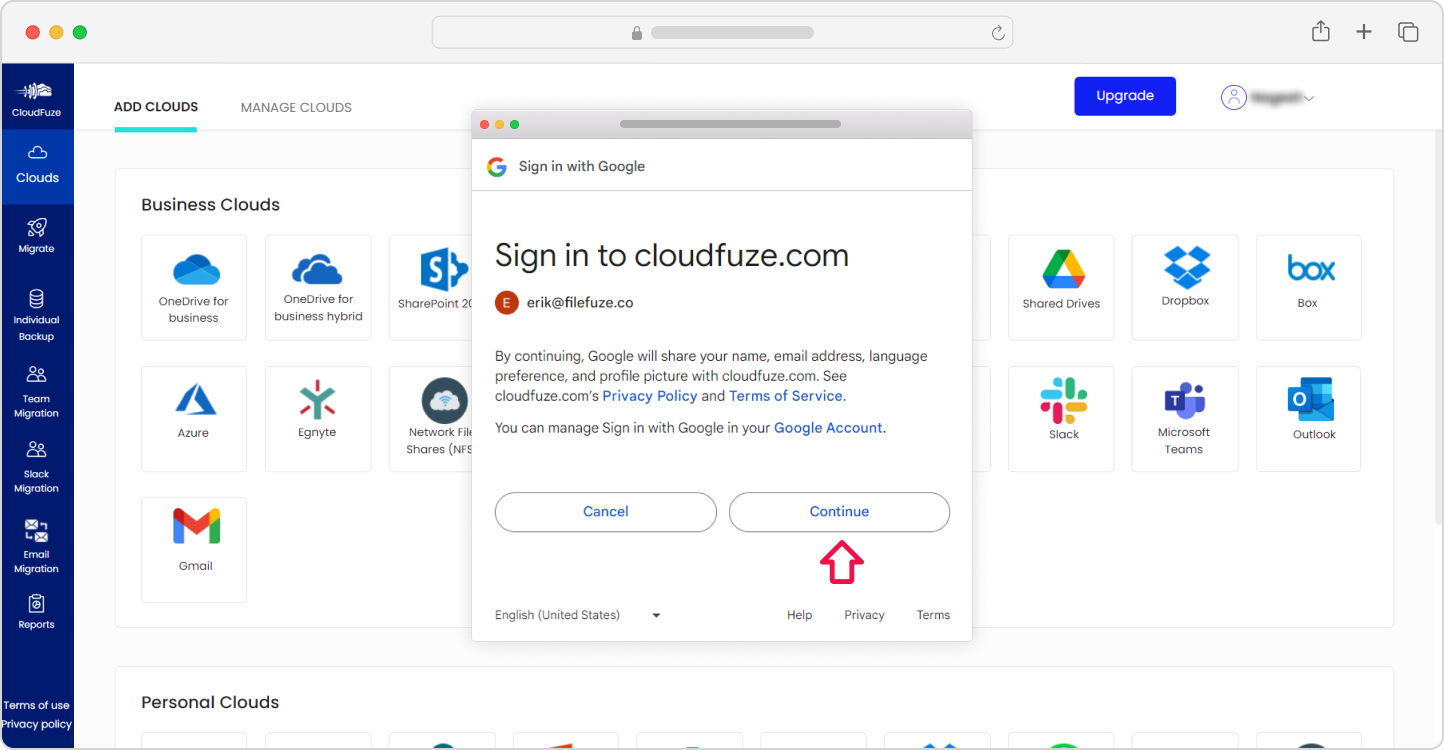
Step 3: Authenticate the Gmail Cloud
Click on “Continue” to authorize the Gmail cloud on our webapp. The cloud authorization process happens through the secure OAuth protocol.
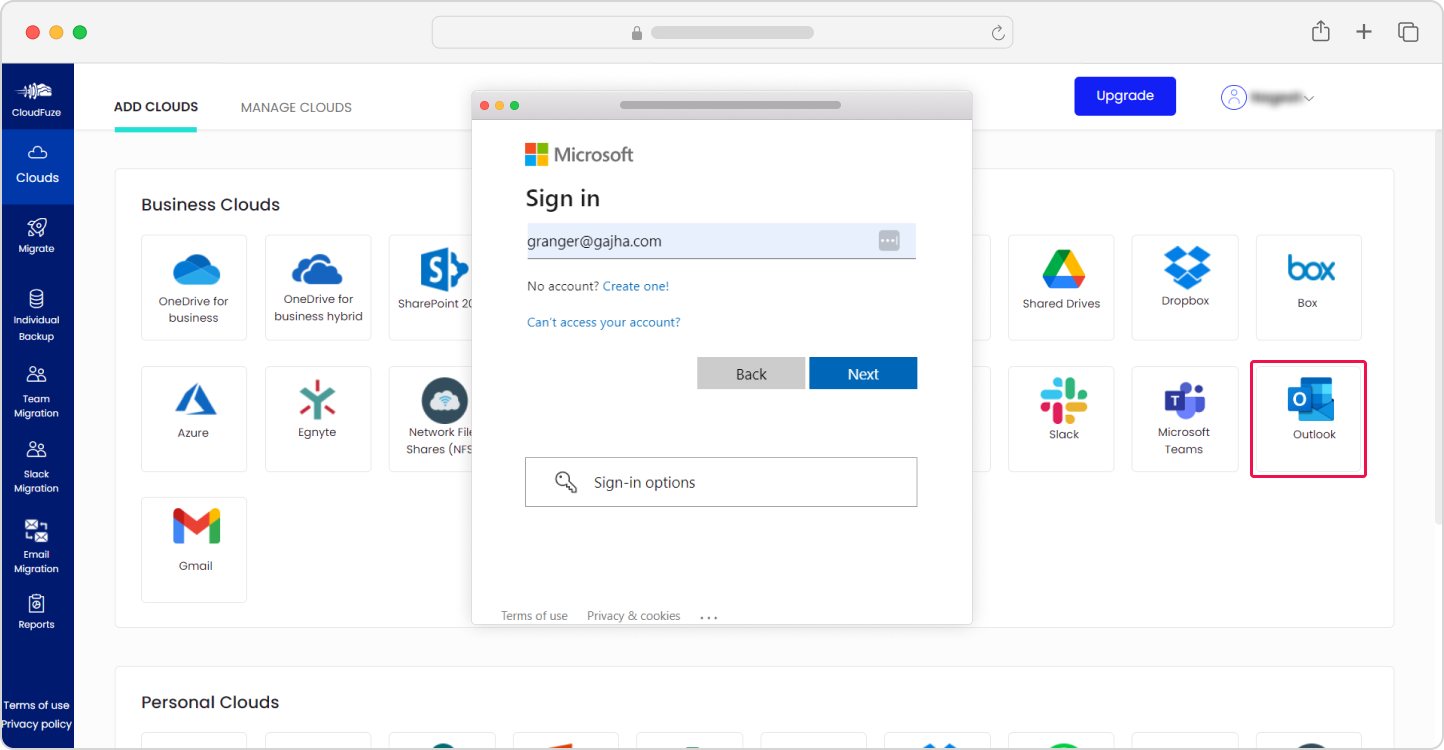
Step 4: Add the Outlook Cloud
Similarly, locate the Outlook cloud under the Business Clouds section and add the cloud. Enter the Microsoft 365 global admin’s login credentials.
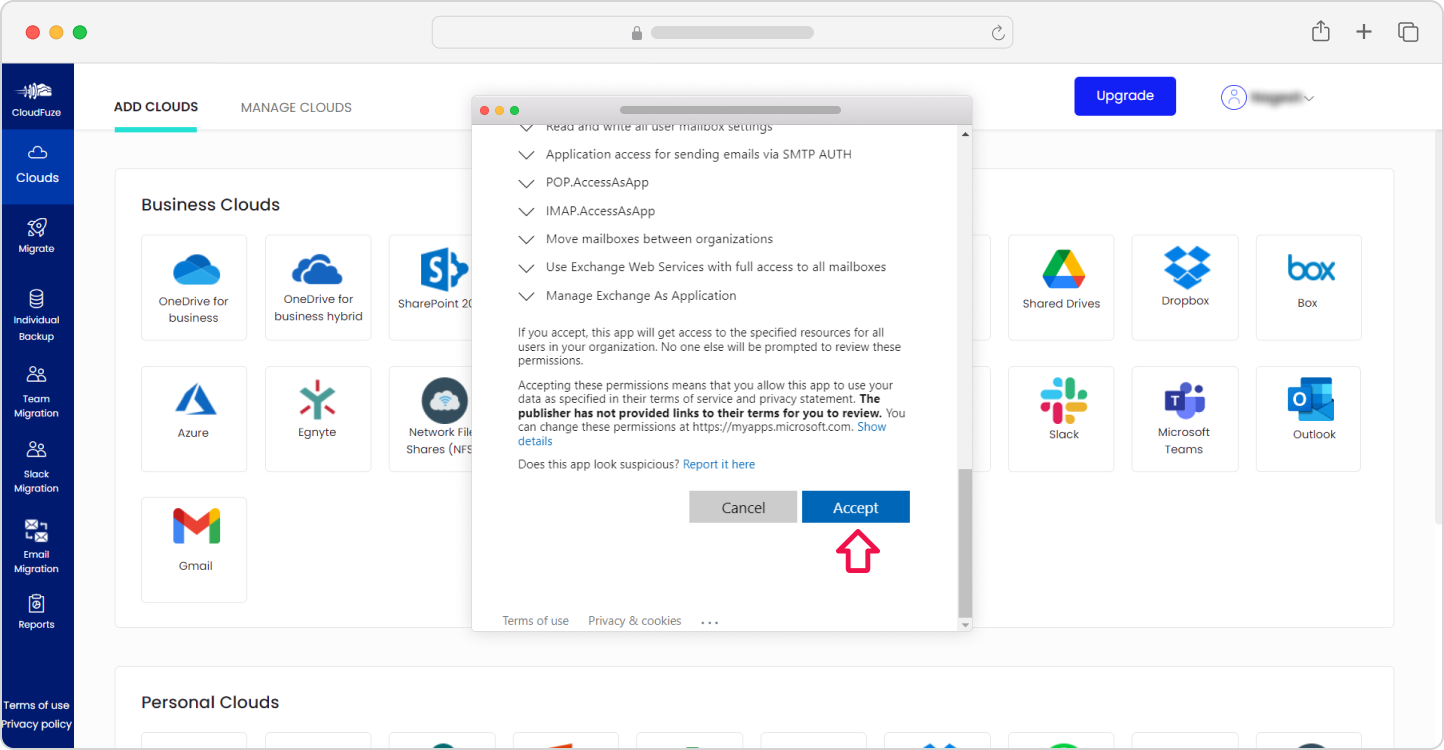
Step 5: Authenticate the Outlook Cloud
Click on “Accept” to authenticate and authorize the Outlook cloud on our migration webapp.
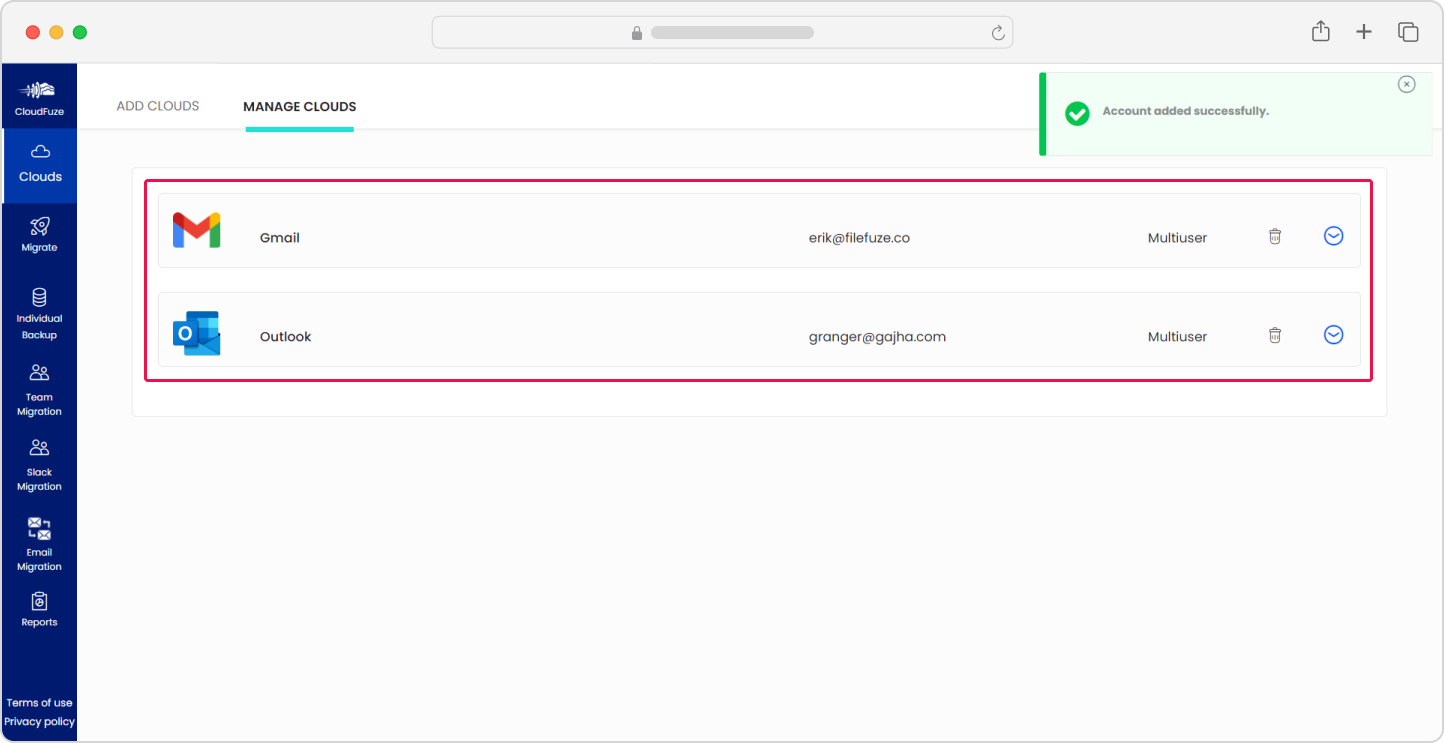
Step 6: Confirm the Clouds Addition
On the Manage clouds section, check and ensure both clouds, Gmail and Outlook, are added properly.
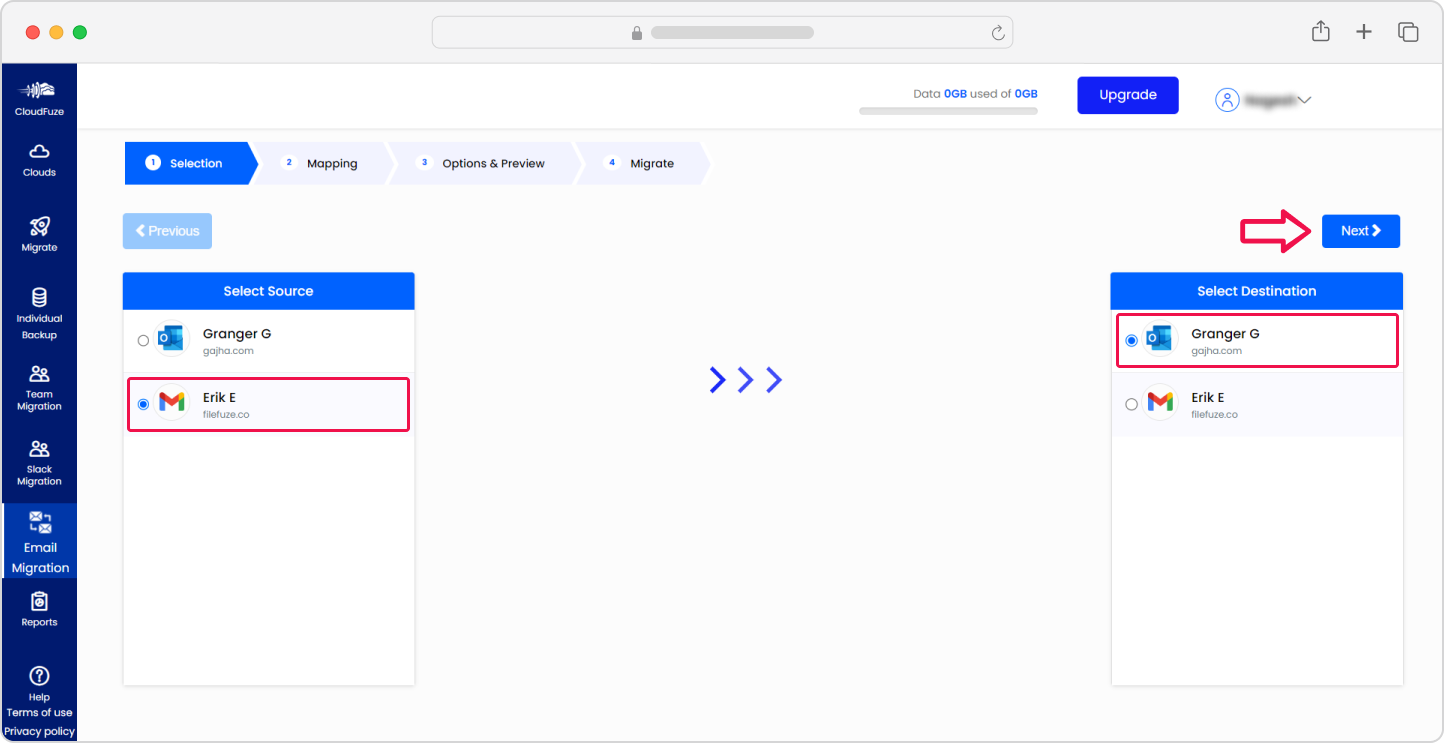
Step 7: Select the Source and Destination Cloud
Navigate to the Email Migration panel and select Gmail as the source and Outlook as the destination cloud.
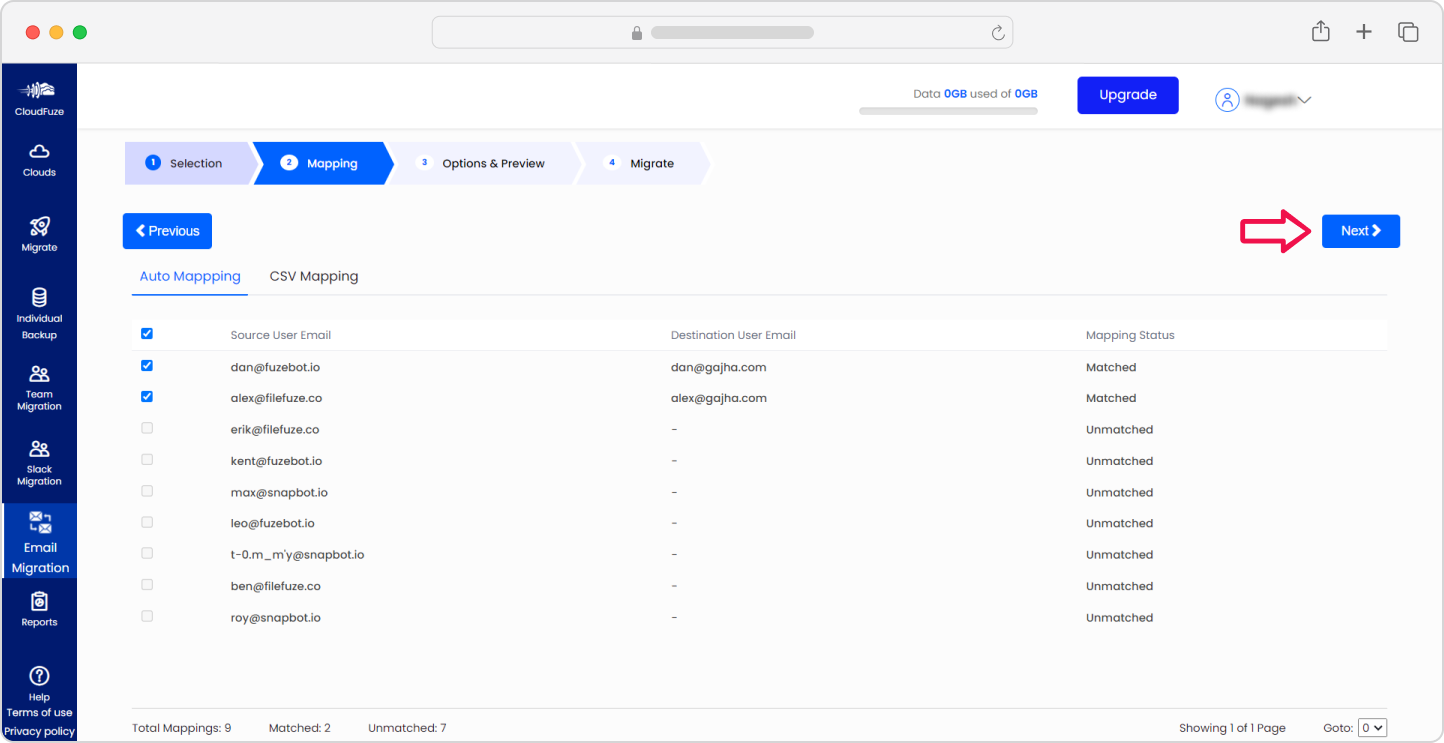
Step 8: Map the User Accounts
Use our tool’s auto-mapping or CSV mapping options to map user accounts from Gmail to point to Outlook.
Step 9: Choose the Migration Options
In the Options & Preview stage, choose the features and configure other options as per your migration needs.
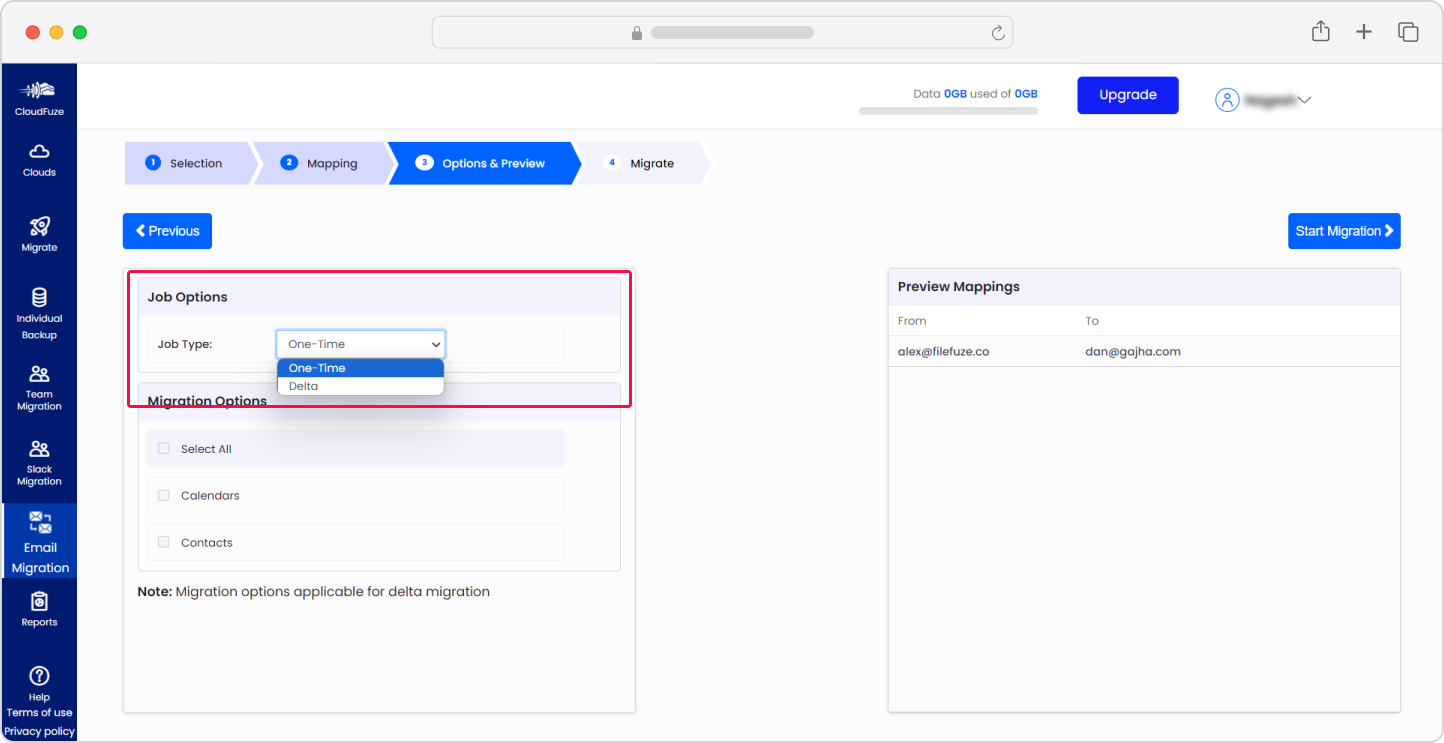
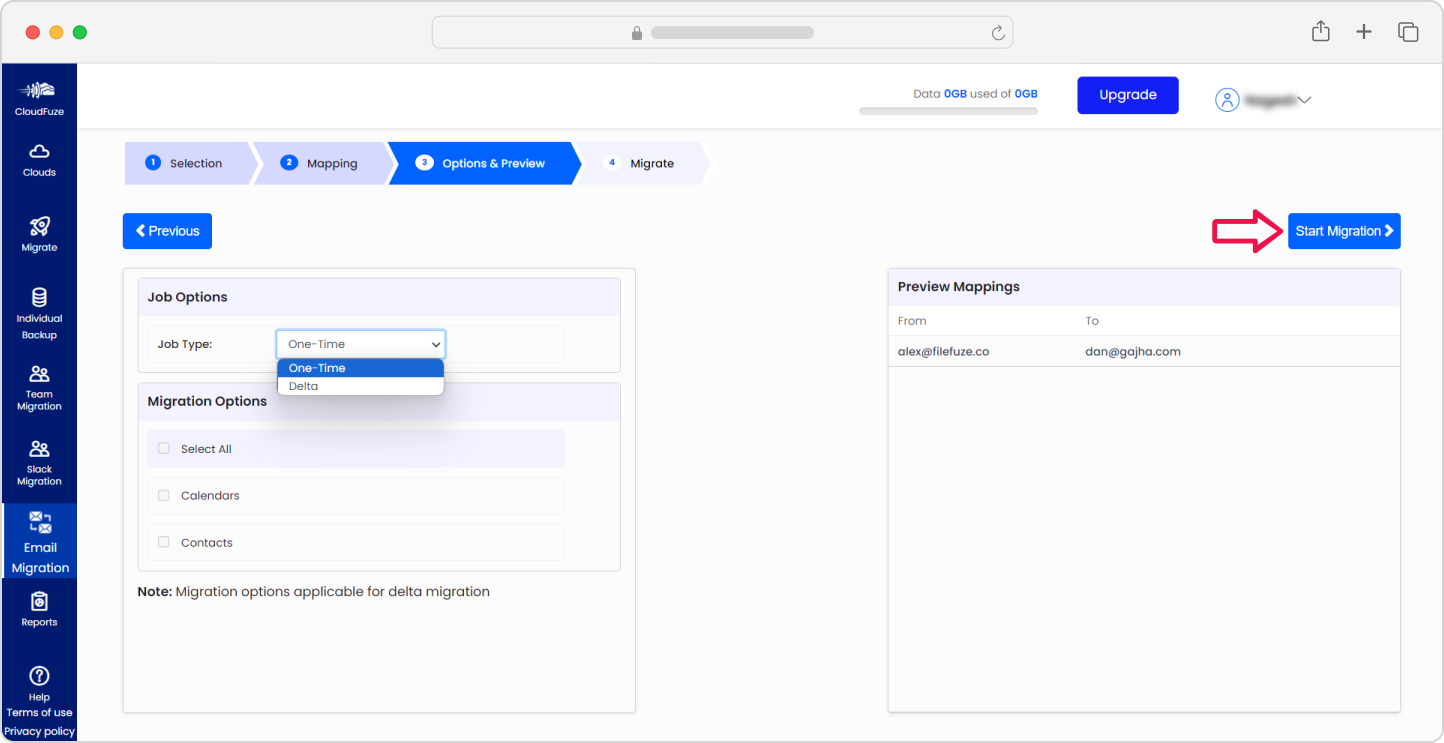
Step 10: Start the Gmail to Outlook Migration
If everything looks good, start the migration process.
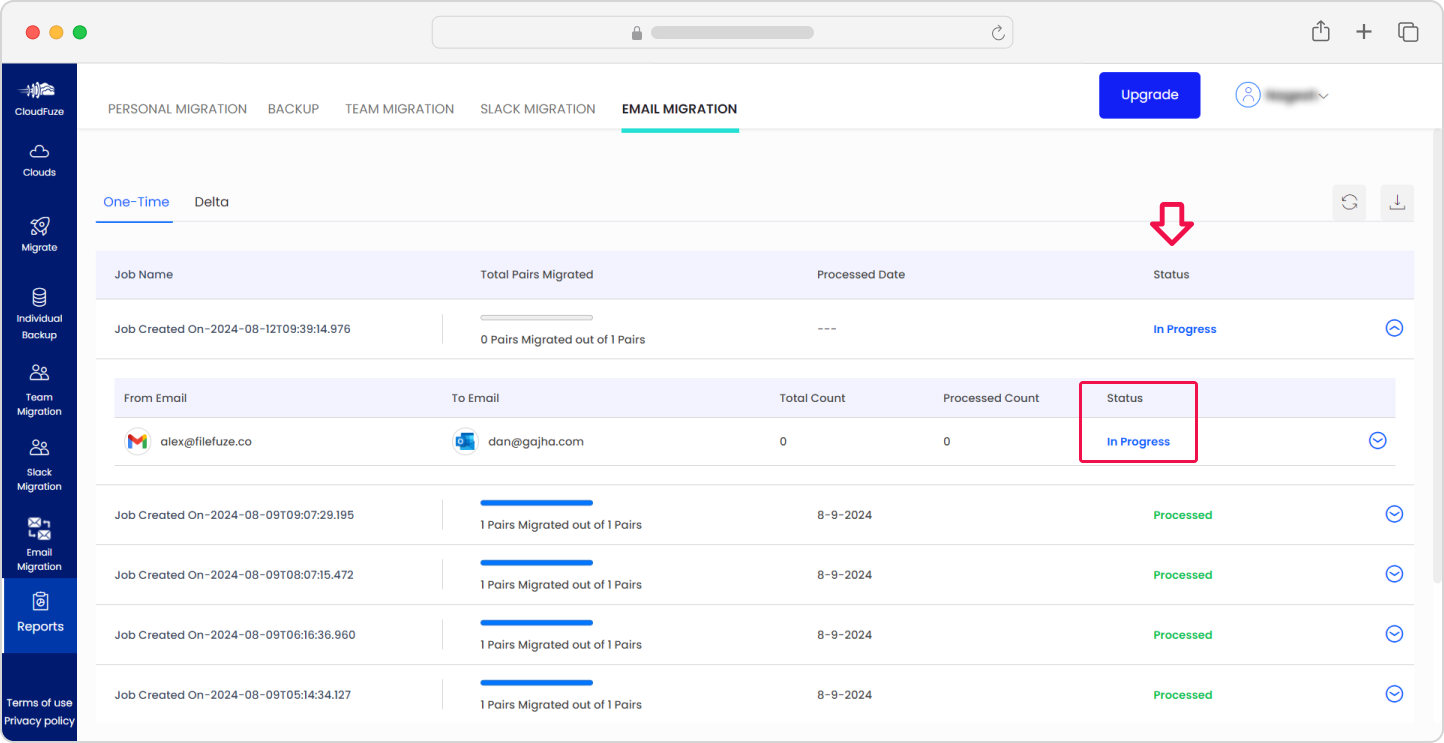
Step 11: Monitor the Migration
You will be automatically redirected to our tool’s Reports dashboard after starting the migration process. Make sure to monitor the migration process. The dashboard will display the “Completed” status upon completion of the transfers.
Post-Migration Activities
It is critical to take all the necessary post-migration steps to ensure complete success of the migration project.
1. Delta Migration
After the completion of the one-time migration, make sure to perform a delta migration to transfer all the incremental changes that have built up during the one-time migration.
2. Migration Validation
To validate all the emails that have been migrated to Outlook from Gmail, check the migration reports thoroughly. Make sure to check all the vital parameters, such as the number of user accounts migrated, the number of emails migrated, the time taken to complete the migration of the batch, any conflicts or warnings, etc.
3. Post-Migration Integration
Integrate the migrated emails with the same or similar third-party apps that your company has used previously with the Gmail e-mail platform. You can do this by checking for the apps in the Microsoft Store.
4. User Onboarding and Go Live
Provide proper user training to ensure smooth onboarding to the Outlook environment. Complete the user onboarding process and start the usage of Outlook at a full scale, organization wide.
Conclusion
If you find the strategies and steps in this guide insightful, feel free to adopt them in your company’s Gmail to Outlook migration plan.
With our advanced e-mail migration solutions, we can help your company migrate all emails from Gmail to Outlook and achieve all the migration goals. We can empower your team to maintain the highest level of security and performance during the transition.
Talk with our team to discuss further on the migration road map. Or simply share your migration requirements for a tailored price quote.
Frequently Asked Questions
1. How long does it take to migrate emails from Gmail to Outlook?
Migration time depends on the number of user accounts and the total data volume. A small migration of under 100 users with standard mailbox sizes typically completes within a few days. Enterprise migrations involving thousands of users and large mailboxes are typically migrated in batches over a couple of months.
2. How do I migrate emails from Gmail to Outlook without losing attachments?
Use a purpose-built migration tool that explicitly supports attachment migration. CloudFuze migrates all email attachments from Gmail to Outlook as part of standard email migration. Manual methods like IMAP or PST exports are less reliable for preserving attachments, especially for large files or inline images.
3. How do I migrate contacts from Gmail to Outlook?
CloudFuze migrates Gmail contacts to Outlook contacts as part of the same migration workflow. When configuring migration job options in CloudFuze’s migration dashboard, enable the contact migration option.
4. What are the key security considerations when migrating emails?
Key security considerations include using a migration tool that authenticates via OAuth 2.0 (not stored passwords), verifying that data is encrypted in transit using TLS, confirming the vendor’s data retention policy, and ensuring the migration tool provides complete audit logs. For regulated industries, verify the vendor’s compliance certifications before starting.
5. What services offer seamless email transfers between major email providers?
Purpose-built enterprise migration platforms such as CloudFuze offer the most complete email transfer between major providers, including Gmail, Outlook, and others. The tool enables seamless migration of emails, attachments, calendars, contacts, while supporting large user counts and custom mapping and in-depth reporting.
About the Author: Pankaj Rai



