
5 Best Practices of Microsoft 365 Employee Offboarding
In today’s hybrid and remote work culture, many businesses depend on Microsoft 365 to keep their teams connected and productive. While hiring and onboarding often get the most attention, employee offboarding in Microsoft 365 is often overlooked.
At CloudFuze, we offer an advanced SaaS & AI management software, CloudFuze Manage, that automates Microsoft 365 employee offboarding on a single platform, safeguarding your confidential business data from security breaches.
In this blog post, we will discuss the top 5 best practices for managing Microsoft 365 employee offboarding.
Key Takeaways:
What is Microsoft 365 Employee Offboarding and Why Is it important?
Microsoft 365 employee offboarding is the process of securely removing a departing team member’s access to Microsoft Office 365 tools such as Teams, Outlook, OneDrive, and SharePoint.
It is important to offboard employees from the Microsoft 365 environment properly to protect your company’s sensitive documents, maintain business workflow continuity, and avoid compliance risks.
How Can You Implement Employee Offboarding in Microsoft 365?
Companies implement offboarding by restricting the user’s sign-in access to Microsoft Office 365 tools, revoking their Microsoft 365 active sessions and tokens in Entra ID (Microsoft’s identity and access management solution), and backing up or transferring their business files.
Then, IT admins update the concerned employee’s group memberships and permissions to make sure that no undetected access remains.
This Microsoft Office 365 employee offboarding process can save up to 30% on Microsoft 365 license costs by freeing up unused licenses, and it also guarantees that no confidential files or conversations are lost during the transition.
Top 5 Microsoft 365 Employee Offboarding Best Practices
Employee exits can create compliance and security gaps if you don’t handle Microsoft Office 365 offboarding properly. To protect your company’s data and automate your user workflow process, follow these 5 offboarding best practices:
1. Disable Microsoft 365 Access of Departing Employees Immediately
As soon as an employee leaves your organization, revoke their Microsoft Office 365 access to prevent unauthorized logins and protect your sensitive business data.
Here’s what you should do once the employee says they are switching companies:
- Block the employee’s sign-in from the Microsoft 365 Admin Center.
- Reset the particular user’s password.
- Revoke all active sessions and tokens in Entra SSO for the leaving employee.
2. Back Up and Transfer All the Employee Data
Before you delete your employee’s Microsoft 365 account, make sure you back up and transfer all necessary data to the right person. This step helps maintain business continuity and prevents data loss.
Here are the most critical data that need to be backed up:
- Emails and Calendars
- OneDrive Files
- SharePoint Sites and Shared Mailboxes
- Teams Chats and other Files
3. Set Up Email Forwarding and Auto-Reply for the Ex-employee
Even after the employee leaves your organization, you must keep communication flowing by configuring the following:
- Email Forwarding: Redirect all ex-employees’ incoming emails to a designated colleague.
- Auto-Reply Message: Let email senders know the employee has left the company and provide an alternative contact to maintain professionalism and avoid missed opportunities.
4. Remove Unused Microsoft 365 Licenses and Reassign Resources Optimally
Once you secured your business data, remove the particular employee’s Office 365 license from the user account.
This helps you:
- Avoid paying for unused Microsoft 365 licenses.
- Reassign the idle Microsoft 365 license to a new hire.
Also, review and reassign shared resources like calendars, distribution lists, and shared mailboxes.
5. Document and Standardize the Microsoft 365 Employee Off-Boarding Process
Create a standardized employee offboarding checklist for Microsoft 365. With this final step, you can follow the same process every time and avoid missing anything important. Your checklist should include:
- Disabling Microsoft Office 365 employee access.
- Backing up all relevant data of the employee.
- Setting up email forwarding to the departing employee.
- Removing the ex-employee’s Microsoft 365 licenses.
- Archiving or deleting the departing employee’s account
Along with these five best practices, use our specialized SaaS & AI management software, CloudFuze Manage, to automate both employee onboarding and offboarding from a single dashboard in minutes.
How CloudFuze Manage Simplifies your Employee Offboarding Software
Manual offboarding in Microsoft 365 relies entirely on IT admins’ effort to deactivate user accounts, revoke employee access, and transfer relevant data.
However, with our powerful SaaS management platform, CloudFuze Manage, we simplify the entire employee lifecycle process.
Here’s what makes it the best choice for enterprises:
- Automated Microsoft 365/Entra SSO Access Revocation: Large enterprises can instantly revoke user access across Microsoft 365 in a single click.
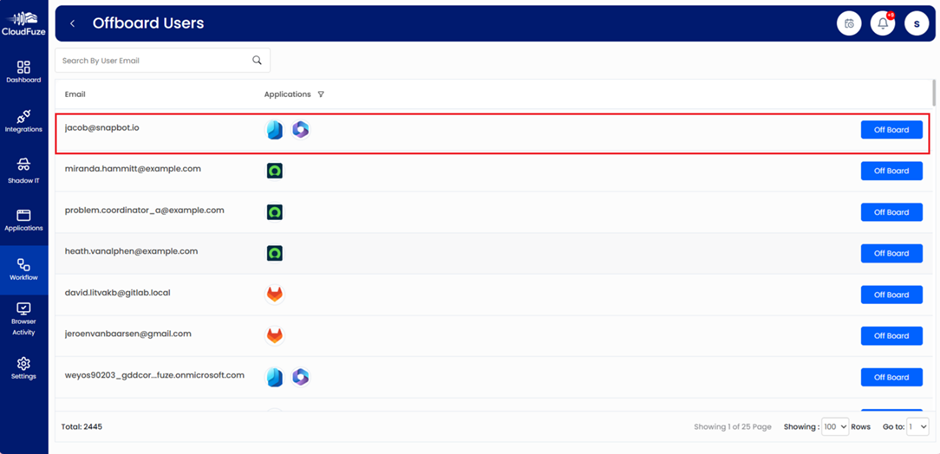
- Secure Microsoft 365 Data Transfer: IT admins can move files, emails, and shared resources to the right owners without manual effort.
- Microsoft 365 License Optimization: Businesses can automatically remove unused Microsoft 365 licenses and reassign them to new hires.
- Compliance and Reporting: Audit-conscious companies can download detailed audit-ready reports for compliance requirements, and our platform follows strict data protection standards (ISO 27001, GDPR, and SOC 2 Type 2).
- Multi-App Onboarding/Offboarding: Organizations with more than 1000 employees can manage employee onboarding and offboarding across multiple SaaS & AI platforms from one dashboard.

How Manual Offboarding Differs from CloudFuze’s Automated Offboarding
Here’s the table differentiating the manual and automated offboarding processes:
| Aspect | Manual Offboarding | Automated Offboarding (CloudFuze Manage) |
|---|---|---|
| Time Required | Hours to days | Minutes |
| Error Risk | High (human errors) | Low (automated workflows) |
| Data Transfer | Manual and time-consuming | Automated and secure |
| License Management | Requires manual tracking in a spreadsheet | Automatic license removal and reassignment |
| Compliance Reporting | Manual documentation, which is usually slow | Built-in reporting and instant audit logs |
Also, check out our SaaS & AI app management tools’ advanced features in this short video:
Why Choose CloudFuze Manage?
In addition to the top 5 Microsoft 365 employee offboarding best practices, businesses and large enterprises can use our SaaS management platform to automate repetitive IT tasks, save valuable time, and reduce SaaS & AI app security risks to a great extent.
Also, CloudFuze Manage gives you complete control over Office 365 management and makes your employee offboarding completely stress-free.
Contact us for a free demo!
Frequently Asked Questions
1. What is the difference between blocking sign-in and deleting a Microsoft Office 365 account?
When you block sign-in, you immediately stop the user from accessing Office 365 while keeping their data intact for backup or transfer. When you delete the same Office 365 account, you permanently remove the user and their data after the retention period.
It’s recommended to go with the block sign-in option in CloudFuze Manage when you’re unsure about an employee returning to your team.
2. Can I integrate other SaaS & AI apps besides Microsoft Office 365 with CloudFuze Manage?
Yes, you can govern over 60 major cloud-based SaaS & AI apps, including Microsoft 365, with our SaaS & AI app management platform.
3. Is CloudFuze Manage secure?
Absolutely. We use enterprise-grade security protocols, role-based user access controls, and audit logs to make sure your confidential data and user workflows are protected.



Leave A Comment