
How Do I Securely Backup My Files to OneDrive on My Computer
Cloud storage has become prevalent in almost every sector and used by organizations of all sizes. Regardless of whether you store personal information or sensitive company data, securing data becomes essential.
If you’re wondering how to backup your files to OneDrive, this article is the perfect guide for you.
Key Takeaways:
Steps On How to Backup Files on Computer from OneDrive
Steps on how to back up OneDrive files on your computer:
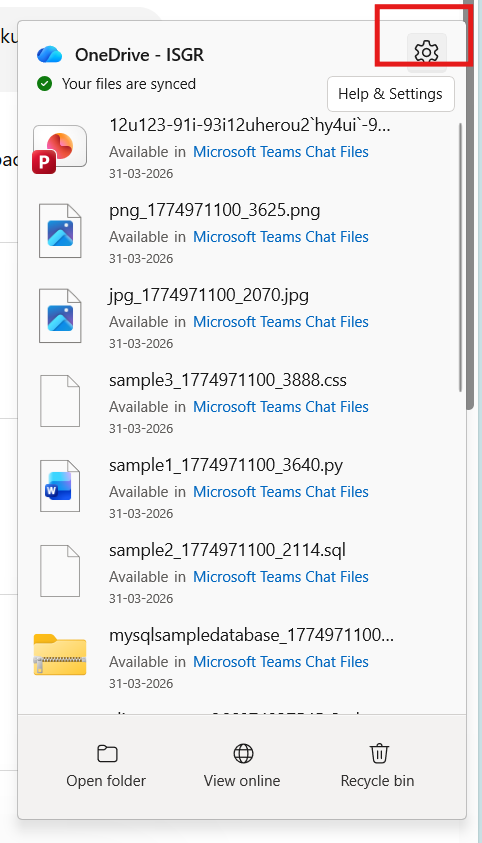
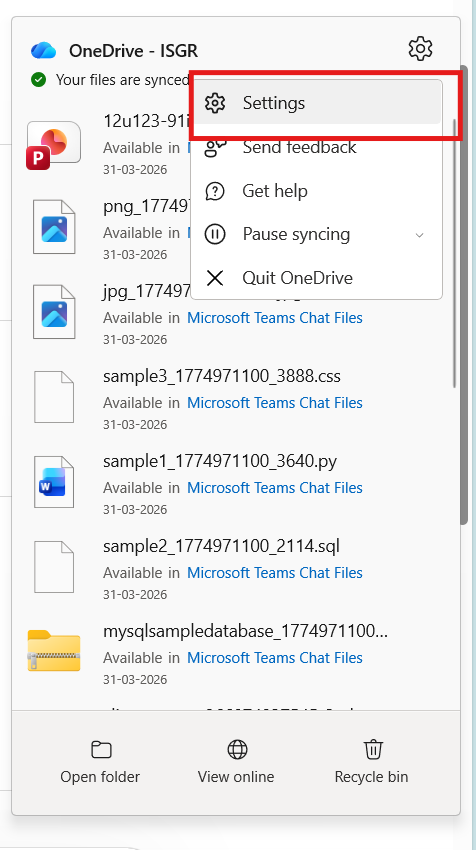
Step 1: Open OneDrive Settings
- Click the OneDrive cloud icon in the system tray (bottom-right of your screen)
- Now select Settings.
Step 2: Go to “Sync and Backup”
- In the settings window
- Click on “Sync and backup” tab
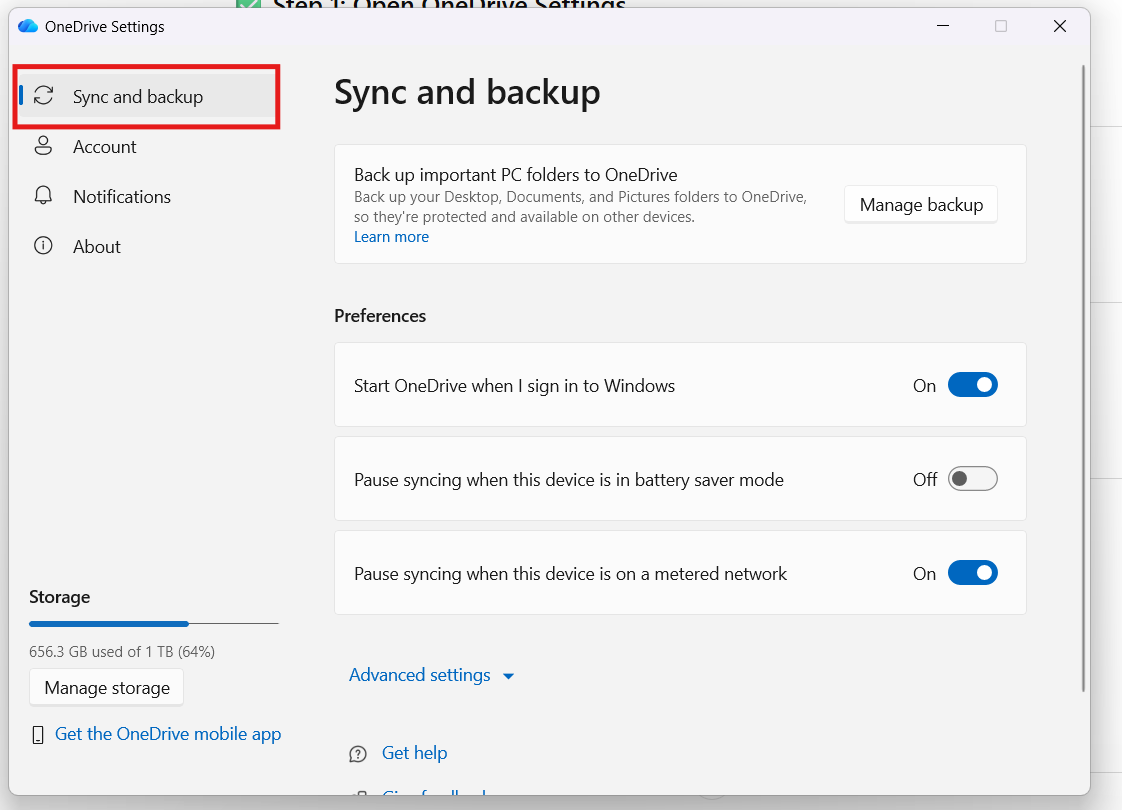
Step 3: Click “Manage Backup”
- Under Back up important PC folders
- Click “Manage backup”

Step 4: Choose Folders to Backup
You’ll see options like:
- Desktop
- Documents
- Pictures
Users can choose the folders to backup.
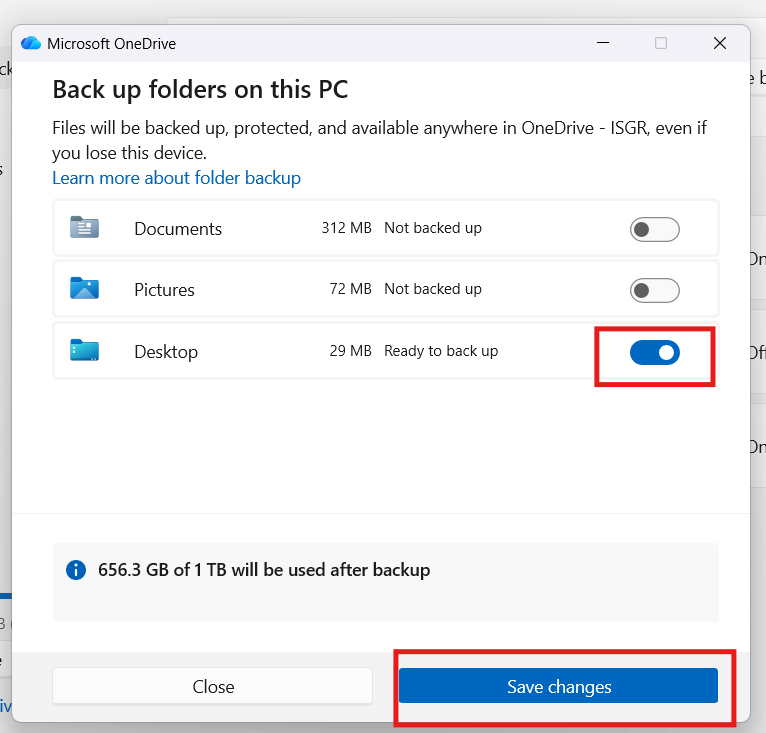
Step 5: Start Backup
- Click “Start backup”
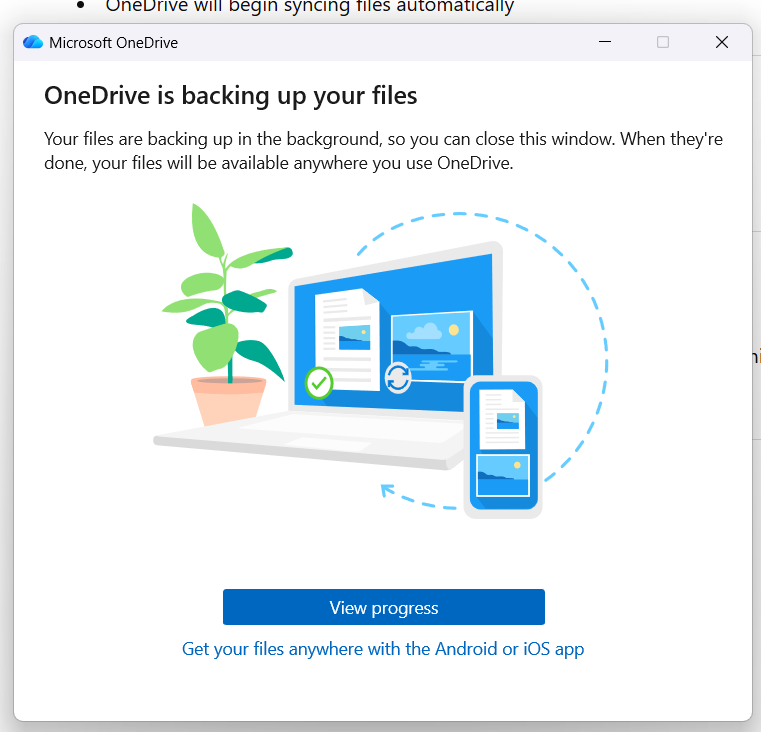
- Files in OneDrive begin to sync automatically.
What Common Problems Can Occur When Backing Up Files to OneDrive?
The below image shows issues while backing up files to OneDrive:
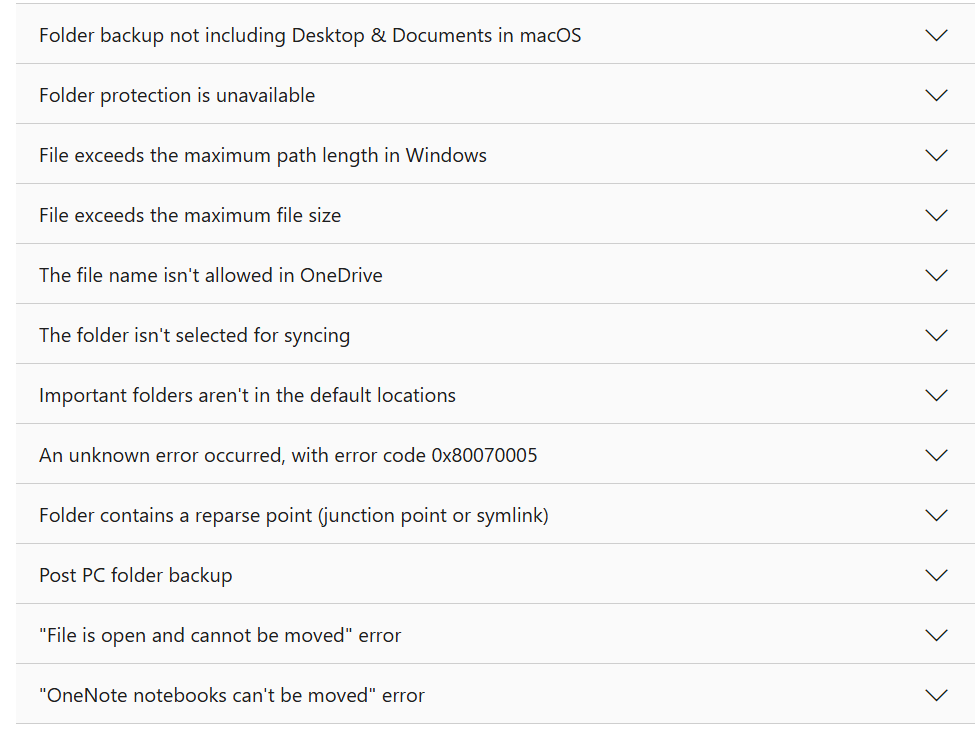
Image courtesy – Microsoft
How Can I Evaluate the Success of My File Backups to OneDrive?
One can check a successful OneDrive file backup by choosing one of these options:
- Select the OneDrive cloud icon on your computer taskbar/menu bar. Then choose View Online. Use this approach if you are a work/school user.
- Check the OneDrive mobile app to view Files.
- The user can also view your most recent items under Home.
- Use a web browser and sign in to OneDrive.com. Now you can view your most recent items online.
Conclusion
Users can easily backup OneDrive files by following the steps provided in the guide. If you are planning a complete migration to OneDrive from your current storage platform, CloudFuze Migrate can help you achieve your transition successfully.
Connect with us for a free consultation for your migration, or request a quote today!
Frequently Asked Questions
1. How do I backup my files to OneDrive on Windows 10?
To back up files to OneDrive on Windows 10, open OneDrive settings by clicking the cloud icon in the taskbar, go to the Sync and backup tab (or Backup), select Manage backup, and toggle on the folders (Desktop, Documents, or Pictures) you want to sync. Click Start backup to protect your files.
2. How do I backup my documents to OneDrive
Steps to backup documents to OneDrive:
- Click on the OneDrive cloud icon in your notification area.
- Now select the OneDrive Help & Settings icon.
- Go to the Sync and backup tab.
- Select Manage backup.
- Then enable the Documents folder to backup.
3. How does OneDrive compare to Google Drive for file backup?
OneDrive is superior for Windows-integrated, block-level file backup (faster for large file updates) and bundled Microsoft 365 services. Google Drive offers 15 GB of free storage (versus 5 GB), superior web-based collaboration, and broader app integrations. OneDrive is ideal for Office users; Google Drive is better for browser-based, collaborative workflows.
About the Author: Arun Jyothi



