
How to Handle Egnyte File Lock Behavior in Google Workspace?
Enterprises migrating from Egnyte to Google Workspace face a critical challenge when moving locked files. Egnyte locks files to prevent simultaneous edits, but during migration, locked files can cause skipped transfers, permission mapping gaps, and version conflicts.
CloudFuze Migrate handle Egnyte file lock behavior in Google Workspace using admin-level access to transfer locked files, preserving content, metadata, and version history.
Learn about it all in this article.
Key Takeaways:
What Are Egnyte Locked Files?
Egnyte locked files are files that allow access to only one user at any given time. It restricts others from modifying the file while it is used by another user or process. There are two ways through which you can lock files in Egnyte.
Different Methods to Lock Files in Egnyte
The first is an automatic file lock that occurs whenever one user has opened a file using the Desktop App or WebEdit, Microsoft Office Desktop, Microsoft Office Online, or Google Workspace. Until the file remains open and the computer is online, the file remains locked.
The second way is to manually lock the file through the web interface, using the file action menu to lock the file.
You can preview or download locked files. You cannot rename, move, or delete locked files. Users may not upload new versions of a locked file.
Note that the above-mentioned rules do not apply to admins or users with the “owner” permission on a folder, who may manually unlock files in that folder (except files that are under a co-editing session using Microsoft Office (beta), Microsoft Office Online, or Google Workspace).
Challenges When Transferring Locked Files from Egnyte to Google Workspace
Challenges when transferring locked files from Egnyte to Google Workspace:
- Skipped files
- Permission mapping issues
- File version conflicts
- Sync issues
- Loss of context in locked files
You can eliminate common errors when migrating locked Egnyte files with CloudFuze Migrate.
Screenshots on How CloudFuze Handles Egnyte File Locked Behavior in Google Workspace
Image 1: Shows how you can lock files in Egnyte.
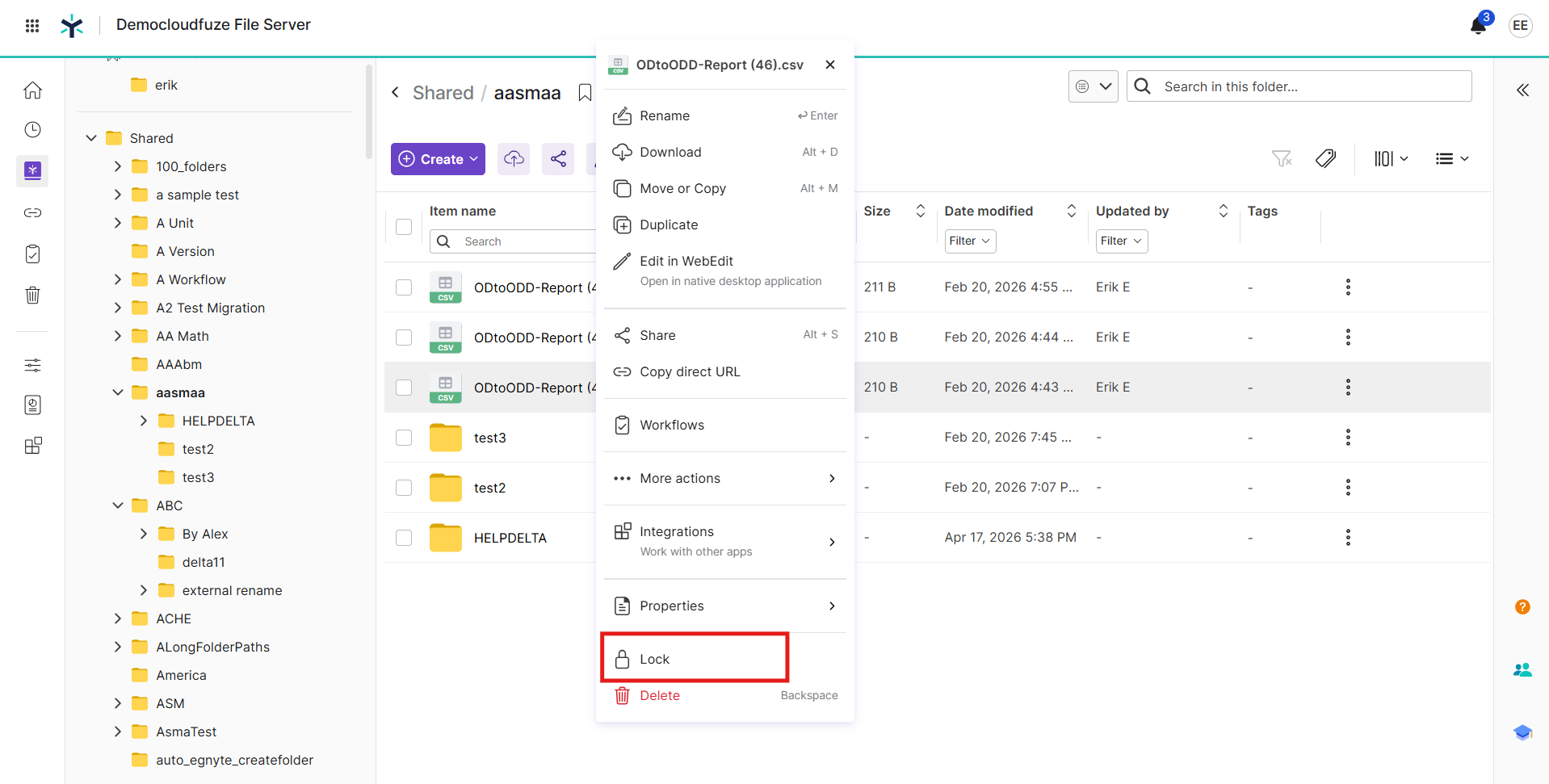
Image 2: Once we lock a file, we get a pop-up saying the file is locked, and we can also see the lock symbol beside the file.
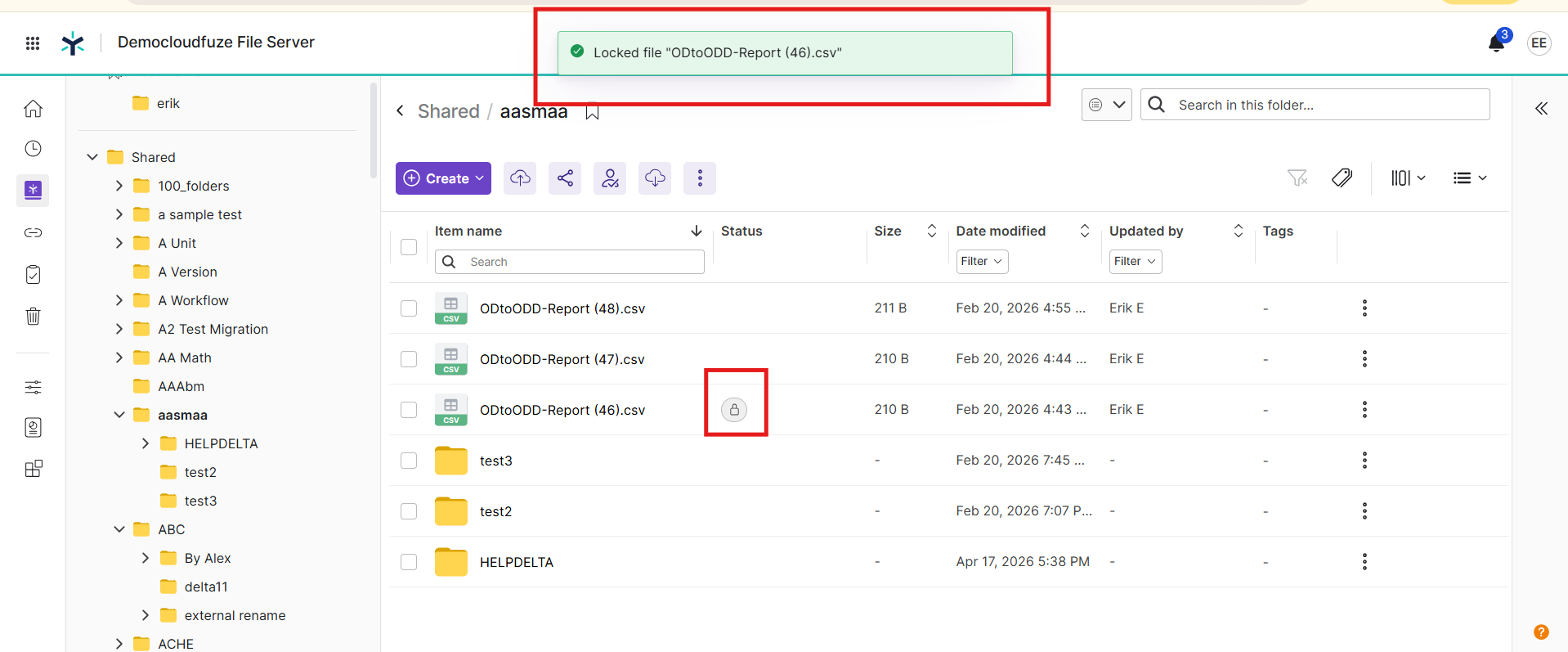
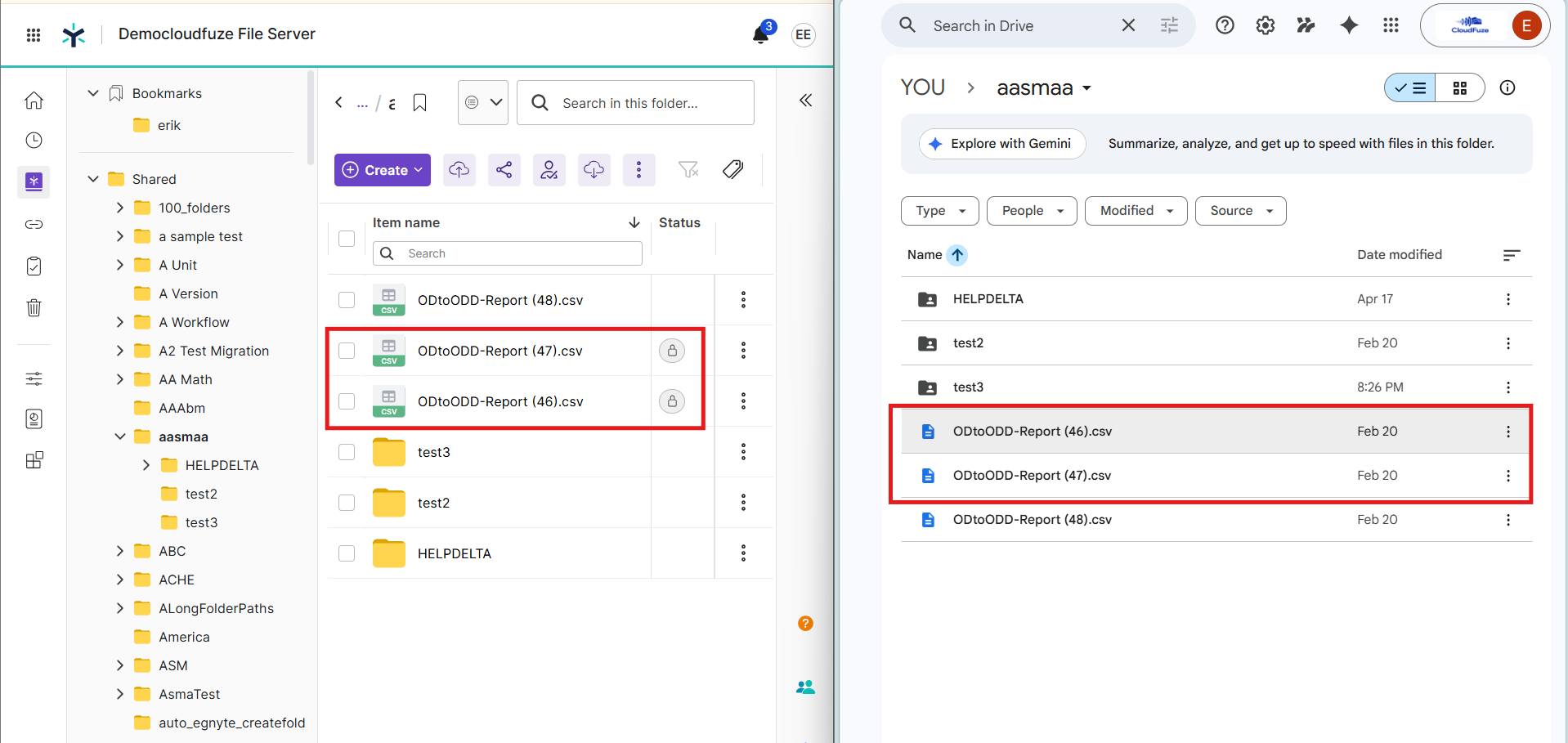
Image 3: After migration, this is how the locked files get migrated to Google Workspace. Note that, although the files are locked, the admin can still access the file.
CloudFuze Migrate can transfer locked files without issue if your migration account has admin-level access.
As long as the migration account has admin-level access, it bypasses Egnyte’s read/copy lock restrictions.
During migration, file content, metadata, and all versions get transferred successfully. Only the active lock state does not get carried over.
This is the behavior of all migration tools and not a limitation specific to CloudFuze Migrate. Hence, the files locked in Egnyte get migrated to Google Workspace as unlocked files.
What Do Customers Say About Us?
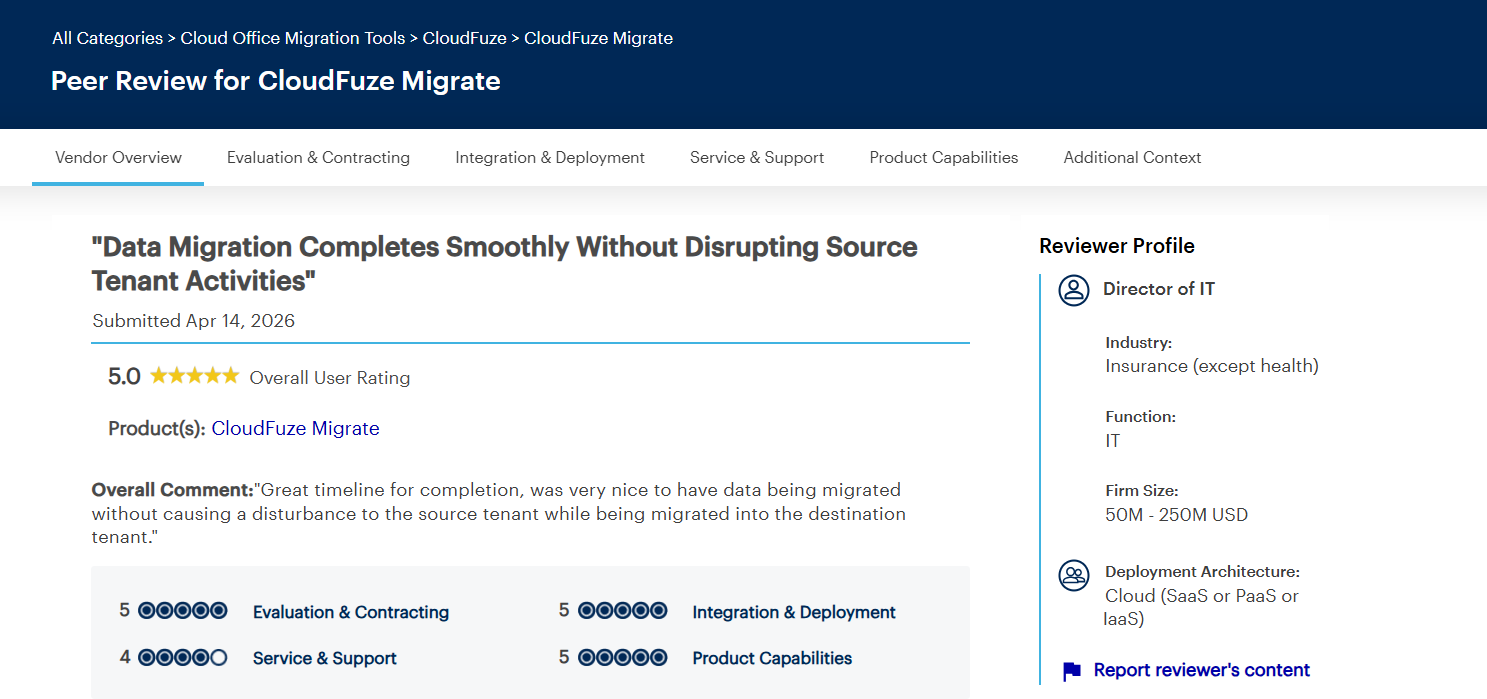
As per the Gartner Peer Insights review, we have a rating of 4.7/5. Here is a recent April 2026 Gartner review by our customers that showcases a successful cloud migration.
Check Our Our Egnyte to Google Shared Drives Migration Tool:
Transfer Egnyte Locked Files Accurately to Google Workspace
By using CloudFuze Migrate, businesses can perform Egnyte files migration to Google Drive with all types of files and important metadata to Google Drive.
By preserving the existing folder structure and necessary permissions, teams can easily locate their files and maintain collaboration workflows without disruptions.
Schedule a free and no-obligation demo with us today!
Frequently Asked Questions
1. Best practices for managing locked files in Google Drive after migrating data from a different cloud system.
Managing locked files after migration in Google Drive includes ownership audit, use of shared drive, and unlocking content using admin tools.
Best practices include Google Vault for auditing; Google Apps Manager (GAM) for mass-unlocking; proper ownership transfer and increasing lock retry counts in migration tools.
2. Can I transfer locked documents from a secure file collaboration platform to a popular cloud storage?
Yes, you can transfer locked documents from a secure file collaboration platform to a popular cloud storage platform.
The most secure way is to check the lock type, if possible, remove the lock, and then migrate the file to Google Drive or Shared Drives using a reliable tool that preserves permissions intact.
3. Are there third-party migration services that support locked or restricted files between cloud file systems and workspace tools?
Yes, there are third-party migration services that support locked or restricted files between cloud file systems and workspace tools. Google Workspace migration tools such as CloudFuze Migrate help you with migrating locked or restricted files.
About the Author: Bhavani Asok



