
Move Google Workspace to Another Account & Retain Permissions
Want to preserve root folder permissions, subfolder permissions, root file permissions, and inner file permissions when moving Google Workspace data to another account?
CloudFuze supports 100% permission preservation in Google Drive to Google Drive migration and Google Shared Drive to Google Shared Drive migration, which includes preservation of permissions for users/groups, access to folders and files, permissions in Shared Drive (Manager, Content Manager, Contributor, Commenter, and Viewer), and sharing permissions.
In this article, we will discuss what permissions should be preserved, how CloudFuze maps users/permissions, and how IT professionals can check permissions pre- and post-migration.
Key Takeaways
Why Is Permission Preservation Important for Google Workspace Tenant Migration?
Permission preservation is important when performing Google Workspace tenant migration like Google Drive to Google Drive migration and Google Shared Drive to Google Shared Drive migration because it allows users and groups to maintain the correct access to business information after the migration process.
Google Workspace permission preservation helps to maintain:
- Permissions on root folders/subfolders without manually building them again.
- Permissions on individual users and groups at the file level.
- Inherited permissions.
- Permissions in Shared Drive, such as Manager, Content Manager, Contributor, Commenter, and Viewer roles.
- Ownership/sharing permissions where possible in the destination environment.
- Permissions for external and group-based access.
Without proper permission preservation, users may not have access to important files, get too much access, or need a lot of manual permission reconfiguration after migration.
Why Google Workspace Permission Preservation Can Be Challenging
During manual or basic script migrations, permission loss happens due to:
- Identity Mismatch: Source and destination users may have different domains or usernames, requiring identity mapping to associate source permissions with the correct destination accounts.
- Shared Drive Role Structure: Roles in Shared Drive are structured (Manager, Content Manager, Contributor, Commenter, Viewer), unlike the standard ACLs used for file-level permissions. During file transfers, standard ACL permissions for all users are set as Editor/Viewer.
- External Share Links: External users don’t have access since their permissions are created anew in the target environment with a new file ID and tenant.
CloudFuze handles permission loss with deep API access via OAuth 2.0 and Service Accounts, mapping user identities before transferring and replicating the permission tree to the target environment when switching from Google Workspace Business to Google Workspace.
Preserve Google Workspace Permissions with CloudFuze: Google My Drive and Shared Drive
For enterprises that are looking to migrate Google Workspace data, CloudFuze Migrate allows the automation of their migration process by transferring users and business data along with the data relationships that are to be preserved.
The following Google Workspace objects can be migrated using CloudFuze:
- Google Drive
- My Drive
- Shared Drives
- Users
- Files/Folders
- Permissions
- Ownership Mapping
- Enterprise Data Migration
- Incremental/Delta Migration
During the process, the following stages can be included:
- Pre-migration analysis
- User/Folder Mapping
- Pilot Migration
- Production Migration
- Delta Synchronization
- Post-Migration Validation
In case of permissions-based migration, the goal is not:
“Was the file migrated?”
But:
“Can the correct user access the correct file with the correct permissions?”
How CloudFuze Helps Retain Google Workspace Permissions
CloudFuze helps preserve permissions during Google Drive-to-Google Drive and Shared Drive-to-Shared Drive migrations by mapping users and groups, migrating file and folder permissions, retaining Shared Drive roles, and validating access after Google Workspace user data migration.
1. Maps Users and Groups
CloudFuze maps source users and groups to their corresponding destination identities, including different domains and usernames.
| Source | Destination |
|---|---|
| rita@oldcompany.com | rita@newcompany.com |
| sales@oldcompany.com | sales@newcompany.com |
This ensures permissions remain associated with the correct users and groups.
2. Preserves File and Folder Permissions
CloudFuze supports permission preservation across:
- Root folders and subfolders
- Root and inner files
- User and group permissions
- Inherited permissions
- Sharing settings
Administrators can control which permissions are migrated, helping reproduce the source access structure in the destination.
3. Retains Shared Drive Roles
For Shared Drive-to-Shared Drive migrations, CloudFuze can preserve membership and role-based access, including:
- Manager
- Content Manager
- Contributor
- Commenter
- Viewer
This helps maintain existing collaboration structures across departments and project teams.
4. Preserves Internal and External Sharing
CloudFuze supports internal and external sharing permissions, including access granted to users, groups, customers, vendors, and partners. However, external access remains subject to the destination Workspace’s sharing and security policies.
5. Handles Ownership Mapping
CloudFuze supports ownership mapping and reassignment for scenarios such as domain changes, acquisitions, employee departures, and moving departmental content to Shared Drives.
What Permissions Does CloudFuze Preserve When Transferring Google Workspace to Another Account?
CloudFuze preserves key Google Drive and Shared Drive permissions during Google Workspace cross-tenant migration, including:
| Permission Type | Google Drive → Google Drive | Shared Drive → Shared Drive |
|---|---|---|
| Root folder permissions | ✅ | ✅ |
| Subfolder permissions | ✅ | ✅ |
| Root File permissions | ✅ | ✅ |
| Inner File permissions | ||
| User permissions | ✅ | ✅ |
| Group permissions | ✅ | ✅ |
| Inherited permissions | ✅ | ✅ |
| Shared Drive membership | — | ✅ |
| Shared Drive roles | — | ✅ |
| External sharing | ✅* | ✅* |
| Ownership mapping | ✅* | ✅* |
| Shared links | ✅ | ✅ |
*Subject to destination Google Workspace policies and applicable ownership restrictions.
IT teams should identify the different permission types associated with the source environment.
If you want to retain user, group, and Shared Drive permissions, see how CloudFuze handles the migration. Schedule your free consultation today.
Google Workspace Tenant Migration with CloudFuze: Technical Workflow
CloudFuze follows a structured workflow to migrate Google Workspace tenant data while preserving users, permissions, and folder structures.
- Connect Source & Destination: Connect both Google Workspace environments and authorize migration access.
- Auto-Map Users: CloudFuze automatically maps source users to match destination users to simplify large-scale migrations.
- Upload CSV Mapping: For customized mappings, upload a CSV file to map users and groups across domains.
Source Destination rita@oldcompany.com rita@newcompany.com sales@oldcompany.com sales@newcompany.com - Configure & Pilot: Select data, permissions, and Shared Drives, then run a pilot to validate the migration.
- Migrate & Delta Sync: Migrate the data and run delta synchronization to capture changes before cutover.
- Validate: Verify files, folder structures, user mappings, ownership, and permissions in the destination.
Google Workspace Permission Mapping During Migration
| Migration Type | Data Type | Source Permission | Target Permission |
|---|---|---|---|
| My Drive → My Drive | Files & Folders | Editor | Editor |
| Viewer | Viewer | ||
| Commenter | Commenter | ||
| Shared Drive → Shared Drive | Folders | Editor | Editor |
| Viewer | Viewer | ||
| Commenter | Commenter | ||
| Content Manager | Editor | ||
| Contributor | Editor | ||
| Shared Drive → Shared Drive | Files | Editor | Editor |
| Viewer | Viewer | ||
| Commenter | Commenter |
Before and After: Preserving Permissions When Moving Google Workspace Data to Another Account
The screenshots below show the before-and-after permission preservation achieved using the CloudFuze Migrate tool during Google Workspace data migration.
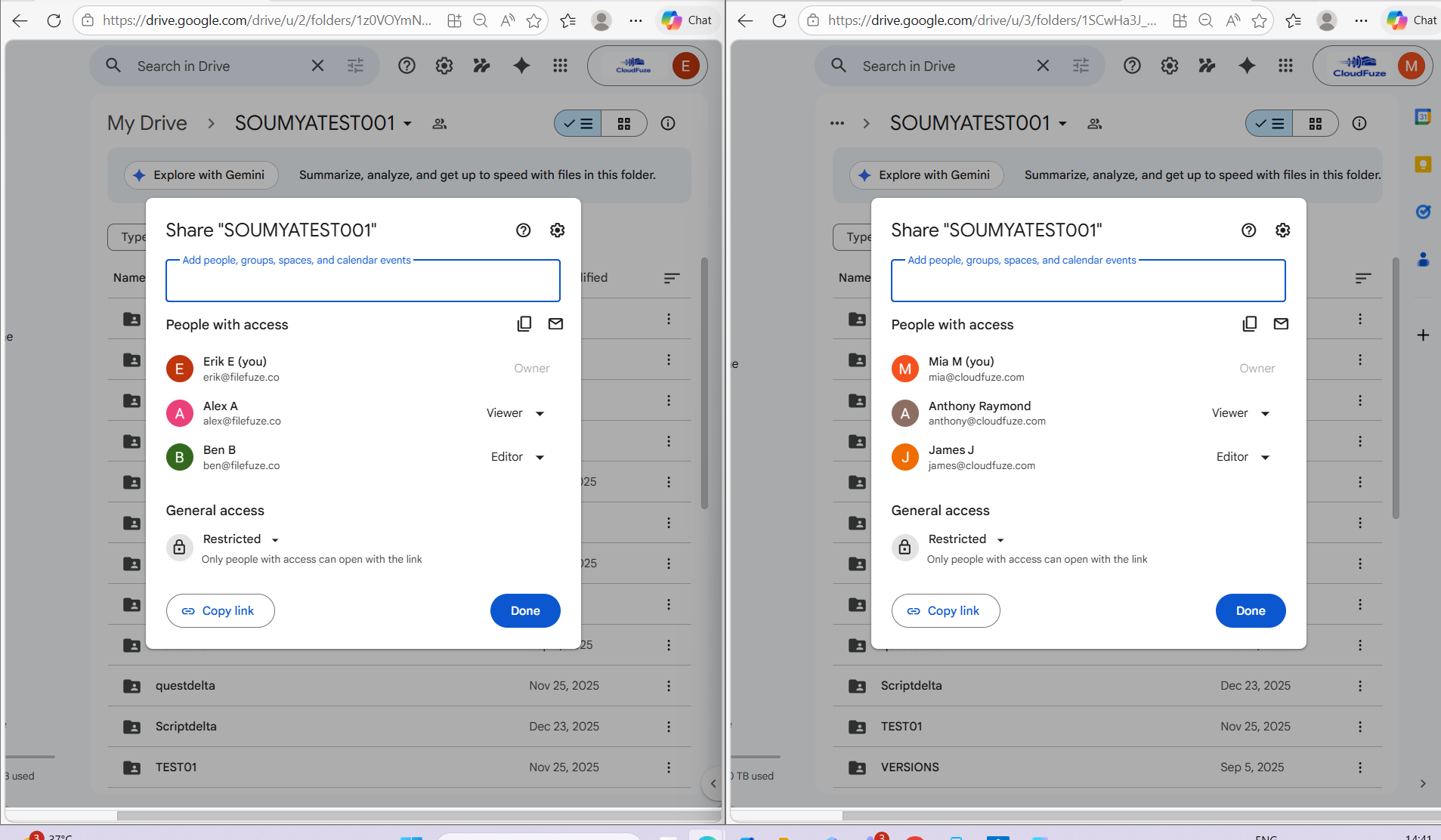
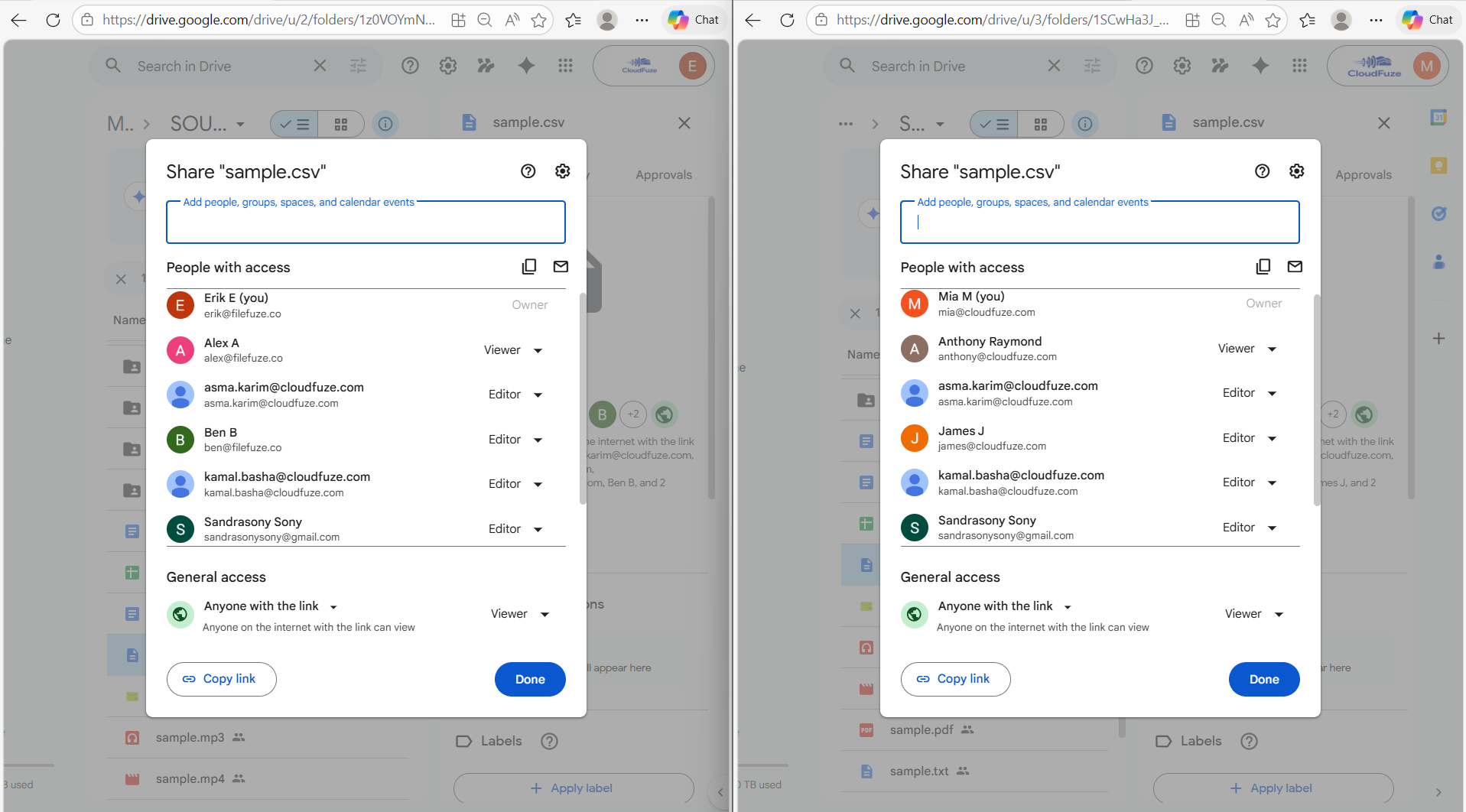
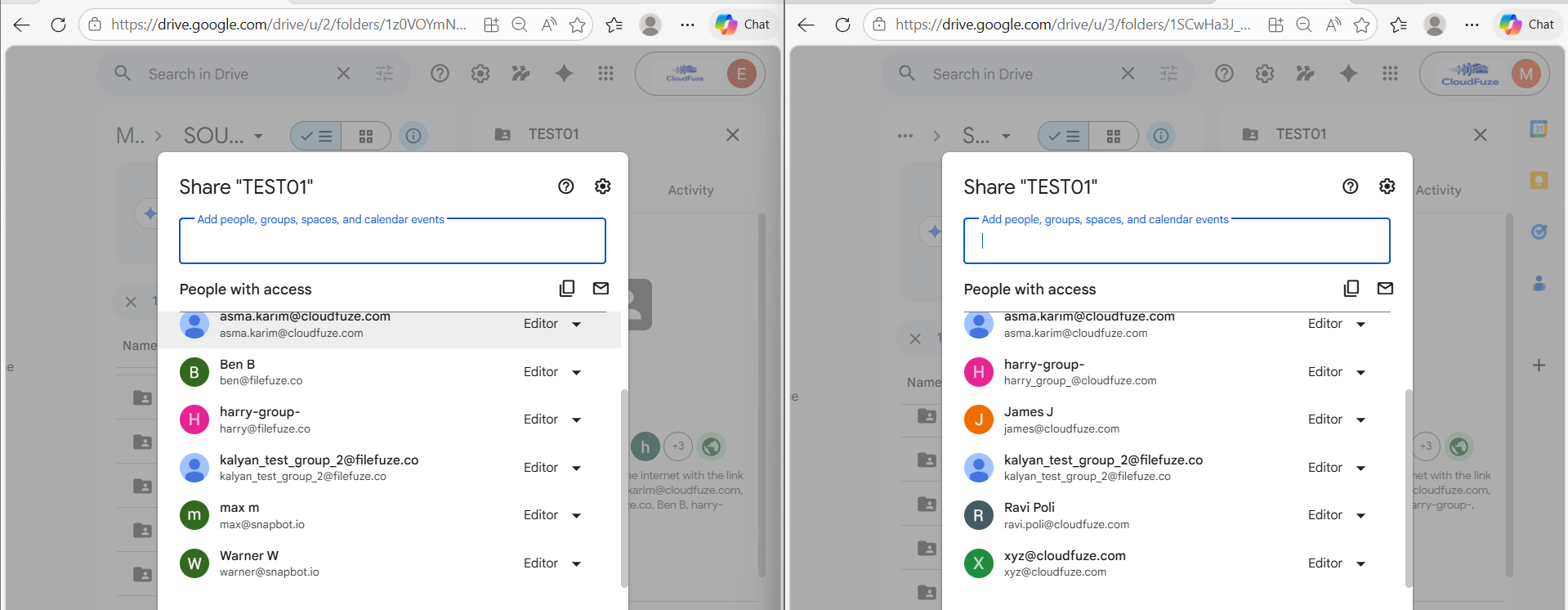
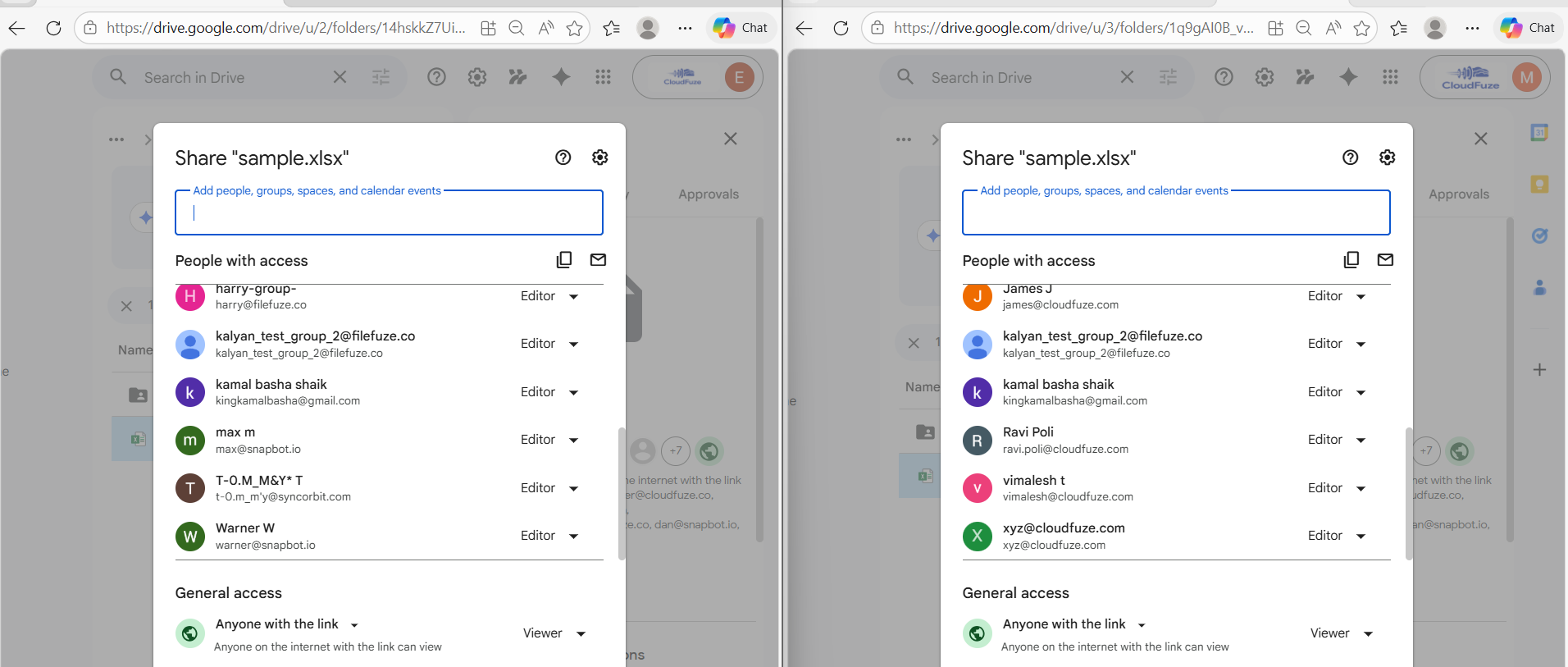
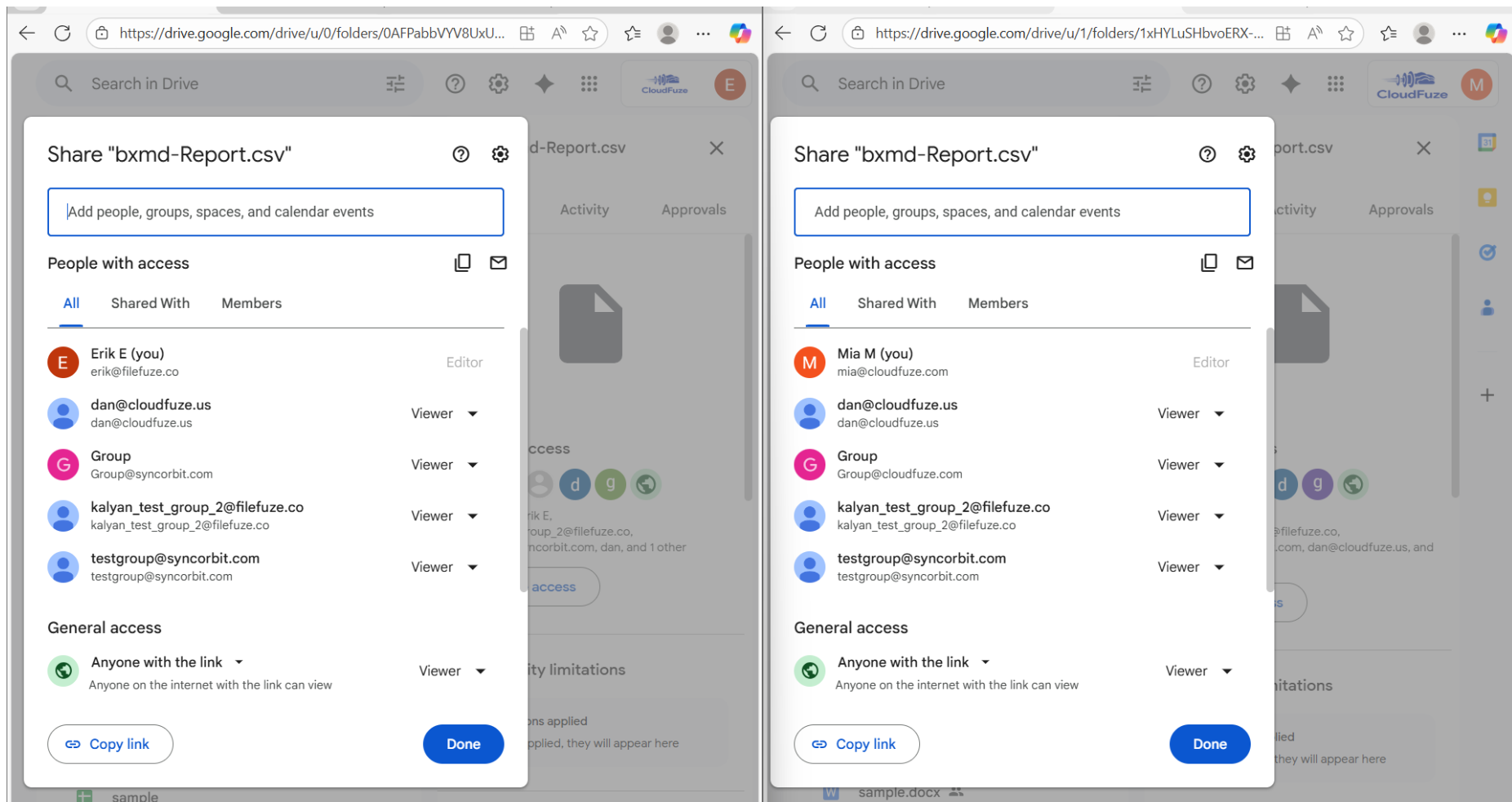
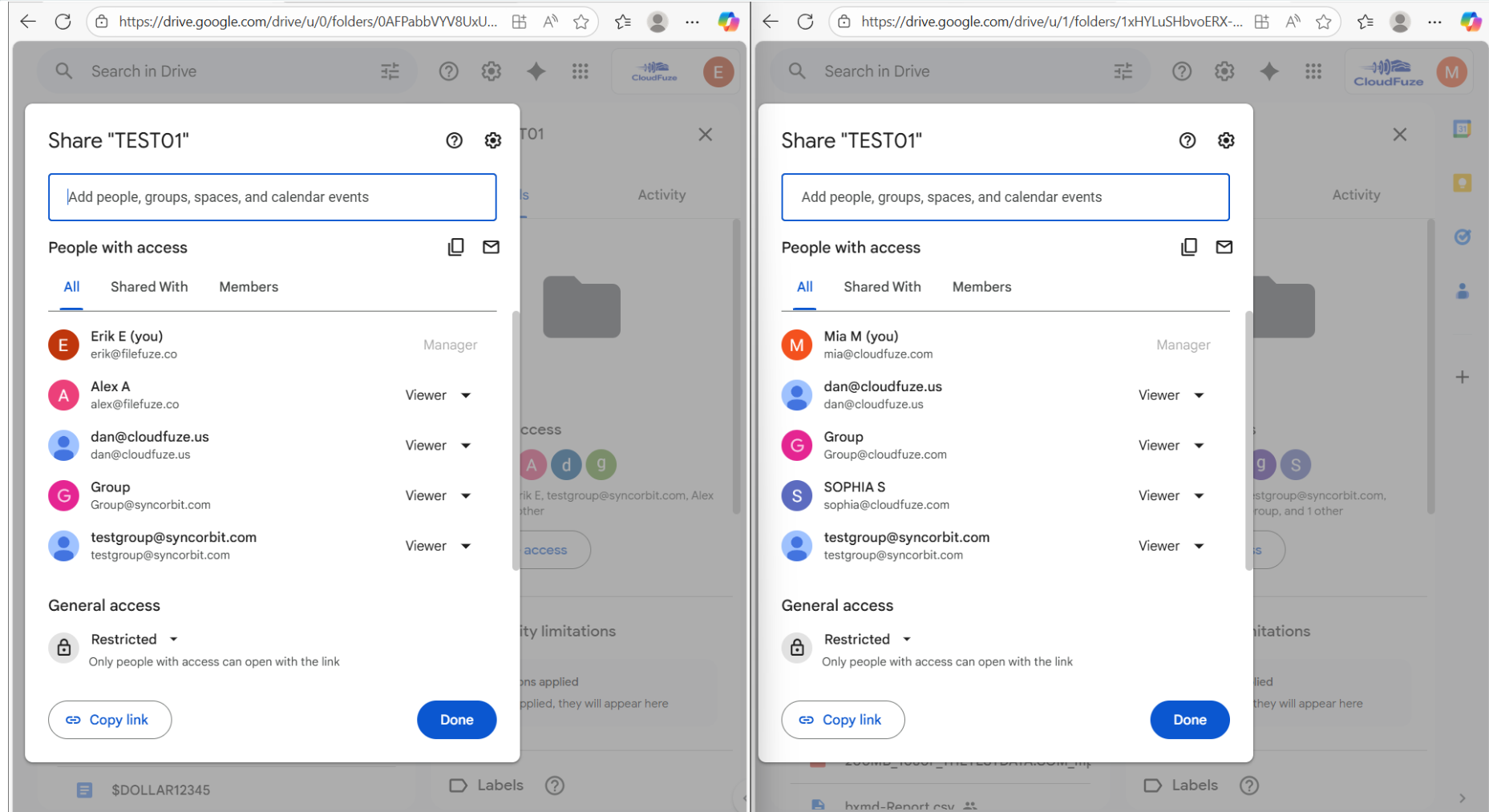
1. Google Drive to Google Drive Permissions Preservation
- Root Folder Permissions Preservation
CloudFuze preserves all root folder permissions along with access levels during Google Workspace permissions migration.
- Root File Permissions Preservation
CloudFuze preserves all root file permissions along with access levels during Google Workspace permissions migration.
- Subfolder Permissions Preservation
CloudFuze preserves all subfolder permissions along with access levels during Google Workspace permissions migration.
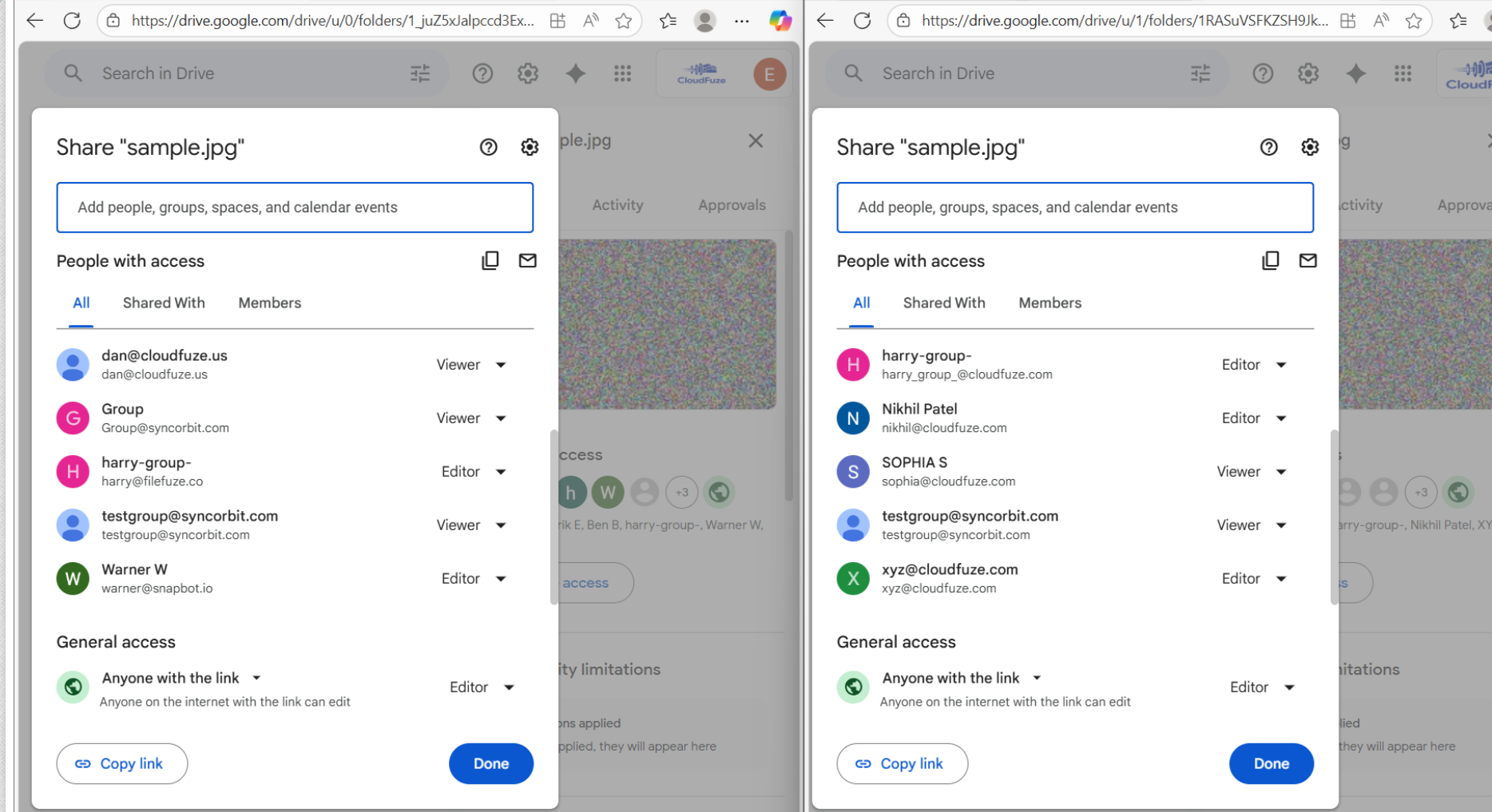
- Inner File Permissions Preservation
CloudFuze preserves all inner file permissions along with access levels during Google Workspace permissions migration.
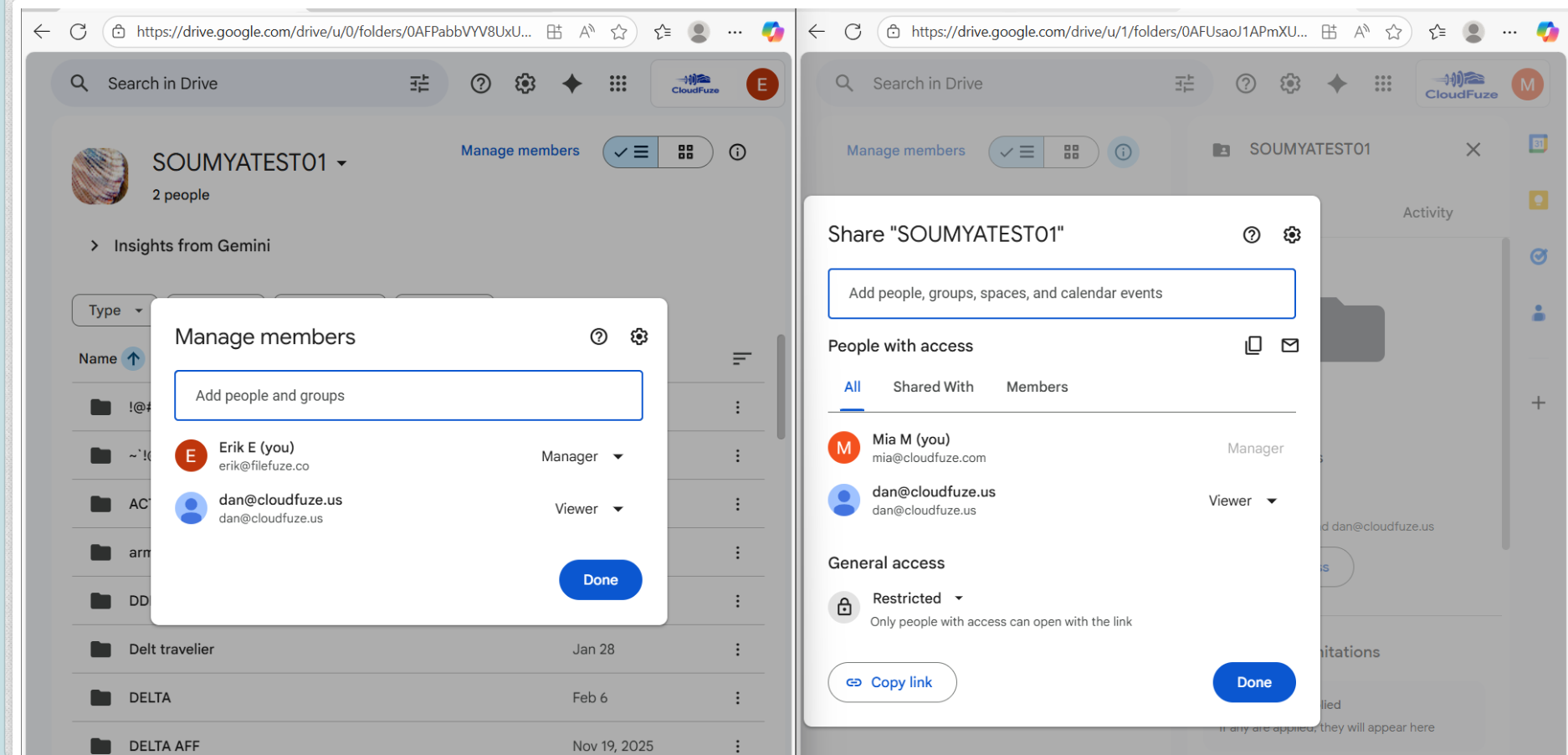
2. Shared Drive to Shared Drive
- Root Folder Permissions Preservation
CloudFuze preserves all root folder permissions along with access levels during Google Workspace permissions migration.
- Root File Permissions Preservation
CloudFuze preserves all root file permissions along with access levels during Google Workspace permissions migration.
- Subfolder Permissions Preservation
CloudFuze preserves all subfolder permissions along with access levels during Google Workspace permissions migration.
- Inner File Permissions Preservation
CloudFuze preserves all inner file permissions along with access levels during Google Workspace permissions migration.
Watch This Video to See how CloudFuze Preserves Google Workspace Permissions during Tenant Migration
Move Google Workspace Data Without Losing Permissions
CloudFuze Migrate helps enterprises map users and groups, preserve folder- and file-level permissions, retain Shared Drive roles, and validate access across Google Drive-to-Google Drive and Shared Drive-to-Shared Drive migrations.
Planning a Google Workspace tenant transfer? Get a personalized migration assessment from CloudFuze and ensure your data and permissions move securely and accurately.
Frequently Asked Questions
1. What happens to external collaborators access to files once these are moved out of the Google Workspace domain?
If external sharing is permitted by the target Google Workspace policies, CloudFuze can restore the external collaborator’s email address to the migrated file’s ACL, allowing the existing external access relationship to be recreated without manually sending a new invitation.
2. How does CloudFuze migrate permission inheritance for nested subfolders?
Permission inheritance works the same way as in Google Drive. If permission inheritance is broken within any particular subfolder on the source tenant (explicit access granted to a restricted folder), CloudFuze will replicate this exact configuration to the destination tenant.
3. Is there any migration of file versions along with permissions?
Yes. CloudFuze can migrate file versions along with ACL and timestamp information, depending on the capabilities and policies of the target environment.
4. What would happen if an account on the source domain does not have a counterpart on the target domain?
Unmapped accounts are detected during pre-migration audits. CloudFuze provides the capability to map unassigned and deleted user permissions to an admin account.
5. Can Google Workspace permissions be migrated between different domains?
Yes. CloudFuze can map users and groups between different source and destination domains and migrate the associated file, folder, and Shared Drive permissions. Administrators can use automatic or CSV-based mapping to align source identities with their destination accounts.
6. How can I verify Google Workspace permissions after migration?
IT administrators can compare source and destination permissions after migration by checking user and group access, folder and file permissions, Shared Drive membership and roles, ownership mapping, and external sharing. CloudFuze supports post-migration validation to help verify that the intended access structure has been recreated.
About the Author: Aayushi Raj



