
Dropbox Files Delta Migration to Microsoft 365 for 500+ Users
Planning to migrate from Dropbox to OneDrive or to SharePoint? As you plan for a seamless one-time migration to Microsoft 365, it is equally essential to perform a delta migration.
After your one-time migration, you can validate and perform unlimited delta migrations to sync incremental changes accumulated during the one-time migration. Here, we have provided insights on how to perform Dropbox files migration to Microsoft 365.
Key takeaways:
What Common Issues Might Arise During the Dropbox to Microsoft 365 Delta Migration?
Common challenges when migrating hundreds of user files with continuous delta sync during Dropbox migration to Microsoft 365:
- Data duplication
- Loss of metadata
- Migration downtime issues
- Issues of files overlapping
- Permission issues
- File sync issues
What Are the Best Tools for Incremental File Synchronization Between Enterprise Cloud Platforms?
It is necessary to select the best tools for the delta migration of cloud files to enterprise productivity suites such as Microsoft 365. Choose a trusted tool that helps you with accurate one-time migration and delta migration.
CloudFuze Migrate helps you with unlimited delta incremental syncs while capturing only changes like new, modified, or deleted files. Below are screenshots showing how we perform Dropbox files delta migration to Microsoft 365 platform.
Image 1: The screenshot (of our migration tool CloudFuze Migrate) shows how you can initiate one-time migration using our migration platform.
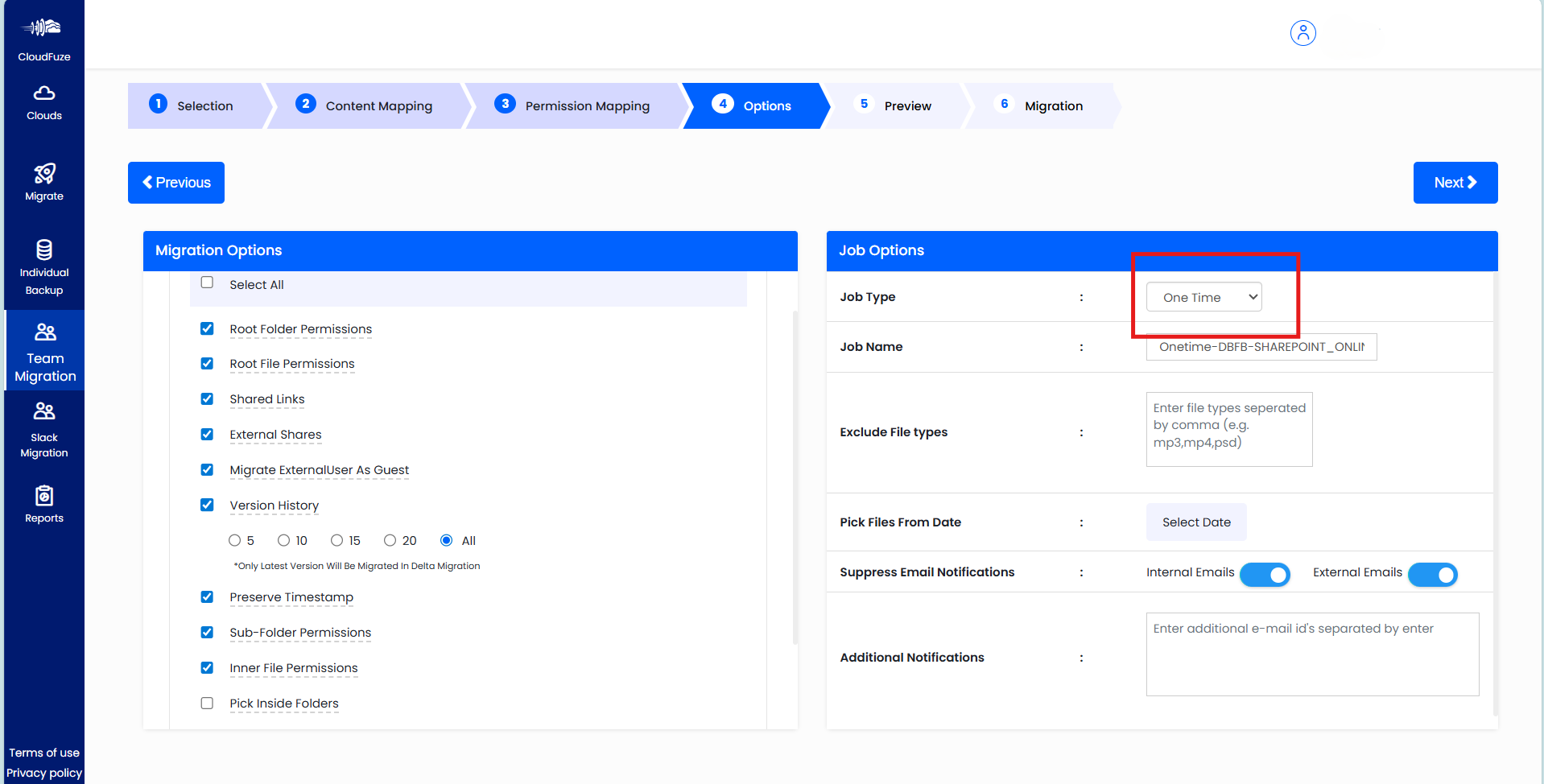
Image 2: Shows CSV files on the Dropbox platform.
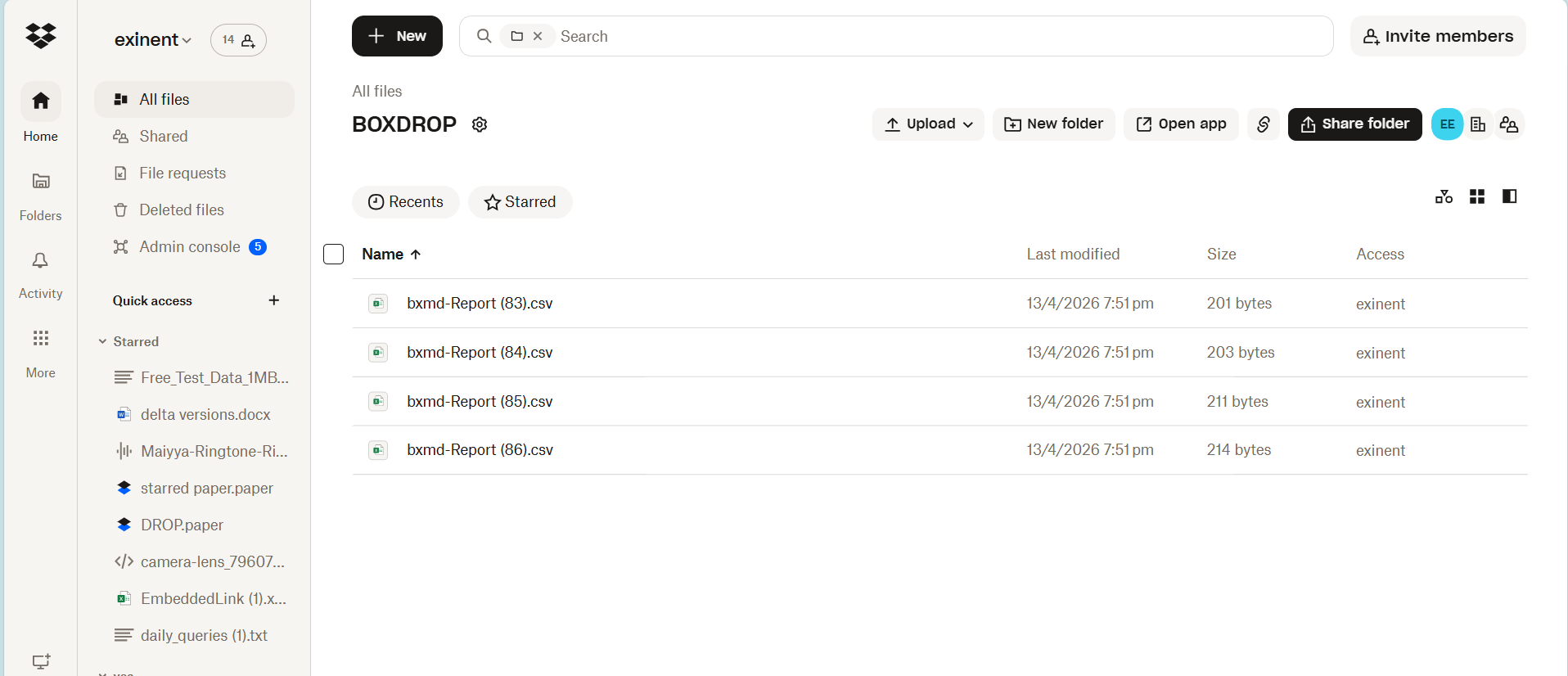
Image 3: Migration of Dropbox files to SharePoint platform using CloudFuze Migrate.
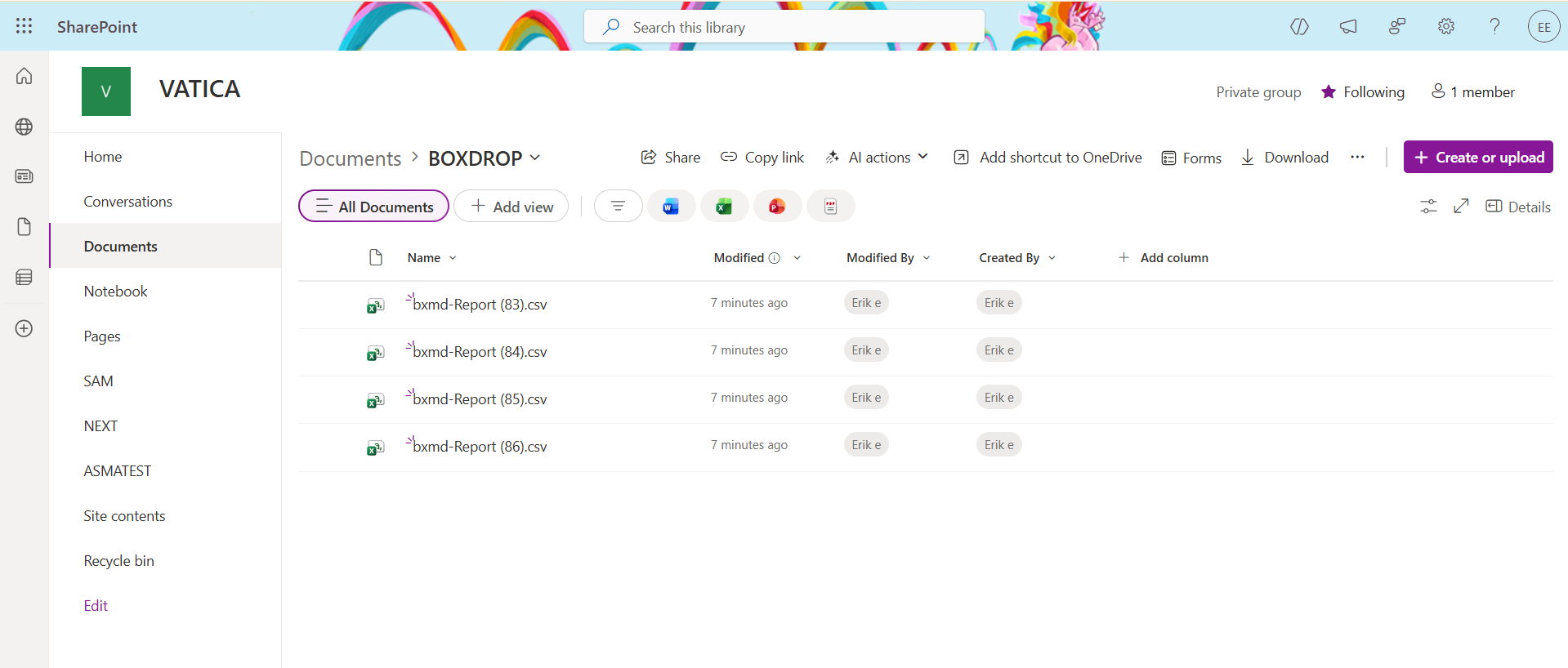
Image 4: Shows how you can initiate a delta migration after your one-time migration.
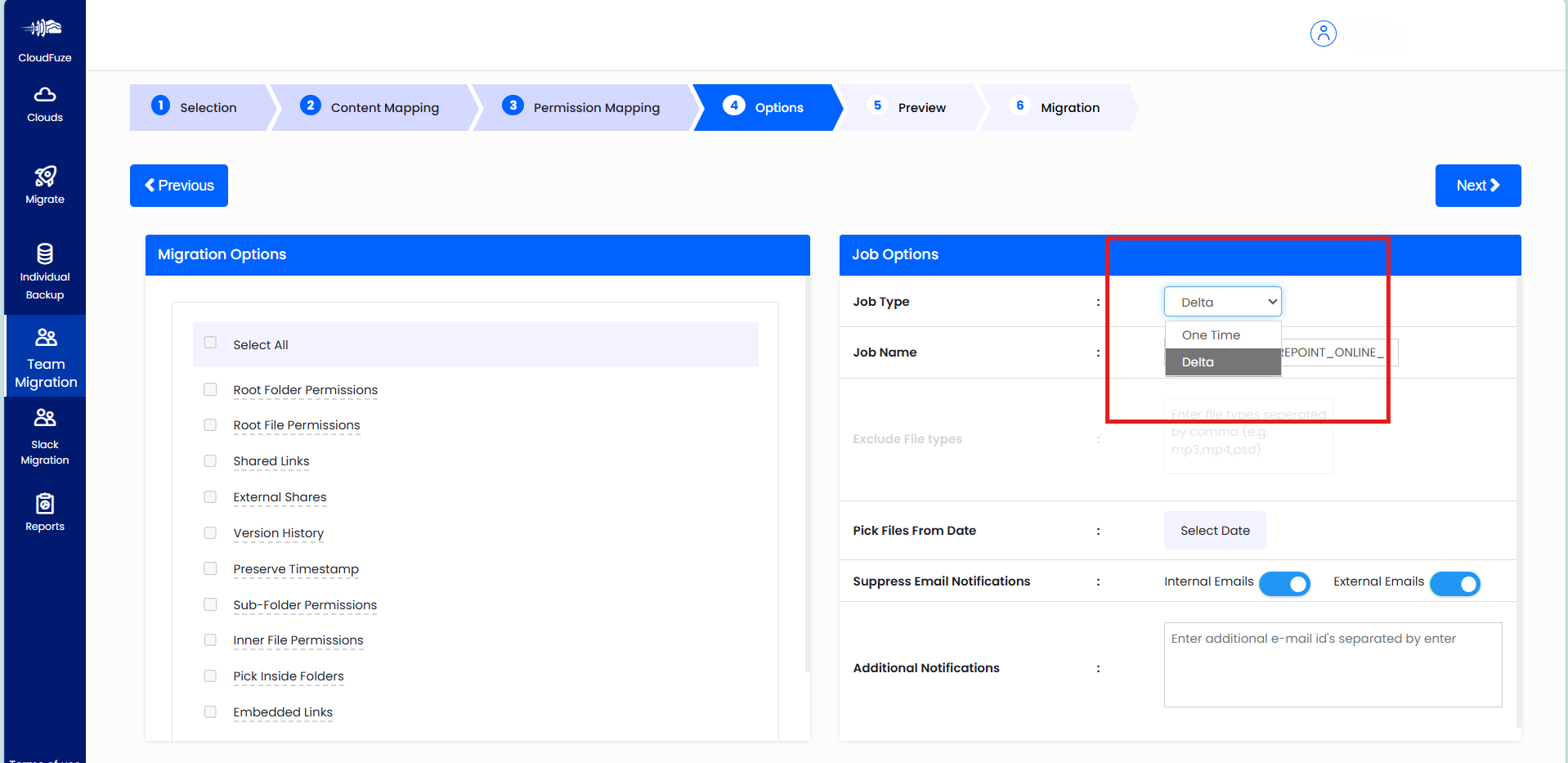
Image 5: Shows 5 newly added images in Dropbox platform after one-time migration. The below image shows three newly added files in the Dropbox platform.
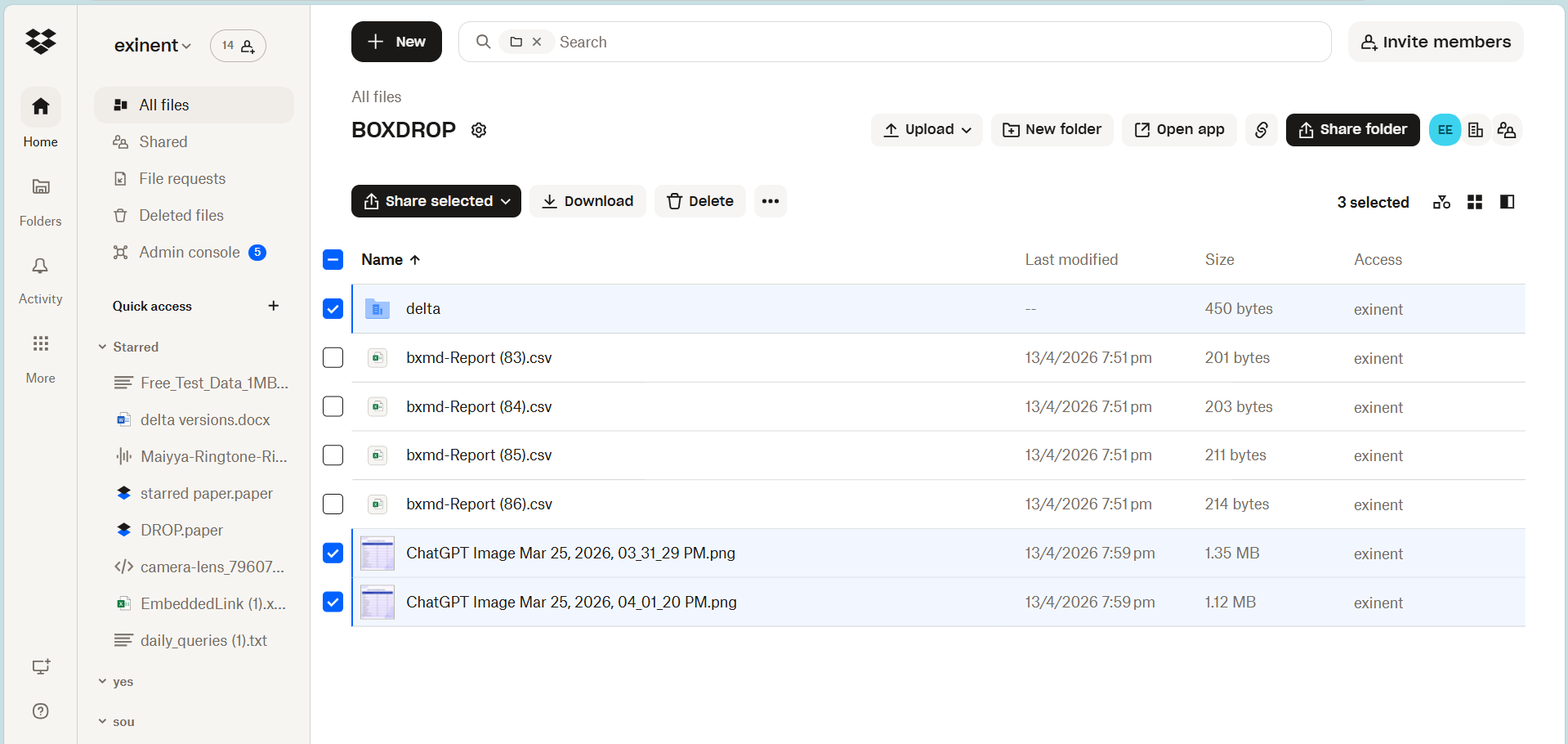
Image 6: Shows two more added extra files in the Dropbox platform.
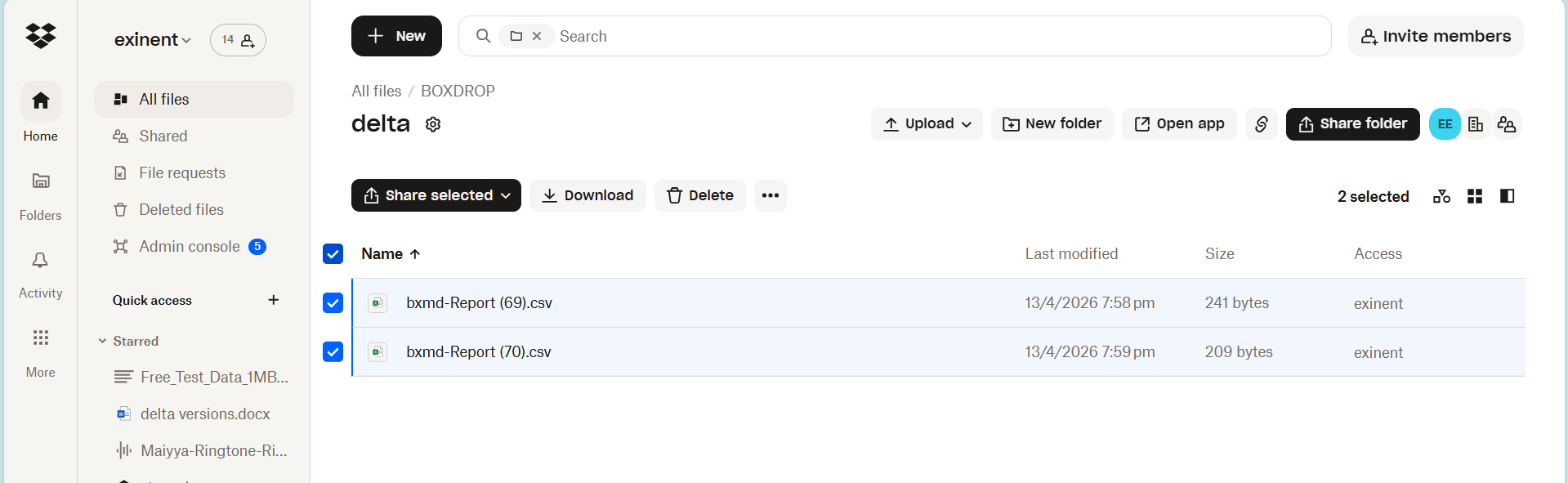
Image 7: Incremental changes moved to the SharePoint environment using CloudFuze Migrate.
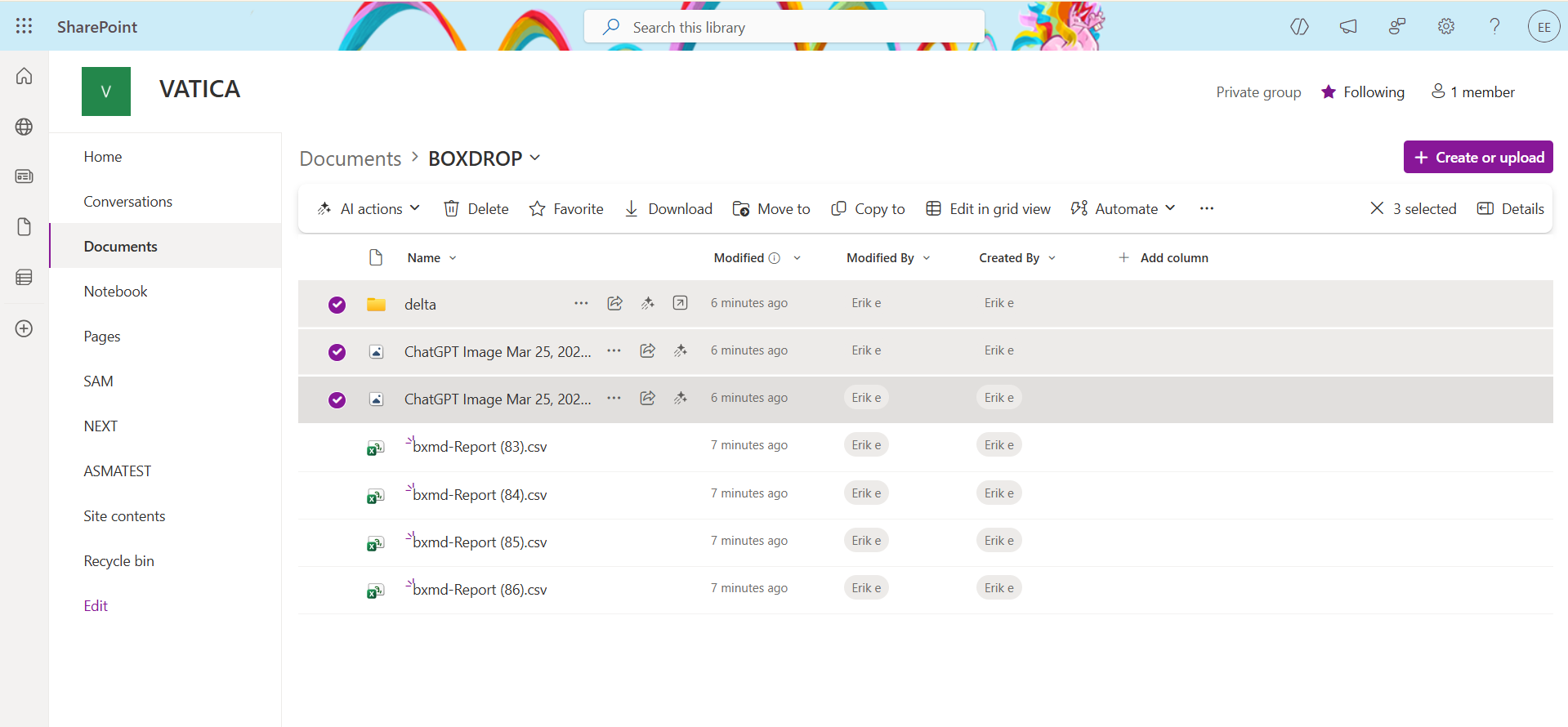
Image 8: Shows incremental changes migrated to the SharePoint environment using CloudFuze Migrate.
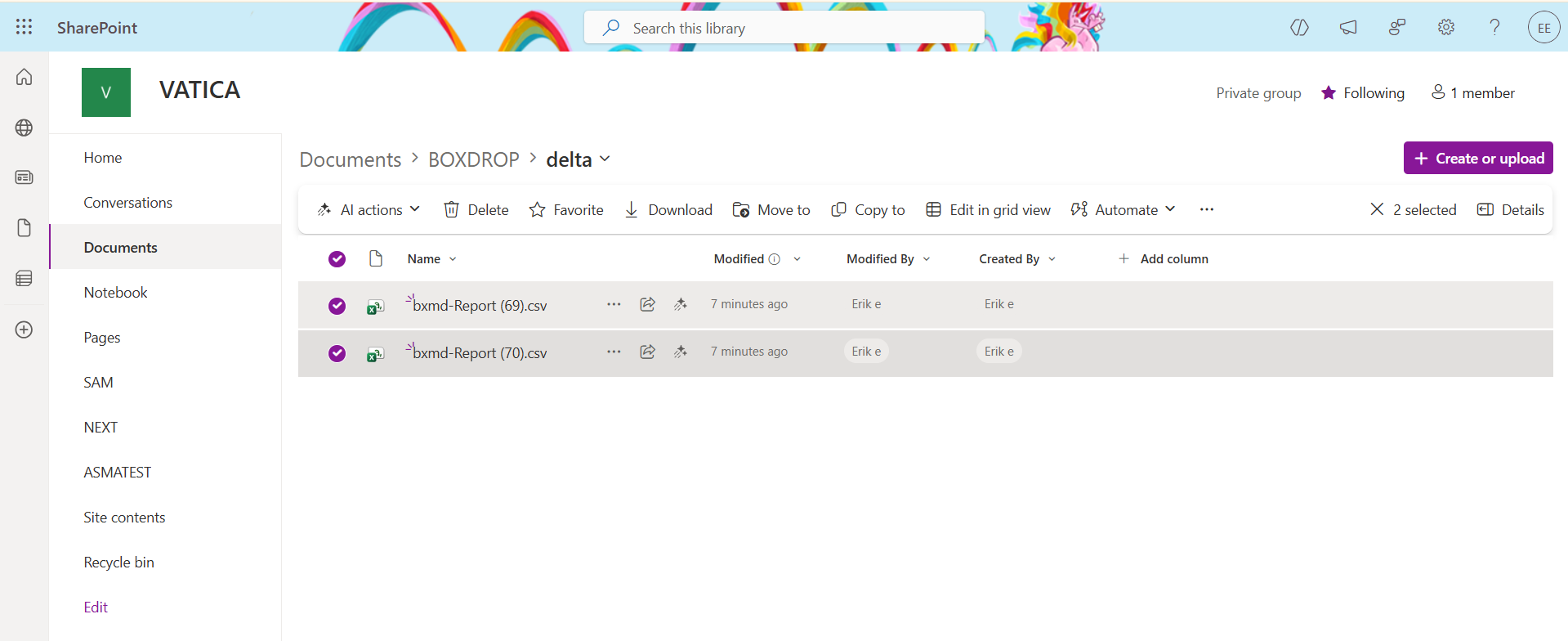
Image 9: Below image shows the number of files and folders added in the delta migration.
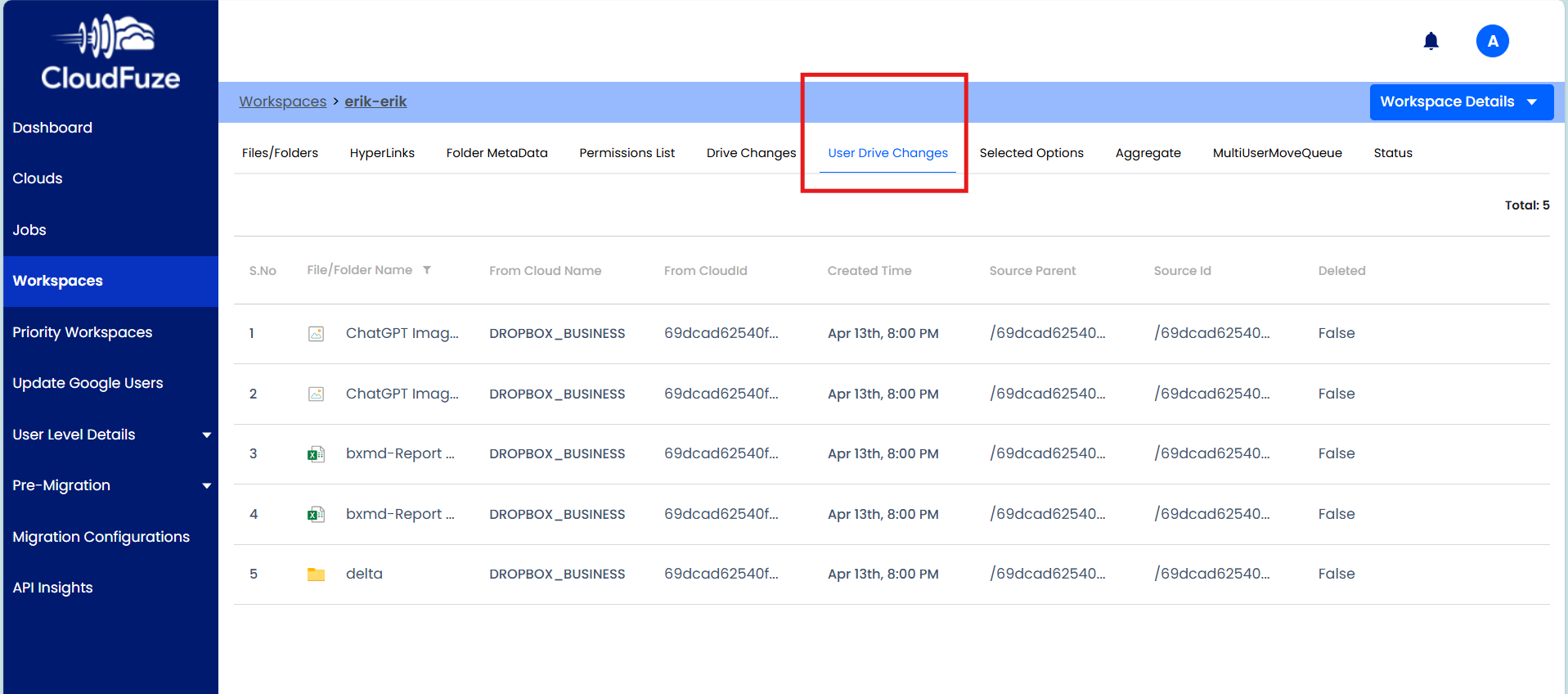
Basically, any change in delta gets considered as 1 count. As there are 4 files and 1 folder (a total of 5 changes) in the delta, it shows a count of 5.
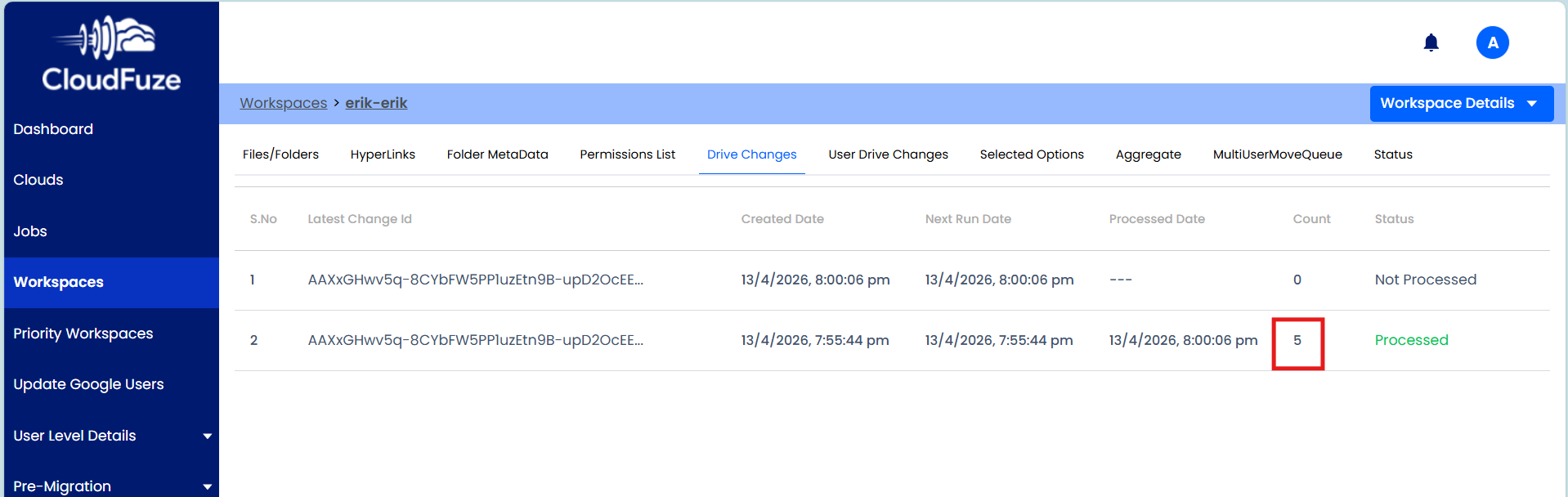
Image 10: The below image shows the delta added/renamed files or folders with names.
How To Verify Delta Migration Success for Dropbox to M365?
Businesses can verify delta migration success during a Dropbox to Microsoft 365 migration in the following ways:
- Ensure complete transfer of incremental changes without any missing files.
- Check if permissions are proper without any user access issues.
- Review your migration reports for an in-depth analysis.
What Are the Best Practices to Follow When Migrating Files from Dropbox to Microsoft 365?
Best practices to follow when migrating files from Dropbox to Microsoft 365:
- Remove duplicate data in Dropbox to reduce the total migration time.
- Choose an advanced migration tool that helps you overcome file/folder limitations, nested folders, and API throttling issues, etc.
- Conduct a pilot migration with a small data set to check the accuracy of the migrated data.
- Conduct a delta migration to migrate incremental changes after your one-time migration.
- Validate your migration by checking your migration reports.
Check out the action plan for IT Firms to move 500+ Dropbox users to Microsoft 365.
CloudFuze’s Real World Case Study – Dropbox to SharePoint Migration
Michigan State University wanted to migrate business data from Dropbox to SharePoint Online and OneDrive for Business.
CloudFuze Migrate helped them migrate 1,000+ users and 50+ TB of data, along with overcoming challenges such as:
- Maintaining the data security of sensitive data
- Replicating features such as internal and external shares, in-line comments, sharing permissions, shared links, and version history
- Eliminating data leaks to external networks
Learn more about this case study here.
Here’s a Video of our Dropbox to SharePoint Migration Tool:
Here’s a Video of our Dropbox to OneDrive Migration Tool:
Leave No Data Behind When Moving to Microsoft 365 with CloudFuze
Through a successful Dropbox files delta migration to Microsoft 365, businesses can ensure 100% data replication. Using CloudFuze Migrate, you can export incremental changes from Dropbox to Microsoft 365 with zero downtime and assured success.
Book a free and no-obligation demo of our tool today!
Frequently Asked Questions
1. How to migrate over 500 user files from one cloud storage to another with minimal downtime?
By using a trusted migration tool, businesses can migrate over 500 user files from one cloud storage to another with zero downtime. CloudFuze Migrate helps enterprises migrate 500+ users along with terabytes or petabytes of data while eliminating downtime issues.
2. Top cloud migration services for bulk file transfers between popular collaboration platforms
CloudFuze provides cloud migration services for bulk file transfers between popular collaboration platforms. With our migration tool, you can perform high-volume data migration in terabytes or petabytes to popular platforms such as Microsoft 365.
3. How to migrate Dropbox permissions to SharePoint
Businesses can migrate Dropbox permissions to SharePoint using CloudFuze Migrate. Our migration tool helps you move:
- Root folder permissions
- Sub folder permissions
- Root file permissions
- Inner file permissions.
4. Dropbox to OneDrive migration best practices for large teams
Dropbox to OneDrive migration best practices for large teams:
- Perform migration in equal batches to eliminate API throttling issues.
- Ensure to choose a trusted OneDrive migration tool for your transition.
- Conduct a delta migration to migrate incremental changes.
- Back up your Dropbox data prior to one-time migration.
- Ensure to perform a post-migration validation.
About the Author: Bhavani Asok



