
How to Block Spam Emails in Gmail: Fix It Now
Spam emails clutter up your inbox and pose a potential threat through phishing or malware. If you’re tired of promotional junk, fake alerts, or just suspicious messages, then learning how to block spam emails in Gmail is probably the quickest way to get your inbox back under control.
Gmail is pretty well equipped to deal with unwanted emails due to its spam filter, blocking features, and custom filters and blocks 99.9% of spam and malware before they reach your inbox. In this guide, we’ll walk you through exactly what you need to do to block spam emails in Gmail.
Key Takeaways
How To Stop Spam Emails from Reaching Gmail Inbox?
To really stop spam emails in Gmail, you need to use a combination of Gmail’s spam filter, manual blocking, and custom filters.
Here’s a simple 4-step plan that actually works:
- Let Gmail’s spam filter learns from your feedback by marking junk emails correctly
- Block repeat senders directly
- Create automatic rules to delete or spam unwanted emails for you
- Avoid engaging with suspicious messages/emails
When you use all these methods together, you’ll see how much less junk mail you get over time.
1. How to Mark Emails as Spam in Gmail – The Most Important Step
Marking emails as spam is the single quickest way to stop unwanted spam emails.
Here’s what you need to do:
- Log in to your Gmail account
- Select email
- Click the “Report spam” menu (or the hexagon with an exclamation mark ! at the top toolbar)
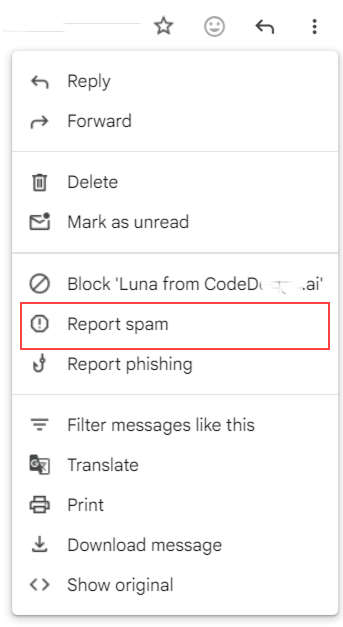
- Gmail will move this email into the Spam folder

Do not just delete spam as Gmail learns to filter out future emails. So always make sure to mark them as spam instead.
2. How to Block Specific Email Addresses in Gmail
If there’s a particular sender, then blocking them directly is the way to go. Here’s how to block unwanted emails in Gmail:
Steps to Block Unwanted Emails:
- Open the email from the sender
- Click the three-dot menu in the top right corner
- Select “Block [Sender Name]”
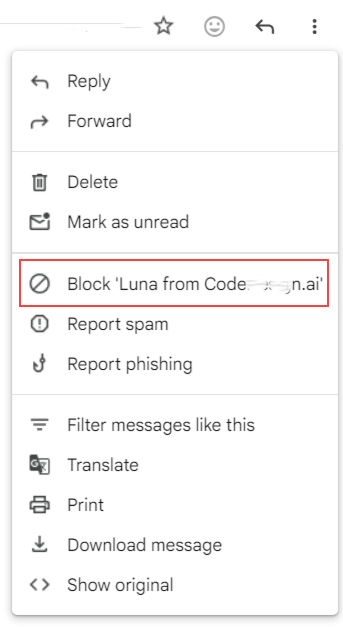
- Confirm

Quick Tip: After you block a sender, all future emails from them will go straight into the Spam folder.
3. How to Create a Filter to Block Unwanted Emails in Gmail
Filters are a great way to get Gmail to automatically block spam emails without having to do it manually every single time.
Steps to Create a Gmail Spam Filter:
- Click the search bar dropdown in Gmail
- Type in the sender’s address (or a keyword they always seem to use)
- Click the “Create filter” button
- Set criteria (like sender’s address) and choose to Skip the Inbox, Delete, or Label.
- Click “Create filter” and you’re done
From now on, Gmail will take care of the rest. This is probably one of the best ways to block spam emails in Gmail.
4. How to Report Phishing Emails on Gmail: A Step-by-Step Guide
Reporting spam is really important, not just for you, but for everyone.
So How Do You Report Phishing on Gmail?
- Select the email
- Click on “Report phishing”
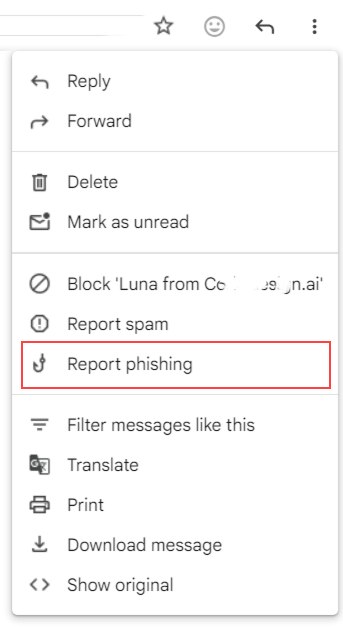
- Gmail’s team will take a look and update their global protections, so others won’t fall victim to the same thing

Use Report Phishing for:
- Fake login alerts that try to trick you into giving away your login details
- Password reset scams that try to get you to enter your password
This strengthens Gmail’s ecosystem-wide security.
5. Use the “Unsubscribe” Button

For newsletters and marketing emails, Gmail often provides a built-in unsubscribe link, so you don’t have to hunt for it in the email footer.
- Look for the Unsubscribe link next to the sender’s email address at the very top of the message.
- New Feature: You can now also go to More > Manage subscriptions in the left-hand sidebar to see a list of all your active mailing lists and unsubscribe from them in one place.
Quick Tip: Want to reduce spam without blocking senders entirely? Just unsubscribe from those emails and newsletters if you don’t want them anymore.
6. Bulk Blocking Senders in Gmail: How to Report Multiple Senders at Once
Select the emails you want to get rid of, using the checkboxes in your inbox or Spam folder, then click on “Report spam” at the top.
This helps train Gmail’s filter to catch similar emails in the future, effectively blocking them without having to go through each one individually.
Stop Spam in Gmail: Best Practices That Really Work
To reduce spam even further, here are some things to try:
- Don’t click on links in emails from people you don’t know or trust
- Use a separate email account for sign-ups
- Make sure you’re reviewing your “Send mail as” and forwarding settings to ensure you’re not accidentally forwarding emails to the wrong place
Gmail’s Spam Filter vs External Spam Blockers: What’s the Difference?
Gmail Spam Filter
Pros:
- Free – it comes with your account
- Uses Google’s AI to keep an eye on things
- No setup required – just turn it on
Cons:
- Limited customization
- Not ideal for big companies with enterprise-wide control needs
External Spam Blockers
Pros:
- Offers advanced rules and reporting
- Better suited for businesses
- More control over how you filter emails
Cons:
- Paid tools
- Additional setup and maintenance
For most users, though, Gmail’s spam filter will do a good job if you use it with some filters and blocking.
Quick Checklist: Block Spam Emails in Gmail (Get Started Now)
- Mark spam emails properly
- Block repeat senders
- Create custom filters for the types of emails you get most often
- Report phishing attempts
- Avoid interacting with spam in any way
If you follow these steps, you should see a dramatic drop in spam within just a few days.
Fix Your Gmail Spam in Minutes!
By combining Gmail’s built-in spam filter, blocking features, and some filters to automate things, you can get your inbox back to how it should be – clean, secure, and spam-free. Take a few minutes to mark some spam, set up a couple of filters, and review your settings. You’ll be enjoying a nicer inbox within a few hours.
Planning to Migrate to Gmail? CloudFuze Makes It Simple
If your organization is moving from Microsoft Outlook to Gmail (Google Workspace), we at CloudFuze make the transition secure, smooth, and disruption-free. Our enterprise-grade migration solution ensures the complete transfer of emails, attachments, folders, and metadata while maintaining data integrity and zero downtime.
Contact us today to get expert guidance and a free migration assessment.



Leave A Comment