
Introduction
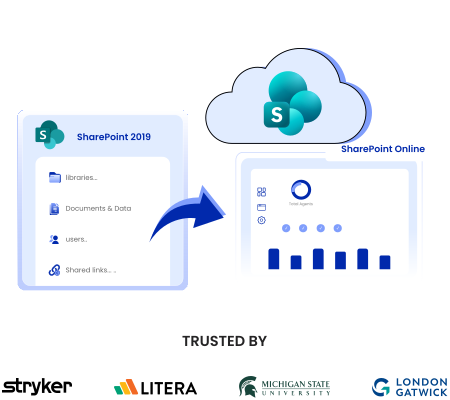
To migrate SharePoint 2019 to SharePoint Online, you must follow proven steps, such as preparing the migration scope, mapping users accurately, segregating users into several batches for migration, and validating post-migration.
Since SharePoint 2019 reached its end-of-life support on July 14, 2026, it is important for businesses running it to adopt an alternative, such as SharePoint Online, to ensure they are not exposed to security and compliance risks.
If your organization is still using SharePoint 2019, this guide walks through the steps to migrate to SharePoint Online.
Why is it Important to Migrate from SharePoint 2019 to SharePoint Online?
Microsoft officially ended extended support for SharePoint 2019 server on 14 July 2026, the same date as SharePoint 2016. If your organization is still using SharePoint 2019, the platform no longer receives security updates, cumulative updates, and technical support from Microsoft.
This creates vulnerability risks, and the chances of your SharePoint 2019 environment being exposed to new threats become high. Also since there is no technical support, there is no option to raise support tickets and get help from Microsoft.
This is the main reason why most organizations running SharePoint 2019 are considering migrating to SharePoint Online since it’s the closest and the most feasible alternative.
Planning and Preparing for the Migration
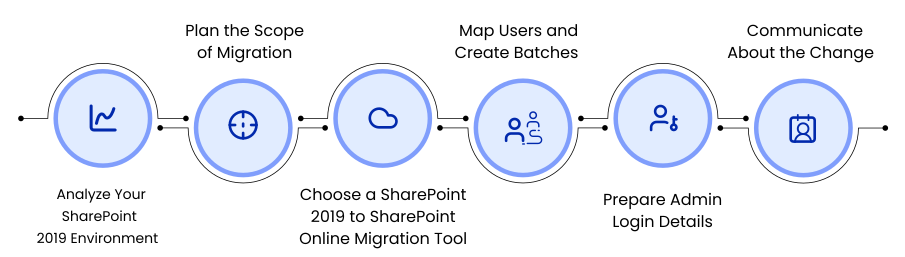
Proper planning and preparation play an integral role in determining the success of the migration. This also applies to SharePoint 2019 to SharePoint Online migration. Here are some of the essential planning and preparation steps to focus on.
1) Analyze Your SharePoint 2019 Environment
To be able to create a well-informed plan, it is important to first assess your SharePoint 2019 environment. Perform a thorough pre-migration analysis and find out:
- Total number of sites and sub-sites
- Total volume of files, folders, and their sizes
- Total number of user accounts and their permission levels
- Metadata that must be preserved, including timestamps, versions, permissions, and more
2) Plan the Scope of Migration
Based on the insights you get from the pre-migration assessment, prepare the scope of the migration project. Include all the action items, such as sites, users, and files and folders that you need to migrate to SharePoint Online.
3) Choose a SharePoint 2019 to SharePoint Online Migration Tool
A complex migration path like SharePoint 2019 to SharePoint Online migration necessitates a proper migration tool with proven success. Look for a tool like CloudFuze Migrate that can:
- Authenticate your SharePoint 2096 environment securely.
- Preserve permissions of root and sub folders, and root and inner files.
- Migrate rich metadata and context, such as version history, embedded links, external sharing, shared links, inline comments, and more.
- Scale to large data volumes and user count.
4) Map Users and Create Batches
It is equally important to map users properly to ensure you migrate files and folders accurately. Auto mapping and CSV mapping are the two options available.
Auto mapping works when the mapping requirements are pretty straightforward, and the source and destination users have the exact email addresses. CSV mapping works the best when you need custom mapping paths.
5) Prepare Admin Login Details
Many IT teams miss out on being prepared with admin login details of both SharePoint 2019 and SharePoint Online, but you must ensure that you do not miss out on it. Admin login details are required when authenticating both clouds to migration platforms like CloudFuze Migrate.
6) Communicate About the Change
It is also important to communicate about the platform transition to the stakeholders as well as end users. Inform stakeholders about the entire migration plan and keep them updated with daily, weekly, and monthly migration reports and progress status.
Also communicate about the platform change to end users and provide them with proper training. Since SharePoint Online shares a lot of similarities with SharePoint 2019, users need minimal training in many cases.
Steps to Migrate from SharePoint 2019 to SharePoint Online
Here are all the steps to migrate users and data using CloudFuze’s migration tool:
Step 1: Log into CloudFuze
The first step is to log into the CloudFuze migration platform. If you don’t have a CloudFuze account yet, create it here. You can also check out our webapp user guide to quickly get started.

Step 2: Add SharePoint 2019 to CloudFuze
Next, locate SharePoint 2019 on the Business Clouds section of the migration dashboard and click on it to add it.

Step 3: Authenticate SharePoint 2019 in CloudFuze Tool
Authenticate SharePoint 2019 by adding the required username, password, domain, URL, and display name.

Step 4: Add SharePoint Online to CloudFuze’s Migration Tool
Next, locate the SharePoint Online cloud and add it.

Step 5: Validate the Added Clouds
Visit the Manage Cloud tab and check and ensure both SharePoint 2019 and SharePoint online clouds have been added properly.

Step 6: Configure the Source and Destination Clouds
Visit the Team Migration panel. There, select SharePoint 2019 as the source and SharePoint Online as the destination cloud.

Step 7: Select the CSV User Mapping Option
In order to map users, you get two mapping options in the CloudFuze migration tool, including auto mapping and CSV mapping.
Auto mapping works for straightforward mapping paths where the source and destination users have the exact email aliases. However, if you want to create customized user mapping paths, the CSV method is the best option.

Step 8: CSV User Mapping Method
Here is an example of how CSV user mapping looks like. Our migration team at CloudFuze will help you create and validate CSV user mapping paths.

Step 9: Upload and Validate the CSV Mapping File
Once you have created the CSV user mapping paths, upload the CSV file to the CloudFuze migration tool. The tool will automatically check the CSV file to ensure all the mapping paths and syntax used are correct.

Download the processed CSV file and look for the PASS status to ensure it is validated.

Step 10: Choose Migration Options
In the Options stage, select important migration options, such as selecting the migration job as one-time migration, naming the migration job, and choosing various types of metadata to migrate.

Step 11: Preview and Start the Migration
Preview all the migration options you have selected. If everything looks good, start the migration.

Step 12: Check the Migration Reports
Once the migration starts, you will be redirected to the Reports dashboard. There, check the status of the ongoing migration, including “In-progress,” “Processed,” and “Completed” status.

Post-Migration Steps
After the migration is completed, it is important to perform several important post-migration steps to wrap up the project in a proper way. Here are some of the important post-migration steps to focus on.
1) Perform Delta Migration
During one-time migration, users will continue working on the SharePoint 2019 environment, which will cause new incremental changes to accumulate. Make sure to migrate these new incremental changes with a single or multiple delta migration.
2) Validate All the Migrated User Batches
Validate each user batch after their migration is complete. Use migration reports to check for critical metrics:
- Total size of files and folders migrated
- Total number of users migrated
- Total number of hyperlinks migrated
- Types of metadata migrated
- Conflict status (if any)
3) Post-Migration Integration
Identify third-party apps that were integrated into your SharePoint 2019 environment and reintegrate them once you migrate to SharePoint Online. Doing this helps avoid user disruption.
4) Decommission the SharePoint 2019 Environment
If your organization plans to no longer use SharePoint 2019 after migrating to SharePoint Online, it is important to plan for proper decommissioning. At CloudFuze, our professional services team can help you do this securely.
5) User Onboarding and Go Live
After all the data is validated and integrations are configured, onboard users to the new SharePoint Online environment. Depending on the familiarity of users with the SharePoint environment, they might not need extensive training as SharePoint Online shares many similarities with SharePoint 2019.
SharePoint 2019 to SharePoint Online Migration Challenges
Moving from SP 2019 to SharePoint Online presents several challenges that businesses must tackle. Here are some of the common challenges:
- Multiple file versions are common in SharePoint 2019 environments that have been running for years.
- Many third-party web parts and integrations configured in SharePoint 2019 environments do not have a direct equivalent in SharePoint Online.
- Custom permission levels in SharePoint 2019 require careful mapping to SharePoint Online.
- Migrating large volumes of data can raise downtime risks.
CloudFuze Migrate is built to tackle these challenges and ensure a smooth and secure migration with little to no downtime. It ensures complete replication of your SharePoint 2019 environment by accurately preserving files, folder structures, metadata, context, and more.
CloudFuze vs. Other Migration Tools
Here is how CloudFuze’s SharePoint 2019 to SharePoint Online migration tool compares with other migration tools.
| Capabilities | CloudFuze | Other Migration Tools |
|---|---|---|
| One-time migration | Yes | Yes |
| Delta migration | Yes | Limited |
| Root folder permissions | Yes | Yes |
| Sub folder permissions | Yes | Limited |
| Sub folder permissions | Yes | Limited |
| Root file permissions | Yes | Yes |
| Inner file permissions | Yes | Limited |
| Embedded links migration | Yes | Limited |
| Inner file permissions | Yes | Limited |
| Embedded links migration | Yes | No |
| External shares migration | Yes | No |
| Version history migration | Yes | Limited |
| In-line file comments | Yes | No |
| Shared links migration | Yes | Limited |
| Long file and folder path handling | Yes | Limited or manual |
| Special character replacement | Yes | Limited or manual |
Migrate SharePoint 2019 to SharePoint Online Successfully with CloudFuze
Navigate the SharePoint 2019 end-of-life urgency by migrating to SharePoint Online successfully with CloudFuze’s proven data transfer solution. From pre-migration assessment to post-migration support, CloudFuze covers all grounds.
Contact us today for a free migration consultation and get actionable insights for your migration.
Frequently Asked Questions
1. What are the best tools for migrating SharePoint 2019 to SharePoint Online?
Tools that can accurately replicate folder and permission structures, files and metadata, embedded links, and more, are the best options. CloudFuze Migrate is one such tool that covers the entire scope of SharePoint 2019 to SharePoint Online migration.
2. How do I find companies offering SharePoint 2019 to SharePoint Online migration?
One of the best ways is to look for migration vendors that have experience in on-prem to cloud migrations and not just SharePoint 2019 to SharePoint Online migrations. This helps you understand that they have broad experience in on-prem to cloud transitions.
3. What does migrating SharePoint 2019 to SharePoint Online typically cost?
The cost to migrate from SharePoint 2019 to SharePoint Online depends upon several variables, such as the number of users to migrate, total data size, complexity of metadata, and the total number of embedded links to migrate.
4. Is SharePoint Online a good alternative to SharePoint 2019?
Yes, SharePoint Online is one of the best alternatives to SharePoint 2019 as it shares many functionalities with the on-prem SharePoint version. And considering stark similarities, users require little to no training to onboard SharePoint Online.
About the Author: Pankaj Rai



