
How to Perform Google Groups Migration to Microsoft 365 Groups
Google Groups migration to Microsoft 365 involves transferring your members, owners/roles, and group-based access to ensure a smooth transition to collaboration.
During migration, you can resolve major issues like permission changes, external sharing limitations, and duplicate groups using CloudFuze Migrate.
Learn about it all in this detailed blog post.
Key Takeaways:
What are Google Groups & Microsoft Groups?
Google Groups and Microsoft 365 Groups are collaborative services designed for communication and resource sharing within organizations. Google Groups acts as a mailing list, web forum, and permission manager for Google Workspace apps.
At a basic level, a Microsoft 365 group is an object in Microsoft Entra ID with a list of members and a coupling to related workloads including a SharePoint team site, shared Exchange mailbox, Planner, and OneNote notebook.
People who create teams can choose to use an existing Microsoft 365 group if they’re an owner of that group.
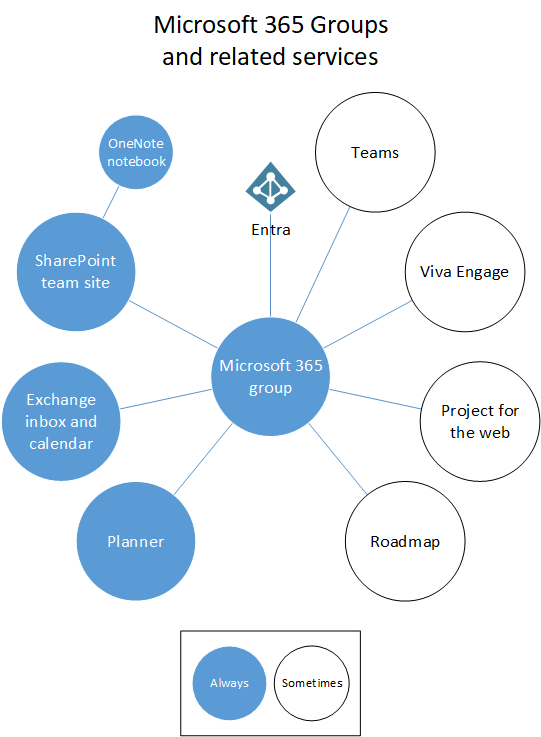
Image Courtesy – Microsoft
How To Add People to Google Groups?
Here are steps to add people into Google Groups:
- Visit Groups.google.com.
- Now login with your account.
- Choose the group to manage.
- Click on Members –> Add Members.
- Provide the email addresses of people to add.
- Set the roles of the people.
- Click Add to Group.
Here are different roles in Google Groups:
- Owner – Has complete control over group settings
- Manager – Manage members, settings. Does not have permission to delete the group
- Member – Standard access based on group permissions.
How to Add Members to Microsoft 365 Groups?
Here are steps to add members into Microsoft 365 Groups:
After you create Groups, you can add members and configure additional settings.
- Select the group you want to add members to.
- On the Membership tab, select Members –> Add members.
- Choose the users you want to add.
- Now click on Save.
- Select Close three times.
Groups have the following roles:
- Owners – Manage group membership and settings.
- Members – Access all group resources but can’t change group settings.
- Guests – External users invited to participate in the group.
Challenges When Migrating from Google Groups to Microsoft 365 Groups
Common challenges during Google Groups migration to Microsoft 365:
- Changes in permissions
- Ownership mismatches
- External sharing limitations
- Tool limitations
- Missing members in Groups
- Duplicate Groups
How CloudFuze Migrate Performs Google Groups Migration to Microsoft 365 Groups?
Here we have discussed screenshots showing how CloudFuze Migrate moves Google Groups to Microsoft 365 Groups.
Image 1: The file migrated is “Screenshot 2025-11-05 174158.png” stored inside a Google Drive folder named “group” under AsmMydrive.
The file has two Google Groups assigned as editors “Group” (Group@syncorbit.com) and “Grouping filfol” (groupfilefoltest@syncorbit.com). Both Groups has editor-level access in Google Drive.
General access is set to Restricted, which means only people with explicit access can open the file via link. Erik E is the file owner and Ben B has individual Editor access alongside the two Groups.
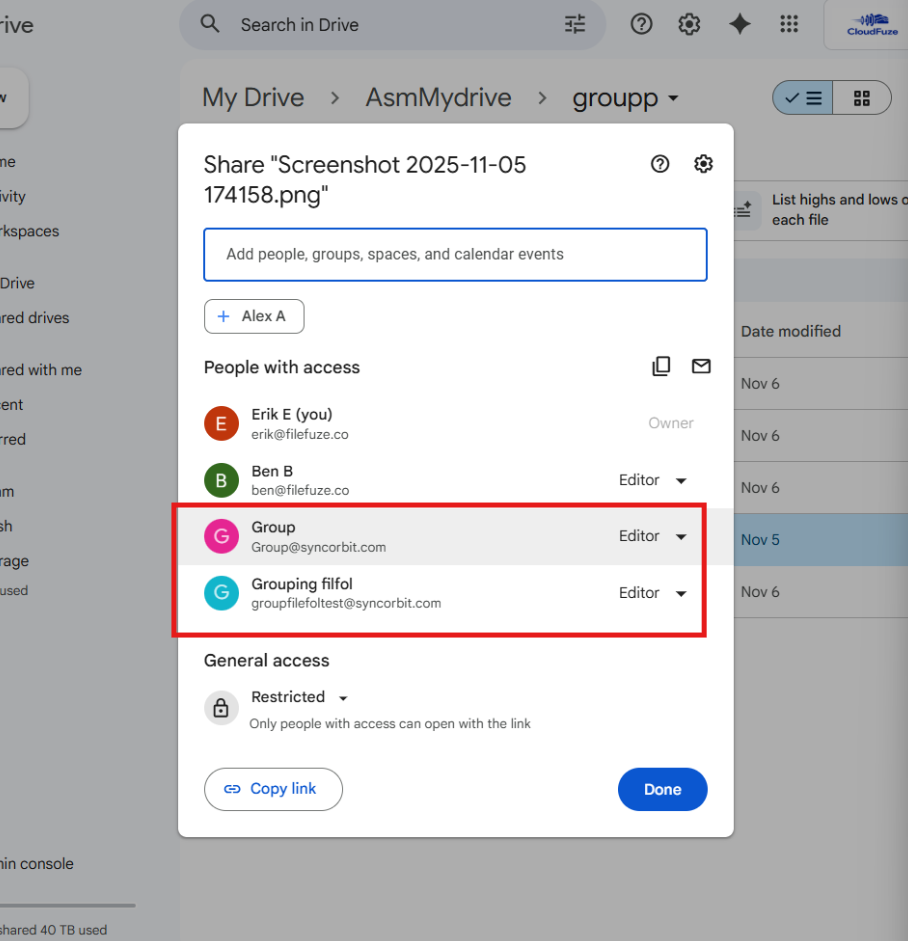
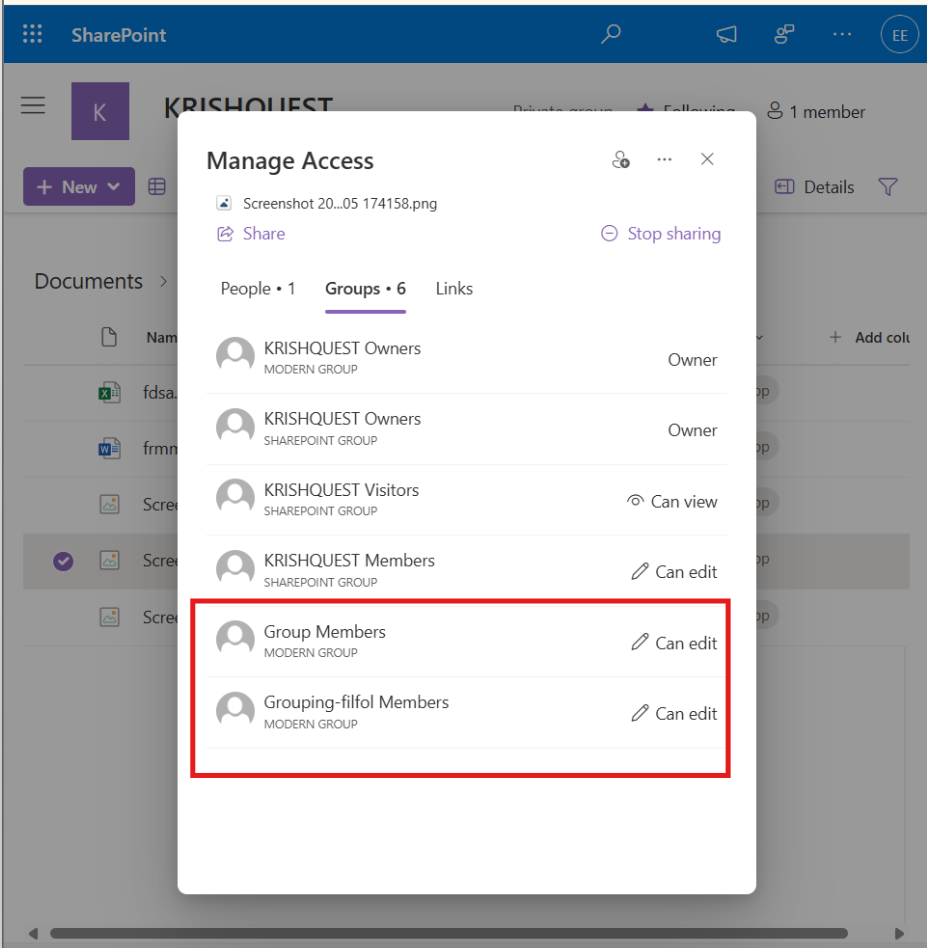
Image 2: The box highlights two migrated Groups “Group Members” and “Grouping-filfol Members”. These directly correspond to the two Google Groups that had editor access on the source side.
CloudFuze Migrate has successfully migrated Google Groups into Microsoft 365 Groups while preserving the “can edit” permission level accurately.
Transfer Google Groups to Microsoft 365 Groups with CloudFuze Migrate
Microsoft 365 is just the beginning. CloudFuze Migrate helps you migrate from Google Workspace to Microsoft 365 while preserving groups, files, email, and permissions. But a successful migration is only half the story. Permission sprawl, unmanaged groups, and Shadow IT and Shadow AI thrive in environments without continuous supervision. CloudFuze Manage helps you eliminate those blind spots, giving your team always-on visibility across the entire Microsoft 365 landscape.
Connect with our team for a free discussion or request a demo or POC.
Frequently Asked Questions
1. Can Google Groups be migrated directly to Microsoft 365 Groups?
There is no direct method to migrate Google Groups to Microsoft 365 Groups. Using a reliable migration tool such as CloudFuze Migrate, you can easily perform Google Groups migration to Microsoft 365 Groups.
2. What data can be migrated from Google Groups to Microsoft 365 Groups?
You can migrate memberships, group email conversations, and shared inbox history. By using reliable migration tools such as CloudFuze Migrate, you can also migrate attachments, permissions, and group metadata.
3. Will Google group emails and conversation history migrate to Microsoft 365 Groups?
Yes, Google Group emails and conversation history can be migrated to Microsoft 365 Groups using a reliable transfer approach. CloudFuze Migrate helps you transfer Google Group emails and conversation history to Microsoft 365 Groups.
4. What are the limitations when migrating Google Groups to Microsoft 365 Groups?
Elements such as discussion forum threads, Q&A history, and Google Group settings do not have direct equivalents in Microsoft 365 and cannot be migrated automatically. Group email archives and external member configurations also require manual reconfiguration on the Microsoft 365 side after migration.
5. Do I need a migration tool to move Google Groups to Microsoft 365?
Yes, businesses can choose a trusted migration tool to move Google Groups to Microsoft 365. With Groups, you can ensure complete transfer of permissions, files, and folders to required members using advanced migration tools such as CloudFuze Migrate.
About the Author: Bhavani Asok


