
Step-by-Step Guide on How to Add Dropbox Account on Desktop
Adding a Dropbox account on desktop gives users direct access to files, sync controls, and multi account management without opening a browser. However, users often face challenges like installation errors, file sync issues, and connectivity problems during setup.
This guide covers step by step instructions on how to add a Dropbox account on desktop for both Windows and multiple account setups.
Key Takeaways:
What Are Common Problems When Adding a Dropbox Account on Desktop?
A user can face below challenges while adding a Dropbox account on desktop:
- File sync issues
- App installation errors
- User permission issues
- Slower installation due to connectivity issues.
Steps on How to Add Dropbox to Desktop
Below are simple steps on how to create Dropbox shortcut on desktop Windows 11. Here we have shown how to add a newly created Dropbox account to the desktop.
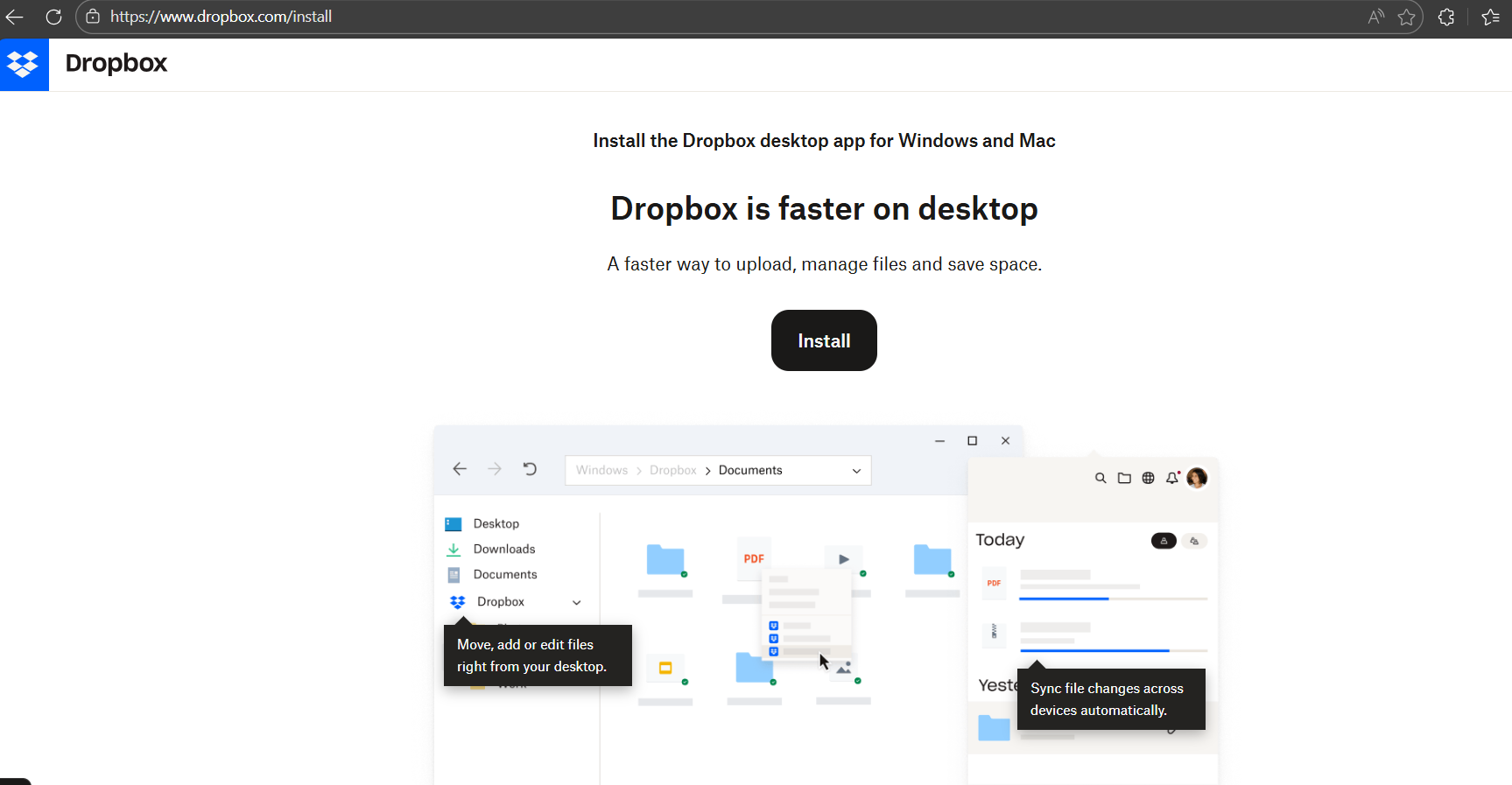
- Visit dropbox.com/install . Now tap on Install

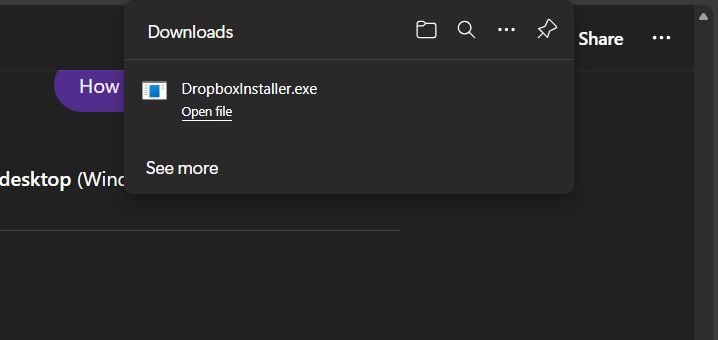
- Once you click on Install, DropboxInstaller.exe gets successfully downloaded.

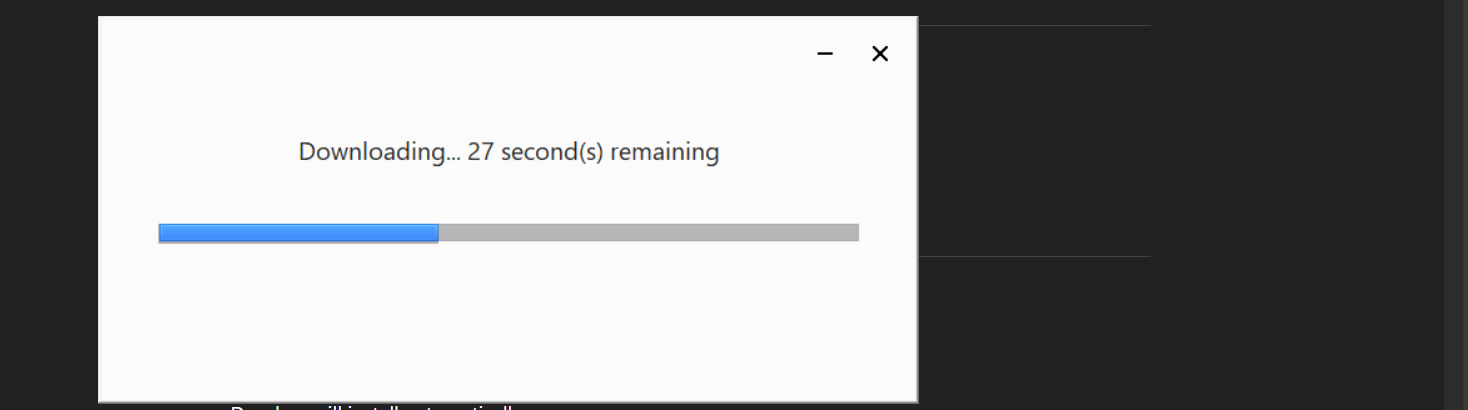
- On clicking the exe file, you will get a dialog box as shown below.

- Once the download gets fully finished, you will get a dialog box showing status as Installing.

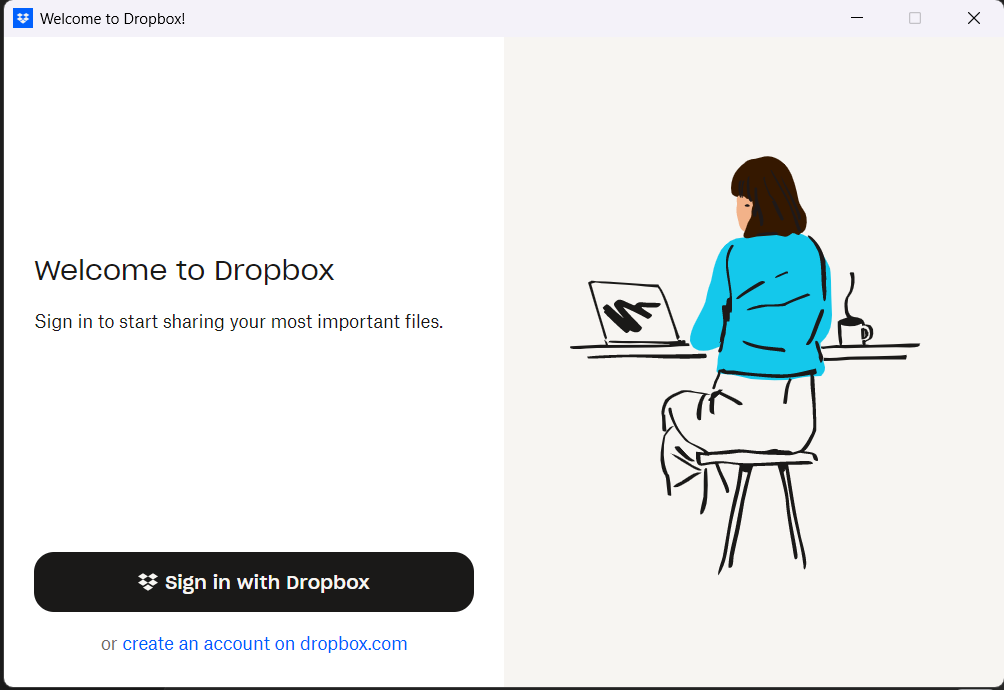
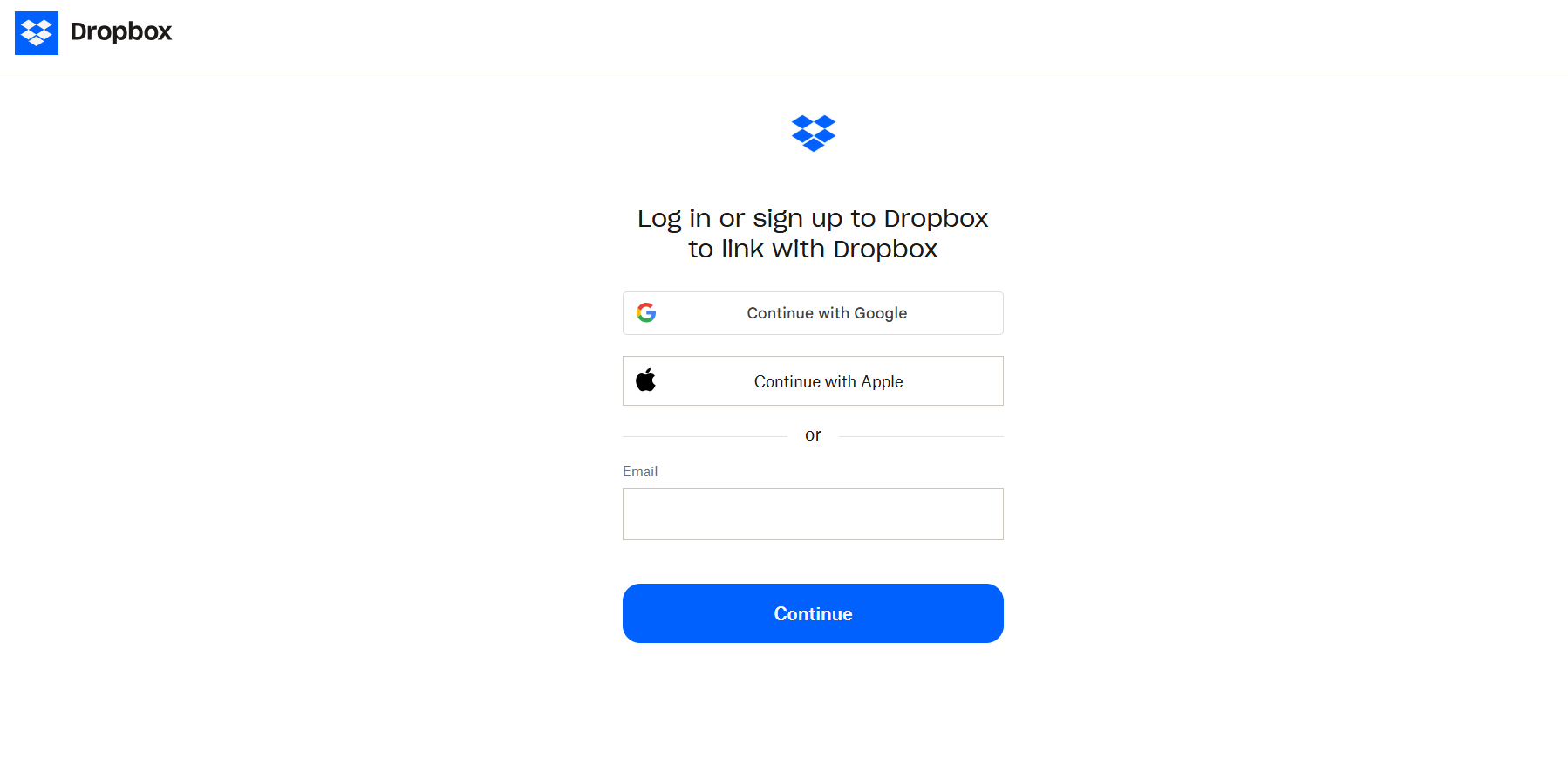
- After installation, you will get a Dropbox sign in page.

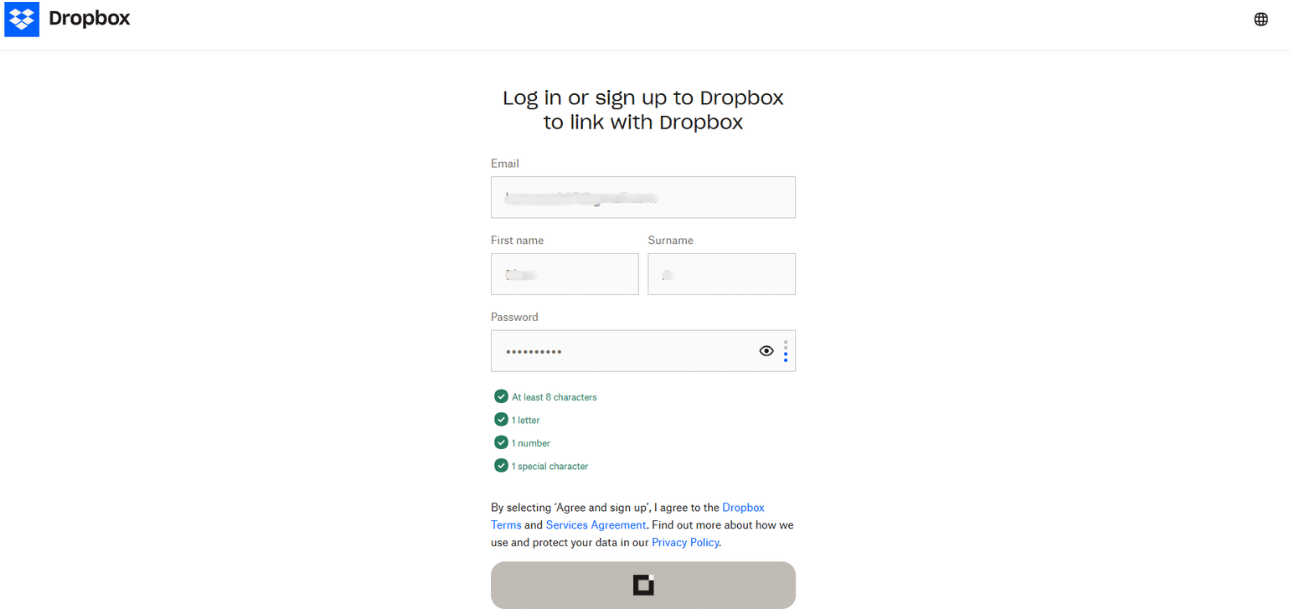
- Now proceed to create an account by providing necessary email addresses.

- Once you click on Continue, proceed to provide other necessary details. Then, click on Agree and sign up.

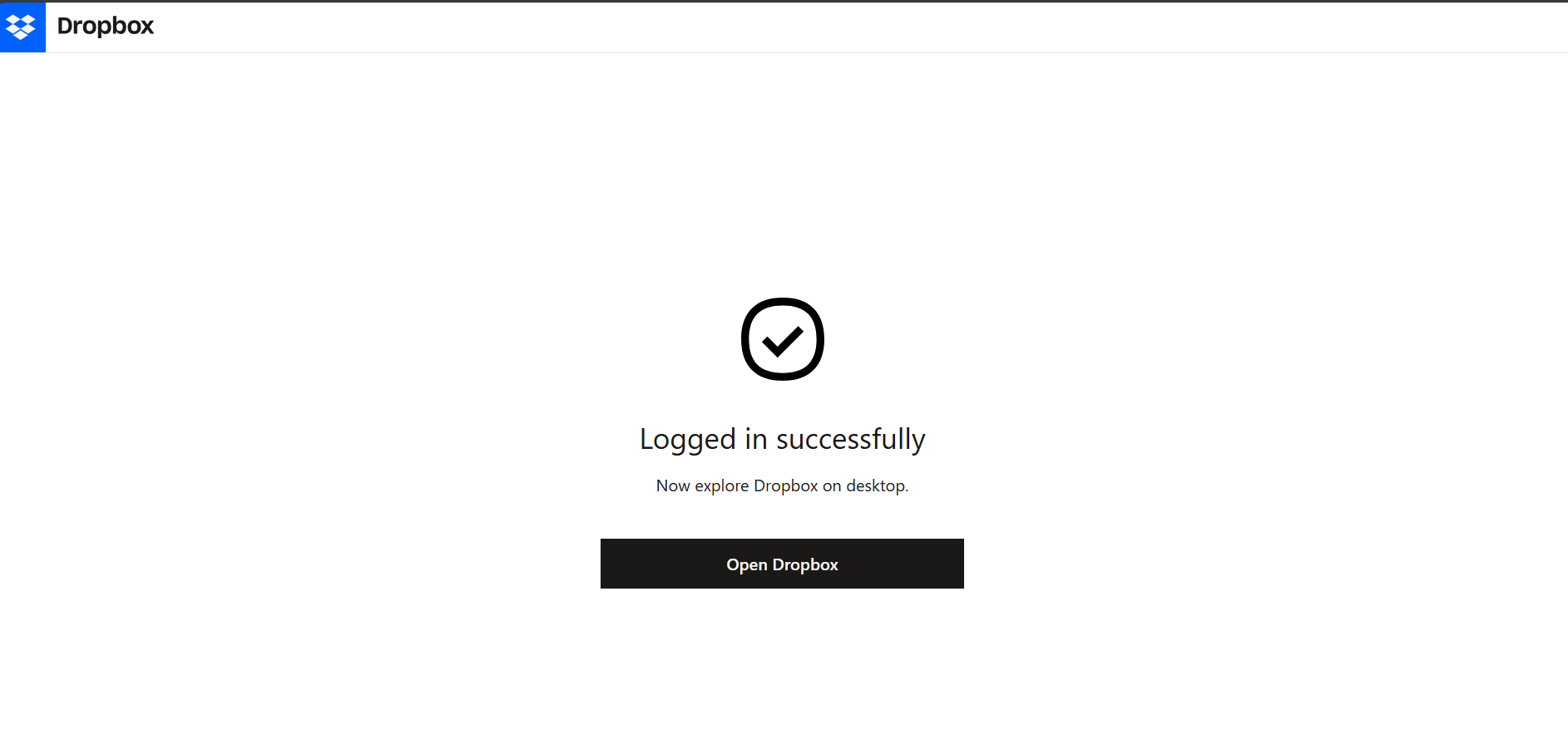
- Now you will get a new page showing successful login. Click on Open Dropbox.

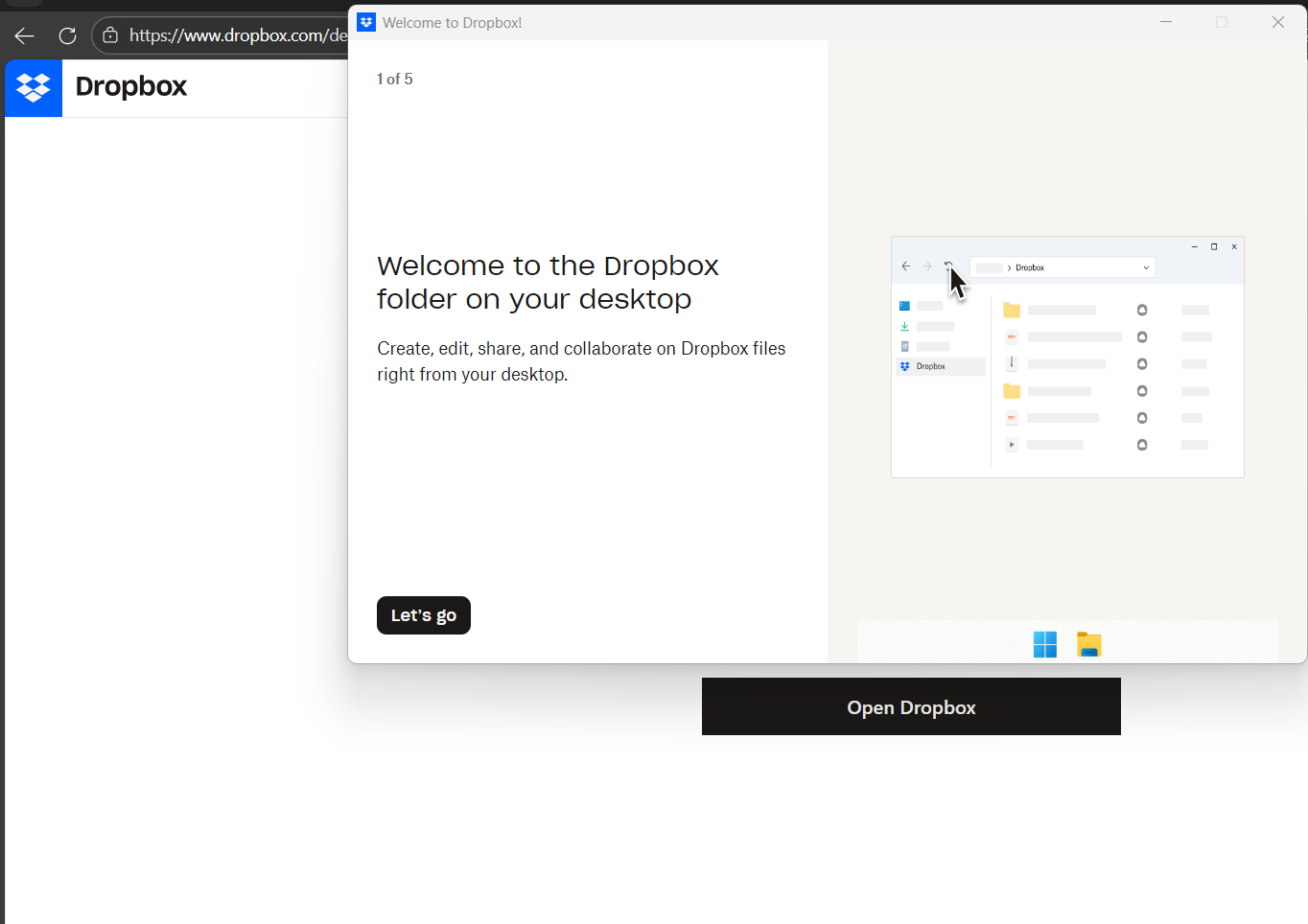
- Now you will get a new page showing the Welcome page. Proceed with Let’s go.

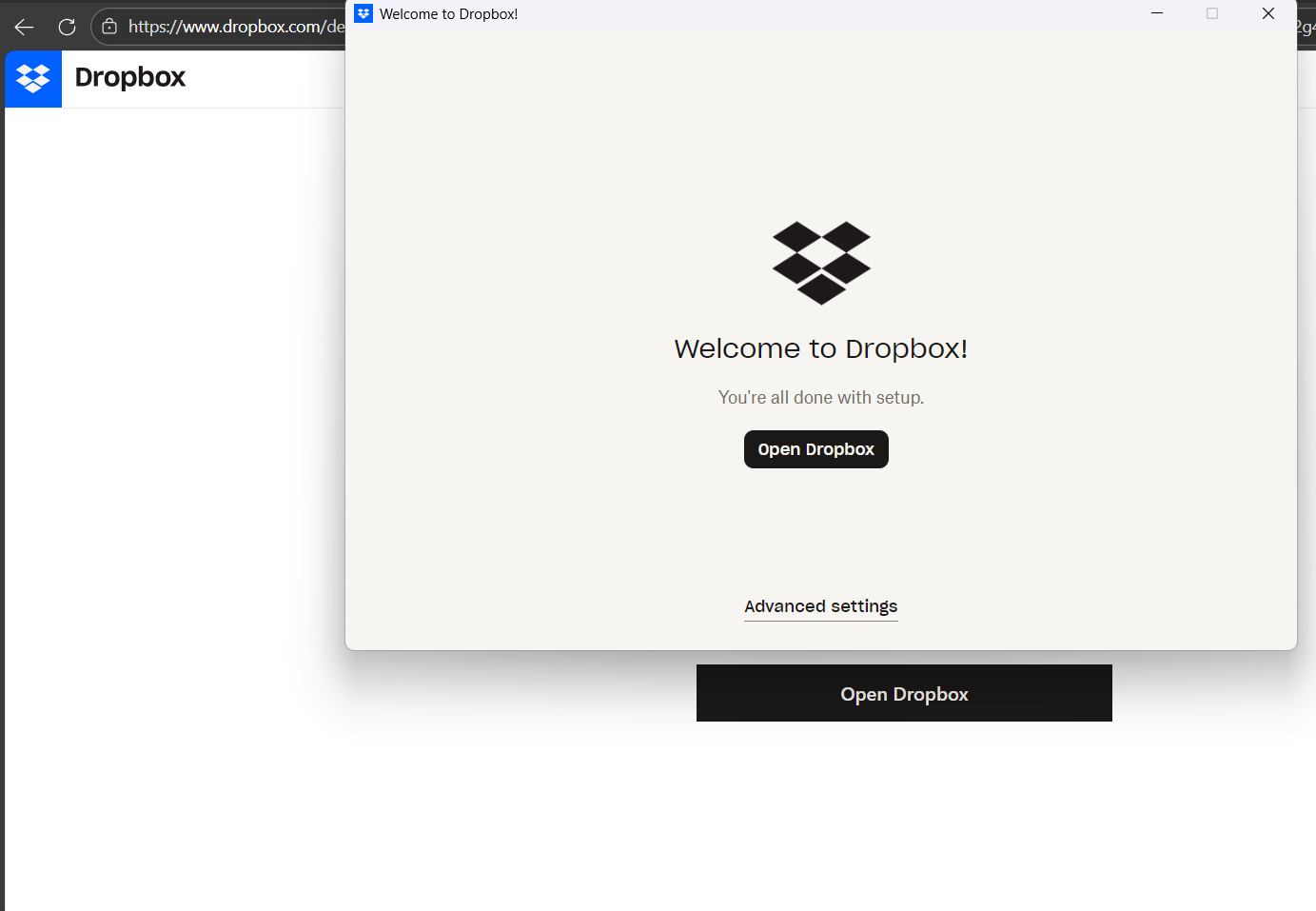
- As you proceed, you will get a page showing setup all done. Now click on Open Dropbox.

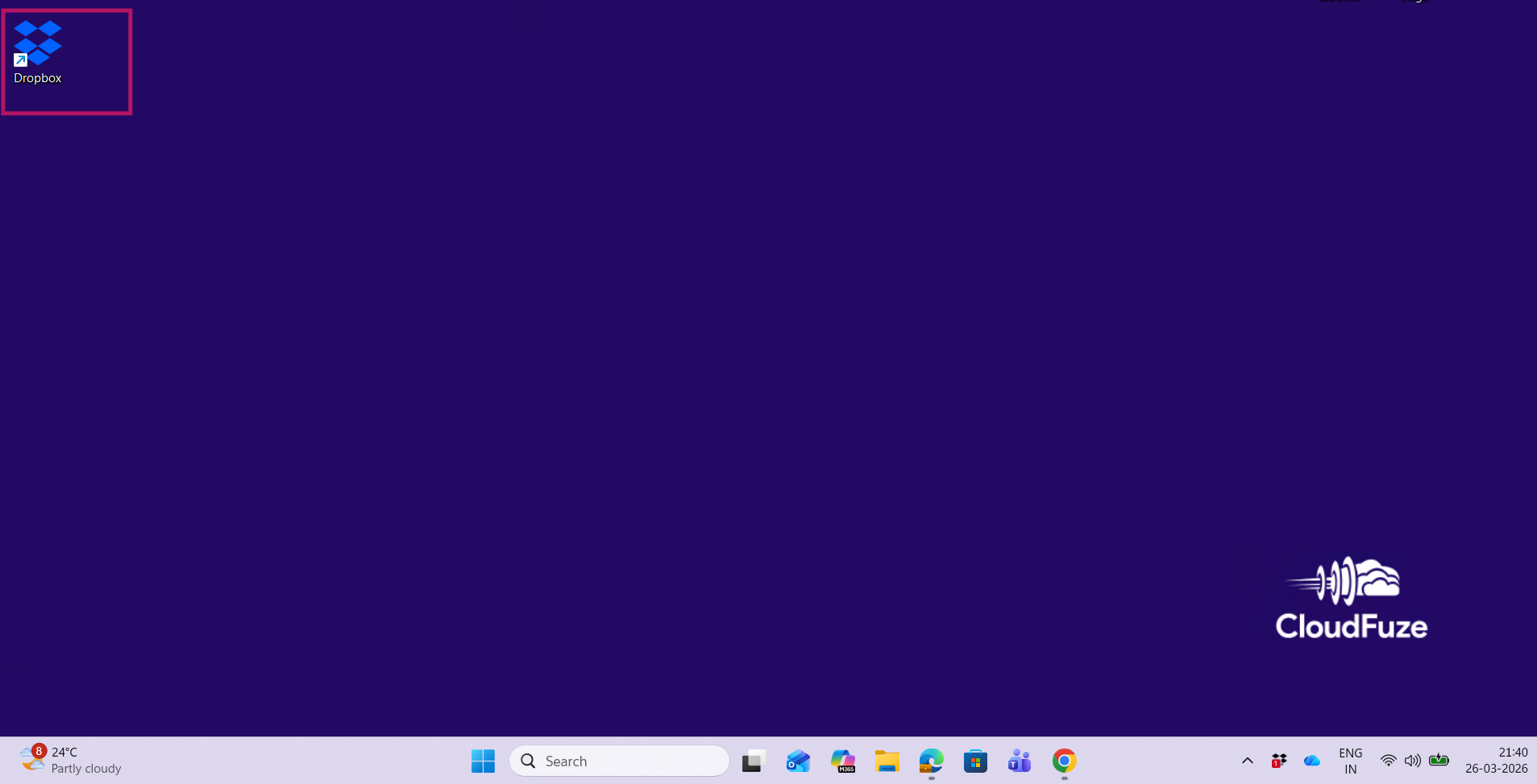
- Once you open, now you can see a new Dropbox icon added to your computer desktop.


What Are the Steps to Link Multiple Dropbox Accounts on Desktop?
Here are simple steps on how to add a second Dropbox account on the same desktop:
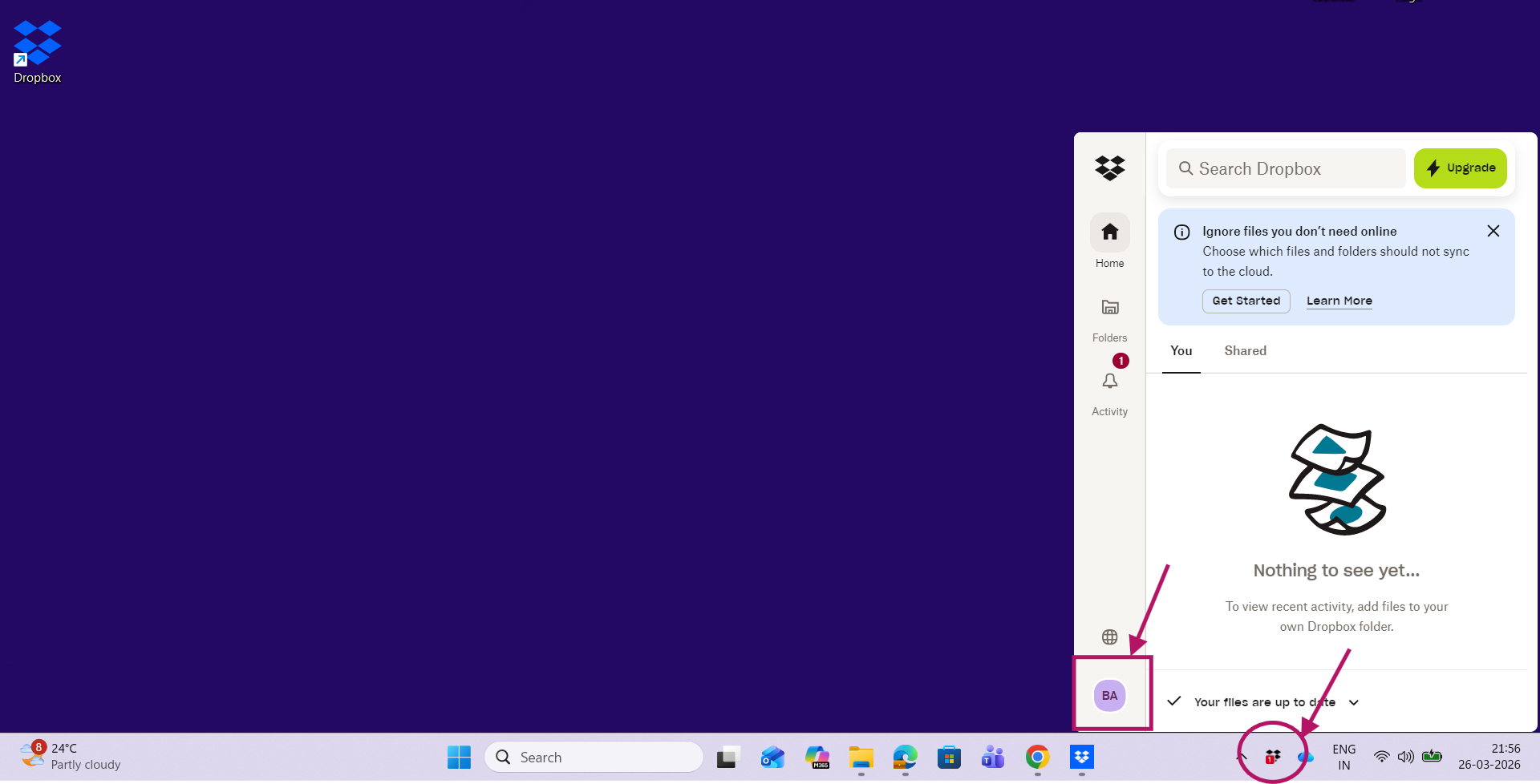
- Click on the Dropbox icon in your system taskbar. Then, click on your avatar icon.

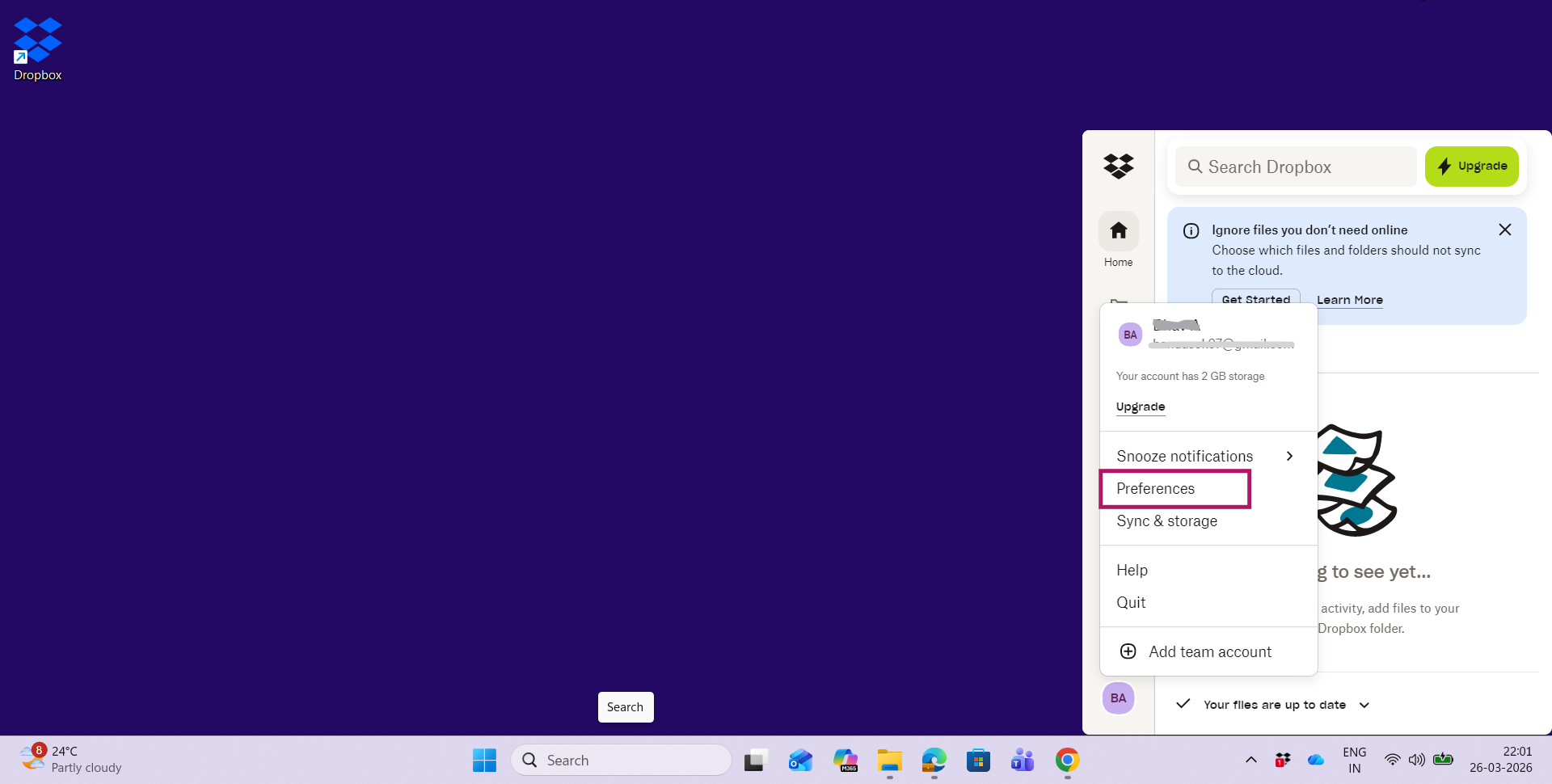
- Now click on Preferences.

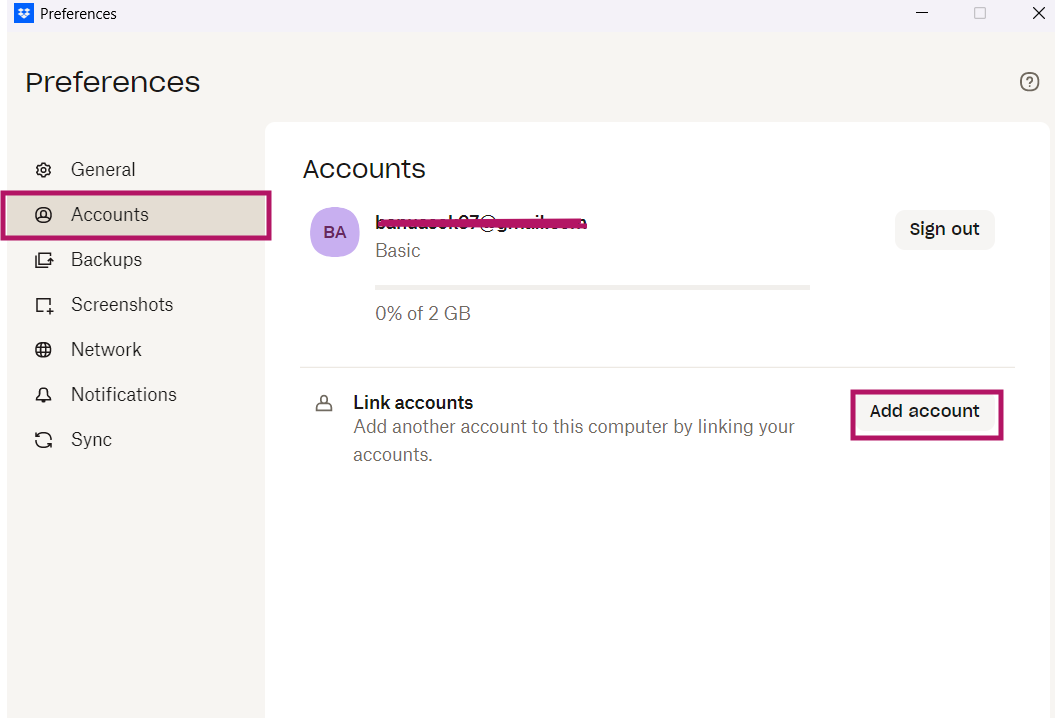
- Under the Preferences tab, click on Accounts. Now click on Add Account.

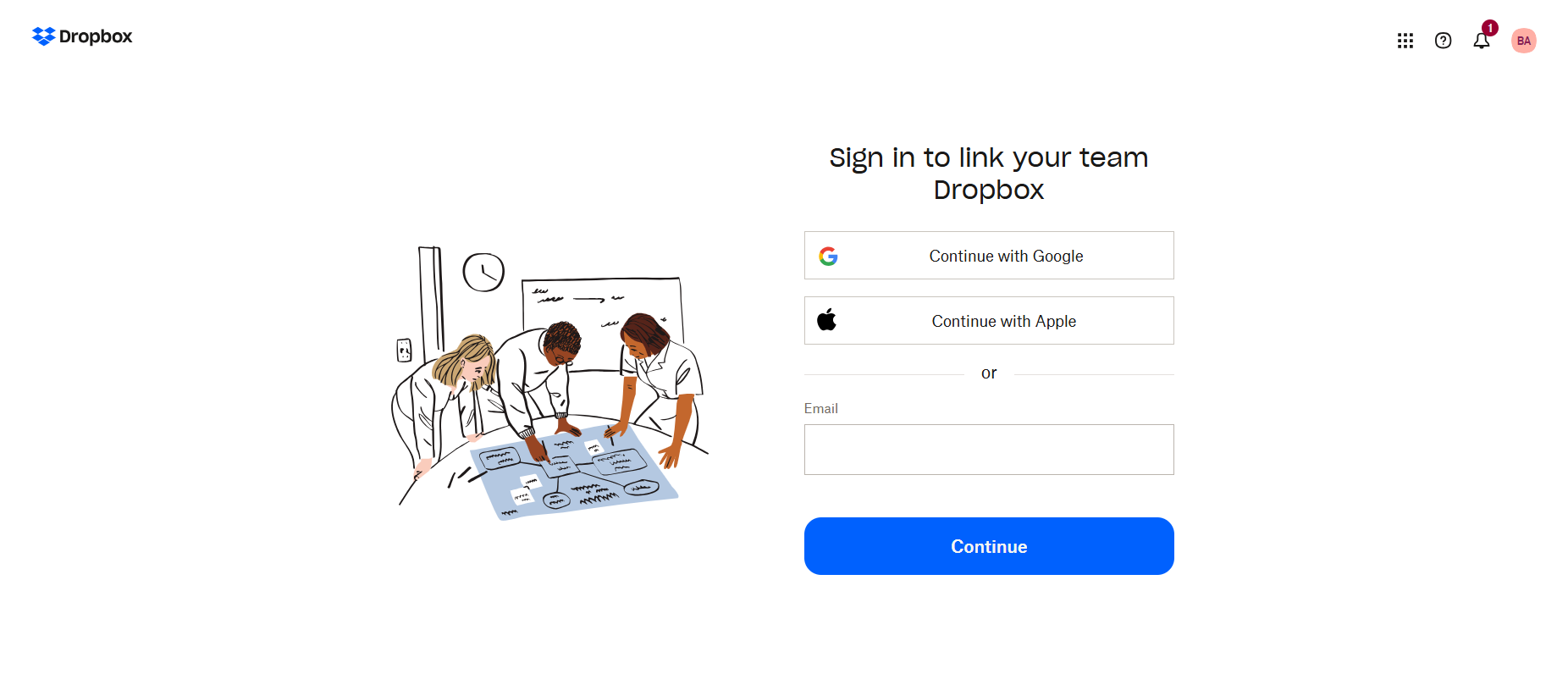
- Now it will open a new page asking for sign-in details. Provide credentials for another Dropbox account. After signing in, you can manage multiple accounts in Dropbox.

Conclusion
Users can add Dropbox to desktop with the steps provided in this blog post. Follow our blog to stay updated on technical insights.
Frequently Asked Questions
1. How to upload files to Dropbox from desktop?
Steps to upload files to Dropbox from desktop app:
- Click on the Dropbox folder in File Explorer.
- Choose the necessary files to add.
- Now one can drag and drop or copy and paste them into the open Dropbox folder.
2. How to unlink or remove a Dropbox account from desktop?
Steps to unlink a Dropbox account from the desktop:
- Navigate to the Dropbox desktop app preferences.
- Tap on the Account tab.
- Now tap on Unlink.
3. What is the Dropbox desktop app?
The Dropbox desktop app allows a user to save, view, share, and access the files and folders stored in your Dropbox account from your computer. For more information, check out the official page here.
About the Author: Bhavani Asok



