
How to Transfer Photos from Google Photos to Dropbox?
Facing challenges when moving Google Photos in Google Drive to Dropbox? Following the best ways to transfer large Google Photos libraries to Dropbox helps you ensure complete replication without any issues. In this blog post, we have discussed how to transfer photos from Google Photos to Dropbox.
Key Takeaways:
How To Transfer Photos from Google Photos to Dropbox?
Check out the following steps if you are wondering how to move photos from a photo cloud service (Google Photos) to a file storage provider (Dropbox) without losing quality.
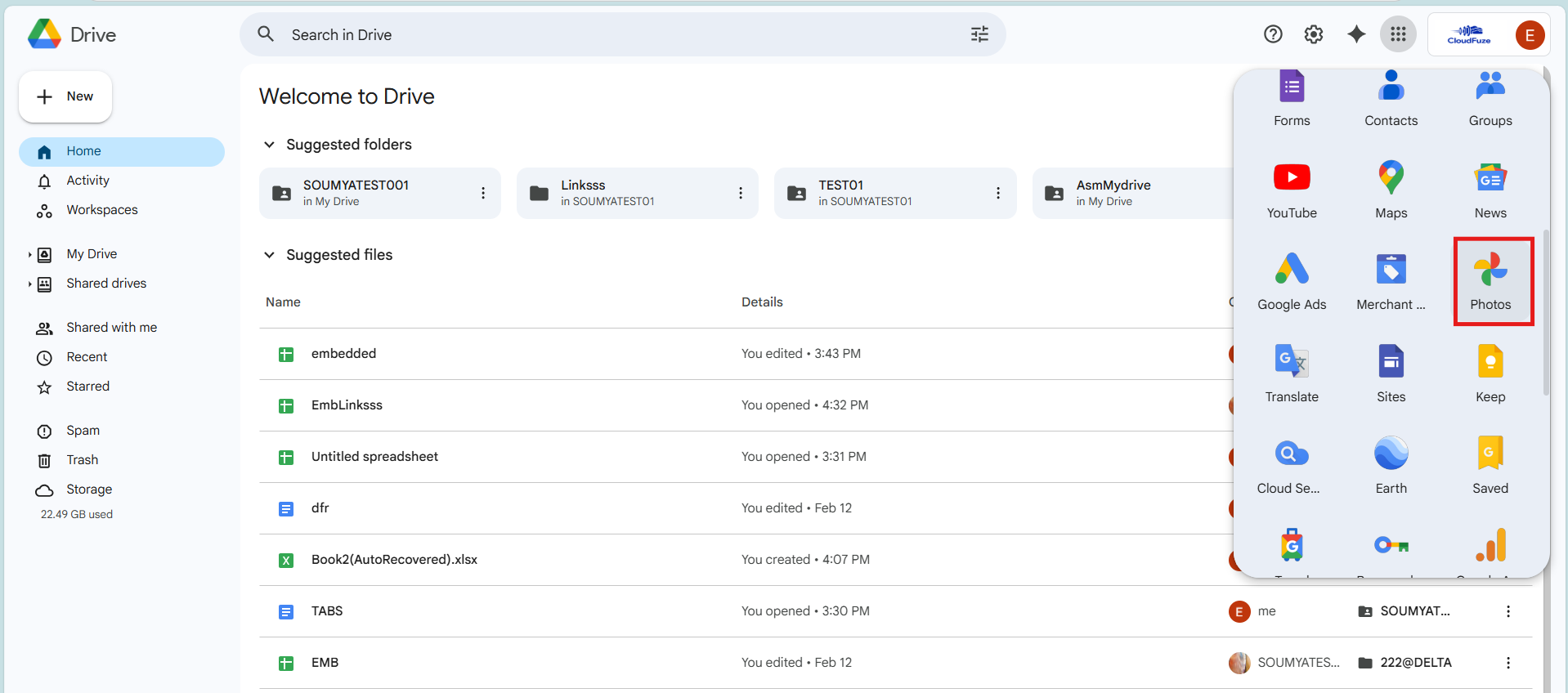
- Log in to your Google Drive account and select Google Photos.
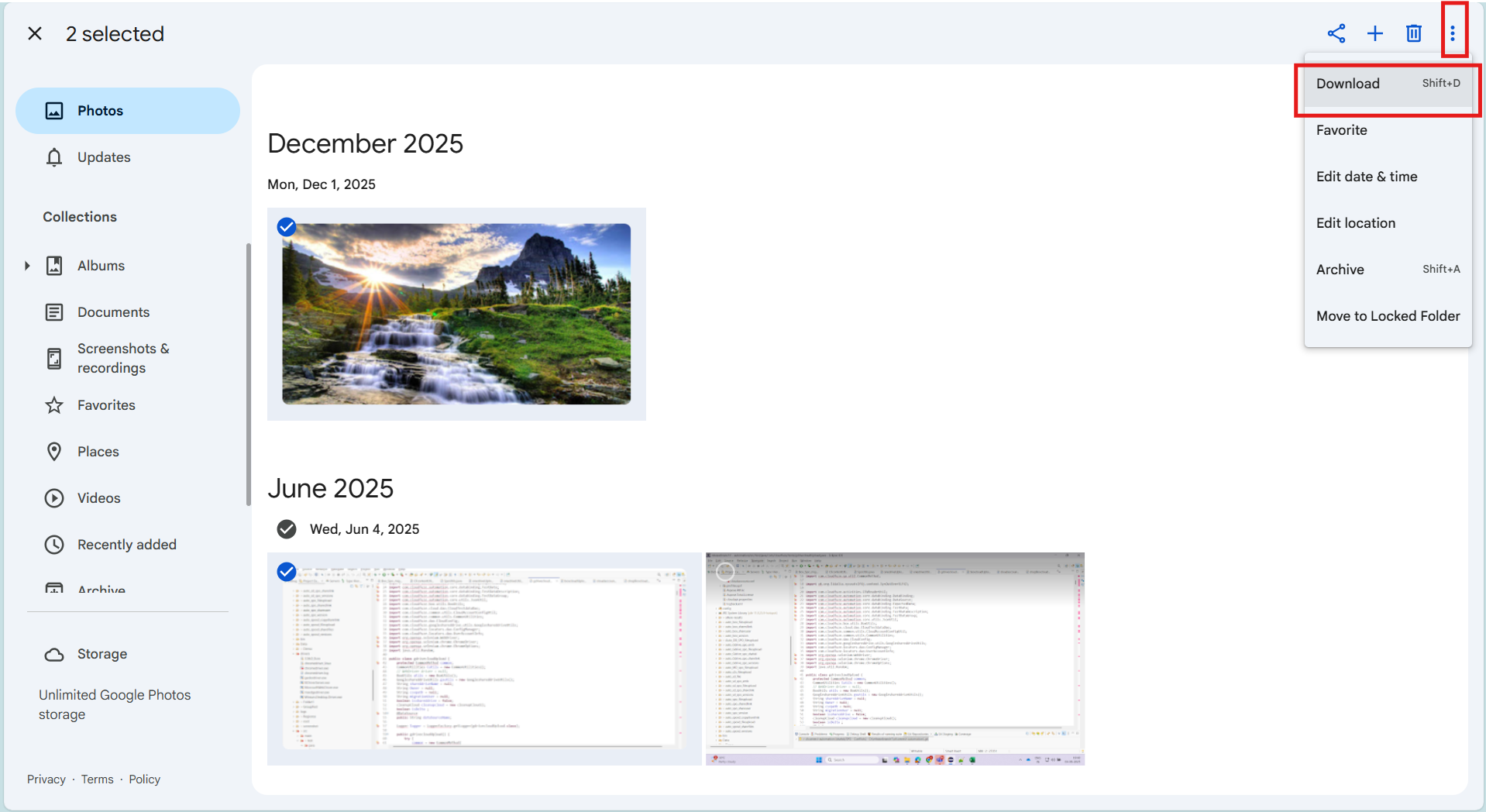
- Select the photos to transfer to Dropbox. Now click on “Download” (we have selected 2 photos to transfer to the Dropbox cloud).
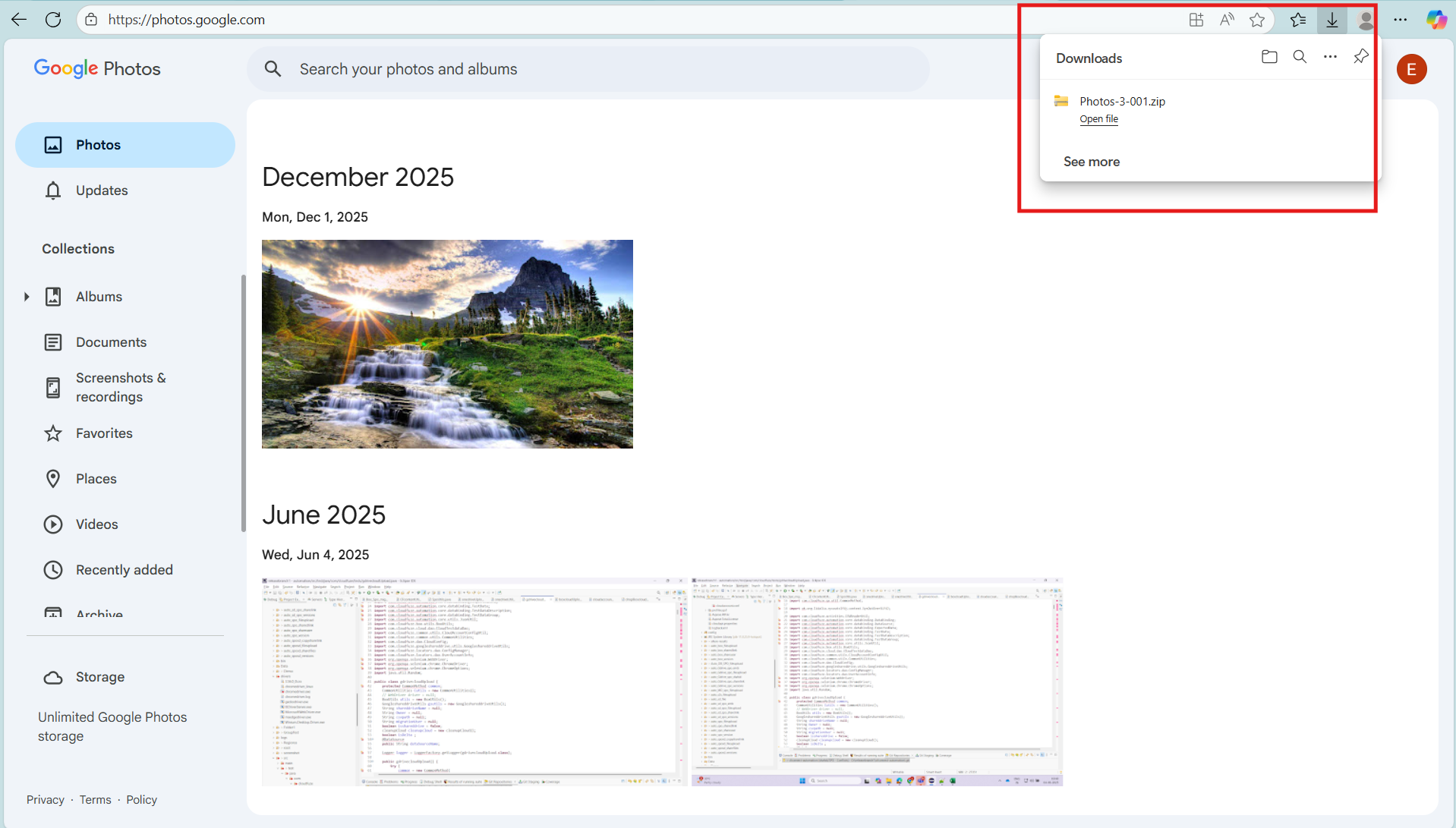
- A zip file gets downloaded once you click on Download.
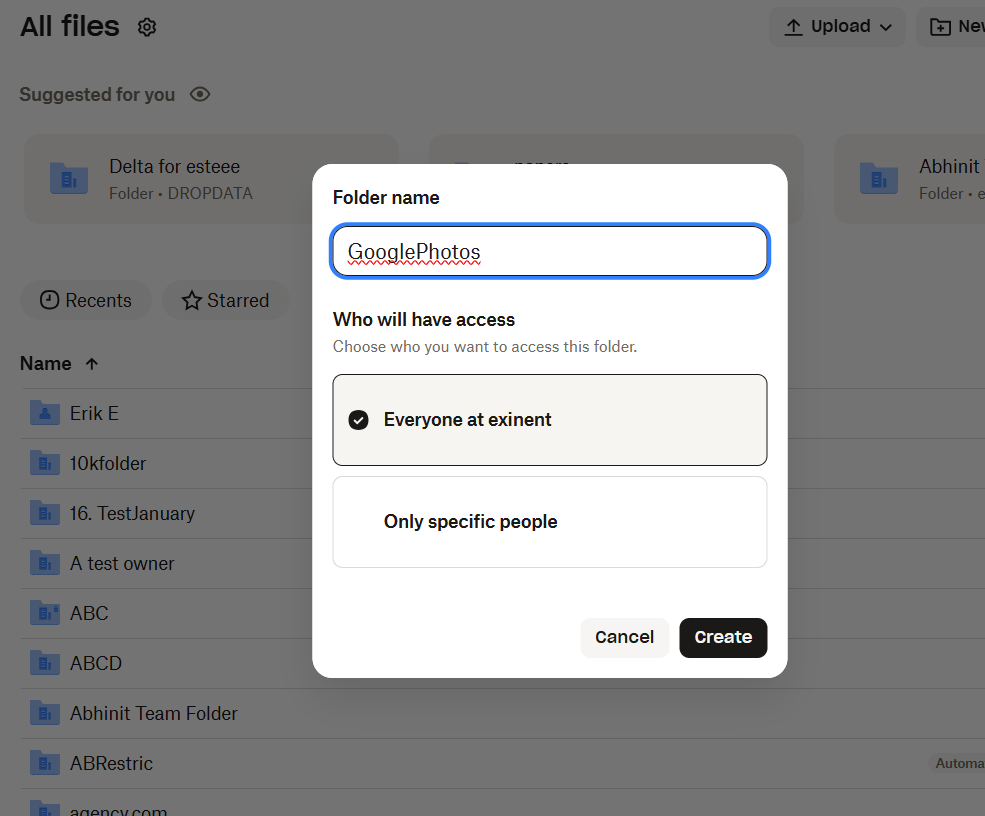
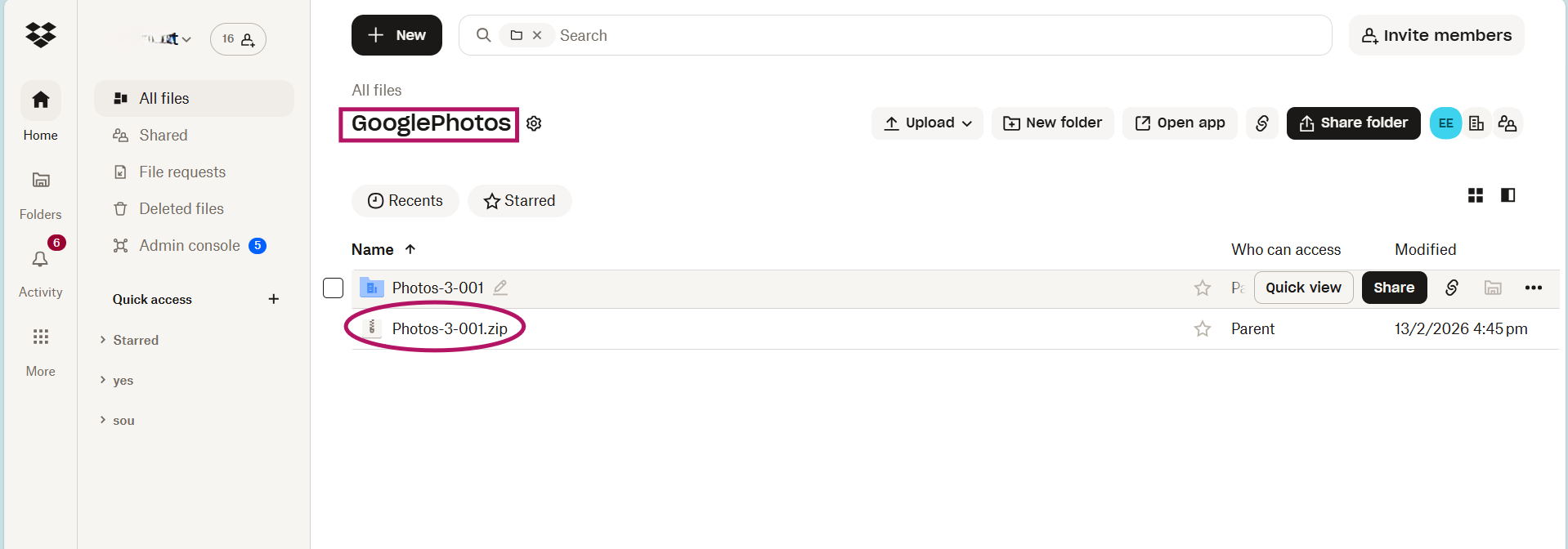
- Now login to Dropbox. Create Folder –> New Folder.
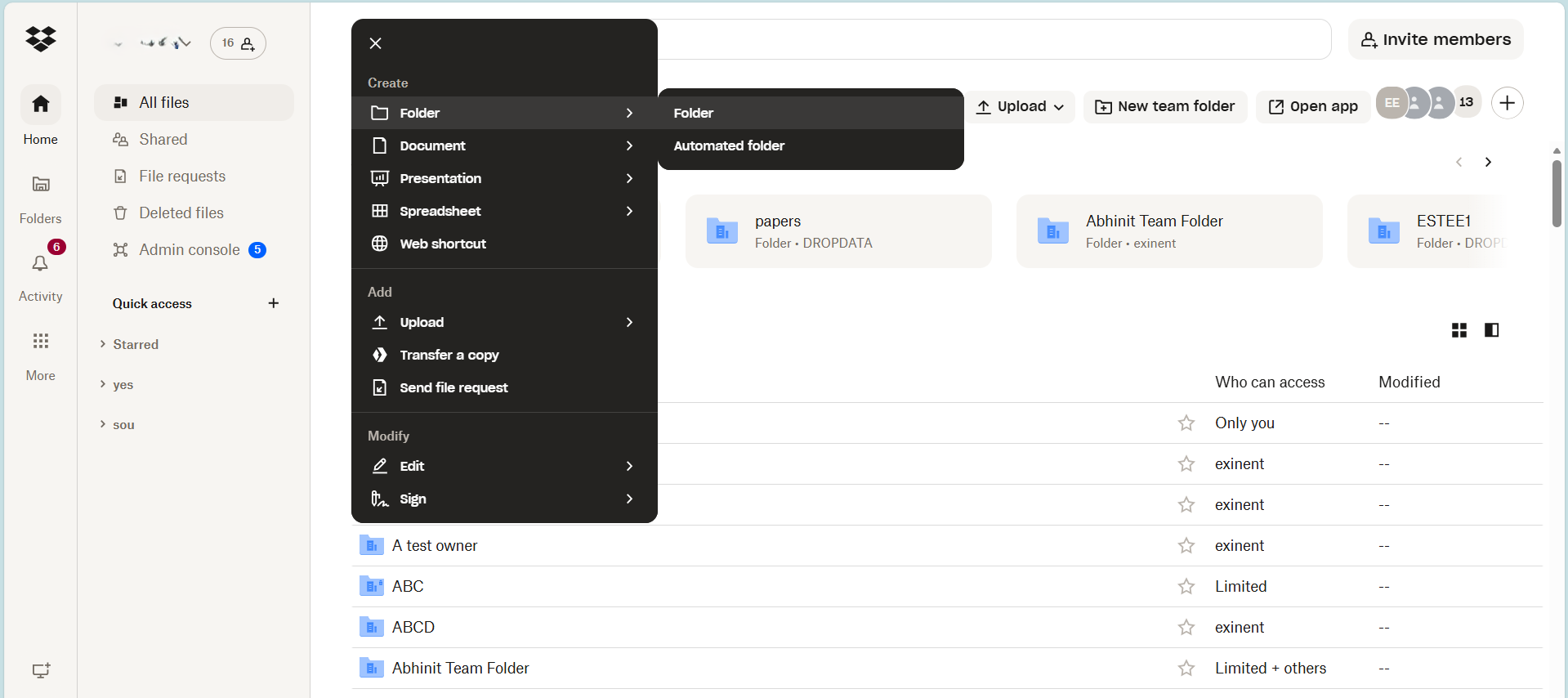
- Here, we have named the new folder as Google Photos.
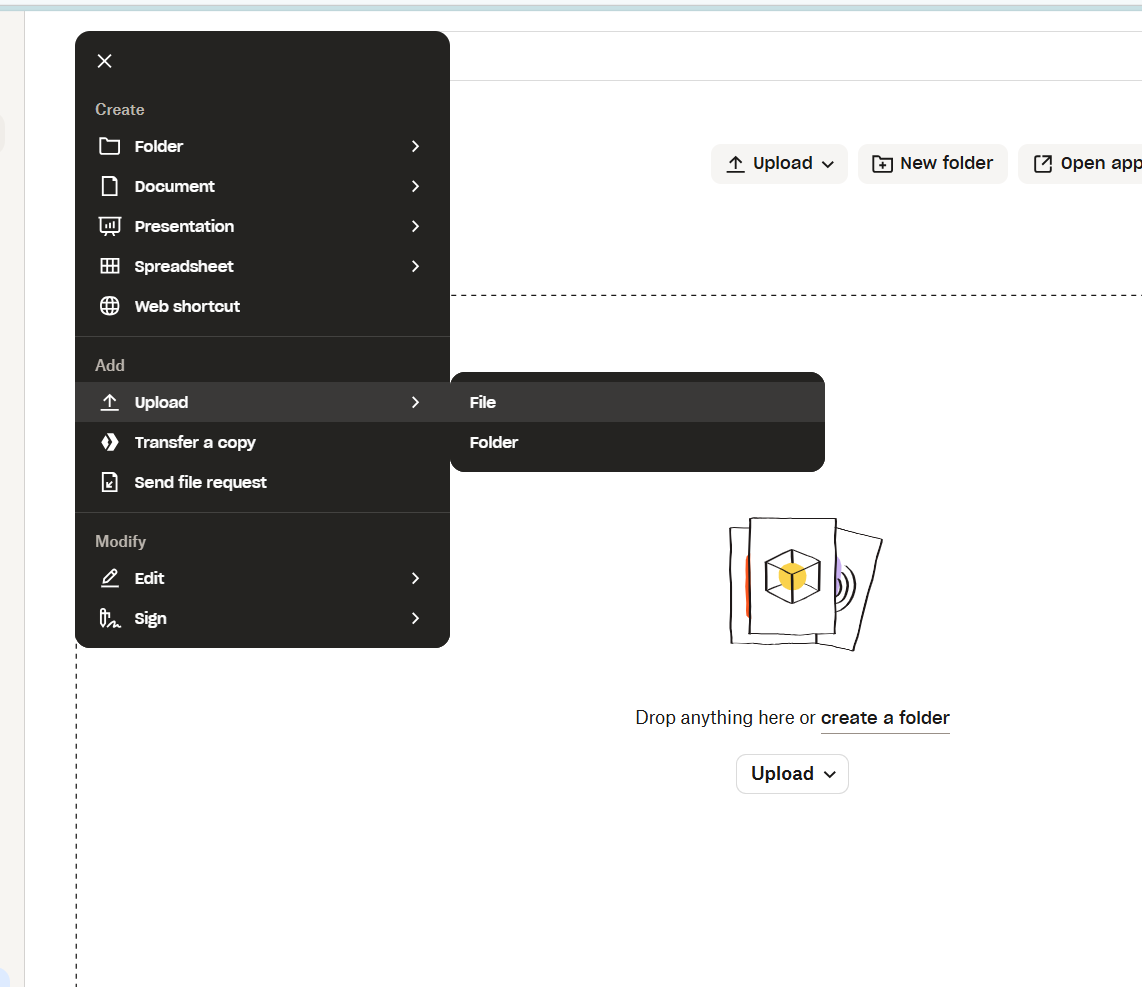
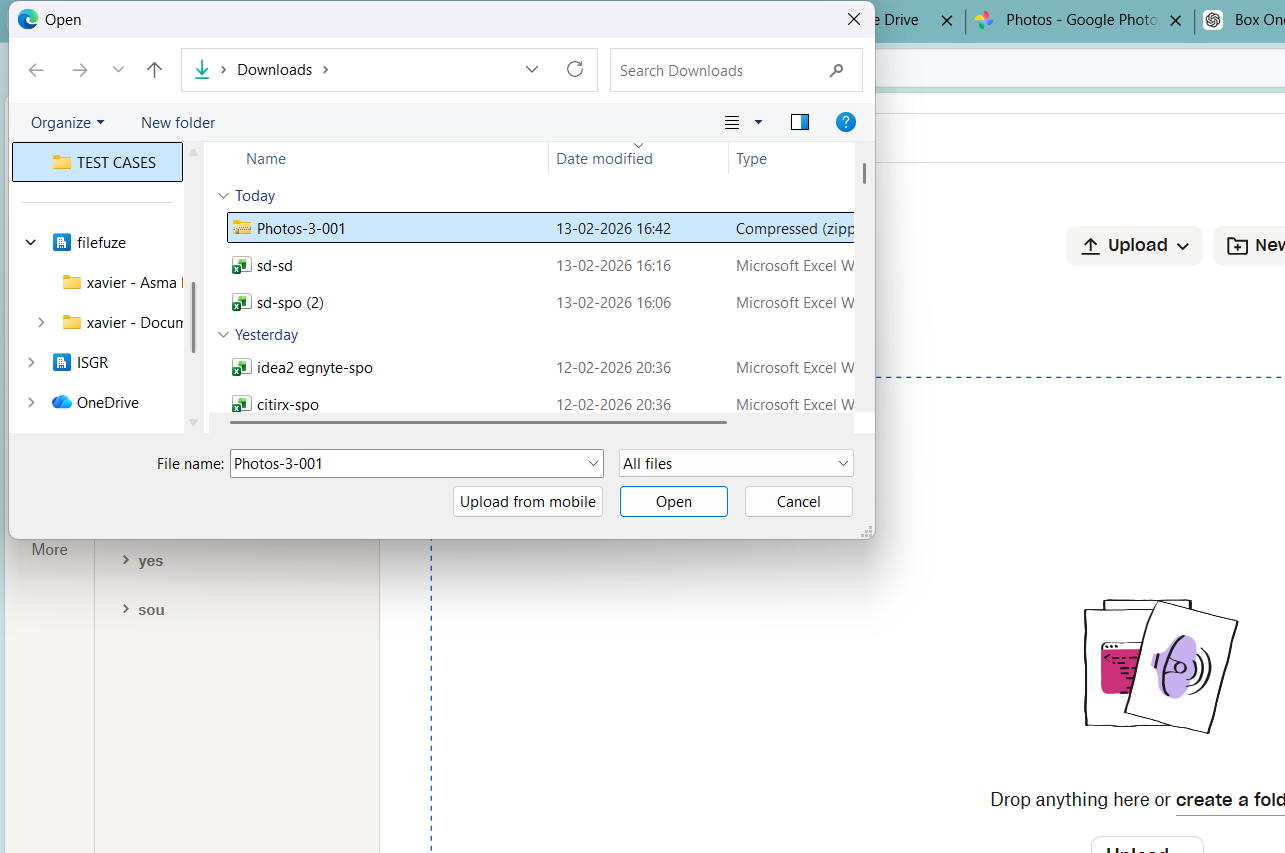
- Upload the downloaded zip file.

- Here we upload “Photos-3-001″ zip file.

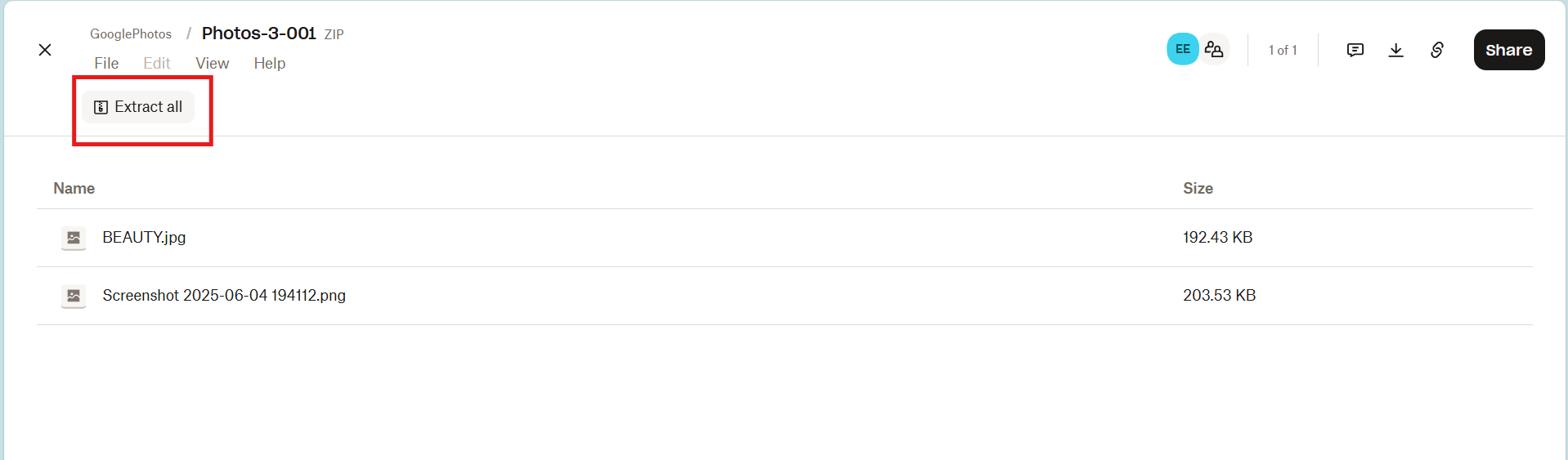
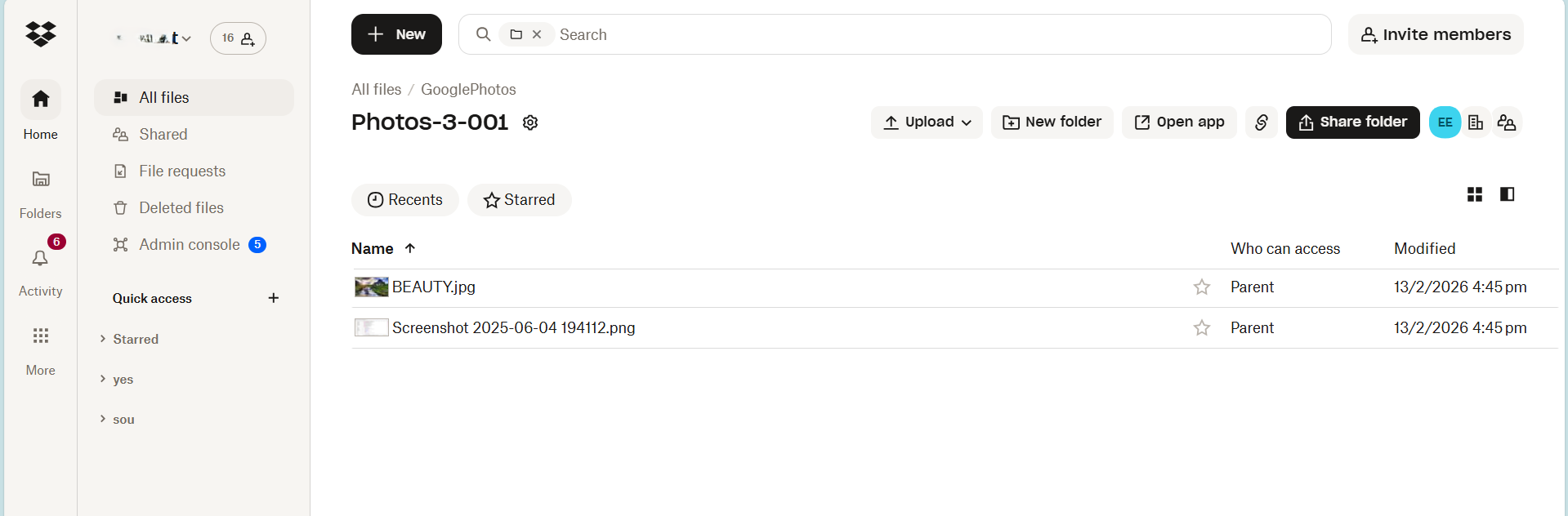
- Now extract the zip file.

- The zip file now contains the 2 extracted photos.

- Now, we can see the transferred Google Photos in Dropbox.

Perform Enterprise-level Migration Seamlessly with CloudFuze
CloudFuze Migrate is an advanced migration tool that helps enterprises securely transfer from Google Workspace, Dropbox, and many other cloud storage solutions with complete replication. With CloudFuze, migrate terabytes and petabytes of data with zero downtime.
Schedule your free consultation today!
Frequently Asked Questions
1. What are common issues faced when transferring photos from Google Photos to Dropbox?
Issues you can face when transferring photos from Google Photos to Dropbox:
- Downtime issues when transferring high-volume photos
- Access issues when moving to new platform
- Longer duration to transfer high-quality images.
2. Identify a trustworthy service for cloud-to-cloud migration.
CloudFuze helps you transfer high-volume data and metadata from leading cloud platforms such as:
- Google Workspace
- Microsoft 365
- Egnyte
- Box
- Dropbox
- ShareFile
CloudFuze Migrate helps you transfer from 40+ cloud platforms with complete replication.
3. How to transfer specific albums only from Google Photos?
Users can transfer specific albums only from Google Photos. If you have a manageable number of Google Photos, you can select and deselect the albums while performing a transfer. It is best practice to take a whole backup before you transfer Google Photos.
About the Author: Bhavani Asok



