
Manage External Share Over Multiple Cloud Storage Platforms
Businesses constantly seek ways to increase productivity and enhance collaboration when planning a cloud migration. It is essential to manage external collaborators effectively during your transition to avoid unauthorized access.
In this blog post, we have covered how to manage external share over multiple cloud storage platforms.
Key Takeaways:
Challenges Of Managing External Sharing Across Multiple Cloud Storage Platforms
Challenges of managing external sharing across multiple cloud storage platforms:
- Risks of external users losing access to necessary files
- Chances of broken links
- Security and compliance issues
- Risks of incorrect user mapping
Best Practices When Sharing Files Externally on Cloud Storage
Best practices for managing permissions when sharing files externally on cloud storage:
- Choose a reliable migration tool such as CloudFuze Migrate that seamlessly transfers permissions, external users, along with the right access.
- Maintain shared link integrity and folder structures before proceeding to share your files externally.
- Avoid manual reshares to ensure that you do not miss any files while sharing them with external users.
- Ensure to map users properly when sharing files externally across platforms.
Transfer Files Among External Users with CloudFuze Migrate
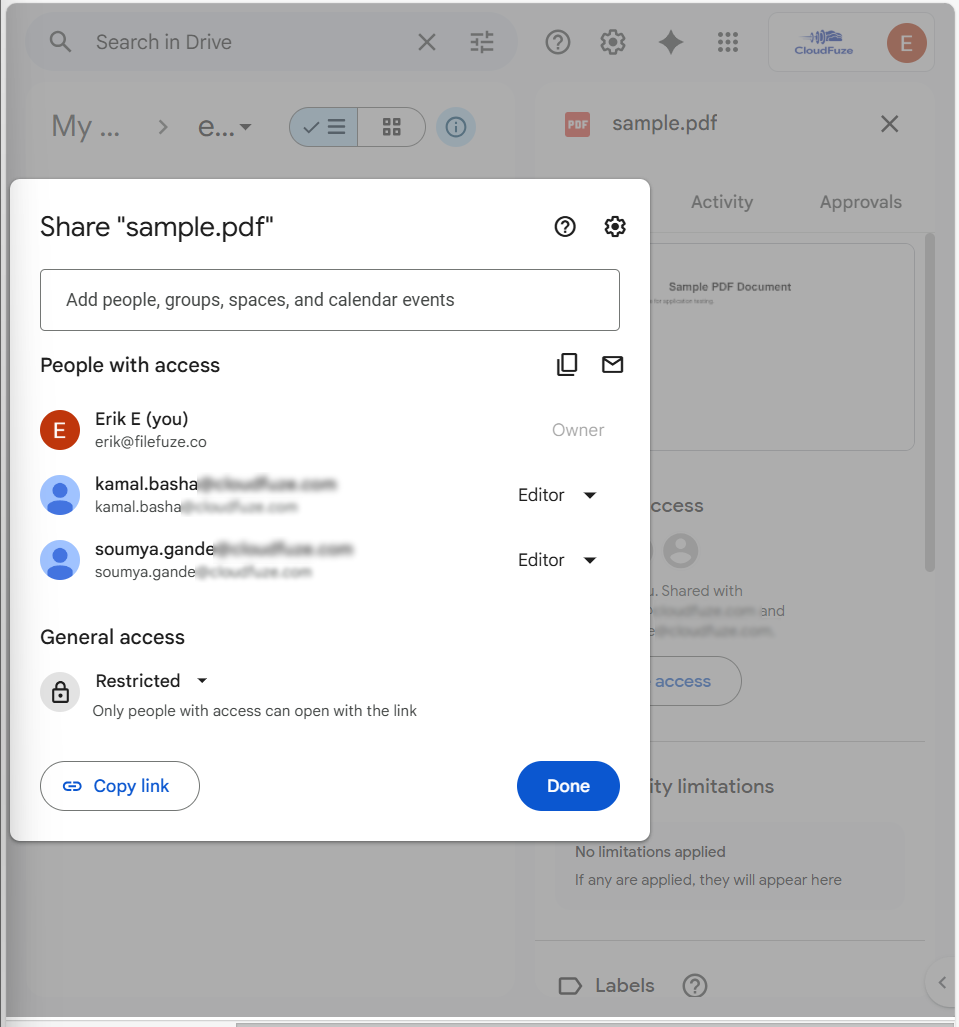
Below, we have provided screenshots on how CloudFuze Migrate transfers external collaborators during OneDrive to Google Drive migration:
Image 1: The screenshot (of our migration tool CloudFuze Migrate) shows the options to migrate external shares and external users as guests.
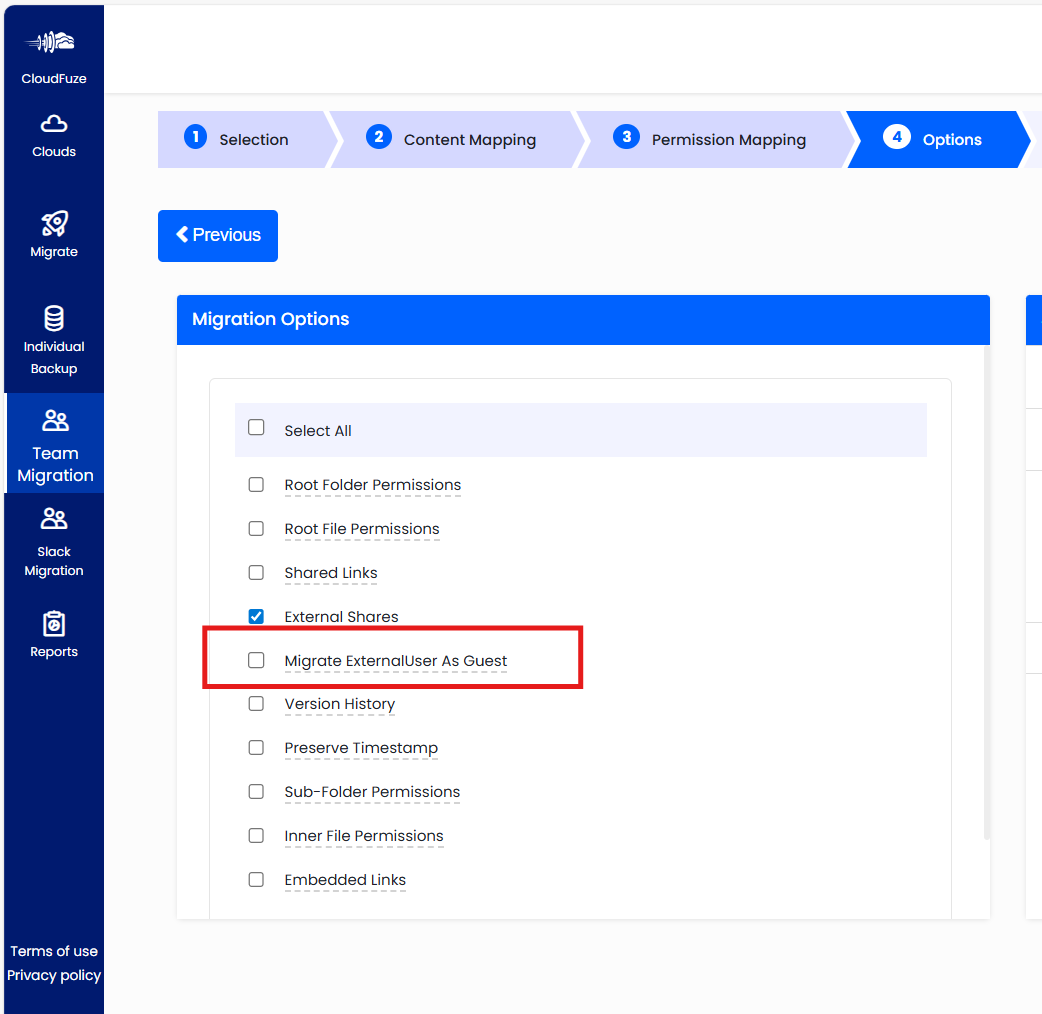
Image 2: The screenshot shows “sample.pdf” with editing permissions to two external users in OneDrive.
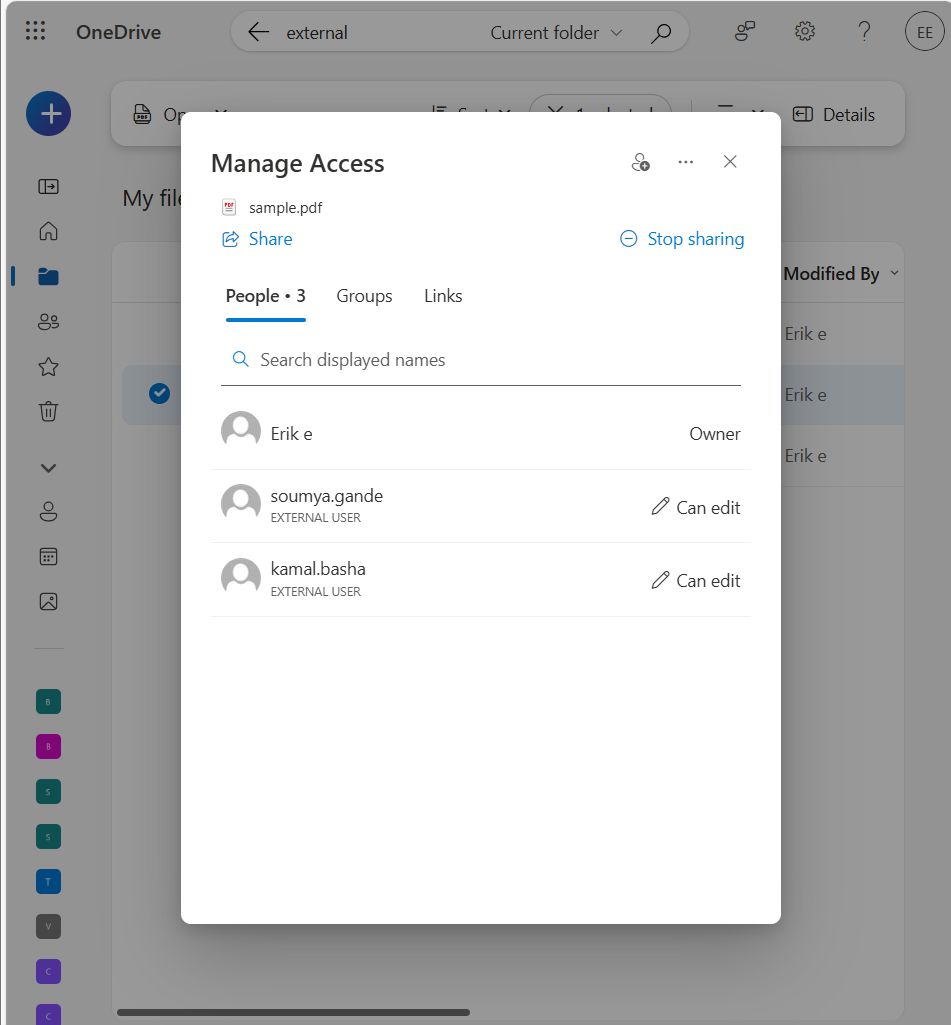
Image 3: The screenshot below shows replication with guest users along with the right access permissions to Google Drive from OneDrive using CloudFuze Migrate.
Also, check out how to move guest users from Google Shared Drive to SharePoint.
Metrics to Evaluate Success of External Sharing Practices
Few metrics to evaluate success of external sharing practices include:
- External users transferred with the right user permissions.
- Files and folders open without any issues after sharing externally with users.
- No issues with access settings and seamless workflow continuity.
- Complete replication of links within files.
Manage External Shares Over Cloud Storage Platforms with CloudFuze
With CloudFuze Migrate, ensure 100% accuracy when moving files to external users with appropriate permissions. Businesses can migrate data along with necessary metadata such as external shares accurately.
Book a free and no-obligation demo of our tool to learn more.
Overview of Our Migration Tool
What Do Customers Say About Us?
As a reliable cloud migration partner, we have helped many enterprises migrate with complete accuracy. We have a rating of 4.7/5 in Gartner Peer Insights Review.
Here is a recent January 2026 Gartner review from one of our customers.

As per the review, we were praised for providing a great migration experience. The customer appreciated us for being very understanding and required support and service throughout their migration.
Frequently Asked Questions
1. What are the best tools to manage external file sharing securely?
CloudFuze Migrate is one of the best tools to manage external file sharing in a secure way. Businesses can seamlessly migrate your external users, data, metadata such as external shares, permissions, etc. accurately using CloudFuze Migrate.
2. How to share SharePoint sites with external users?
Businesses can collaborate with guest users while sharing files and documents using a SharePoint site. Check the site-level sharing settings to ensure they allow the type of access you want for this site.
SharePoint site can’t be shared with unauthenticated people (Anyone setting), but individual files and folders can. For more information on sharing SharePoint sites with external users, check out the official page here.
3. Can I share a folder on SharePoint with external users?
Yes, users can share folders on SharePoint with external users. By default, external sharing features remain turned ON across your entire SharePoint and OneDrive environment. You have to turn it off globally if you do not want the feature enabled.
To permit external sharing on a SharePoint site, you must allow it at the organization level. If a site’s external sharing option and the organization-level sharing option don’t align, the most restrictive value will always be applied.
4. Can you share Teams files with external users?
Yes, Teams allows you to collaborate with guests across documents, tasks, and conversations. Note that all guests must be added to at least one Team before guest access features and functionality are available in the guest account. For more information, check out the official page here.
About the Author: Bhavani Asok



