
How Can Businesses Perform Office 365 Mailbox Recovery?
Microsoft 365 admins can recover and restore a user account from a deleted Office 365 mailbox. This approach is useful for IT admins in large organizations to make account retrieval smoother. In this blog post, we have covered how to restore mailbox in Office 365.
Key Takeaways:
Why Is Mailbox Recovery Important for Office 365 Users?
It is important to perform Office 365 mailbox recovery for the following reasons:
- Avoid unintended deletions
- Adhere to legal compliance requirements
- Eliminate security risks
- Prevent data loss in cases of accidental deletions
What Are Common Issues Faced During Office 365 Mailbox Recovery?
Common issues faced during Office 365 mailbox recovery:
- Retention policy limitations
- Deleted mailbox recovery window
- Incomplete data recovery
- Permission & access issues
- Corrupted mailbox data
- Legal hold / compliance conflicts
- User mapping issues
- License dependency
- Limited granular recovery
- Backup dependency
- Cross-tenant recovery limitations
- Exceeding the Office 365 email recovery period
What Are the Different Methods Available for Office 365 Mailbox Recovery?
Different methods available to recover office 365 deleted mailbox:
- Deleted Items folder
- Recoverable Items (Dumpster)
- Soft-deleted mailboxes (within 30 days)
- eDiscovery tools
- Cross-tenant migration tools (indirect recovery)
Steps To Use eDiscovery For Bulk Office 365 Mailbox Recovery
Steps to use eDiscovery for bulk Office 365 mailbox recovery:
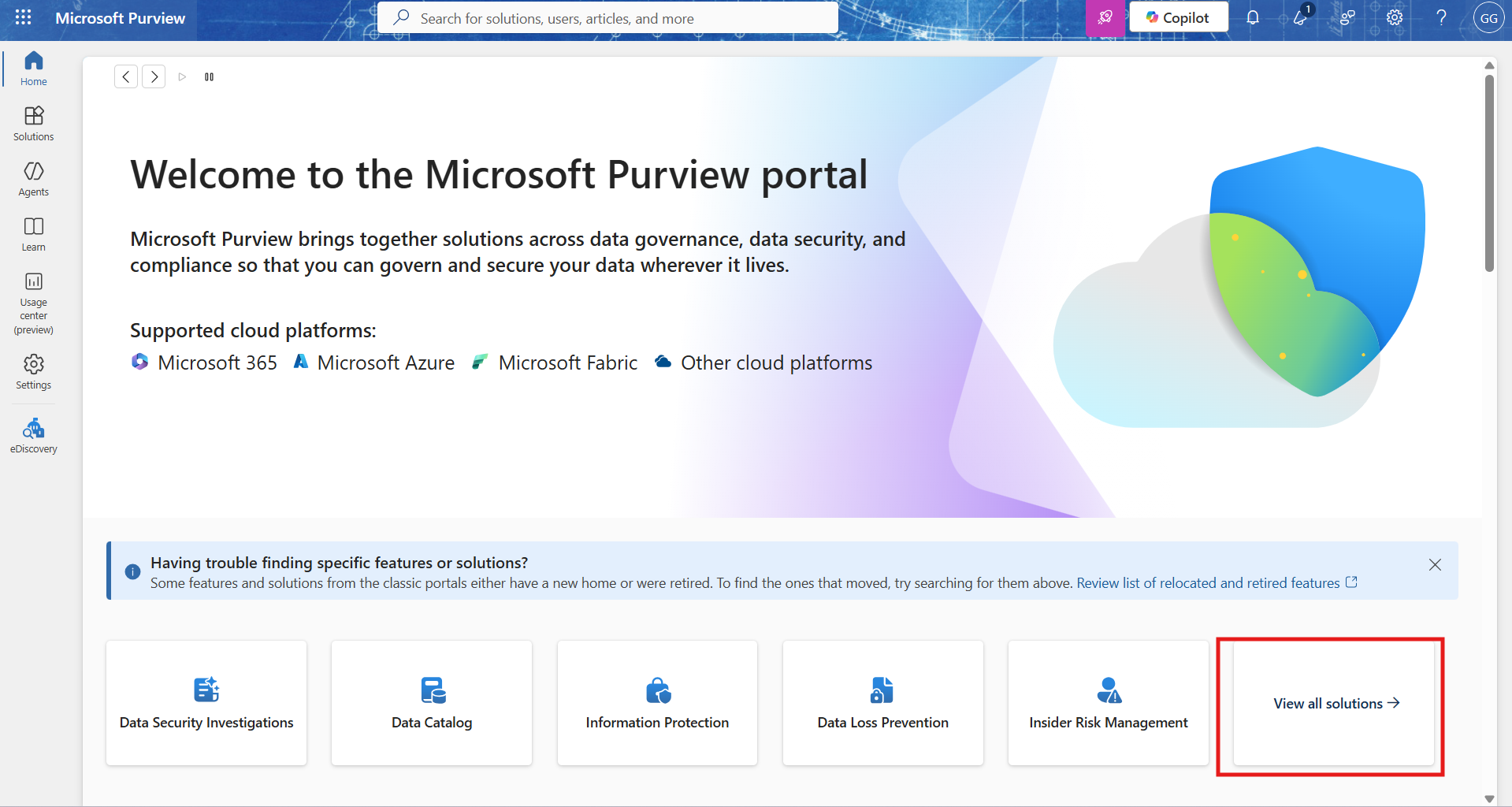
1. Open Microsoft Purview portal. Tap on “View all Solutions”.
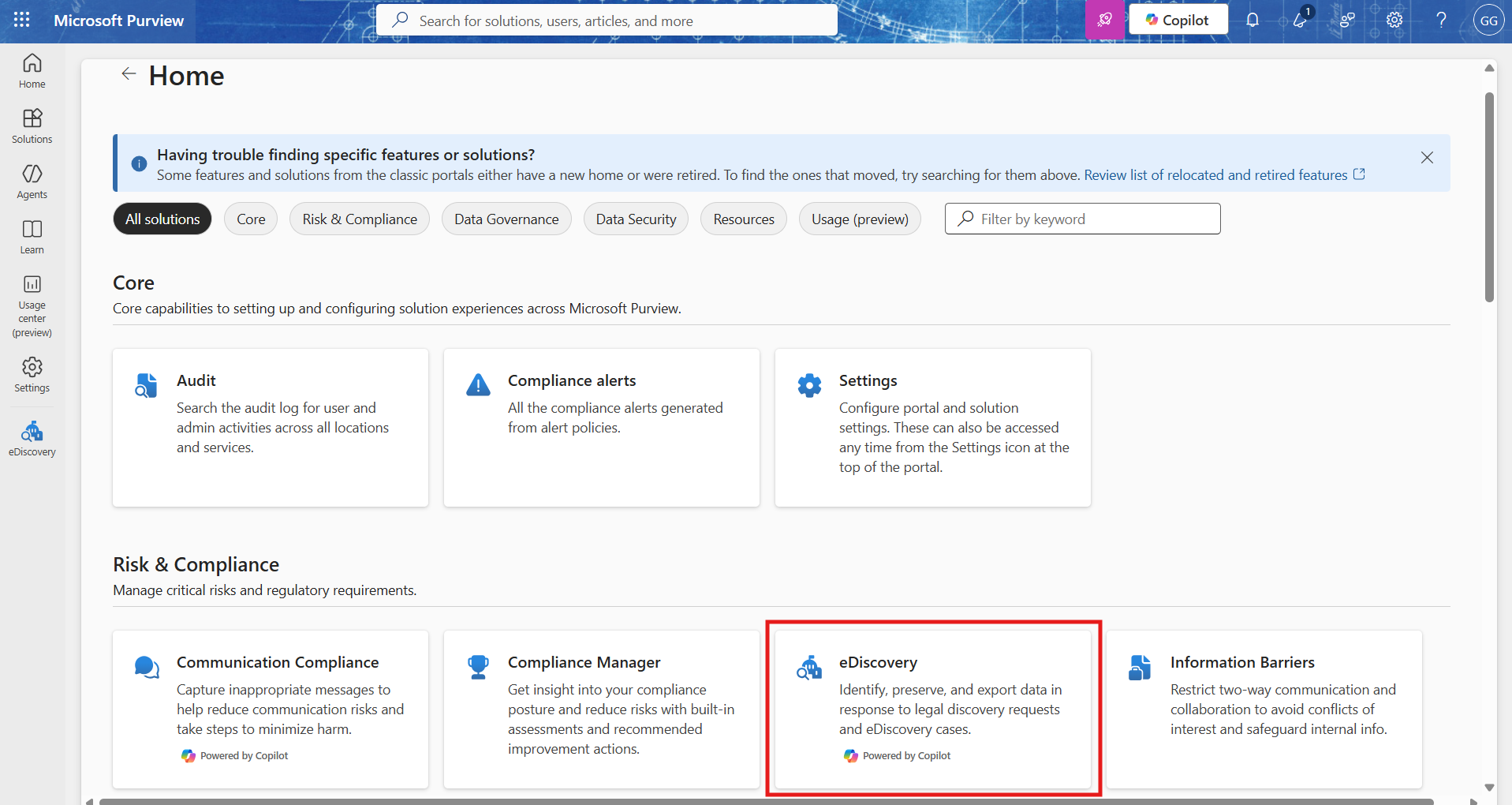
2. Now click on eDiscovery
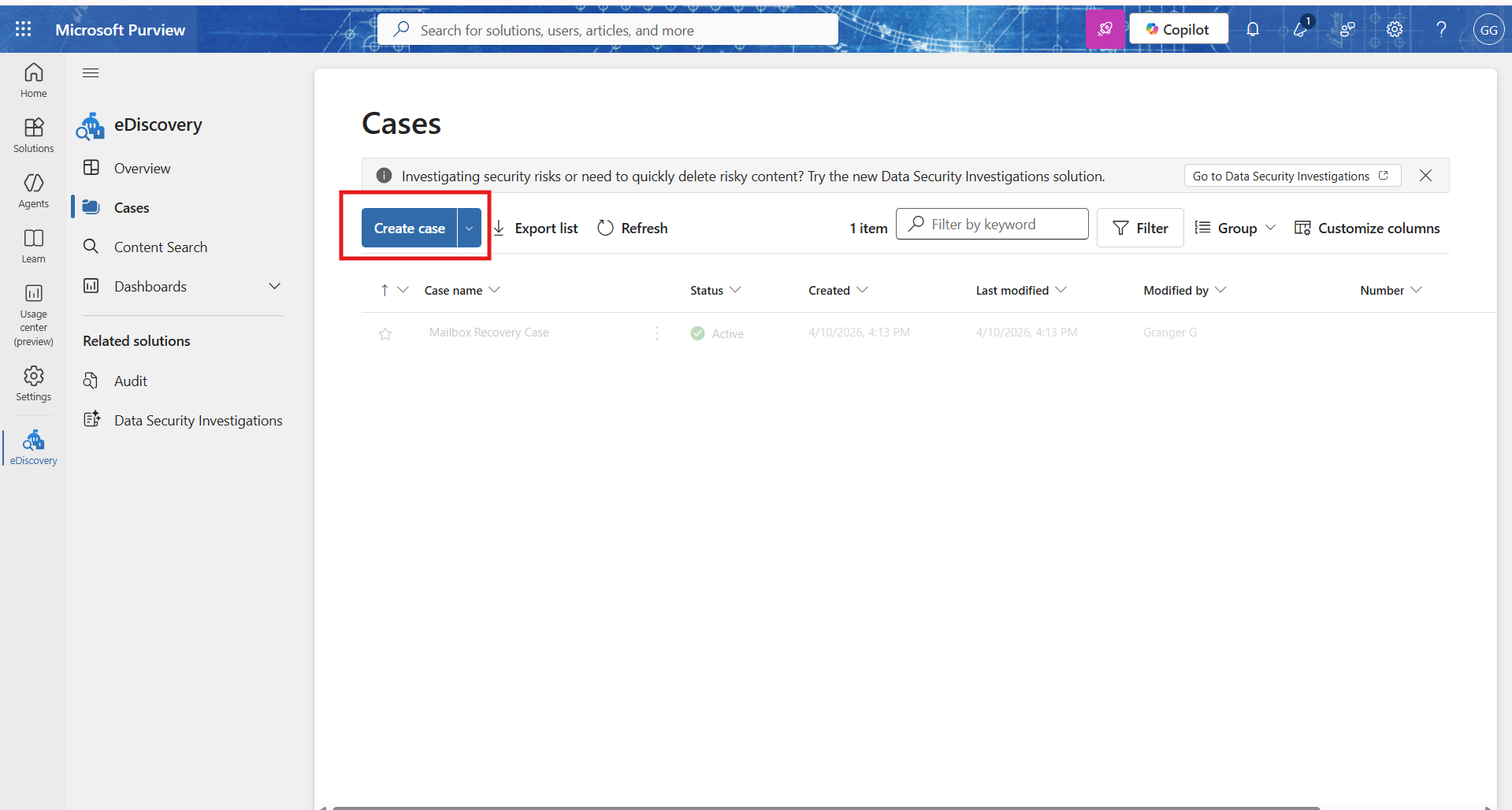
3. Now tap on “Create Case”.
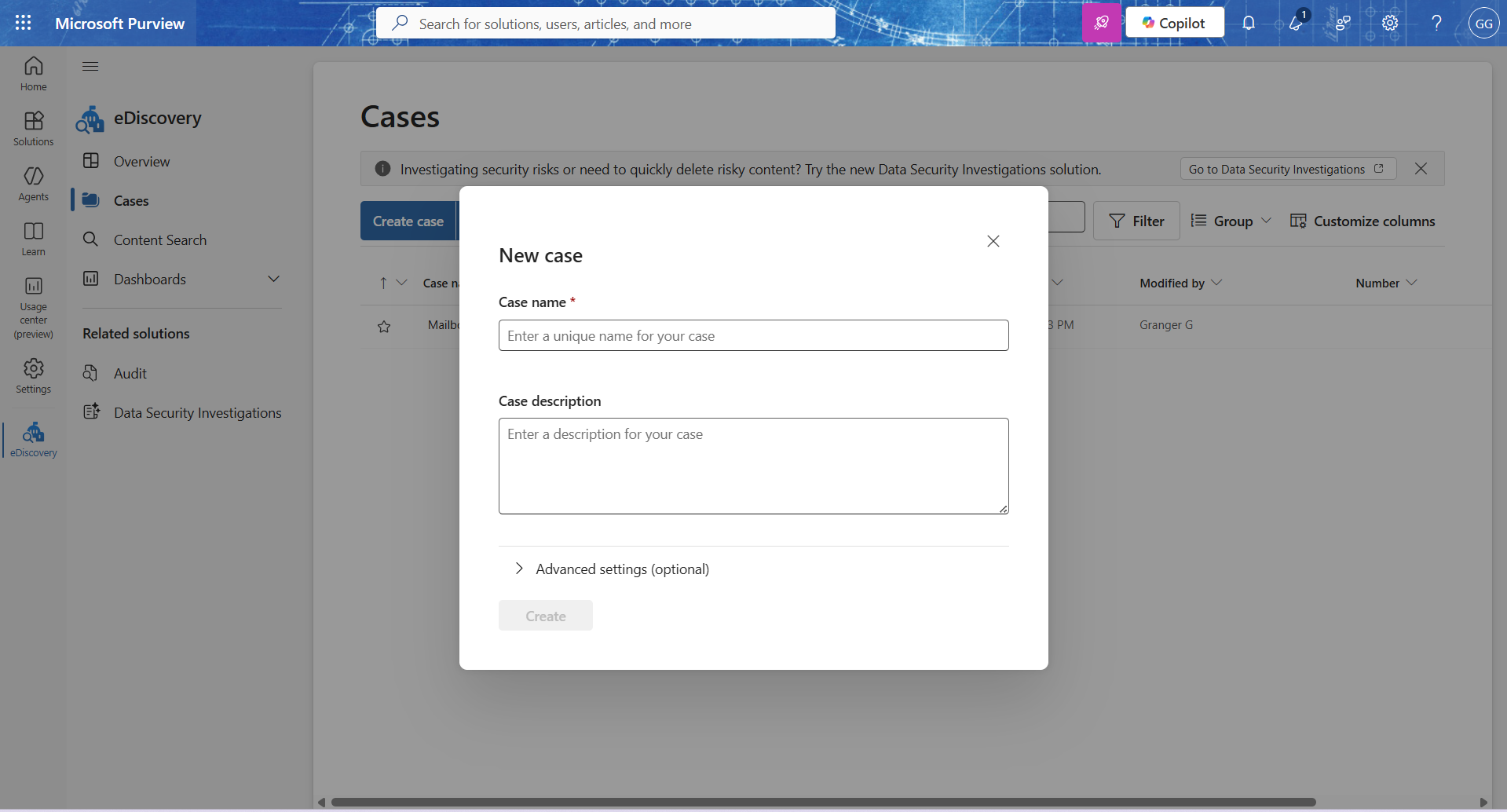
4. Provide the necessary details to create a new case.
5. After case creation, it gets added under cases. You can check the newly created case in the highlighted box below.
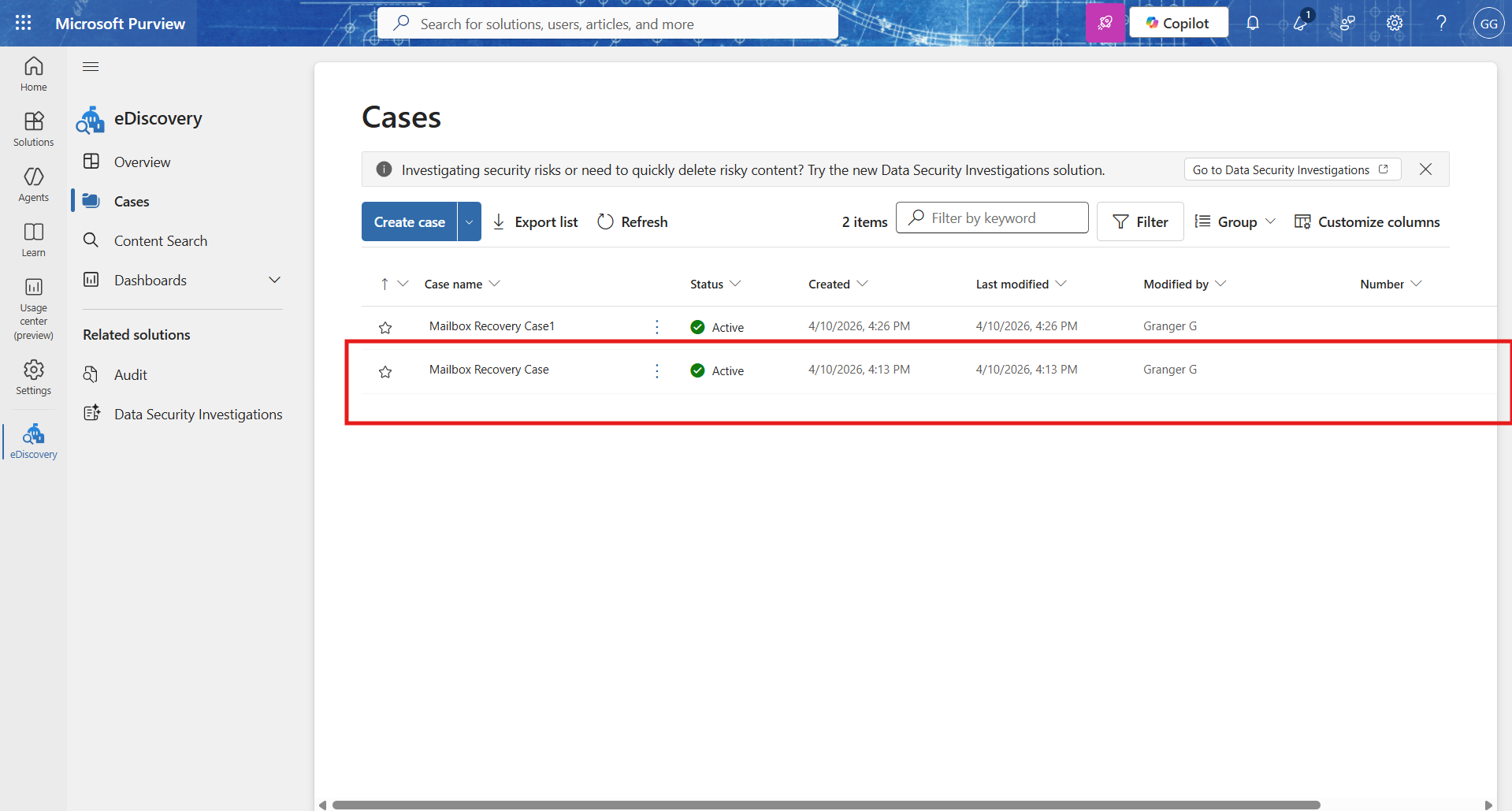
6. Add the necessary members to access the case.
7. Now tap on “Create a Search”.
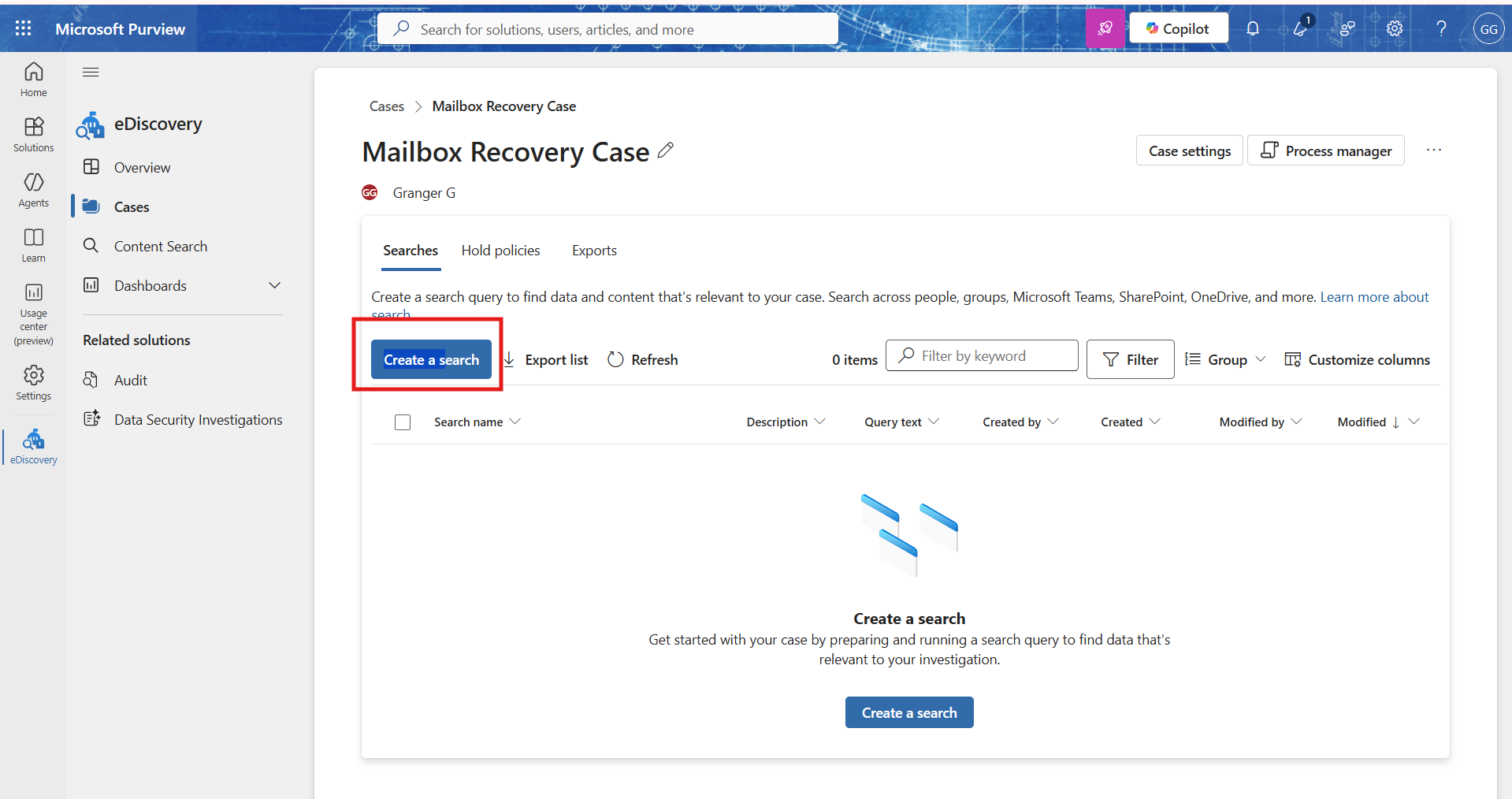
8. Give the search name and click on Create.
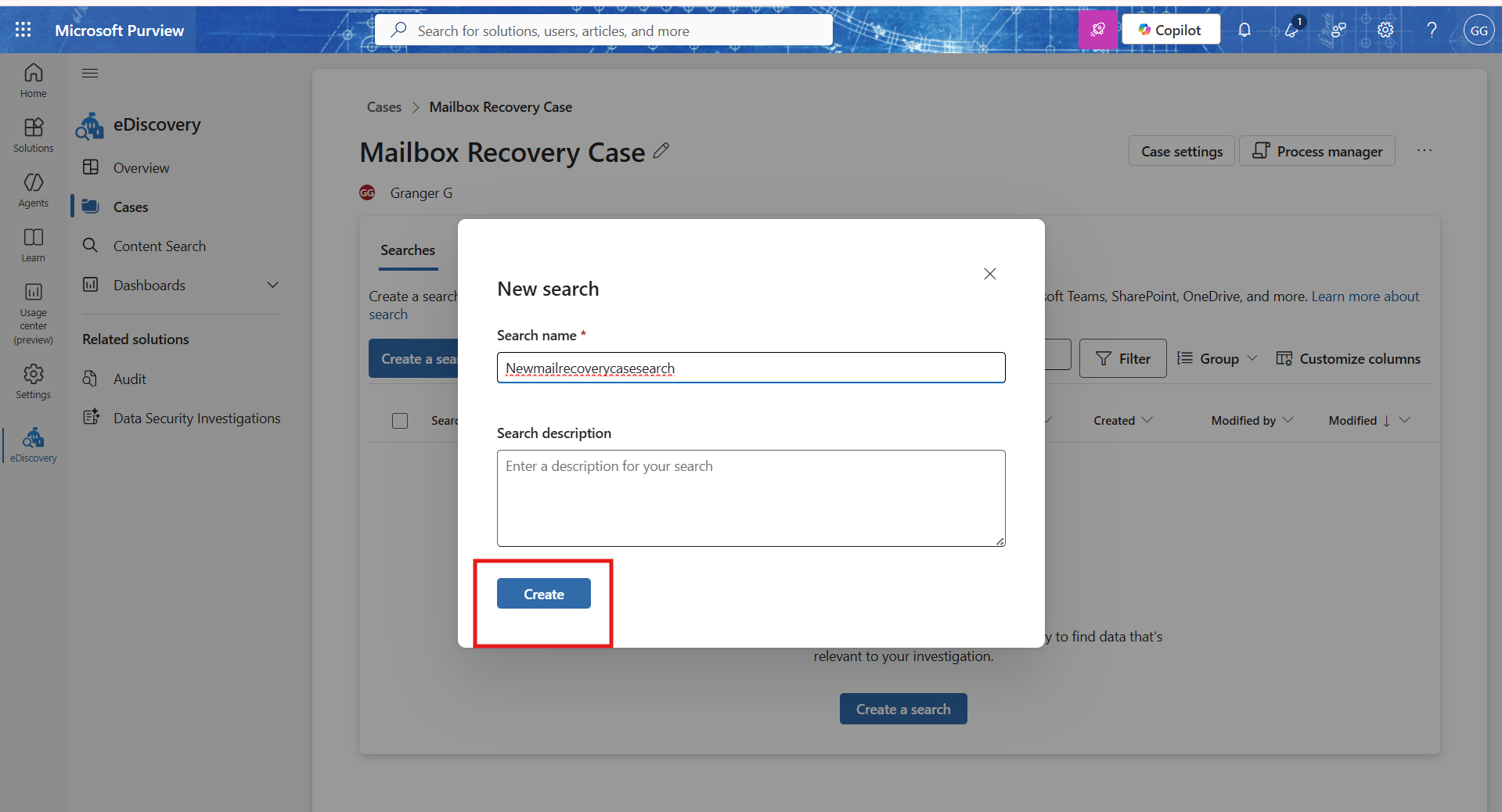
9. Now under the newly created case, tap on Add sources.
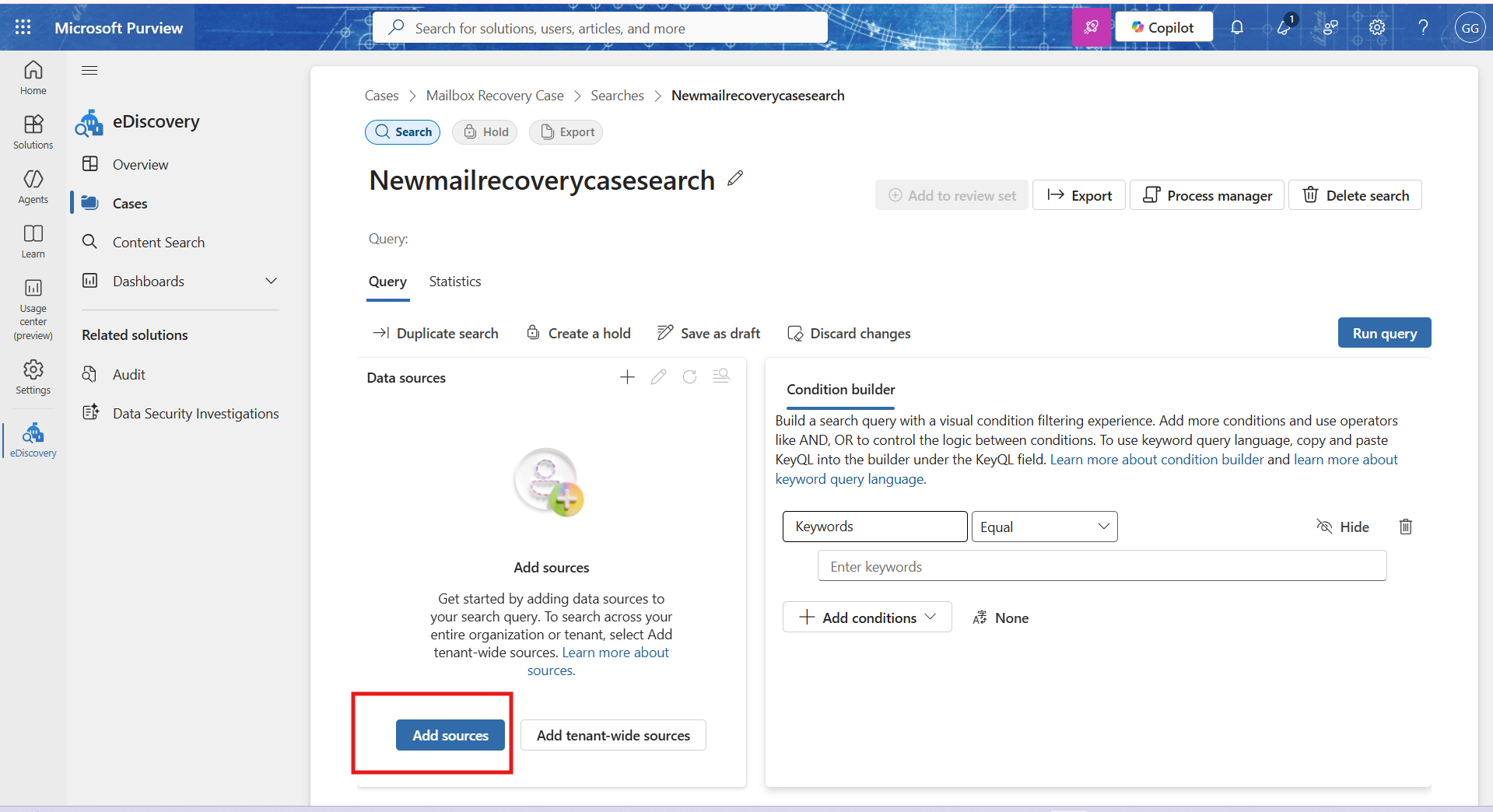
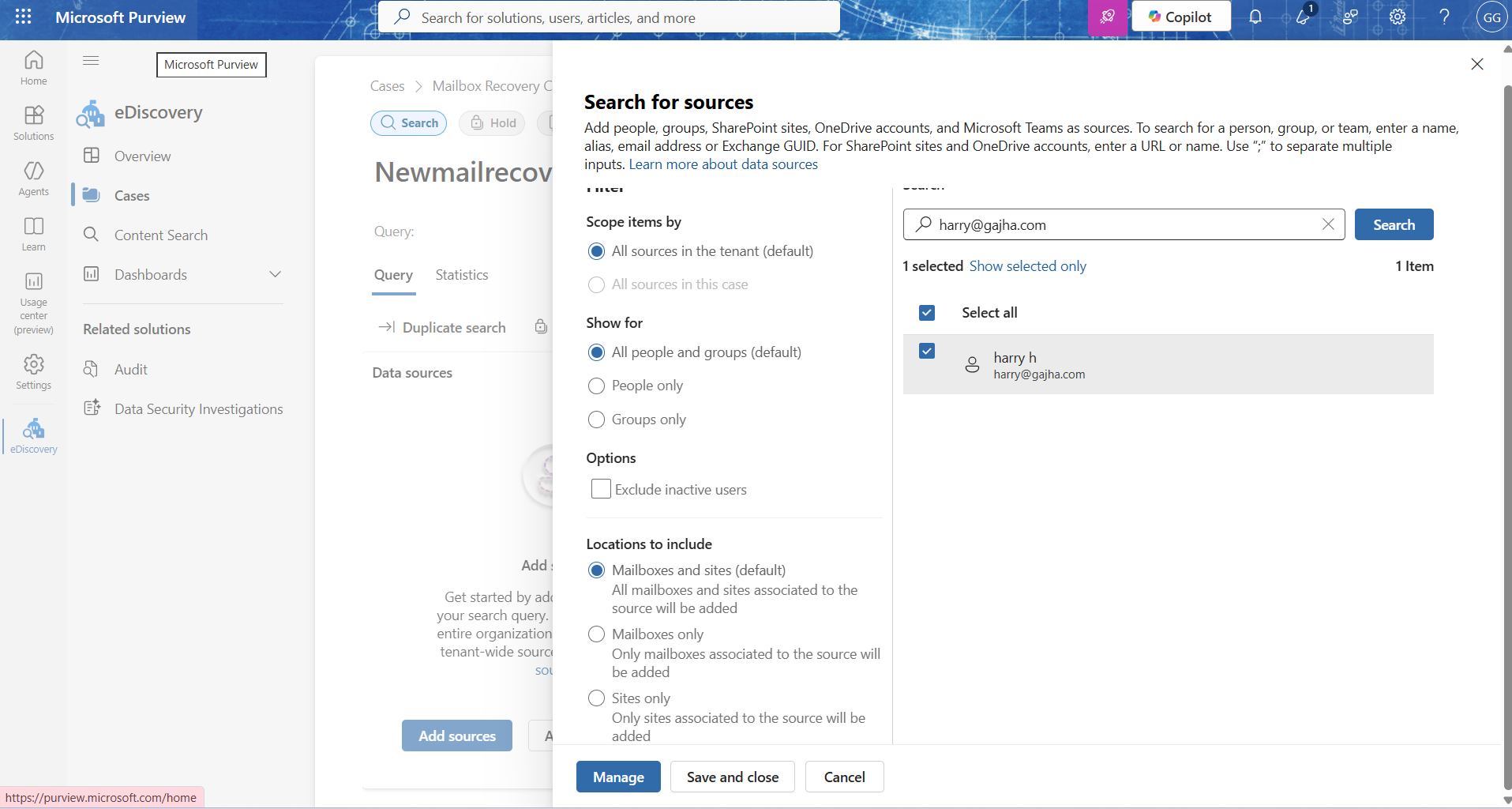
10. Now, type the user’s email address (e.g., harry@gajha.com). Now click Search. The user appears in the results. Now, tick the checkbox and click on Manage.
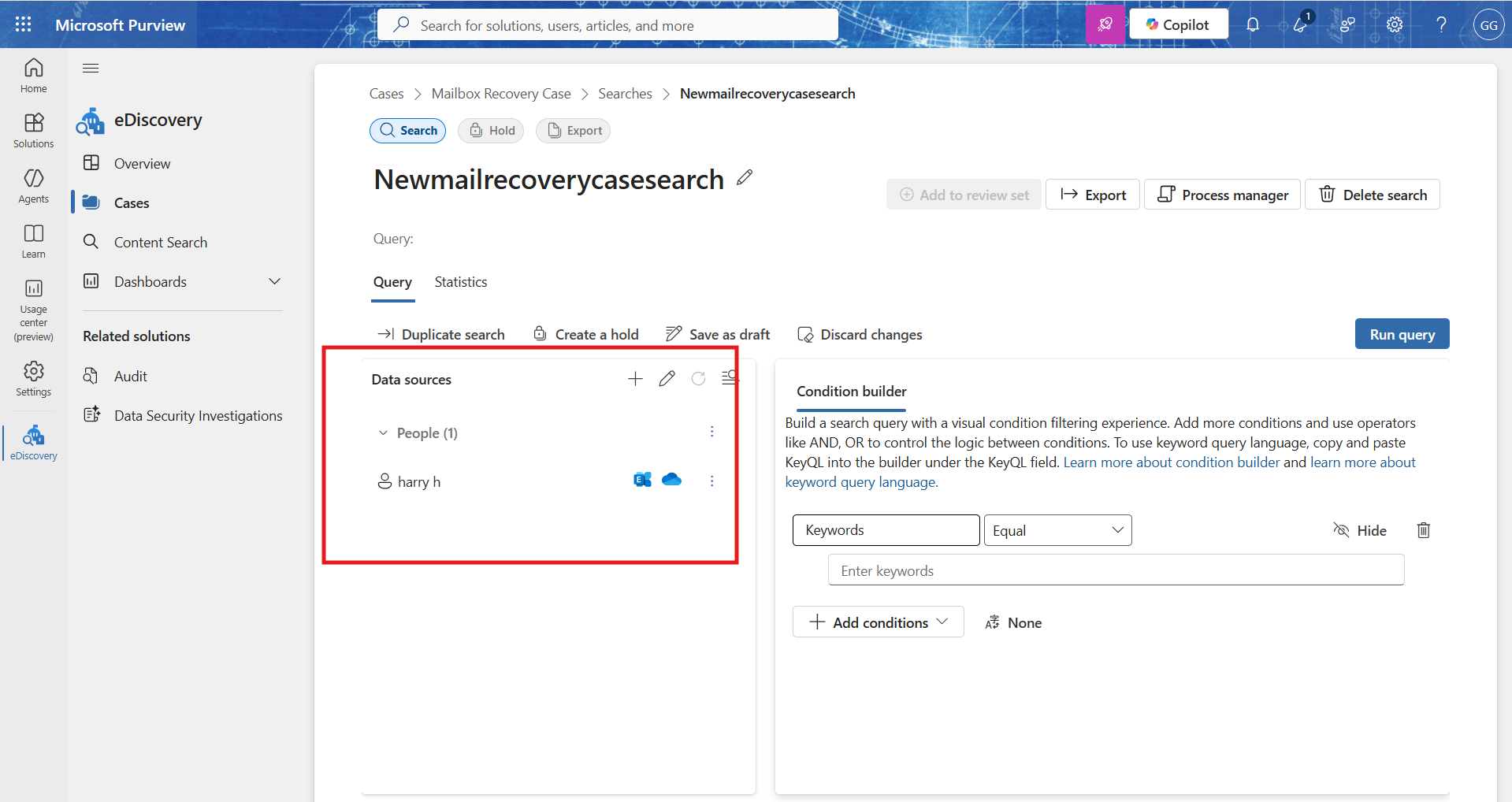
11. You will see the user (harry h) listed under People (1) in the Data sources panel with Exchange and OneDrive icons indicating the locations searched on.
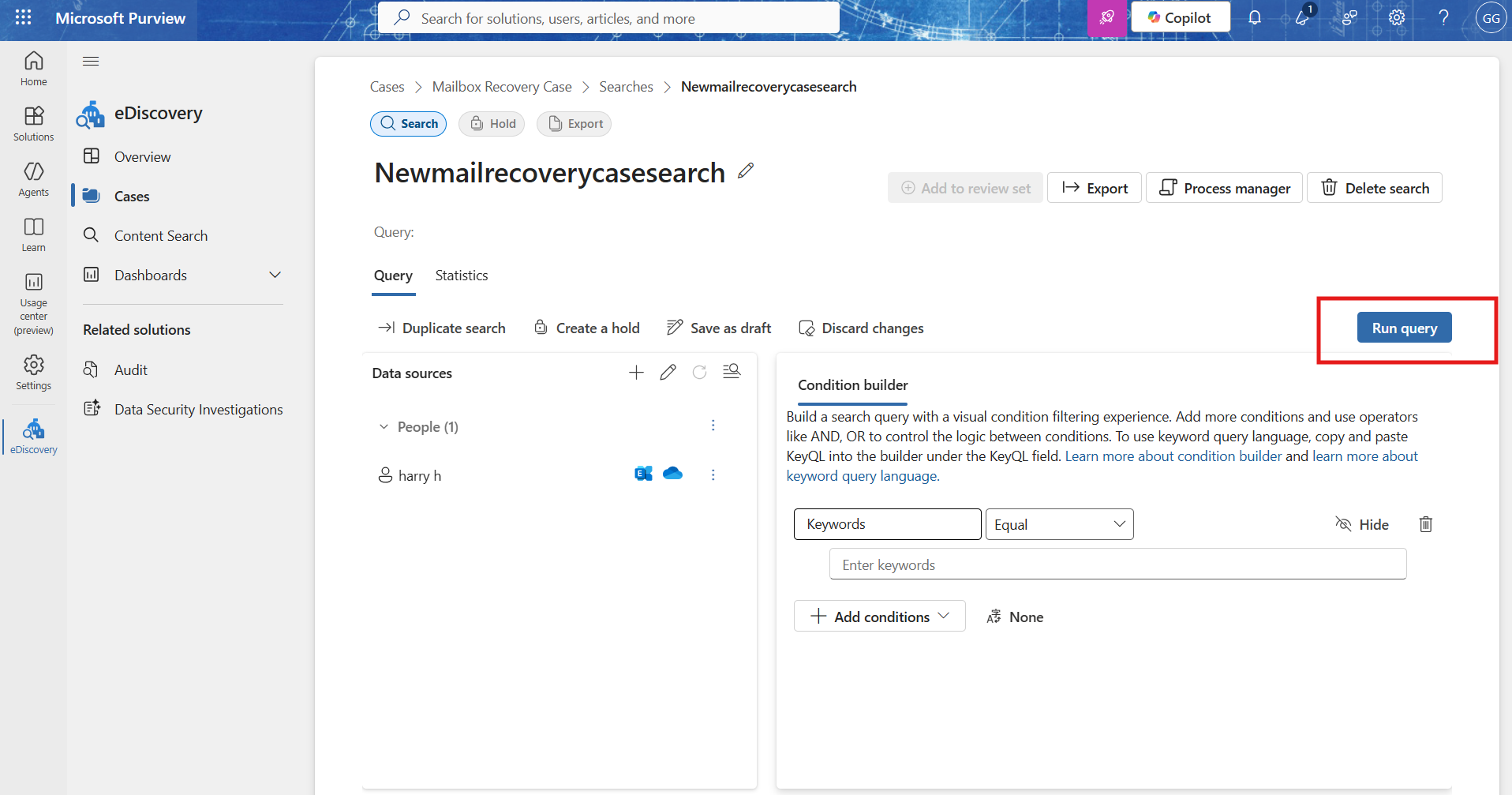
12. Now click the “Run query” button.
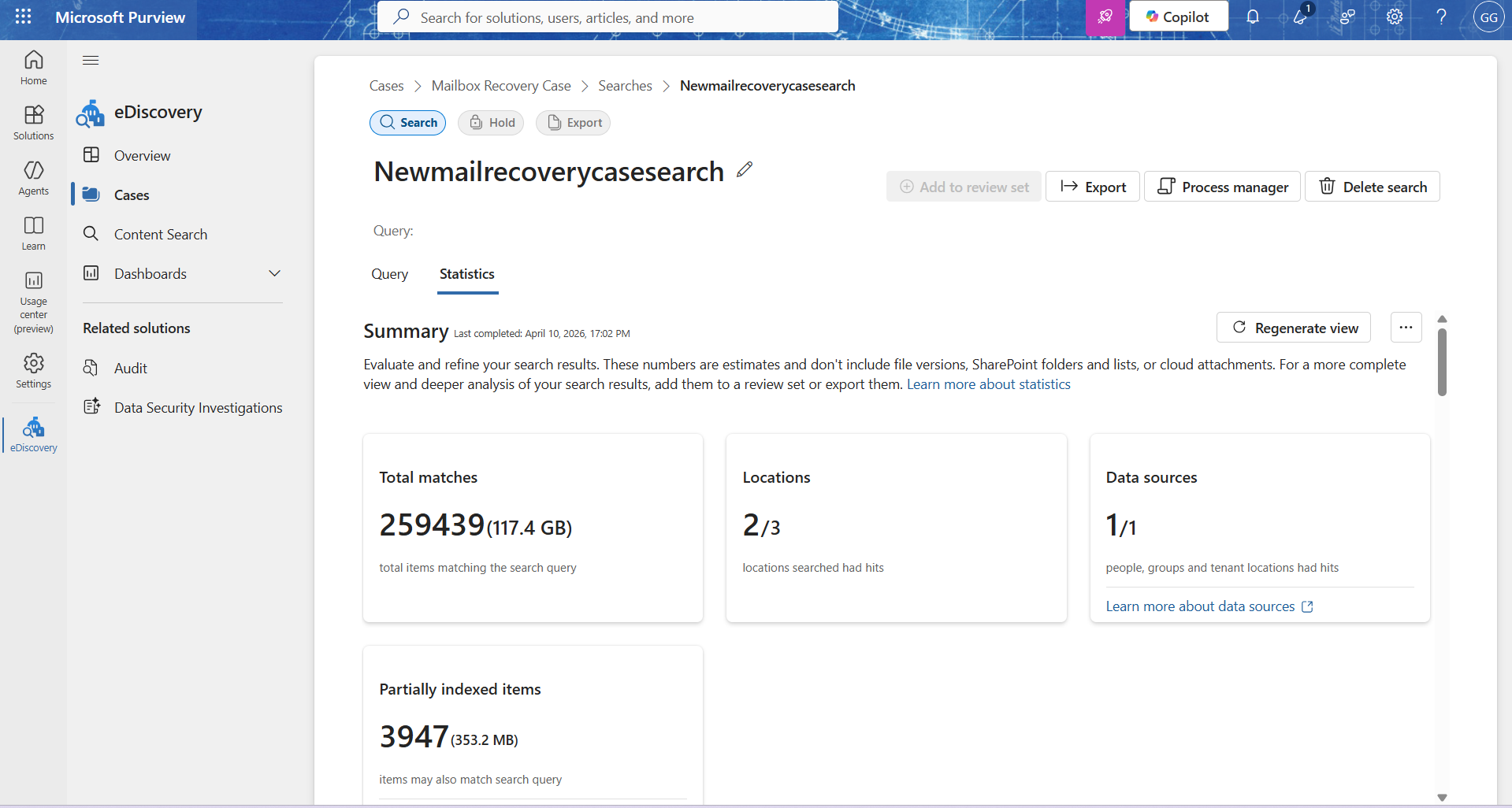
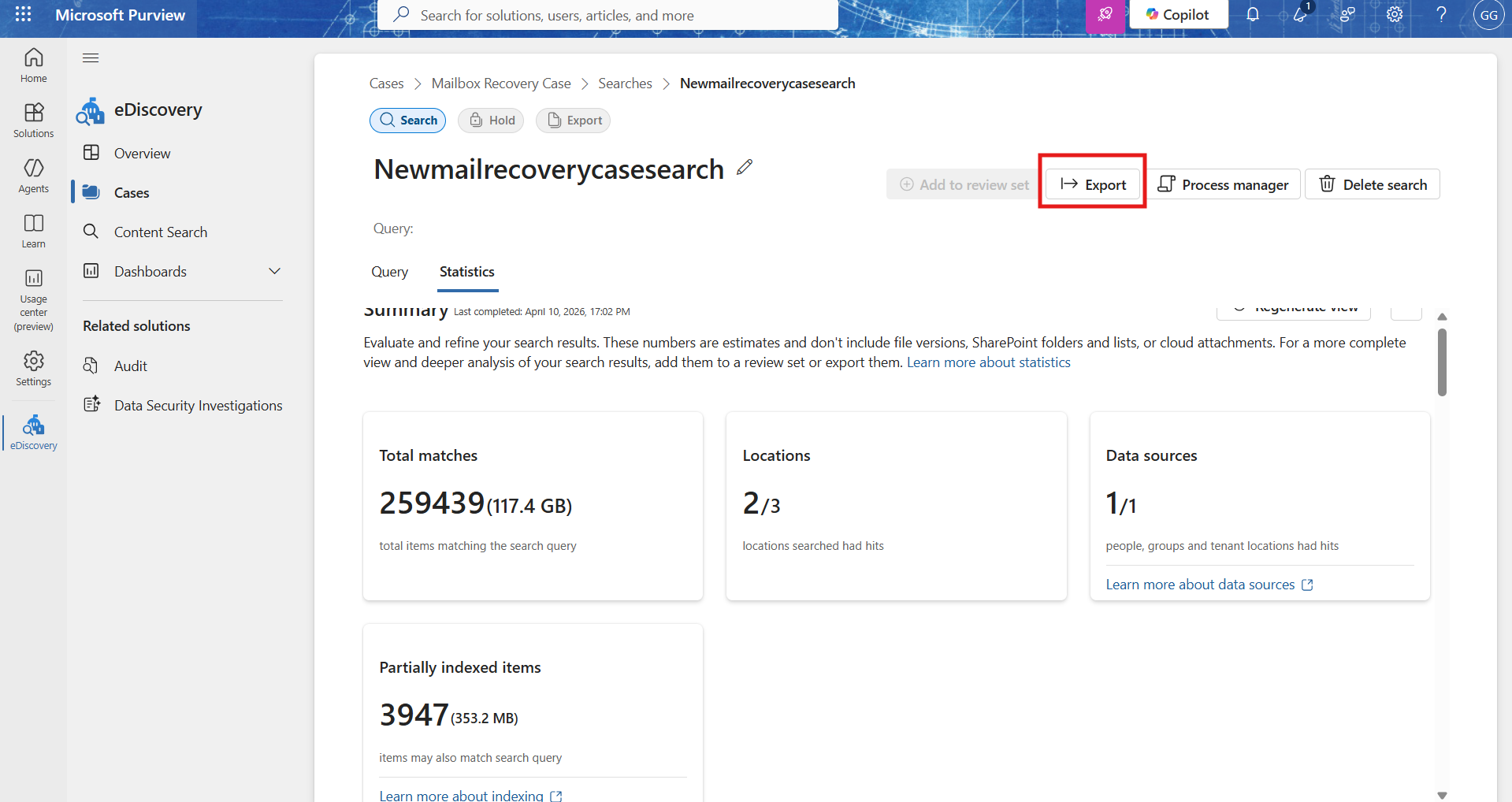
13. Now, click the Statistics tab. You will see a summary of:
- Total matches – total items matching the search query (e.g., 259,439 items / 117.4 GB)
- Locations
- Data sources
- Partially indexed items
14. Now click on the “Export” button.
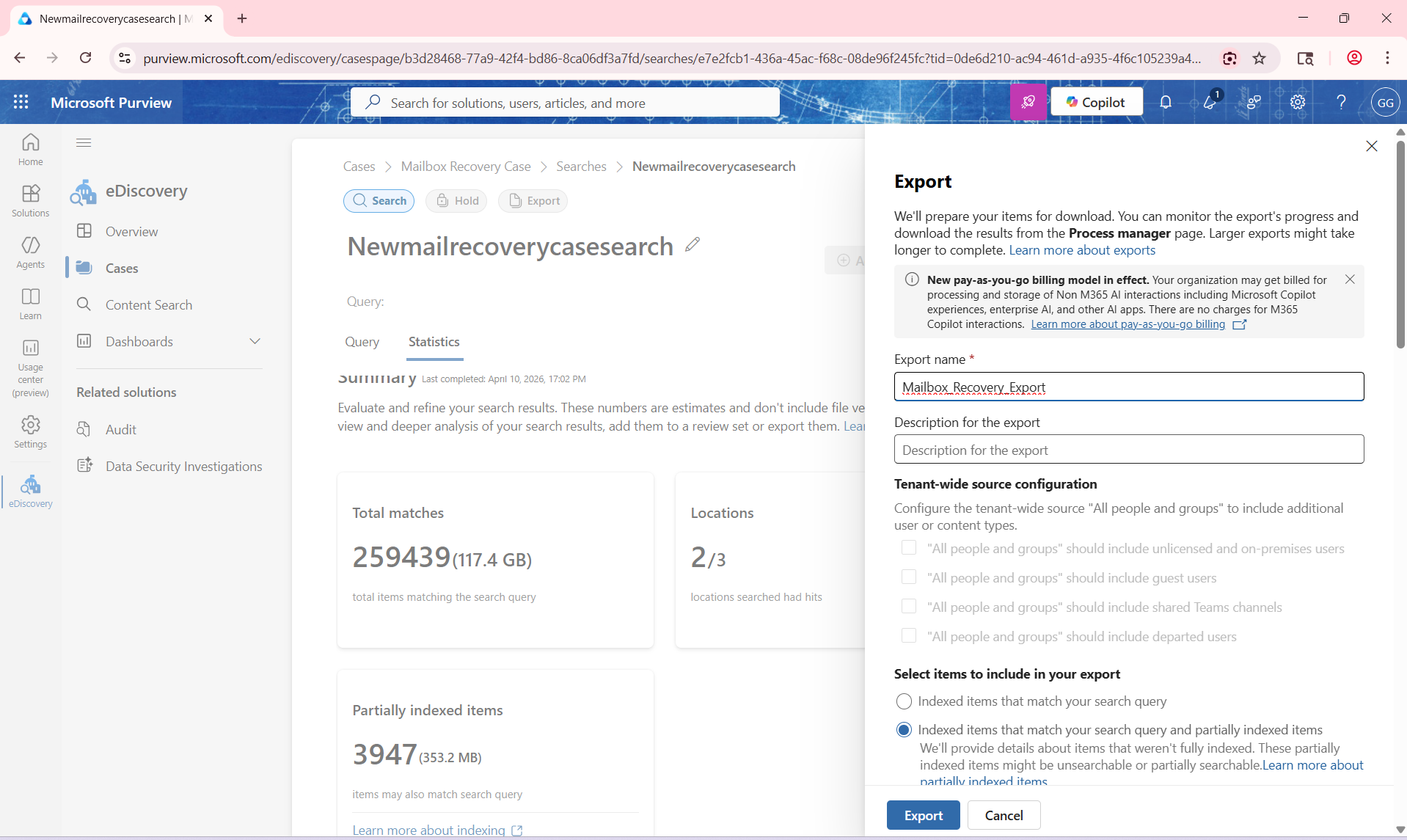
15. In the Export panel:
- Enter export name as Mailbox_Recovery_Export.
- Under Select items to include in your export, choose “Indexed items that match your search query and partially indexed items“.
- Click Export.
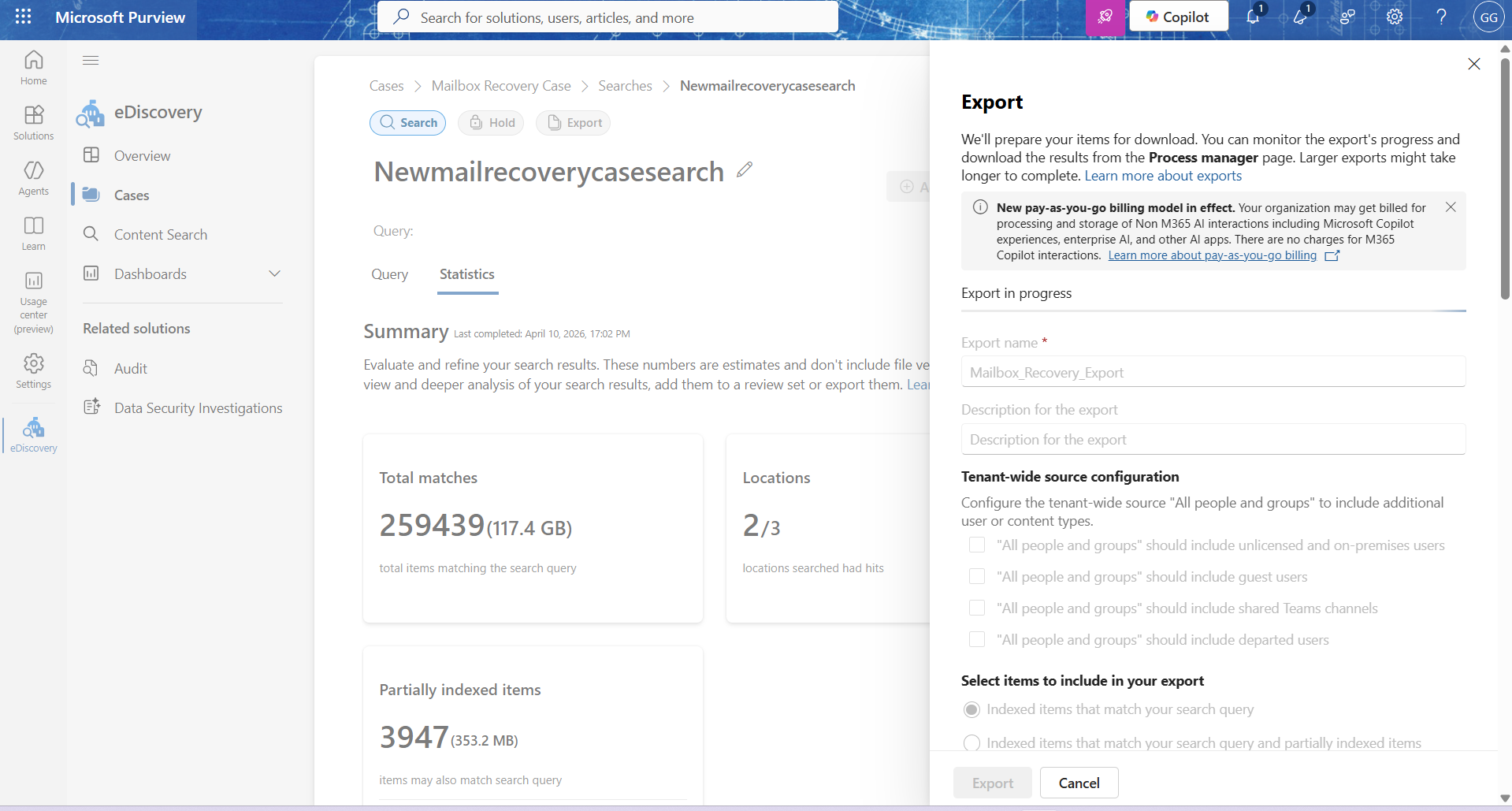
16. Now the screen indicates Export in progress.
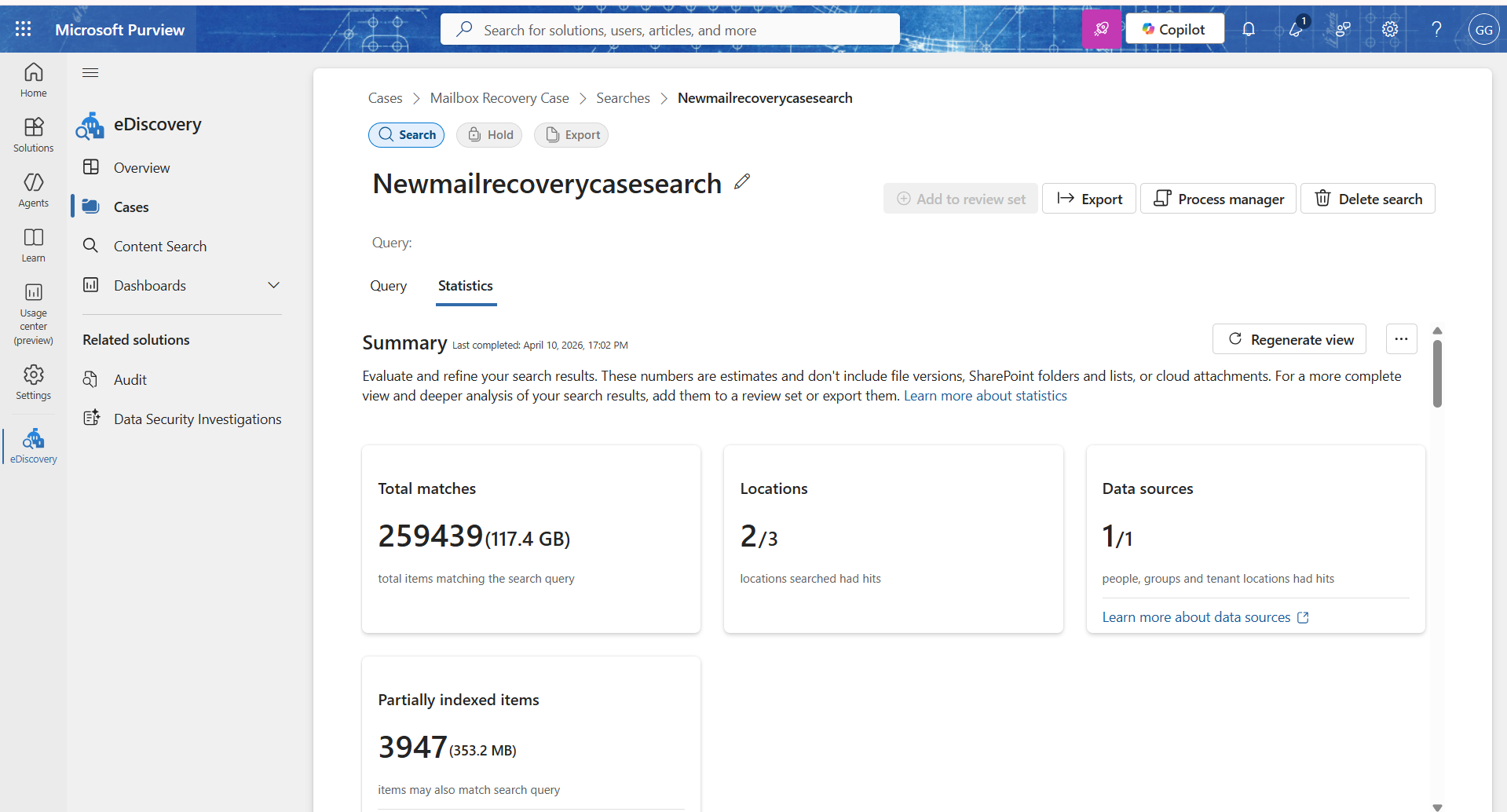
17. Now check the results once Export gets completed.
How To Recover a Deleted Mailbox in Office 365?
IT admins can follow the steps below to recover a user’s deleted Office 365 mailbox.
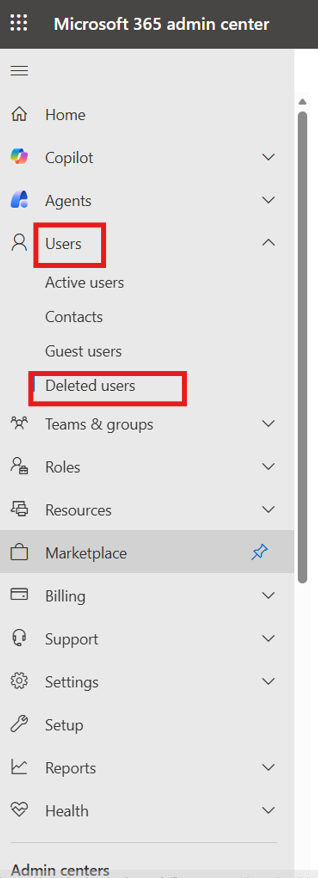
- Go to Microsoft 365 Admin Center.
- Now click on Users–>Deleted Users.

- Now select the user for whom you want to recover Office 365 mailbox.
- Click on the restore option. Now you can restore the deleted user’s mailbox.

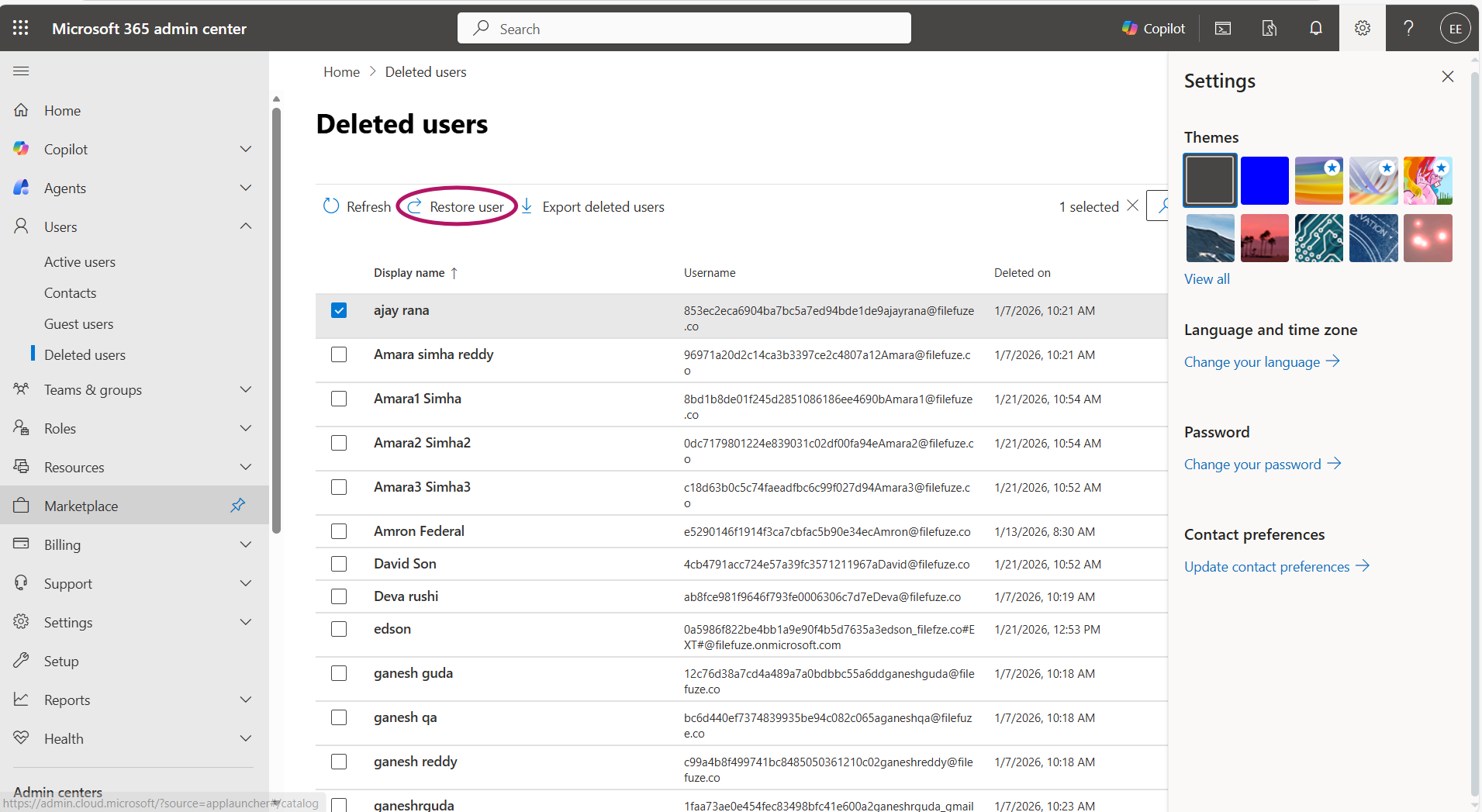
In the above image, the Office 365 mailbox gets restored for the user whose name is “ajay rana”. Administrators can also perform multiple user account restorations by enabling the checkboxes to the necessary user.
Where To Find Official Support for Office 365 Mailbox Recovery?
If you have Microsoft 365 for home, then you can avail the official support in following ways:
- Search for online help in the link here.
- You can post and ask the Microsoft Community for help.
- Use the Get Help app or your browser to contact support.
If you have Microsoft 365 for business, then you can find the official support in following ways:
- Try searching for our online help.
- Obtain answers to the Microsoft 365 community forums.
- Using your Microsoft 365 admin account, sign in to Microsoft 365 admin center. Now select Support –> Help and support. Enter your question and select Contact support.
- If you’re an admin on the account, see the global support phone numbers.
What are the Best Practices for Performing Office 365 Mailbox Recovery?
Best practices for performing Office 365 mailbox recovery:
- Restore the account within 30 days.
- Restore deleted users within the account closure period.
- Before deleting a departing employee account, place the mailbox on Litigation Hold.
Migrating to Office 365?
If your enterprise is planning on migrating to Microsoft 365, CloudFuze Migrate makes it easy and secure. Our Office 365 migration tool ensures an accurate transfer of files, emails, and essential metadata with complete replication.
Schedule your free consultation today!
Frequently Asked Questions
1. What are the common challenges faced during Office 365 mailbox recovery?
Common challenges faced during Office 365 mailbox recovery:
- Issues in user mapping
- Downtime issues
- Technical expertise limitations
- High-volume email data
- Time constraints
2. What are common scenarios that necessitate Office 365 mailbox recovery for businesses?
Common scenarios that necessitate Office 365 mailbox recovery for businesses:
- Inaccurate transitions during migration
- Data retention for legal purposes
- Accidental mailbox deletions
3. What is Office 365 mailbox recovery and why is it important for businesses?
Office 365 mailbox recovery refers to retaining the mailbox after its deletion. It is important for businesses due to regulation policies, business workflow continuity, and restore back the necessary information etc.
4. How to migrate existing email to a new Office 365 mailbox?
Users can migrate existing email to a new Office 365 mailbox using a trusted Microsoft 365 migration tool. CloudFuze Migrate helps you migrate emails, necessary metadata from Gmail to Outlook, Outlook to Outlook with complete accuracy.
5. How to recover Office 365 mailbox after removing license?
You can recover Office 365 mailbox after removing license through following steps:
- Reassign the license at the earliest.
- If you have already deleted the user, then restore the user and reassign license.
- Use PowerShell for enterprise scenarios.
6. How to recover permanently deleted emails beyond Recoverable Items
Beyond Recoverable Items, you can recover permanently deleted emails through following ways:
- Check retention Policies.
- Use Microsoft’s official support for recovery.
- Use eDiscovery for mailbox retention.
About the Author: Bhavani Asok



