
Introduction
Migrating emails from Outlook to Gmail involves moving your organization’s mailboxes, contacts, calendar events, attachments, and email metadata. Organizations and their IT teams typically make this transition as part of a broader Google Workspace adoption, a company merger, cloud consolidation, or IT modernization initiatives.
The process requires an enterprise migration tool, proper user mapping, a pre-migration planning phase, and post-migration validation to ensure zero data loss and no disruption to end users. CloudFuze helps organizations complete this migration with complete transfer of mailboxes along with full metadata preservation.
This guide outlines the step-by-step migration process, key planning considerations, and best practices to help IT administrators migrate Outlook mailboxes to Gmail securely and successfully.
Explore the capabilities of our Outlook to Gmail migration tool in the video below.
Why Do Organizations Migrate Emails from Outlook to Gmail?
Many businesses migrate from Outlook to Gmail as part of broader Google Workspace adoption initiatives. Google Workspace is trusted by billions of users globally, and its integration of Gemini AI capabilities has accelerated adoption among enterprises looking to improve collaboration and productivity.
Common migration drivers include:
- Full Google Workspace adoption across the organization
- Mergers and acquisitions that require platform consolidation
- Cost reduction by moving away from on-premises Exchange infrastructure
- Accessing Gemini AI-powered productive features built into Gmail
- Improving collaboration through Shared Drives, Google Drive, Meet, and Chat
- Reducing IT overhead tied to managing Microsoft 365 licenses
Outlook vs Gmail: Key Differences IT Admins Should Know
Understanding the platform differences helps IT admins set accurate user expectations before migration and plan the right training approach for go-live.
| Features | Outlook (Microsoft 365) | Gmail (Google Workspace) |
|---|---|---|
| Email organization | Folders | Labels (emails can have multiple labels) |
| Calendar | Outlook Calendar | Google Calendar |
| Contacts | Outlook Contacts/Exchange GAL | Google Contacts |
| Storage | Mailbox quota per user | Pooled storage across Workspace |
| AI assistant | Microsoft Copilot | Google Gemini |
| Collaboration | Teams, SharePoint | Google Drive, Meet, Chat |
| Admin console | Microsoft 365 Admin Center | Google Drive, Meet, Chat |
| Third-party integrations | Microsoft AppSource | Google Workspace Marketplace |
NOTE: This comparison information is based on June 2026 data. It may change as and when Outlook and Gmail features get updated.
The biggest adjustment for users coming from Outlook is the folder-to-label model in Gmail. Unlike Outlook folders, Gmail labels are not exclusive containers. A single email can carry multiple labels simultaneously, which gives users more flexibility but requires a short orientation session before going live.
Benefits of Migrating Emails from Outlook to Gmail for Businesses
A well-planned Outlook to Gmail migration gives your organization access to one of the most scalable and collaborative email platforms available. Some of the key benefits include:
- Improved real-time collaboration through shared Google Workspace tools
- Simplified email administration from a centralized Google Admin console
- Access to Gemini AI features including smart drafting, email summarization, and priority triage
- Native integration with Google Drive, Google Meet, and Google Chat
- Enhanced cloud scalability without on-premises infrastructure costs
- Reduced Microsoft licensing complexity
Potential Challenges and Solutions to Move Mail from Outlook to Gmail
The table below outlines the technical challenges organizations and IT admins, including CIOs/CTOs, can face when moving mail from Outlook to Gmail, along with practical solutions.
| Potential Challenges | Solution |
|---|---|
| Large mailbox sizes slow migration | Use pre-migration cleanup and batch migration approach |
| Email metadata loss (timestamps, flags, folders) | Use an enterprise migration tool (CloudFuze) that preserves metadata |
| Calendar and contact sync issues | Validate mapping and run pilot migrations before full rollout |
| User mapping errors | Use CSV-based or auto user mapping |
| Shared mailbox complexity | Assign ownership and migrate shared mailboxes separately |
| Downtime during migration | Use platform like CloudFuze for zero downtime migration |
| Security and compliance risks | Apply retention policies, audit logs, and compliance checks |
Our Outlook to Gmail migration tool, CloudFuze Migrate, is built to address each of these challenges without compromising security or performance.
How to Plan an Outlook to Gmail Migration
Proper preparation is what separates a clean migration from a chaotic one. Here are the critical planning steps your team must complete before the migration begins.
1. Pre-Migration Analysis
Start by performing a thorough assessment of your company’s Outlook environment, such as the mailboxes available, the usage patterns, contact and calendar syncs, etc. This way, your team can be informed when preparing the scope of work.
- Mailbox inventory check (users, shared, service accounts)
- Usage analysis (size, activity, email volume)
- Data review (emails, attachments, contacts, calendars)
- Permission mapping (access and delegation rules)
- Dependency check (calendar/contact sync and apps)
2. Preparing the Scope of Work
Before you migrate emails from Outlook to Gmail, decide which mailboxes and data sets are in scope. This is one of the most important steps when evaluating how to transfer emails from Outlook to Gmail efficiently.
If you have a large number of emails in your Outlook account, organize them by creating folders and moving only the necessary emails to Gmail. Archiving older emails separately can significantly reduce migration time.
All these steps combined can considerably reduce the migration timeline and be beneficial for companies that require quicker email transfer from one email service provider to another.
3. Choosing the Best Outlook to Gmail Migration Tool for Large Enterprises
Picking the best Outlook to Gmail migration tool is one of the most consequential decisions in the project. Factors to evaluate in an email migration tool include:
- Migration speed
- Ease of use
- Security
- Scalability
- Reporting features
Check if the software can support both your Outlook and Gmail versions along with other necessary file formats such as PST and CSV. An enterprise solution needs to migrate massive data sets, including diverse file formats, without any data loss.
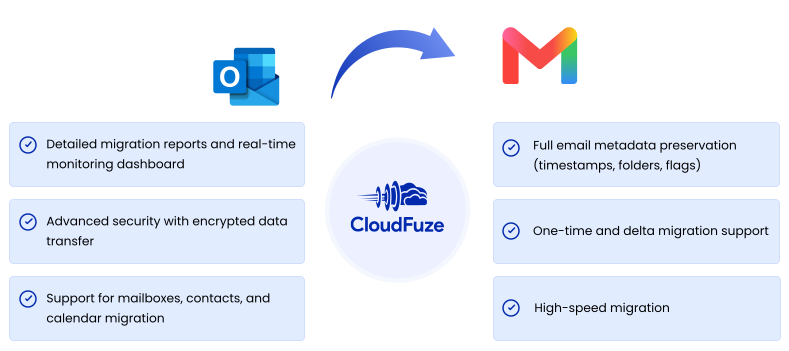
As an official Google Cloud partner, CloudFuze Migrate is designed to transfer hundreds of users and terabytes and petabytes of email data from Outlook to Gmail and Google Workspace with no downtime, full metadata preservation, and enterprise-grade security.
Our team of migration experts provides fully managed services with 100% data fidelity and enterprise-level support during the entire migration project, starting from the initial assessment to the final verification stage.
4. Preparing Email Data for Gemini AI Adoption
If your organization plans to use Gemini AI features after migration, it is important to think about data readiness during the planning phase rather than after go-live. Gemini draws context from Gmail content to power features like smart drafting, summarization, and priority inbox sorting.
Clean, well-organized mailbox data improves how effectively Gemini can use that context. Removing duplicate threads, archiving stale folders, and consolidating shared mailboxes before migration reduces noise in the data that Gemini indexes later (after migration).
Organizations that do this pre-migration cleanup typically see faster Gemini adoption post-migration since users get more relevant AI suggestions from day one instead of sorting through migration debris.
Preparing to Migrate from Outlook to Google Workspace (Gmail)
Taking proper preparation steps helps your team ensure a timely start of the email migration process. Here are some critical preparations to make.
1. User Mapping
Accurate mapping of users from Outlook to Gmail is critical for migration success. We recommend using the industry standard CSV mapping method. Our tool also supports auto-mapping of users based on their email aliases. CloudFuze also supports auto mapping of users based on their email aliases, which simplifies the process for large organizations.
2. Admin Login Credentials
Ensure your team has the admin login details for both the Outlook (Microsoft 365) tenant and the Gmail (Google Workspace) tenant. These are required to add both clouds to the CloudFuze migration platform.
3. Data Backup
Back up all Outlook email data before starting. This ensures you have a recoverable copy of all emails and attachments if anything unexpected occurs during migration.
Outlook to Gmail Migration Features Supported by CloudFuze
CloudFuze provides advanced Outlook to Gmail migration functionalities that enables small and medium businesses as well as large enterprises to fully replicate their Outlook email environment in Gmail. Here are the supported features:
Yes
| Features | Supported |
|---|---|
| One-time & Delta migration | Yes |
| Inbox, Sent, Drafts, Deleted and Junk email | Yes |
| Flagged (Starred/ Important status) | Yes |
| Custom Folders (Labels) | Yes |
| Timestamps | Yes |
| Threads | Yes |
| Contacts & Calendars | Yes |
| Shared Mailbox | Yes |
| Read / Unread Status | Yes |
| Signature | Yes |
| Mail attachments | Yes |
Steps to Migrate Emails from Outlook to Gmail
Check out all the steps to move emails from Outlook to Gmail using our Gmail migration tool:
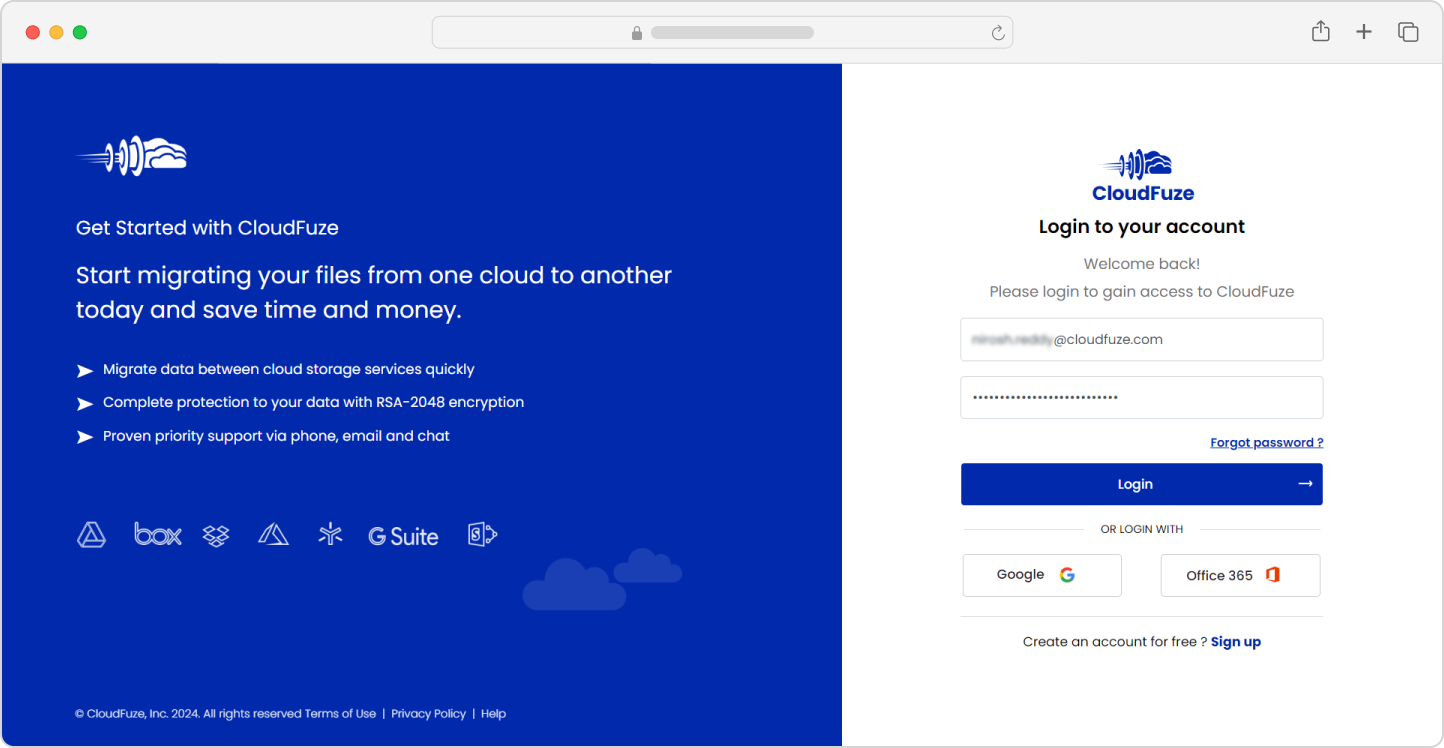
Step 1: Log into CloudFuze
The first step is to log into our migration webapp. Create an account and request for email migration access.
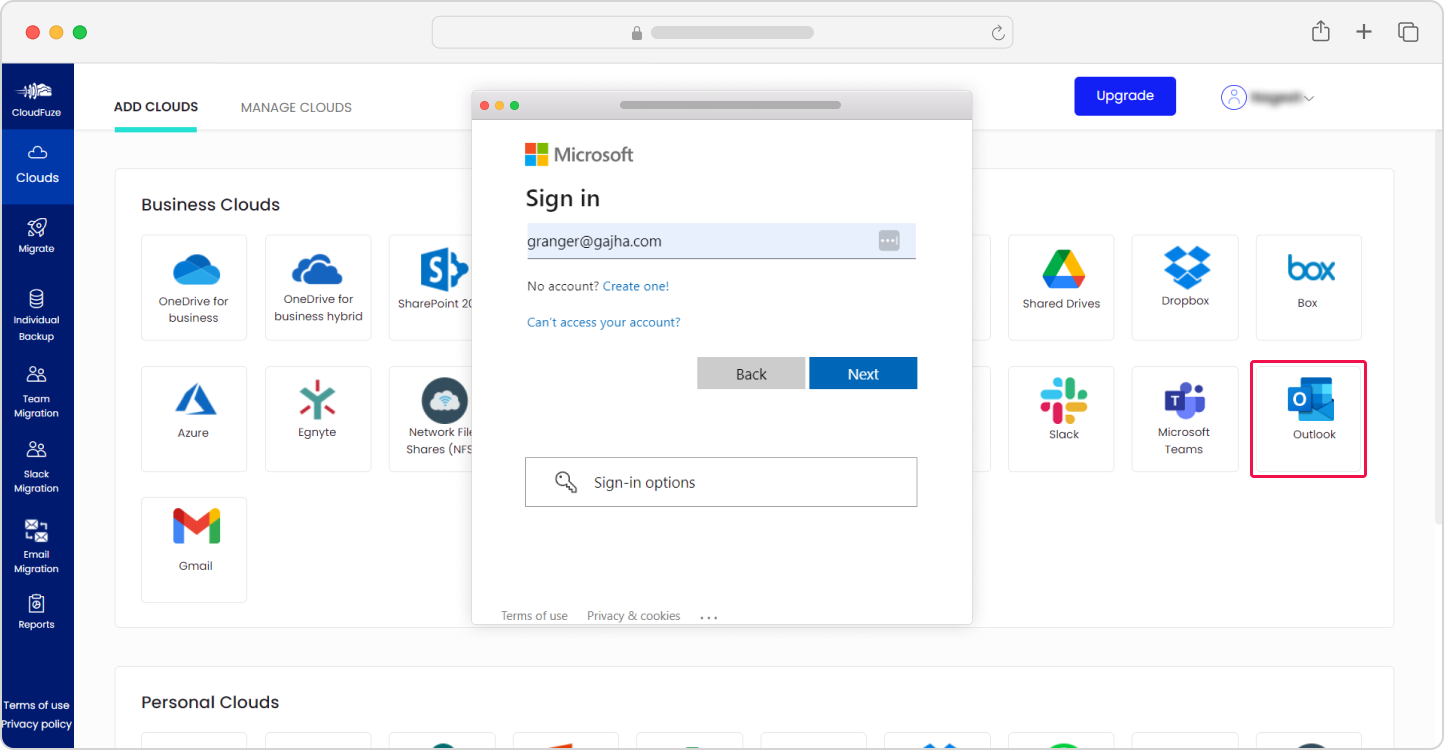
Step 2: Add the Outlook Cloud
Under the Business Clouds section of our migration webapp, locate the Outlook cloud and select to add it. Enter the Microsoft 365 global admin’s login details.
Step 3: Authenticate the Outlook Cloud
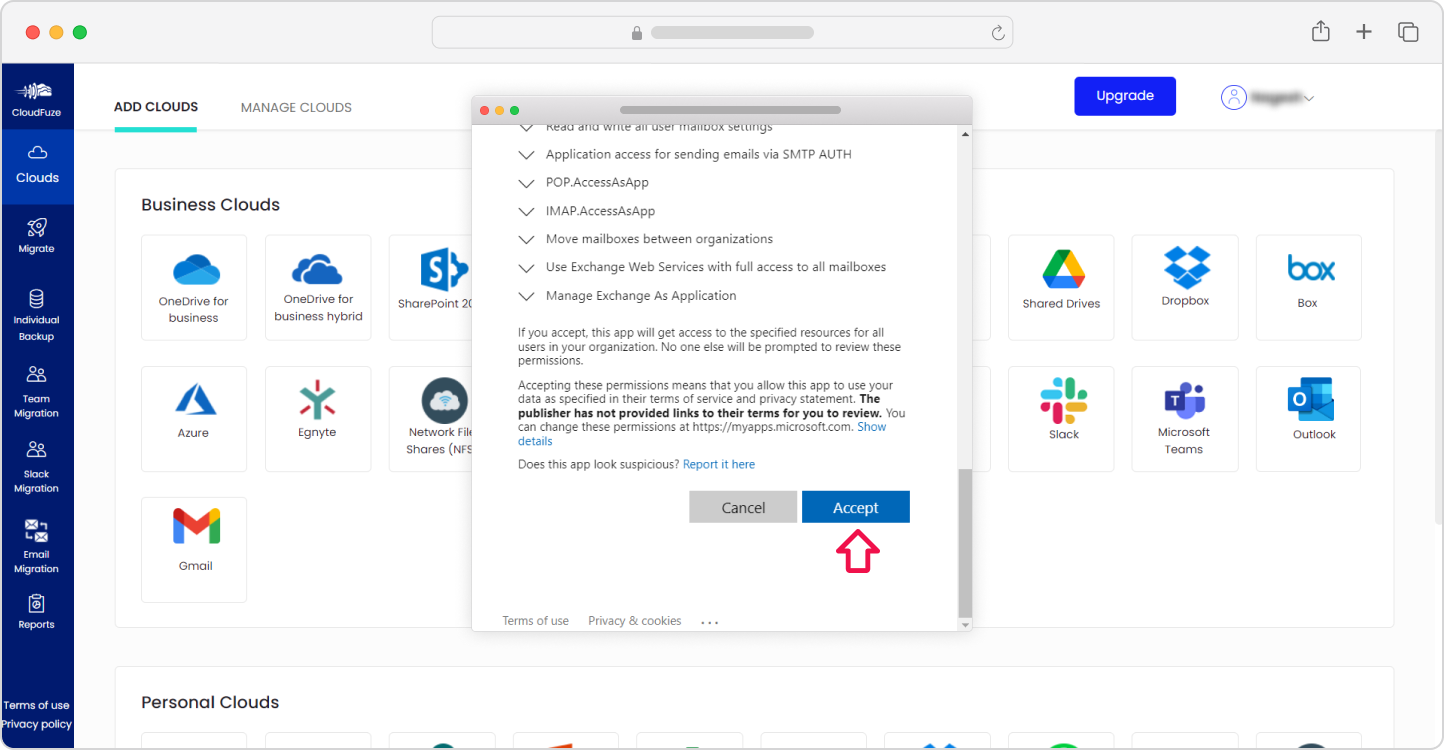
Click on “Accept” to authenticate the Outlook cloud to our webapp. The authorization takes place through the secure OAuth process, and we ensure not to store any user credentials.
Step 4: Add the Gmail Cloud
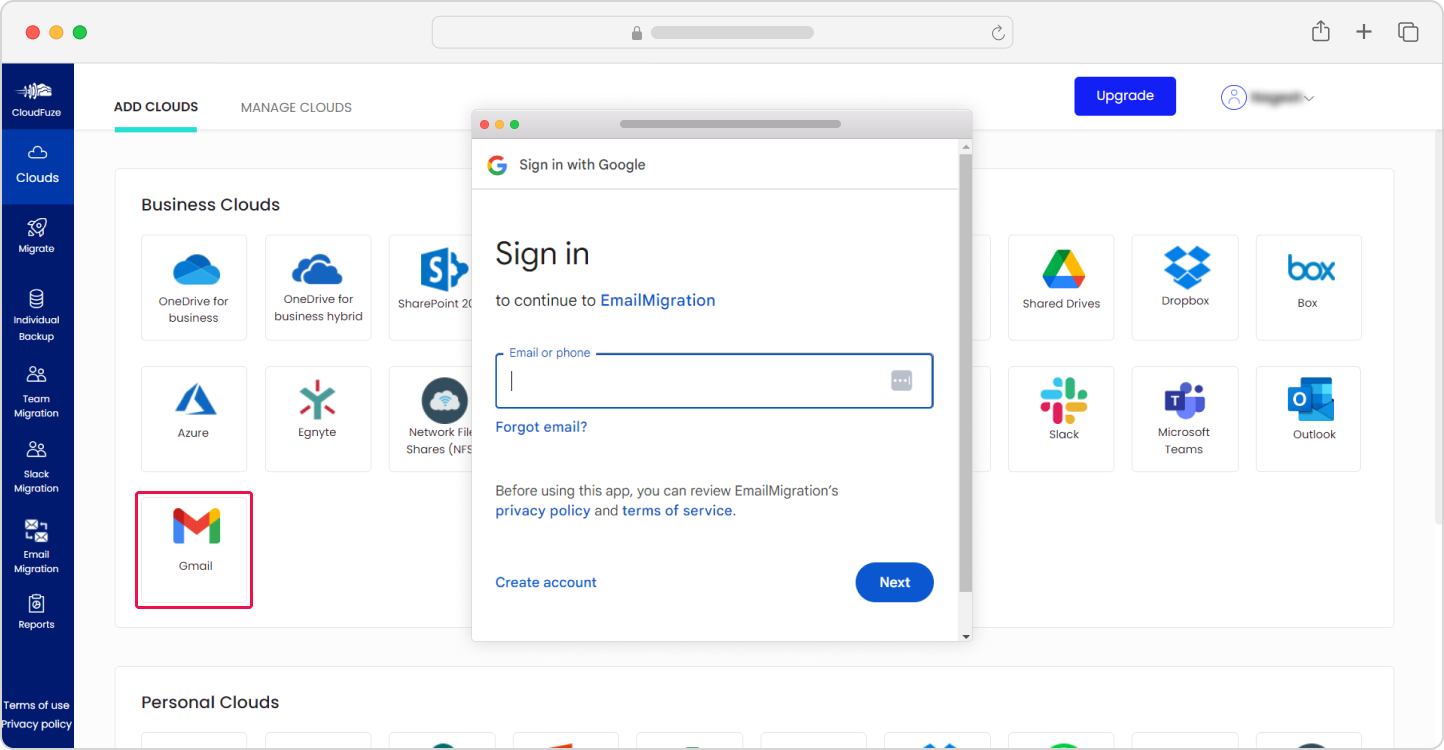
Next, locate the Gmail cloud and select to add it to our migration webapp. Enter the Google Workspace admin credentials on the pop-up window.
Step 5: Authenticate the Gmail Cloud
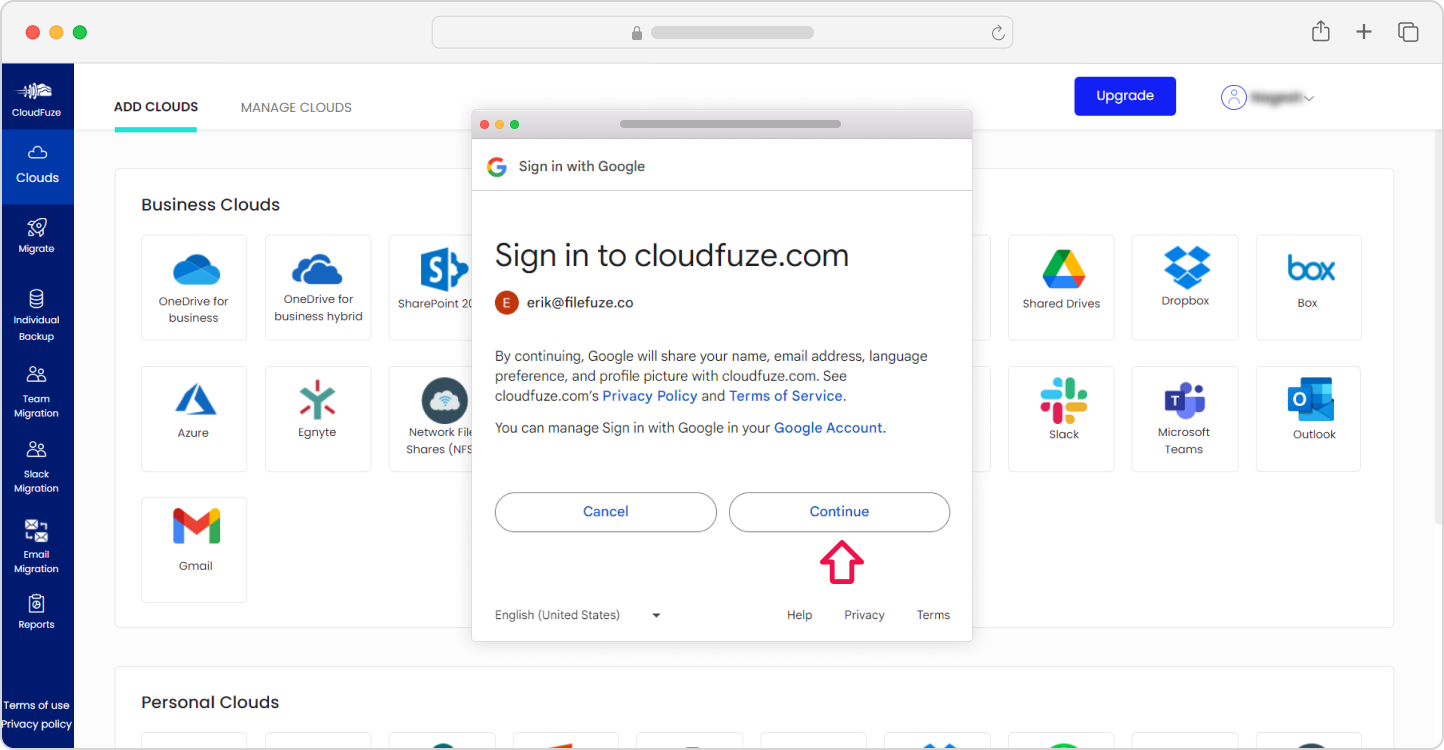
Similar to authenticating Outlook, click on “Continue” to securely authorize the Gmail cloud.
Step 6: Confirm Addition of Both Clouds
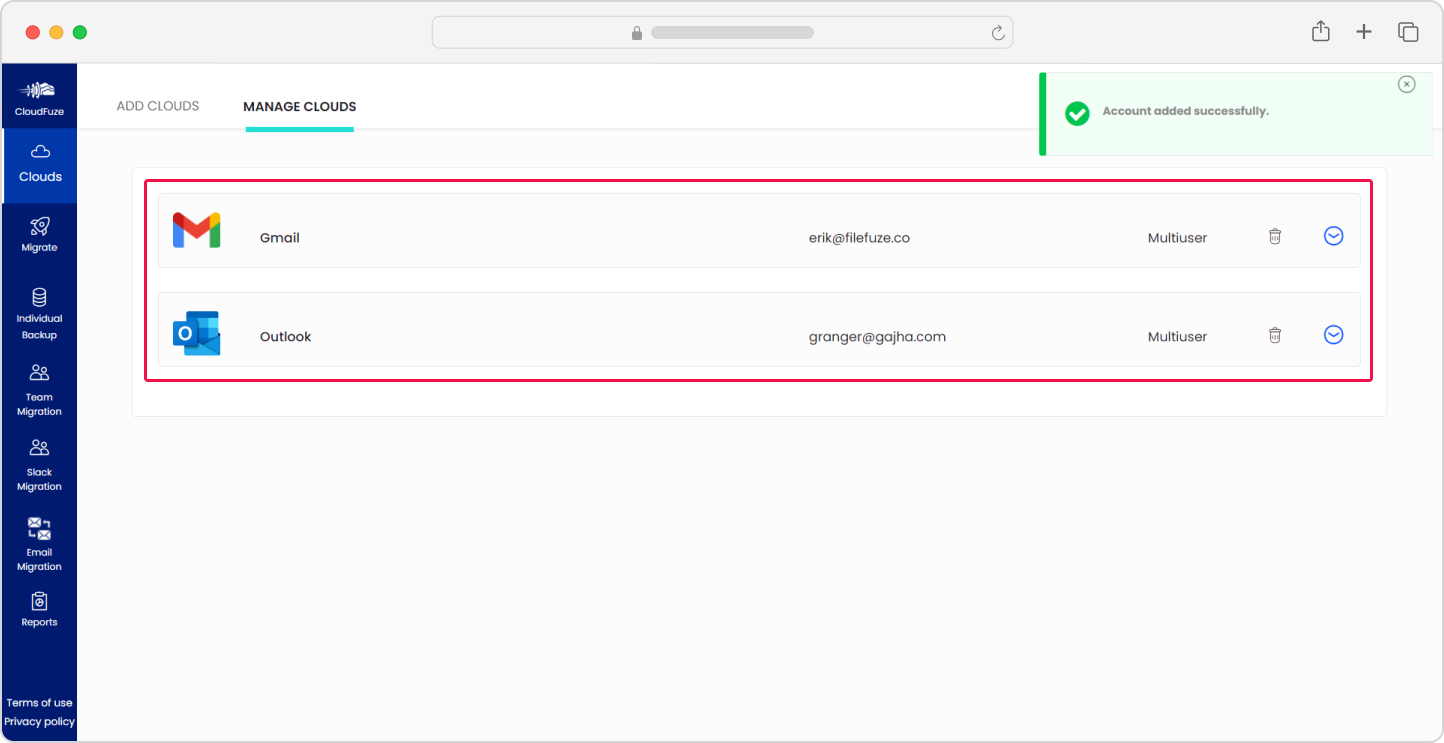
Toggle to the Manage Clouds section and check and ensure both clouds are added properly.
Step 7: Configure the Source and Destination Cloud
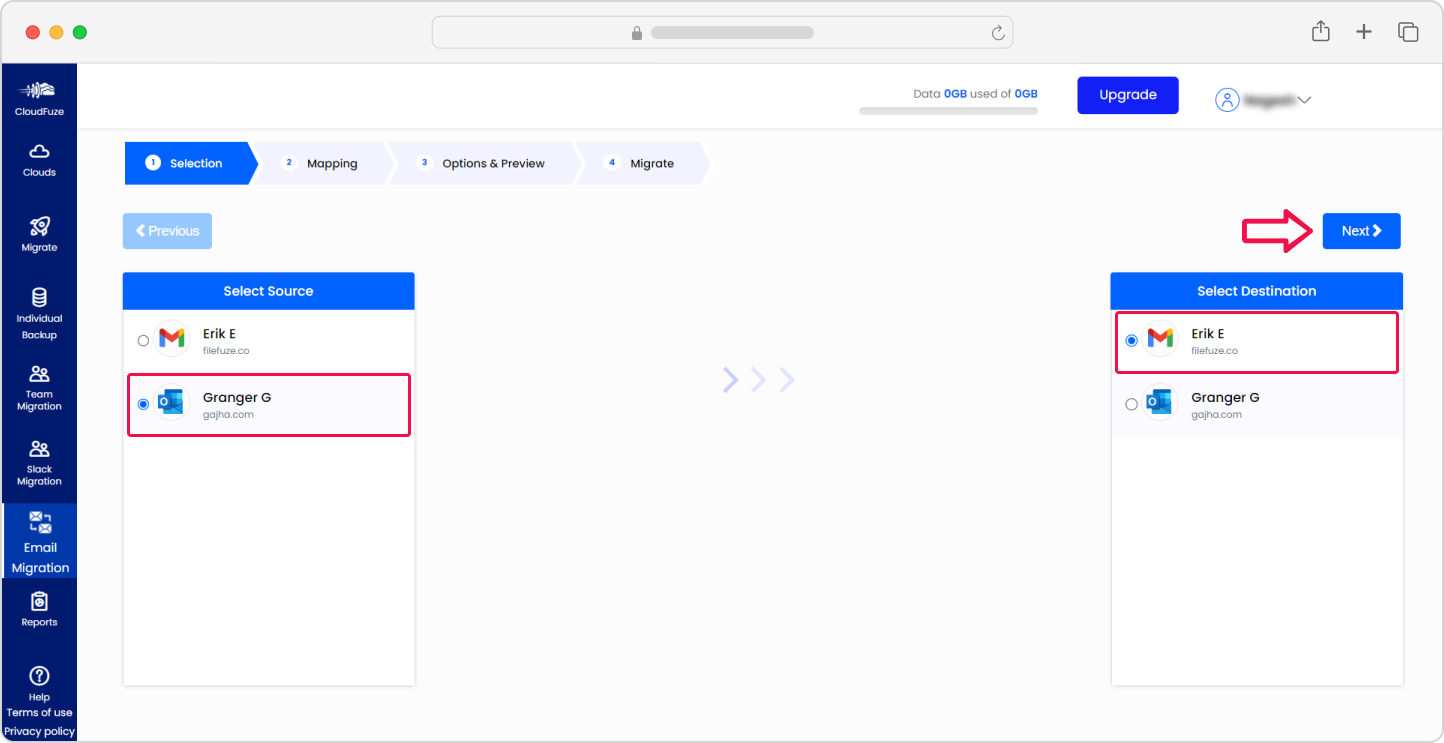
Navigate to the Email Migration panel and select Outlook as the source and Gmail as the destination cloud.
Step 8: Map the User Accounts
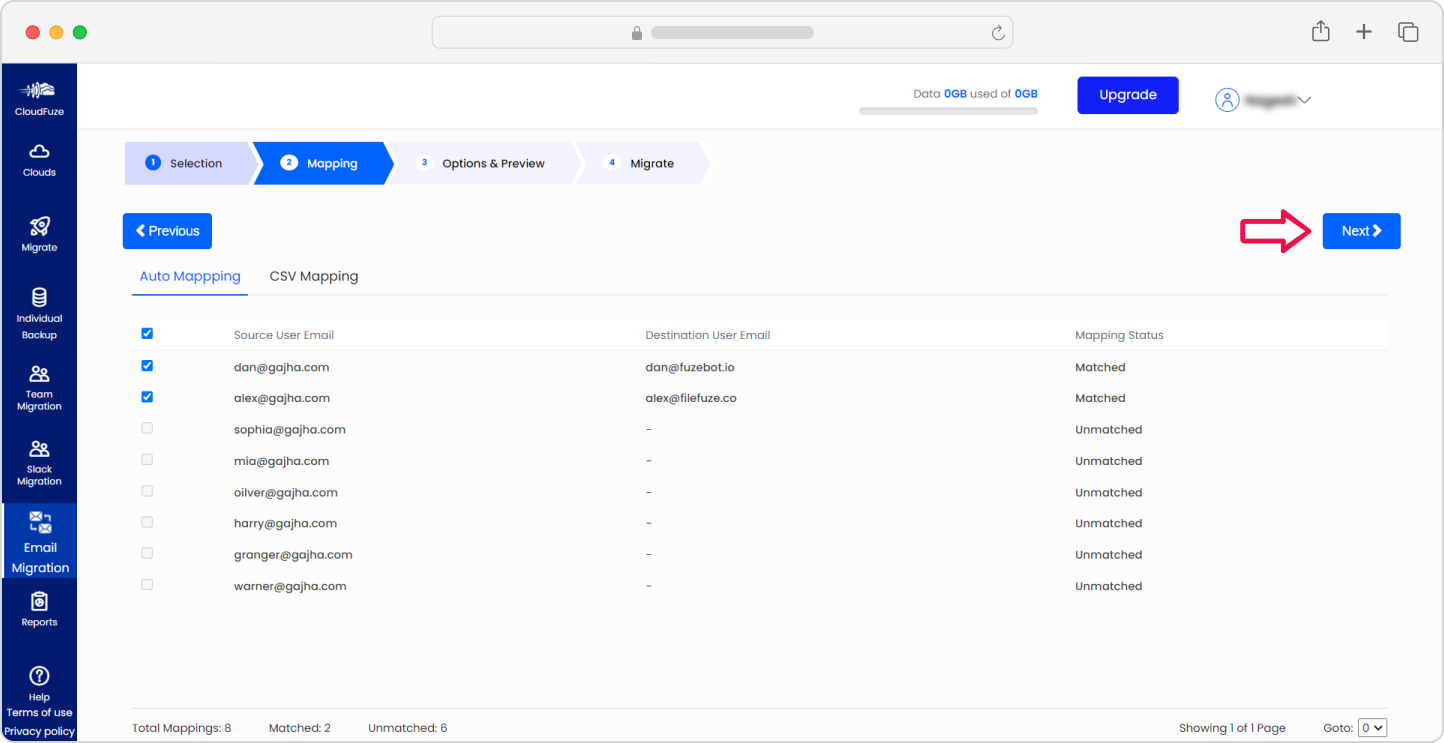
The next step is to map the user accounts from Outlook to Gmail. Our tool provides you with two mapping options: auto-mapping and CSV mapping. You can select as per your requirements.
Step 9: Choose the Migration Options
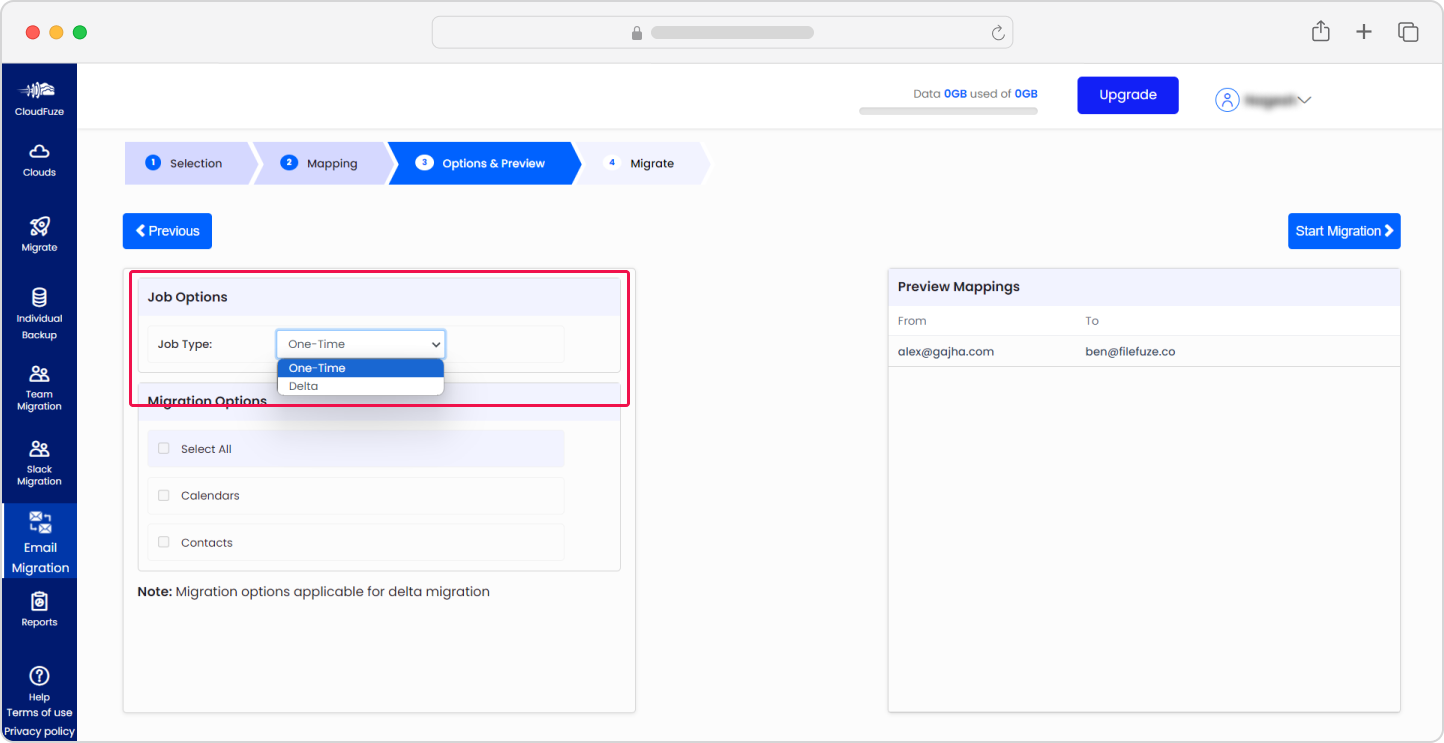
In the Options & Preview stage, select the options as per your migration needs. We recommend choosing the migration job type as One-Time the first time. Choose delta migration to transfer incremental changes after the One-Time migration gets completed.
Step 10: Start the Outlook to Gmail Migration
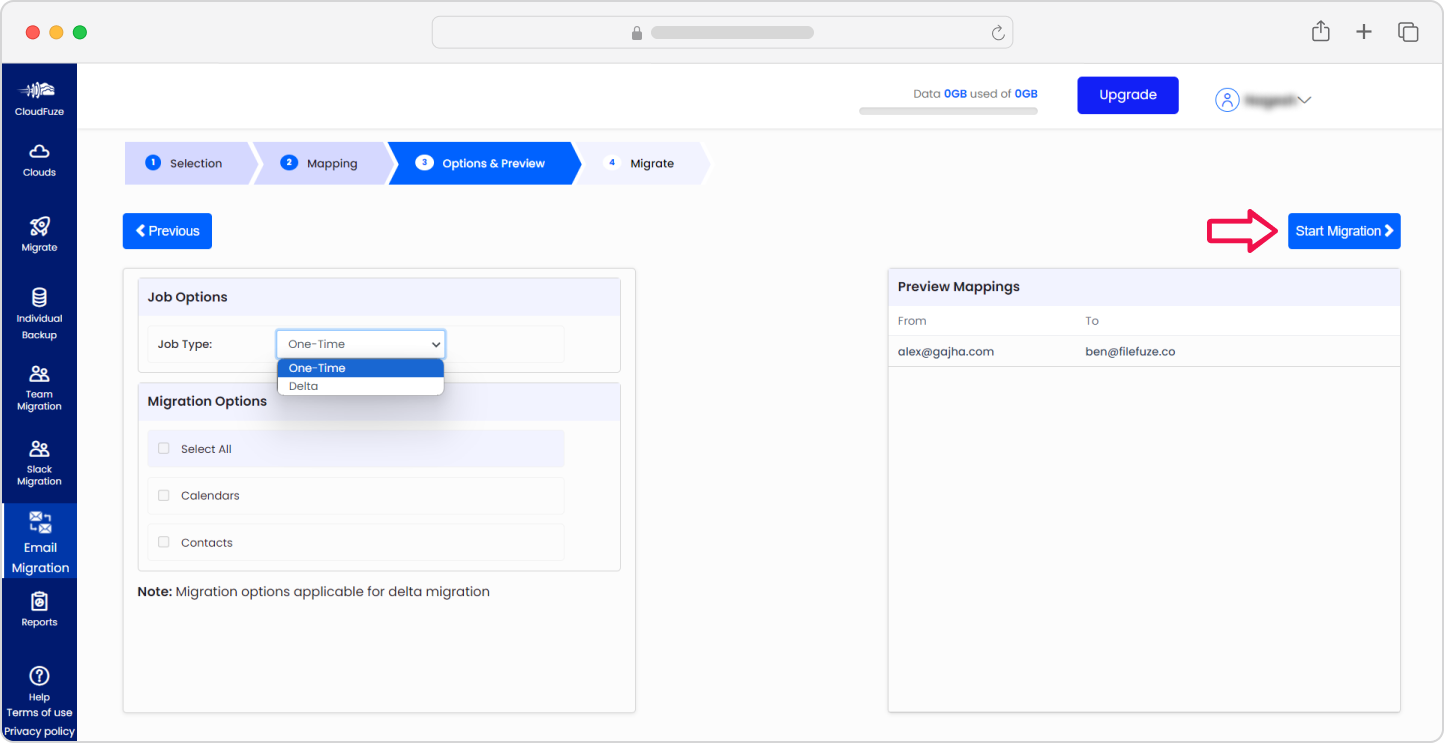
Click on Start Migration to start the process of migrating emails from Outlook to Gmail on our tool.
Step 11: Monitor the Migration
From the left-hand sidebar, click on the “Reports” dashboard of our tool. Here, you can monitor the progress of the Outlook to Gmail migration. You can use the download icons (top-right) to export reports.

Then, you can toggle the “Switch to New Reports” option (highlighted in screenshot) to enable the updated reporting view. Use the summary dashboard to monitor:
- Total Jobs
- Completed Jobs
- In Progress Jobs
- Conflict Jobs
In “Email Status Summary” review the bar chart showing counts of emails by status (Processed, Not Started, In Progress, Conflicts).

Post-Migration Activities
Upon the completion of the one-time migration job, make sure to initiate a delta migration to transfer all the incremental changes that have built up during the one-time migration.
1. Delta Migration
Delta migration is particularly helpful in cases where users continue to migrate from Outlook to Google Workspace while still actively using their old email platform during the migration process.
As the users receive new emails, they can migrate them to the new platform without interrupting the user’s workflow. It also ensures that the data on both platforms is up-to-date and in sync, preventing any missed or lost emails.
To perform an incremental data transfer during an Outlook to Gmail email migration, it is crucial to use an email migration tool that supports this feature.
2. Migration Validation
Validate the email migration by checking the reports of each migration batch to confirm the critical data transfer when you move mail from Outlook to Gmail. Review key metrics, such as the number of mailboxes migrated, calendar migration status, and any conflicts that may have arisen.
You can also check out this exhaustive email migration checklist that can assist your internal IT teams in transferring email data from one service provider to another.
3. Post-Migration Integration
Make sure to perform proper post-migration integration by re-integrating the third-party apps and tools synced with the emails, contact lists, and calendar. Your team can do this by installing the required apps from Google Marketplace.
4. User Onboarding & Go Live Save
Lastly, onboard users to the Gmail environment after completing the migration from Outlook. Ensure end-users receive proper training in advance so they can quickly adapt to Gmail features and make the most of its collaboration and productivity capabilities.
With the adoption of AI tools like Gemini in Google Workspace, users can further enhance productivity through smart email drafting, summarization, and faster information retrieval.
For IT admins, it is equally important to monitor post-migration system performance, address user access or sync issues promptly. And ensure that security policies, permissions, and compliance settings are correctly enforced in the new environment (Gmail).
5. Enabling Gemini AI Adoption Post-Migration
Once mailboxes are live in Gmail, IT admins should formally roll out Gemini AI features rather than leaving adoption to chance. Start by enabling Gemini for a pilot group and gathering feedback before a full rollout.
Train users on practical use cases, such as drafting replies, summarizing long threads, and using priority inbox sorting. Migrated metadata and folder-to-label mapping directly affects how well Gemini surfaces relevant context, so encourage users to review their labels in the first few weeks.
Teams that pair training with Gemini onboarding see faster adoption than those that treat AI rollout as a separate, later initiative.
Best Practices for Outlook to Gmail Migration Success
These practices consistently improve outcomes for enterprise migrations. Each one addresses a real failure point that IT teams encounter.
- Perform pilot migrations before moving all users
- Communicate migration schedules to end users
- Validate mailbox permissions
- Review migrated calendar events
- Monitor migration reports continuously
- Perform delta migrations before final cutover
Request Your Custom Migration Plan with CloudFuze!
We encourage you to discuss the strategies and steps we have shared in this migration guide with your team during the planning process.
With our enterprise-grade email migration solutions, we can help your company migrate emails from Outlook to Gmail with world-class performance and security. Some of the world’s largest and most popular companies rely on us for their migrations.
Send us your email migration needs for a tailored price quote. You can also directly contact us to discuss the way forward.
Frequently Asked Questions
1. How long does Outlook to Gmail migration take?
Migration duration depends on mailbox size, user count, network bandwidth, and migration method. Enterprise migrations involving thousands of mailboxes may take several weeks. Want the exact estimate? Contact our experts for a tailored migration timeline based on your specific requirements.
2. Can I migrate Outlook emails to Gmail without losing data?
Yes. Using our professional Outlook to Gmail migration tool, CloudFuze Migrate, you can preserve emails, attachments, contacts, calendars, metadata and more securely.
3. Can I migrate multiple Outlook mailboxes to Gmail at once?
Yes. Enterprise migration tools like CloudFuze support bulk mailbox migration, allowing IT teams to transfer hundreds or thousands of mailboxes simultaneously.
4. What metadata should be preserved during Outlook to Gmail migration?
Organizations should preserve email timestamps, sender information, folder structures, read/unread status, contacts, and calendar events whenever possible. We at CloudFuze preserve all metadata during email migration.
5. Will my Outlook folder structure be preserved in Gmail?
Yes, with CloudFuze your Outlook folder is fully preserved in Gmail. Outlook folders are mapped to Gmail labels, including nested subfolder hierarchies. For example, an Outlook folder path such as Projects > 2024 > Client A will appear in Gmail as the label Projects/2024/Client A.
6. How do I migrate contacts from Outlook to Gmail?
Contacts are migrated as part of the full mailbox migration in CloudFuze. You do not need to run a separate migration job. During the Outlook to Gmail migration, CloudFuze transfers all Outlook contacts to Google Contacts. You can validate contact migration results from the reports after each batch’s migration.
7. Can I migrate calendars from Outlook to Gmail?
Yes. With CloudFuze, you can migrate Outlook calendar events, including recurring events, to Google Calendar. We recommend validating calendar events after migration, particularly recurring events, as these are the most common sources of post-migration issues.
8. What are the best tools for migrating Outlook to Gmail?
Enterprise tools designed for Outlook to Gmail migration include CloudFuze Migrate, Cloudiway, and BitTitan. The right choice depends on your mailbox volume, metadata preservation requirements, support needs, and budget.
CloudFuze is an official Google Cloud Partner and supports migrations of thousands of mailboxes and hundreds of users with full metadata and context preservation while ensuring little to no downtime.
About the Author: Pankaj Rai



