
How to Ensure Effective OneDrive Storage Management?
Enterprises can greatly benefit their business through effective OneDrive storage management. Businesses must have a clear idea on how to properly manage OneDrive storage to reap maximum benefits of OneDrive storage. In this blog post, we have discussed how to manage storage on the OneDrive platform.
Key Takeaways:
How Can I Configure OneDrive Settings to Maximize Storage Efficiency?
Here we have listed steps to manage OneDrive settings for maximum storage efficiency.
1. Monitoring OneDrive Storage Usage
Here are the steps of monitoring OneDrive storage usage in Microsoft 365 Admin Center.
- Visit Microsoft 365 Admin Center.
- Click on Reports –> Usage.
- Select OneDrive → Usage.

2. Clean Up Inactive OneDrive Accounts
On clearing up inactive OneDrive accounts, enterprises can manage storage effectively. Below are the steps to clean up inactive OneDrive accounts.
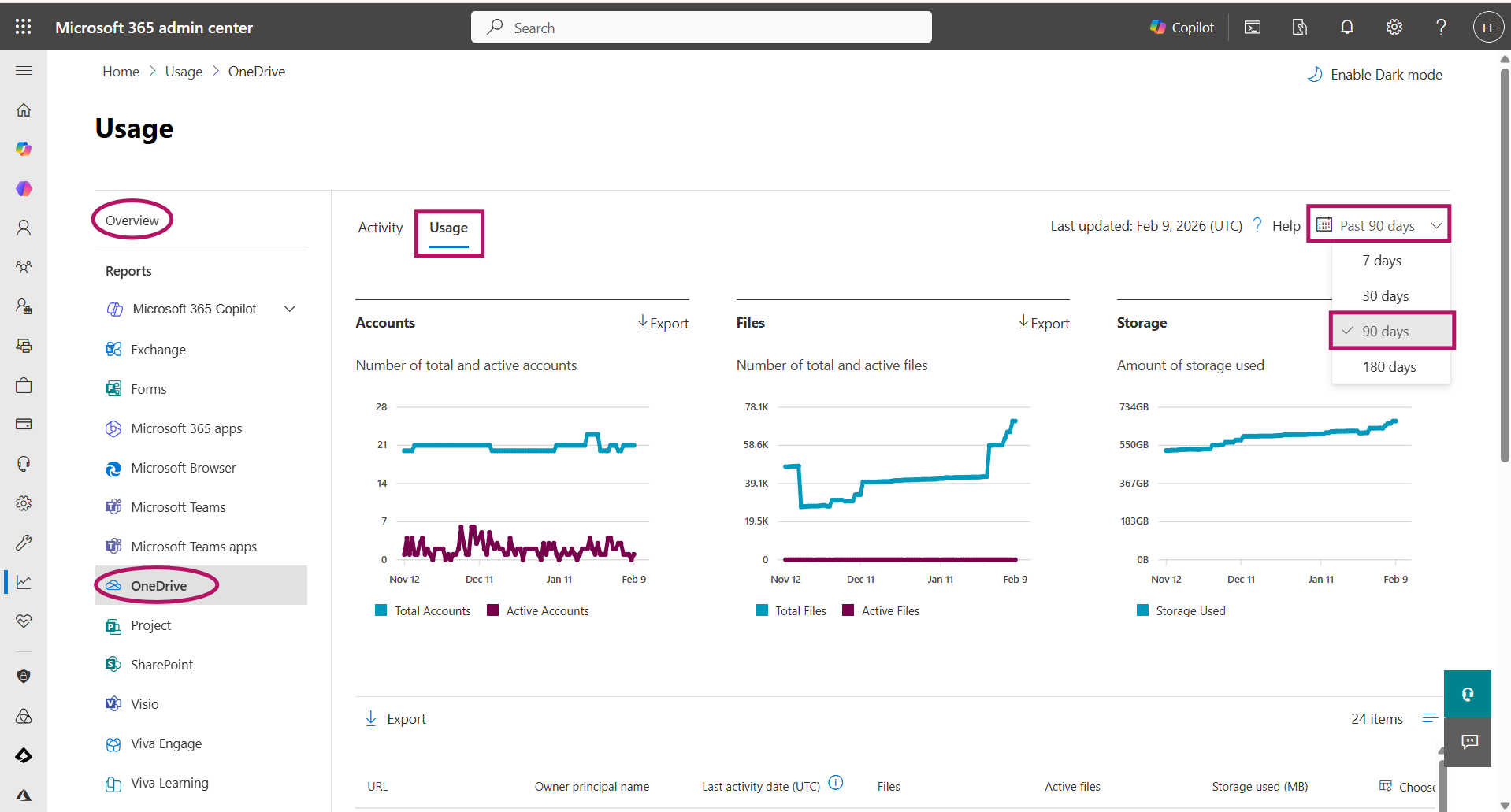
- Navigate to Reports → OneDrive Usage in Microsoft 365 admin center.
- You can choose the time period. Here image shows inactive users filtered for 90 days.
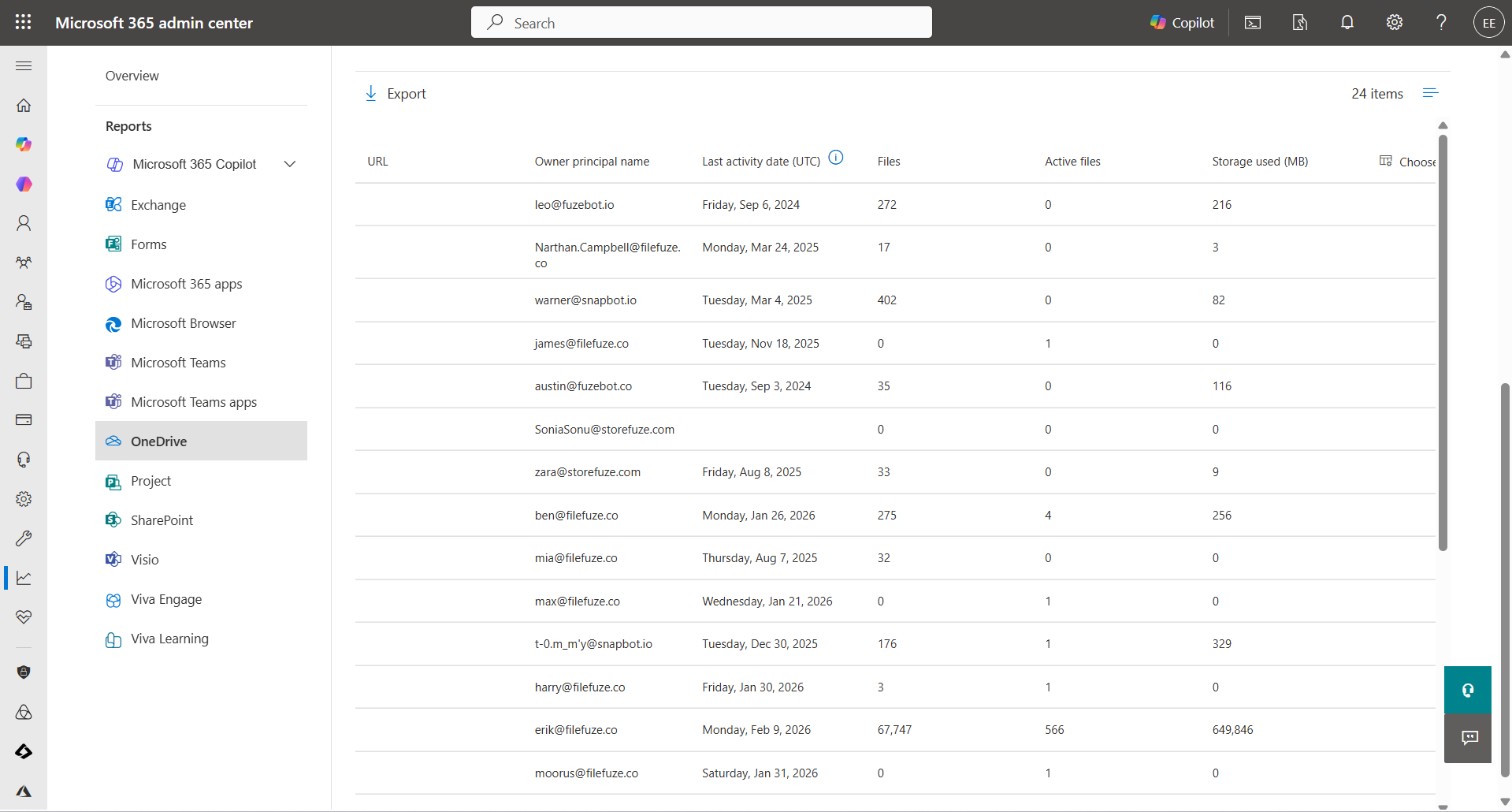
- Below Usage, you can check filtered file details in OneDrive.
- Now click on Export to download data.
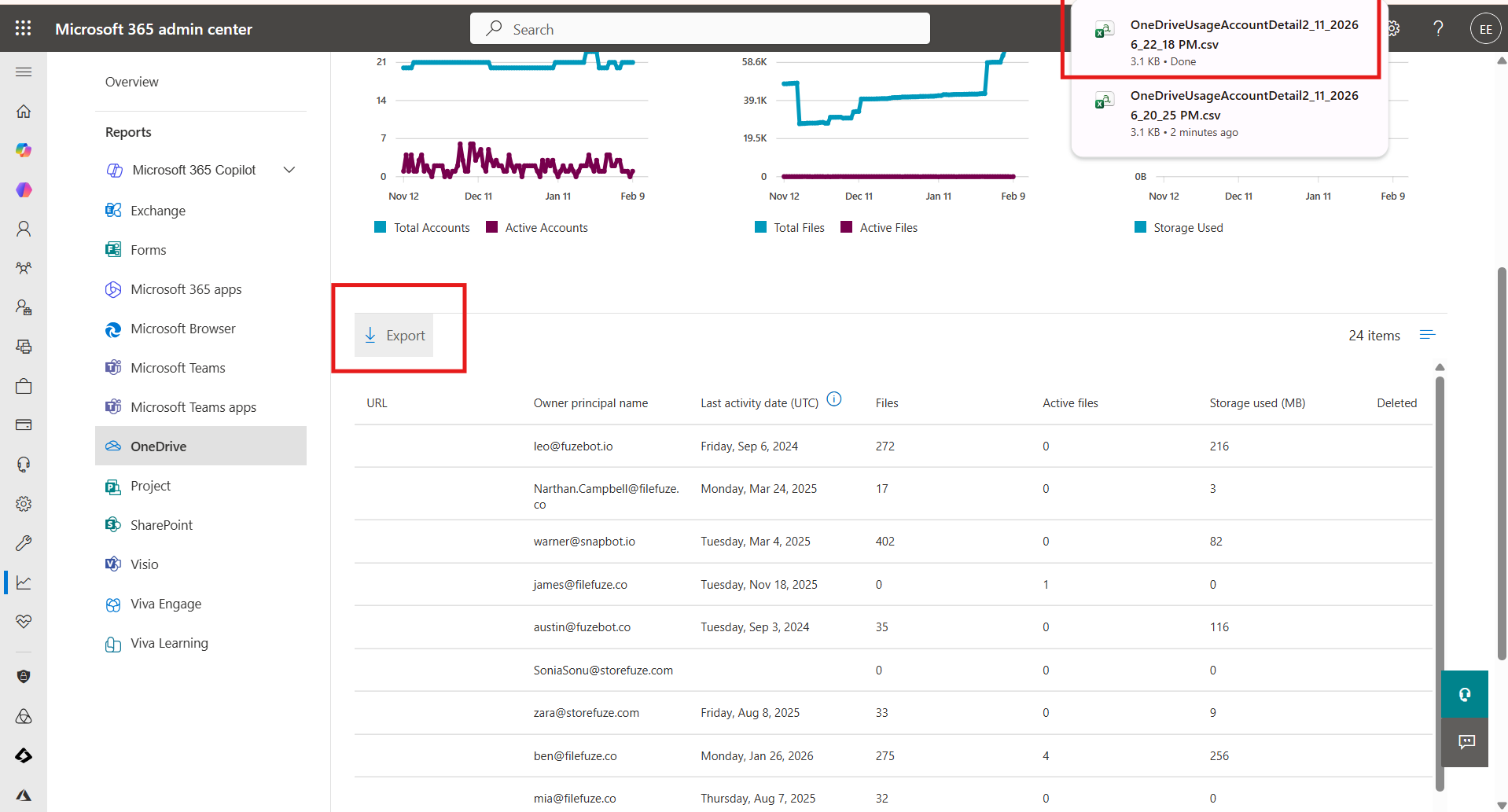
- After you Export, check and delete inactive accounts.


3. Enable Retention Policies (Microsoft Purview)
Retention helps you reduce clutter. Here are steps admins can follow to enable retention policies.
- Navigate to Microsoft Purview.
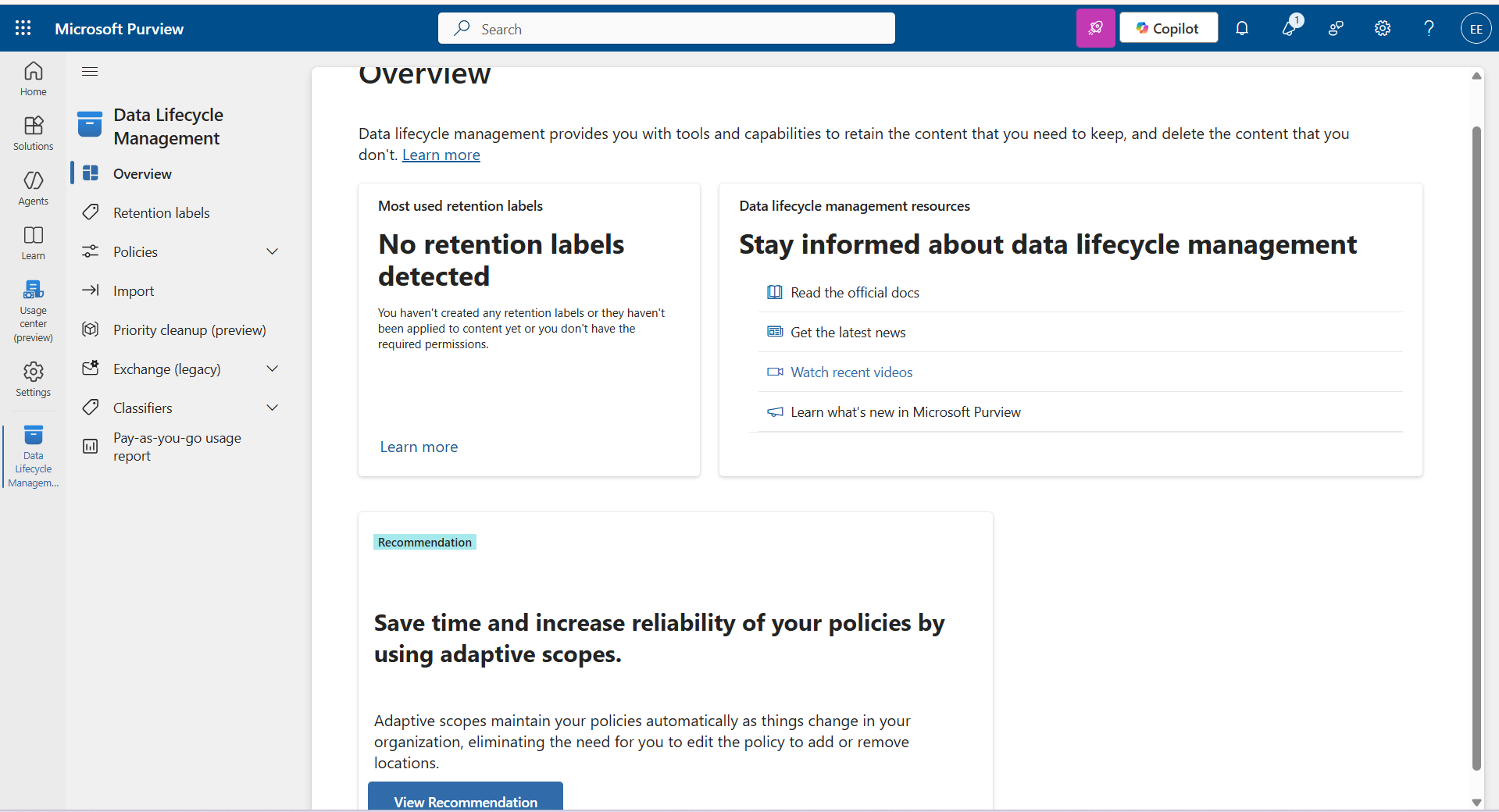
- Click on Data Lifecycle Management–>Policies.
- Select Retention Policy –> New Retention Policy.
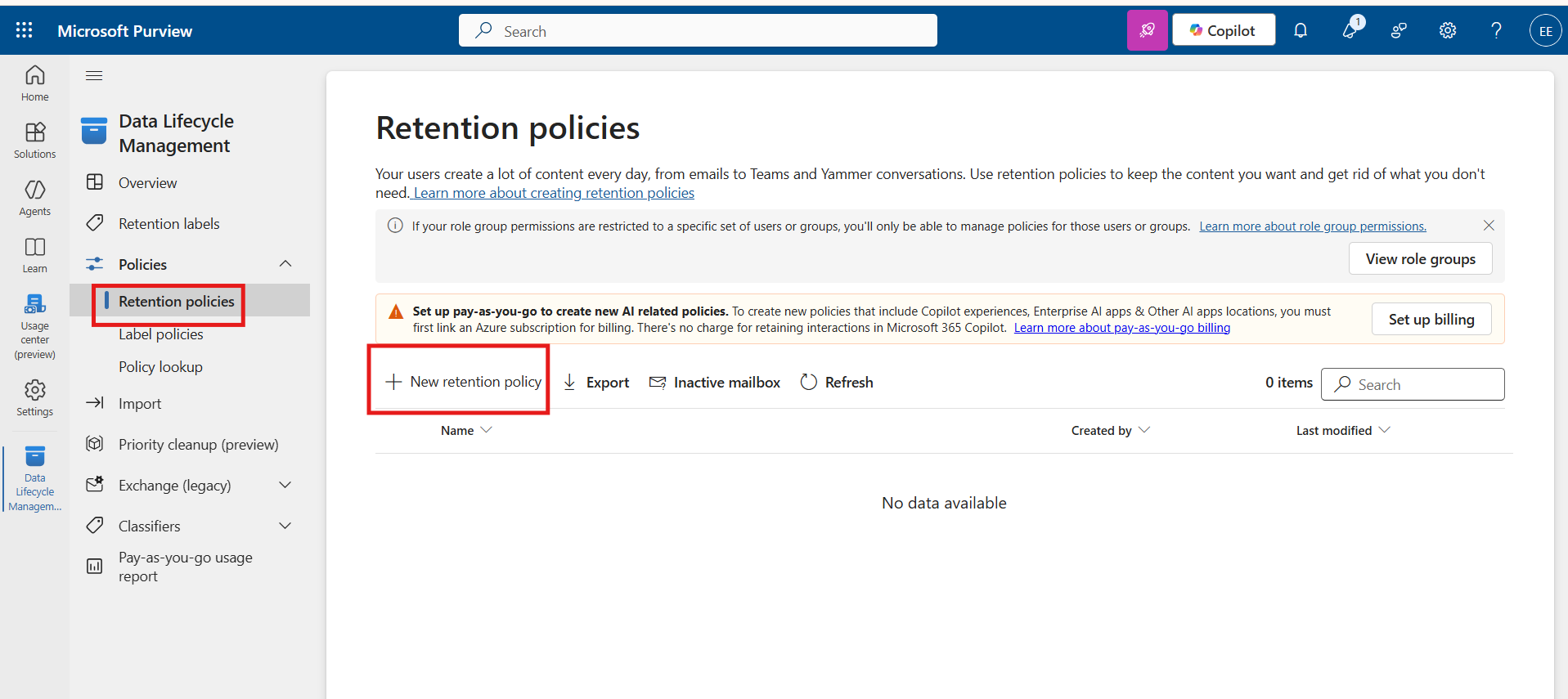
- The image below shows the New Retention Policy page. After completing the Name section, click Next.
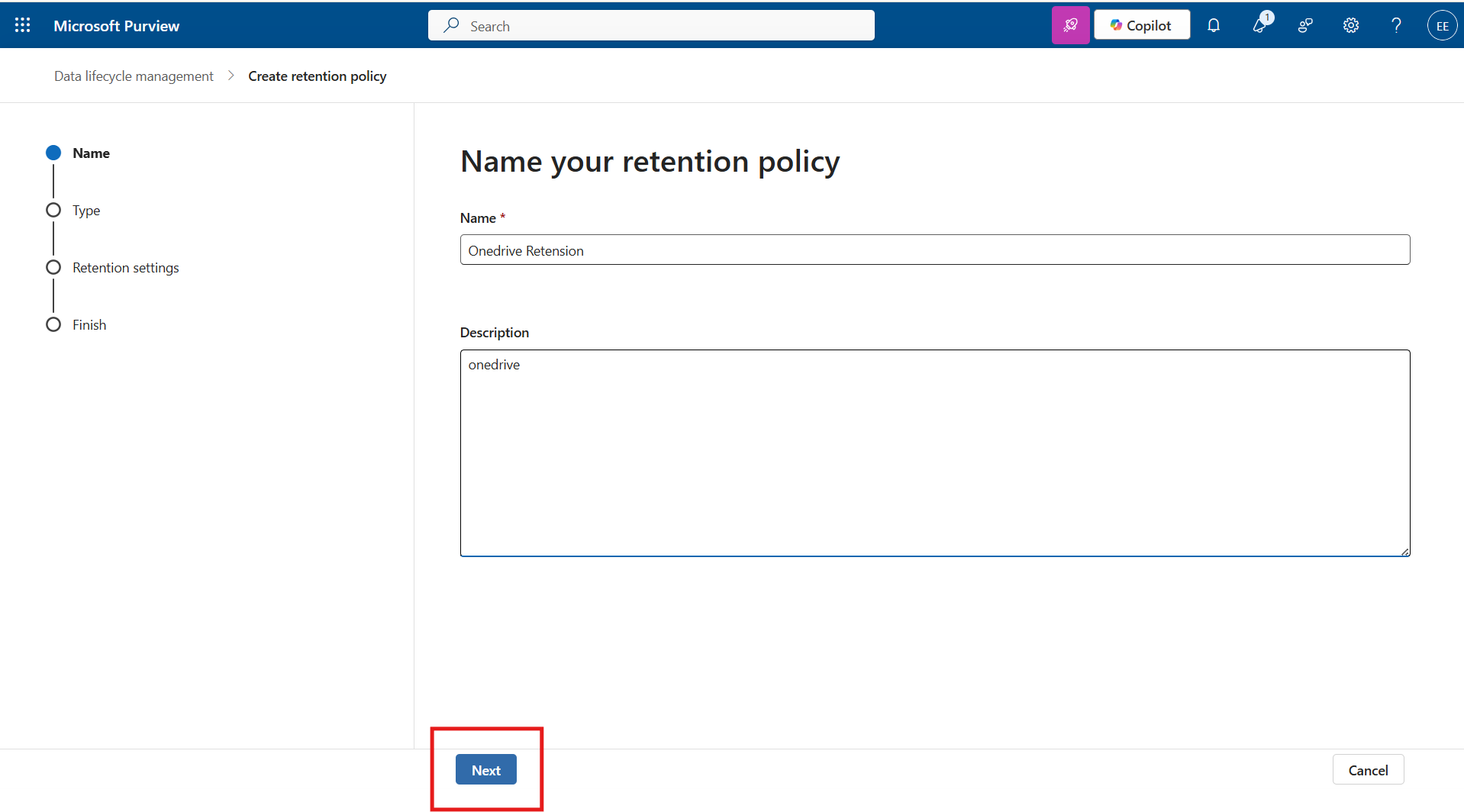
- Now choose the Type of Retention Policy and click Next.
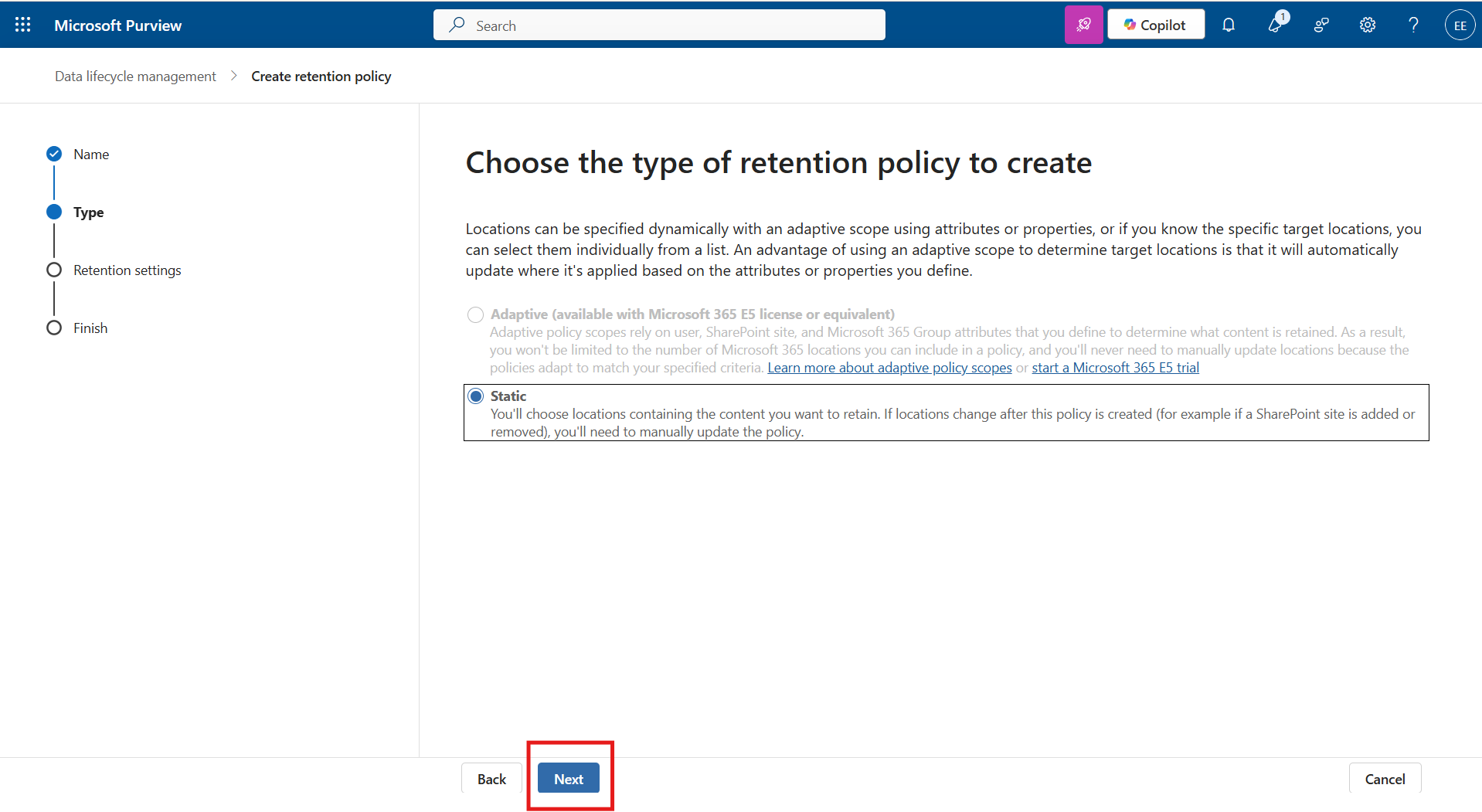
- Under Locations, make necessary changes. Give Next.
- Make necessary changes under Retention Settings. Click Next.
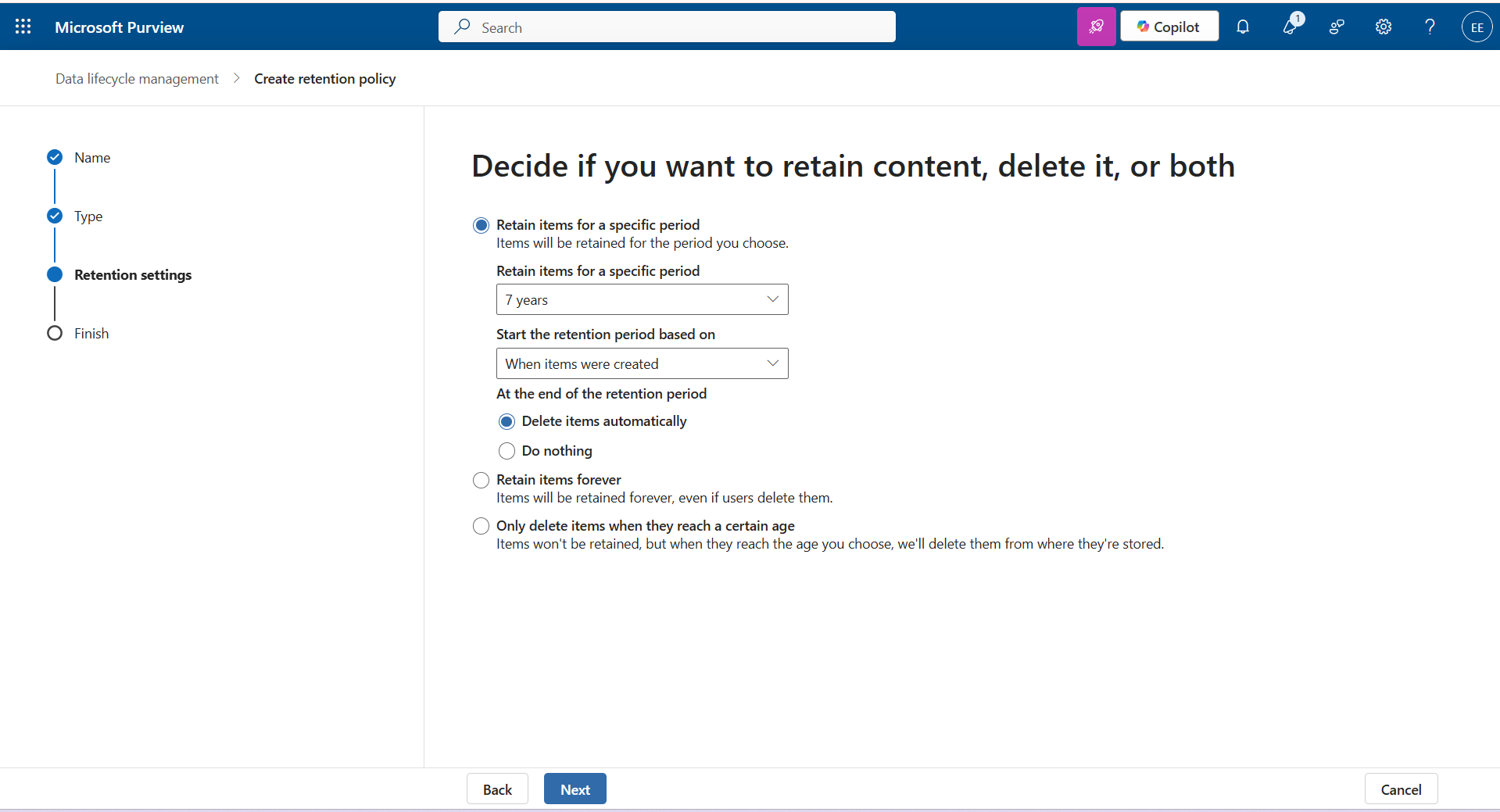
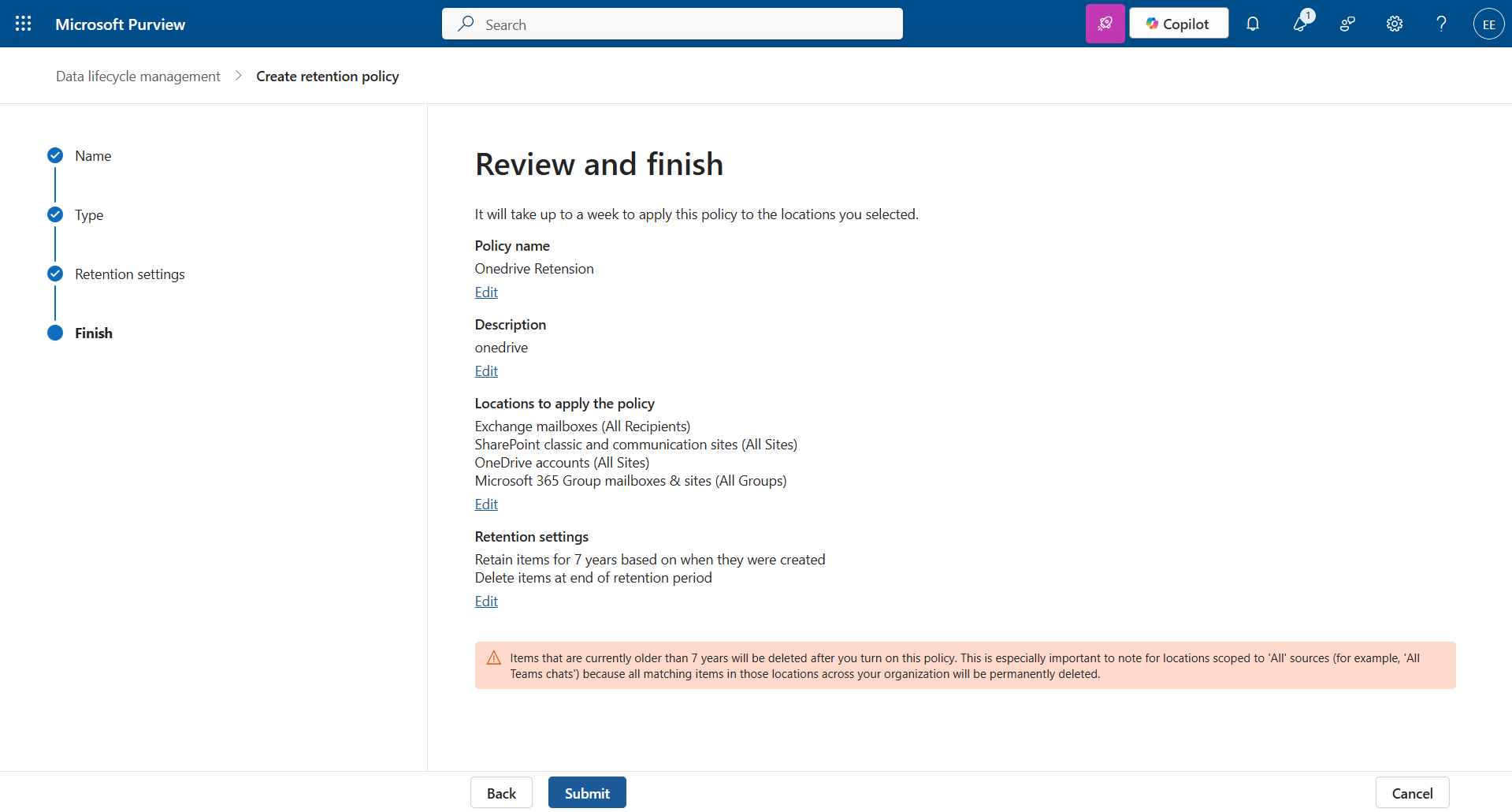
- Fill details and give Submit.
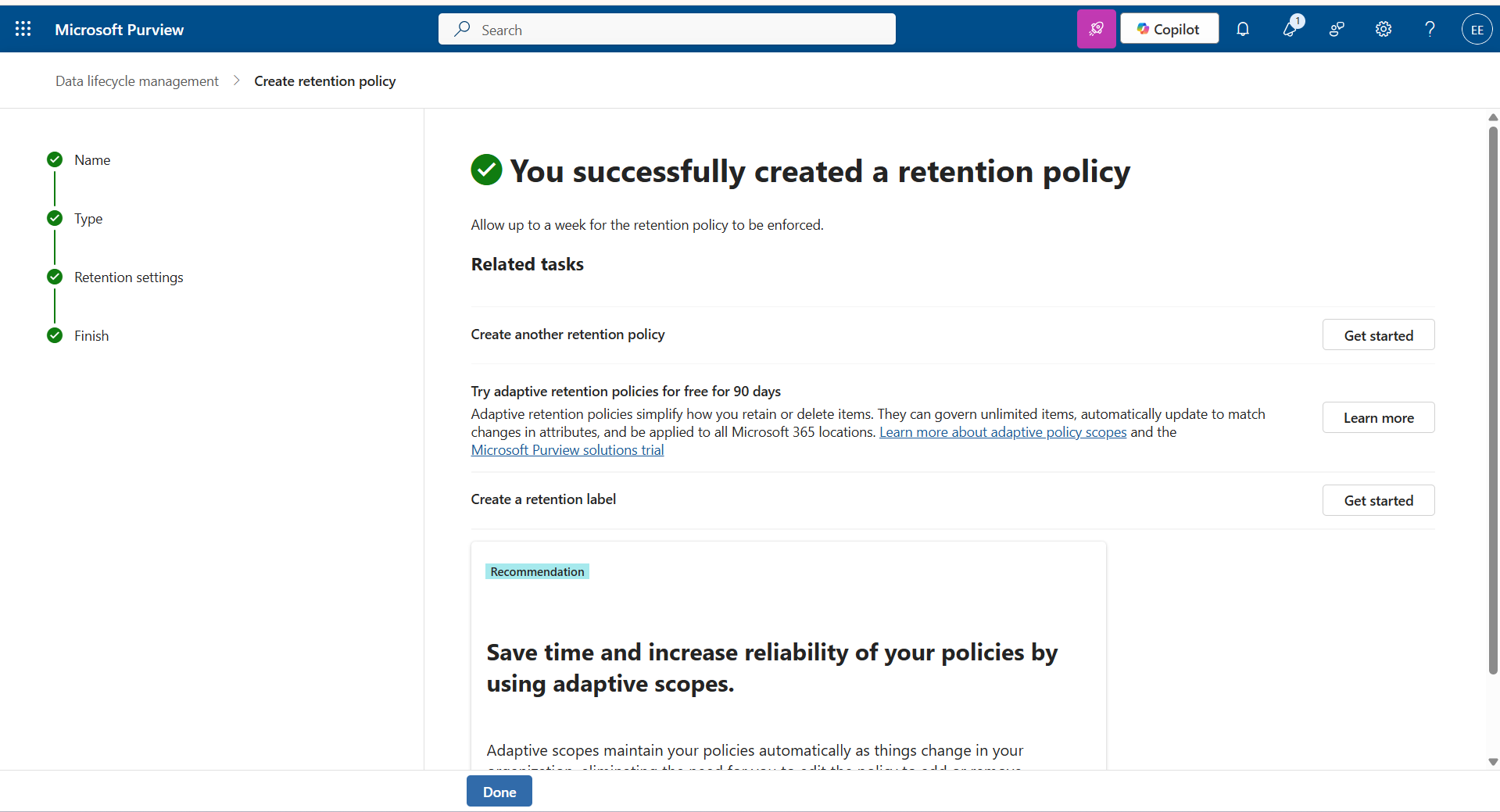
- Now you can see the successfully created new retention policy.


4. How to Empty OneDrive Recycle Bin Permanently
Follow the below steps to empty content in your OneDrive Recycle Bin.
- Visit: admin.microsoft.com
- Go to Users → Active users
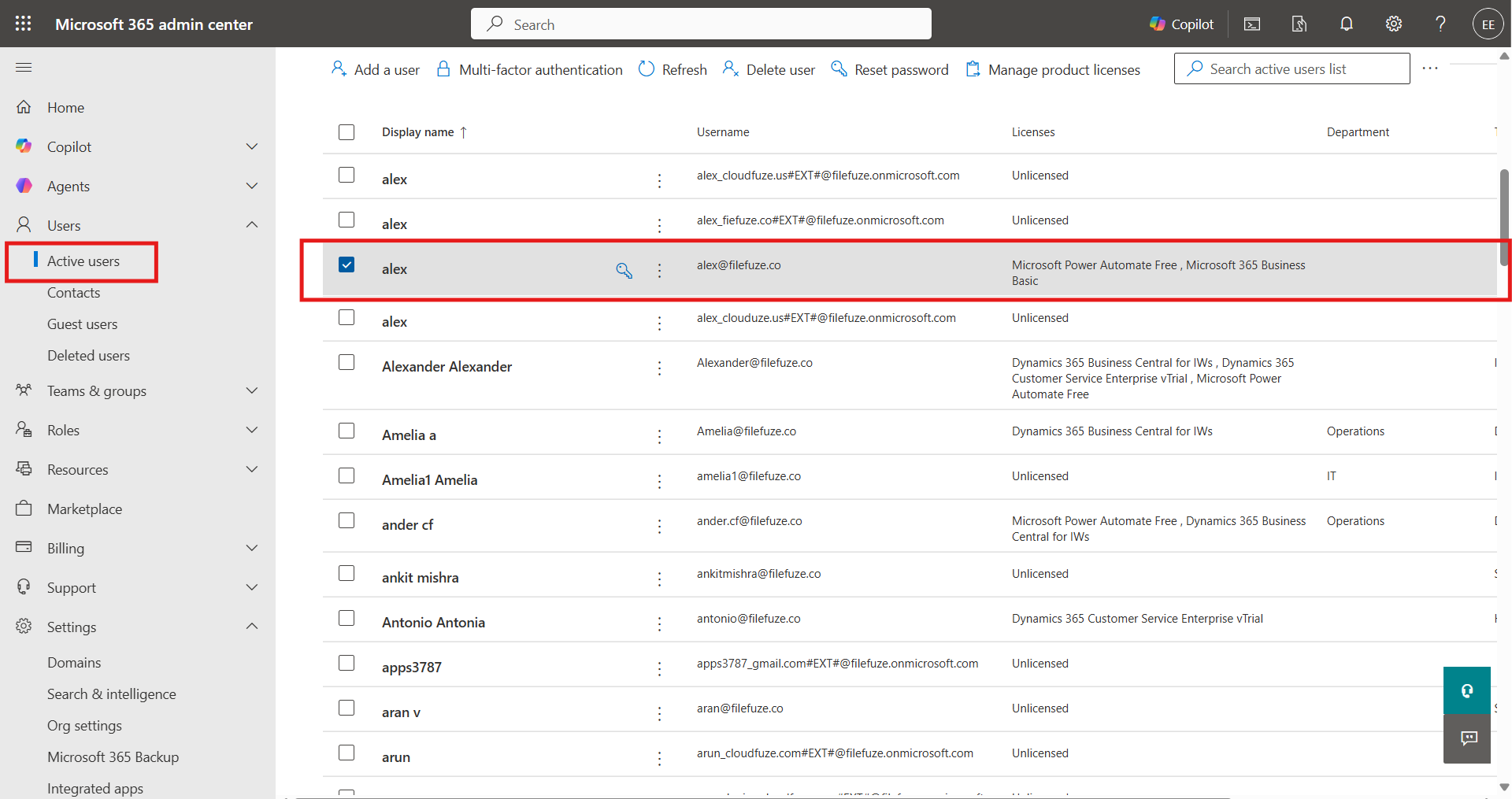
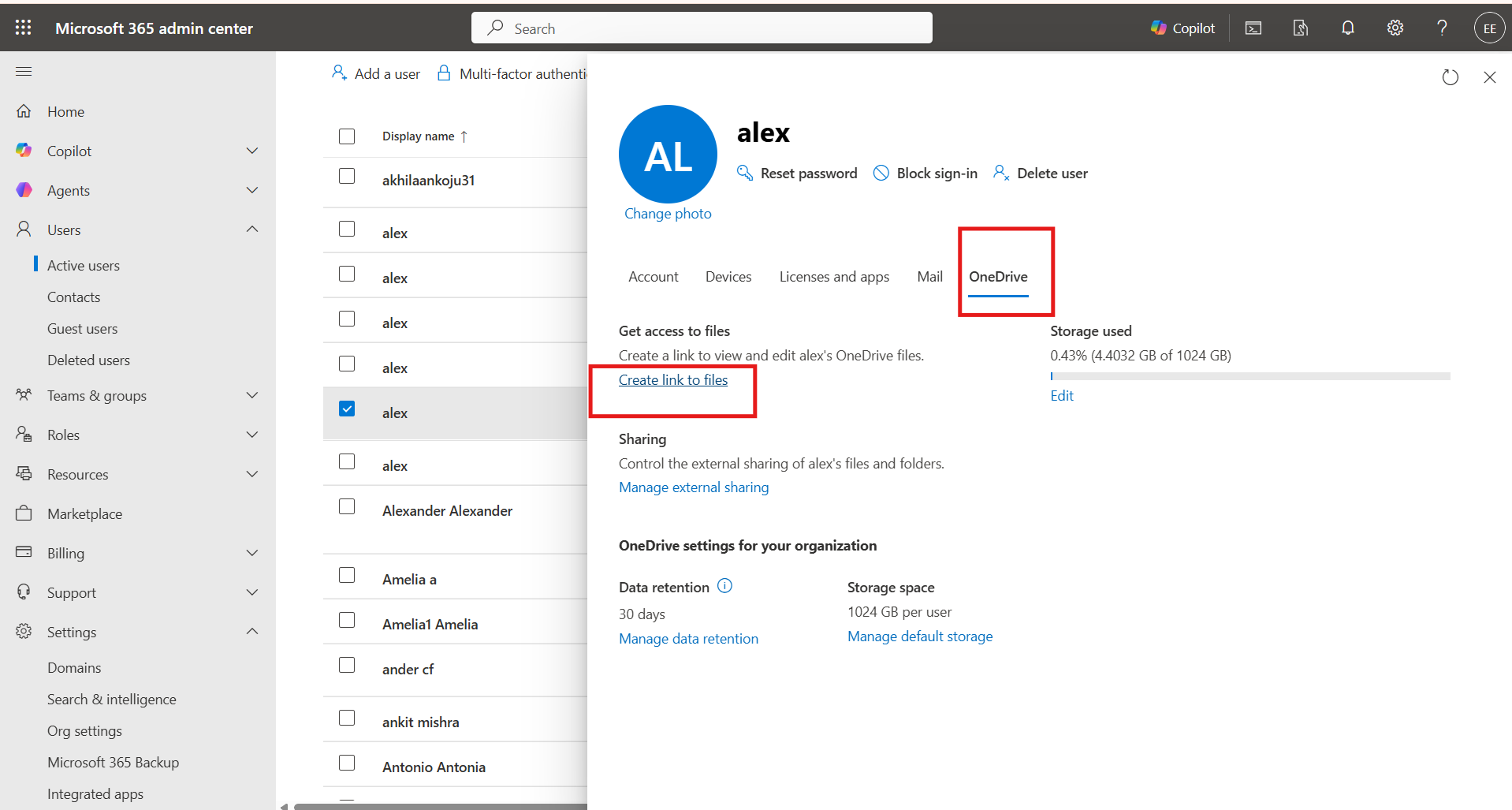
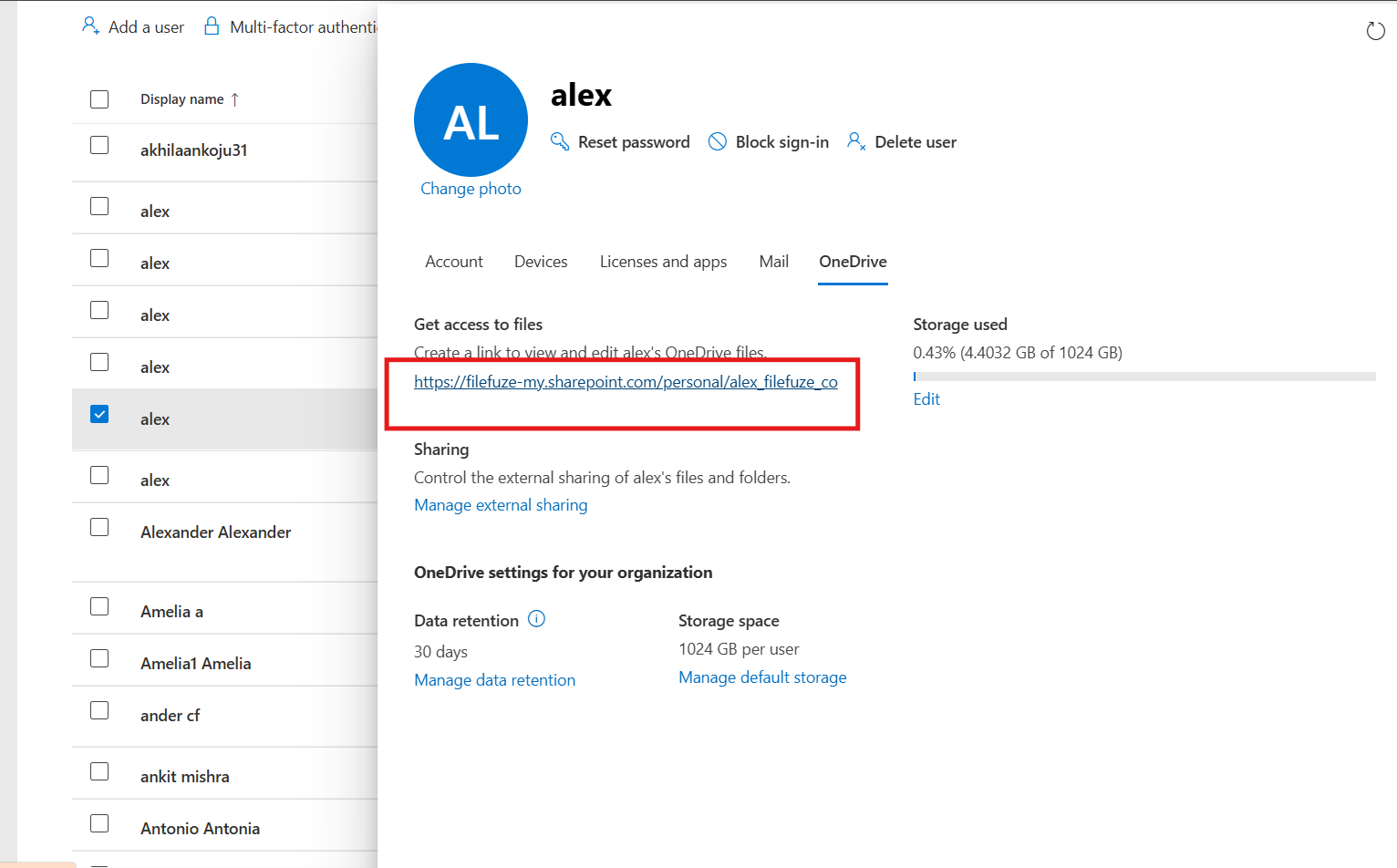
- Select the user & click OneDrive tab. Then, click Create link to files
- Select the folder you want to delete.
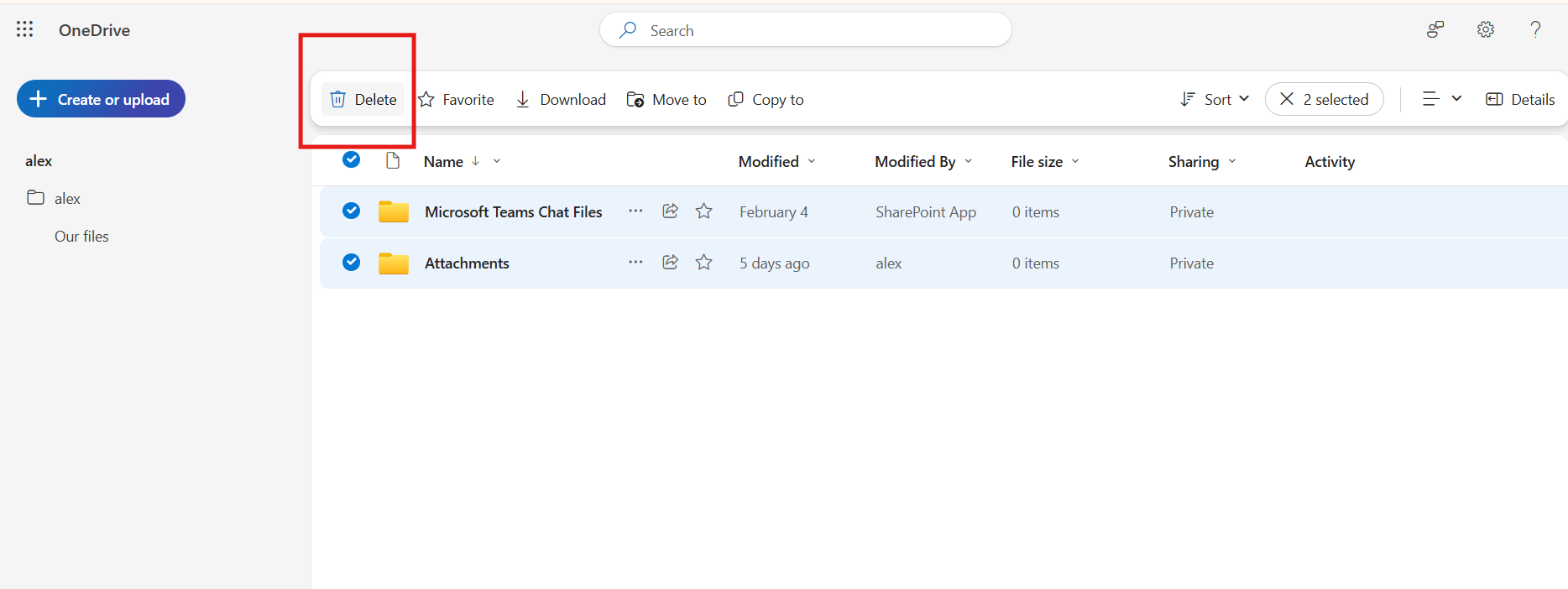
- Select all the folders you want to remove for the user. Now click Delete
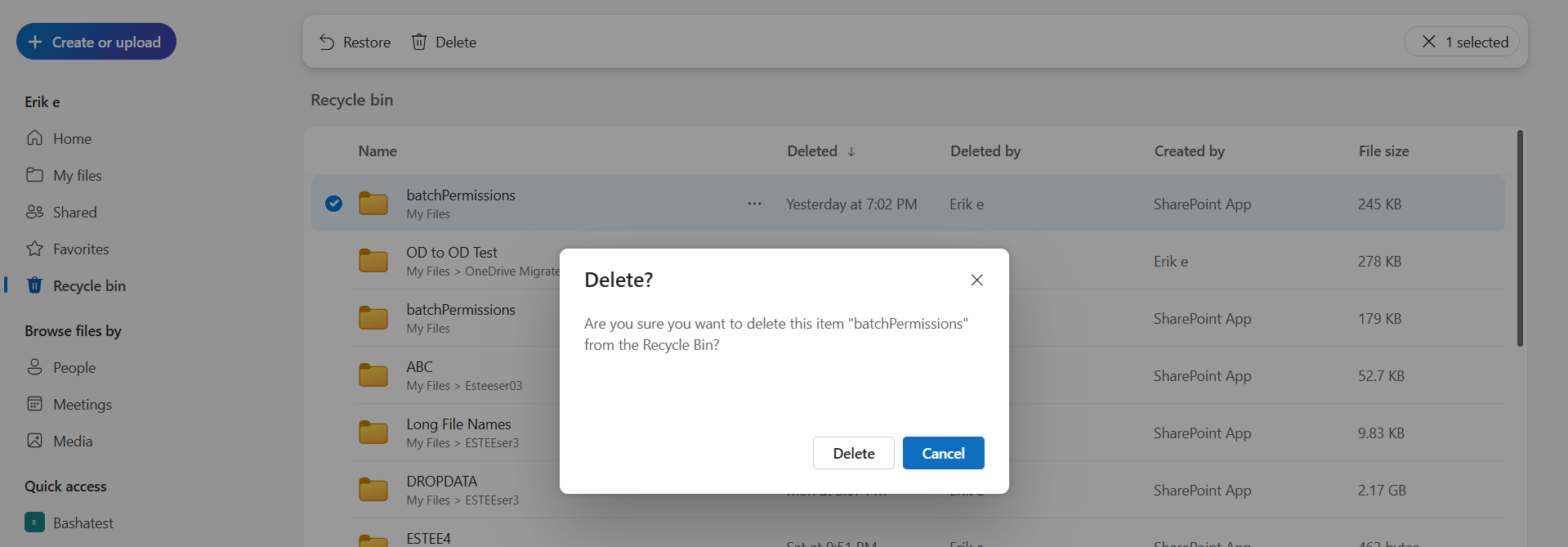
- After deletion, go to Recycle Bin. Give Delete to remove the file from Recycle Bin permanently.


Manage Your OneDrive Migrations Securely with CloudFuze Migrate
If you are an enterprise planning to perform migration to OneDrive, it is necessary to select a reliable migration tool. Transfer your data along with necessary metadata with CloudFuze Migrate!
Overview of Our Migration Tool
Frequently Asked Questions
1. What are the common pitfalls to avoid when managing storage in OneDrive?
Common pitfalls to avoid when managing storage in OneDrive:
- Unclear plan on how to optimize the current OneDrive storage size
- Unpreparedness on how much storage do you get with OneDrive platform
- No prior expertise in OneDrive storage management.
2. What metrics can be used to evaluate the effectiveness of storage management in OneDrive?
Metrics to evaluate the effectiveness of storage management in OneDrive:
- No issues in terms of current OneDrive data storage
- Tracking active users and storage used
- Properly tracking OneDrive storage limits for business accounts.
3. How to request more than 5TB OneDrive storage?
Users can request more than 5TB OneDrive storage. You can add up to 10 TB of storage to the 1 TB included with your Microsoft 365 subscription. Note that users with Microsoft 365 Basic and Free accounts are not eligible for additional storage plans. Check out the official page for more details here.
4. How often does OneDrive backup?
When your files finish syncing to OneDrive, they’re backed up. Users can access them from anywhere. Also, OneDrive can’t sync files over 250GB. Users must remove files and folders exceeding the storage limit. Check out the official page for more details here.



Leave A Comment