
Move Data & Versions from Google Workspace to Microsoft 365
Planning to migrate Google Workspace to Microsoft 365? It is necessary to move versions along with your data to ensure data integrity during file transfer.
In this blog post, we have discussed how you can move data from Google Workspace file to Microsoft 365 with versions.
Key Takeaways:
Why Is It Important to Migrate Data from Google Workspace to Microsoft 365 For Organizations?
Businesses tend to migrate data from Google Workspace to the Microsoft 365 platform for the following reasons:
- Change in internal processes
- Collaboration features
- Advanced security measures
- Business integration purposes
What Are Common Issues and Limitations Faced When Moving Data from Google Workspace to Microsoft 365?
Generic transfer approaches often fail to restore your complete Google Workspace data to Microsoft 365.
Common issues faced when moving data from Google Workspace to Microsoft 365 include:
- Transferring high-volume Google Workspace data without any data loss or downtime issues
- Transferring file features such as hyperlinks, file versions, timestamps, etc.
- Performing incremental changes
- Migrating within a specific timeframe
- Migrating thousands of user accounts without issues
What Metrics Should Be Used to Evaluate the Success of Migrating Data from Google Workspace to Microsoft 365?
Metrics to evaluate the success of migrating data from Google Workspace to Microsoft 365:
- Complete transfer of data from Google Workspace
- Users assigned with the correct permissions in the new Microsoft 365 platform
- Access files in the new Microsoft 365 platform without any disruptions
- Replication of file features without any issues
What Are the Best Practices for Post-Migration Management in Microsoft 365?
A few best practices for post-migration in Microsoft 365 are as follows:
- Verify the data and metadata transferred to the new environment by thorough analysis.
- Check and validate the migration reports.
- Check for essential details such as total data migrated, the time taken for the transfer, and metadata migrated in the migration reports.
- Actively encourage your teams to use the new Microsoft 365 platform through training sessions.
Role of Versions in Google Workspace
Versions allow you to access changes in your Google My Drive and keep track of who made those changes. You can notice changes below in file versions when someone:
- Makes an edit or comment
- Performs file or folder renaming
- Moves or removes a file or folder
- Uploads a new file to a folder
- Shares or unshares an item
Note that the version history for Google Docs, Sheets, and Slides is different from the version history for .pdf files, images, and other files stored in Google Drive.
Tackle Challenges of Version Transfer from Google Workspace to Microsoft 365 With CloudFuze Migrate
Here’s a table outlining the challenges when you transfer Google Workspace to Microsoft 365 and how our migration tool effectively handles them:
| Version Migration Challenges | How CloudFuze Solves It |
|---|---|
| Complex Version Mapping | Maps version history between the Google Workspace file and Microsoft 365. |
| High-volume Data and Versions | Handles high-volume data migration with versions with no downtime. |
| Permissions and Access Control | Accurately maps and preserves permissions and access controls; Ensures correct access from Google Workspace files along with versions. |
Process of Migrating Google My Drive Versions to SharePoint Online Using CloudFuze Migrate
With a few simple steps, you can preserve versions during a Google Workspace data migration to SharePoint Online. CloudFuze Migrate makes it easier for you to move data from Google Workspace to SharePoint, including file versions.
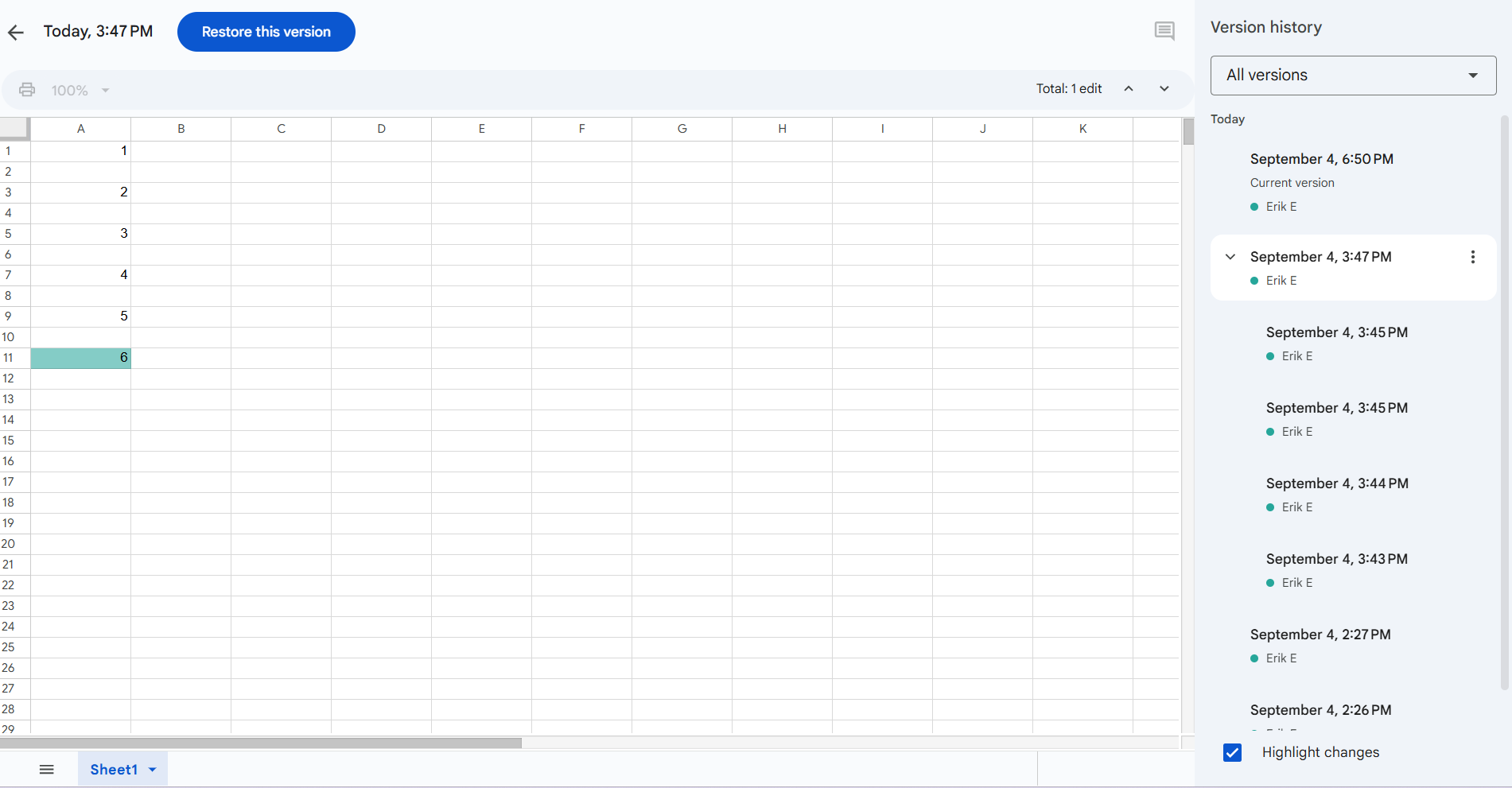
Here are Screenshots to help you understand the Results:
- Various versions of a Google Document file in Google My Drive
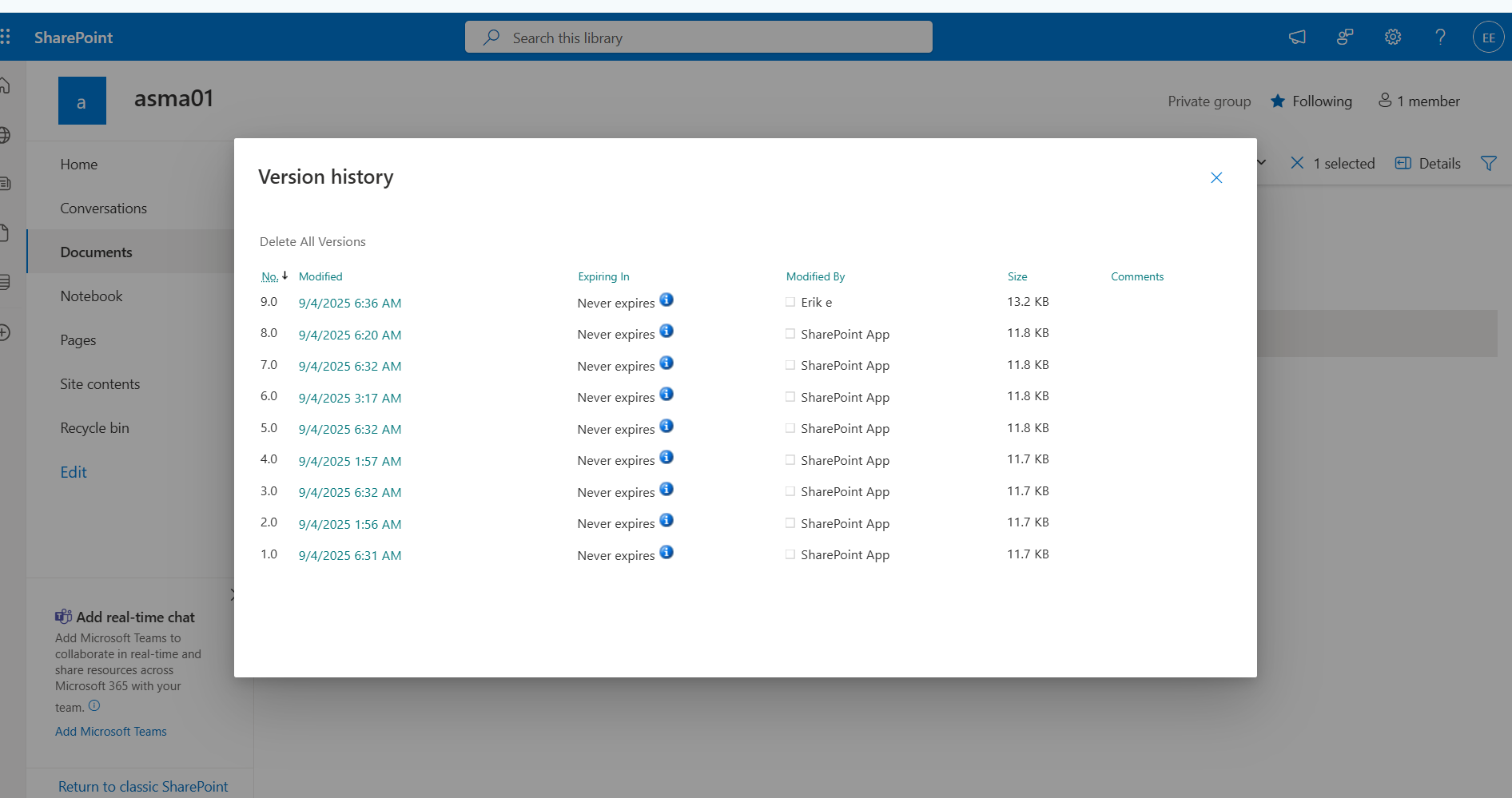
- Every version of Google My Drive is doubled in the destination SharePoint cloud when migrating them with the metadata. Below is the screenshot showing the versions of the file in Google My Drive preserved by our tool.


More on File Versions in Google Workspace
- When uploading a new version of a file owned by someone else, the original owner remains the same.
- To browse earlier versions of a file in Google Workspace, you require the necessary permissions to edit that file.
- If you reach the version history limit in Google Vids, make a new copy of your video to continue your edits.
- You can make a copy and edit earlier versions of a file.
- You can create a named version to track your version history and prevent your versions from being merged.
- You can add up to 40 named versions per document and 15 named versions per spreadsheet.
- If you don’t have permission to edit a file, you can’t view the version history.
Here’s a Video of Our Tool Performing Migration from Google Drive to OneDrive:
Check Out How Our Tool Performs Google Workspace Migration to SharePoint Online:
What Do Customers Say About Us?
Gartner Peer Insights Review rates us with a remarkable rating of 4.7/5. Here is a June 2025 Gartner review by our customer:

The customer appreciated our successful migration to OneDrive and SharePoint Online. The customer complimented us for reasonable pricing and competent teams. We received appreciation for the accuracy and efficiency of migration.
CloudFuze Case Study – Migrating Data & Versions from Google Workspace to Microsoft 365
CloudFuze Migrate helps you transfer data along with metadata securely. You can perform a version-retaining migration when you move data from Google Workspace file to Microsoft 365 with our migration tool.
Contact us for a free and no-obligation demo of our advanced migration tool.
Migrate Seamlessly to Microsoft 365 from Google Workspace with CloudFuze
You can perform a secure and version-retaining migration when you move data from Google Workspace file to Microsoft 365 with CloudFuze.
Contact us for a free and no-obligation demo of our advanced migration tool.
Frequently Asked Questions
1.How to migrate data from Google Workspace to Microsoft 365?
CloudFuze Migrate helps you seamlessly transfer Google Workspace to Microsoft 365 along with necessary metadata. With our advanced migration tool, we help you ensure complete replication and zero data loss.
2. What is cheaper, Google Workspace or Microsoft 365?
The cost depends on your chosen plans and features. You can choose the best platform for your enterprise based on your business needs. Consider critical factors like your business size and scope of business before choosing the cloud platform.
3. What is the best way to migrate from Google Drive to SharePoint?
The best way to migrate from Google Drive to SharePoint is to choose an advanced migration tool. Your chosen tool should seamlessly transfer both data and metadata such as timestamps, hyperlinks, etc. CloudFuze Migrate is one of the best tools to migrate from Google Drive to SharePoint.
4. Can I migrate Google Docs to Office 365?
Yes, you can migrate Google Docs to Office 365 using a reliable migration tool. CloudFuze Migrate helps you migrate Google Documents, Google Sheets, and Google Slides to the new Office 365 platform.



Leave A Comment