
Google Drive Not Syncing? Solve Them in Minutes
If your Google Drive is not syncing, it could affect productivity, especially for remote teams and businesses. However, most Google Drive sync issues can be resolved in minutes with the right troubleshooting techniques.
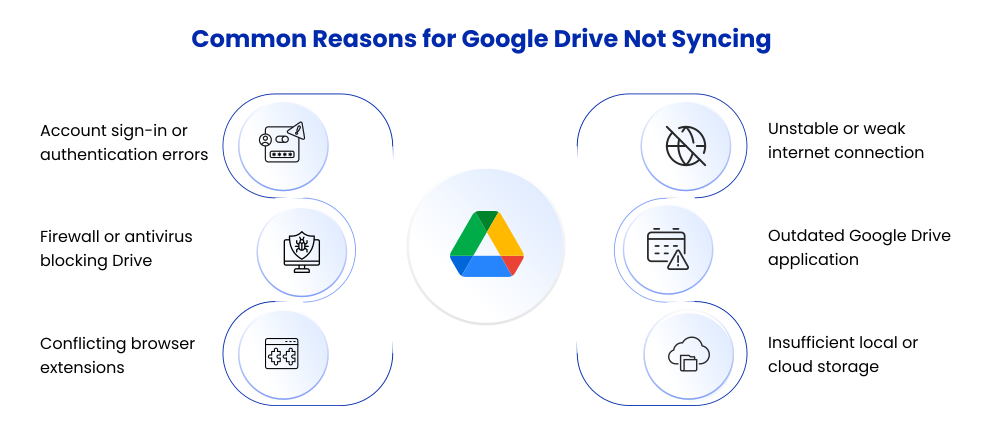
In this guide, we will walk you through the most common reasons for Google Drive sync issues and how to resolve them.
Key Takeaways:
8 Quick Solutions to Fix Google Drive Sync Issues
1. Check Internet Connectivity
Make sure your internet connectivity is working properly. Even a short internet disconnection can lead to a sync failure.
2. Restart Google Drive for Desktop
Quit the application and then restart it. Sometimes, a simple restart can fix sync problems.
3. Pause and Resume Sync
Click the Drive icon in your system tray, then “Pause syncing”. Now wait for 10 seconds and then “Resume syncing”.
4. Check Storage Space
If your cloud storage space is full, files won’t sync. Check storage space availability in Google Drive settings. Also, check if your local system drive has enough free space.
5. Reconnect Your Account
Quit Drive for Desktop and then log back in. Problems with the authentication token can lead to silent sync errors.
6. Update the Application
Your Google Drive client might be outdated and hence not syncing properly. So, download the latest version of Google Drive for Desktop.
7. Check Firewall and Antivirus Settings
Your antivirus software might be blocking Google Drive from accessing network ports. Add Google Drive to the whitelist if necessary.
8. Check Admin Restrictions (For Enterprises)
If you’re in a corporate environment, your IT admin may have disabled sync permissions. So, confirm policies in the Google Workspace Admin Console.
Fix Google Drive Not Syncing on Android, Windows 10, and Mac
1. Fix Google Drive Not Syncing on Android
If Google Drive is not syncing on Android:
- Check Internet Connection – Toggle between Wi-Fi and mobile data.
- Enable Background Data – Settings → Apps → Drive → Mobile Data → Enable background data.
- Turn On Auto-Sync – Settings → Accounts → Enable “Automatically sync data.”
- Clear App Cache – Settings → Apps → Drive → Storage → Clear cache.
- Update the App – Install the latest version from the Play Store.
Low device storage can also prevent files from uploading properly.
2. Fix Google Drive Not Syncing on Windows 10
For Windows 10 users:
- Restart Google Drive for Desktop
- Pause and Resume Sync
- Check Available Storage (Local & Cloud)
- Update Drive for Desktop
- Reconnect Your Account
- Check Firewall Settings
Also ensure that file names do not contain unsupported characters and that files are not exceeding size limits.
If the issue persists, uninstall and reinstall Google Drive for Desktop.
3. Fix Google Drive Not Syncing on Mac
If Google Drive is not syncing on Mac:
- Restart Drive for Desktop
- Check macOS Permissions. Go to System Settings, then Privacy & Security, and then Full Disk Access
- Verify Keychain Access for account credentials
- Update macOS and Drive App
- Free Up Disk Space
Mac security settings may deny Drive access to folders. This results in stealth sync errors.
When Sync Issues Persist
If the issue persists:
- Uninstall and reinstall Google Drive for Desktop
- Check for conflicting backup software
- Check file naming conventions (do not use unsupported characters)
- Check large file upload limits
For IT administrators in enterprise environments, analyzing error logs within the Admin Console can provide insights into more widespread sync errors among users.
Resolve Sync Issues Before They Affect Productivity
Individual users can resolve the problem by restarting the app, re-linking the account, or upgrading the client. Businesses can check admin policies, storage capacity, and security settings to ensure that collaboration is not affected.
Migrate Clouds and Manage SaaS & AI Apps Smoothly with CloudFuze
At CloudFuze, we assist enterprises in migrating data from one platform to another, such as Google Workspace and Microsoft 365, without any issues and with complete integrity.
Not only this, but we also provide enterprises with the ability to manage all SaaS and AI apps from a centralized location, providing them with visibility, control, and automated onboarding/offboarding capabilities for all apps.
Are you ready to make migration and SaaS & AI app management easier? Schedule your free call with our experts today.
Frequently Asked Questions
1. Why is Google Drive not syncing files automatically?
This is usually due to internet connectivity issues, storage capacity, outdated apps, or authentication issues.
2. How do I force Google Drive to sync?
Open Google Drive for Desktop → Pause syncing → Resume syncing. Alternatively, restart the app to start a fresh sync cycle.
3. Does Google Drive stop syncing when storage is full?
Yes. If your cloud storage is full, new files won’t be uploaded or synced until you free up space.
4. Why are some files not syncing in Google Drive?
Files won’t sync if they have unsupported characters, are too large, or if they are restricted by admin policies.



Leave A Comment